【使用 ESXi 的前置作業】
l 安裝 VMWare Workstation (我裝 7.0)
l 在VMWare Workstation 上,新增一個 VM → (120G、3G memory、CPUx2)(並做好相關設定,讓 VM 中可以開啟另一個 VM,以利本次測試)
l VM 上面安裝VMWare ESXi 4.0【192.168.1.132】
l 連線至 http://192.168.1.132 下載 VSphere client
l 在本機安裝 VSphere client,透過 VSphere client 連線至VMWare ESXi 4.0
l 在 VSphere client 上,上傳 .ovf,以建立另一個 SBG VM
l 開啟此 VM,進行下面 SBG 的設定
【Symantec Brightmail Gateway 9.0.1 設定】
開啟 Symantec Brightmail Gateway
【pre-config console】
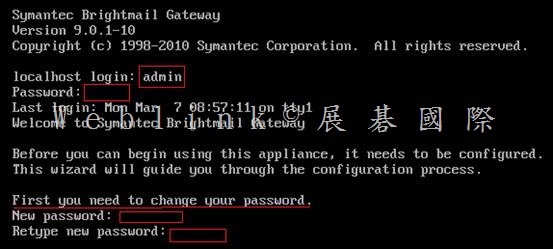
以【預設帳號:admin】【預設密碼:symantec】登入 pre-config console
系統會立即請你設定新密碼
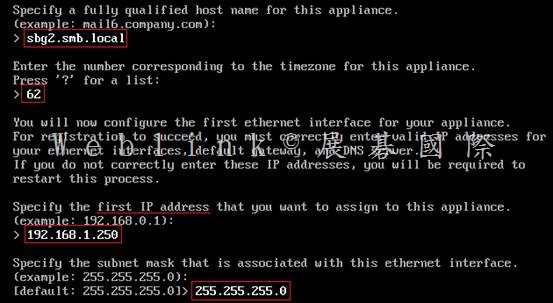
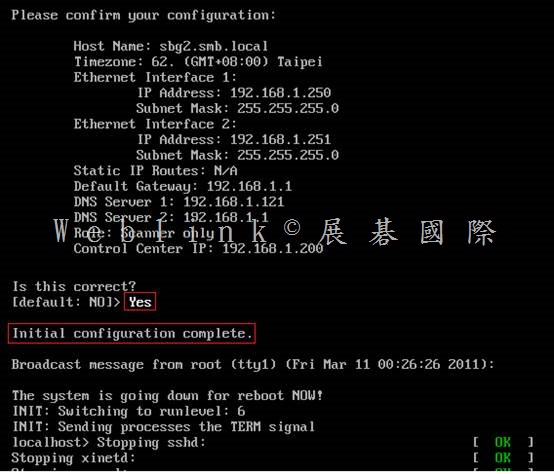
設定 時區 【62】
設定 Symantec Brightmail Gateway FQDN 【sbg2.smb.local】
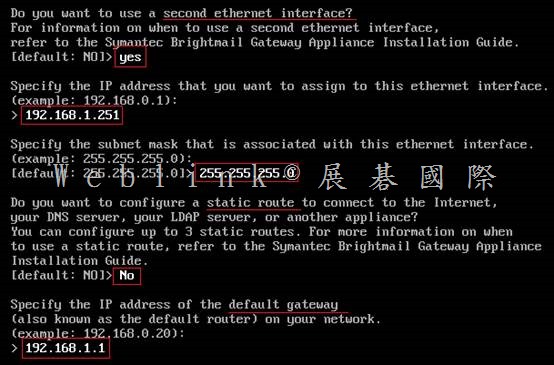
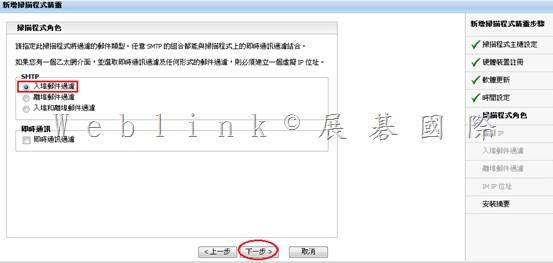
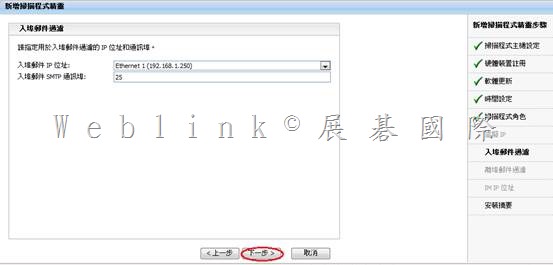
設定 ip、子網路遮罩【192.168.1.250、255.255.255.0】
設定 static route【略】
設定 gateway【192.168.1.1】
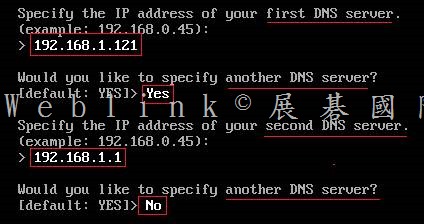
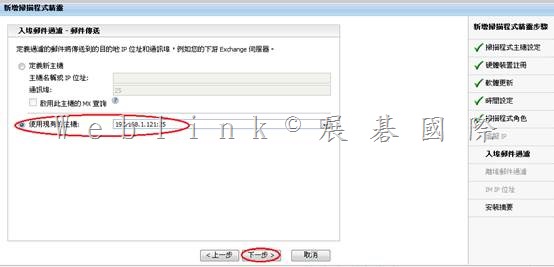
設定 DNS【192.168.1.121】
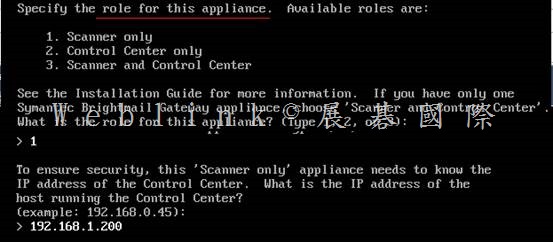
第二台 SBG 僅選擇 1.Scanner only
請先指定 Control Center
【Web console】
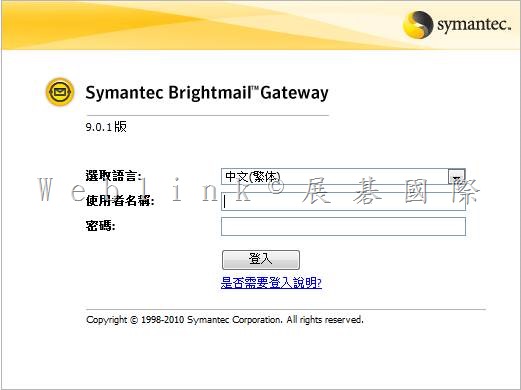
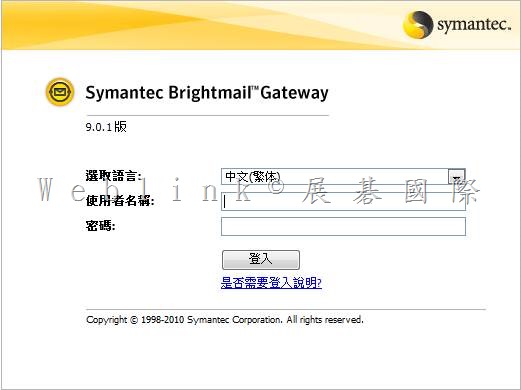
登入Symantec Brightmail Gateway web console
https://ip (https://192.168.1.200)
帳號:admin
密碼:
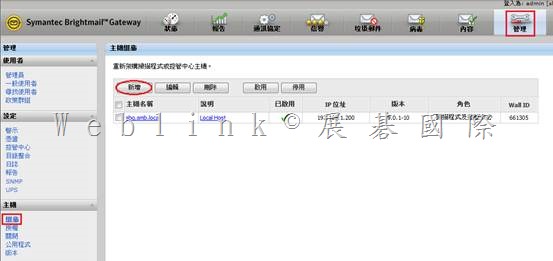
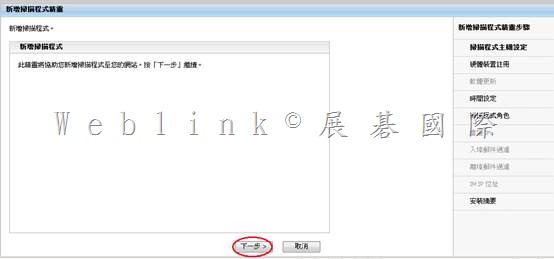
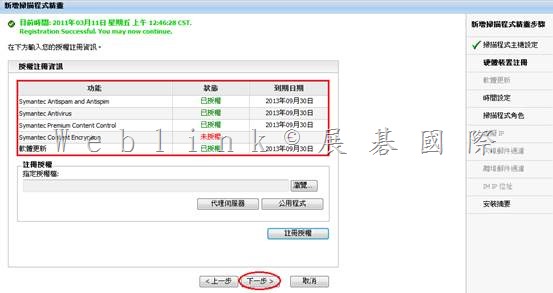
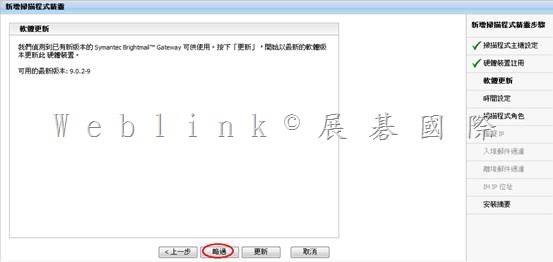
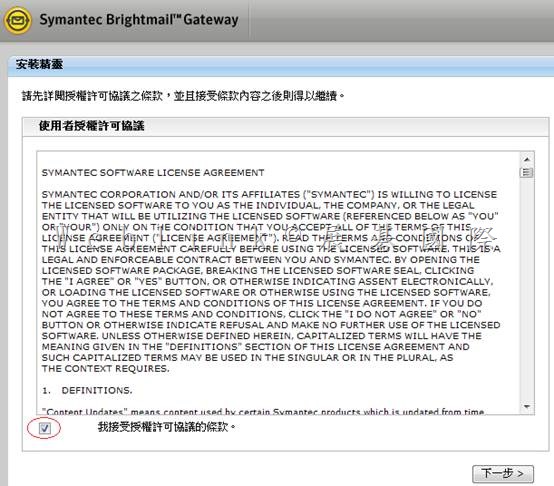
第一次登入 SBG pre-config console時,密碼是 symantec,不過會立即請你設定新密碼
之後就是以此新密碼來登入 web console
|
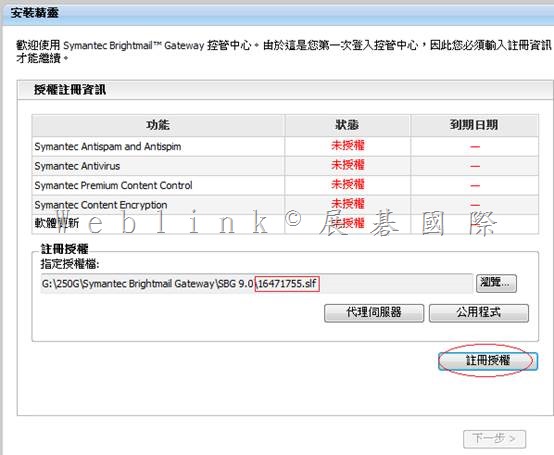
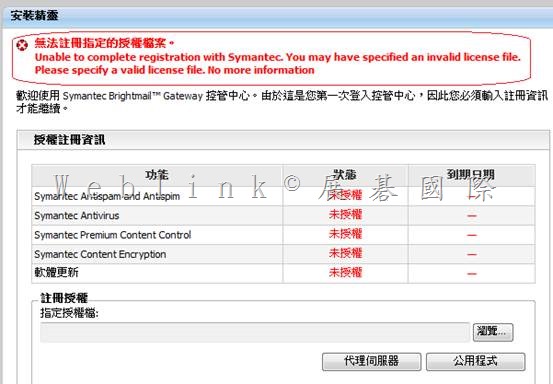
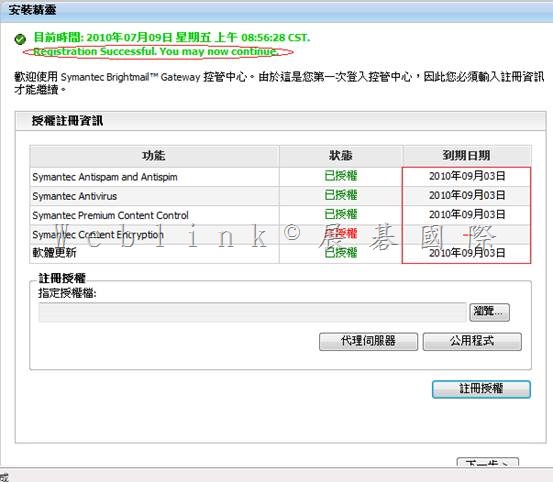
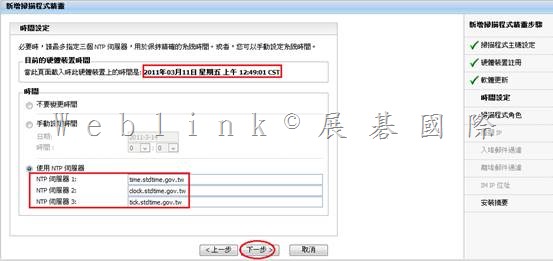
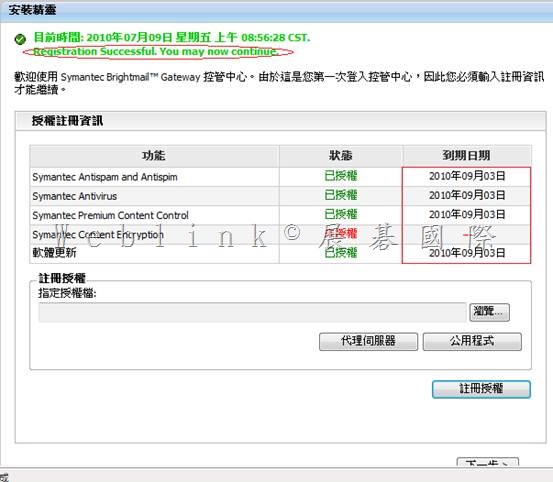
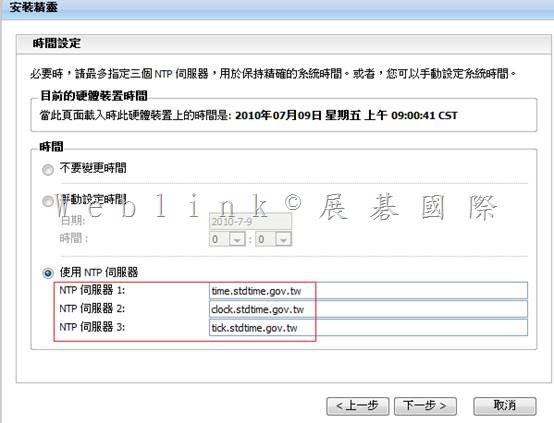
需先取得的資訊 VMWare ESXi 4.0 (IP與使用 VSphere登入ESXi 的帳號 [root]、密碼) SBG FQDN IPx2、Subnet Mask、Gateway、DNS SBG license file (.slf) Notification Mail Address NTP Mail Domain、Forward Mail server or IronPort IP ======================================================= http://www.stdtime.gov.tw/chinese/bulletin/NTP%20promo.txt time.stdtime.gov.tw clock.stdtime.gov.tw tick.stdtime.gov.tw tock.stdtime.gov.tw watch.stdtime.gov.tw |
http://www.stdtime.gov.tw/chinese/bulletin/NTP%20promo.txt
time.stdtime.gov.tw
clock.stdtime.gov.tw
tick.stdtime.gov.tw
tock.stdtime.gov.tw
watch.stdtime.gov.tw
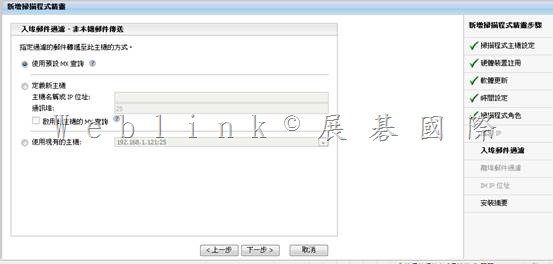
|
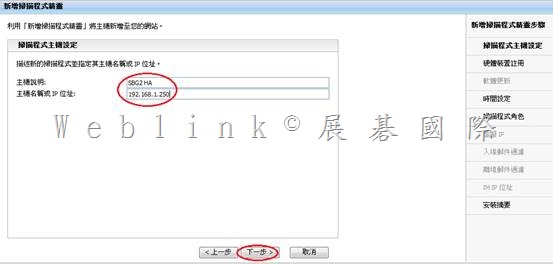
主機說明: SBG2 HA |
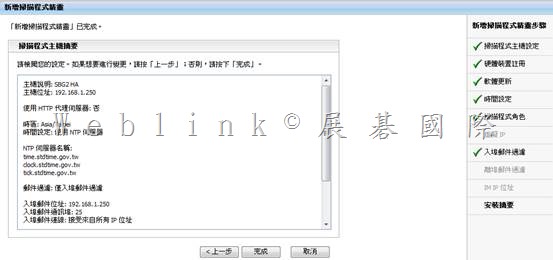
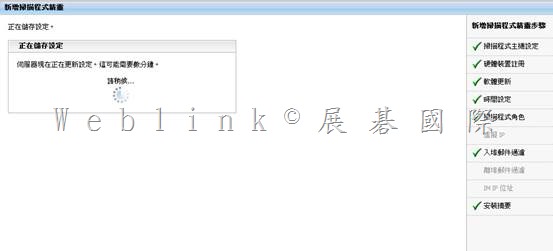
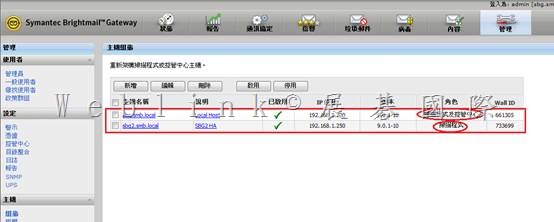
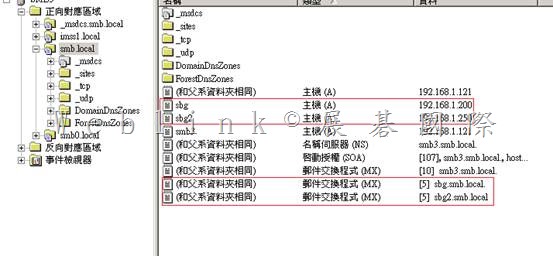
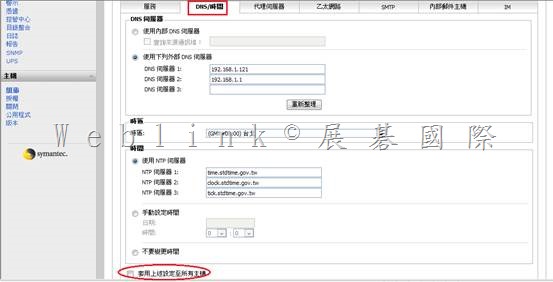
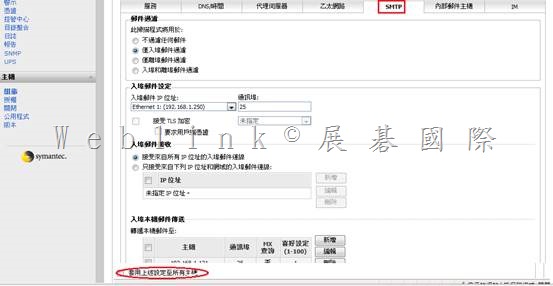
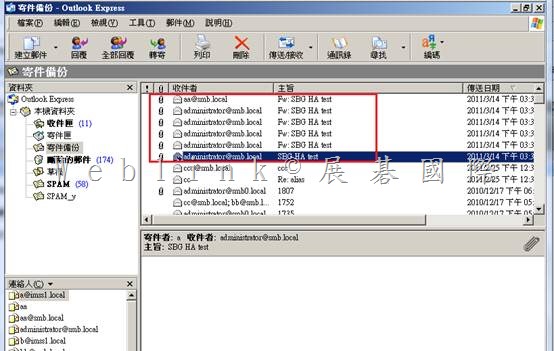
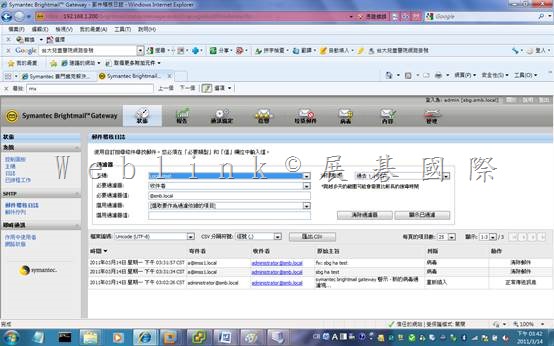
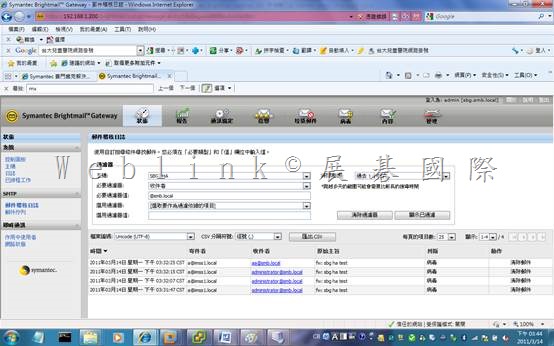
=================================================================
略
略
略
略
略
略
略
略
略
略
略
略
略
略
略
略
略
略
略
略
略
略
略
略
略
略
略
略
略
略
略
略
略
略
略
略
略
略
略
略
略
x
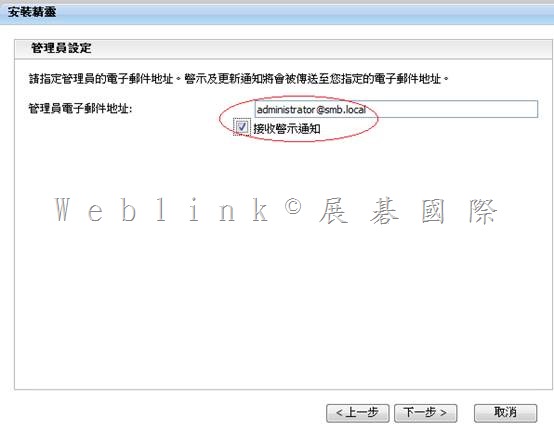
http://www.stdtime.gov.tw/chinese/bulletin/NTP%20promo.txt
time.stdtime.gov.tw
clock.stdtime.gov.tw
tick.stdtime.gov.tw
tock.stdtime.gov.tw
watch.stdtime.gov.tw
x
x
x
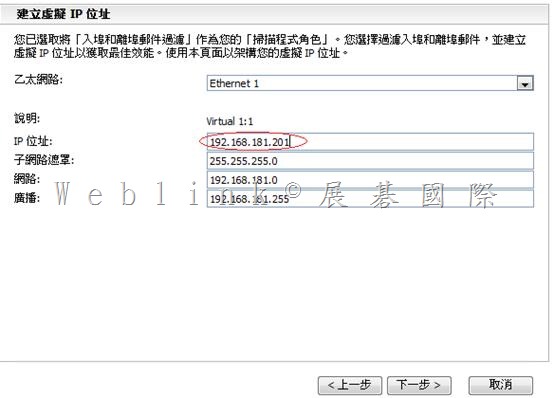
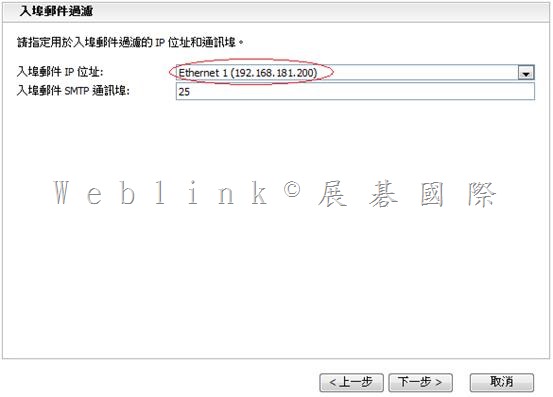
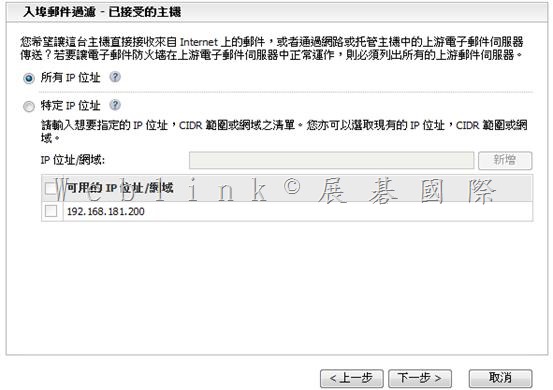
x
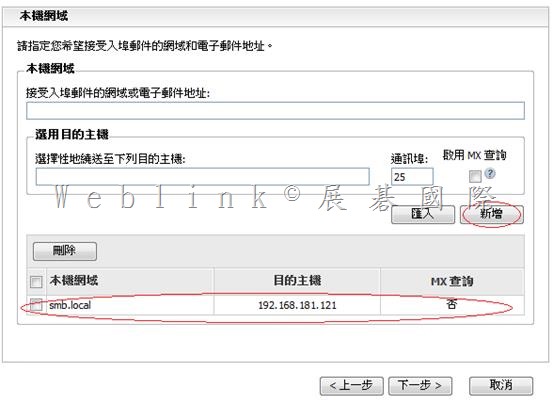
x
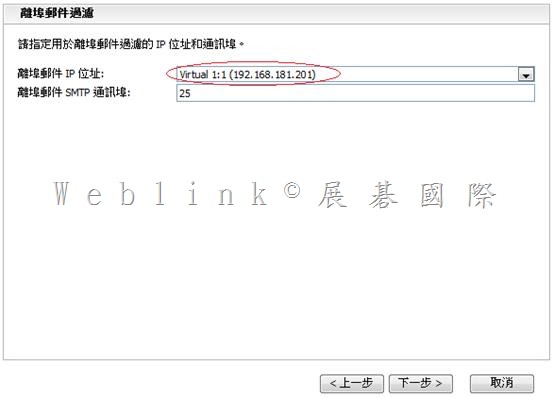
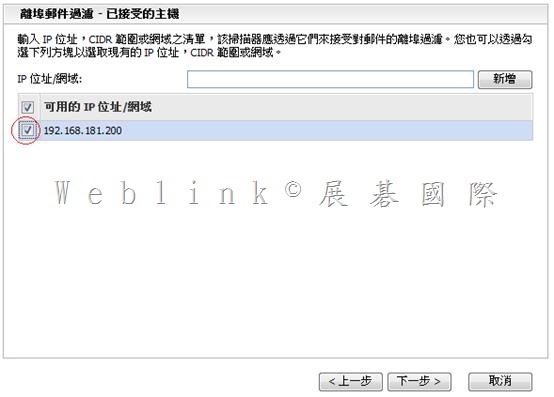
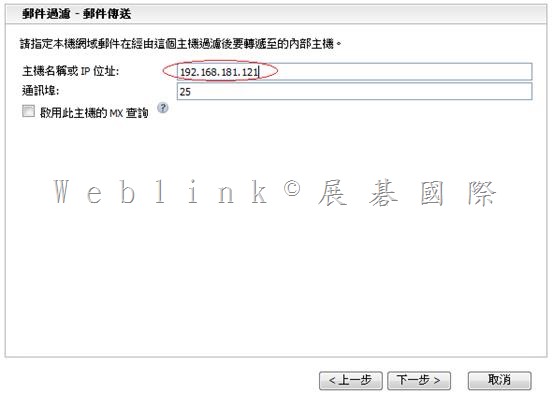
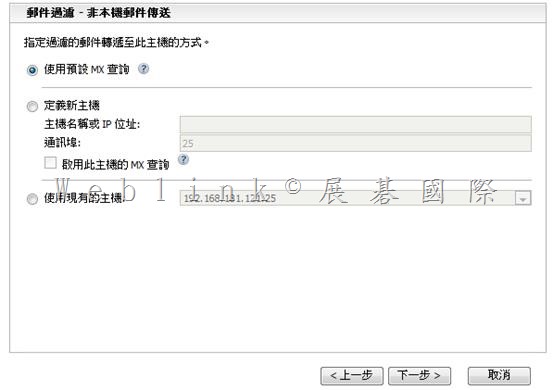
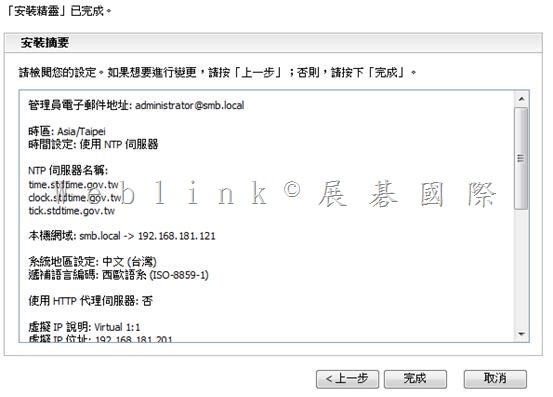
|
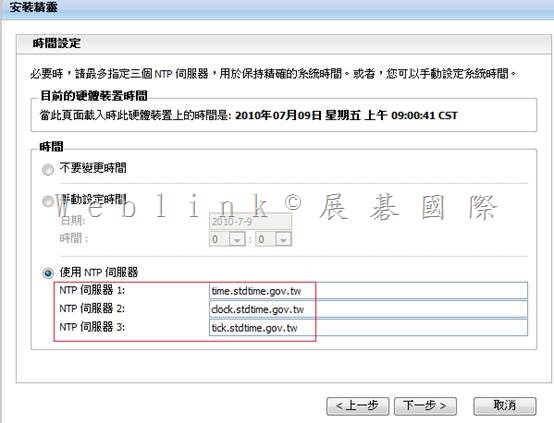
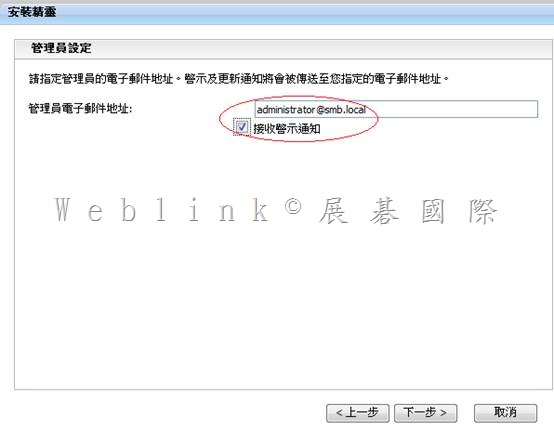
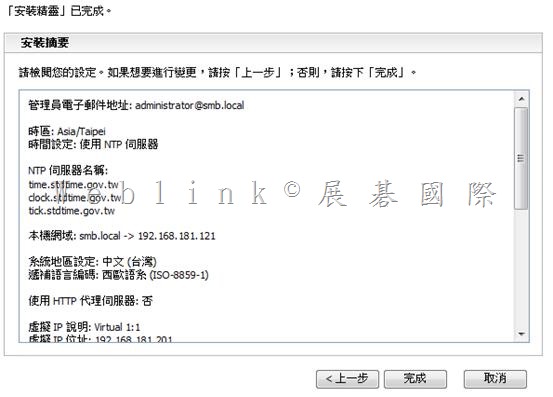
管理員電子郵件地址: administrator@smb.local |
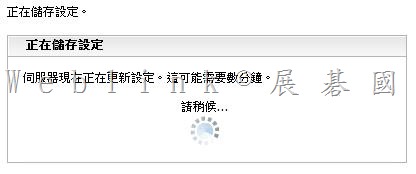
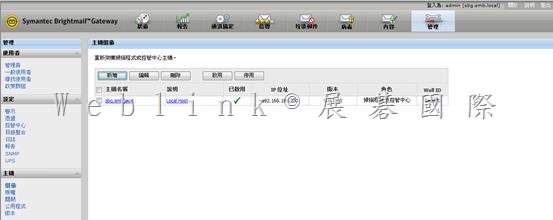
![image_thumb[2]](http://w3c.weblink.com.tw/symantec/wp-content/uploads/sites/4/2014/12/image_thumb22.png "image_thumb[2]")
![clip_image002[4]](http://w3c.weblink.com.tw/symantec/wp-content/uploads/sites/4/2014/12/clip_image00241.jpg "clip_image002[4]")
![clip_image004[4]](http://w3c.weblink.com.tw/symantec/wp-content/uploads/sites/4/2014/12/clip_image00441.jpg "clip_image004[4]")
![clip_image006[4]](http://w3c.weblink.com.tw/symantec/wp-content/uploads/sites/4/2014/12/clip_image00641.jpg "clip_image006[4]")
![clip_image008[4]](http://w3c.weblink.com.tw/symantec/wp-content/uploads/sites/4/2014/12/clip_image00841.jpg "clip_image008[4]")
![clip_image010[4]](http://w3c.weblink.com.tw/symantec/wp-content/uploads/sites/4/2014/12/clip_image01041.jpg "clip_image010[4]")
![clip_image012[4]](http://w3c.weblink.com.tw/symantec/wp-content/uploads/sites/4/2014/12/clip_image01241.jpg "clip_image012[4]")
![clip_image014[4]](http://w3c.weblink.com.tw/symantec/wp-content/uploads/sites/4/2014/12/clip_image01441.jpg "clip_image014[4]")
![clip_image016[4]](http://w3c.weblink.com.tw/symantec/wp-content/uploads/sites/4/2014/12/clip_image01641.jpg "clip_image016[4]")
![clip_image018[4]](http://w3c.weblink.com.tw/symantec/wp-content/uploads/sites/4/2014/12/clip_image01841.jpg "clip_image018[4]")
![clip_image022[4]](http://w3c.weblink.com.tw/symantec/wp-content/uploads/sites/4/2014/12/clip_image02241.jpg "clip_image022[4]")
![clip_image024[4]](http://w3c.weblink.com.tw/symantec/wp-content/uploads/sites/4/2014/12/clip_image02441.jpg "clip_image024[4]")
![clip_image026[4]](http://w3c.weblink.com.tw/symantec/wp-content/uploads/sites/4/2014/12/clip_image02641.jpg "clip_image026[4]")
![clip_image028[4]](http://w3c.weblink.com.tw/symantec/wp-content/uploads/sites/4/2014/12/clip_image02841.jpg "clip_image028[4]")
![clip_image030[4]](http://w3c.weblink.com.tw/symantec/wp-content/uploads/sites/4/2014/12/clip_image03041.jpg "clip_image030[4]")
![clip_image002[4]](http://w3c.weblink.com.tw/symantec/wp-content/uploads/sites/4/2014/12/clip_image0024.jpg "clip_image002[4]")
![clip_image004[4]](http://w3c.weblink.com.tw/symantec/wp-content/uploads/sites/4/2014/12/clip_image0044.jpg "clip_image004[4]")
![clip_image006[4]](http://w3c.weblink.com.tw/symantec/wp-content/uploads/sites/4/2014/12/clip_image0064.jpg "clip_image006[4]")
![clip_image008[4]](http://w3c.weblink.com.tw/symantec/wp-content/uploads/sites/4/2014/12/clip_image0084.jpg "clip_image008[4]")
![clip_image010[4]](http://w3c.weblink.com.tw/symantec/wp-content/uploads/sites/4/2014/12/clip_image0104.jpg "clip_image010[4]")
![clip_image012[4]](http://w3c.weblink.com.tw/symantec/wp-content/uploads/sites/4/2014/12/clip_image0124.jpg "clip_image012[4]")
![clip_image014[4]](http://w3c.weblink.com.tw/symantec/wp-content/uploads/sites/4/2014/12/clip_image0144.jpg "clip_image014[4]")
![clip_image016[4]](http://w3c.weblink.com.tw/symantec/wp-content/uploads/sites/4/2014/12/clip_image0164.jpg "clip_image016[4]")
![clip_image018[4]](http://w3c.weblink.com.tw/symantec/wp-content/uploads/sites/4/2014/12/clip_image0184.jpg "clip_image018[4]")
![clip_image020[4]](http://w3c.weblink.com.tw/symantec/wp-content/uploads/sites/4/2014/12/clip_image0204.jpg "clip_image020[4]")
![clip_image022[4]](http://w3c.weblink.com.tw/symantec/wp-content/uploads/sites/4/2014/12/clip_image0224.jpg "clip_image022[4]")
![clip_image024[4]](http://w3c.weblink.com.tw/symantec/wp-content/uploads/sites/4/2014/12/clip_image0244.jpg "clip_image024[4]")
![clip_image026[4]](http://w3c.weblink.com.tw/symantec/wp-content/uploads/sites/4/2014/12/clip_image0264.jpg "clip_image026[4]")
![clip_image028[4]](http://w3c.weblink.com.tw/symantec/wp-content/uploads/sites/4/2014/12/clip_image0284.jpg "clip_image028[4]")
![clip_image030[4]](http://w3c.weblink.com.tw/symantec/wp-content/uploads/sites/4/2014/12/clip_image0304.jpg "clip_image030[4]")
![clip_image032[4]](http://w3c.weblink.com.tw/symantec/wp-content/uploads/sites/4/2014/12/clip_image0324.jpg "clip_image032[4]")
![clip_image034[4]](http://w3c.weblink.com.tw/symantec/wp-content/uploads/sites/4/2014/12/clip_image0344.jpg "clip_image034[4]")
![clip_image036[4]](http://w3c.weblink.com.tw/symantec/wp-content/uploads/sites/4/2014/12/clip_image0364.jpg "clip_image036[4]")
![clip_image038[4]](http://w3c.weblink.com.tw/symantec/wp-content/uploads/sites/4/2014/12/clip_image0384.jpg "clip_image038[4]")
![clip_image040[4]](http://w3c.weblink.com.tw/symantec/wp-content/uploads/sites/4/2014/12/clip_image0404.jpg "clip_image040[4]")
![clip_image042[4]](http://w3c.weblink.com.tw/symantec/wp-content/uploads/sites/4/2014/12/clip_image0424.jpg "clip_image042[4]")
![clip_image044[4]](http://w3c.weblink.com.tw/symantec/wp-content/uploads/sites/4/2014/12/clip_image0444.jpg "clip_image044[4]")
![clip_image046[4]](http://w3c.weblink.com.tw/symantec/wp-content/uploads/sites/4/2014/12/clip_image0464.jpg "clip_image046[4]")