分類: Uncategorized

  • SEP 用戶端一直產生ccSvcHst-*.dmp檔案,每一個都1點多GB,一天可能有1個以上

    C:\ProgramData\Symantec\Symantec Endpoint Protection\CurrentVersion\Data\Install\Logs下,
    會有ccSvcHst-*.dmp檔案產生,每一個都1點多GB,一天可能有1個以上,這個.dmp檔到底是那個設定所產生的,即便我把logs目錄設定唯讀,還是會寫入。而且我還刪不掉。

    这个问题是RU5版本的已知问题

    Title
    CCSvcHst.exe generates multiple process dumps in ProgramData exhausting disk space 
     
    Issue

    CCSvcHst.exe appears to generating exceptions forcing a process dump in C:\ProgramData\Symantec\Symantec Endpoint Protection\CurrentVersion\Data\Install\Logs during a scan. Each dump is over 1GB and free disk space is quickly exhausted.
     
    Environment

    Windows 2012 R2
     
     
    Cause

    Certain archive files appear to be triggering the issue. Issue has been with some large archive files with older file dates (4+ years) in .zipx and .blb format.
     
    Solution

    Symantec is aware of the issue and is researching a solution.

    Workaround:

    Make an exception for the file extension or directory which has been identified through debugging.

    Or…
    1.Disable Tamper Protection.
    2.Open a Command Prompt window.
    3.del “C:\ProgramData\Symantec\Symantec Endpoint Protection\12.1.5337.5000.105\Data\Install\Logs\*.dmp”

    or

    del C:\ProgramData\Symantec\Symantec Endpoint Protection\CurrentVersion\Data\Install\Logs\*.dmp

    4.Using regedit.exe, set the following values to 0 (zero):
    HKLM\SOFTWARE(\Wow6432Node)\Symantec\Symantec Endpoint Protection\CurrentVersion\Common Client\Debug\CrashHandler\DumpOn*
    5.Re-enable Tamper Protection.
    6.Open a Command Prompt window.
    7.cd “C:\Program Files (x86)\Symantec\Symantec Endpoint Protection\12.1.5337.5000.105\Bin”
    8.smc -stop
    9 .smc –start

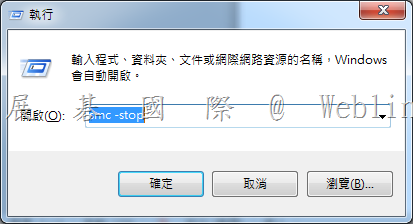
    【6 7 8 9 可如下執行】

    請按鍵盤上【Windows 鍵】+【R鍵】→會跳出【執行】視窗

    ※ XP 請按【開始】→【執行】

    在出現的視窗中,輸入【smc –stop】【smc –start】,並按下【確定】
    clip_image005


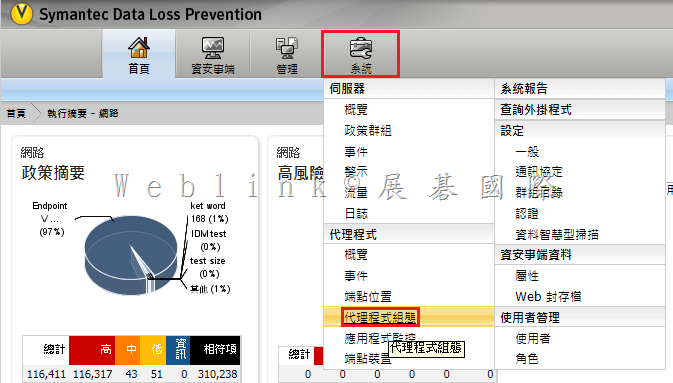
  • 如何設定 DLP Endpoint Prevent 可以阻擋使用者將個資複製至共用資料夾並在用戶端電腦上出現警告視窗

    1.    請設定【代理程式組態】
    image

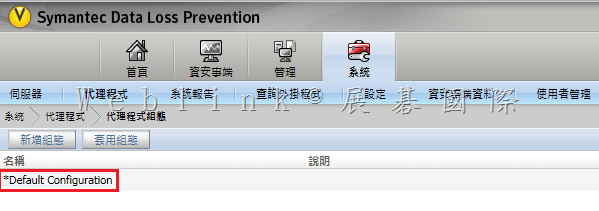
    2.    雙按【Default Configuration】

    image

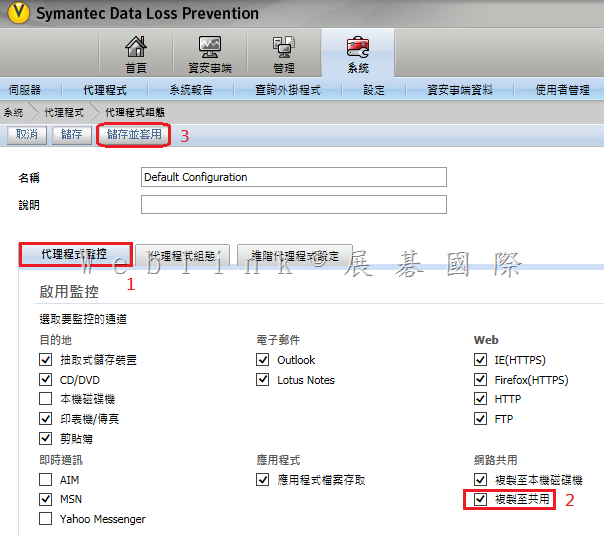
    3.    勾選【複製至共用】

    image

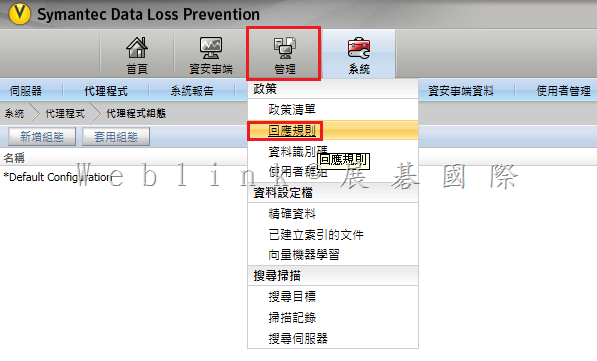
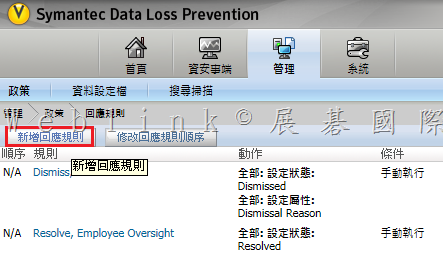
    4.    請新增【回應規則】

    image

    5.    按下【新增回應規則】

    image

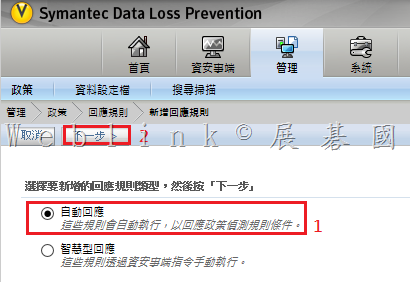
    6.    選擇【自動回應】

    image

    7.      
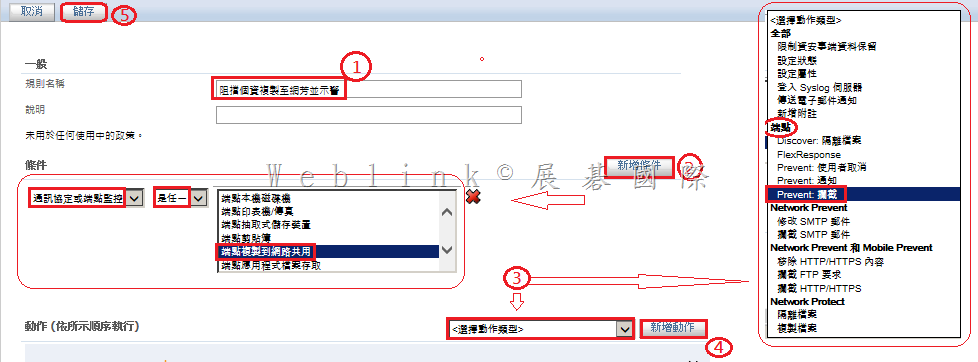
    (1)    輸入【規則名稱】
    (2)    新增條件 :按下【新增條件】鈕 → 選擇【通訊協定或端點監控】→【是任一】→【端點複製到網路共用】
    (3)    新增動作 :選擇動作類型為【 (端點) Prevent 攔截 】→按下【新增動作】鈕
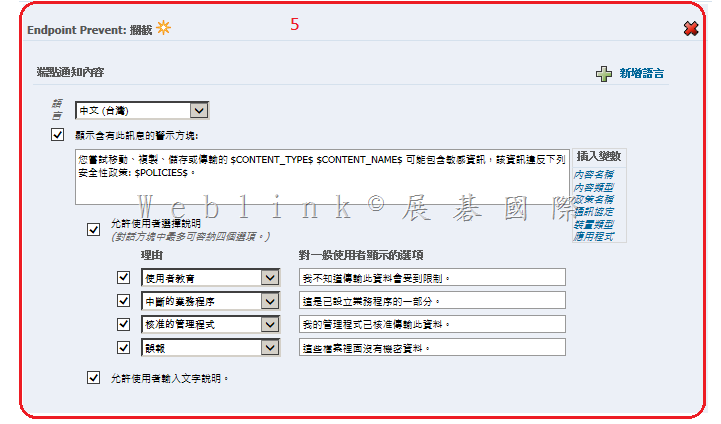
    (4)    視需要修改【端點通知內容】
    (5)    記得按下【儲存】鈕

    image

    image

    8.    建立好的【新增回應規則】

    image

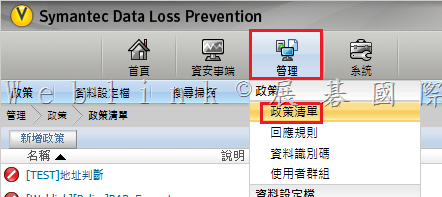
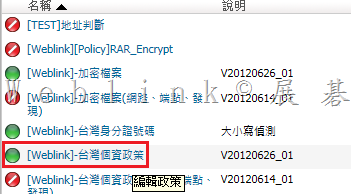
    9.    找到既有的個資政策

    image

    10.    雙按該既有的個資政策

    image


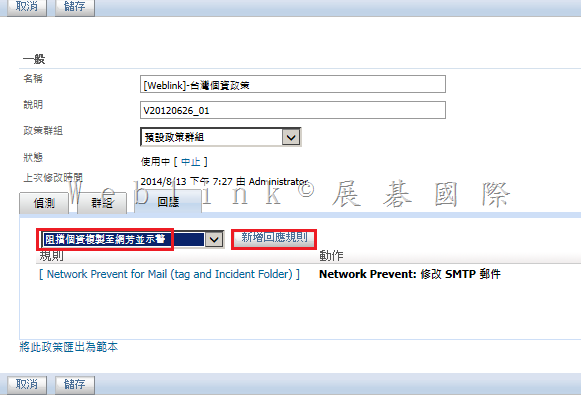
    11.    點按【回應】頁籤 → 在下拉選單選擇【先前建立的回應規則 (阻擋個資複製網芳並示警) 】→ 按下【新增回應規則】鈕

    image


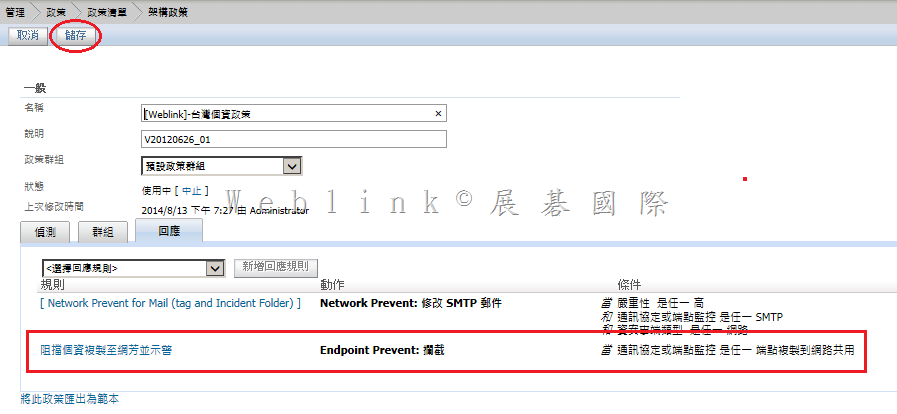
    12.    記得按下【儲存】鈕

    image

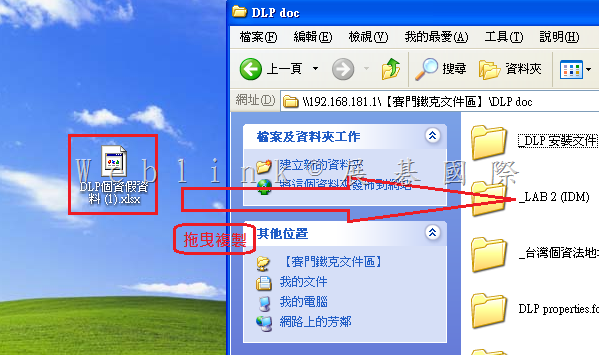
    13.    在用戶端拖曳個資檔案至分享資料夾

    image

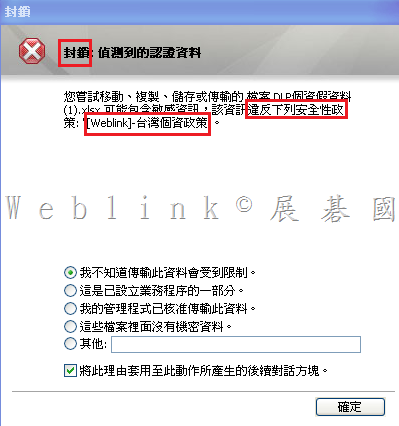
    14.    您可以發現該動作遭封鎖並示警

    image

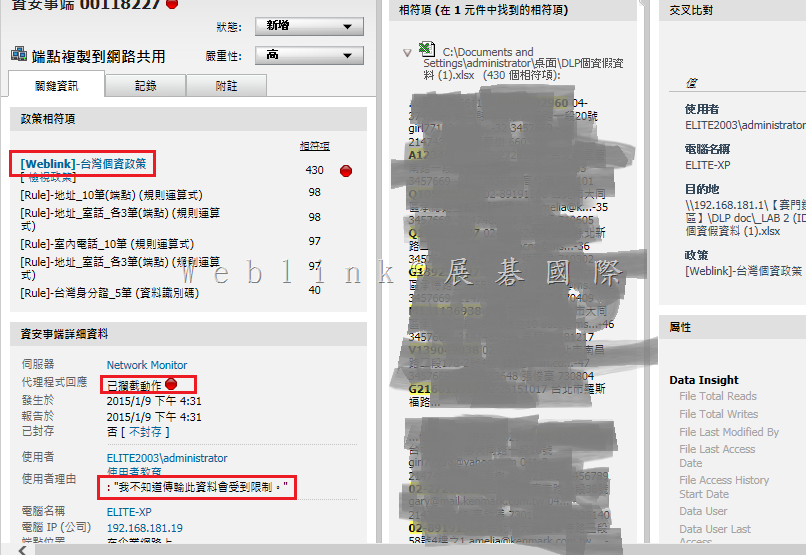
    15.    資安事件中也能找到相對應的紀錄

    image

  • ZyWALL USG 設定橋接(Bridge)

    本文中,我們以USG60為例來作橋接(Bridge)設定的說明.

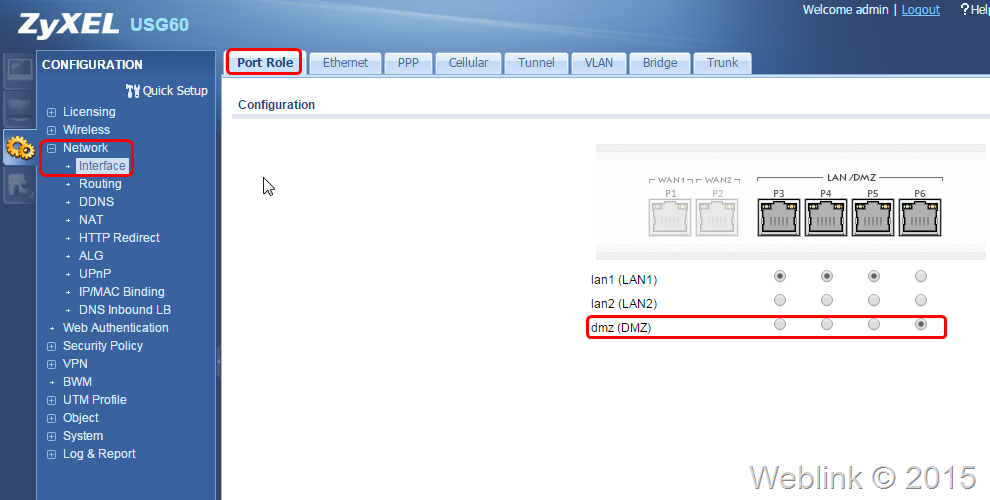
    首先請到界面頁裡確認所要設定的Port Role(連接埠角色),這裡我們將把DMZ與WAN2進行橋接好讓DMZ區的伺服器能直接以實體IP連外,後續也就必須把伺服器接到USG60的P6埠,如下圖所示.

    Snap1_fix


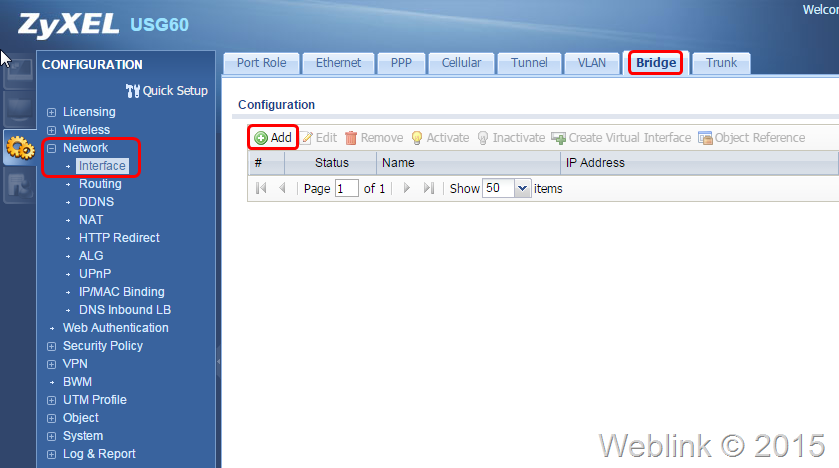
    步驟一:新增橋接界面.如下圖所示,按選Interface裡的Bridge頁,再點選裡頭的add鈕.

    Snap2_fix


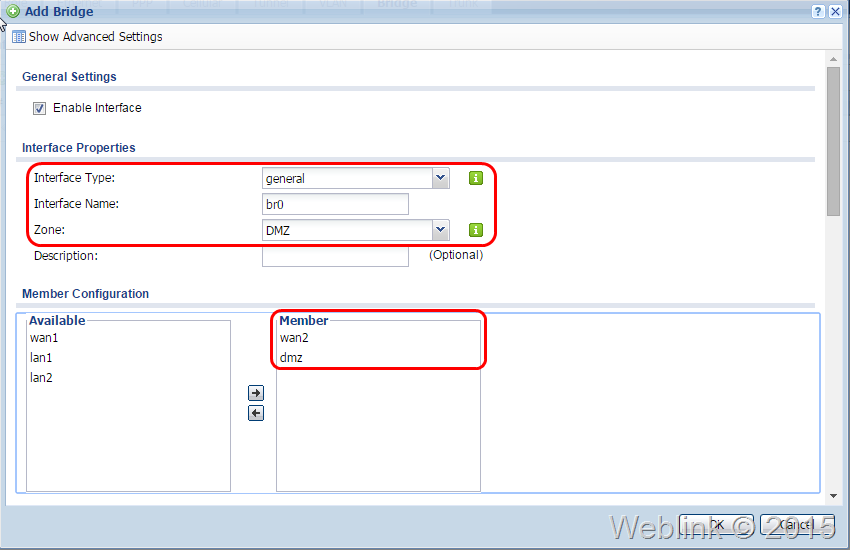
    在新增設定的畫面中,設定界面型式(有一般、內部、外部三種選項,這裡我們先選general,文章最後我們會簡單說明其中的差異),輸入名稱(簡單輸入如br0),選定區域(本例中設為DMZ);將所要的成員選入(本例要將WAN2與DMZ設成橋接).

    Snap31


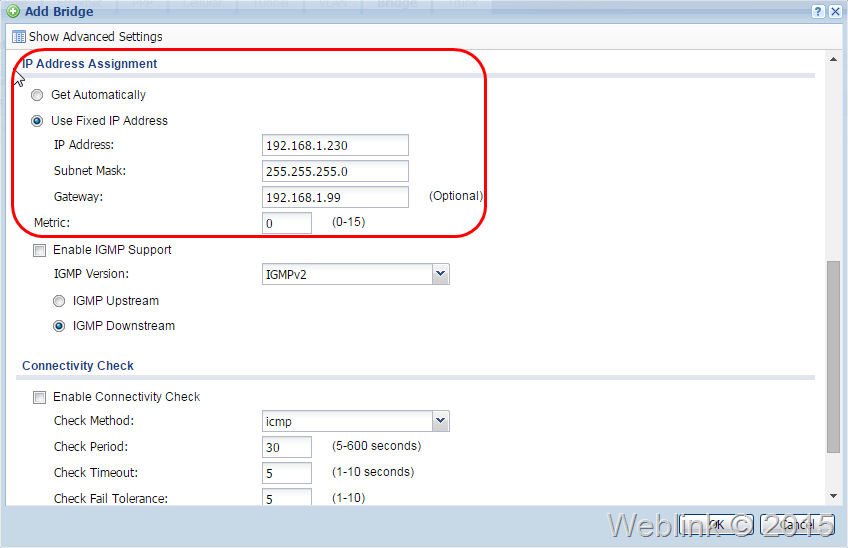
    將捲軸下拉依需要設定如IP、Submask、Gateway等設定值,完成後按下OK.

    Snap32


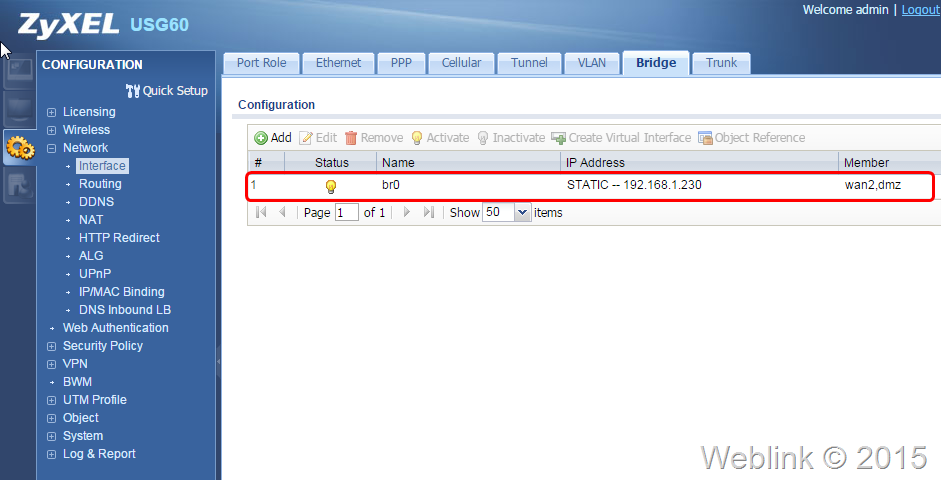
    若所設定的IP與原先LAN1、LAN2或DMZ等界面衝突,會出現錯誤訊息;可以在設定前先更改會衝突的IP即可.設定完成回到Bridge頁面會看到已新增br0這組橋接設定,如下圖.

    Snap5_fix


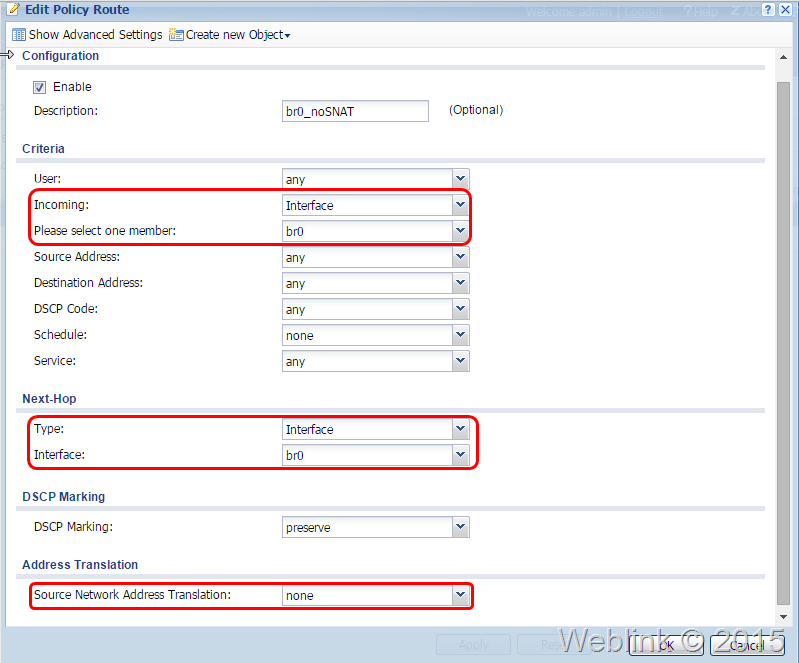
    步驟二:設定Policy Route.在Routing選單的Policy Route頁面中,點選add鈕.新增如下圖的設定,來源為Interface br0,下一個躍點Interface br0,來源位址轉譯選擇none(不轉址),按OK.

    Snap71_fix


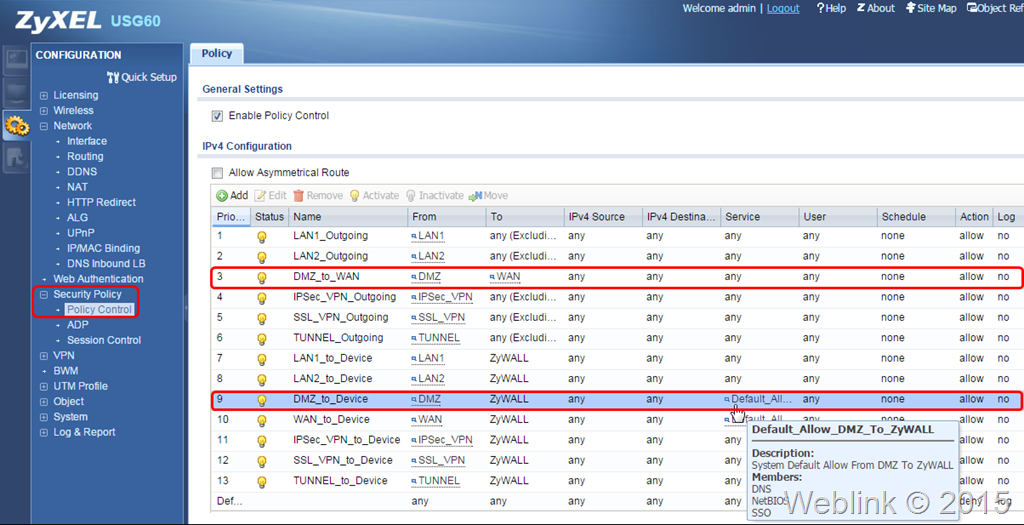
    原則上到此橋接界面已設定完成;可以試著將Server連到P6埠來作連線檢查.但也有可能需要調整firewall Policy(新版USG更名為Policy Control).以本例來說br0屬於DMZ Zone,原預設DMZ的Firewall Policy有兩筆:一是DMZ to WAN是allow,所以現在br0的Server可以正常連外網;另一筆是DMZ to Device,目前提供DNS、NetBIOS、SSO三項服務(如下圖),所以br0的Server無法連到ZyWALL進行管理.您可以視需要來調整或新增這些Policy Control,但要留意相關的安全性!!

    Snap7_fix


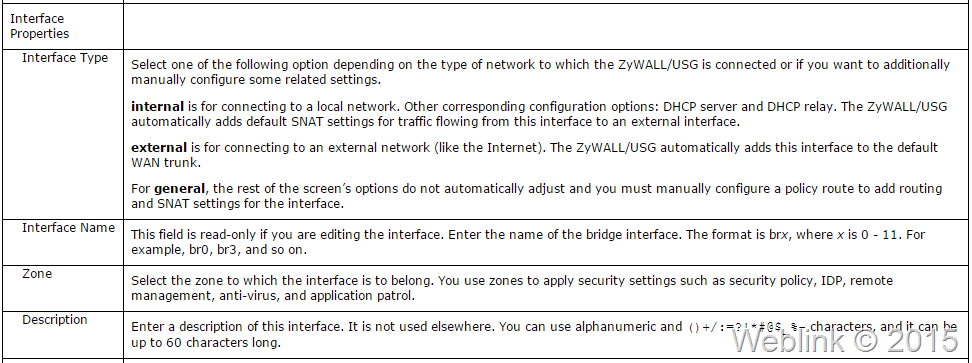
    橋接界面型式說明:步驟一我們在設定橋接界面時,共有三種型式可選,其中的差異可以參考以下圖表(擷取自USG線上說明).若設為Internal,即為內網界面,可以選用DHCP的相關功能,ZyWALL也會自動套用相關的SNAT選項;若設為External,即是外網界面(Internet),會自動將此橋接界面加入預設的WAN trunk;若選用general,則相關選項皆需手動設定 ,如本文中的設定流程.

    Snap10

  • Syamatec DCS MSSQL 帳號權限說明

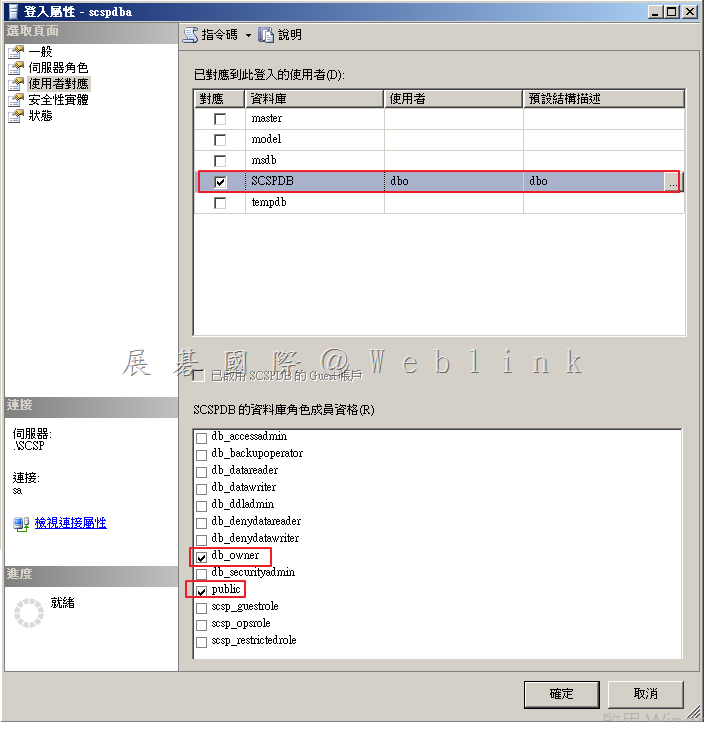
    SCSPDBA

    (此帳號為安裝系統時需輸入之 SDCS Database Owner,可修改為其他名稱)

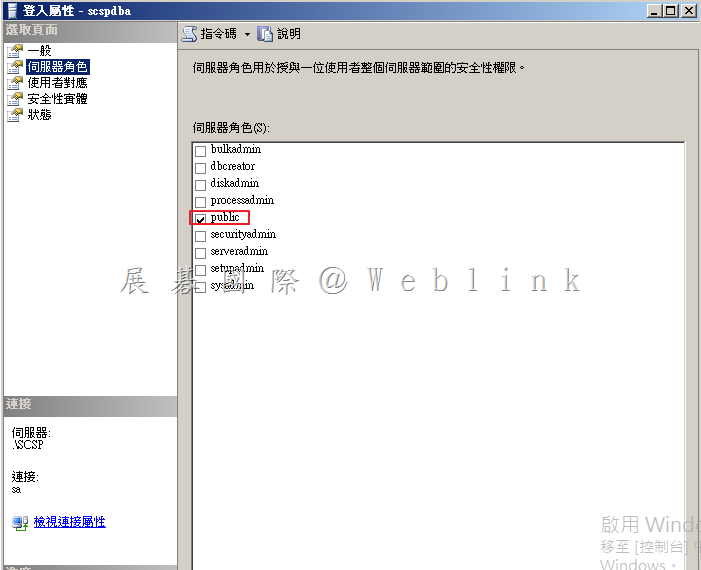
    這是用於管理實際 SDCS 資料庫所有者帳戶。此帳戶具有「Owner」權限,並可以操縱在 SDCSDB 所有的結構和數據,只能夠控制 SDCS 資料庫。只有初始安裝和升級需要使用。

    伺服器角色:

    image

    使用者對應:

    image


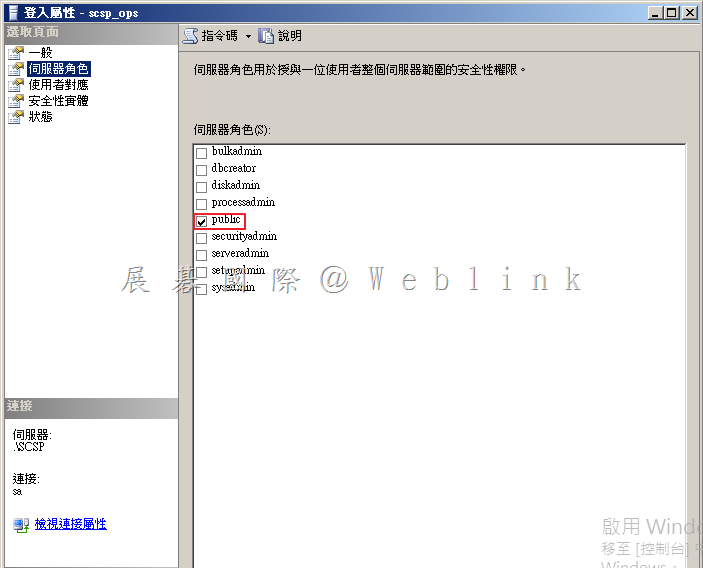
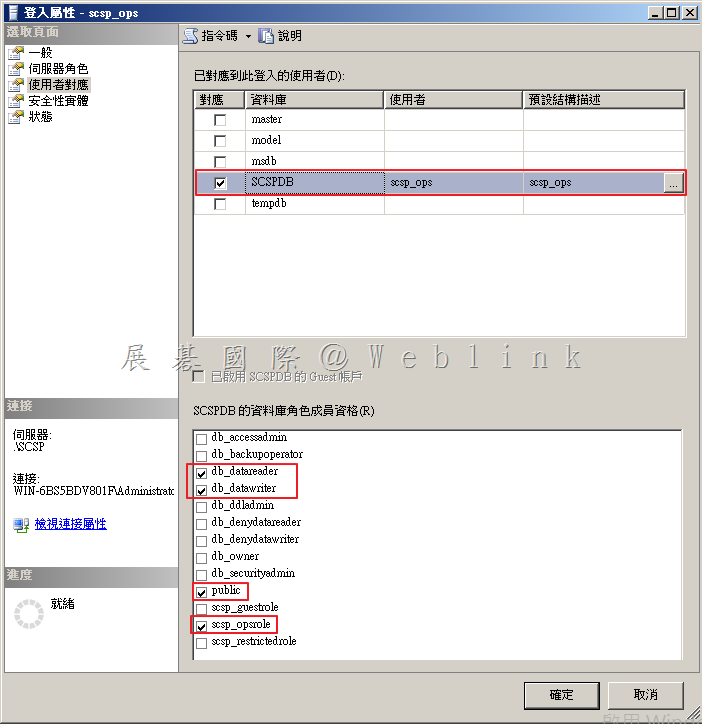
    SCSP_OPS

    (此帳號為安裝系統時自動建立)

    這是 SDCS 安裝 Tomcat 所使用的 MS SQL Server 資料庫的帳戶(自動產生密碼)。此帳戶可以讀取和寫入 SDCSDB 資料,但不能執行任何架構更改。SDCS 所有操作使用此帳戶。

    伺服器角色:

    image

    使用者對應:

    image


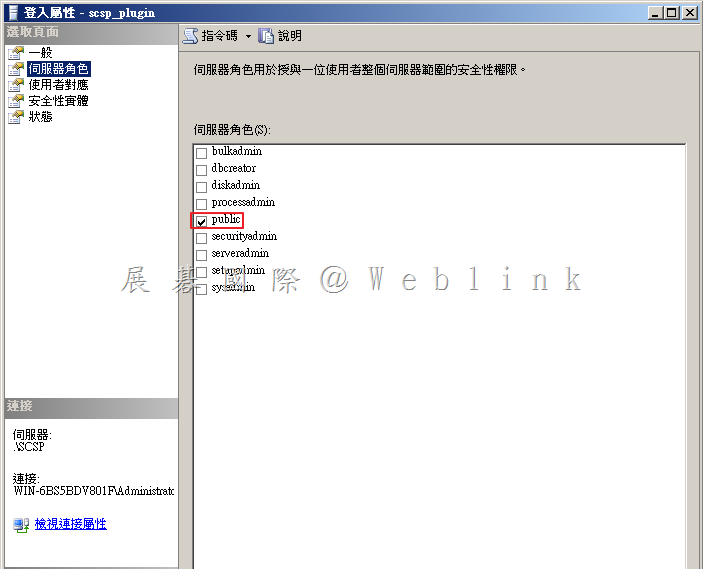
     SCSP_PLUGIN

    (此帳號為安裝系統時自動建立)

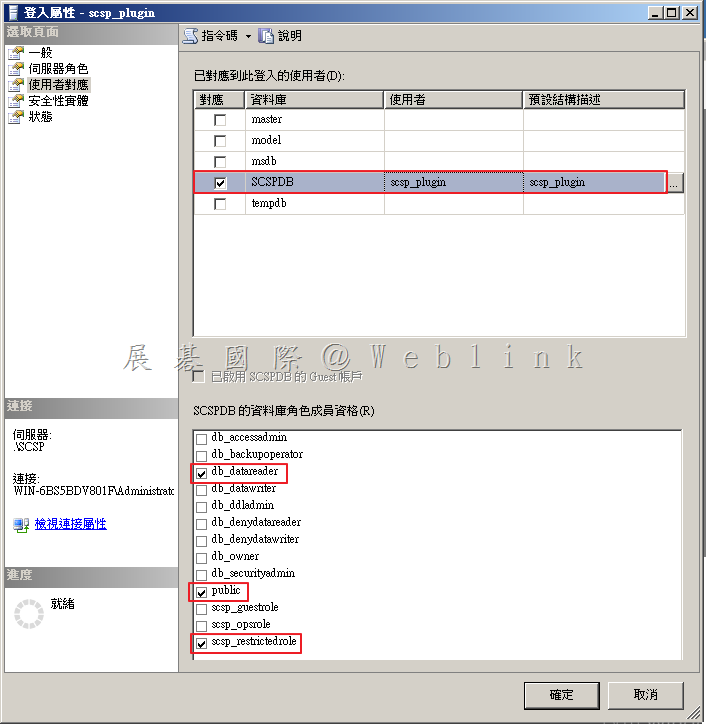
    這是 SDCS 所建立的提供第三方外掛工具(如 SSIM、ArcSight 等)的賬戶(自動建立密碼)。此帳戶具有只讀取 SDCS 資料庫。

    伺服器角色:

    image

    使用者對應:

    image

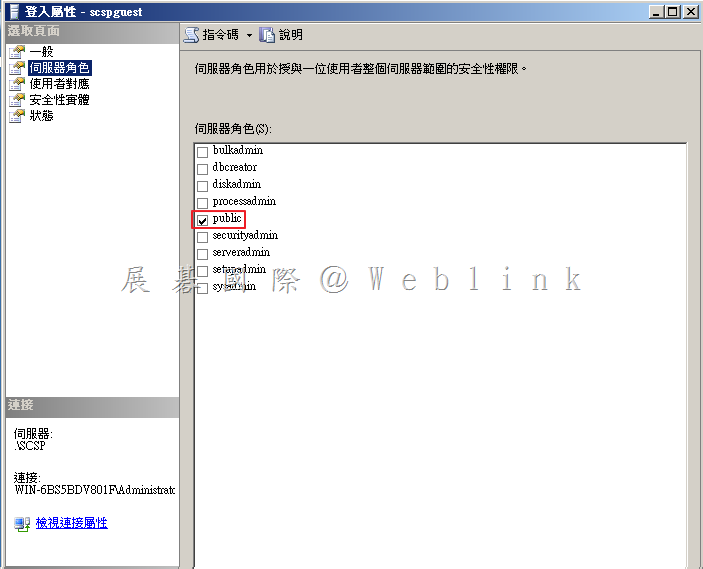
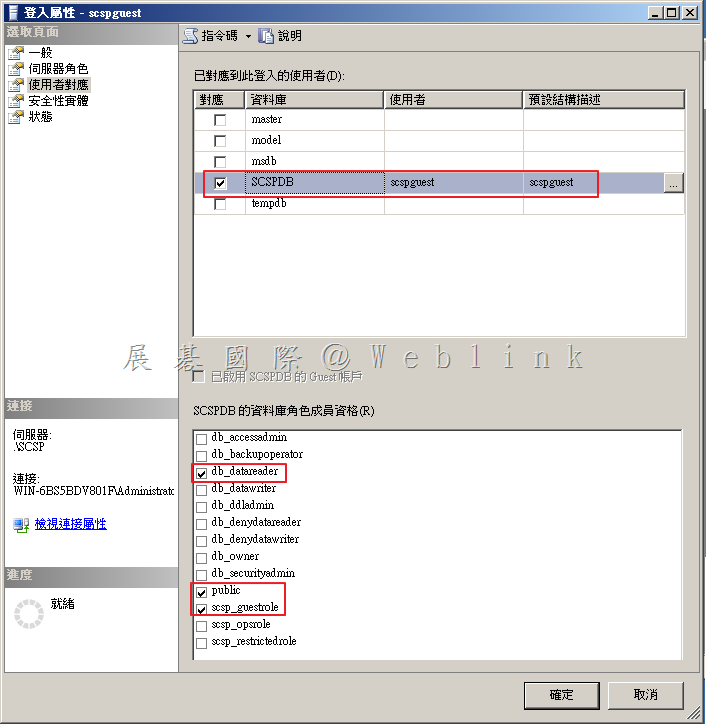
    SCSPGuest

    (此帳號為安裝系統時可選擇是否要建立)

    在安裝過程中這是可選擇是否需要建立的帳戶,如果想建立一個可用於外部 ODBC/JDBC 連線至 SDCS 資料庫,僅有讀取功能。

    伺服器角色:

    image

    使用者對應:

    image

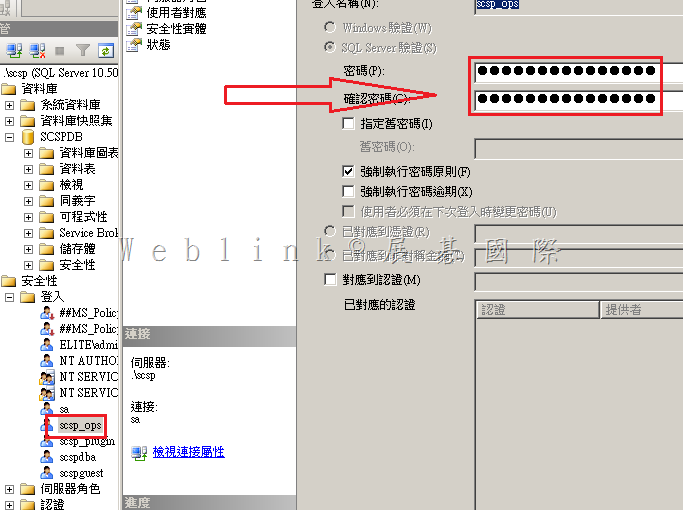
  • 如何更改 SDCS SQL 資料庫的 dcs_ops 與 dcs_plugin 帳號的密碼

    “How can we change the DCS SQL DB dcs_ops and dcs_plugin account password? “


    Change password for dcs_ops & dcs_plugin on SQL server side

    image

    dcs_plugin change in password has no effect on product., as we don’t use this account on the Manager side

    ※(dcs_plugin 用來提供 3-party 產品 (如 SSIM、ArcSight) 讀取資料庫使用,SDCS 沒有使用到該帳號,可任意修改)

    Change dcs_ops in passwrod will require the following changes to be done on Manager side

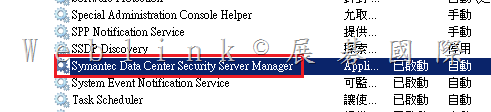
    1. Stop DCS manager service

    image
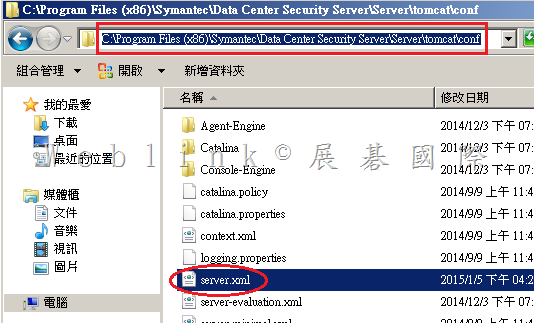
    2. Browse to “C:\Program Files (x86)\Symantec\Data Center Security Server\Server\tomcat\conf”

    image
    3. Backup server.xml
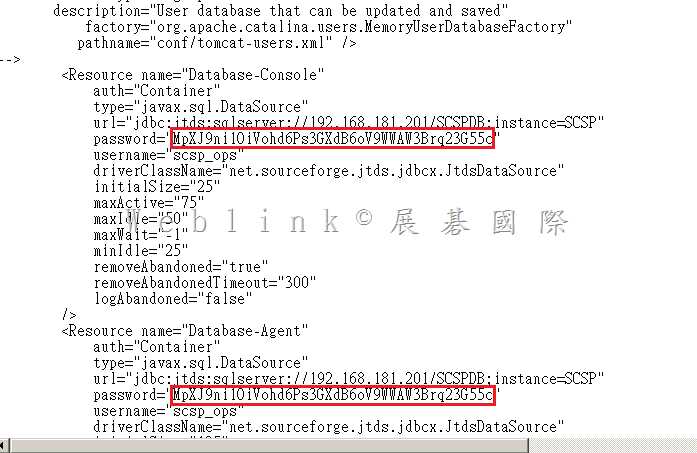
    4. Edit server.xml

    image

    You can see the JDBC settings in the following:

    <Resource name=”Database-Console”
    auth=”Container”
    type=”javax.sql.DataSource”
    url=”jdbc:jtds:sqlserver://127.0.0.1/SCSPDB;instance=SCSP”
    password=”xxxxxxxxxxxxxxxxxxx
    username=”scsp_ops”
    driverClassName=”net.sourceforge.jtds.jdbcx.JtdsDataSource”
    initialSize=”10″
    maxActive=”25″
    maxIdle=”15″
    maxWait=”-1″
    minIdle=”10″
    removeAbandoned=”true”
    removeAbandonedTimeout=”300″
    logAbandoned=”false”
    />
    <Resource name=”Database-Agent”
    auth=”Container”
    type=”javax.sql.DataSource”
    url=”jdbc:jtds:sqlserver://127.0.0.1/SCSPDB;instance=SCSP”
    password=”xxxxxxxxxxxxxxxxxxxx
    username=”scsp_ops”
    driverClassName=”net.sourceforge.jtds.jdbcx.JtdsDataSource”
    initialSize=”15″
    maxActive=”45″
    maxIdle=”20″
    maxWait=”-1″
    minIdle=”15″
    removeAbandoned=”true”
    removeAbandonedTimeout=”300″
    logAbandoned=”false”
    />

    5. Replace the text xxxxxxxxxxxx with the new DCS-ops password, at both the locations
    6. Then start the DCS manager service

    Also refer below article links for more clarity:
    http://www.symantec.com/connect/forums/csp-database
    http://www.symantec.com/connect/articles/what-are-default-scsp-sql-database-accounts-and-what-are-they-used

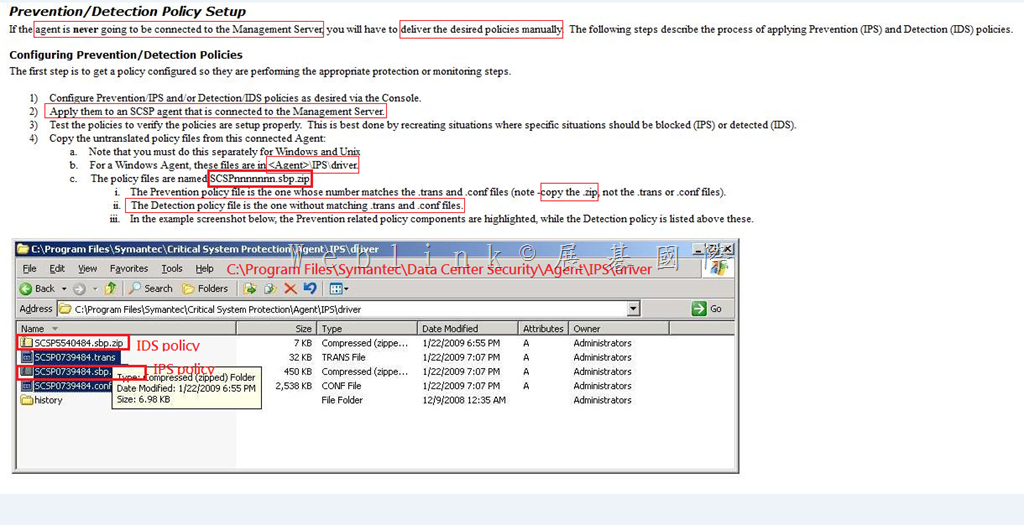
  • 如何手動套用特定的 policy 到無法連接主控台的 SDCS 用戶端

    • 請先將該 policy 套用至一個已連線至主控台的用戶端
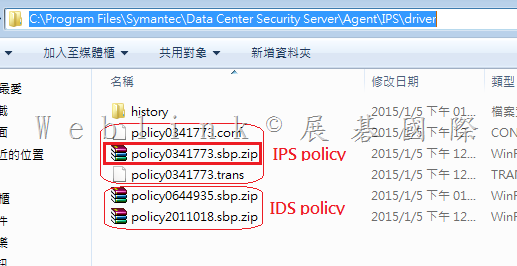
    • 至上一步驟的用戶端的 C:\Program Files\Symantec\Data Center Security Server\Agent\IPS\driver 目錄下,複製 IPS 與 IDS policy

    policy 的格式為 policy1234567.sbp.zip (1234567 為數字)

    sbp.zip   .trans   .conf   擁有相同檔名者,請複製其中 sbp.zip (此即為 IPS policy)

    其餘 sbp.zip 即為 IDS policy

    image


    image


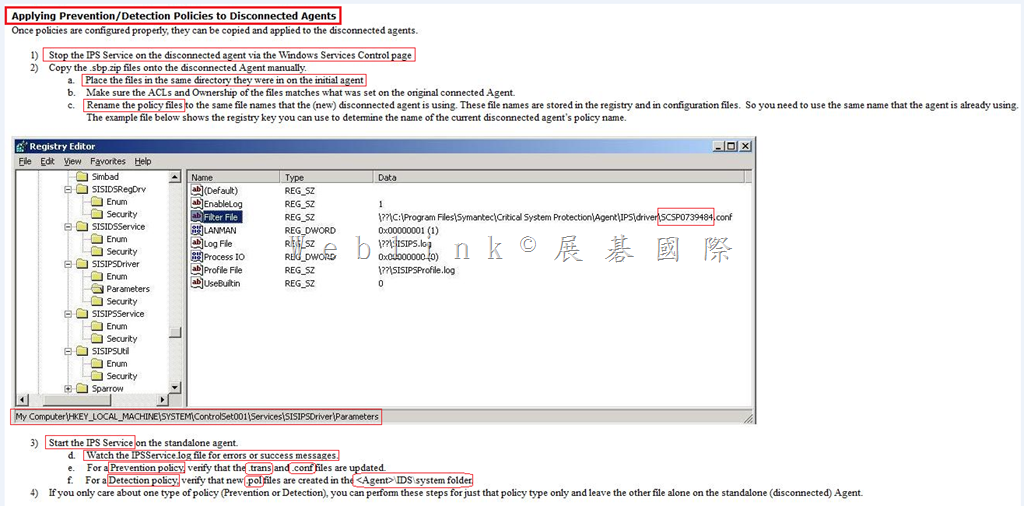
    • 停止無法連線至主控台的用戶端的 IPS 服務
    • 將先前步驟複製出的 sbp.zip 檔複製到無法連線至主控台的用戶端的相同目錄 (C:\Program Files\Symantec\Data Center Security Server\Agent\IPS\driver )
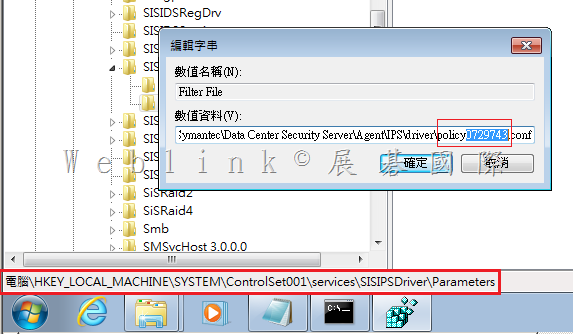
    • 並請將 IPS policy 更名 (名稱請至註冊機碼查詢)
    • 之後請確認 IPS policy 的 .trans 與 .conf 是否更新
    • 亦請確認 IDS policy 新的 .pol 是否在 C:\Program Files\Symantec\Data Center Security Server\Agent\IDS\system 被建立


    image

    查詢 IPS policy 的名稱

    image

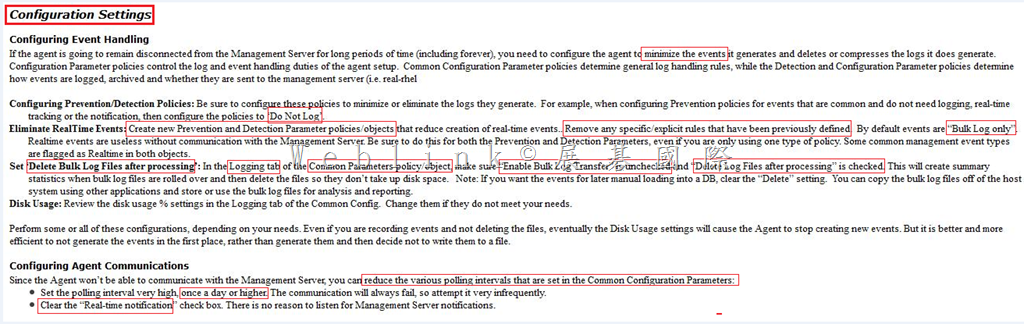
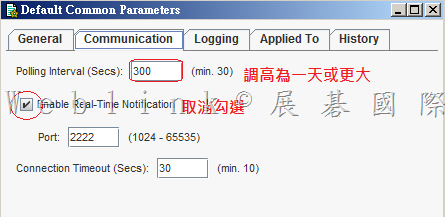
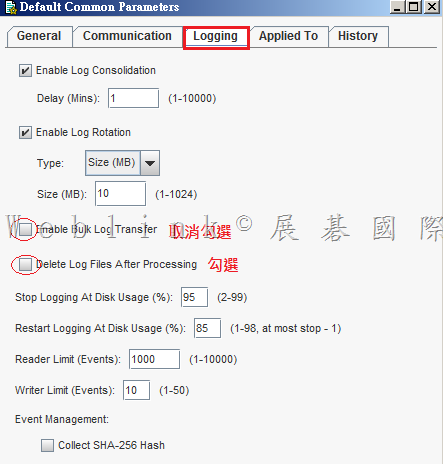
    • 進行 Common parameters、Prevention parameters 與 Detection parameters Configuration 的設定並套用到已連線的 SDCS 用戶端


    image

    image


    image

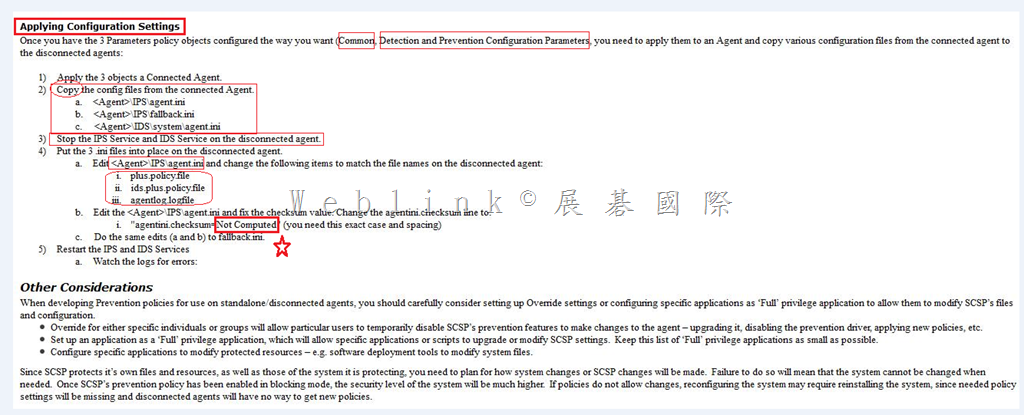
    • 停止無法連線至主控台的用戶端的 IPS 服務
    • 將 C:\Program Files\Symantec\Data Center Security Server\Agent\IPS 目錄下的 agent.ini 與 fallback.ini 複製至無法連線至主控台的用戶端的相同目錄
    • 將 C:\Program Files\Symantec\Data Center Security Server\Agent\IDS\system 目錄下的 agent.ini 複製至無法連線至主控台的用戶端的相同目錄
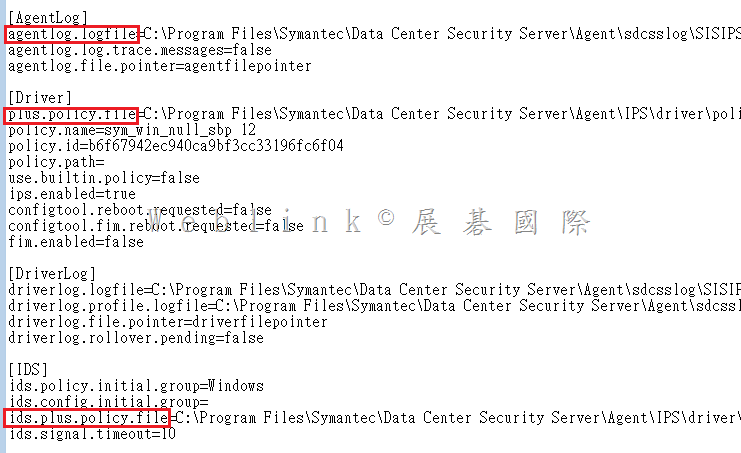
    • 修改 C:\Program Files\Symantec\Data Center Security Server\Agent\IPS 目錄下的 agent.ini 中的以下三區塊

    plus.policy.file

    ids.plus.policy.file

    agentlog.logfile

    • 重啟 IPS 與 IDS 服務

    image


    image

  • Symantec DCS 如何新增 User

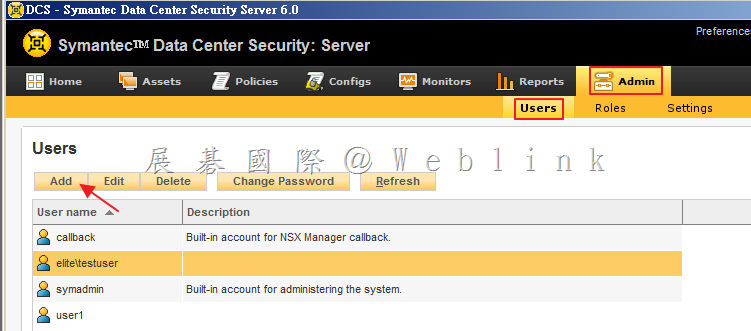
    1. 選取「Admin」頁籤,選取「Users」,點選「Add」。

    image

    2. 建立 User

    2.1.  建立一般 User

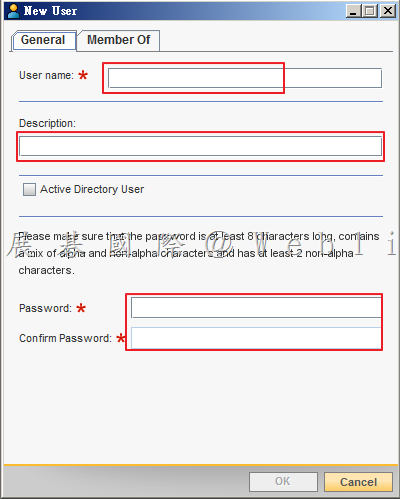
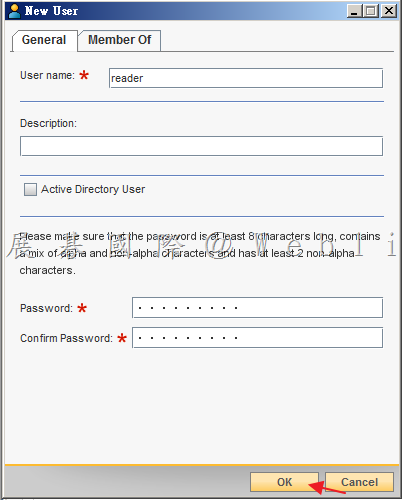
    2.1.1. 輸入「User name」,輸入「Description」,輸入「Password」,再次輸入「Confirm Password」。

    image

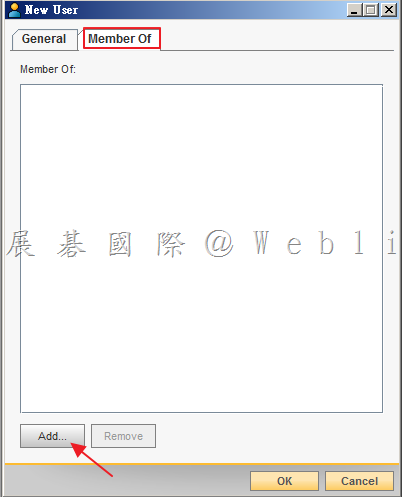
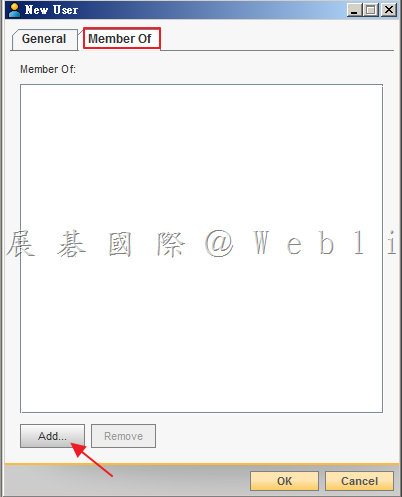
    2.1.2. 選取「Member Of」頁籤,點選「Add」。

    image

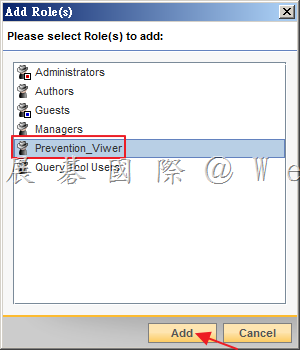
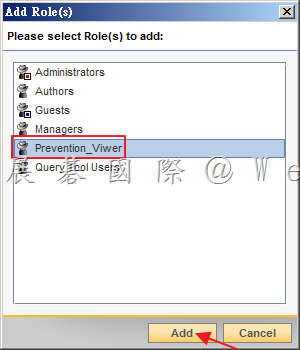
    2.1.3. 選取增加的 Role,點選「Add」。

    image

    2.1.4. 點選「OK」。

    image

    2.2.  建立 AD User

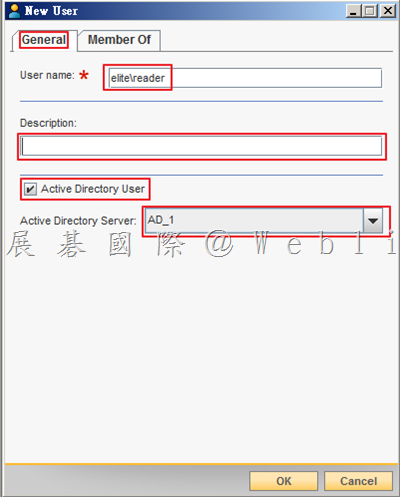
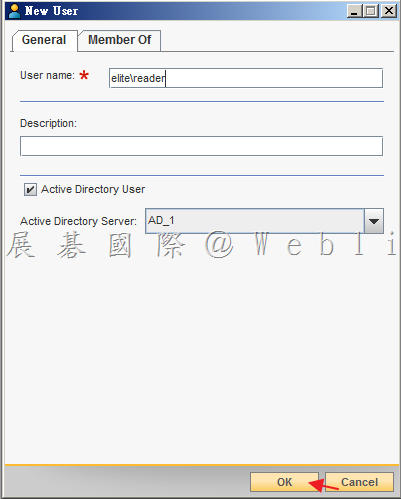
    2.2.1. 輸入「User name」〈必須使用網域名稱\帳號的格式,例:local\user〉,輸入「Description」,勾選「Active Directory User」,接著選取「Active Directory User」。

    image

    2.2.2. 選取「Member Of」頁籤,點選「Add」。

    image

    2.2.3. 選取增加的 Role,點選「Add」。

    image

    2.2.4. 點選「OK」。

    image

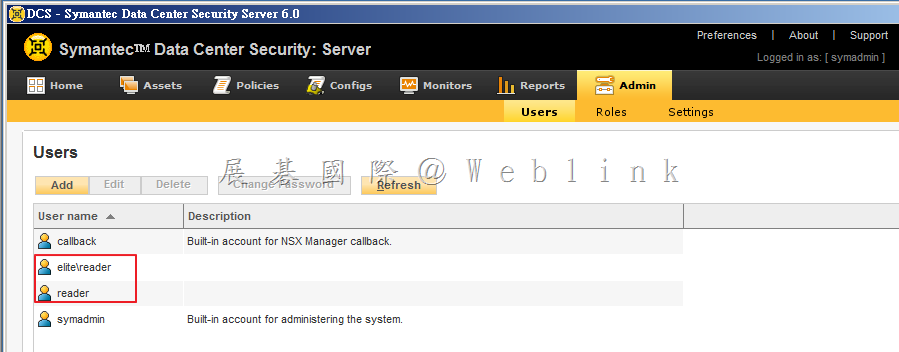
    3. 新增完成。

    image

  • Syamatec DCS 如何新增白名單允許應用程式清單

    新增白名單允許應用清單 Apply Policy 有兩種方式:

    一、從「Monitors」→「Events」頁面直接透過 Wizard 新增。

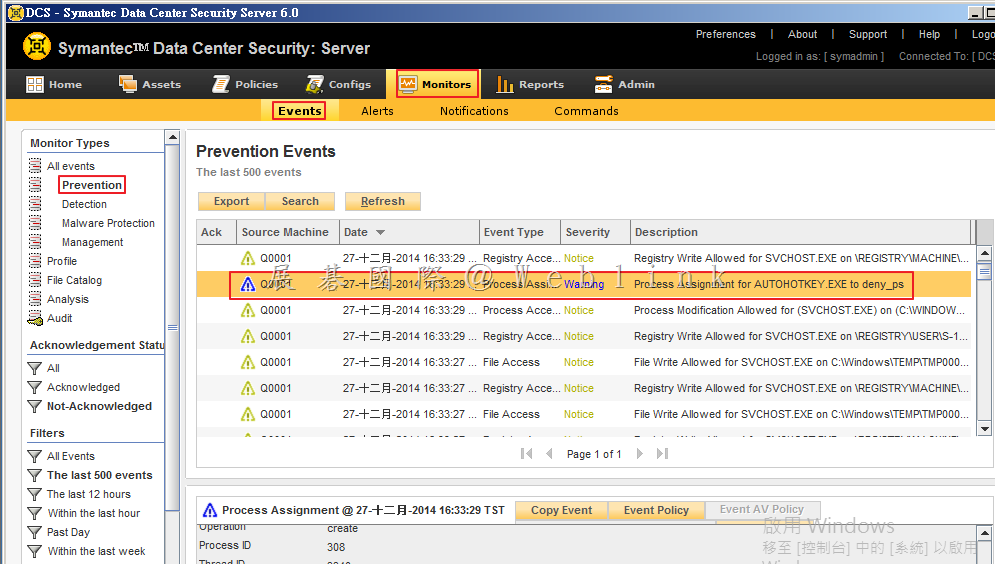
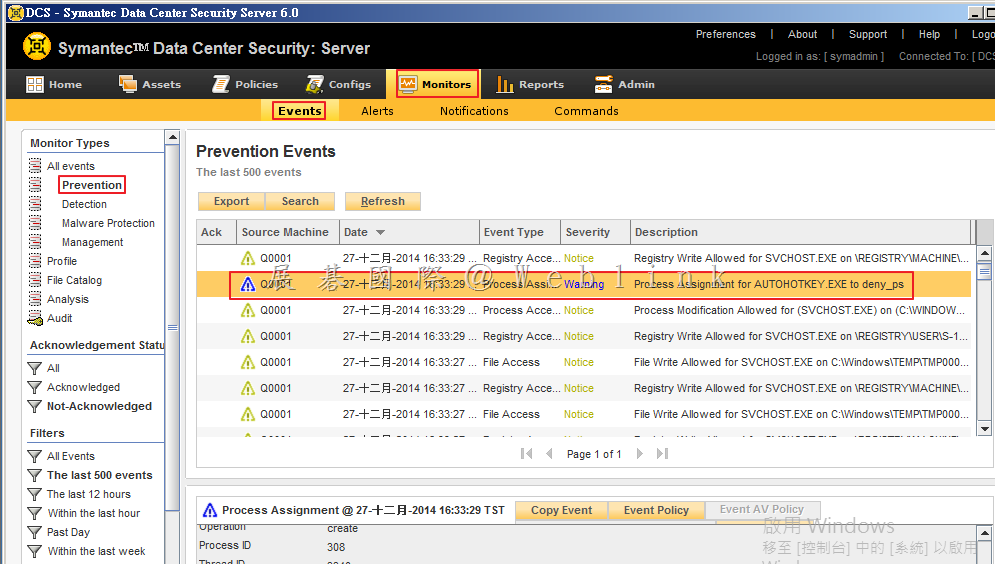
    1. 選取「Monitors」頁籤,選取「Events」,接著於「Monitor Type」的部份選取「Prevention」,針對欲開啟的 Event 以滑鼠左鍵點擊兩下,開啟詳細資料視窗。

    image

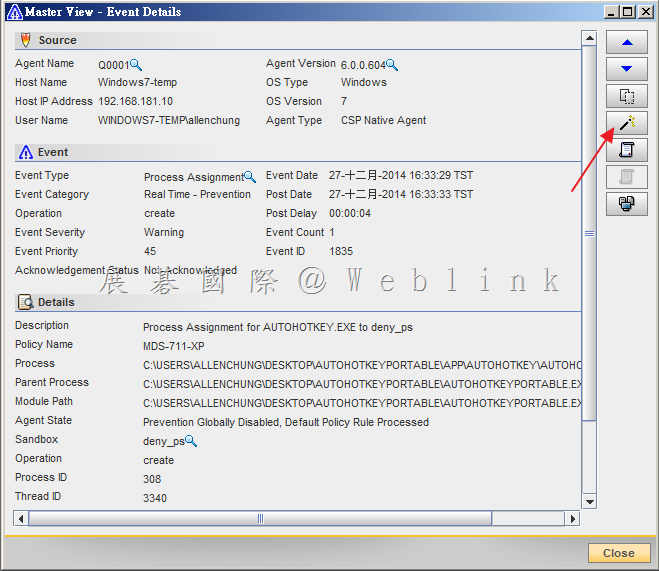
    2. 從詳細資料頁面,可看到相關資訊,若由下列資訊,判斷此為可信任程式,則可新增至白名單內,點選右方 Wizard 圖示。

    image

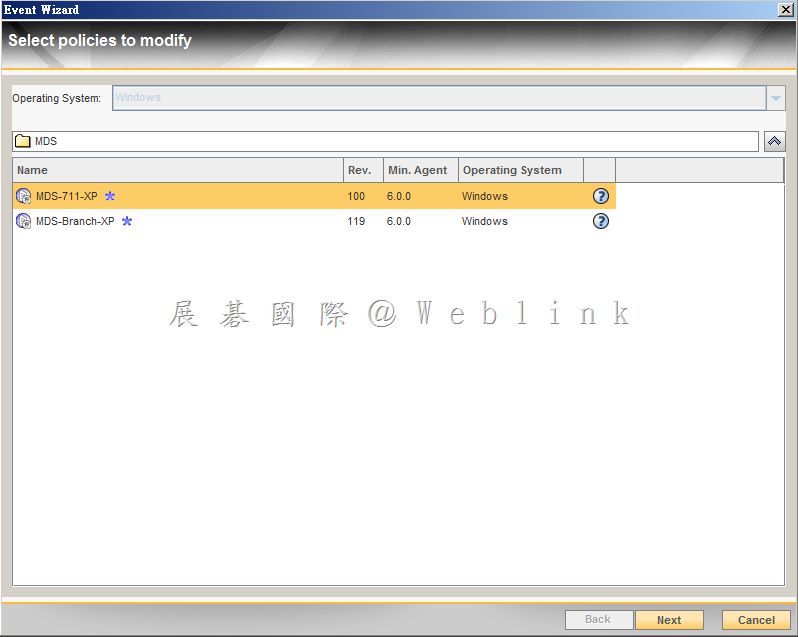
    3. 選擇欲加入之 Policy,接著點選「Next」。

    image

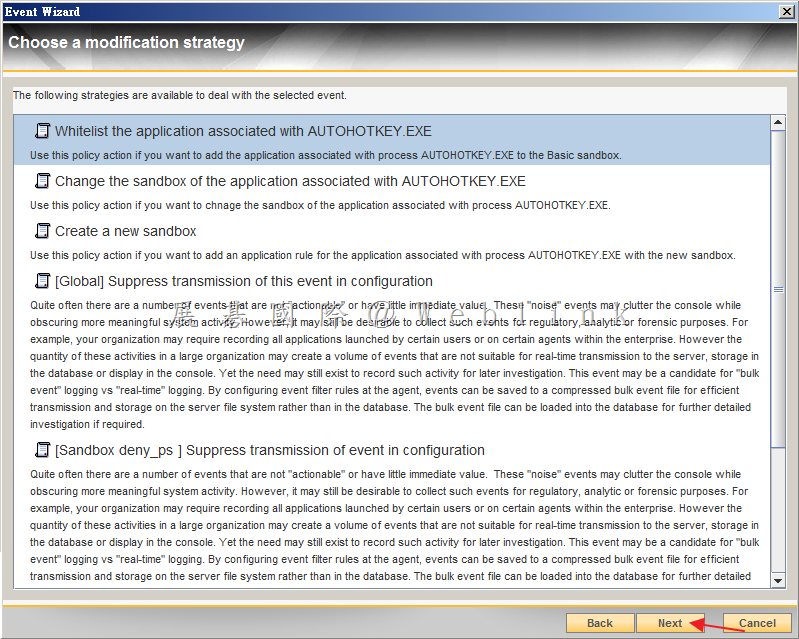
    4. 點選欲使用的「modification strategy」,接著點選「Next」。此時我加入預設的 Sandbox。

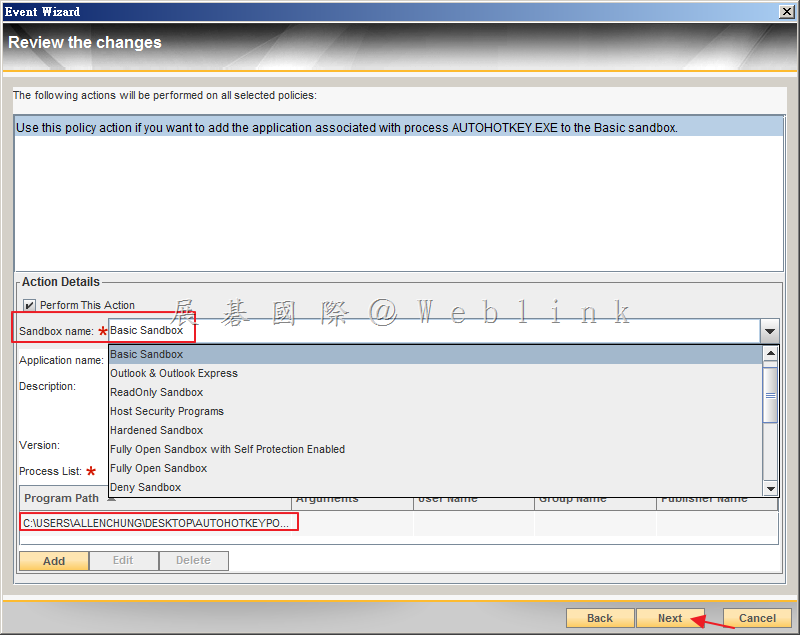
    image

    5. 可選取欲加入之「Sandbox」,並且可看到程式執行路徑,接著點選「Next」。

    image

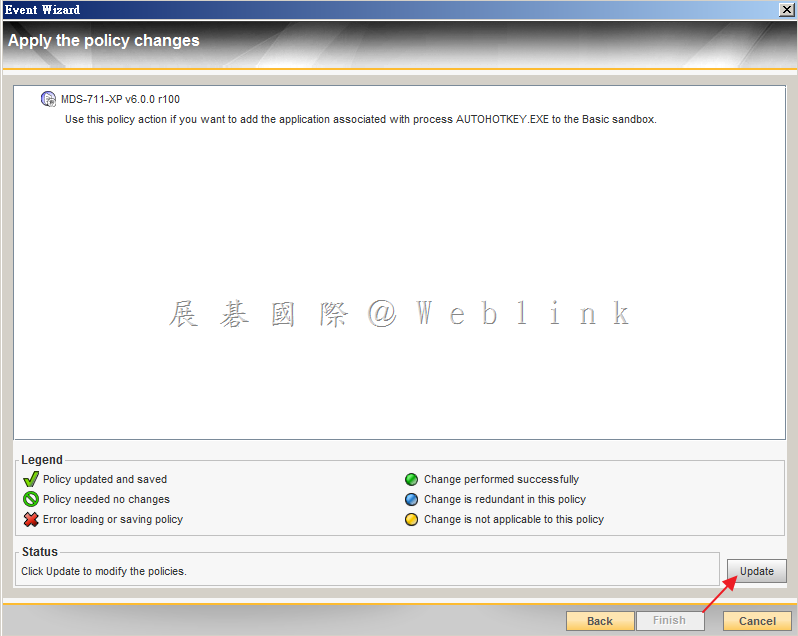
    6. 點選「Update」。

    image

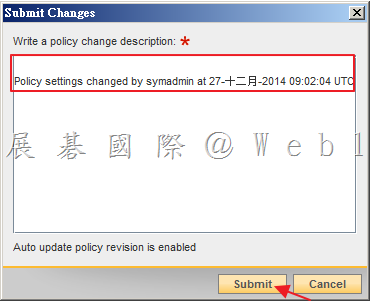
    7. 輸入此次新增的內容,接著點選「Submit」。

    image

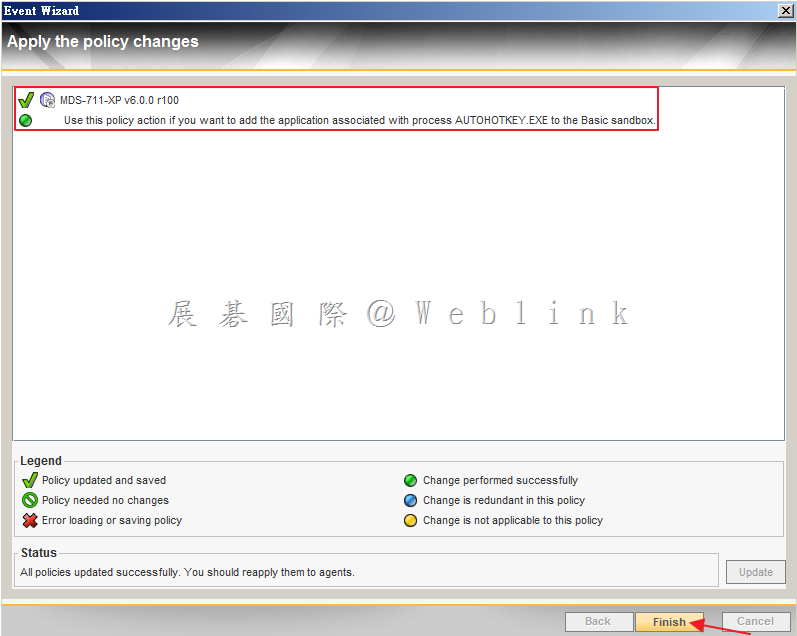
    8. Update 完成,點選「Finish」。

    image

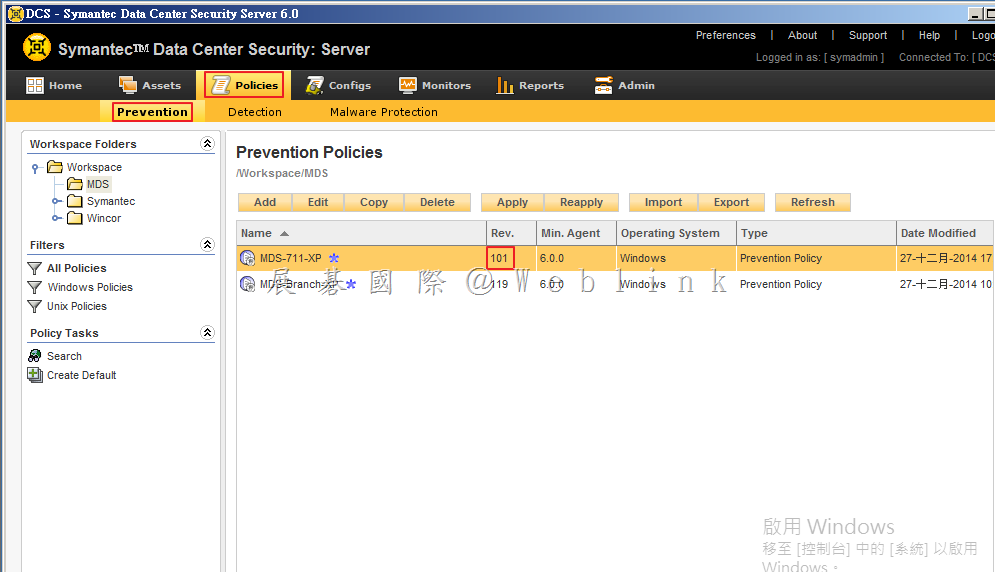
    9. 點選「Policies」頁籤,接著點選「Prevention」,可看到剛剛所修改的 Policy 版號增加為 101。

    image

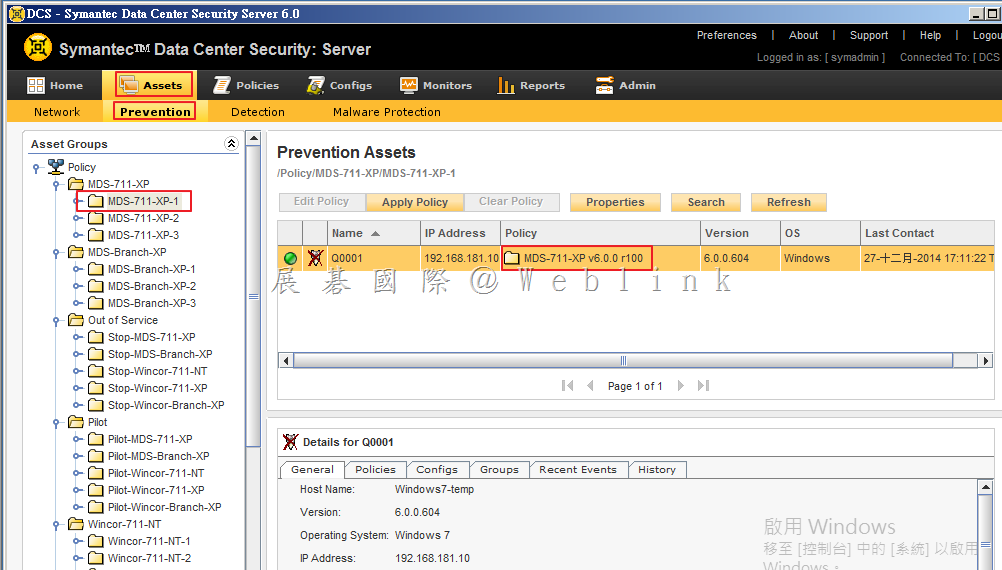
    10. 點選「Assets」頁籤,接著點選「Prevention」,選擇使用剛剛修改 Policy 的 Group 可看到 Policy 版號仍為 100。

    image

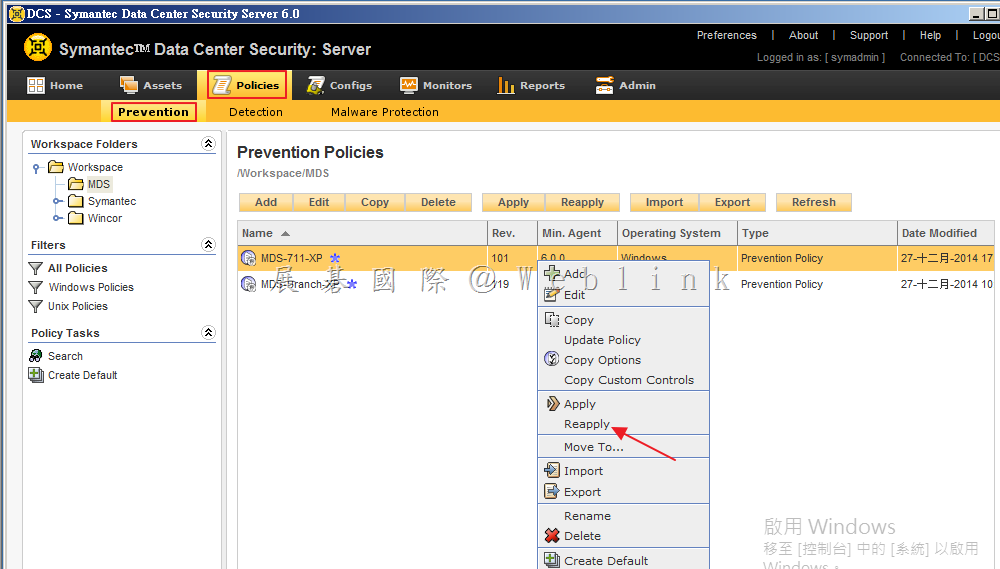
    11. 點選「Policies」頁籤,接著點選「Prevention」,以滑鼠右鍵點選於剛剛所修改的 Policy,接著點選「Reapply」。

    image

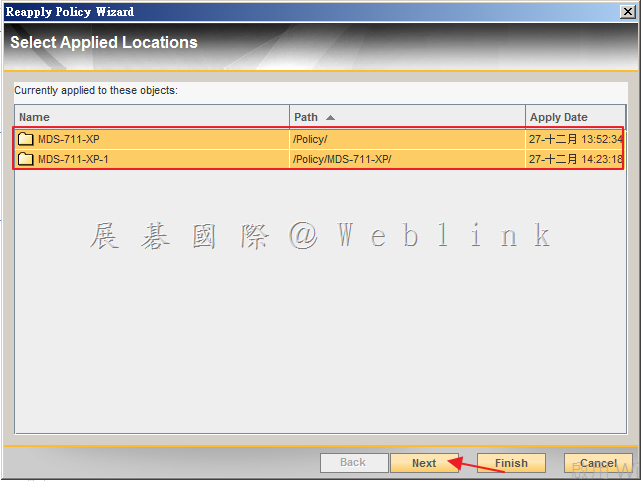
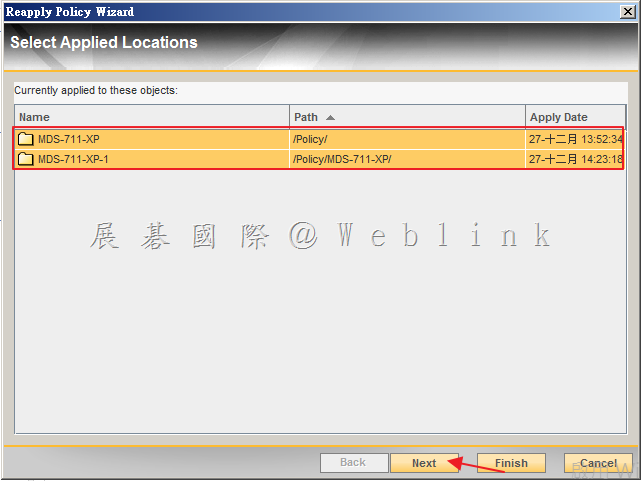
    12. 可看到目前已套用此 Policy 的 Group 或是 Agent,接著點選「Next」。

    image

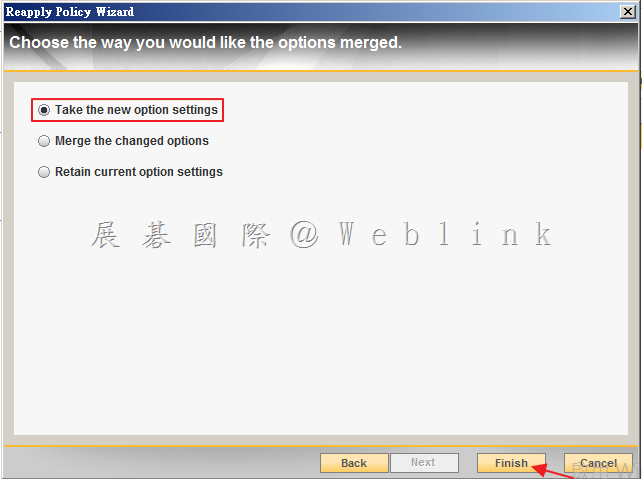
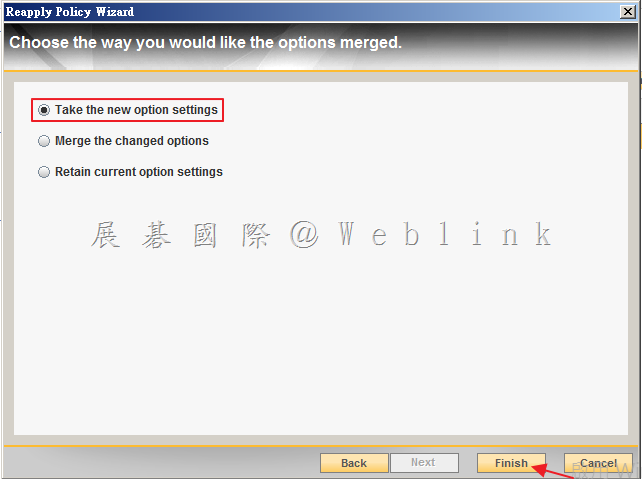
    13. 接著選取「Take the new option settings」,接著點選「Finish」。

    image

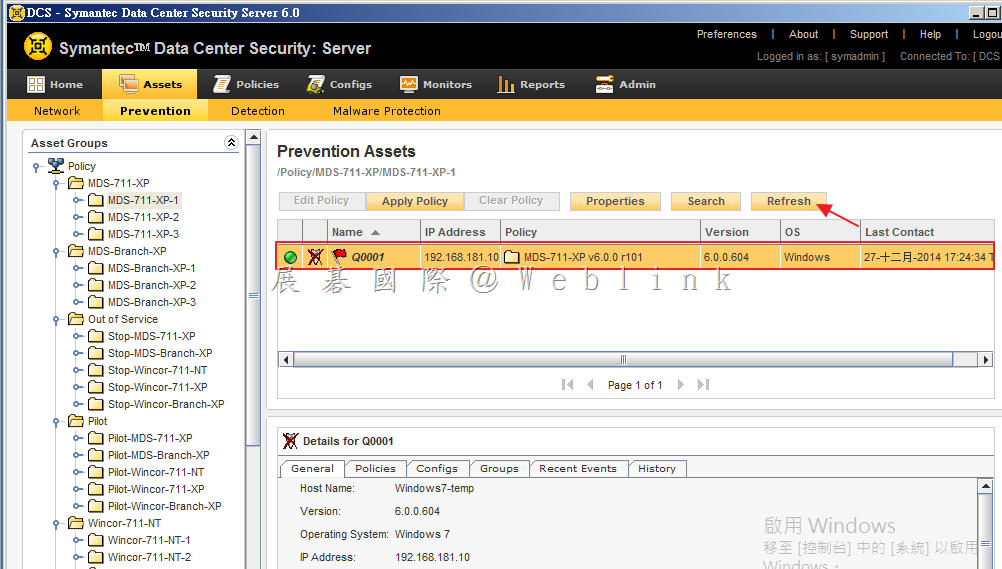
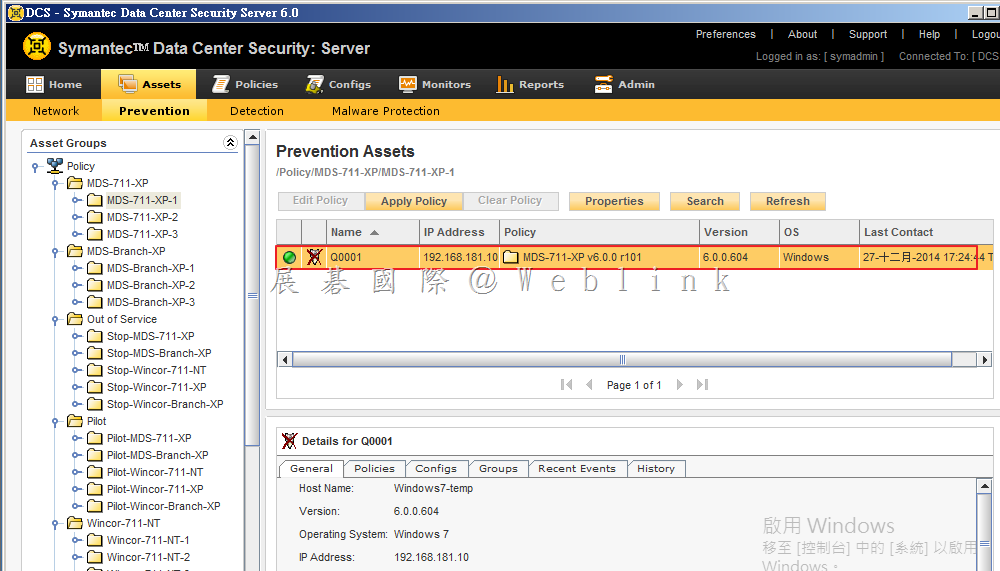
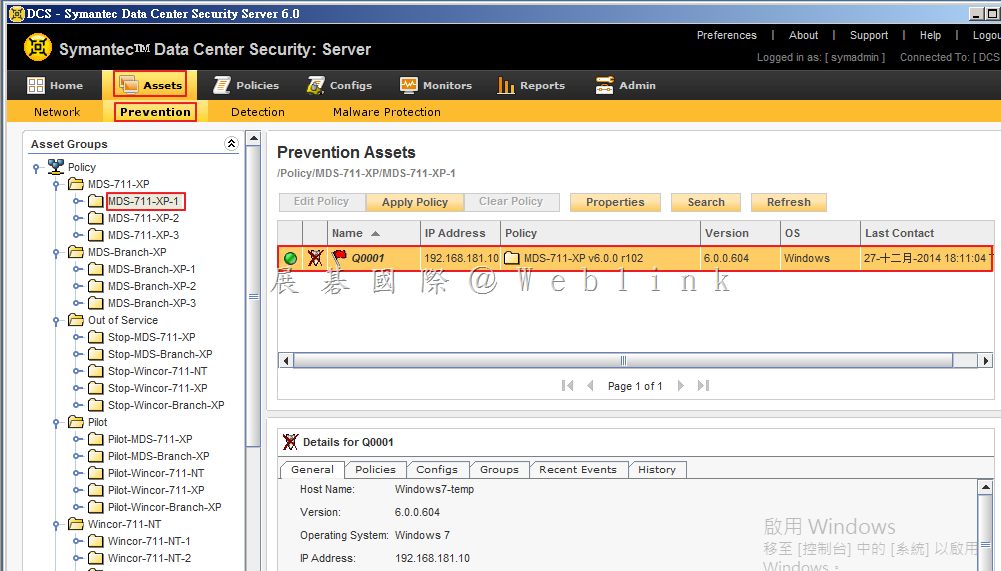
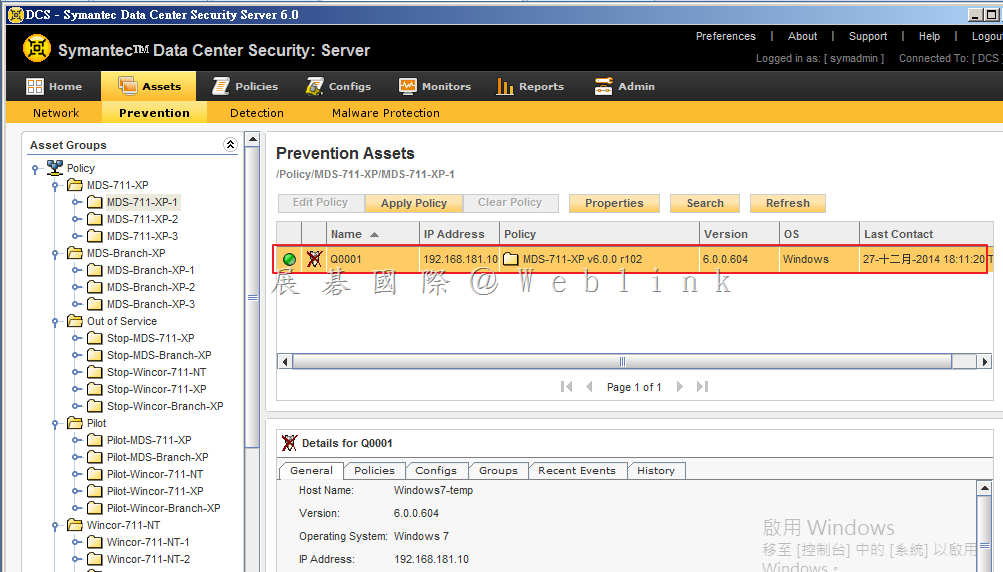
    14. 選取「Assets」頁籤,點選「Prevention」,選取剛剛 Apply Policy 的 Group 或是 Agent,可看到剛剛 Apply Policy 仍待生效,稍待片刻後即生效。

    image

    image

    二、從「Policies」→「Prevention」頁面開啟 Policy 新增。

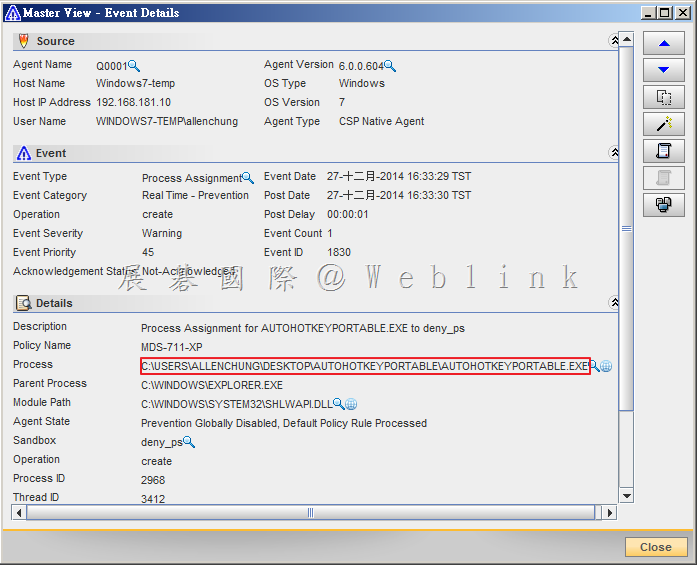
    1. 選取「Monitors」頁籤,選取「Events」,接著於「Monitor Type」的部份選取「Prevention」,針對欲開啟的 Event 以滑鼠左鍵點擊兩下,開啟詳細資料視窗。

    image

    2. 從詳細資料頁面,可看到相關資訊,若由下列資訊,判斷此為可信任程式,則可新增至白名單內,複製此應用程式路徑。

    image

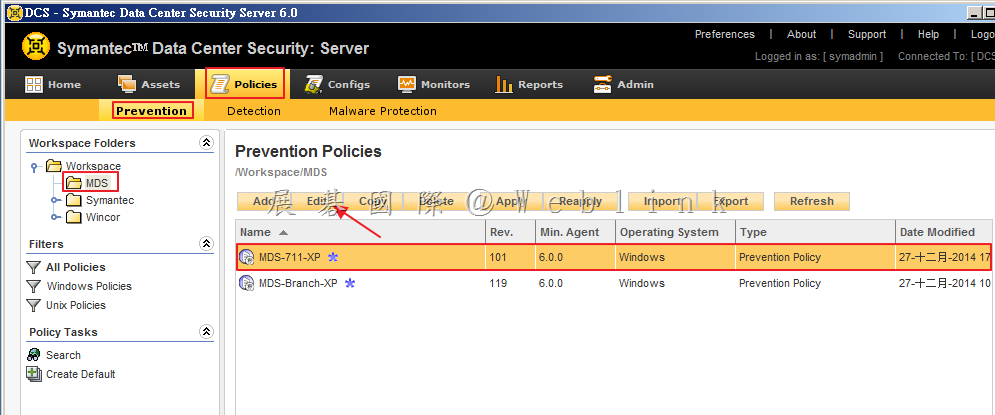
    3. 點選「Policies」頁籤,接著點選「Prevention」,點選欲修改的 Policy,接著點選「Edit」。

    image

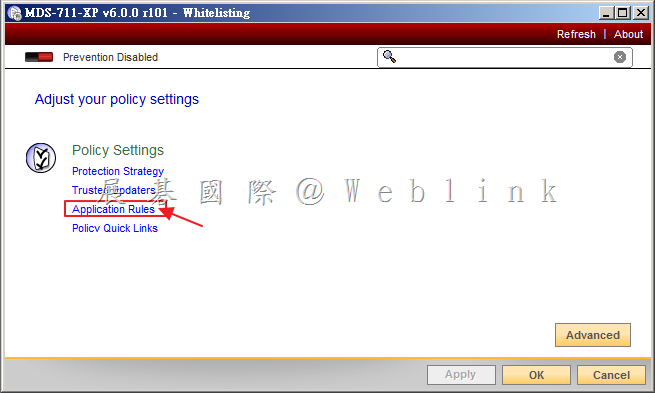
    4. 點選「Application Rules」。

    image

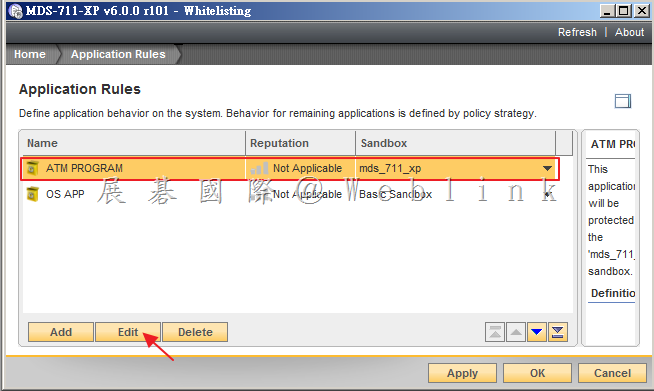
    5. 選取欲加入的Rules,點選「Edit」。

    image

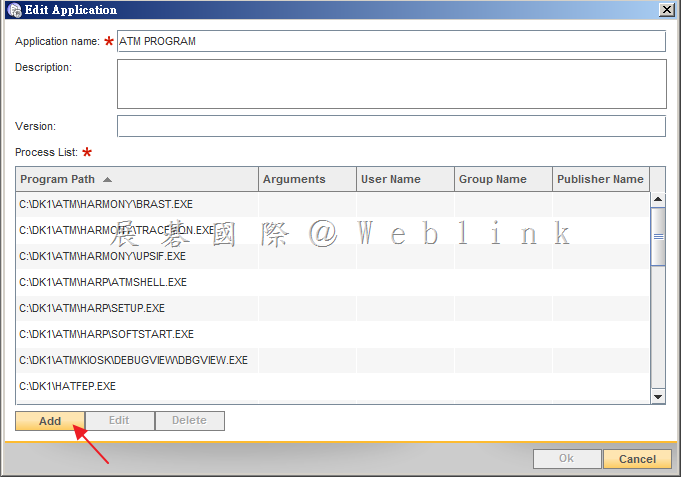
    6. 點選「Add」。

    image

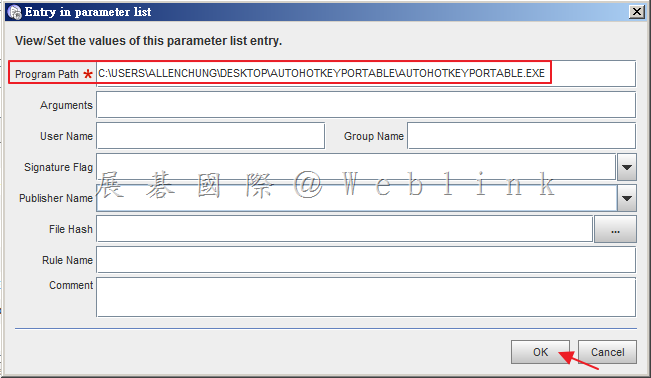
    7. 貼上剛剛所複製之應用程式路徑,接著點選「OK」。

    image

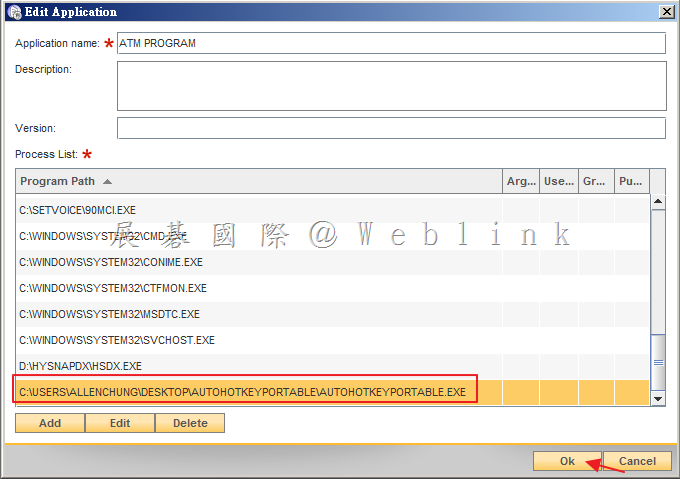
    8. 可看到剛剛所新增的應用程式路徑,最後點選「OK」。

    image

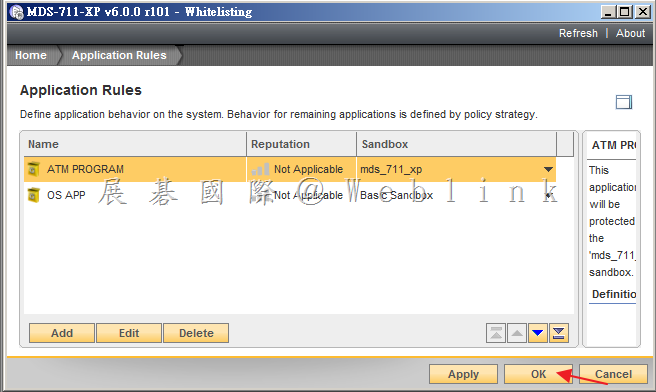
    9. 接著點選「OK」。

    image

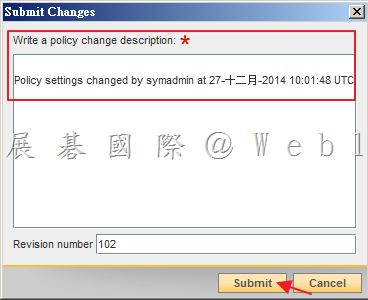
    10. 輸入此次新增的內容,接著點選「Submit」。

    image

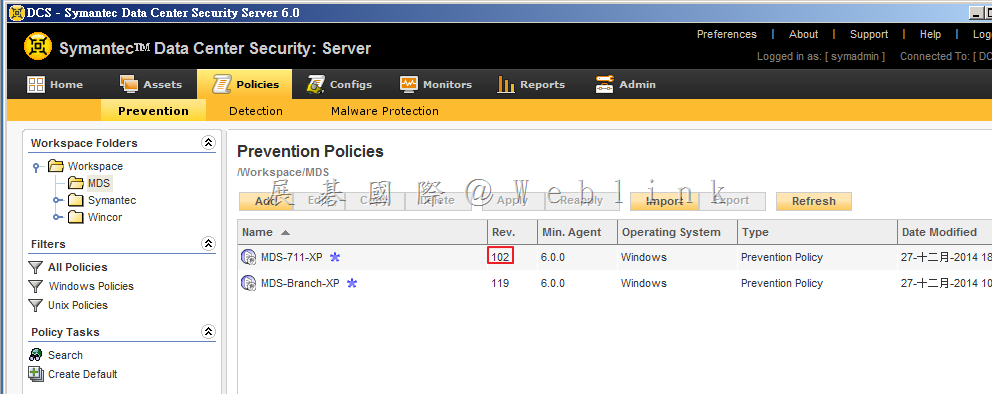
    11. 點選「Policies」頁籤,接著點選「Prevention」,可看到剛剛所修改的 Policy 版號增加為 102。

    image

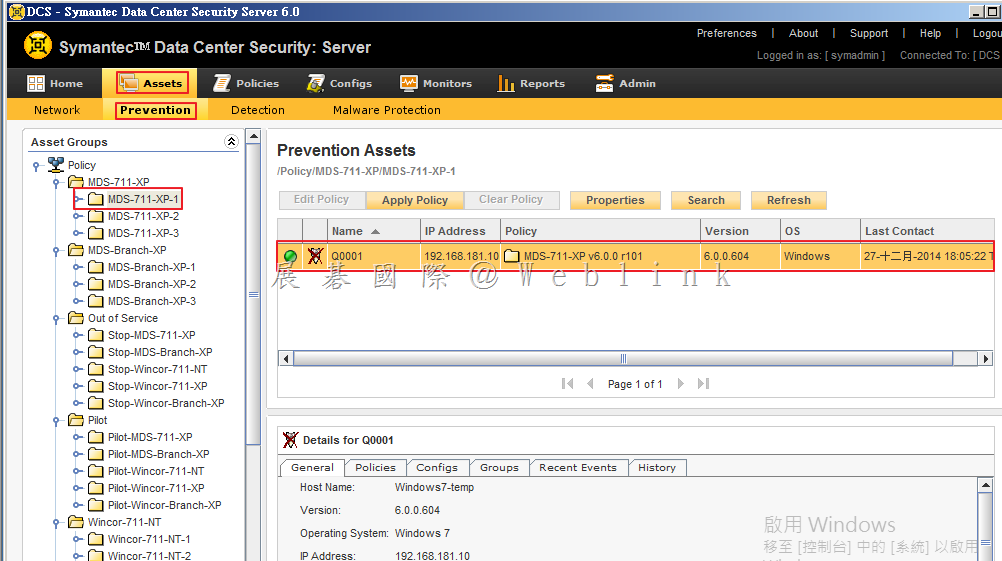
    12. 點選「Assets」頁籤,接著點選「Prevention」,選擇使用剛剛修改 Policy 的 Group 可看到 Policy 版號仍為 101。

    image

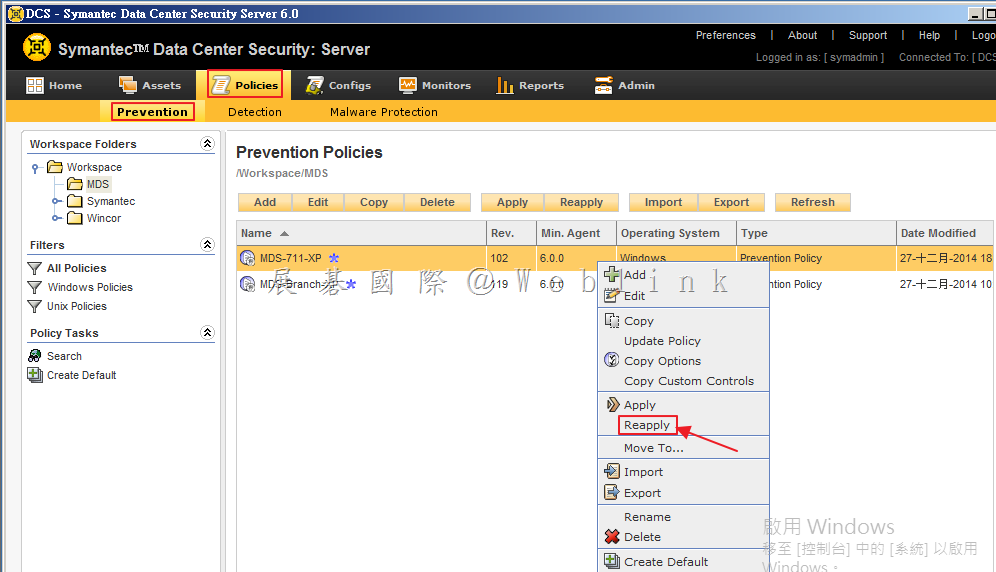
    13. 點選「Policies」頁籤,接著點選「Prevention」,以滑鼠右鍵點選於剛剛所修改的 Policy,接著點選「Reapply」。

    image

    14. 可看到目前已套用此 Policy 的 Group 或是 Agent,接著點選「Next」。

    image

    15. 接著選取「Take the new option settings」,接著點選「Finish」。

    image

    16. 選取「Assets」頁籤,點選「Prevention」,選取剛剛 Apply Policy 的 Group 或是 Agent,可看到剛剛 Apply Policy 仍待生效,稍待片刻後即生效。

    image

    image