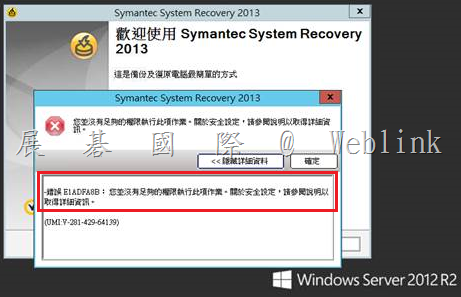
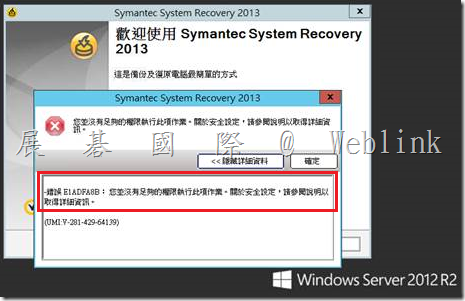
【You do not have sufficient privileges to perform this operation when trying to launch the Symantec System Recovery (SSR) console】
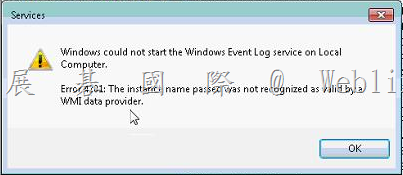
Attempting to launch the Windows Event log service generates the following error:
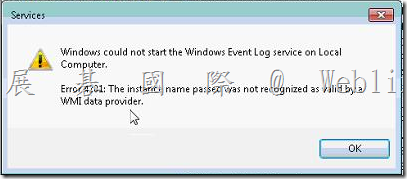
Windows could not start the WIndows Event Log service on Local Computer.
Error 4201: The instance name passed was not recognized as valid by a WMI data provider
請參考以下網址:
http://www.symantec.com/business/support/index?page=content&id=TECH205162
Cause
Insufficient permissions to RTBACKUP folder that is use by Windows Management Instrumentation (WMI)
Solution
Set the permissions needed on the RTBACKUP sub-folder for WMI by following the steps listed below:
1. Re-start Windows in Safe Boot mode.
2. Use Windows Explorer to open the C:\Windows\System32\LogFiles\WMI sub-folder.
3. Right-click on the RtBackup sub-folder and choose Properties > Security > Edit
4. Click Add.
5. Type SYSTEM and press Enter.
6. Enable “Full control” Permission to “Allow” for the SYSTEM account.
7. Click OK, and then click Yes when asked for confirmation.
8. Restart Windows (in Normal mode), and verify that the Windows Event Service has started.
9. Attempt to launch the SSR console.
Enterprise Support – Symantec Corp. – Symantec System Recovery – Core Product Error Links
http://www.symantec.com/business/support/index?page=content&id=DOC7537
![clip_image002[4]](http://w3c.weblink.com.tw/symantec/wp-content/uploads/sites/4/2014/12/clip_image00241.jpg "clip_image002[4]")
![clip_image004[4]](http://w3c.weblink.com.tw/symantec/wp-content/uploads/sites/4/2014/12/clip_image00441.jpg "clip_image004[4]")
![clip_image006[4]](http://w3c.weblink.com.tw/symantec/wp-content/uploads/sites/4/2014/12/clip_image00641.jpg "clip_image006[4]")
![clip_image008[4]](http://w3c.weblink.com.tw/symantec/wp-content/uploads/sites/4/2014/12/clip_image00841.jpg "clip_image008[4]")
![clip_image010[4]](http://w3c.weblink.com.tw/symantec/wp-content/uploads/sites/4/2014/12/clip_image01041.jpg "clip_image010[4]")
![clip_image012[4]](http://w3c.weblink.com.tw/symantec/wp-content/uploads/sites/4/2014/12/clip_image01241.jpg "clip_image012[4]")
![clip_image014[4]](http://w3c.weblink.com.tw/symantec/wp-content/uploads/sites/4/2014/12/clip_image01441.jpg "clip_image014[4]")
![clip_image016[4]](http://w3c.weblink.com.tw/symantec/wp-content/uploads/sites/4/2014/12/clip_image01641.jpg "clip_image016[4]")
![clip_image018[4]](http://w3c.weblink.com.tw/symantec/wp-content/uploads/sites/4/2014/12/clip_image01841.jpg "clip_image018[4]")
![clip_image022[4]](http://w3c.weblink.com.tw/symantec/wp-content/uploads/sites/4/2014/12/clip_image02241.jpg "clip_image022[4]")
![clip_image024[4]](http://w3c.weblink.com.tw/symantec/wp-content/uploads/sites/4/2014/12/clip_image02441.jpg "clip_image024[4]")
![clip_image026[4]](http://w3c.weblink.com.tw/symantec/wp-content/uploads/sites/4/2014/12/clip_image02641.jpg "clip_image026[4]")
![clip_image028[4]](http://w3c.weblink.com.tw/symantec/wp-content/uploads/sites/4/2014/12/clip_image02841.jpg "clip_image028[4]")
![clip_image030[4]](http://w3c.weblink.com.tw/symantec/wp-content/uploads/sites/4/2014/12/clip_image03041.jpg "clip_image030[4]")
![clip_image002[4]](http://w3c.weblink.com.tw/symantec/wp-content/uploads/sites/4/2014/12/clip_image0024.jpg "clip_image002[4]")
![clip_image004[4]](http://w3c.weblink.com.tw/symantec/wp-content/uploads/sites/4/2014/12/clip_image0044.jpg "clip_image004[4]")
![clip_image006[4]](http://w3c.weblink.com.tw/symantec/wp-content/uploads/sites/4/2014/12/clip_image0064.jpg "clip_image006[4]")
![clip_image008[4]](http://w3c.weblink.com.tw/symantec/wp-content/uploads/sites/4/2014/12/clip_image0084.jpg "clip_image008[4]")
![clip_image010[4]](http://w3c.weblink.com.tw/symantec/wp-content/uploads/sites/4/2014/12/clip_image0104.jpg "clip_image010[4]")
![clip_image012[4]](http://w3c.weblink.com.tw/symantec/wp-content/uploads/sites/4/2014/12/clip_image0124.jpg "clip_image012[4]")
![clip_image014[4]](http://w3c.weblink.com.tw/symantec/wp-content/uploads/sites/4/2014/12/clip_image0144.jpg "clip_image014[4]")
![clip_image016[4]](http://w3c.weblink.com.tw/symantec/wp-content/uploads/sites/4/2014/12/clip_image0164.jpg "clip_image016[4]")
![clip_image018[4]](http://w3c.weblink.com.tw/symantec/wp-content/uploads/sites/4/2014/12/clip_image0184.jpg "clip_image018[4]")
![clip_image020[4]](http://w3c.weblink.com.tw/symantec/wp-content/uploads/sites/4/2014/12/clip_image0204.jpg "clip_image020[4]")
![clip_image022[4]](http://w3c.weblink.com.tw/symantec/wp-content/uploads/sites/4/2014/12/clip_image0224.jpg "clip_image022[4]")
![clip_image024[4]](http://w3c.weblink.com.tw/symantec/wp-content/uploads/sites/4/2014/12/clip_image0244.jpg "clip_image024[4]")
![clip_image026[4]](http://w3c.weblink.com.tw/symantec/wp-content/uploads/sites/4/2014/12/clip_image0264.jpg "clip_image026[4]")
![clip_image028[4]](http://w3c.weblink.com.tw/symantec/wp-content/uploads/sites/4/2014/12/clip_image0284.jpg "clip_image028[4]")
![clip_image030[4]](http://w3c.weblink.com.tw/symantec/wp-content/uploads/sites/4/2014/12/clip_image0304.jpg "clip_image030[4]")
![clip_image032[4]](http://w3c.weblink.com.tw/symantec/wp-content/uploads/sites/4/2014/12/clip_image0324.jpg "clip_image032[4]")
![clip_image034[4]](http://w3c.weblink.com.tw/symantec/wp-content/uploads/sites/4/2014/12/clip_image0344.jpg "clip_image034[4]")
![clip_image036[4]](http://w3c.weblink.com.tw/symantec/wp-content/uploads/sites/4/2014/12/clip_image0364.jpg "clip_image036[4]")
![clip_image038[4]](http://w3c.weblink.com.tw/symantec/wp-content/uploads/sites/4/2014/12/clip_image0384.jpg "clip_image038[4]")
![clip_image040[4]](http://w3c.weblink.com.tw/symantec/wp-content/uploads/sites/4/2014/12/clip_image0404.jpg "clip_image040[4]")
![clip_image042[4]](http://w3c.weblink.com.tw/symantec/wp-content/uploads/sites/4/2014/12/clip_image0424.jpg "clip_image042[4]")
![clip_image044[4]](http://w3c.weblink.com.tw/symantec/wp-content/uploads/sites/4/2014/12/clip_image0444.jpg "clip_image044[4]")
![clip_image046[4]](http://w3c.weblink.com.tw/symantec/wp-content/uploads/sites/4/2014/12/clip_image0464.jpg "clip_image046[4]")
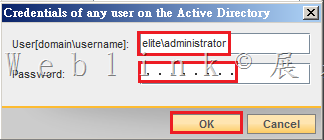
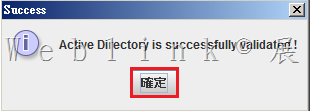
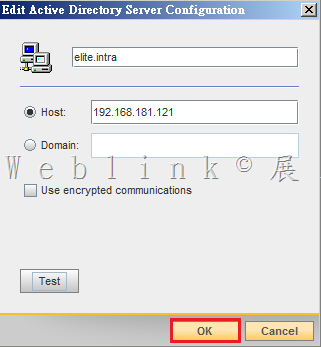
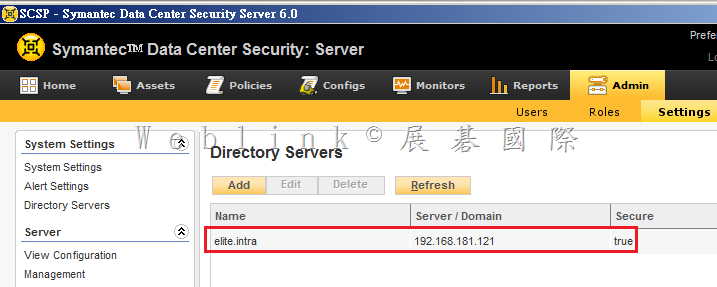
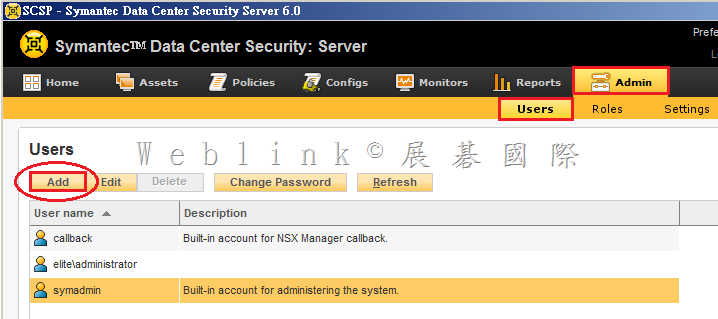
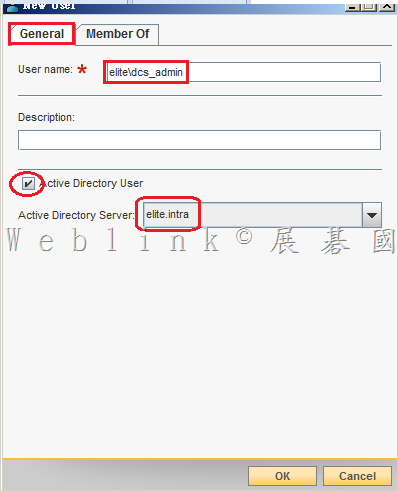
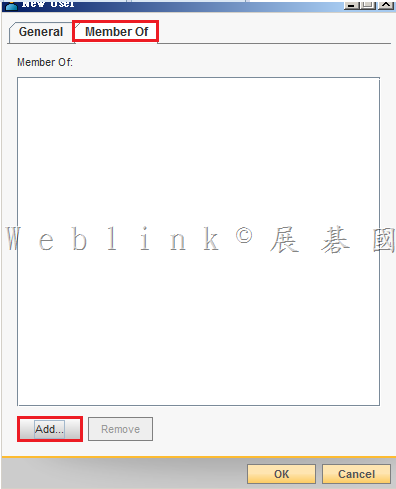
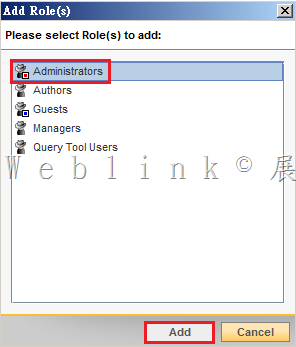
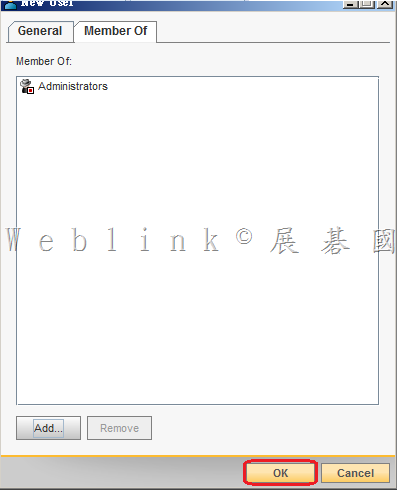
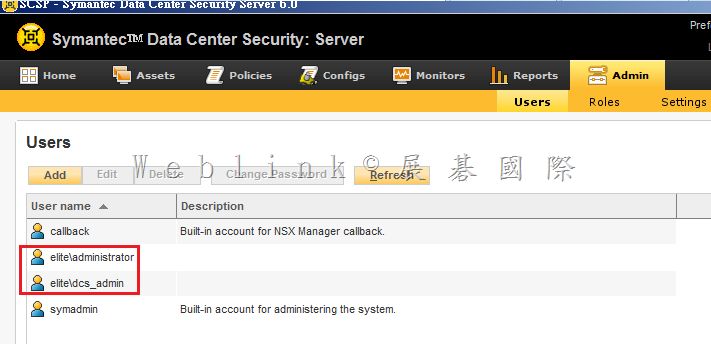

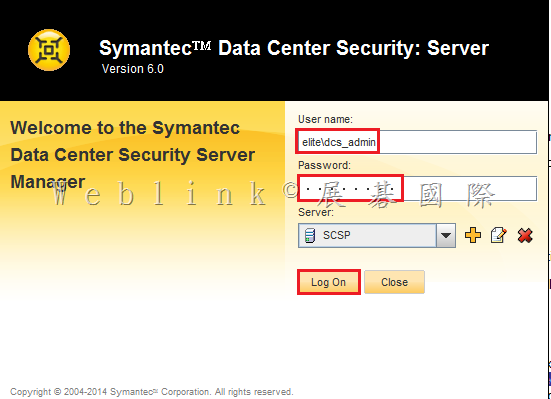
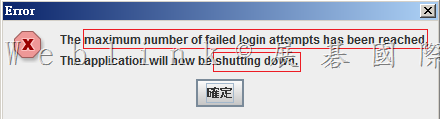
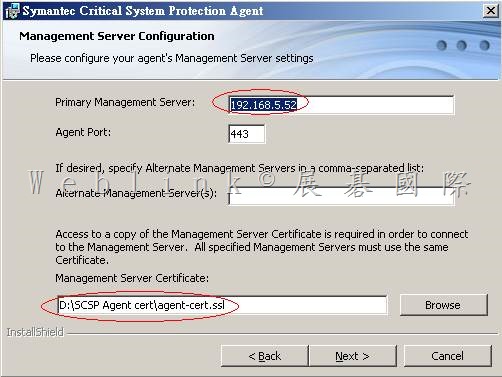
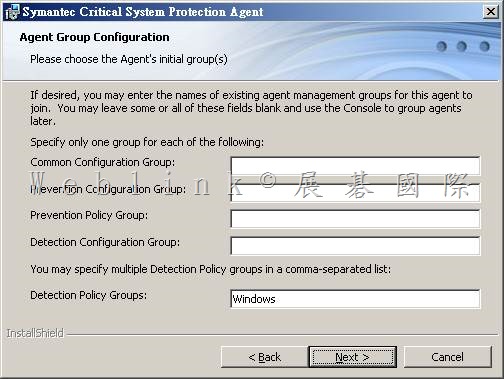
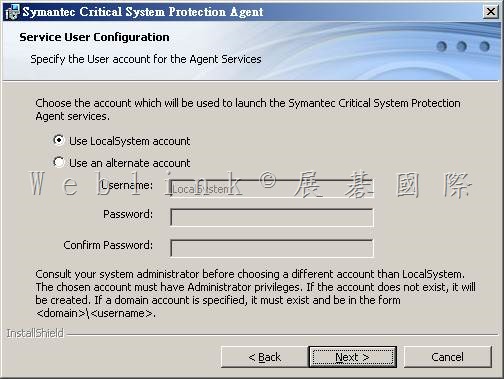
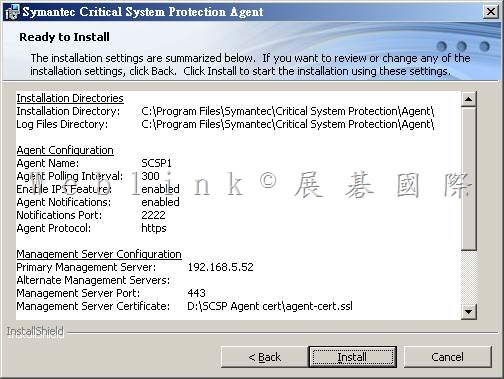
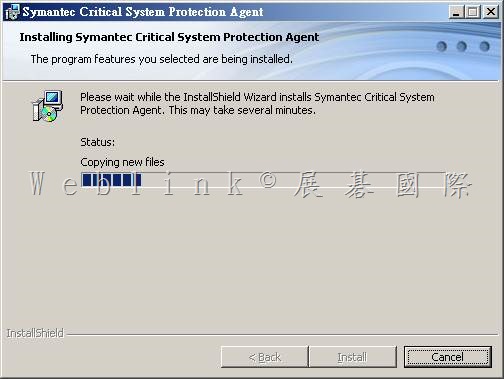
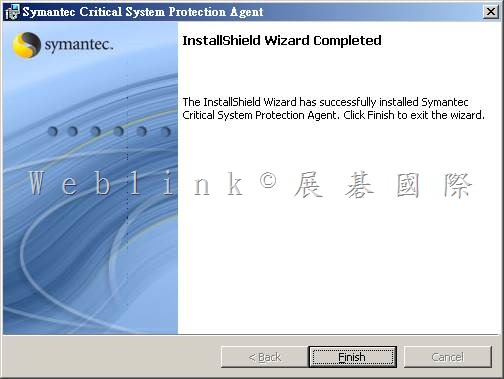
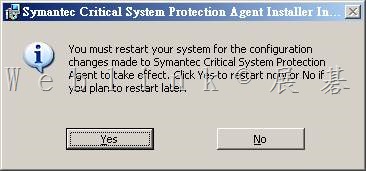
![clip_image002[22]](http://w3c.weblink.com.tw/symantec/wp-content/uploads/sites/4/2014/11/clip_image002221.jpg "clip_image002[22]")
![clip_image004[4]](http://w3c.weblink.com.tw/symantec/wp-content/uploads/sites/4/2014/11/clip_image00441.jpg "clip_image004[4]")
![clip_image006[4]](http://w3c.weblink.com.tw/symantec/wp-content/uploads/sites/4/2014/11/clip_image00641.jpg "clip_image006[4]")
![clip_image008[4]](http://w3c.weblink.com.tw/symantec/wp-content/uploads/sites/4/2014/11/clip_image00841.jpg "clip_image008[4]")
![clip_image010[4]](http://w3c.weblink.com.tw/symantec/wp-content/uploads/sites/4/2014/11/clip_image01041.jpg "clip_image010[4]")
![clip_image012[4]](http://w3c.weblink.com.tw/symantec/wp-content/uploads/sites/4/2014/11/clip_image01241.jpg "clip_image012[4]")
![clip_image014[4]](http://w3c.weblink.com.tw/symantec/wp-content/uploads/sites/4/2014/11/clip_image01441.jpg "clip_image014[4]")
![clip_image016[4]](http://w3c.weblink.com.tw/symantec/wp-content/uploads/sites/4/2014/11/clip_image01641.jpg "clip_image016[4]")
![clip_image018[4]](http://w3c.weblink.com.tw/symantec/wp-content/uploads/sites/4/2014/11/clip_image01841.jpg "clip_image018[4]")
![clip_image020[4]](http://w3c.weblink.com.tw/symantec/wp-content/uploads/sites/4/2014/11/clip_image02041.jpg "clip_image020[4]")
![clip_image022[4]](http://w3c.weblink.com.tw/symantec/wp-content/uploads/sites/4/2014/11/clip_image02241.jpg "clip_image022[4]")
![clip_image024[4]](http://w3c.weblink.com.tw/symantec/wp-content/uploads/sites/4/2014/11/clip_image02441.jpg "clip_image024[4]")
![clip_image026[4]](http://w3c.weblink.com.tw/symantec/wp-content/uploads/sites/4/2014/11/clip_image02641.jpg "clip_image026[4]")
![clip_image028[4]](http://w3c.weblink.com.tw/symantec/wp-content/uploads/sites/4/2014/11/clip_image02841.jpg "clip_image028[4]")
![clip_image030[4]](http://w3c.weblink.com.tw/symantec/wp-content/uploads/sites/4/2014/11/clip_image03041.jpg "clip_image030[4]")
![clip_image032[4]](http://w3c.weblink.com.tw/symantec/wp-content/uploads/sites/4/2014/11/clip_image03241.jpg "clip_image032[4]")
![clip_image002[1]](http://w3c.weblink.com.tw/symantec/wp-content/uploads/sites/4/2014/11/clip_image00211.jpg "clip_image002[1]")
![clip_image004[1]](http://w3c.weblink.com.tw/symantec/wp-content/uploads/sites/4/2014/11/clip_image00411.jpg "clip_image004[1]")
![clip_image006[1]](http://w3c.weblink.com.tw/symantec/wp-content/uploads/sites/4/2014/11/clip_image00611.jpg "clip_image006[1]")
![clip_image008[1]](http://w3c.weblink.com.tw/symantec/wp-content/uploads/sites/4/2014/11/clip_image00811.jpg "clip_image008[1]")
![clip_image010[1]](http://w3c.weblink.com.tw/symantec/wp-content/uploads/sites/4/2014/11/clip_image01011.jpg "clip_image010[1]")
![clip_image012[1]](http://w3c.weblink.com.tw/symantec/wp-content/uploads/sites/4/2014/11/clip_image01211.jpg "clip_image012[1]")

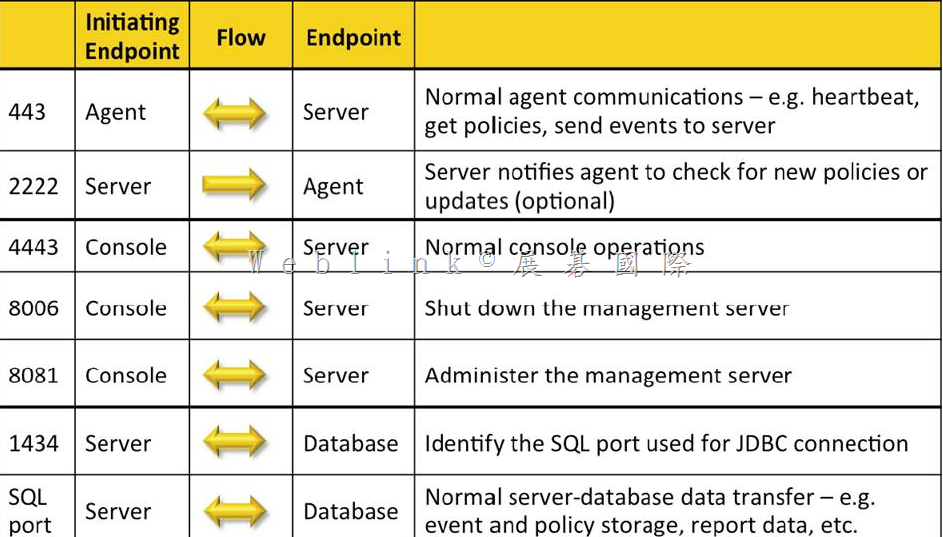
![clip_image022[1]](http://w3c.weblink.com.tw/symantec/wp-content/uploads/sites/4/2014/11/clip_image02211.jpg "clip_image022[1]")
![clip_image026[1]](http://w3c.weblink.com.tw/symantec/wp-content/uploads/sites/4/2014/11/clip_image02611.jpg "clip_image026[1]")
![clip_image032[1]](http://w3c.weblink.com.tw/symantec/wp-content/uploads/sites/4/2014/11/clip_image03211.jpg "clip_image032[1]")