作者: Allen Chung

  • 密碼變更後 boot-guard的密碼都還是舊的

    這與變更密碼的方式有關
    請參考以下網頁說明,請透過 Ctrl + Alt + Del 來變更密碼,這樣才能立即同步
    Symantec – Changing Your Windows Password with PGP WDE With Single Sign-On
    https://support.symantec.com/en_US/article.HOWTO79569.html

    Description
    To synchronize your Windows password changes with PGP Whole Disk Encryption (PGP WDE), you must change your password for Single Sign-On using the Change Password feature in the Windows Security dialog box, which you access by pressing Ctrl+Alt+Del.
    Note: You may also change your password when prompted by Windows that your password will expire during logging in.
    To change your passphrase
    1.  Press Ctrl+Alt+Delete.
    2. Type your old password.
    3. Type and confirm your new password.
    4. Click OK.
    Single Sign-On automatically and transparently synchronizes with this new password with your PGP WDE passphrase. You can use the new password immediately, in your next login attempt.

    Caution: If you change your password in any other manner—via Domain Controller, the Windows Control Panel, via the system administrator, or from another system—your next login attempt on the PGP BootGuard screen will fail. You must then supply your old Windows password. Successful login on the PGP BootGuard screen using your old Windows password then brings up the Windows Login username/password screen. You must then log in successfully using

    P.S.

    Symantec – How to change-update the SSO passphrase over the PGP WDE command line, if it has not synched with the PGP Bootguard.

    https://support.symantec.com/en_US/article.TECH149263.html

    If your Windows password has not synchronized with your PGP BootGuard passphrase, you can synchronize your new Windows password with the PGP BootGuard passphrase using the pgpwde tool.

    To use the pgpwde tool:

    Windows XP

    1. Click Start>Run.
    2. Type cmd in the Open field and click OK.
    3. Change to the Program Files\PGP Corporation\PGP Desktop directory.
      • Type the following at the command prompt (non-domain):
        pgpwde –change-passphrase –disk 0 –user username –passphrase ‘yourpassphrase’ –new-passphrase ‘yournewpassphrase’
      • Type the following at the command prompt (domain):
        pgpwde –change-passphrase –disk 0 –user username –domain ‘domainname’ –passphrase ‘yourpassphrase’ –new-passphrase ‘yournewpassphrase’
    4. Press Enter.

    Windows Vista & Windows 7 32-bit

    1. Click Start>Run.
    2. Type cmd in the Start Search field.
    3. Click cmd from the list of Programs.
    4. Change to the Program Files\PGP Corporation\PGP Desktop directory.
      • Type the following at the command prompt (non-domain):
        pgpwde –change-passphrase –disk 0 –user username –passphrase ‘yourpassphrase’ –new-passphrase ‘yournewpassphrase’
      • Type the following at the command prompt (domain):
        pgpwde –change-passphrase –disk 0 –user username –domain ‘domainname’ –passphrase ‘yourpassphrase’ –new-passphrase ‘yournewpassphrase’
    5. Press Enter.

    Windows Vista & Windows 7 64-bit

    1. Click Start>Run.
    2. Type cmd in the Start Search field.
    3. Click cmd from the list of Programs.
    4. Change to the Program Files (x86)\PGP Corporation\PGP Desktop directory.
      • Type the following at the command prompt (non-domain):
        pgpwde –change-passphrase –disk 0 –user username –passphrase ‘yourpassphrase’ –new-passphrase ‘yournewpassphrase’
      • Type the following at the command prompt (domain):
        pgpwde –change-passphrase –disk 0 –user username –domain ‘domainname’ –passphrase ‘yourpassphrase’ –new-passphrase ‘yournewpassphrase’
    5. Press Enter.

    Your PGP WDE passphrase is synchronized with your new Windows password.
  • Symantec Drive Encryption (Managed by SMES) upgrade to 3.3.2 MP10 issue

    Our company used the Symantec Drive Encryption (managed by Symantec Encryption Management Server (SEMS) and integrate with AD authentication and single sign on).

    We always upgrad the Symantec Encryption Management Server (SEMS) to the latest version and it almost works normally.

    This time we upgrad the Symantec Encryption Management Server (SEMS) to the (3.3.2 MP10) version.

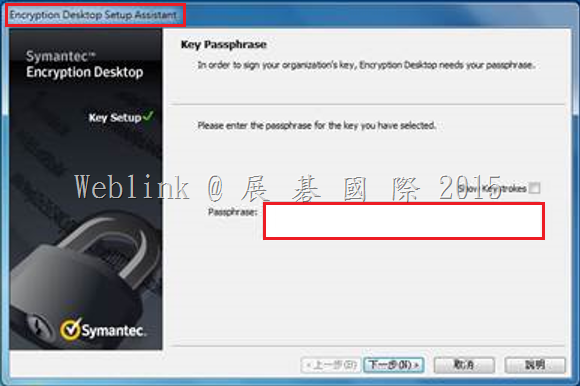
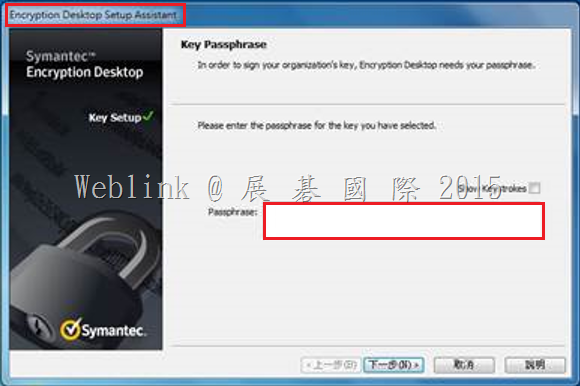
    We found if we install a new PC and use the user account (existed in SEMS) to enroll to the SEMS and the Encryption Deaktop Setup Assistant wizard asked to enter the passphrase.

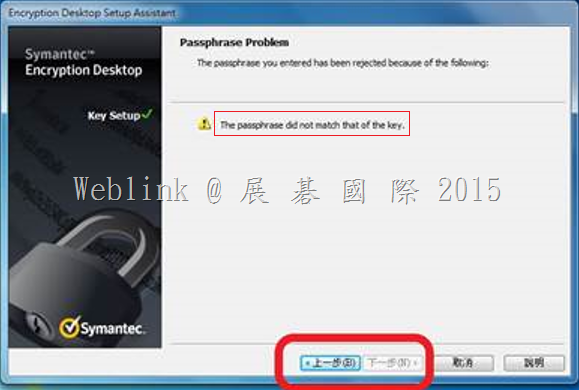
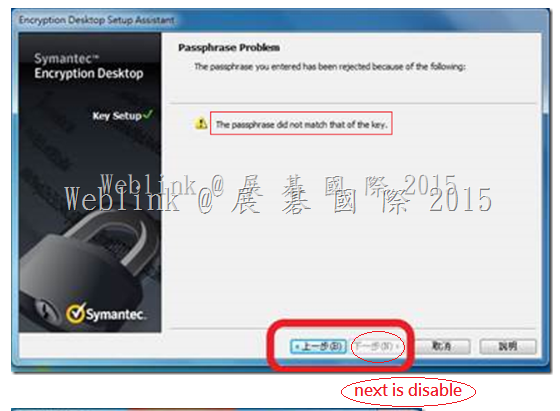
    But we can not enter the current domain password (it display “The passprase did not match of the key” ).

    It must enter the old domain password (when the user account enrolled to the SEMS first time).

    clip_image001

    If we didn’t enter the match passphrase we can not press next button.

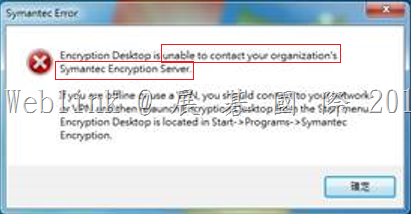
    clip_image002

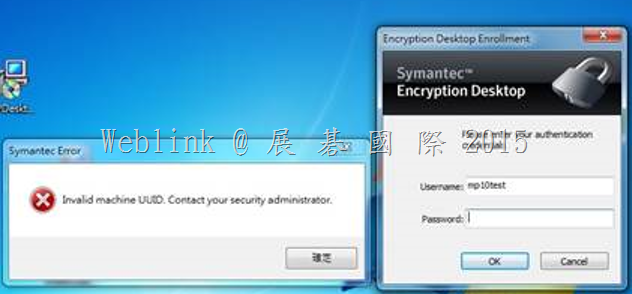
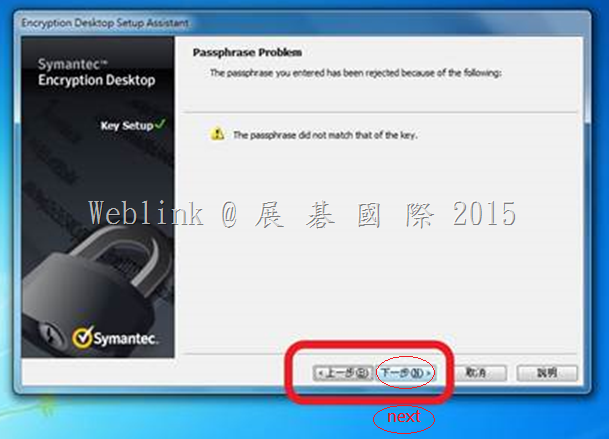
    clip_image003

    clip_image004

    We refered to the URL below.

    It says:

    If using Silent Enrollment, we recommend using SKM mode only. Otherwise, a GKM key will be created, using their current Windows passphrase when they first enroll, but the passphrase on that key will not change, so after several Windows passphrase changes, the user will likely not remember the GKM key passphrase.

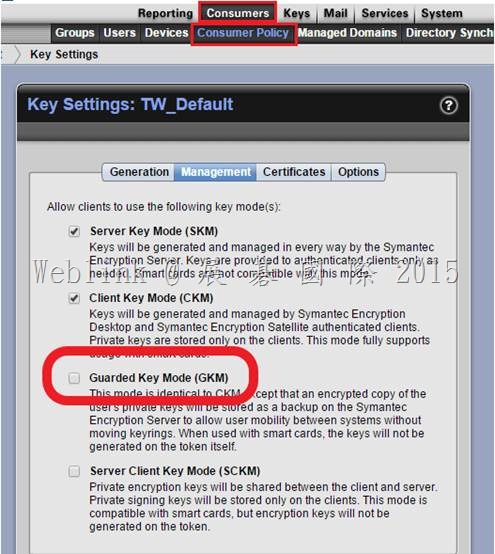
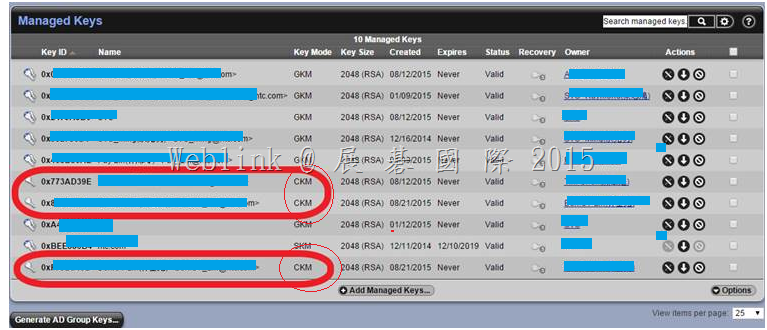
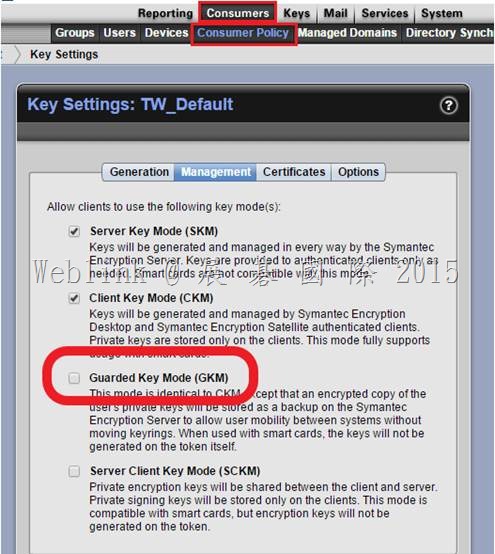
    So we unchecked the Guarded Key Mode (GKM) in the key mode setting Under the LAB and the issue solved.

    http://www.symantec.com/connect/forums/single-user-issue-multiple-machines

    clip_image006

    The key mode change to CKM.

    clip_image007

    1.We want to know why the (3.3.2 MP10) version has this issue?

    Our company used the Symantec Drive Encryption (managed by Symantec Encryption Management Server (SEMS) and integrate with AD authentication and single sign on).

    【We use the GKM mode】

    If we install a new PC and use the user account (existed in SEMS) to enroll to the SEMS and the Encryption Deaktop Setup Assistant wizard asked to enter the passphrase.

    The passphrase must be the original one,not the current domain password.

    clip_image001

    (1) In ( 3.3.2 MP10 )

    It display “The passprase did not match of the key”.

    And we can not press 【next】 to ignore it,and we can not do any configuration on PGP client.

    image

    (2) In ( 3.3.2 MP7 and earlier version )

    It display “The passprase did not match of the key”.

    But we can press 【next】 to ignore it,so we can encrypt th disk.

    image

    (3) If we unchecked the GKM then the user key change to CKM.

    We install a new PC and use the user account (existed in SEMS) to enroll to the SEMS .

    It doesn’t ask to enter the passphrase.

    We don’t unchecked the GKM in the production environment because we are not sure what effects will be occured.

    clip_image006

    2.What different between check and uncheck the Guarded Key Mode (GKM)?

    3.Any effects if we uncheck the Guarded Key Mode (GKM) in the production environment?

    4.What is the correct setting for our environment?

    【Information form Symantec Connect】

    https://www-secure.symantec.com/connect/forums/symantec-drive-encryption-managed-smes-upgrade-332-mp10-issue#comment-form

    1. During initial enrollment the users domain password is not used in GKM key mode. The PGP key and passphrase do not have the ability to use SSO(single sign on), the passphrase is assigned to the key in GKM mode when the user manually types their passphrase in the key generation wizard box. This passphrase for the PGP key does not sync with users Windows passwords. If you want to change the passphrase you must do so manually by selecting Symantec Encryption Desktop>PGP Key> Select the key>Change passphrase. It will ask for the old passphrase if it’s not cached and then it will let you update the passphrase. 

    2. If you are only using Symantec Drive Encryption for your environment, then I would suggest using SKM key mode as this keymode requires that the users don’t need to maintain and remember their passphrase. The Server manages the key and never asks for a passphrase to use these keys. PGP keys have nothing to do with Symantec Drive Encryption unless you manually put them on a Smart Card or Token and then use that for authentication. By default Symantec Drive Encryption uses passphrase user for access and doesn’t require a PGP key to do the intial encryption.

    I would recommend you open a support ticket so they can help you figure out a solution to get the users off of GKM key mode. GKM keymode will be problematic since the users don’t use the PGP key. They will forget the passphrase and you will run into an issue attempting to re-enroll or enroll on new machines. I always recommend SKM keymode for Drive Encryption only environments. 

    I would not recommend you just select CKM keymode since it’s not fixing the issue. It will just add to the confusion in the future. The user will have a keypair that they don’t know or remember the passphrase. There are certain operations that require the users know the passphrase to function properly. I’m very suprised that the enrollment wizard allows you to bypass this section without knowing the passphrase to the key even in CKM mode. That seems like a defect to me since the users will have broken keys if they don’t know the passphrase. 

  • Outlook 2007、Outlook 2010 設定連結 Exchange online 伺服器失敗

    Outlook 2007、Outlook 2010 設定連結 Exchange online 伺服器失敗時,請您參照以下步驟進行 Office 365 桌面設定,再進行 Outlook 2010 設定連結 Exchange online 伺服器的設定

    登入 https://portal.microsoftonline.com

    點選畫面右上方【齒輪圖示】→【Office 365 設定】→【軟體】

    image

    點選【桌面設定】→【設定】→【執行】setup_zh-hant.exe

    之後再進行 Outlook 2007、Outlook 2010 連結 Exchange online 伺服器

    image

  • Outlook 2007、Outlook 2010 設定連結 Exchange online 伺服器失敗

    Outlook 2007、Outlook 2010 設定連結 Exchange online 伺服器失敗時,請您參照以下步驟進行 Office 365 桌面設定,再進行 Outlook 2010 設定連結 Exchange online 伺服器的設定

    登入 https://portal.microsoftonline.com

    點選畫面右上方【齒輪圖示】→【Office 365 設定】→【軟體】

    image

    點選【桌面設定】→【設定】→【執行】setup_zh-hant.exe

    之後再進行 Outlook 2007、Outlook 2010 連結 Exchange online 伺服器

    image

  • How to let the V-ray tier A (up to 6 cores) usage covered by V-ray tier B (+8 cores) license

    How to let the V-ray tier A (up to 6 cores) usage covered by V-ray tier B (+8 cores) license?

    Hi,

    We buy 10 V-ray tier B (+8 cores) license and have installed them.

    We found Backup Exec 2014 detected we have installed 10 V-ray tier B (+8 cores) license and use 2.

    Backup Exec 2014 also detected we have installed 0 V-ray tier A up to 6 cores) license and use 8.

    How can we let the V-ray tier A (up to 6 cores) usage covered by V-ray tier B (+8 cores) license?

    原廠的回覆

    【Case # 08497250 – How to let the V-ray tier A (up to 6 cores) usage covered by V-ray tier B (+8 cores) license? has been created】

    关于您VM License的问题,我们向后线以及国外的研发进行了咨询和确认:

    1.  目前您可以正常使用。V-ray tier B (+8 cores) license可以为未来服务器升级进行准备。

    2.  备份和还原任务都不影响使用。

    3.  这个问题,我们也会向研发部门进行反应,在未来的版本中,添加V-ray tier B License 向下兼容这个功能。

    有问题随时和我联系。谢谢您的支持。


    image

    image

  • Exchange Online 方案 | 線上與Open合約訂閱比較與授權切換

    Exchange Online 方案 | 線上與Open合約訂閱比較與授權切換

    1.    Office 365 線上訂閱,若在合約中有新增授權數,微軟只會收取由新增授權日期到合約到期日的費用。  例如:假設合約是 2015/6/29 ~2016/6/28,在2015/9/1 新增一個授權,微軟只會收取 2015/9/1 ~ 2016/6/28的費用,合約到期日保持不變且會切齊。

    後來所新增的授權數,其購買方式需與原購買的授權方式是相同的(線上訂閱或Open合約),才能如回覆中之說明來計算到期日或平均使用天數,否則會採購買新授權之方式來計算使用日期。

    而計算到期日之費用或平均天數,則是依每種授權方案來各自計算的,E1就跟E1、E2就跟E2… K方案就跟K方案,無法E1~E4或K之間來混合計算(因每種方案價格不同)。


    Office 365 Open合約新增授權,則會先統計所有訂閱的未使用天數(現有訂閱 + 新增授權)後,去除取總授權數來取得平均天數,故合約到期日仍是會保持切齊,但到期日將會延展。

    2.     不同的Office 365方案授權是可以隨時做切換到不同的Office 365帳號。

  • Exchange Online 方案 | 線上與Open合約訂閱比較與授權切換

    Exchange Online 方案 | 線上與Open合約訂閱比較與授權切換

    1.    Office 365 線上訂閱,若在合約中有新增授權數,微軟只會收取由新增授權日期到合約到期日的費用。  例如:假設合約是 2015/6/29 ~2016/6/28,在2015/9/1 新增一個授權,微軟只會收取 2015/9/1 ~ 2016/6/28的費用,合約到期日保持不變且會切齊。

    後來所新增的授權數,其購買方式需與原購買的授權方式是相同的(線上訂閱或Open合約),才能如回覆中之說明來計算到期日或平均使用天數,否則會採購買新授權之方式來計算使用日期。

    而計算到期日之費用或平均天數,則是依每種授權方案來各自計算的,E1就跟E1、E2就跟E2… K方案就跟K方案,無法E1~E4或K之間來混合計算(因每種方案價格不同)。


    Office 365 Open合約新增授權,則會先統計所有訂閱的未使用天數(現有訂閱 + 新增授權)後,去除取總授權數來取得平均天數,故合約到期日仍是會保持切齊,但到期日將會延展。

    2.     不同的Office 365方案授權是可以隨時做切換到不同的Office 365帳號。

  • Project Online 授權購買

    Project Online 授權

    企業內有 50 人,5人需編修 Project,5人須回報進度,40 人瀏覽專案

    請問是否購買

    Project Online with Project pro for Office 365 X 5

    Project lite X 45

    Project Online X 0

    解決方法

    但針對客戶的需求,您至少需要購買下面的授權:

    針對5位需求建立、管理和離線使用Project Pro的同仁,請為他們採購Project Online with Project Pro for Office 365 x5

    針對45位其他需要回報專案進度與瀏覽專案的同仁,請為他們採購Project Lite x45

    Project Online 和 Project Lite 都是 PPM 方案。Project Online 不是網路版本的 Project Professional 2013 (專案管理方案)。Project Online 是完全不同的服務,可在網路上提供完整公事包和專案管理功能。

    選項 描述
    Project Online 以獨立服務或附加元件的形式為 Office 365 服務系列與方案 中 Office 365 客戶提供每月訂閱服務。無法在 Office 365 商務版方案中加入 Project Online。若要深入了解 Project Online,請參閱開始使用 Project Online。若要購買 Project Online,請參閱 Project Online
    Project Lite 提供做為擁有 Project Online 的客戶之附加元件的每月訂閱服務。Project Lite 無法新增至 Office 365 商務版方案。

    組織必須要有 Project Online,才能使用 Project Lite。Project Lite 適合專案小組成員管理其任務和時程表,以及對專案進行共同作業。會根據使用者的角色,將 Project Online 授權或 Project Lite 授權指派給使用者,但不能同時指派兩者。

    如需 Project Lite 的詳細資訊,請參閱小組成員可以在 Project Online 中做什麼?。若要購買 Project Lite,請參閱 Project Lite

    Project Server 2013 以單一下載授權購買的內部部署選項。

    https://products.office.com/zh-tw/project?legRedir=true&CorrelationId=34d95ba7-d84a-47e8-81b7-386592da83ff

    針對角色的選擇與考量:

    clip_image001

    版本比較:

    https://technet.microsoft.com/zh-tw/library/project-online-service-description.aspx

    下表摘要說明 Project Online、Project Lite 和 Project Server 2013 (內部部署) 中可用的 PPM 功能。

    功能 Project Online Project Lite Project Server 2013
    Active Directory 整合 是1
    管理、 部署和擴充性 不適用2
    協同作業
    需求管理
    財務管理
    快速入門
    問題和風險管理
    Office 365 信任中心 不適用
    組合分析和選擇
    計劃管理
    PPM 合作夥伴生態系統
    資源管理
    報告和商業智慧
    排程管理
    服務可靠性 不適用
    服務更新 不適用
    時間與任務管理
    clip_image002附註:
    1 Active Directory 整合包括 Project Lite 使用者。不過,需要有 Project Online 訂閱,才能管理 Active Directory 整合。
    2 具有 Project Lite 訂閱的使用者沒有系統管理員權限。請參閱小組成員可以在 Project Online 中做什麼?

    Project Lite重要功能

    https://products.office.com/zh-tw/Project/project-lite

    時程表 Project 精簡版 可讓小組成員檢視時程表、輸入小時數、從時程表中新增或移除任務,以及提交時程表。
    管理任務 透過 Project 精簡版,小組成員可報告任務進度、新增任務、將自己指派至現有任務,以及將自己的任務指派給其他小組成員。
    新增問題與風險 Project 精簡版 可讓小組成員新增專案問題與風險的相關資訊,同時將這些問題與風險連結至計劃中的特定任務。
    共同作業 Project 精簡版 為小組成員提供理想的共同作業環境,可儲存與處理專案文件、檢視整個組織的其他專案,以及檢視已提交核准的更新內容等。
    隨時隨地存取 透過 Project 精簡版,小組成員可隨時隨地使用任何裝置處理工作,有助生產力提升。
    快速入門 Project 精簡版 可讓小組成員快速上手,並可與其他成員共同作業以及高效管理任務。

    https://products.office.com/zh-tw/Project/project-online-portfolio-management

    Project Online 重要功能

    簡化的 IT 利用最新的技術和業界標準將 PMO 功能與 IT 功能分開,讓您的小組能快速設置並開始運作。
    Active Directory 整合 管理使用者認證與權限。
    可靠性 我們藉由領先業界的財務後盾,堅守可讓上線時間達 99.9% 的承諾。
    安全性 您的資料為您個人所擁有。 我們會保障資料安全並保護您的隱私。
    系統管理 您的資料為您個人所擁有。 我們會保障資料安全並保護您的隱私。

    非常容易使用和控制。 使用者的新增與移除作業亦可更加快速。 用 PowerShell 來建立自訂指令碼與自動化程序。

    更新 定期更新服務及功能。
    支援 提供全天候的電話支援方案,以解決進階的 IT 問題。 Microsoft 社群支援提供線上解答與操作教學資源,並可與其他 Office 365 客戶進行交流。
    快速入門 Project 可讓您的組織快速啟動專案、排定專案產品組合投資的優先順序,並達到附有預定商業價值的成果。
    隨時隨地存取 隨時隨地透過任何裝置發揮生產力
    工作管理 無需專案結構即可以小組形式輕鬆管理工作並進行共同作業,又能掌握工作以進行規劃和報告。
    需求管理 掌握各項專案、營運活動與日常工作的資訊。 運用適當的控管機制,簡化專案啟用與進程作業。
    資源管理 透過目前的工作力達到所要成果,並對未來進行規劃,管理整個規劃時程中工作力過多與不足的情形。
    排程管理 利用執行與交付架構的藍圖追蹤進度並管理變更,以準時交付專案。
    財務管理 採用財務管理程序,有效追蹤成本效益,以確保在預算範圍內完成交付,且產品組合達到預期的效益。
    時間與工作管理 使用集中式且易上手的時間報告與工作管理作法。
    問題與風險管理 防範、識別及減輕潛在的企業或專案相關風險與問題。
    報告與商業智慧 收集並分類專案資料,加以融會貫通後做出決策。 透過商業智慧 (BI) 功能綜觀全局,運籌帷幄,主動管理專案、計畫與產品組合。
    計畫管理 讓所有進行中的專案,產出整體計畫所預期的利益,並能充分利用其技術,建置與運用計畫啟用與架構選擇,取得更多好處。
    專案與產品組合管理合作夥伴生態系統 Microsoft PPM 解決方案有數以百計的 Microsoft 合作夥伴做為後盾支援,我們遍及全球 80 餘國的合作夥伴全都擁有 PPM 專長認證,也通過相關測驗,並已處理過無數的部署案例。 如需評估、展望、部署或訓練的相關協助,且已準備好要與專業服務組織合作,請洽詢 當地的
  • Project Online 授權購買

    Project Online 授權

    企業內有 50 人,5人需編修 Project,5人須回報進度,40 人瀏覽專案

    請問是否購買

    Project Online with Project pro for Office 365 X 5

    Project lite X 45

    Project Online X 0

    解決方法

    但針對客戶的需求,您至少需要購買下面的授權:

    針對5位需求建立、管理和離線使用Project Pro的同仁,請為他們採購Project Online with Project Pro for Office 365 x5

    針對45位其他需要回報專案進度與瀏覽專案的同仁,請為他們採購Project Lite x45

    Project Online 和 Project Lite 都是 PPM 方案。Project Online 不是網路版本的 Project Professional 2013 (專案管理方案)。Project Online 是完全不同的服務,可在網路上提供完整公事包和專案管理功能。

    選項 描述
    Project Online 以獨立服務或附加元件的形式為 Office 365 服務系列與方案 中 Office 365 客戶提供每月訂閱服務。無法在 Office 365 商務版方案中加入 Project Online。若要深入了解 Project Online,請參閱開始使用 Project Online。若要購買 Project Online,請參閱 Project Online
    Project Lite 提供做為擁有 Project Online 的客戶之附加元件的每月訂閱服務。Project Lite 無法新增至 Office 365 商務版方案。

    組織必須要有 Project Online,才能使用 Project Lite。Project Lite 適合專案小組成員管理其任務和時程表,以及對專案進行共同作業。會根據使用者的角色,將 Project Online 授權或 Project Lite 授權指派給使用者,但不能同時指派兩者。

    如需 Project Lite 的詳細資訊,請參閱小組成員可以在 Project Online 中做什麼?。若要購買 Project Lite,請參閱 Project Lite

    Project Server 2013 以單一下載授權購買的內部部署選項。

    https://products.office.com/zh-tw/project?legRedir=true&CorrelationId=34d95ba7-d84a-47e8-81b7-386592da83ff

    針對角色的選擇與考量:

    clip_image001

    版本比較:

    https://technet.microsoft.com/zh-tw/library/project-online-service-description.aspx

    下表摘要說明 Project Online、Project Lite 和 Project Server 2013 (內部部署) 中可用的 PPM 功能。

    功能 Project Online Project Lite Project Server 2013
    Active Directory 整合 是1
    管理、 部署和擴充性 不適用2
    協同作業
    需求管理
    財務管理
    快速入門
    問題和風險管理
    Office 365 信任中心 不適用
    組合分析和選擇
    計劃管理
    PPM 合作夥伴生態系統
    資源管理
    報告和商業智慧
    排程管理
    服務可靠性 不適用
    服務更新 不適用
    時間與任務管理
    clip_image002附註:
    1 Active Directory 整合包括 Project Lite 使用者。不過,需要有 Project Online 訂閱,才能管理 Active Directory 整合。
    2 具有 Project Lite 訂閱的使用者沒有系統管理員權限。請參閱小組成員可以在 Project Online 中做什麼?

    Project Lite重要功能

    https://products.office.com/zh-tw/Project/project-lite

    時程表 Project 精簡版 可讓小組成員檢視時程表、輸入小時數、從時程表中新增或移除任務,以及提交時程表。
    管理任務 透過 Project 精簡版,小組成員可報告任務進度、新增任務、將自己指派至現有任務,以及將自己的任務指派給其他小組成員。
    新增問題與風險 Project 精簡版 可讓小組成員新增專案問題與風險的相關資訊,同時將這些問題與風險連結至計劃中的特定任務。
    共同作業 Project 精簡版 為小組成員提供理想的共同作業環境,可儲存與處理專案文件、檢視整個組織的其他專案,以及檢視已提交核准的更新內容等。
    隨時隨地存取 透過 Project 精簡版,小組成員可隨時隨地使用任何裝置處理工作,有助生產力提升。
    快速入門 Project 精簡版 可讓小組成員快速上手,並可與其他成員共同作業以及高效管理任務。

    https://products.office.com/zh-tw/Project/project-online-portfolio-management

    Project Online 重要功能

    簡化的 IT 利用最新的技術和業界標準將 PMO 功能與 IT 功能分開,讓您的小組能快速設置並開始運作。
    Active Directory 整合 管理使用者認證與權限。
    可靠性 我們藉由領先業界的財務後盾,堅守可讓上線時間達 99.9% 的承諾。
    安全性 您的資料為您個人所擁有。 我們會保障資料安全並保護您的隱私。
    系統管理 您的資料為您個人所擁有。 我們會保障資料安全並保護您的隱私。

    非常容易使用和控制。 使用者的新增與移除作業亦可更加快速。 用 PowerShell 來建立自訂指令碼與自動化程序。

    更新 定期更新服務及功能。
    支援 提供全天候的電話支援方案,以解決進階的 IT 問題。 Microsoft 社群支援提供線上解答與操作教學資源,並可與其他 Office 365 客戶進行交流。
    快速入門 Project 可讓您的組織快速啟動專案、排定專案產品組合投資的優先順序,並達到附有預定商業價值的成果。
    隨時隨地存取 隨時隨地透過任何裝置發揮生產力
    工作管理 無需專案結構即可以小組形式輕鬆管理工作並進行共同作業,又能掌握工作以進行規劃和報告。
    需求管理 掌握各項專案、營運活動與日常工作的資訊。 運用適當的控管機制,簡化專案啟用與進程作業。
    資源管理 透過目前的工作力達到所要成果,並對未來進行規劃,管理整個規劃時程中工作力過多與不足的情形。
    排程管理 利用執行與交付架構的藍圖追蹤進度並管理變更,以準時交付專案。
    財務管理 採用財務管理程序,有效追蹤成本效益,以確保在預算範圍內完成交付,且產品組合達到預期的效益。
    時間與工作管理 使用集中式且易上手的時間報告與工作管理作法。
    問題與風險管理 防範、識別及減輕潛在的企業或專案相關風險與問題。
    報告與商業智慧 收集並分類專案資料,加以融會貫通後做出決策。 透過商業智慧 (BI) 功能綜觀全局,運籌帷幄,主動管理專案、計畫與產品組合。
    計畫管理 讓所有進行中的專案,產出整體計畫所預期的利益,並能充分利用其技術,建置與運用計畫啟用與架構選擇,取得更多好處。
    專案與產品組合管理合作夥伴生態系統 Microsoft PPM 解決方案有數以百計的 Microsoft 合作夥伴做為後盾支援,我們遍及全球 80 餘國的合作夥伴全都擁有 PPM 專長認證,也通過相關測驗,並已處理過無數的部署案例。 如需評估、展望、部署或訓練的相關協助,且已準備好要與專業服務組織合作,請洽詢 當地的
  • 【Office 2013 PKC 金鑰輸入後出現 本產品不適用於您識別的地區】

    【Office 2013 PKC 金鑰輸入後出現 本產品不適用於您識別的地區


    1. 如果是金鑰 key 錯,會出現以下的畫面,告知是【非有效的產品金鑰】

    2. 如果是金鑰 key 正確,接下來會要求您登入 Windows Live ID,然後選擇地區及語言

    3. 客戶現遇到的是【本產品不適用於您識別的地區】,要

    請您致電微軟0800008833 #1 (個人) #4 (技術)

    告訴客服人員【Office 2013 PKC 金鑰輸入後出現 本產品不適用於您識別的地區】

    客服人員會要求提供Office 2013 PKC 金鑰以及目前所在地區,然後提供另一組兌換金鑰給您

    • 輸入了錯誤的金鑰 (畫面中金鑰已無效,請不必費心測試)

    clip_image001

    • 本產品不適用於您識別的地區

    clip_image002