作者: Allen Chung

  • 1.【如何確認 PGP 硬碟加密目前是採用 DES-128 或 DES-256】2. 【若將 PGP 硬碟加密政策由目前的 DES-256 改為 DES-128,該硬碟是否需先行解密後再進行加密】

    【如何確認 PGP 硬碟加密目前是採用 DES-128 或 DES-256】

    【若將 PGP 硬碟加密政策由目前的 DES-256 改為 DES-128,該硬碟是否需先行解密後再進行加密】

    以上問題可參考官網 https://support.symantec.com/en_US/article.TECH224377.html

    【如何確認 PGP 硬碟加密目前是採用 DES-128 或 DES-256】

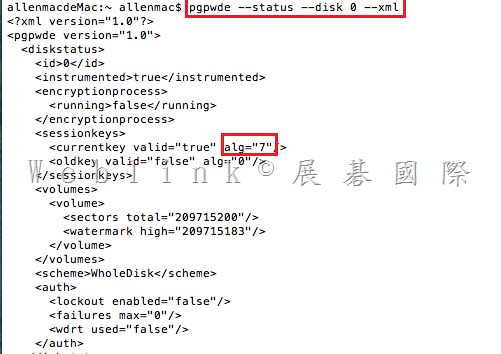
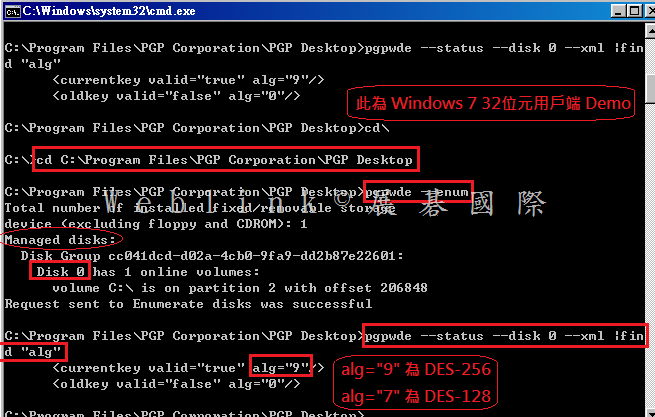
    請參考下圖於用戶端執行以下指令:

    【64 位元電腦請切換至以下目錄】

    C:\Program Files (x86)\PGP Corporation\PGP Desktop

    【32 位元電腦請切換至以下目錄】

    C:\Program Files\PGP Corporation\PGP Desktop

    再執行

    pgpwde –status –disk 0 –xml |find “alg”

    ※ for Mac → 執行 pgpwde –status –disk 0 –xml

    image

    在輸出的結果中,找到以下數值,若 alg=”9” 則該硬碟採用 DES-256 加密,若 alg=”7” 則該硬碟採用 DES-128 加密

    <currentkey valid=”true” alg=”9”>

    clip_image001

    【若將 PGP 硬碟加密政策由目前的 DES-256 改為 DES-128,該硬碟是否需先行解密後再進行加密】

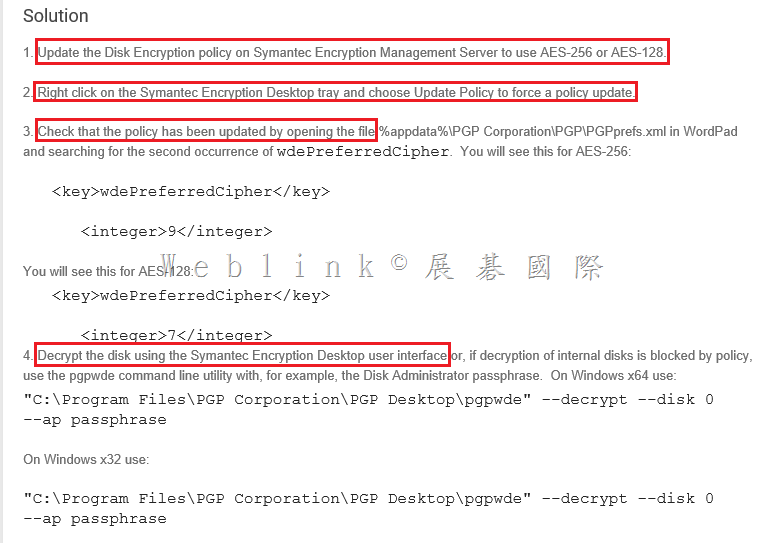
    是的,請參考下方程序

    clip_image002

    clip_image003

  • Unable to Encrypt Mac Systems on MAC Yosemite with Symantec Encryption Desktop 10.3.2 with error 116385 when Microsoft Office 2011 has been installed prior to Symantec Drive Encryption

    http://www.symantec.com/business/support/index?page=content&id=TECH229178

    Issue

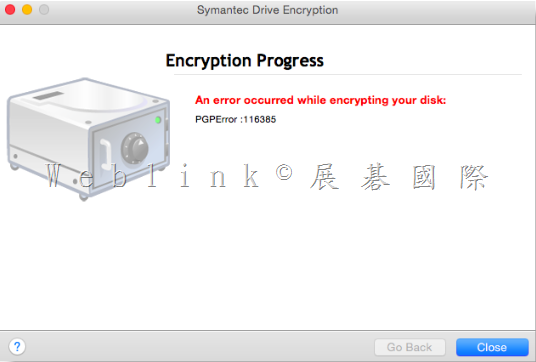
    In attempting to encrypt a Mac OS X 10.10 Yosemite system with Symantec Drive Encryption 10.3., the following error occurs:【PGPError :116385】

    Error

    “An error occurred while encrypting your disk:
    PGPError :116385”

    image

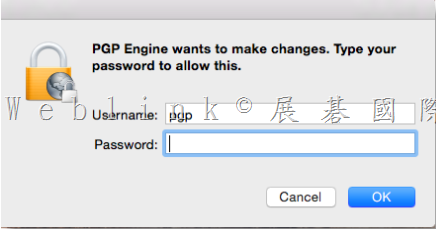
    In addition to receiving the above error, a prompt will continuously pop up indicating changes are needed.  When Symantec Drive Encryption has been installed properly, this pop up should never be displayed:

    image

    Cause

    The reason this happens is the permissions set for the /Library/PrivilegedHelperTools directory is not set according to what is needed for Symantec Drive Encryption 10.3.2.  This condition typically happens when Microsoft Office 2011 has been installed prior to Symantec Drive Encryption, but only on Yosemite.  Previous versions of Mac OS X (such as Mavericks), Office 2011 and Symantec Drive Encryption are unaffected by this issue.

    Solution

    The workaround for this is to run the following command via Terminal and then install Symantec Drive Encryption:

    sudo chown 0:wheel /Library/PrivilegedHelperTools/

    Once the above command is run, type in the Mac Admin password to allow the permission change to occur.  Once the command is completed successfully, the permissions for the group “wheel” will be assigned, instead of “Admin”.

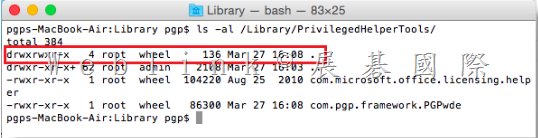
    To confirm the appropriate permissions have been set, run the following command:

    ls -al /Library/PrivilegedHelperTools/

    The following permissions will be displayed to confirm the correct permissions have been set:

    image


    Running the following command can also confirm proper permissions have been set::

    stat /Library/PrivilegedHelperTools/

    image

    The permission of “root wheel” should be displayed as seen in the example.

    If this entry still says “root admin”, the command did not work.  Check the syntax and retry the command.

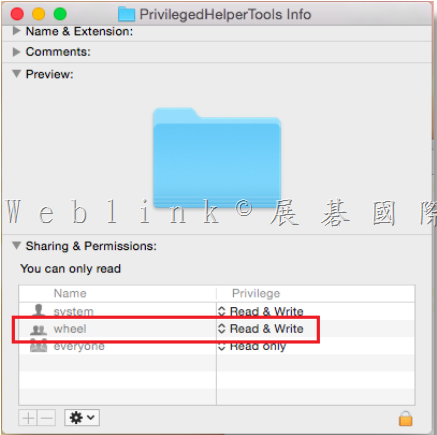
    Alternatively, checking the properties of the /Library/PrivilegedHelperTools/ properties via Finder will show the following correct permissions:

    image

    Once the permissions have been set properly, uninstall Symantec Drive Encryption if installed, and then install the application.  This time, Drive Encryption should succeed.

    Symantec Development is currently working into this for a final resolution.  Subscribe to this article for any future updates with this issue.

  • Unable Access Second Partition After Formatting Primary Partition

    Issue

    On a whole disk encrypted a disk with two partitions, the second partition is inaccessible after formatting the primary partition without decrypting the disk.  

    Warning: Do not re-encrypt the C: Drive as this will result in overwriting the session key and PGPWDE01 file which contains the drive encryption information and makes the disk unrecoverable.

    Environment
    • 2 partitions on an internal hard disk (C: and D: )
    • Both partitions are PGP Whole Disk Encrypted
    • The C: partition is formatted without decrypting the drive
    Solution

    To resolve this issue, you must attached the disk to another computer with PGP Desktop installed. Then use the pgpwde command line interface to decrypt the disk.

    Use the following steps:

    1. Open a Windows Command Prompt.

    2. Change to the following directory C:\Program Files\PGP Corporation\PGP Desktop

    3. Type pgpwde –recover -d 1 –passphrase “your passphrase” and press Enter.

    (Assuming that the D: drive is the disk number “1”)

  • Drive Encryption Diagnosis and Recovery

    Drive Encryption Diagnosis and Recovery – Symantec Drive Encryption & PGP Whole Disk Encryption

    http://www.symantec.com/business/support/index?page=content&id=TECH149679

    Issue

    This article provides tools and steps to diagnose and recover disks that are encrypted with Symantec Drive Encryption (previously PGP Whole Disk Encryption). 

    Solution

    Section 1 describes some symptoms that users with encrypted disk problems may encounter.  Section 2 provides procedures for using the PGPWDE command line interface. Section  3 details use of the Recovery Disk.

    Note: If a system hard disk has been “fully” decrypted, and will not boot, make sure to slave the disk and backup all your data, or use bit-by-bit copy of the disk. Connect the hard disk back to system and run the fixmbr command from the Windows Recovery Console from a Windows XP installation CD.

    SECTION 1 – Symptoms

    On rare occasions internal or external disks that are encrypted may experience the following issues:

    • Inability to decrypt or read the contents of a secondary or non-system disk.
    • System displays “Error loading operating system_” after entering the passphrase at the PGP BootGuard screen.
    • Master Boot Record (MBR) corruption causing the system to no longer boot.
    • After starting the system with the hard disk encrypted to a passphrase and an eToken, valid passphrases are not accepted.

    1. Users able to access their encrypted disk from Windows should proceed to Section 2.
    2. Users unable to access their disk from Windows or who are unable to boot should proceed to
    Section 3.

    SECTION 2 – PGPWDE Command Line

    The following commands will help diagnose and decrypt the disk. Other commands can be listed by typing pgpwde –help.
    1. To begin working with the PGPWDE command line tool, open a command prompt and change to the PGP installation directory (default directory shown) C:\Program Files\PGP Corporation\PGP desktop.
    2. To list all installed hard disks in the system type: pgpwde –enum. Entering this command displays a list of disks which the following steps reference.
    3. Type pgpwde –status –disk 1. In the command, substitute the PGP WDE disk number listed in the previous step for the number 1 if it is different. The output of this command tells you whether the disk is still encrypted. 

    • If the disk is not encrypted, “Disk <number> is not instrumented by bootguard” will be the output.
    • If the disk is encrypted, the output will display:
      “Disk <number> is instrumented by Bootguard.”
      The total number of sectors.
      A Highwater value (number of sectors encrypted).
    • Whether the current key is valid.

    4. Type pgpwde –list-user –disk 1. This provides the user information contained on the disk. This will help in multi-user environments to determine which user passphrase was used for Drive Encryption.
    5. Type pgpwde –decrypt –disk 1 –passphrase {MYPASSWORDHERE}. This will start the decryption process. To view progress, type the status command listed in step 3 and note the Highwater number. This number will get smaller and smaller as the number of sectors encrypted decreases. 

    6. In case if your primary partition was formatted and your secondary partition is still encrypted, you may try to recover it by following TECH170574.

    SECTION 3 – Using Recovery Disk Images (bootg.iso or bootg.img)

    Warning: Use of the recovery disks should be used as the last step when attempting recovery.  Should there be a power loss while decrypting with the recovery disk, the result to the disk could be fatal and non-recoverable. It is also highly recommended to use the latest recovery disk available for the version you are running.
    Recovery Images can be obtained by following the links below:

    Windows

    Mac OS X

    Caution: Users with extended partitions on their hard disks that were encrypted should ONLY use the latest available Recovery disk for your version. Prior versions could cause these partitions to no longer be visible to Windows after fully decrypting the disk.
    Once you have started to decrypt a disk or partition using a recovery CD, do not stop the decryption process. Depending on the size of the disk being decrypted, this process can take a long time. A faster way to decrypt the drive is to use another system that has the same version of Encryption Desktop\PGP Desktop installed on it.

    Use the Recovery Disk with the following instructions if experiencing blue screen failures at boot up:
    1. Boot the system with the recovery disk.
    2. Do not continue with the normal sequence of entering a passphrase.
    3. Go to the “advanced” panel.
    4. This message “PGPWDE record inconsistency on 1 disk(s) was found and fixed” might be displayed. If this message is seen, the BSOD (blue screen failure) will be fixed.
    5. Return back to the previous screen and continue to boot from the recovery CD. Rebooting without the Recovery Disk in the drive also works.

    Use the Recovery Disk with the following instructions should the system not boot into Windows for any other reasons:

    The Symantec Encryption Desktop for Windows User’s Guide provides instructions for creating recovery disks. 

    1. Boot the system with the recovery disk.
    2. When prompted, press any key to continue. Drive Encryption Recovery searches for user records and prompts to press any key when the records are found.
    3. Press any key to continue.
    4. On the PGP BootGuard screen, enter the passphrase and user name, if required.
    5. Press D to decrypt the drive. Drive Encryption Recovery starts decrypting your disk.

    Note: Decrypting using a Recovery disk might take considerably more time than it does from within Windows.

  • DLP 12.5 無法偵測部分符合的 IDM 事件

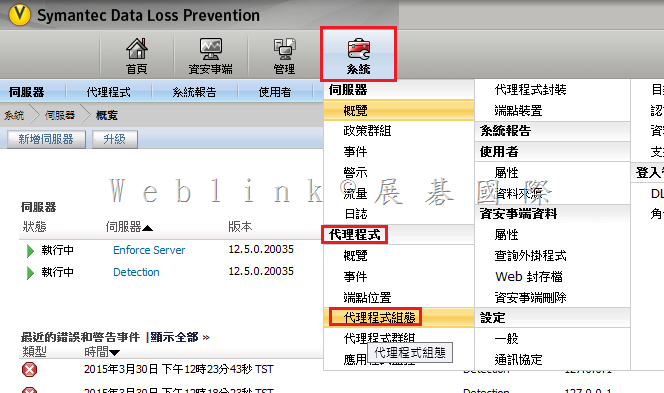
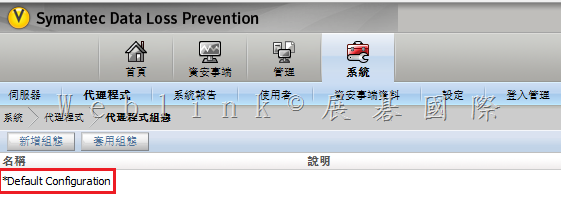
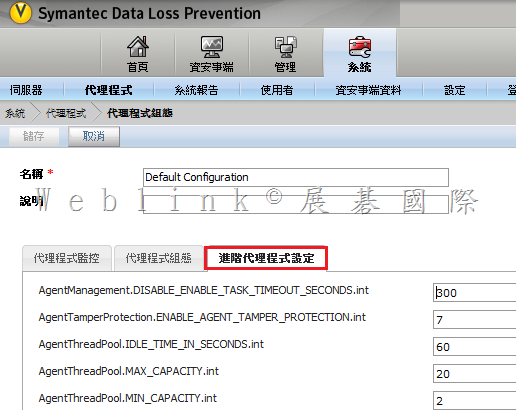
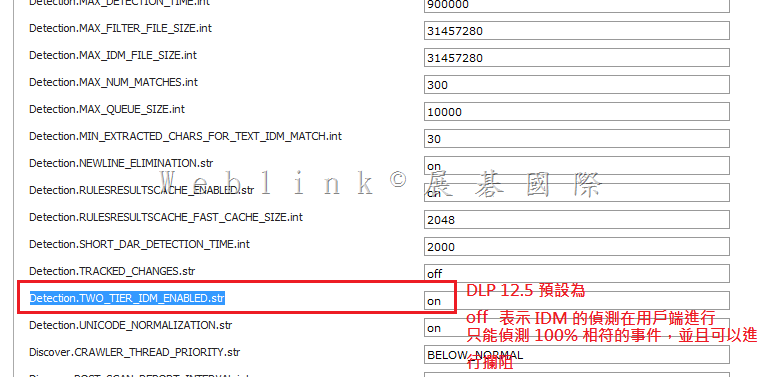
    DLP 12.5 在【系統】→【代理程式】→【代理程式組態】→【代理程式設定】→【進階代理程式設定】中,Detection.TWO_TIER_IDM_ENABLED.str 的參數值預設是【off】

    表示 DLP 12.5 預設

    (1) IDM 的偵測是在用戶端進行,Endpoint 與 Detection Server 間並非持續性的連線狀態 (Interval time 約 15 分鐘 )

    (2) IDM 事件可以攔阻

    (3) 偵測與攔阻的前提是相符率必須是 100%

    (4) 無法偵測或攔阻部分相符的事件


    若您需要偵測部分相符的事件請您參照以下畫面將 Detection.TWO_TIER_IDM_ENABLED.str 的參數值改為【on】

    (1) 此設定下表示 IDM 的偵測是 forward 至 Detection Server 進行

    (2) 此設定下無法攔阻部分相符的事件

    (3) 也無法攔阻100% 相符的事件

    1. 在【系統】→【代理程式】→【代理程式組態

    image

    2.【代理程式設定】

    image

    3.【進階代理程式設定】

    image

    4.將 Detection.TWO_TIER_IDM_ENABLED.str 的參數值改為【on】

    image

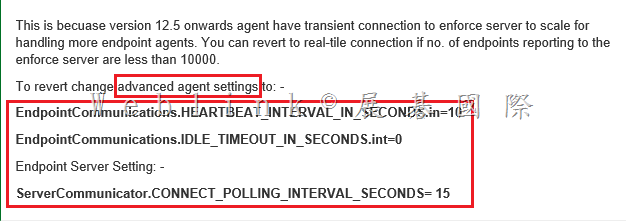
    5. 由於 DLP 12.5 開始,Agent 並非持續與 Detection Server 連線,因此相關事件無法即時回傳主控台,您必須再更改以下參數

    [DLP 12.5] Incidents delay. Takes longer to show on Incidents reports.  Symantec Connect

    http://www.symantec.com/connect/forums/dlp-125-incidents-delay-takes-longer-show-incidents-reports#comment-10466151

    image

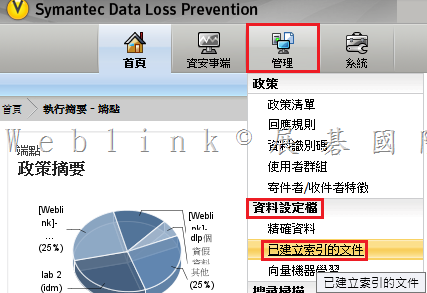
    6. 請至【管理】→【資料設定檔】→【已建立索引的文件】

    image


    7. 【重新建立索引】

    image

    8. 重啟 Enforce server

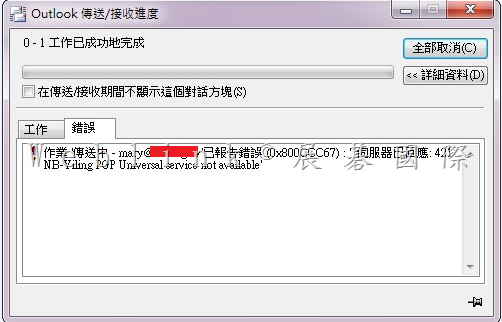
  • 安裝好 PGP Desktop E-mail 後,outlook 無法發信出現【PGP Universal service not available】
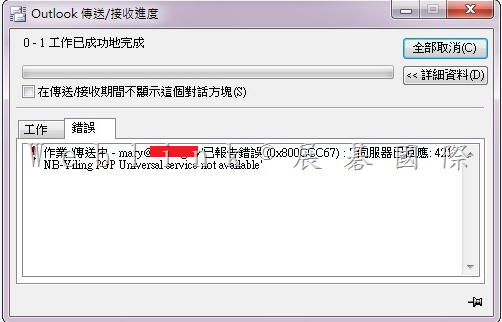
    安裝好 PGP Desktop E-mail 後,outlook 無法發信出現【PGP Universal service not available】

    image

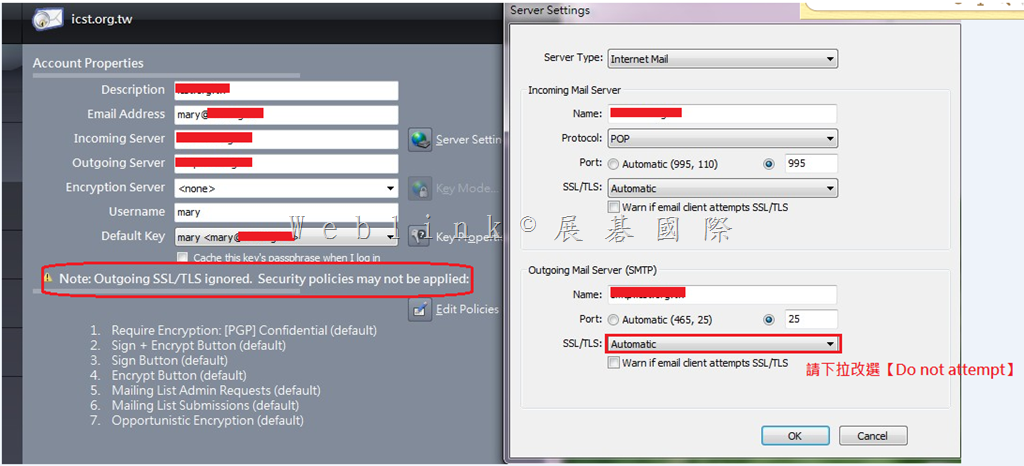
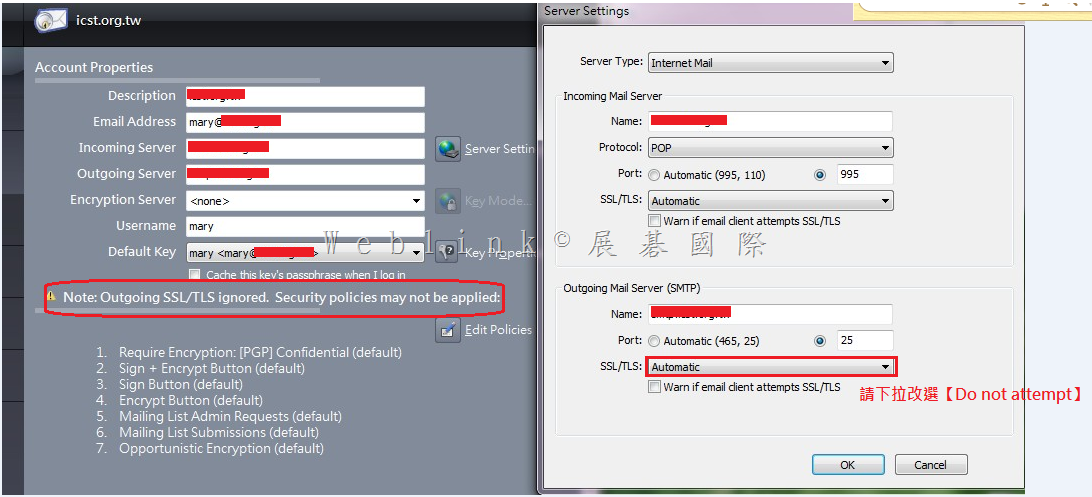
    請將 Outgoing Mail Server (SMTP) 中,SSL/TLS 下拉改選【Do not attempt】即可解決

    [點圖可放大]
    image


    【其他的除錯步驟】

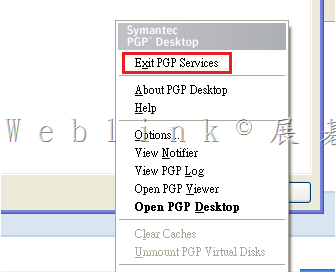
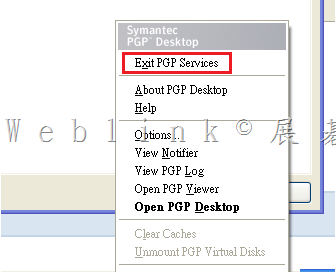
    1.Exit PGP Services 後,確認 Outlook 寄信是否正常,若仍不正常則可能是原始 mail client 設定有問題
     
    image


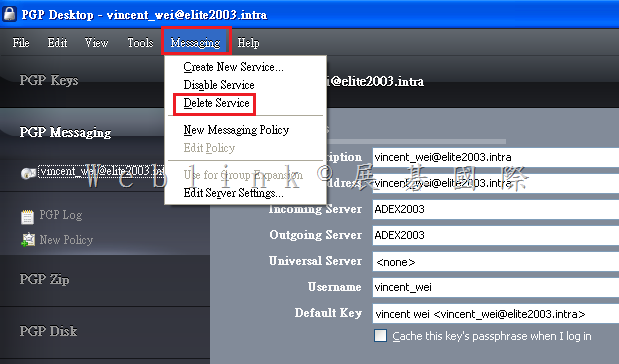
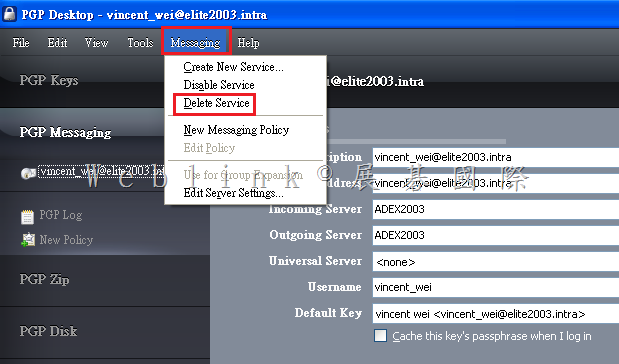
    2. 刪除重建 PGP Desktop E-mail service

    image

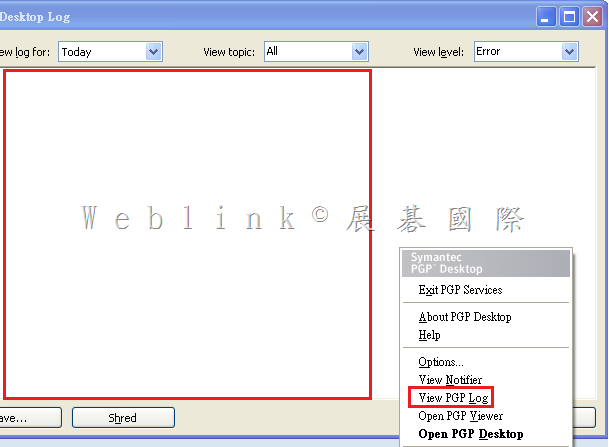
    3.提供用戶端 log

    image

    4.Enterprise Support – Symantec Corp. – Troubleshooting: PGP Messaging Services for PGP Desktop 10 for Windows
    http://www.symantec.com/business/support/index?page=content&id=TECH149647


    By default, PGP Desktop automatically determines your email account settings and creates a PGP Messaging service that proxies messaging for that email account.

    Because of the large number of possible email account settings and mail server configurations, on some occasions a messaging service that PGP Desktop automatically creates may not work quite right.


    If PGP Desktop has created a messaging service that is not working right for you, one or more of the following items may help correct the problem:

    Verify that you can both connect to the Internet and send and receive email with PGP Services stopped. To do this:
    Right-click the PGP Desktop Tray icon and select Stop PGP Services from the list of commands.

    Note: You should always restart your email client after starting or stopping PGP Services.
    Read the PGP Desktop Release Notes for the version of PGP Desktop you are using to see if your problem is a known issue.

    Make sure SMTP authentication is enabled for the email account (in your email client). This is recommended for PGP Desktop to proxy your messaging. If you only have one email account and you are not using PGP Desktop in a PGP Universal Server-managed environment, then SMTP authentication is not needed. It is required when using a PGP Universal Server as your SMTP server, or when you have multiple email accounts on the same SMTP server.

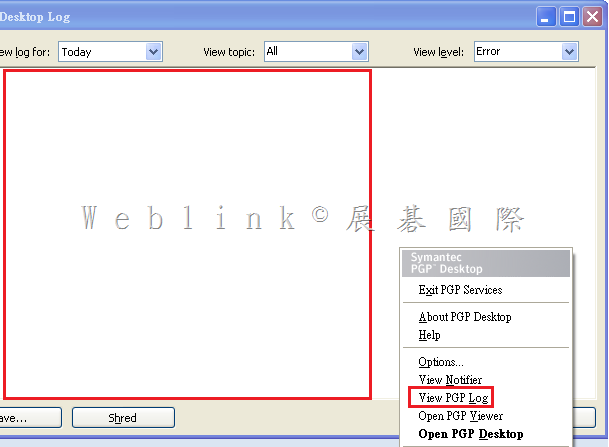
    Open the PGP Log to see if the entries offer any clues as to what the problem might be.

    If SSL/TLS is enabled in your email client, you must disable it there if you want PGP Desktop to proxy your messaging. (This does not leave the connection to and from your mail server unprotected; by default PGP Desktop automatically attempts to upgrade any unprotected connection to SSL/TLS protection. The mail server must support SSL/TLS for the connection to be protected.)

    If either Require STARTTLS or Require SSL is selected (in the SSL/TLS settings of the Server Settings dialog box) your mail server must support SSL/TLS or PGP Desktop will not send or receive any messages.

    If your email account uses non-standard port numbers, make sure these are included in the settings of your messaging service.

    If PGP Desktop is creating multiple messaging services for one email account, use a wild card for your mail server name.

    Delete the PGP Messaging service that is not working correctly and send/receive email. PGP Desktop regenerates the messaging service.
    If none of these items help correct the problem, try manually creating a PGP Messaging Service.

    5.
    http://www.symantec.com/connect/forums/not-working-outbound-mail-encryption-outlook-2010-pgp-1021

    Please reread the PGP Release Notes for any known conflict or settings adjustments that may be needed for your system.

    Although I don’t see Norton 360 specifically mentioned, the following quote may offer guidance that might also help with Norton 360 use.

    Symantec Norton AntiVirus 9.x through 10.x, Symantec Norton Internet Security 2003, Symantec Norton Internet Security 2004
    Disable email scanning.
    For Norton Internet Security users, disable Norton Privacy Control and Spam Alert.
    Disable SSL/TLS in Server Settings in PGP Desktop and PGP Universal Satellite. (In PGP Desktop, select the PGP Messaging Control Box and then choose Messaging > Edit Server Settings. For SSL/TLS, select Do Not Attempt. In PGP Universal Satellite, on the Policies tab, select Ignore SSL/TLS.) These versions of Norton AntiVirus prevent all mail clients from using SSL/TLS, regardless of the use of PGP software.
    Symantec Norton AntiVirus 11.x through 12.x, Symantec Norton Internet Security 2005, Symantec Norton Internet Security 2006
    No special configuration required for MAPI email.
    When using POP email, enable Auto-Protect and disable the Anti-Spam and Email Scanning options. Auto-Protect, which is enabled by default, provides protection against viruses in email messages when the message is opened.
    Disable SSL/TLS in Server Settings in PGP Desktop or PGP Universal Satellite. (In PGP Desktop, select the PGP Messaging Control Box and then choose Messaging > Edit Server Settings. For SSL/TLS, select Do Not Attempt. In PGP Universal Satellite, on the Policies tab, select Ignore SSL/TLS.) These versions of Norton AntiVirus prevent all mail clients from using SSL/TLS, regardless of the use of PGP software.
  • 有關【Exchange (online) 單一使用者設定多網域信箱是否能在寄信時任意選取使用者 (搭配 POP3) 】

    有關【Exchange (online) 單一使用者設定多網域信箱是否能在寄信時任意選取使用者 (搭配 POP3)

    經測試是可行的

    請參考以下畫面

    1. 單一使用者設定多個網域信箱

    clip_image001

    2. 在 outlook分別設定 【Exchange 信箱 (allen_chung@ks010s.org ) 】與【POP3信箱 (allen_chung@ks010s.org ) 】

    clip_image002

    Outlook中分別設定好兩個 Exchange 信箱 ( Exchange & POP3 )

    clip_image003

    記得讓 POP3 收信後仍保留 Exchange 上的信件

    clip_image004

    3. 接著來進行測試

    clip_image005 clip_image006

    4. 兩封信都在【Exchange 信箱 (allen_chung@ks010s.org ) 】收到了

    clip_image007

    5. 【POP3信箱 (allen_chung@ks010s.org ) 】沒看到任何寄進來的信 (剛好是我們希望的,等一下試試手動傳送接收)

    clip_image008

    6. 接著來測試回信是否可以選擇主要寄件者以外的其他寄件者

    allen_chung@ks010s.org 回信給 allen_chung@weblink.com.tw 】OK

    clip_image009

    allen_chung@ks010s.onmicrosoft.com 回信給 allen_chung@weblink.com.tw 】也OK

    clip_image010

    收到的回信,(寄件人) 也都是正確的

    clip_image011

    7. 【POP3信箱 (allen_chung@ks010s.org ) 】的寄件備份

    clip_image012

  • 有關【Exchange (online) 單一使用者設定多網域信箱是否能在寄信時任意選取使用者 (搭配 POP3) 】

    有關【Exchange (online) 單一使用者設定多網域信箱是否能在寄信時任意選取使用者 (搭配 POP3)

    經測試是可行的

    請參考以下畫面

    1. 單一使用者設定多個網域信箱

    clip_image001

    2. 在 outlook分別設定 【Exchange 信箱 (allen_chung@ks010s.org ) 】與【POP3信箱 (allen_chung@ks010s.org ) 】

    clip_image002

    Outlook中分別設定好兩個 Exchange 信箱 ( Exchange & POP3 )

    clip_image003

    記得讓 POP3 收信後仍保留 Exchange 上的信件

    clip_image004

    3. 接著來進行測試

    clip_image005 clip_image006

    4. 兩封信都在【Exchange 信箱 (allen_chung@ks010s.org ) 】收到了

    clip_image007

    5. 【POP3信箱 (allen_chung@ks010s.org ) 】沒看到任何寄進來的信 (剛好是我們希望的,等一下試試手動傳送接收)

    clip_image008

    6. 接著來測試回信是否可以選擇主要寄件者以外的其他寄件者

    allen_chung@ks010s.org 回信給 allen_chung@weblink.com.tw 】OK

    clip_image009

    allen_chung@ks010s.onmicrosoft.com 回信給 allen_chung@weblink.com.tw 】也OK

    clip_image010

    收到的回信,(寄件人) 也都是正確的

    clip_image011

    7. 【POP3信箱 (allen_chung@ks010s.org ) 】的寄件備份

    clip_image012

  • 有關 PGP logs 的 purge

    1.  How long will the Symantec Encryption Management Server purge the logs?
    The SEMS purge the logs in 1months time.

    2. Where can I set the purge interval and find the logs percentage of hard disk usage?
    You can set the purge time of the logs in the crontab.


    In /etc/crontab edit the line

    0 0 * * * root /usr/bin/pgpdellog.pl —days=30 /var/log/ovid >& /dev/null

    and either change it to the desired value (–days=XX)

    or comment the entry completely if the logs may not be deleted.
    (by adding a # in front)

    Depending on the requirements another solution might be to retain regular backups (which also contain the logfiles).


    3. Location of the logs are available at 2 places1

    (1) /var/log/ – General system logs
    (2) /var/log/ovid/ – pgp process logs

    4.If you want to list the size of the folder size please use
    du -sh* or du -sh /var/log/ovid

    You can use winscp to copy the logs from the linux machine to the windows and then delete the logs manually from the specifc location as mentioned above.
    Please do not delete the parent location but only the logs inside the parent folder
    .

  • 新安裝之Mac OS X 10.10.0註冊後,在Userlist莫名出現其他使用者ID的問題

    這樣的問題可能是 使用者ID 在還原檔已存在

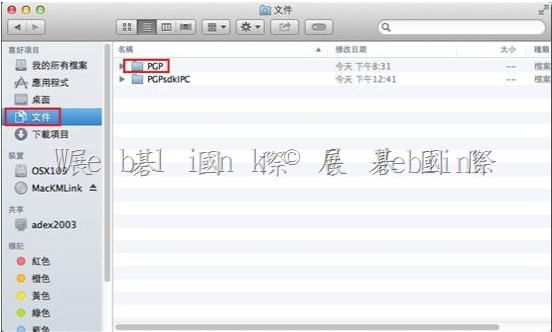
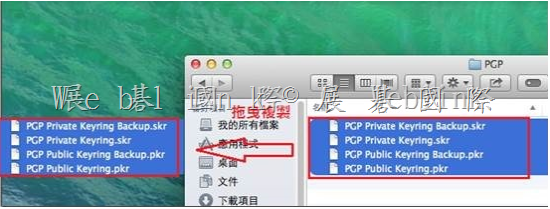
    請參考以下畫面在該 Mac 機器中,移除 [ 其他使用者的 ] key pair

    移除金鑰檔 (若有需要請先備份金鑰檔)

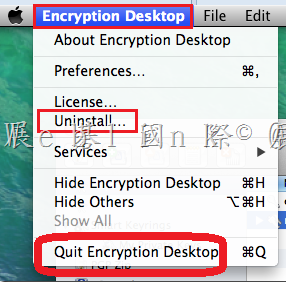
    點選桌面左上方【Encryption Desktop】,並按下【Quit Encryption Desktop】

    image

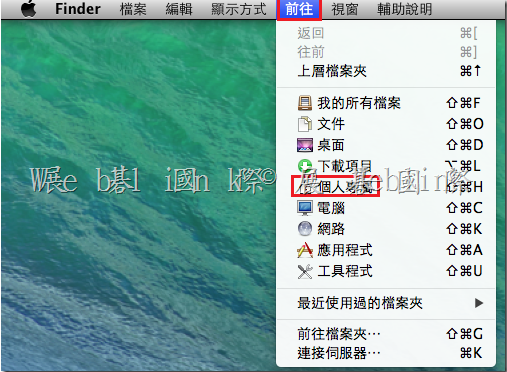
    image

    (1) 開啟 【PGP】資料夾

    image

    (2) 將 【.skr 檔】備份至其他位置或刪除

    image