作者: Allen Chung

  • 有關 Project online

    Dear Sir,

    1. Microsoft Project Lite 的功能

    http://products.office.com/zh-hk/project/project-lite

    clip_image002

    2. Project lite vs Project Pro Comparison chart – Microsoft Project For All – Site Home – TechNet Blogs

    http://blogs.technet.com/b/raymond_ris/archive/2014/05/26/project-lite-vs-project-pro-comparison-chart.aspx

    clip_image003

    3. Project lite 與 Project Online

    https://technet.microsoft.com/zh-tw/library/project-online-service-description.aspx

    clip_image004

    4. 比較各種專案管理軟體

    clip_image005

    5. Project 授權 Online 與內部部署解決方案

    https://products.office.com/zh-tw/project/microsoft-project-licensing

    clip_image006

    6. Project pro for office 365 安裝 ( 一樣是登入 https://portal.office.com/https://portal.microsoftonline.com/ ,一個使用者帳號可安裝這個使用者使用的5台裝置 )

    clip_image007

  • PGP 憑證過期

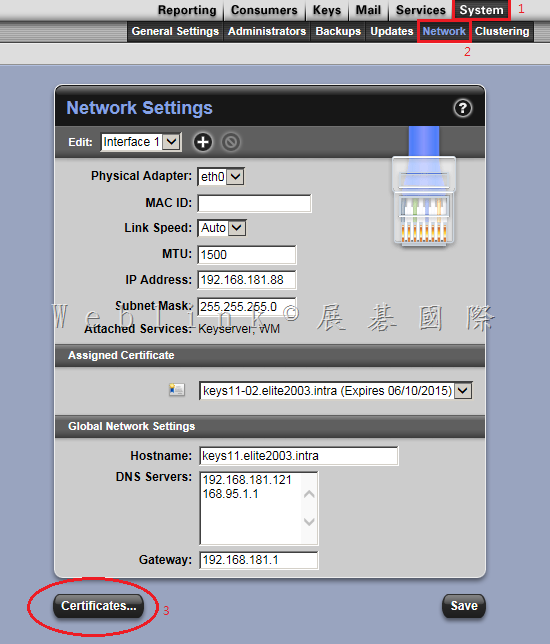
    1.登入 PGP 主控台,【System】→【Network】→【Certificates】

    clip_image001

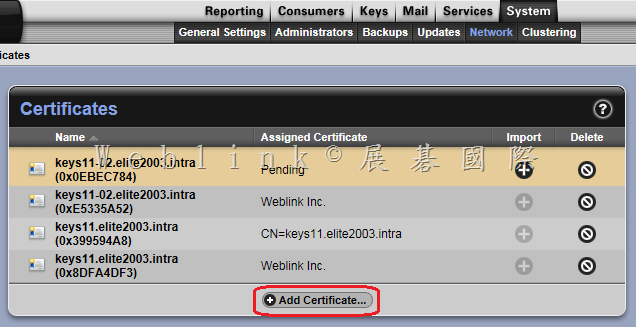
    2.【Add Certificates】

    clip_image002

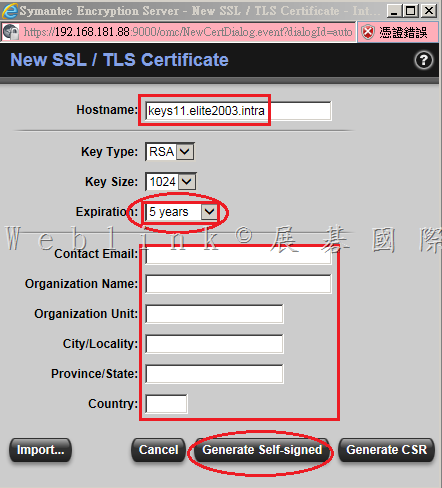
    3.輸入憑證相關資訊 ( Expiration 請下拉選擇 5 年 ) 並按下【Generate Self-signed】
    clip_image003

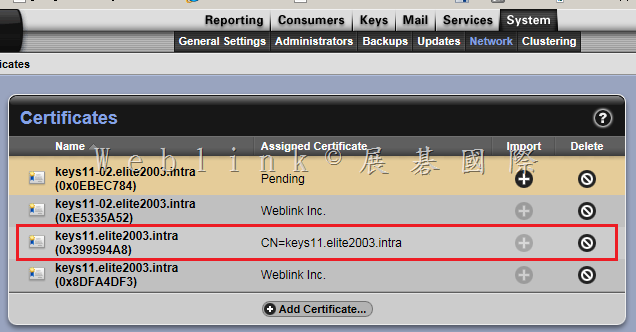
    4.這是新增的憑證

    clip_image004

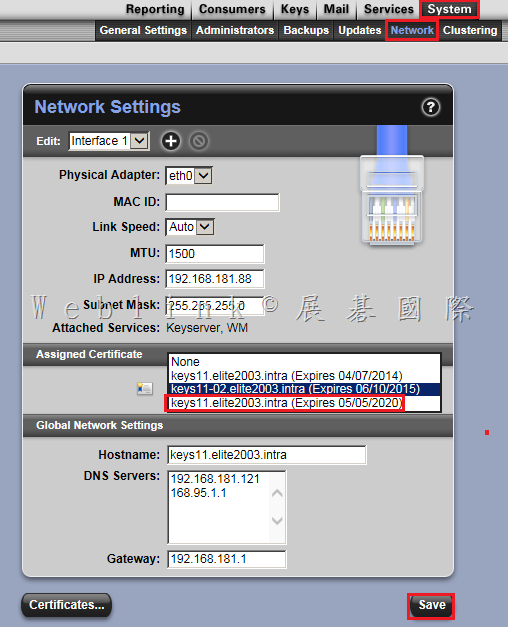
    5.回到 【System】→【Network】→【Assigned Certificate】,下拉選擇到期日最久的憑證,並按下【Save】

    clip_image005

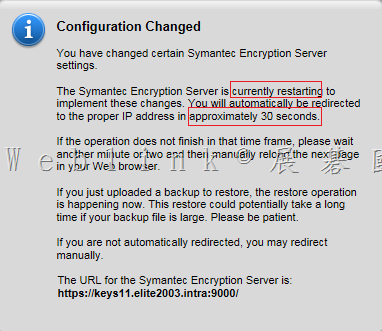
    6.PGP 正重啟以套用變更

    image

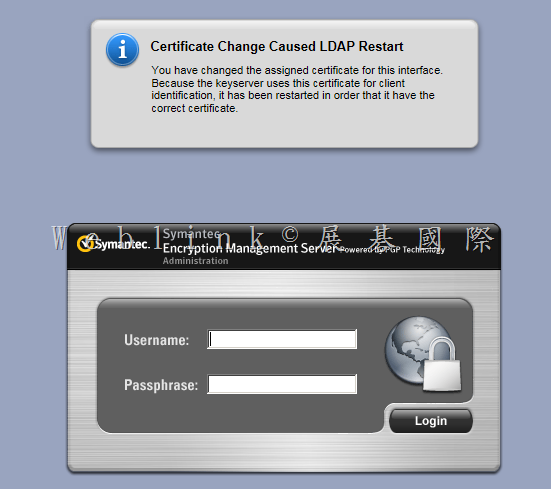
    7.重新登入即可

    image

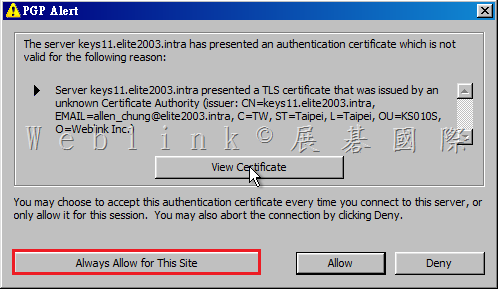
    8.之後用戶端會出現以下畫面,請按下【Always Allow for This Site】

    image

  • [SSR]為何 SSR 備份狀態會出現問號圖示?

    image

    為何 SSR 備份狀態會出現問號圖示?

    Issue

    The Status of Backup History is changed to ‘Unavailable’ if some of non-Windows NAS devices are used as the backup destination.

    Cause

    Symantec System Recovery (SSR) uses the CIFS protocol ‘change notify’ (NotifyChangeDirectory) to check the Status of Backup History.
    When ‘change notify’ is not supported on the NAS devices which are used as backup destination, SSR shows ‘Unavailable’ status.

    Solution

    Please ignore this status. Backup/restore operations are not affected.
    For example, if Samba is used, confirm that change notify parameter is set as “yes” in smb.conf file.


    http://www.symantec.com/business/support/index?page=content&id=TECH214450

  • 無法下載到 Symantec System Recovery 2013 R2

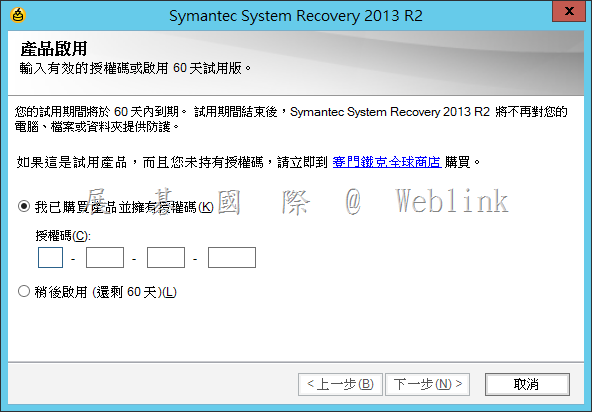
    • Symantec System Recovery 2013 R2需要 SSR 2013 R2 的授權才能在 Symantec Fileconnect 下載的到
    • SSR 2013 R2,安裝後輸入 SSR 2013 授權碼也無法通過授權
    • SSR 2013 R2 無法透過 LiveUpdate 取得

    clip_image001


    1. Symantec™ System Recovery 2013 R2 Server Edition FREE 60-day Evaluation! ( 60 天試用版可以於以下網址下載 )

    https://www4.symantec.com/Vrt/offer?a_id=88724

    clip_image003

    2.

    Enterprise Support – Symantec Corp. – Symantec System Recovery 2013 R2 General Information

    http://www.symantec.com/business/support/index?page=content&id=TECH225253

    ※ Symantec System Recovery 2013 R2需要 SSR 2013 R2 的授權才能在 Symantec Fileconnect 下載的到

    clip_image004

    3. 雖然下載得到 SSR 2013 R2,但安裝後輸入 SSR 2013 授權碼也無法通過授權

    clip_image005

    clip_image006


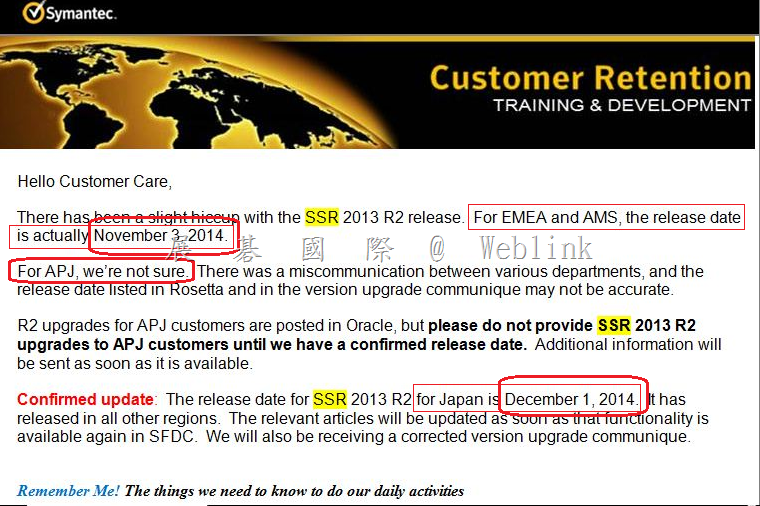
    台灣地區 SSR 2013 R2 Release Day 可能會落在 12 月中下旬

    image

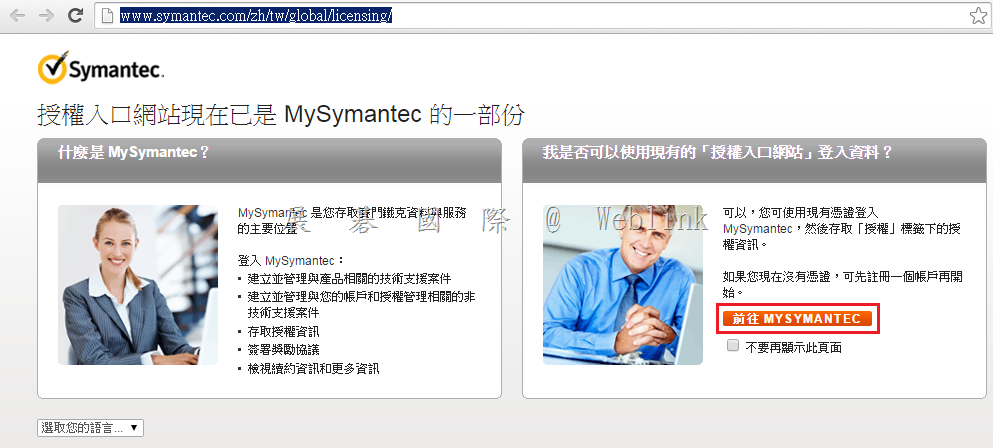
    若您的 SSR 合約仍在有效期限內,請您登入 Symantec License Portal

    http://www.symantec.com/zh/tw/global/licensing/

    image

    輸入帳號與密碼 ( 若您尚未註冊請按下下方【立即註冊】以進行註冊 )

    image

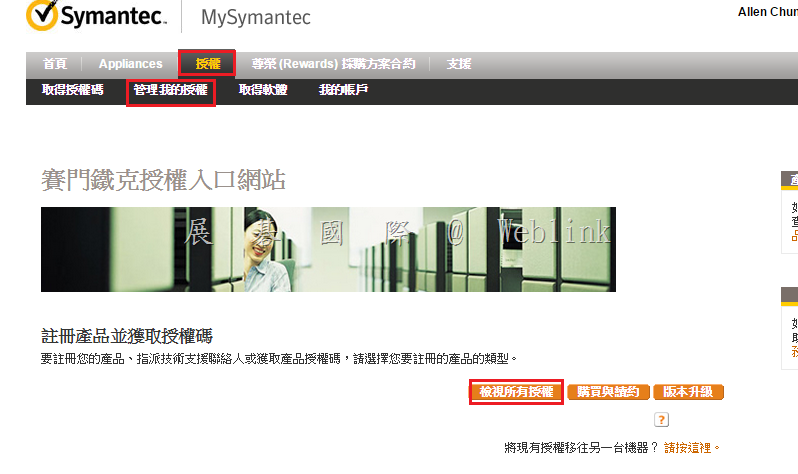
    按下【檢視所有授權】

    image

    找到您所購買的產品,並按下右方的【檢視詳細資料】

    image

    再出現的頁面中,按下【Upgrade this license】

    image

    即可取得下載序號與授權碼

    image

  • 有關 AZURE IN OPEN 對帳單事宜

    可以下載 Excel 報表

    image


    image


    image

  • 各地的 SEPM Server,都遇到不知不覺就塞滿,硬碟空間約100G。 除了編輯資料庫屬性外,還可透過哪些設定來避免硬碟成長過大呢?

    另外目前各地的 SEPM Server,都遇到不知不覺就塞滿,硬碟空間約100G。
    除了編輯資料庫屬性外,還可透過哪些設定來避免硬碟成長過大呢?
     
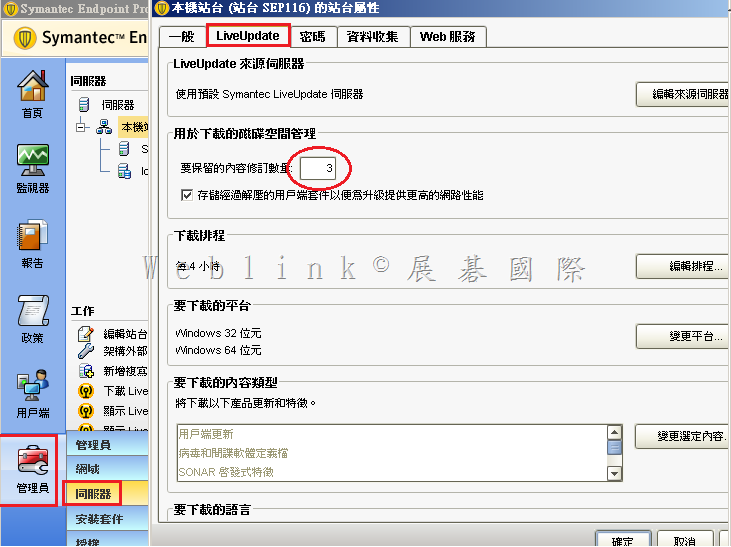
    Ans:這絕大多數是因為使用的是 12.1.4 (含)以前的版本,如果下圖保留版本設定為3,大約會佔去10G,依貴公司環境應該是設成30,那就佔了 80 90 G;又或是 log 的相關設定
     
    也可以參考以下網頁來釋放空間
    Enterprise Support – Symantec Corp. – How to free up disk space on a Symantec Endpoint Protection Manager server
    http://www.symantec.com/business/support/index?page=content&id=TECH163063
     
     image


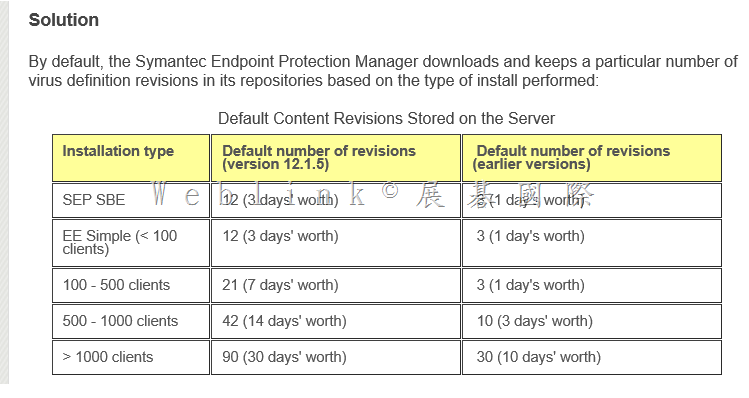
    建議您將 SEPM 升級為 12.1.5,並依照下圖設定保留版本數,12.1.5可縮減 content 空間60%
     
    Enterprise Support – Symantec Corp. – Disk space management for Endpoint Protection Manager
    http://www.symantec.com/business/support/index?page=content&id=TECH96214
     
     image

  • 透過 PGP command 來解密硬碟

    透過 PGP加密過的硬碟因故無法開機,接到另一台裝有 PGP 的機器時,可進行以下操作:

    登入後會要求輸入 passphrase,若發現怎麼輸入都不行

    請登出電腦,再使用另外那位故無法開機使用者的帳號與密碼登入,登入後會要求輸入 passphrase,這時候輸入密碼就OK了

    若仍有問題,請嘗試以下的 command 來解密

    1. 命令提示字元,切換至以下路徑

    Windows XP: C:\Program Files\PGP Corporation\PGP Desktop

    Windows Vista/Windows 7: C:\Program Files\PGP Corporation\PGP Desktop

    Windows Vista/Windows 7 (64-bit): C:\Program Files (x86)\PGP Corporation\PGP Desktop

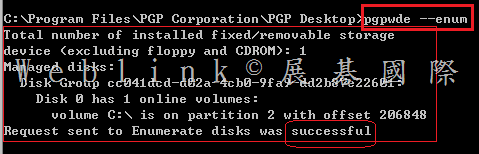
    2. pgpwde –enum 來列舉機器上的硬碟,通常後來接的硬碟是 Disk 1 ( 是兩個- )

    clip_image001

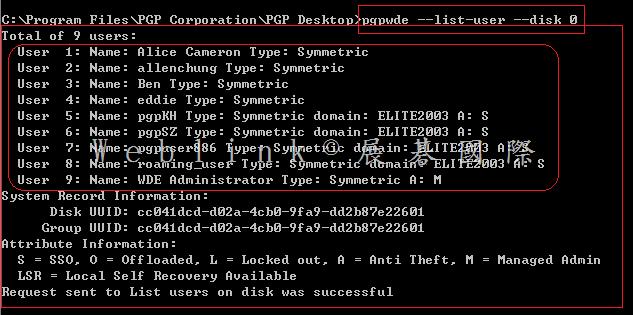
    3. pgpwde –list-user –disk 1 來列舉機器上的加密硬碟的使用者 ( 通常後來接的硬碟是 Disk 1 ) ( 是兩個- ) ( -user是一個- )

    clip_image002

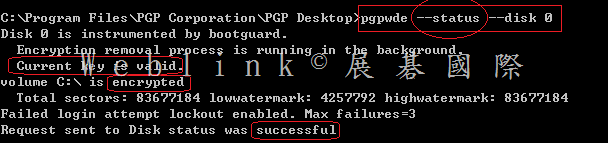
    4. pgpwde –status –disk 1 來查看硬碟的加密狀態 ( 通常後來接的硬碟是 Disk 1) ( 是兩個- )

    clip_image003

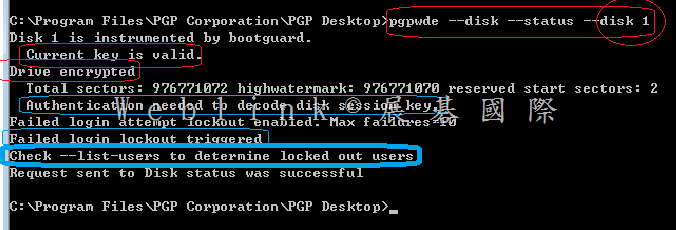
    ※ pgpwde –status –disk 1 來查看硬碟的加密狀態 ( 此例為 Disk 1 尚未通過 passphase 驗證) ( 是兩個- )

    clip_image004

    5. 如果狀態顯示硬碟正在加密中或加密到一半,請透過 pgp –stop –p passw0rd –disk 1停止加密程序 ( 是兩個- ) ( -p是一個- ) ( 這樣才能透過下一步驟的指令來解密硬碟 )

    clip_image005

    6. 如果持續無法在 UI 上通過 passphrase驗證,請以 pgp –decrypt –p p@ssw0rd –disk 1進行解密 ( 是兩個- ) ( -p是一個- ) p@ssw0rd 是密碼 (任何一個人的密碼都可以,如果有 WDE admin 的密碼就先用)

    clip_image006

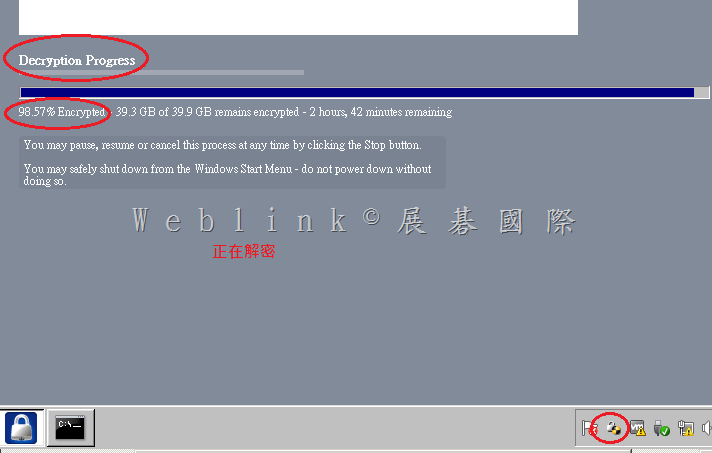
    上方指令執行成功後,會發現已在進行解密

    clip_image007

  • 無法直接在 DLP 12.5.1 的版本上,直接安裝 12.5 的 Langusge Pack

    Hotfix 下載…..【無法直接在 DLP 12.5.1 的版本上,直接安裝 12.5 的 Langusge Pack】

    You can download following files from URL

    https://fileshare.symantec.com/index.html

    Hotfix_12.5.1301.01001.zip

    README_Hotfix_12.5.1301.txt

    Your login credential are

    User ID: Allen_Chung

    Password: Welc0meAC!

    Instruction about how to apply this Hotfix is given in Readme_Hotfix_12.5.1301. txt file. This Hotfix is required to apply on Enforce server.

    If in case you have any query or concern about steps to apply Hotfix please let me know.

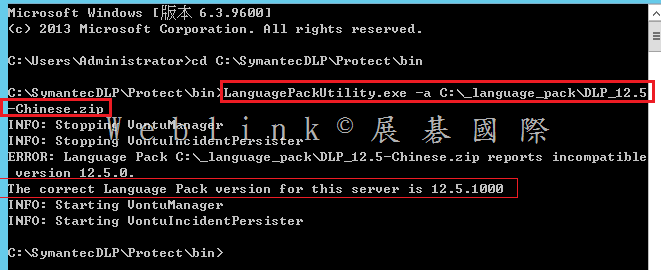
    無法直接在 DLP 12.5.1 的版本上,直接安裝 12.5 的 Langusge Pack,會出現以下的錯誤

    clip_image001

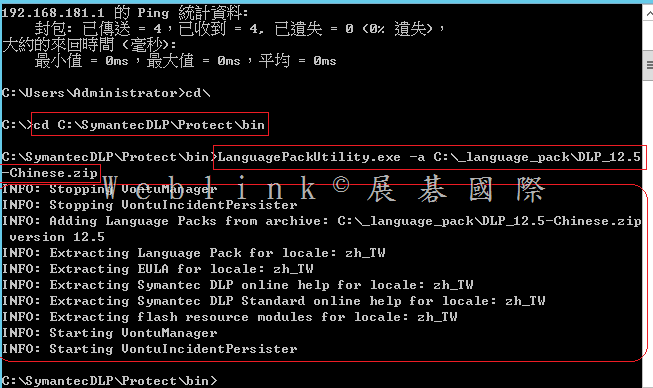
    必須要先向 Symantec Support 取得【Hotfix_12.5.1301.01001.zip】,解壓後取得【internationalization.jar】【LanguagePackUtility.exe】,然後參考【README_Hotfix_12_5_1301.txt】進行以下步驟

    Constraints:

    ————-

    The hotfix can be applied to DLP v12.5.1

    To Install:

    ———–

    On a Windows system:

    ——————–

    On the Manager:

    —————

    1. Unzip the hotfix binaries

    2. Shutdown all Vontu services in following order.

      1. Vontu Monitor Controller (if applicable)

      2. Vontu Incident Persister

      3. Vontu Manager

      4. Vontu Notifier

      5. Vontu Update (if necessary)

    3. Backup existing LanguagePackUtility.exe located in the directory %SYMANTEC_HOME%\Protect\bin

    4. Backup existing internationalization.jar located in the directory %SYMANTEC_HOME%\Protect\lib\jar

    5. Copy LanguagePackUtility.exe from the unzipped Hotfix folder to %SYMANTEC_HOME%\Protect\bin (overwrite existing file)

    6. Copy internationalization.jar to %SYMANTEC_HOME%\Protect\lib\jar (overwrite existing file)

    7. Start all Vontu services.

       1. Vontu Notifier

       2. Vontu Manager

       3. Vontu Incident Persister

       4. Vontu Monitor Controller (if applicable)

       5. Vontu Update (if necessary)

    On a Linux System:

    ——————

    On the Manager:

    —————

    1. Unzip the Hotfix binaries

    2. Shutdown all the Vontu Services.

    3. Backup existing LanguagePackUtility located in the directory %SYMANTEC_HOME%\Protect\bin

    4. Backup existing internationalization.jar located in the directory %SYMANTEC_HOME%\Protect\lib\jar

    5. Copy LanguagePackUtility from the unzipped Hotfix folder to %SYMANTEC_HOME%\Protect\bin (overwrite existing file)

    6. Copy internationalization.jar to %SYMANTEC_HOME%\Protect\lib\jar (overwrite existing file)

    7. Start all Vontu services.

    clip_image002

  • PGP for Mac client 安裝前確認事項

    1.Boot Camp check
    We must check whether the Mac client use the Boot Came dual boot,otherwise it may boot fail.

    2.Check Mac FileVault
    We must check whether the Mac client use the FileVault encryption,otherwise it will not see any disk can encrypted by PGP.(Error 69749 or 69700)

    3.Disable CoreStorage if the Mac is 10.10.x We must disable CoreStorage on Mac 10.10,otherwise the Mac client cannot be recovered.(Error -12000)
    http://w3c.weblink.com.tw/symantec/?p=7864

    4.Run command (sudo chown 0:wheel /Library/PrivilegedHelperTools/) change the permission for group wheel instead of Admin Attempting to encrypt a Mac OS X 10.10.x Yosemite system with Symantec Drive Encryption 10.3 if Microsoft Office 2011 has been installed prior to Symantec Drive Encryption,it will get the error.(Error :116385)
    http://www.symantec.com/business/support/index?page=content&id=TECH229178

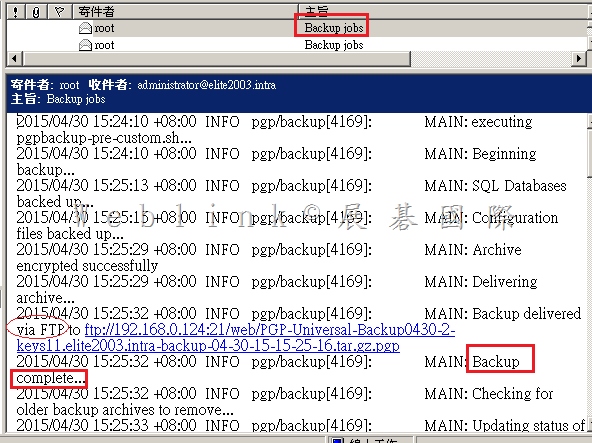
  • 【如何收到 PGP Universal Server Backup log 的 mail 通知】

    【如何收到 PGP Universal Server Backup log 的 mail 通知】

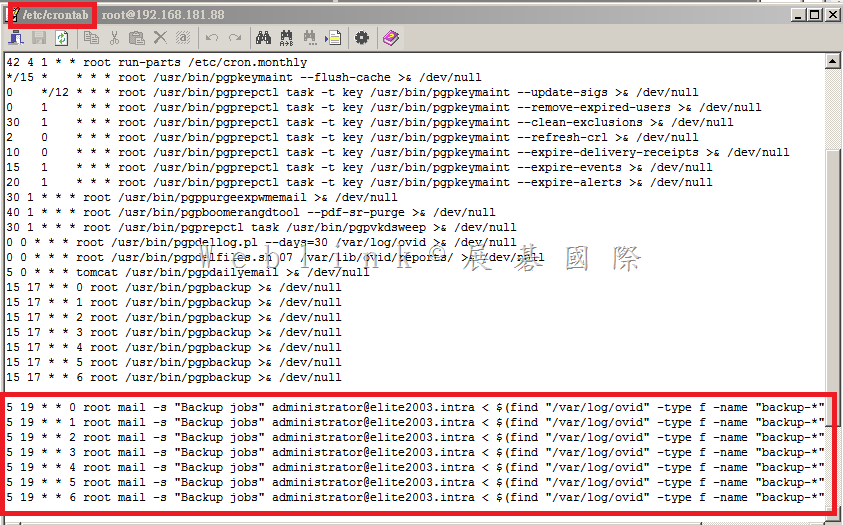
    請編輯 /etc/crontab

    在 crontab 加入以下命令

    這樣每天 19:05 administrator@elite2003.intra 會收到當日的 Backup log

    5 19 * * 0 root mail -s “PGP Backup jobsadministrator@elite2003.intra < $(find “/var/log/ovid” -type f -name “backup-*”|sort -r|head -n1)

    5 19 * * 1 root mail -s “PGP Backup jobs” administrator@elite2003.intra < $(find “/var/log/ovid” -type f -name “backup-*”|sort -r|head -n1)

    5 19 * * 2 root mail -s “PGP Backup jobs” administrator@elite2003.intra < $(find “/var/log/ovid” -type f -name “backup-*”|sort -r|head -n1)

    5 19 * * 3 root mail -s “PGP Backup jobs” administrator@elite2003.intra < $(find “/var/log/ovid” -type f -name “backup-*”|sort -r|head -n1)

    5 19 * * 4 root mail -s “PGP Backup jobs” administrator@elite2003.intra < $(find “/var/log/ovid” -type f -name “backup-*”|sort -r|head -n1)

    5 19 * * 5 root mail -s “PGP Backup jobs” administrator@elite2003.intra < $(find “/var/log/ovid” -type f -name “backup-*”|sort -r|head -n1)

    5 19 * * 6 root mail -s “PGP Backup jobs” administrator@elite2003.intra < $(find “/var/log/ovid” -type f -name “backup-*”|sort -r|head -n1)

    clip_image001

    clip_image002