作者: Allen Chung

  • WinPE 4.0 5.0 5.1整合 PGP 光碟製作

    1.    關於新版 WinPE 整合 PGP 光碟製作請參考以下網址
    How to Customize Windows PE 4.0 and above using Symantec Encryption Desktop 10.3.2 and PGPRecoveryGUI.exe
    http://www.symantec.com/business/support/index?page=content&id=HOWTO95227
    內容包含
    (1)    Customizing Windows PE 4.0/5.0 for 32-bit Windows Environment
    (2)    Customizing Windows PE 4.0/5.0 for 64-bit Windows Environment
    (3)    How to make customized WinPE as a bootable .iso file or CD/UFD

    2.    Download 適用於 Windows 8.1 更新的 Windows 評定及部署套件 (Windows ADK) from Official Microsoft Download Center
    http://www.microsoft.com/zh-tw/download/details.aspx?id=39982

    3.   
    適用於 Windows 8 的 WinPE:Windows PE 5.0
    https://technet.microsoft.com/zh-tw/library/hh825110.aspx

    將 WinPE 5.0 更新為 WinPE 5.1
    https://technet.microsoft.com/zh-tw/library/dn613859.aspx


    Enterprise Support – Symantec Corp. – Windows PE customization for Symantec Encryption (PGP) – Index of documents

    http://www.symantec.com/business/support/index?page=content&id=TECH215515

  • Azure 虛擬機器費用如何預估 (詳細版)

    若您需預估您在 Microsoft Azure 上的虛擬機器的費用,請您參考以下步驟:

    (1) 請您先確認以下事項

    l CPU 核心數與記憶體

    l 選用的資料中心 ( 東亞、歐洲或美洲 )

    l 作業系統版本 (Windows、Linux)

    l 存放資料的實際用量

    l 每月資料傳出量 ( 流量的部分,微軟只針對離開 Azure VM 的流量計算費用) (同一個 cloud service 中 VM 間的傳輸流量也不計費 )

    (2) 確認 虛擬機器 CPU 核心數與記憶體 的選用層次

    連結以下網頁 http://azure.microsoft.com/zh-tw/pricing/details/virtual-machines/

    I. 【基本層次】:適用於開發工作負載、測試伺服器,以及其他不需要負載平衡、自動調整或記憶體高用量虛擬機器之應用程式的高成本效益選擇

    II. 【標準層次】:需要負載平衡自動調整記憶體高用量虛擬機器之應用程式的高成本效益選擇

    clip_image001

    clip_image002

    clip_image003

    clip_image004

    (3) 預估您的月費用 ( 簡易版 )

    I. 連結至 【Microsoft Azure 首頁】→【定價】→【定價計算機】

    http://azure.microsoft.com/zh-tw/

    clip_image005
    II. 選擇【虛擬機器】

    clip_image006

    III. 在 Windows虛擬機器項目中,依照您的需求選擇【基本】或【標準】

    【基本層次】:適用於開發工作負載、測試伺服器,以及其他不需要負載平衡、自動調整或記憶體高用量虛擬機器之應用程式的高成本效益選擇

    【標準層次】:需要負載平衡、自動調整或記憶體高用量虛擬機器之應用程式的高成本效益選擇

    選擇【基本型】比較便宜,但調整機器規格必須手動

    clip_image007

    註:調整虛擬機器的規格等級
     

    image

    選擇【標準型】比較貴一點,但可定義兩台機器進行負載平衡,或透過指令動態調整規格

    image

    註:自動調整    日間兩台   夜間一台

    image

    image
                 

    IV. 頻寬月費,如果不是很特殊的大圖檔下載,就估個 100 G ( 一個月也才 300 ~ 450 NT )

    clip_image008

    註:東亞價格查詢請至此

    http://azure.microsoft.com/zh-tw/pricing/details/data-transfers/

    clip_image009

    V. 作業系統預設 HD是 127 G

    VI. 預估總價

    clip_image010

  • Azure 虛擬機器費用如何預估 (簡易版)

    若您需預估您在 Microsoft Azure 上的虛擬機器的費用,請您參考以下步驟:

    (1) 請您先確認以下事項

    l CPU 核心數與記憶體

    l 選用的資料中心 ( 東亞、歐洲或美洲 )

    l 作業系統版本 (Windows、Linux)

    l 存放資料的實際用量

    l 每月資料傳出量 ( 流量的部分,微軟只針對離開 Azure VM 的流量計算費用) (同一個 cloud service 中 VM 間的傳輸流量也不計費 )

    (2) 確認 虛擬機器 CPU 核心數與記憶體 的選用層次

    連結以下網頁 http://azure.microsoft.com/zh-tw/pricing/details/virtual-machines/

    I. 【基本層次】:適用於開發工作負載、測試伺服器,以及其他不需要負載平衡、自動調整或記憶體高用量虛擬機器之應用程式的高成本效益選擇

    II. 【標準層次】:需要負載平衡、自動調整或記憶體高用量虛擬機器之應用程式的高成本效益選擇

    clip_image001

    clip_image002

    clip_image003

    clip_image004

    (3) 預估您的月費用 ( 簡易版 )

    I. 連結至 【Microsoft Azure 首頁】→【定價】→【定價計算機】

    http://azure.microsoft.com/zh-tw/

    clip_image005

    II. 選擇【虛擬機器】

    clip_image006

    III. 在 Windows虛擬機器項目中,依照您的需求選擇【基本】或【標準】

    【基本層次】:適用於開發工作負載、測試伺服器,以及其他不需要負載平衡、自動調整或記憶體高用量虛擬機器之應用程式的高成本效益選擇

    【標準層次】:需要負載平衡、自動調整或記憶體高用量虛擬機器之應用程式的高成本效益選擇

    選擇【基本型】比較便宜,但調整機器規格必須手動

    clip_image007

    IV. 頻寬月費,如果不是很特殊的大圖檔下載,就估個 100 G ( 一個月也才 300 ~ 450 NT )

    clip_image008

    註:東亞價格查詢請至此

    http://azure.microsoft.com/zh-tw/pricing/details/data-transfers/

    clip_image009

    V. 作業系統預設 HD是 127 G

    VI. 預估總價

    clip_image010

  • AZURE open 可以用預付並可以享受折扣

    (1)    所謂 Windows Azure 預付並享有折扣,指的是以 open 的方式向微軟採購一定數量 (單位) 的 Microsoft Azure Open,如此可以享有折扣或是獲贈若干數量 (單位) 的 Microsoft Azure Open

    (2)    Microsoft Azure Open 一個單位為100美金,例如:您可以選擇採購兩個 30 單位 ( 價格:30 x 100 美金 ),共 60 單位,加上獲贈 6 單位;意即您支付 60 單位的金額,不過取得了66 單位的使用權

    (3)    續 (2),在您的 Open 合約中,可以看到3筆購買項目 ( Microsoft Azure Open 30 單位、Microsoft Azure Open 30 單位、Microsoft Azure Open 6 單位),每筆購買項目會各自有一組兌換金鑰

    (4)    每筆購買單位需於5年內兌換完成兌換後的信用額度有效時間為一年,各個帳戶內的信用額度可設定提示通知 (例如:設定 30% 剩餘額度時提示通知)

    (5)     之後您可以至以下網址,以 Windows Live ID 登入後,然後輸入兌換金鑰來增加帳戶的預付信用額度
    http://azure.microsoft.com/zh-tw/offers/ms-azr-0111p/

     image

    輸入兌換金鑰來增加帳戶的預付信用額度
     image

  • 如何安裝 Office 365 的 Office 2013 到電腦上

    1.    透過 Office 365 管理員帳號建立其他使用者的帳號與密碼,然後請使用者使用您提供的帳號與密碼登入 https://login.microsoftonline.com/

    2.    按下【右上角的齒輪】 → 【office 365 設定】

     image

    3.    選擇【軟體】

    image
     
    4.    按下【安裝】來安裝 Office

    image

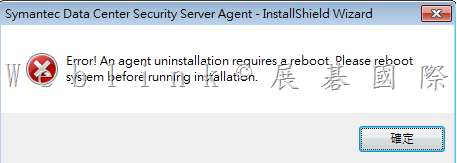
  • 無法重新安裝 DCS Agent

    透過新增移除程式 移除 DCS Agent 後,重新開機後卻無法再次安裝 DCS Agent

    出現以下錯誤

    error!An agent uninstallation requires a reboot.
    please reboot system before running installation.

    image

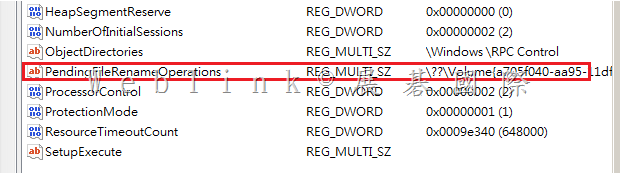
    請執行 regedit

    找到
    HKEY_LOCAL_MACHINE\SYSTEM\CurrentControlSet\Control\Session Manager
    將裏頭的 PendingFileRenameOperations 刪除

    或是寫成批次檔
    REG DELETE “HKLM\SYSTEM\ControlSet001\Control\Session Manager” /v PendingFileRenameOperations /f

    如果仍無法安裝,請再加以下這幾個

    REG DELETE “HKLM\SYSTEM\CurrentControlSet\Services\SISIDSRegDrv” /f
    REG DELETE “HKLM\SYSTEM\CurrentControlSet\Services\SISIPSDriver” /f
    REG DELETE “HKLM\SYSTEM\CurrentControlSet\Services\SISIPSNetFilter”
    REG DELETE “HKLM\SYSTEM\CurrentControlSet\Services\EventLog\System\SISIPSNetFilter” /f


    image

    DCS Agent 移除指令如下:

    MsiExec.exe /X{3D24482F-98BD-48DD-AA62-8B24BFDE7329} /qn

    【Unattended uninstallation of an agent】
    You can perform an unattended (silent) uninstallation of an agent using the
    agent.exe or agent-windows-nt.exe executable and InstallShield and Windows
    Installer commands.
    The following command structure shows the sequencing:
    MsiExec.exe /X{<PRODUCT CODE>} /qn /l*v!+ <UNINSTLL LOG FILE>
    The <PRODUCT CODE> is the Symantec Critical System Protection uninstall
    string necessary for MsiExec.exe. It is in the following directory:
    HKLM\SOFTWARE\Microsoft\Windows\CurrentVersion\Uninstall

    For Windows 2008 64-bit system, the <PRODUCT CODE> is in the following
    directory:
    HKLM\SOFTWARE\Wow6432Node\Microsoft\Windows\CurrentVersion\
    Uninstall
    Browse the list of IDs. Locate the Symantec Critical System Protection agent
    application by looking at the properties in the right pane
    . Note the
    UinstallString string, and copy and modify it. For example:
    MsiExec.exe /X{3D24482F-98BD-48DD-AA62-8B24BFDE7329} /qn /l*v!+
    C:\SISAgentUninstall.log
    The system reboot is suppressed after the uninstallation.

  • 【SEP 12.1.5 複寫夥伴說明與設定】

    複寫夥伴說明與設定總整理


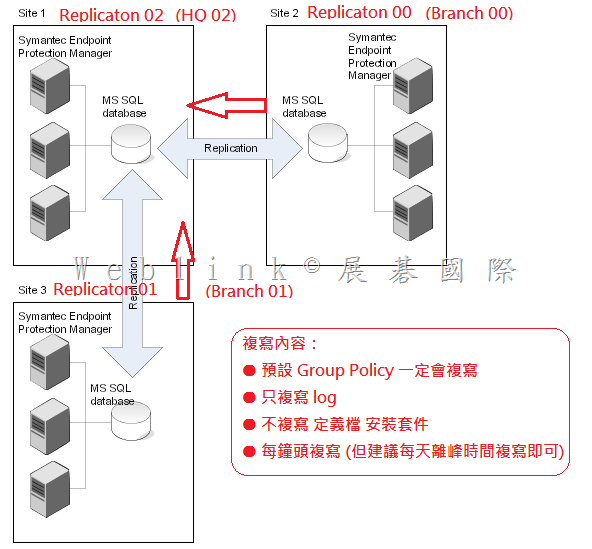
    1.       我的 LAB 是如下設定
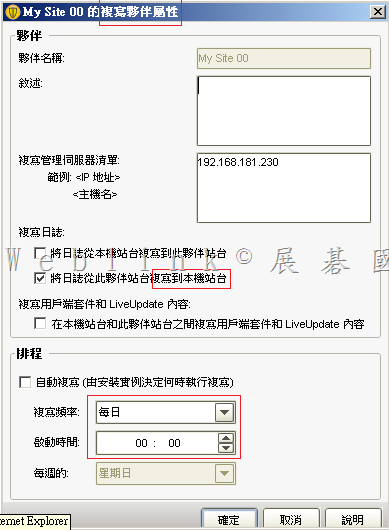
    (1)    先在 【Branch 00】 透過 伺服器設定精靈 設定 【HQ 02】為複寫夥伴
    (2)    再在【Branch 01】 透過 伺服器設定精靈 設定 【HQ 02】為複寫夥伴
    (3)    複寫夥伴間的 【群組、政策】一定會複寫
    (4)    Log 設定成只由 Branch 複寫至 HQ
    (5)    定義檔與安裝套件不進行複寫
    (6)     Production環境下,複寫頻率建議不要低於每天,並請於離峰進行

    2.    以下是架構圖

    image
     
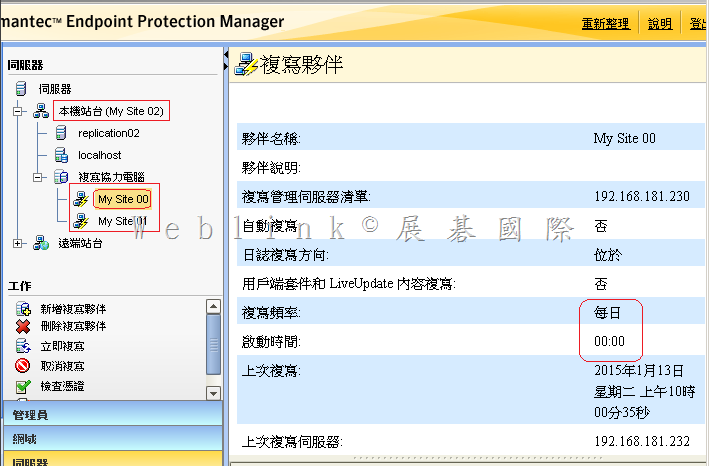
    3.      在 HQ 02 看到的複寫夥伴設定
     image

     image
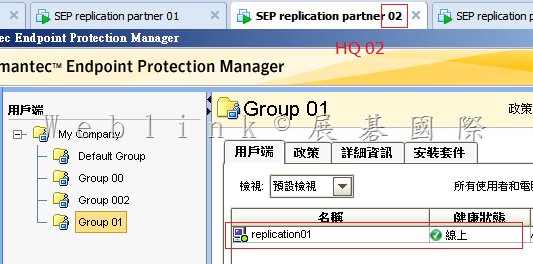
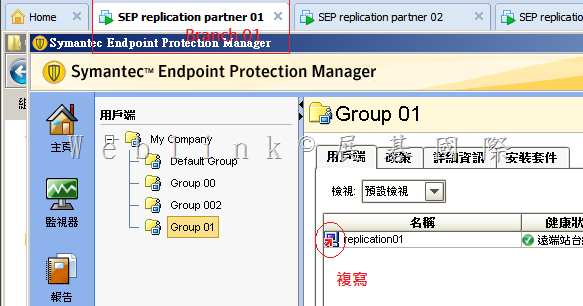
    4.    如此的設定,會形成只有在 HQ 02 看到的用戶端才不會是複寫

    image

    image

     
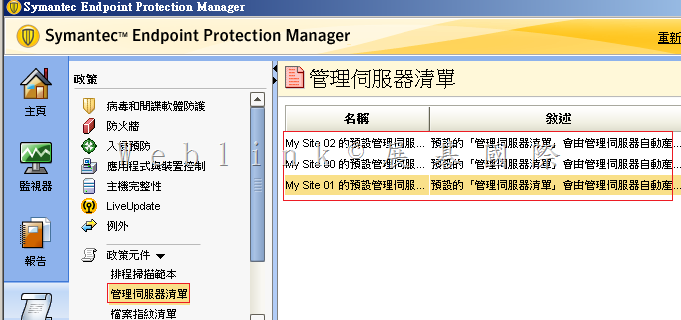
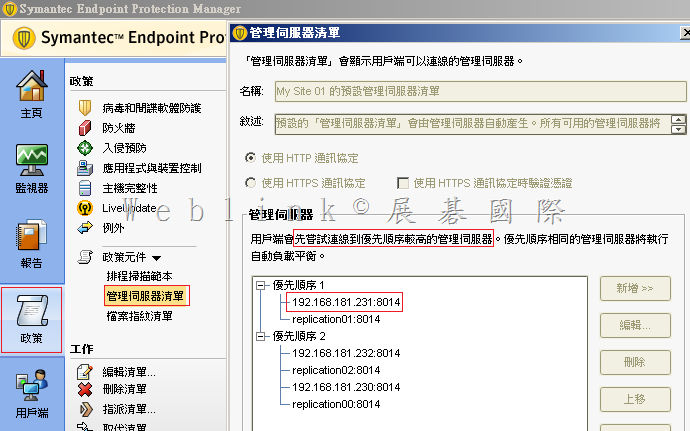
    5.    查看一下管理伺服器的清單
     image

    若您因頻寬的關係,確定不允許本地端的用戶端不得在無法連線本地端 SEPM 時轉而向其他站台 SEPM 報到、獲取更新、回報 log 等,請您刪除優先順序2的項目
    因為預設的【管理伺服器清單】無法編輯,請您複製→貼上後,進行刪除,並將新的【管理伺服器清單】套給相對應的群組

     image

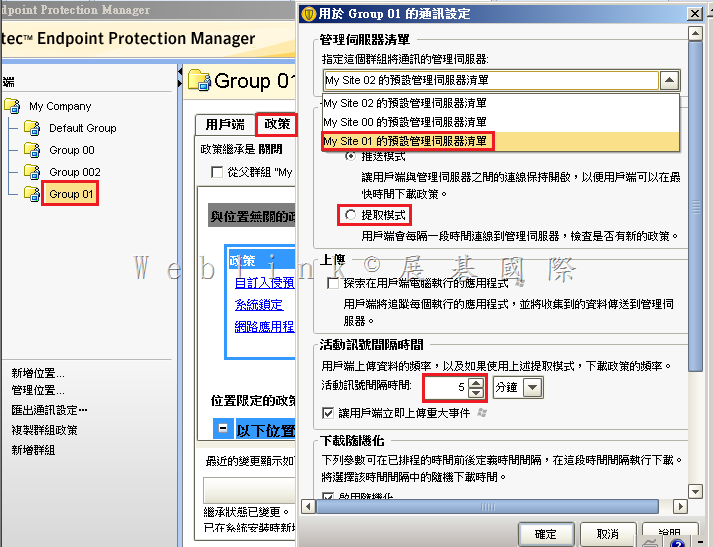
    6.    同時要設定好每個群組使用的是那一個【管理伺服器的清單】(群組所在的地區要優先使用自己區域內 SEPM 當管理伺服器)
     

    image

    7.    各個群組調整好各自的【管理伺服器清單】後,便可發現群組內的用戶端都是就近向區域內的 SEPM 報到、更新、回報 log 了
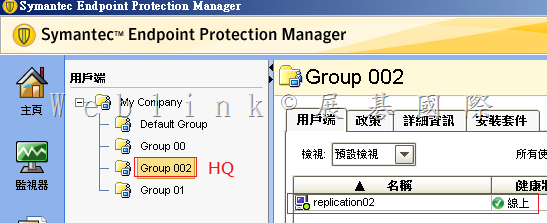
    以下是在 HQ 02 看到只有 Group 002 (管理伺服器 第一順位 是 HQ 02 ) 內的用戶端才是線上

     image

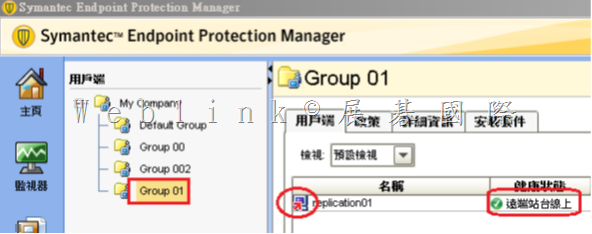
    而在 HQ 02 看到Group 00、 Group 01 (管理伺服器 第二順位 是 HQ 02 ) 內的用戶端顯示為複寫圖示 (遠端站台線上)

    image

  • SEP 用戶端一直產生ccSvcHst-*.dmp檔案,每一個都1點多GB,一天可能有1個以上

    C:\ProgramData\Symantec\Symantec Endpoint Protection\CurrentVersion\Data\Install\Logs下,
    會有ccSvcHst-*.dmp檔案產生,每一個都1點多GB,一天可能有1個以上,這個.dmp檔到底是那個設定所產生的,即便我把logs目錄設定唯讀,還是會寫入。而且我還刪不掉。

    这个问题是RU5版本的已知问题

    Title
    CCSvcHst.exe generates multiple process dumps in ProgramData exhausting disk space 
     
    Issue

    CCSvcHst.exe appears to generating exceptions forcing a process dump in C:\ProgramData\Symantec\Symantec Endpoint Protection\CurrentVersion\Data\Install\Logs during a scan. Each dump is over 1GB and free disk space is quickly exhausted.
     
    Environment

    Windows 2012 R2
     
     
    Cause

    Certain archive files appear to be triggering the issue. Issue has been with some large archive files with older file dates (4+ years) in .zipx and .blb format.
     
    Solution

    Symantec is aware of the issue and is researching a solution.

    Workaround:

    Make an exception for the file extension or directory which has been identified through debugging.

    Or…
    1.Disable Tamper Protection.
    2.Open a Command Prompt window.
    3.del “C:\ProgramData\Symantec\Symantec Endpoint Protection\12.1.5337.5000.105\Data\Install\Logs\*.dmp”

    or

    del C:\ProgramData\Symantec\Symantec Endpoint Protection\CurrentVersion\Data\Install\Logs\*.dmp

    4.Using regedit.exe, set the following values to 0 (zero):
    HKLM\SOFTWARE(\Wow6432Node)\Symantec\Symantec Endpoint Protection\CurrentVersion\Common Client\Debug\CrashHandler\DumpOn*
    5.Re-enable Tamper Protection.
    6.Open a Command Prompt window.
    7.cd “C:\Program Files (x86)\Symantec\Symantec Endpoint Protection\12.1.5337.5000.105\Bin”
    8.smc -stop
    9 .smc –start

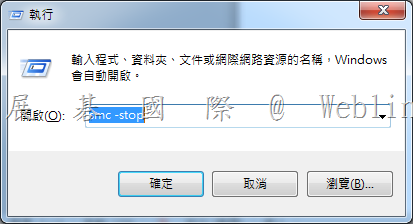
    【6 7 8 9 可如下執行】

    請按鍵盤上【Windows 鍵】+【R鍵】→會跳出【執行】視窗

    ※ XP 請按【開始】→【執行】

    在出現的視窗中,輸入【smc –stop】【smc –start】,並按下【確定】

    clip_image005


  • 如何設定 DLP Endpoint Prevent 可以阻擋使用者將個資複製至共用資料夾並在用戶端電腦上出現警告視窗

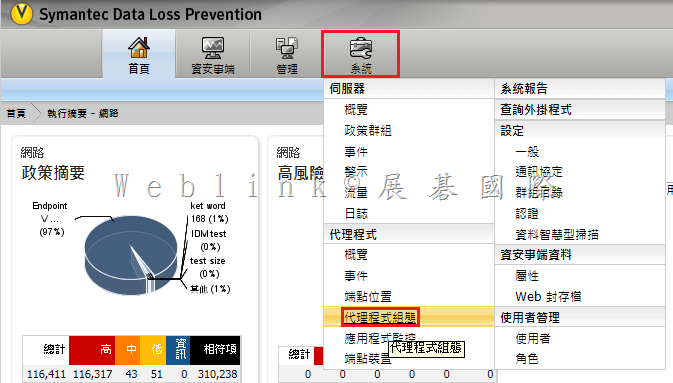
    1.    請設定【代理程式組態】

    image

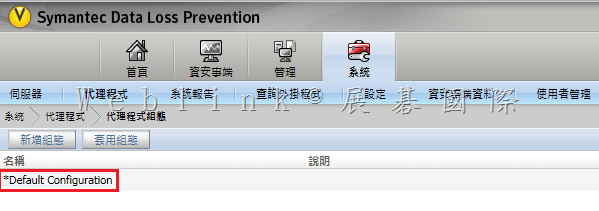
    2.    雙按【Default Configuration】

    image

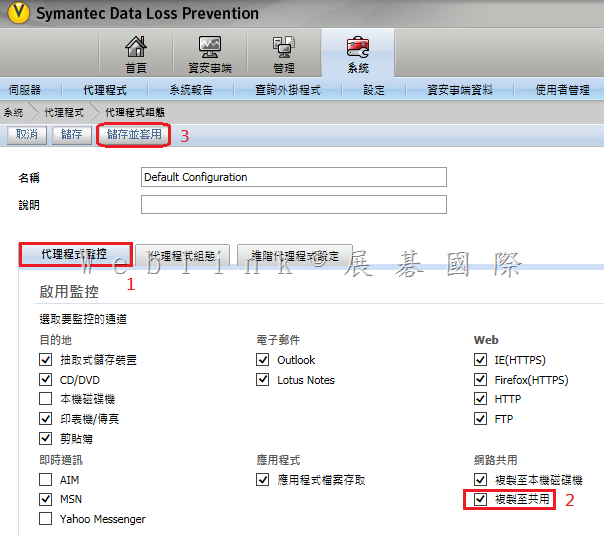
    3.    勾選【複製至共用】

    image

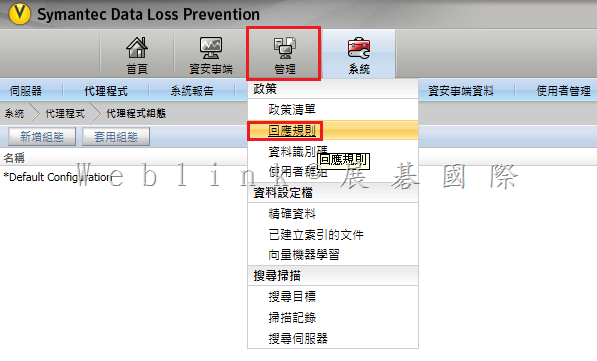
    4.    請新增【回應規則】

    image

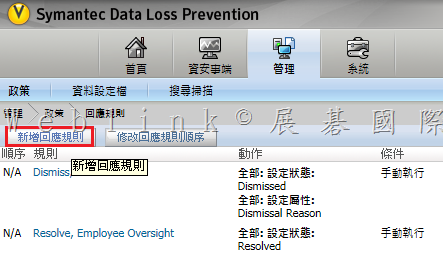
    5.    按下【新增回應規則】

    image

    6.    選擇【自動回應】

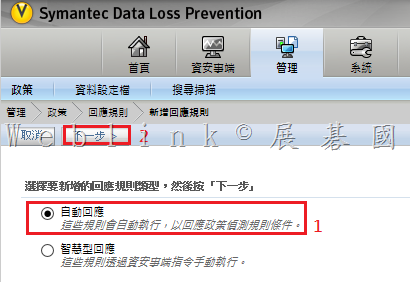
    image

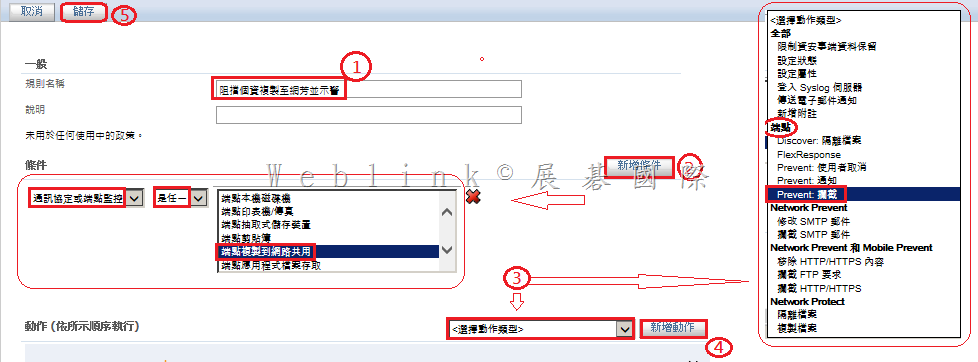
    7.      
    (1)    輸入【規則名稱】
    (2)    新增條件 :按下【新增條件】鈕 → 選擇【通訊協定或端點監控】→【是任一】→【端點複製到網路共用】
    (3)    新增動作 :選擇動作類型為【 (端點) Prevent 攔截 】→按下【新增動作】鈕
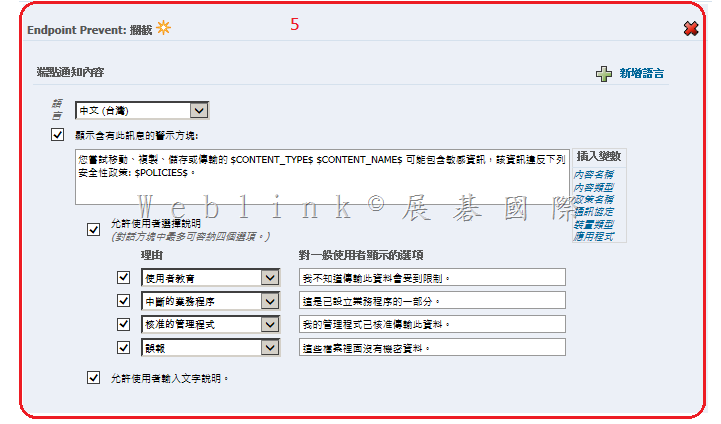
    (4)    視需要修改【端點通知內容】
    (5)    記得按下【儲存】鈕

    image

    image

    8.    建立好的【新增回應規則】

    image

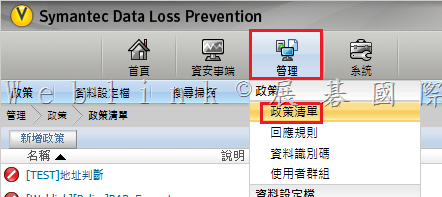
    9.    找到既有的個資政策

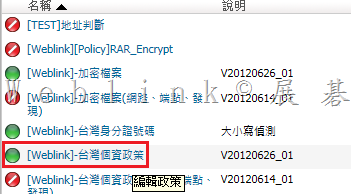
    image

    10.    雙按該既有的個資政策

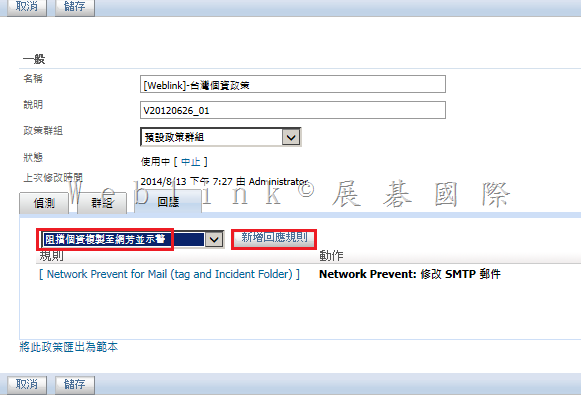
    image


    11.    點按【回應】頁籤 → 在下拉選單選擇【先前建立的回應規則 (阻擋個資複製網芳並示警) 】→ 按下【新增回應規則】鈕

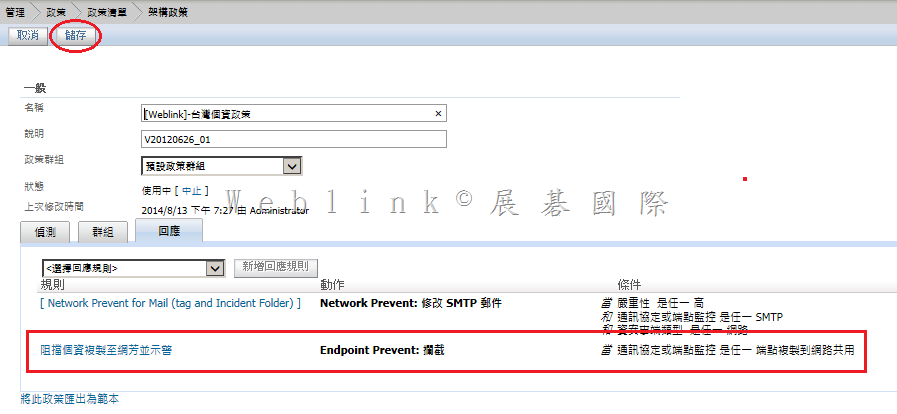
    image


    12.    記得按下【儲存】鈕

    image

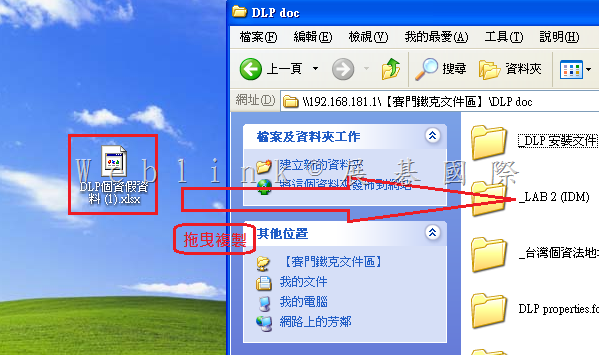
    13.    在用戶端拖曳個資檔案至分享資料夾

    image

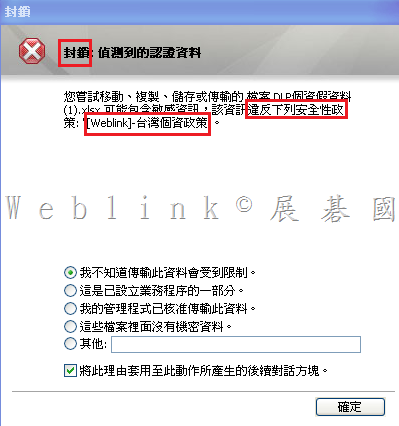
    14.    您可以發現該動作遭封鎖並示警

    image

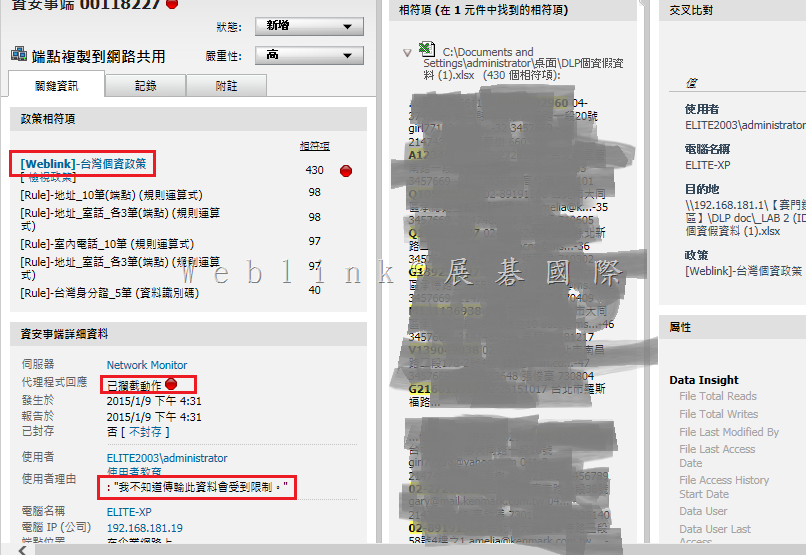
    15.    資安事件中也能找到相對應的紀錄

    image

  • 如何更改 SDCS SQL 資料庫的 dcs_ops 與 dcs_plugin 帳號的密碼

    “How can we change the DCS SQL DB dcs_ops and dcs_plugin account password? “


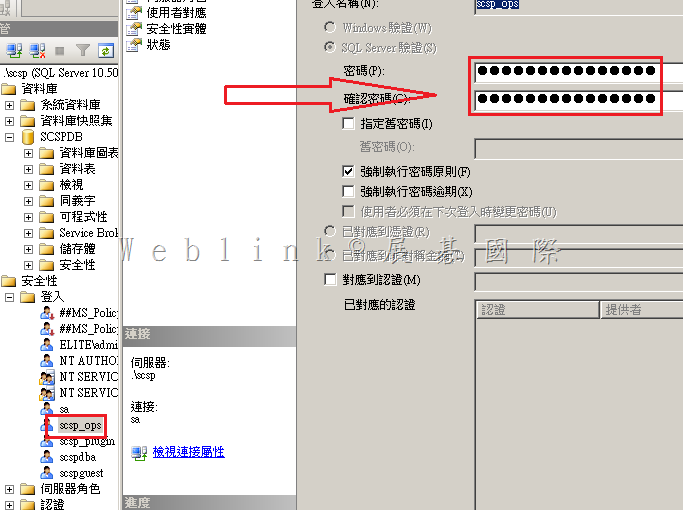
    Change password for dcs_ops & dcs_plugin on SQL server side

    image

    dcs_plugin change in password has no effect on product., as we don’t use this account on the Manager side

    ※(dcs_plugin 用來提供 3-party 產品 (如 SSIM、ArcSight) 讀取資料庫使用,SDCS 沒有使用到該帳號,可任意修改)

    Change dcs_ops in passwrod will require the following changes to be done on Manager side

    1. Stop DCS manager service

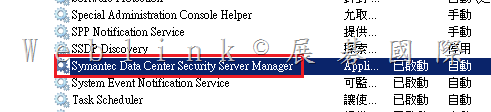
    image
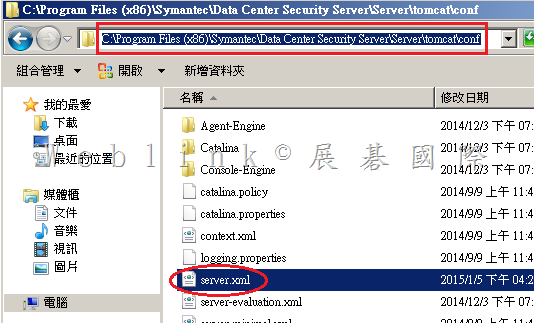
    2. Browse to “C:\Program Files (x86)\Symantec\Data Center Security Server\Server\tomcat\conf”

    image
    3. Backup server.xml
    4. Edit server.xml

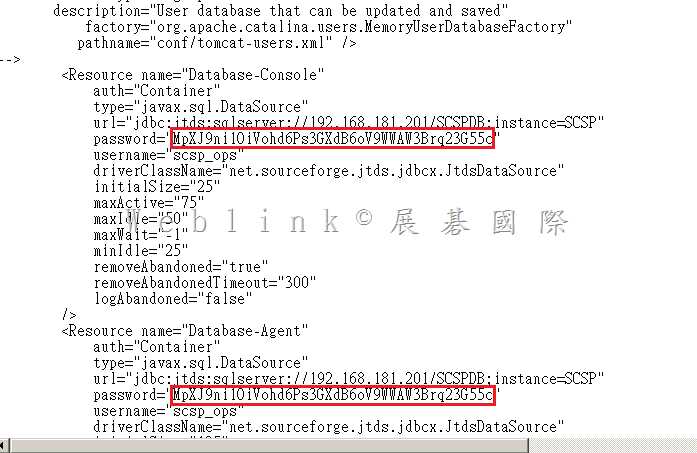
    image

    You can see the JDBC settings in the following:

    <Resource name=”Database-Console”
    auth=”Container”
    type=”javax.sql.DataSource”
    url=”jdbc:jtds:sqlserver://127.0.0.1/SCSPDB;instance=SCSP”
    password=”xxxxxxxxxxxxxxxxxxx
    username=”scsp_ops”
    driverClassName=”net.sourceforge.jtds.jdbcx.JtdsDataSource”
    initialSize=”10″
    maxActive=”25″
    maxIdle=”15″
    maxWait=”-1″
    minIdle=”10″
    removeAbandoned=”true”
    removeAbandonedTimeout=”300″
    logAbandoned=”false”
    />
    <Resource name=”Database-Agent”
    auth=”Container”
    type=”javax.sql.DataSource”
    url=”jdbc:jtds:sqlserver://127.0.0.1/SCSPDB;instance=SCSP”
    password=”xxxxxxxxxxxxxxxxxxxx
    username=”scsp_ops”
    driverClassName=”net.sourceforge.jtds.jdbcx.JtdsDataSource”
    initialSize=”15″
    maxActive=”45″
    maxIdle=”20″
    maxWait=”-1″
    minIdle=”15″
    removeAbandoned=”true”
    removeAbandonedTimeout=”300″
    logAbandoned=”false”
    />

    5. Replace the text xxxxxxxxxxxx with the new DCS-ops password, at both the locations
    6. Then start the DCS manager service

    Also refer below article links for more clarity:
    http://www.symantec.com/connect/forums/csp-database
    http://www.symantec.com/connect/articles/what-are-default-scsp-sql-database-accounts-and-what-are-they-used