作者: Allen Chung

  • DLP Data Insight 3.0 安裝

    DLP Data Insight 安裝

    l 系統需求 →

    Windows Server 2003 (含R2) (32 or 64)

    Windows Server 2008 (含R2) (32 or 64)

    Red Hat Enterprise Linux 5.0 update 5 以上 (64)

    l 10GB 可用空間

    l 可連線 DC → 389 636(TLS)

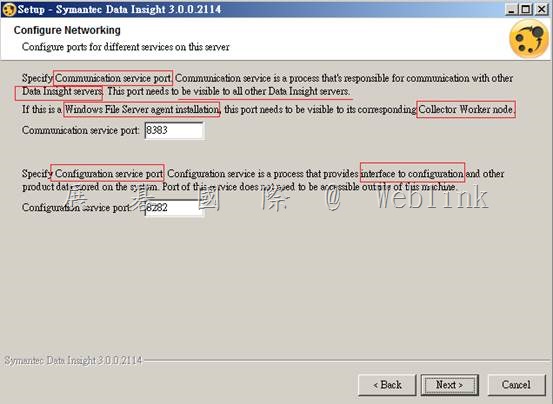
    l Port 8383

    l Console → Https

    l Keystore → commd. Keystore

    l Credential

    l SMTP Alert

    l Data Insight Ignore list

    l Compoment

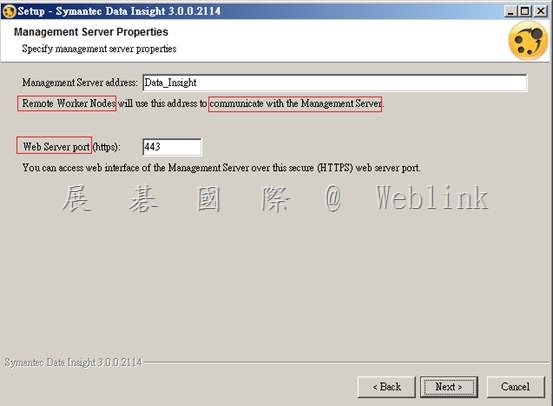
    Management Server (4G 2CPU) (建議 64 bit) → 443 8383 139 445

    Indexer worker node (8G 2CPU) →

    Collector worker node (4G 2CPU) →8383 139 445

    Agent:Windows File Server agent node (4G 2CPU) → 8383 139 445

    Sharepoint Web Service (2007 2010) →

    Web server → Tomcat 6.0.32

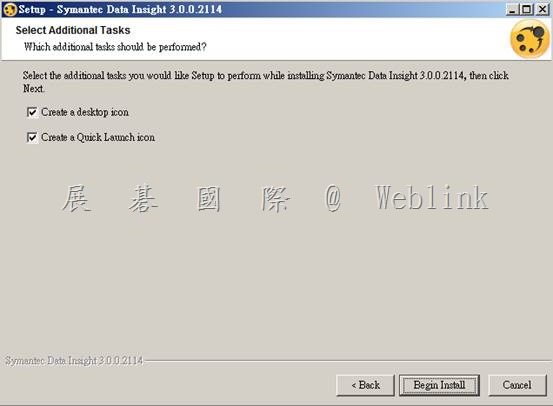
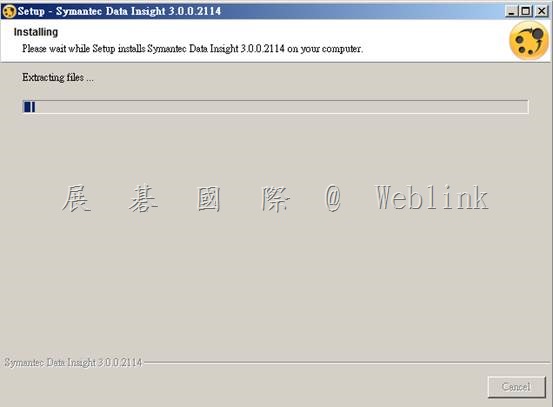
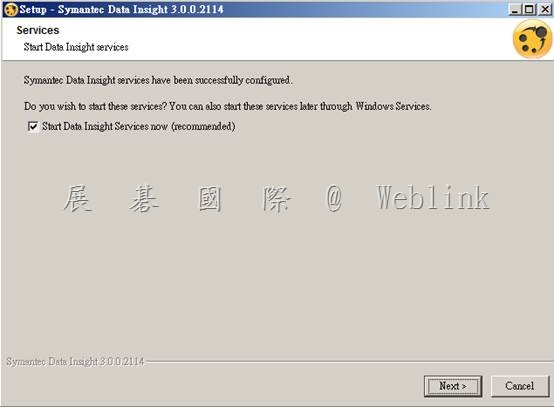
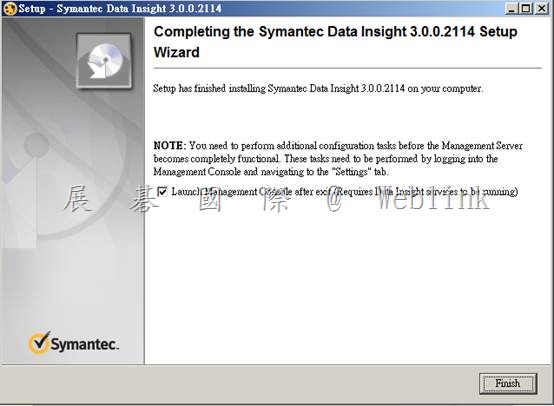
    安裝 DLP Data Insight

    可先 Single-tier ,再two-tier three-tier

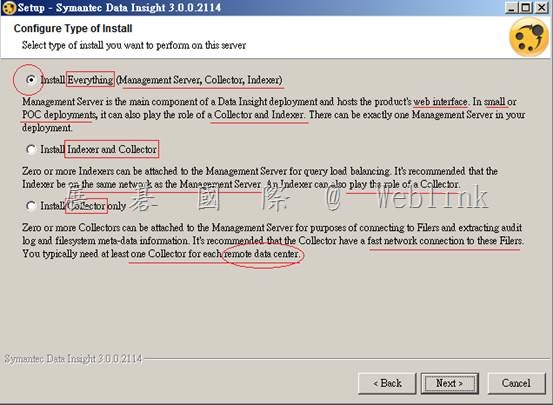
    l Single-tier →

    (Pre-installation、Management Server、configuration)

    l two-tier →

    (Pre-installation、Management Server 、Collector worker nodes (remote location)、register Collector worker nodes、configuration)

    l three-tier →

    (Pre-installation、Management Server 、Collector worker nodes (remote location)、Linux Indexer worker node、register Collector worker nodes、configuration)

    Single-tier

    l 機器上不安裝其他程式

    l 停防毒

    l

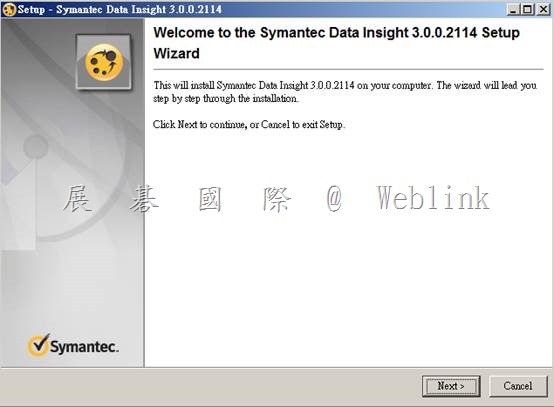
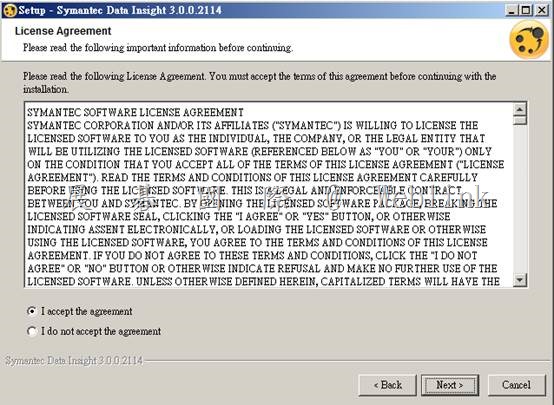
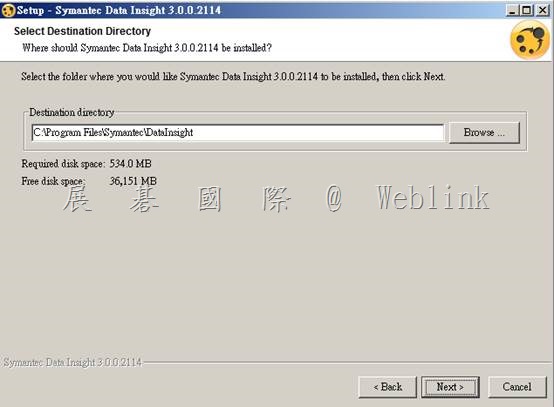
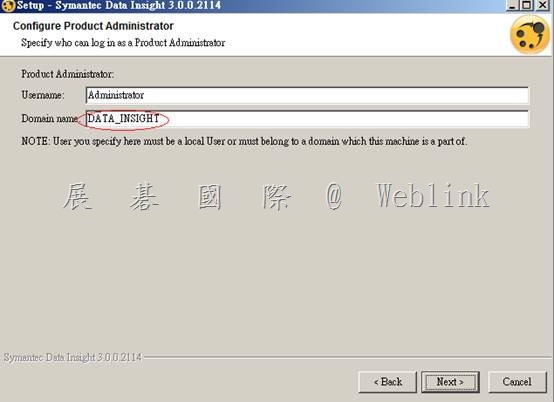
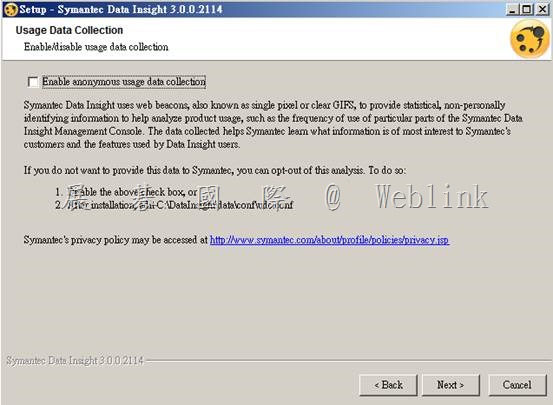
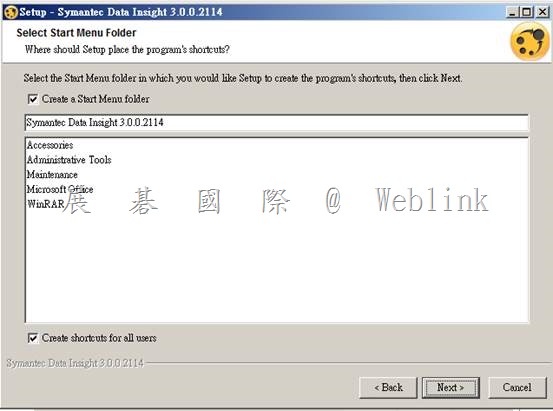
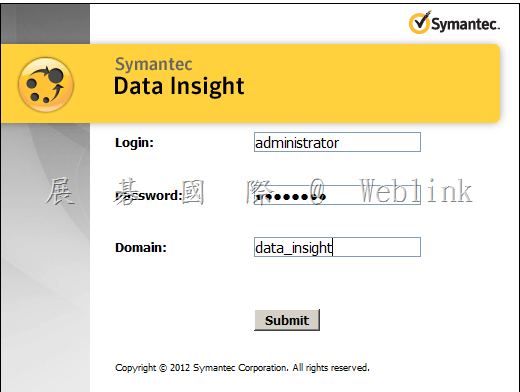
    l Symantec_DataInsight_windows_3_0_0_2114_x64.exe

    clip_image002

    clip_image003

    clip_image005

    clip_image007

    clip_image009

    clip_image011

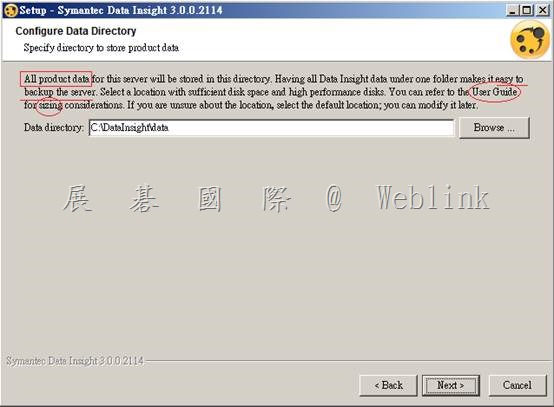
    Data Insight data folder

    C:\datainsight\data

    clip_image013

    clip_image015

    clip_image017

    clip_image019

    clip_image021

    clip_image023

    clip_image025

    clip_image027

    clip_image029

    clip_image031

    clip_image032

    clip_image034

    clip_image036

    clip_image037

    clip_image039

  • Restoring Encryption Management Server Backups larger than 2GB

    http://www.symantec.com/business/support/index?page=content&id=TECH149146

    Issue

    Due to a limitation of Apache, it is not possible to restore backups of 2GB or greater using the Encryption Management Server (previously PGP Universal Server) administrative interface.  To restore backups larger than 2GB requires accessing the server from the command-line interface.


    Accessing the Symantec Encryption Management Server (SEMS) command line for read-only purposes (such as to view settings, services, logs, processes, disk space, query the database, etc) is supported. However, performing configuration modifications or customizations via the command line may void your Symantec Support agreement unless the following procedures are followed.

    Any changes made to SEMS via the command line must be:

    • Authorized in writing by Symantec Support.
    • Implemented by a Symantec Partner, reseller or Symantec Technical Support.
    • Summarized and documented in a text file in /var/lib/ovid/customization on the PGP Universal Server itself.

    Changes made through the command line may not persist through reboots and may be incompatible with future releases. Symantec Technical Support may also require reverting any custom configurations on SEMS back to a default state when troubleshooting new issues.

    Solution

    To restore a backup larger than 2GB in size:

    1. Copy the most current backup file of SEMS to a network drive or other location.
    2. Export the Organization Key of the server from the SEMS administrative interface.
      Note: It is important to export the full keypair with no passphrase. Entering the passphrase will cause the restore process to fail.
    3. Install SEMS from the .iso image.
    4. Import your SSH key to the server.
    5. Import the Organization key to the server.
    6. Connect to the server with WinSCP and copy the backup to the /var/lib/ovid/backups/ directory on the server.
    7. Access the server via SSH. For more information on accessing the server via SSH, see article TECH149673.
    8. Run pgpbackup --restore <backupfile.pgp> --key <orgkeyfile.asc> --done
    9. Restart tomcat using the command: #pgpsysconf --restart tomcat
  • Access Symantec Encryption Management Server via SSH Using PuTTY

    http://www.symantec.com/business/support/index?page=content&id=TECH149673


    Issue

    To gain command line access to a Symantec Encryption Management Server (previously PGP Universal Server), you will need to create an SSH key.  You can do this using a utility such as PuTTYgen to create an SSH key and PuTTY to log in to the command line interface.  This article details how to utilize PuTTYgen and PuTTY to access Symantec Encryption Management Server (SEMS) .
    PuTTY is a freeware suite of SSH tools. The PuTTY suite includes PuTTYgen, PuTTY, PSFTP, and Pageant the PuTTY authentication agent. The PuTTYgen and PuTTY.exe files are also available to be downloaded separately.

    Accessing the server command line for read-only purposes (such as to view settings, services, logs, processes, disk space, query the database, etc) is supported. However, performing configuration modifications or customizations via the command line may void your Symantec Support agreement unless the following procedures are followed.
    Any changes made to the server via the command line must be: 

    • Authorized in writing by Symantec Technical Support or published as an approved and documented process on the Symantec Knowledge Base.
    • Implemented by a Symantec Partner, reseller or Symantec Technical Support.
    • Summarized and documented in a text file in /var/lib/ovid/customization on the Symantec Encryption Management Server itself.

    Note: Changes made through the command line may not persist through reboots and may be incompatible with future releases.  Symantec Technical Support may also require reverting any custom configurations on the server back to a default state when troubleshooting new issues.

    Solution

    Using PuTTYgen

    To create an SSH keypair using PuTTYgen
    These steps assume the entire suite of PuTTY utilities is installed on the computer. The following steps may also be performed using the separately downloaded PuTTYgen.exe and PuTTY files. 

    1. Open PuTTYgen.
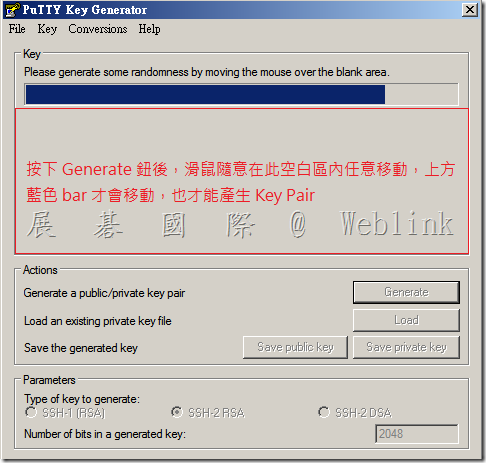
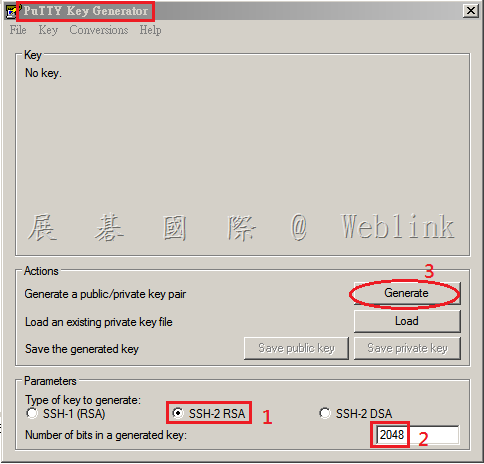
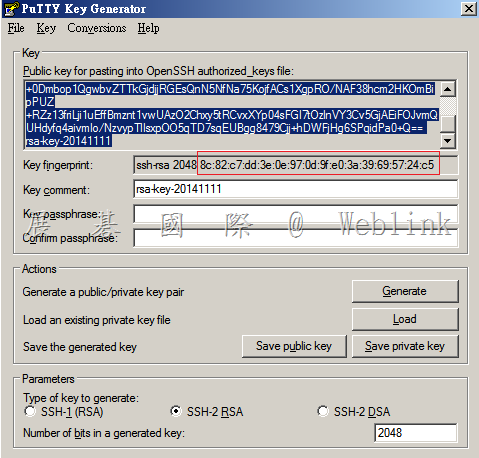
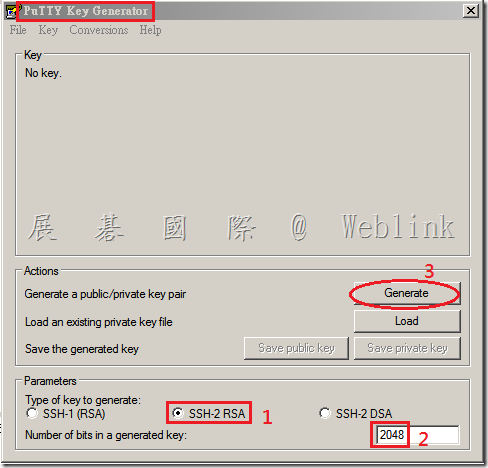
    2. Confirm the Parameters (at the bottom of the PuTTY Key Generator window) for the type of key to generate. The parameters of the key must utilize one of the SSH2 options. We recommend that you choose SSH-2 RSA (the default). Set the Number of bits to 2048
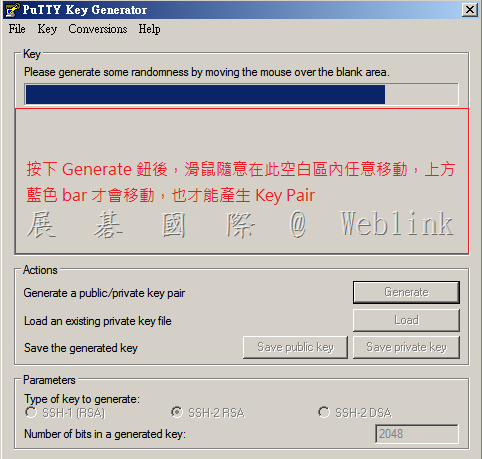
    3. Create a key pair by clicking on the Generate button in the Actions sectionGenerate some randomness for the key by moving the mouse over the blank area.
    image

    image

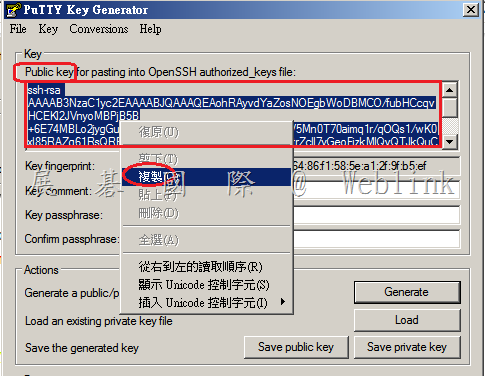
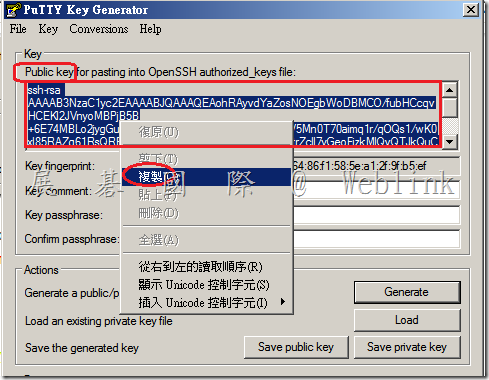
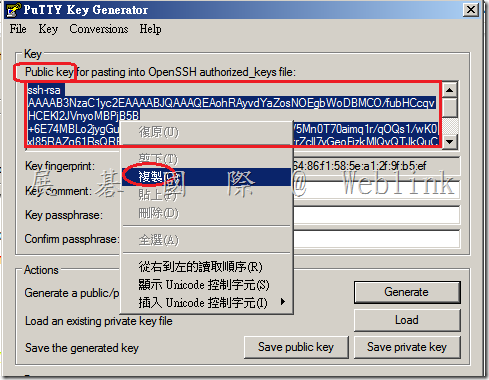
    4  .After the key generation is complete, copy the public key block from PuTTY window into a SEMS admin account by performing the following:


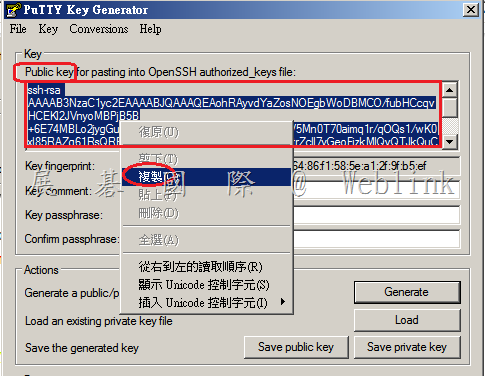
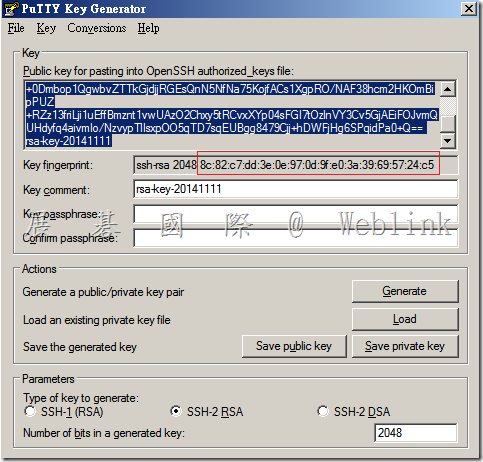
    5. Copy the public key from the clipboard window in the PuTTY Key Generator where it says “Public key for pasting into OpenSSH authorized_keys file:”
    image

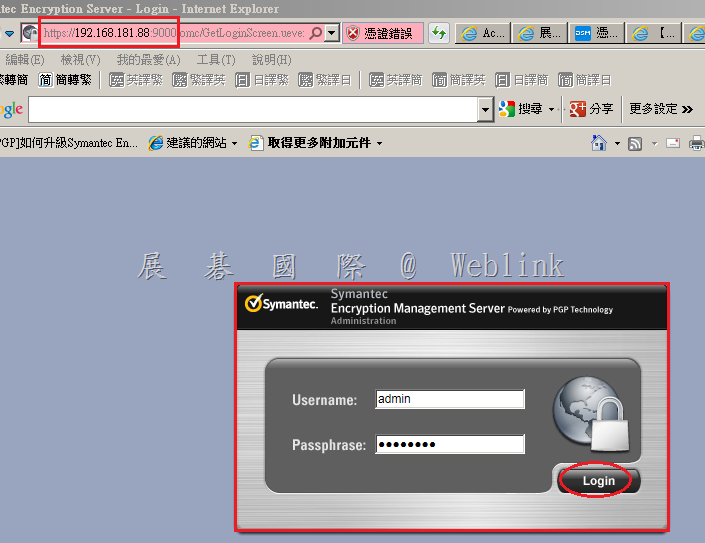
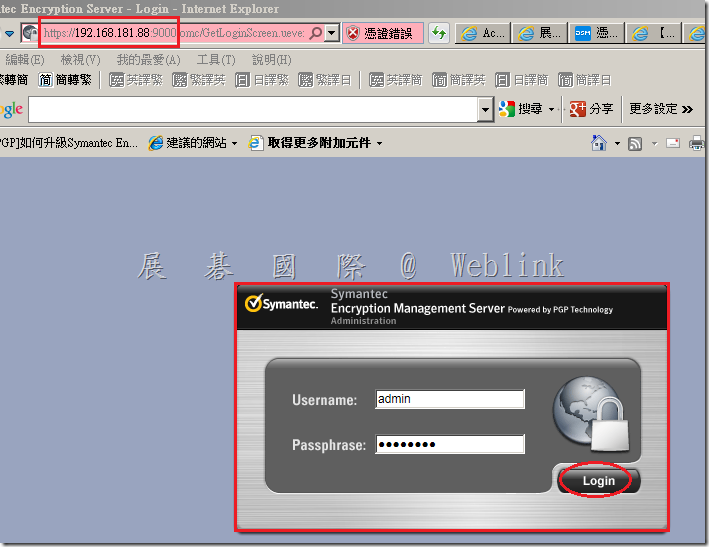
    6. Log in as a superuser to the server admin interface.
    image

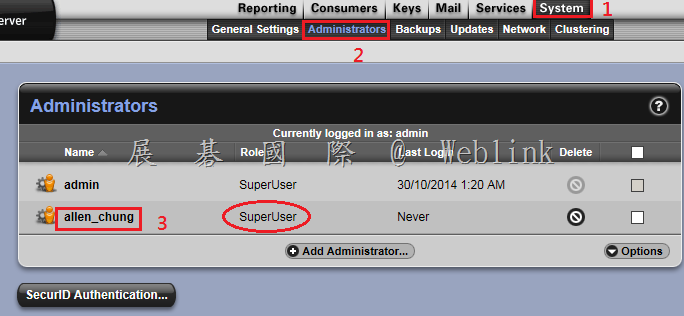
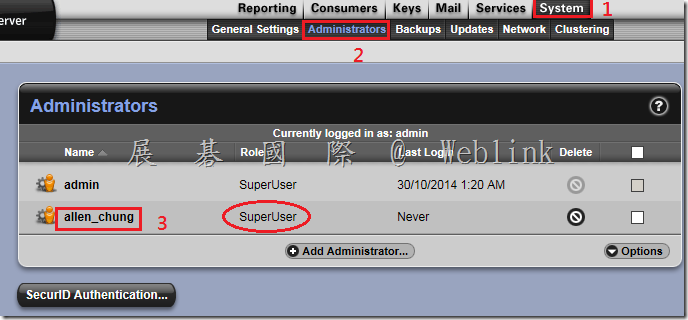
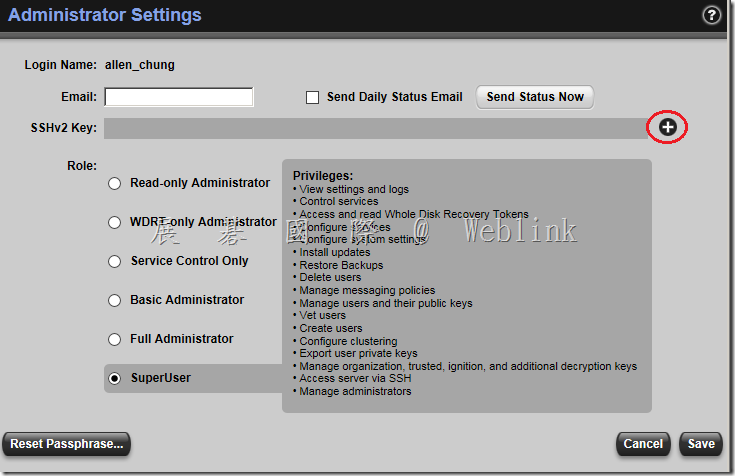
    7. Select the System > Administrators card then click on a superuser account. Note: It does require the user to be a superuser administrator to use SSH access. Other roles are not supported to use SSH access.
    image

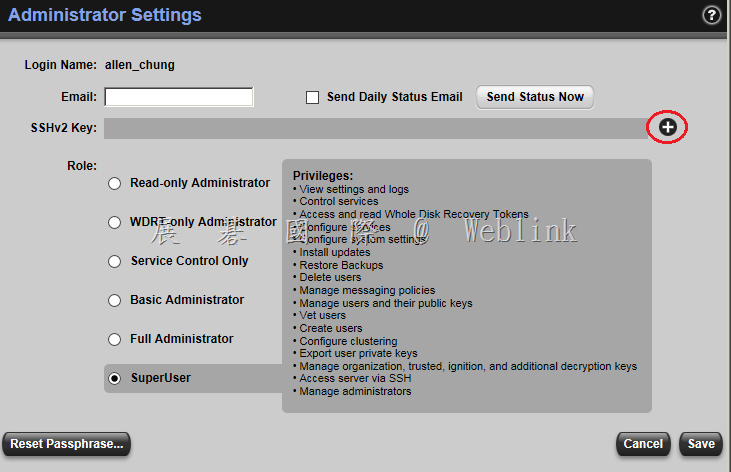
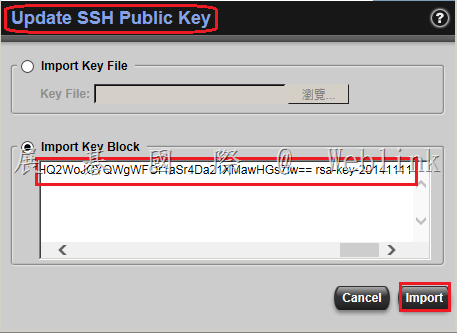
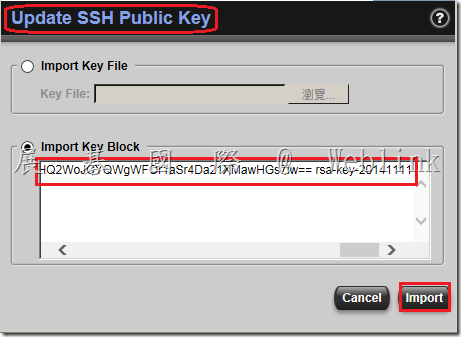
    8. Click the plus + sign at the end of the SSHv2 Key line. This will bring up a window that displays Update SSH Public Key.
    image

    9.  Click the Import Key Block radio button and paste the public key block that you just generated with PuTTYgen directly into this block and click the Import button.
    image

    image

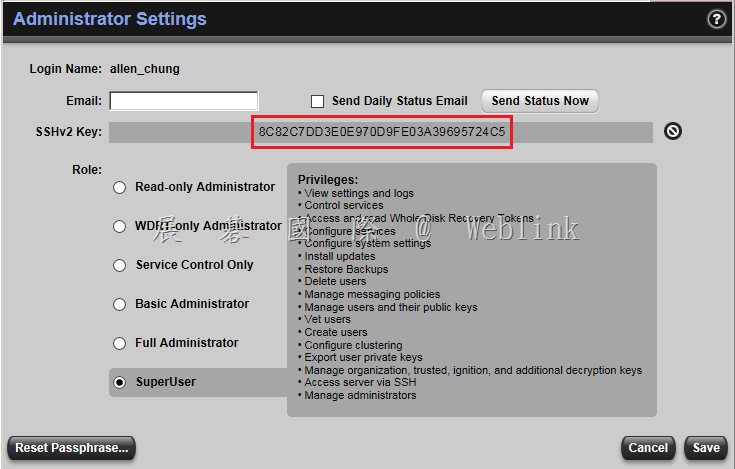
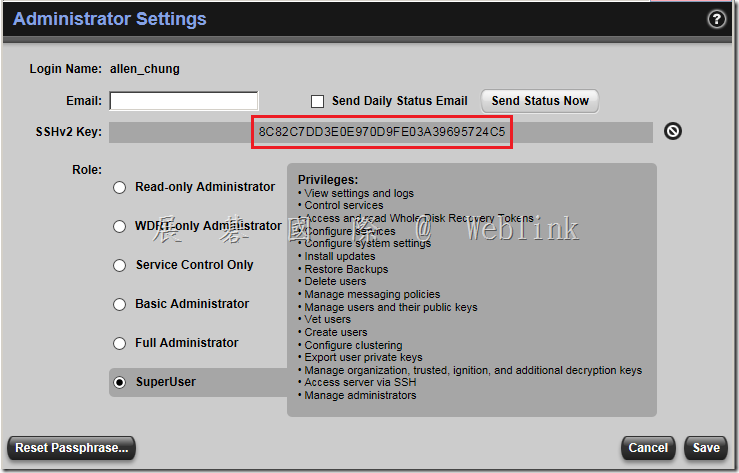
    10.  After you upload the key block you will notice the hex fingerprint of the key will now show up in SSHv2 Key line. You can verify that the fingerprint matches the fingerprint found in the Key fingerprintt line on PuTTY Key Generator to verify that the key was imported succesfully
    image

    image


    11.  Click Save and close the administrative interface.

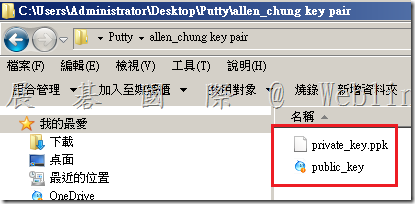
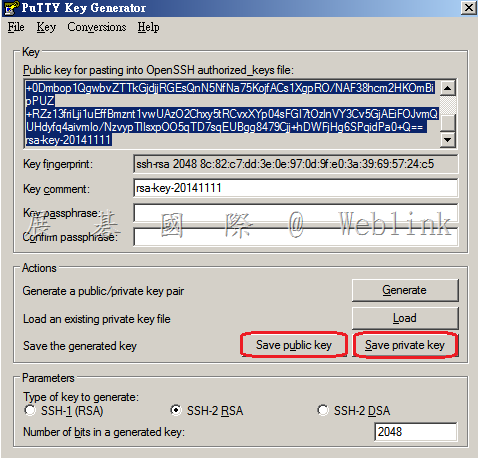
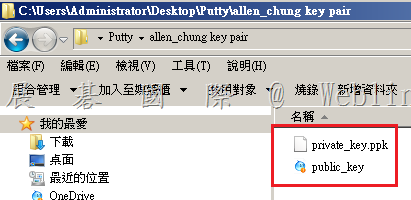
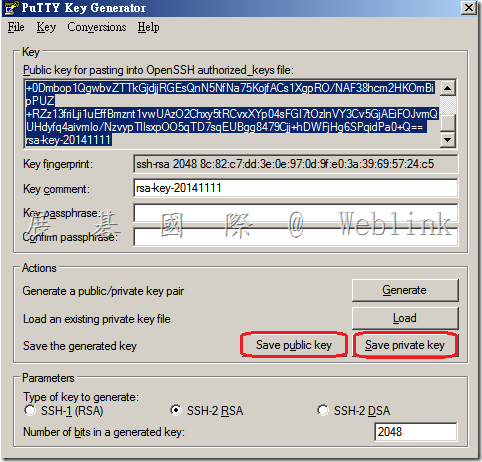
    12.  Next go back to your desktop and save the public and private key within PuTTYgen.
    image

    image

    Note: The minimum key size when generating a key is 1024-bit.  Intermittently PuTTYgen may generate a 1024-bit key as a 1023-bit key due to a bug in PuTTYgen. Thereby causing the key not to work properly. The best practice is to generate a key of at least 1025-bit to avoid the potential problem. We recommend generating a key 2048-bit in length to solve this issue.

    Access SEMS using PuTTY

    Use the following steps to access the command line interface. 

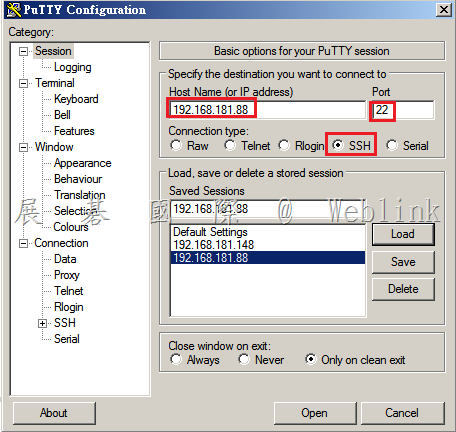
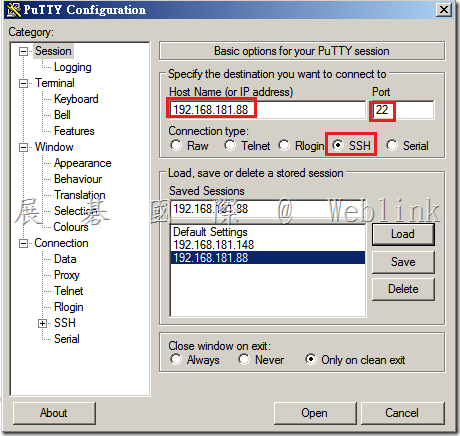
    1. Open PuTTY from the Start menu.

    Enter the SEMS hostname (keys.domain.com) or IP address in the hostname field

    1. If not already entered, change the Port field to use port 22.
    2. Select the SSH radio button as the protocol.
    image

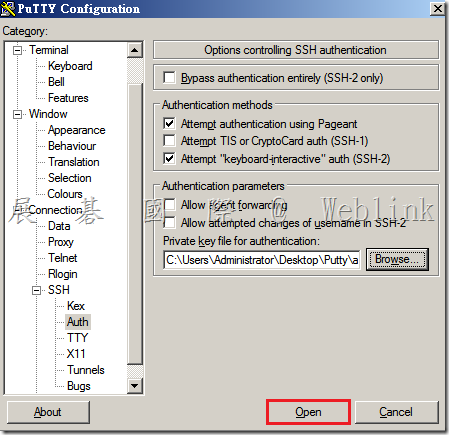
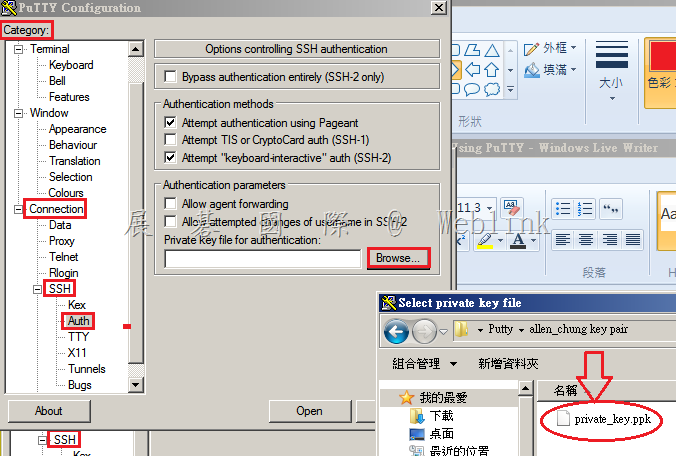
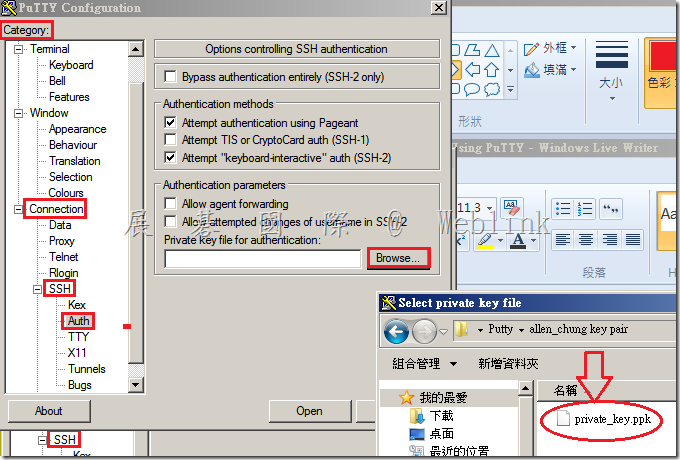
    1. Click Auth (under Category>Connection>SSH)
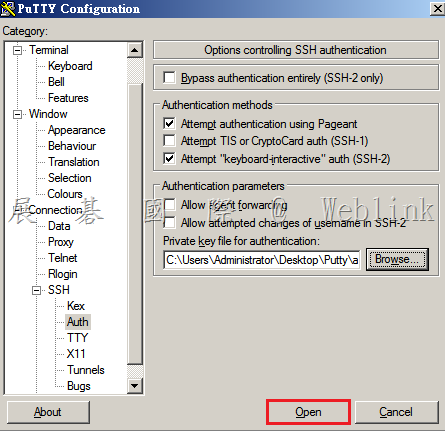
    2. Browse to the private key and add the file that you saved and click Open to start a session. You will be prompted to enter a username. 
    image

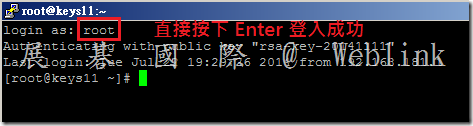
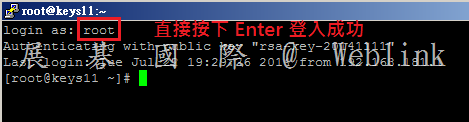
    1. Type: root and press Enter.

    image

    image


    image


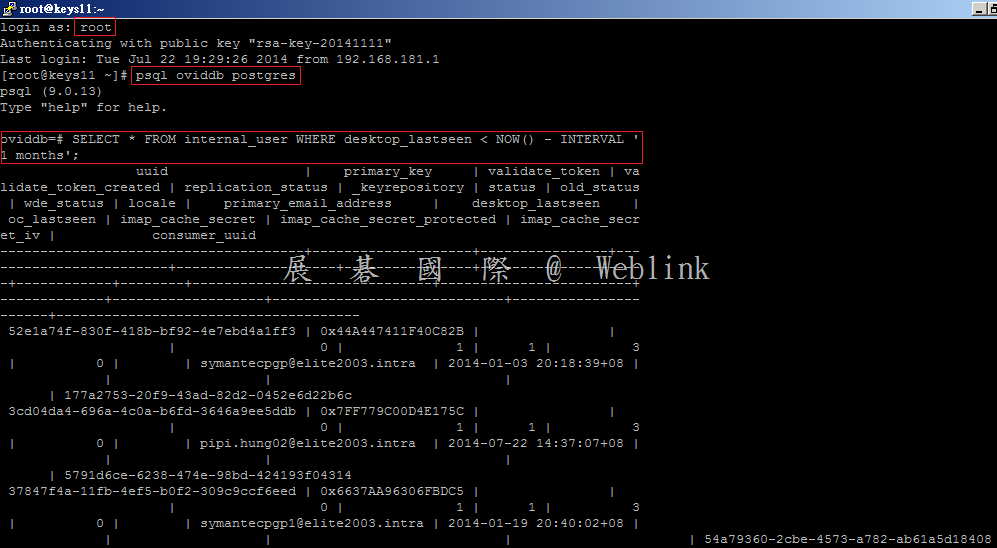
    【一些 postgres SQL 指令】

    show all postpres SQL table

    SELECT table_name FROM information_schema.tables WHERE table_schema = ‘public’;

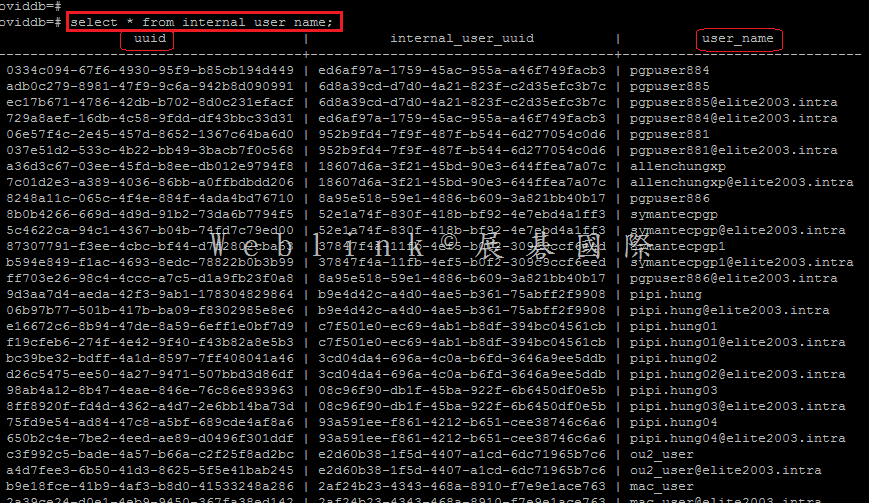
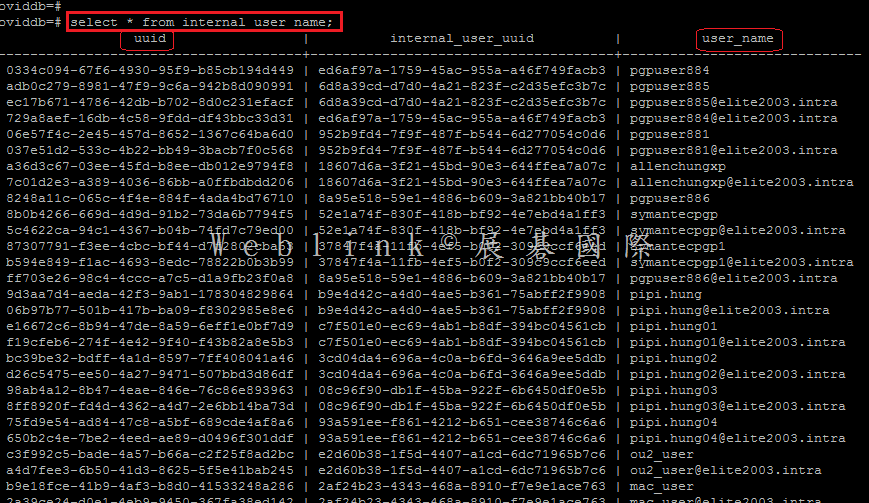
    select * from internal_user_name;

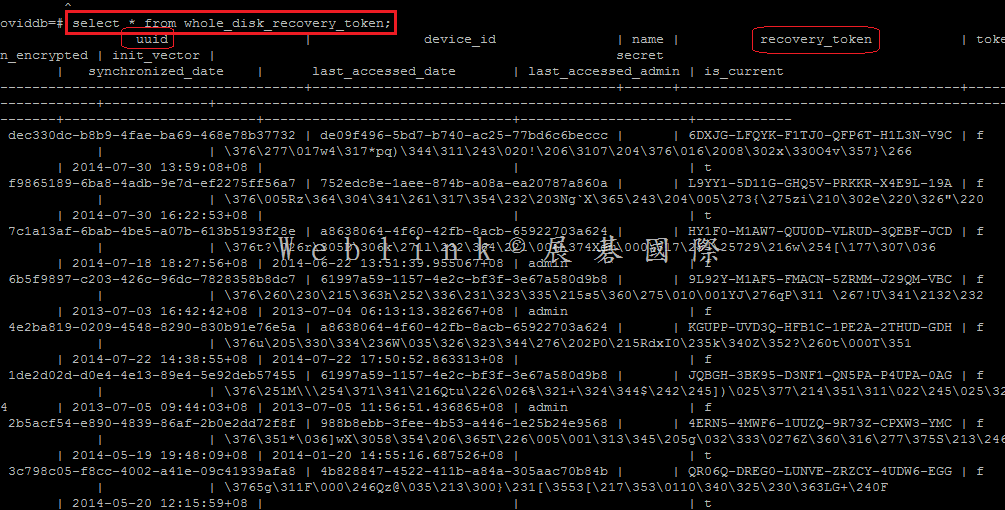
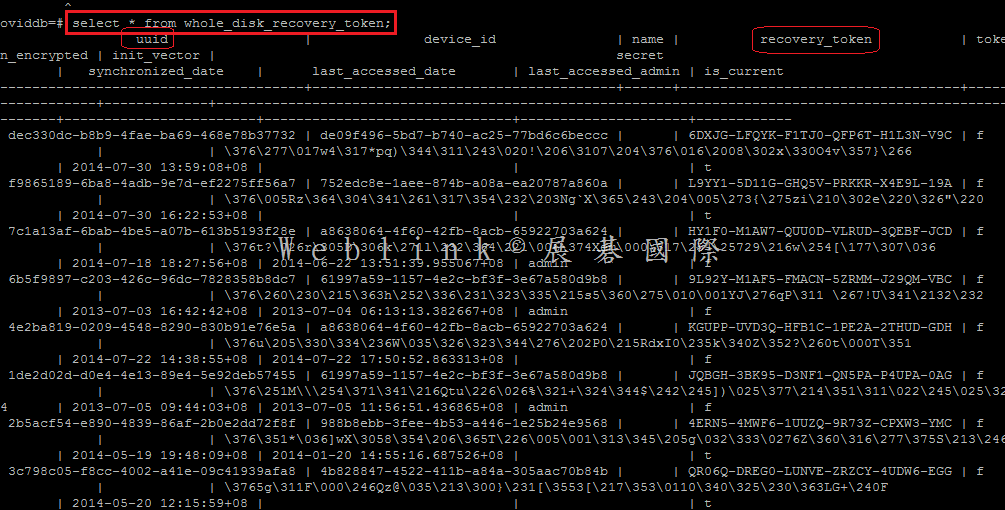
    select * from whole_disk_recovery_token;

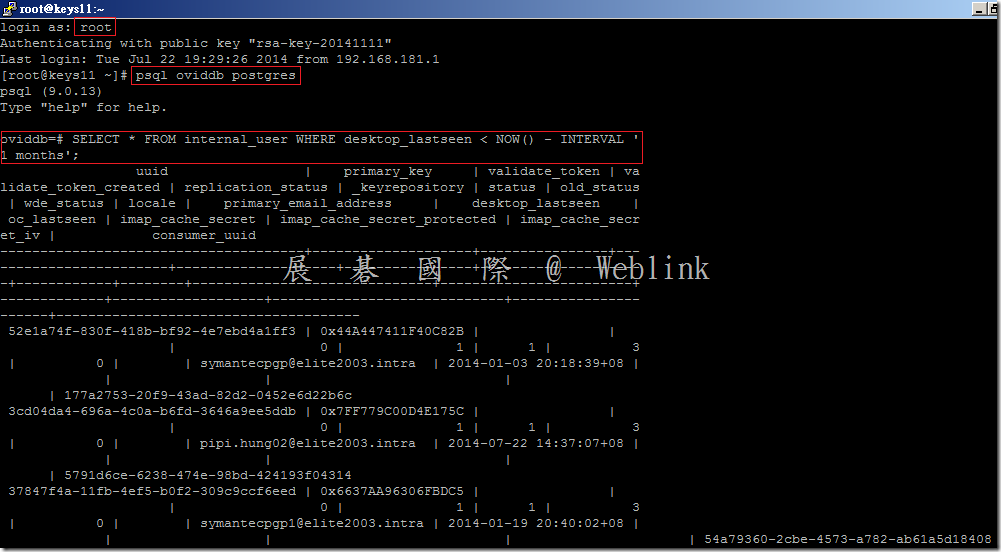
    select * from internal_user where desktop_lastseen < NOW() – INTERVAL’1 months’;


    select * from internal_user_name;
    image

    select * from whole_disk_recovery_token;
    image


    【如何從資料庫中查詢某使用者的 WDRT token】

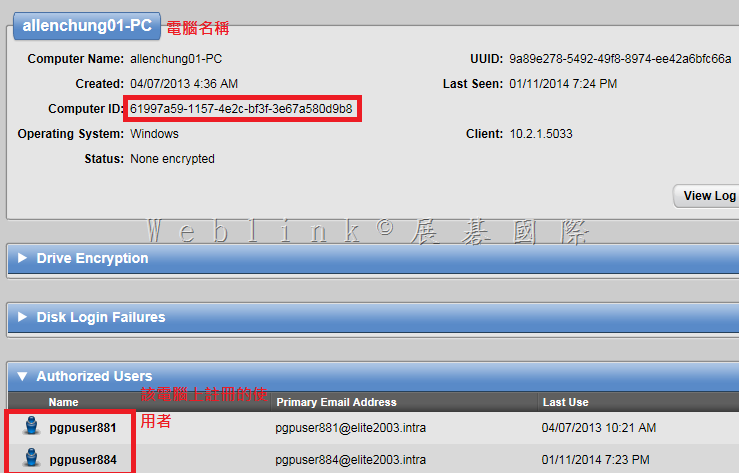
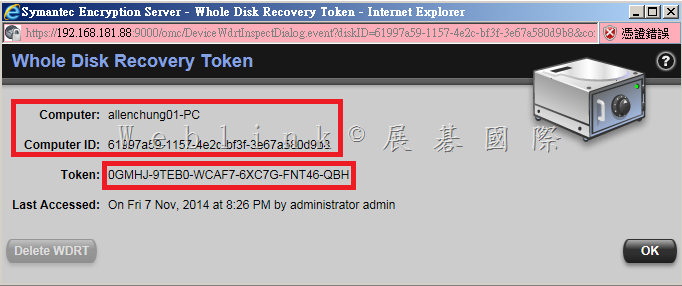
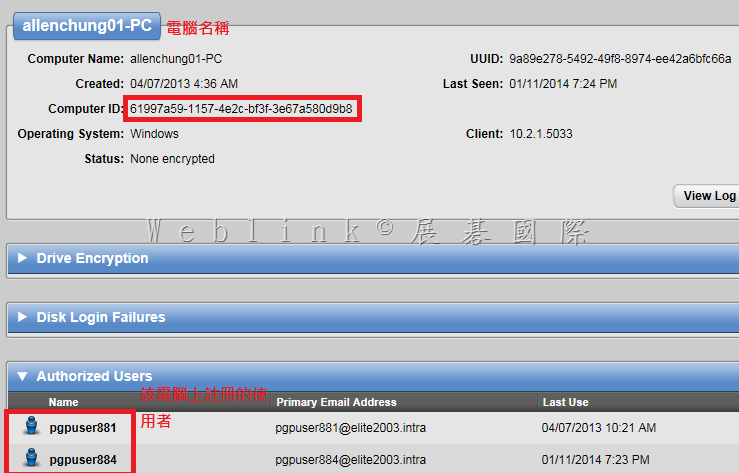
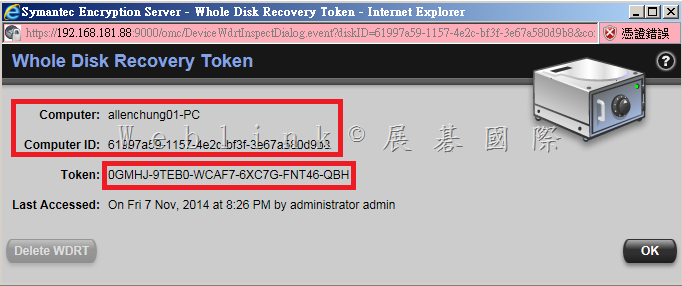
    查詢使用者的 WDRT token,並非透過使用者名稱去查詢,而是要透過電腦名稱來查詢,該電腦上若有多個使用者註冊 PGP Universal Server,則每個人的 WDRT token 是相同的
    image

    image

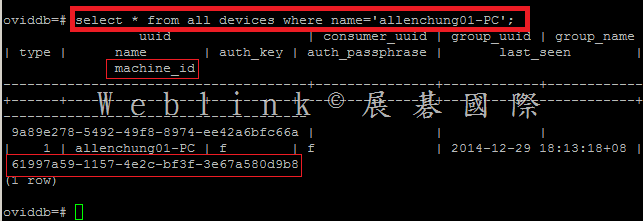
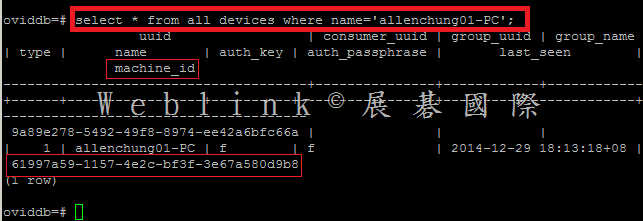
    select * from all_devices where name=’allenchung01-PC’;

    會查詢到 ‘allenchung01-PC’ 的 machine_id  是  ‘61997a59-1157-4e2c-bf3f-3e67a580d9b8’
    image

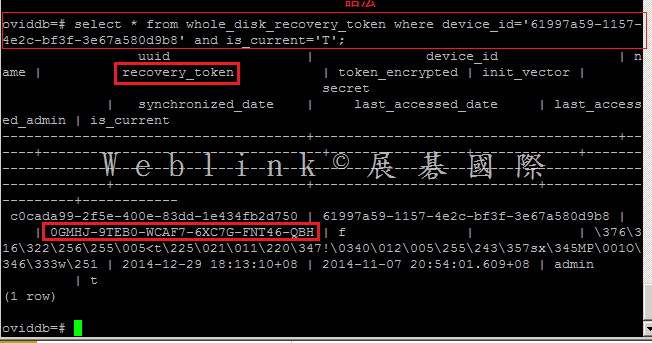
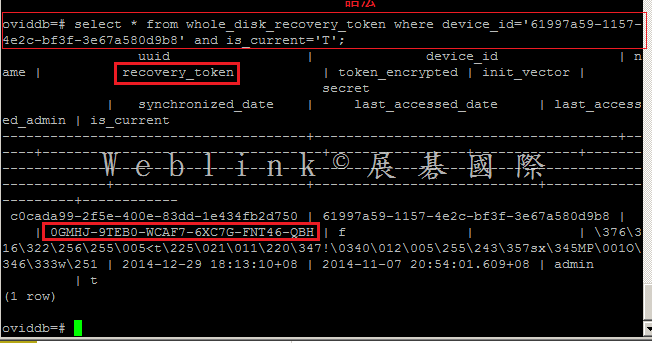
    select * from whole_disk_recovery_token where device_id=’61997a59-1157-4e2c-bf3f-3e67a580d9b8′ and is_current=’T’;

    查到 Token: 0GMHJ-9TEB0-WCAF7-6XC7G-FNT46-QBH


    ※ 如果想匯出相關資訊可使用以下指令

    psql oviddb ovidr -c “SELECT * FROM whole_disk_recovery_token” > /tmp/WDRT.csv
    image


    • If your public key is not accepted by SEMS when you are trying to paste it in from the PuTTYgen window, make sure you are not accidentally adding whitespace when pasting the keyblock.  If it still doesn’t work go through the entire key generation process again. From within Puttygen make sure you have clicked at the very bottom: SSH-2 for the type of key to generate.
    • If your public key is not being accepted and you receive an error stating that the SSH key is not valid when importing to SEMS, this may be due to you saving the key file using the Save public key option in the PuTTY Key Generator utility.  This uses a format that SEMS doesn’t support.  Be sure to copy the key from the portion of the clipboard as described in Step 5 above.
    • The first time you log into SEMS with PuTTY, you will be given a security warning, this is normal.  Just click yes and proceed as above.
    • Saving your session for future use:
      You may want to go back to the (Category > session) tab and type a descriptive name in the box directly under the words Saved Sessions. If you do this and click Save you will notice that the name you typed appears in the larger box as a Saved Session.  Now you will be able to access your configured login for SEMS in the future just by double-clicking on the saved session name.
  • 【Microsoft Azure online 客戶如何轉換成 open 訂閱】

    【Microsoft Azure online 客戶如何轉換成 open 訂閱】

    由於此項轉換需要由 Microsoft Azure 後台人員為您施作,請您參照以下步驟建立案件:

    1. 請登入目前使用的Microsoft Azure 管理頁面
    https://manage.windowsazure.com

    2. 按下畫面左上角【向下箭頭圖示】

    clip_image001

    3. 按下【支援】

    clip_image002

    4. 按下【取得支援】

    clip_image003

    5. 支援類型請選擇【帳務】,並按下【建立票證】

    clip_image004

    6. 問題類型請選【訂閱轉換和移轉】,類別請選【將資料傳輸到不同的訂閱】

    clip_image005

    7. 填妥以下相關資訊

    clip_image006

    8. 填妥以下相關資訊

    clip_image007

    clip_image008

    9. 已順利提交

    clip_image009

    10. 之後在【取得支援】

    clip_image003[1]

    11. 按下【管理票證】

    clip_image010

    12.可以查看先前建立的案件

    clip_image011

  • MPN Partner 如何啟用Azure的服務

    MPN Partner 如何啟用Azure的服務

    MPN Partner的權益是每個月會有USD 100可以使用,如果他們有多組MSDN訂閱,也可以加在同一個Azure訂閱管理帳號下。

    clip_image001

    如何啟用Microsoft Azure服務

    先透過下面網址登入MSDN -> 我的帳戶畫面。

    https://msdn.microsoft.com/zh-tw/subscriptions/manage/hh442900

    1、 啟用Microsoft Azure

    clip_image002

    如何授權其他同仁使用Azure Service

    1、 登入Azure管理網站

    https://manage.windowsazure.com

    2、 選擇 [設定] -> [管理員] -> [加入],再輸入使用者的live ID或是預設Azure AD的帳號

    clip_image003

  • Office 365 家用(個人)購買新合約後如何延長使用期

    1.管理者登入 Office 365 家用(個人)管理網址

    http://www.office.com/MyAccount

    clip_image001

    2. 選擇畫面最下方【輸入 Office 產品金鑰】

    clip_image002

    3. 輸入此次購買的 Office 365 家用(個人)產品金鑰

    clip_image003

    4.系統若偵測到先前有同樣的產品,會詢問您要延長到期日或是產生一個新使用權

    如果選擇延長到期日,就會將既有的產品續約(延長到期日)

  • 如何以指令手動建立 PGP 本機帳戶以通過 Bootguard 驗證

    指令如下

    ( 如果硬碟正在加密的同時,此指令仍可正常執行 )


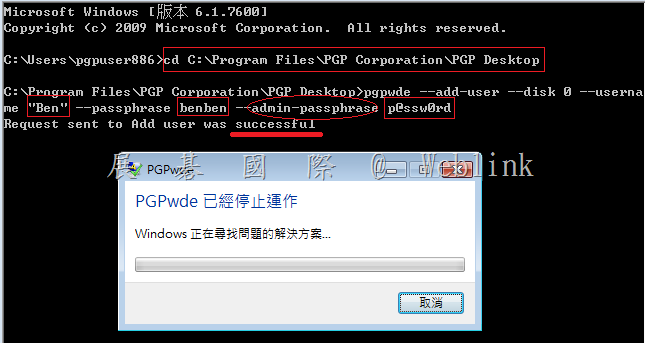
    cd C:\Program Files\PGP Corporation\PGP Desktop

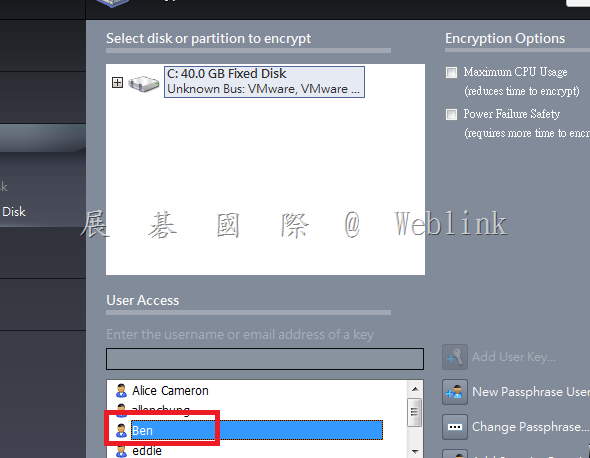
    pgpwde –add-user –disk 0 –username “Ben” –passphrase benben –admin-passphrase p@ssw0rd

    【指令說明】

    pgpwde –add-user –disk 0 –username “Ben(使用者名稱)” –passphrase benben(密碼) –admin-passphrase p@ssw0rd(WDE admin 密碼)

    (詳細的指令說明可參考以下 PDF 文件)

    http://w3c.weblink.com.tw/symantec/wp-content/uploads/sites/4/2014/10/pgpWDEcmdline_1000_usersguide_en.pdf

    範例1:建 Local Boot Guard user account


    clip_image001

    clip_image002


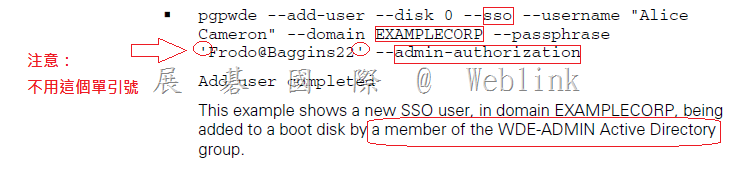
    範例2:建 Domain SSO user account
     
    image

  • Outlook 2007 如何封存 Exchange server 信箱中的信件至個人電腦的硬碟

    Outlook 2007 如何封存 Exchange server 信箱中的信件至個人電腦的硬碟

    確認此為 Exchange OST 信箱

    clip_image002

    按【檔案】

    clip_image004

    按【封存】

    clip_image006

    選擇【封存此資料夾及所有子資料夾】(確認選擇的對象是 信箱-(登入帳號))

    選擇合適的封存時間點

    預設封存路徑為C:\Documents and Settings\Administrator\Local Settings\Application Data\Microsoft\Outlook\archive.pst

    建議修改為C 槽以外位置【例如:D:\Outlook_Archive\archive_20140903.pst】,以後系統重灌就不用特別備份出來

    按下【確認】鈕,完成封存

    clip_image008

    以下顯示已封裝完成,不過資料夾名稱為【封裝資料夾】,我們通常要更改為一個有意義的名稱

    請按【右鍵】→【封裝資料夾 的內容】→【進階】→在【名稱】處,更改成一個具可讀性的名稱

    這裡也可以看到【封存的 pst 檔案位置在 D:\Outlook_Archive\archive_20140903.pst】

    clip_image010

    可以查核一下信件都有移轉過來

    clip_image012

  • 【尚未收到 Parallels Desktop 10 for Mac 升級金鑰信件】

    1. 請問您是否已註冊過您的Parallels Desktop 9 for Mac

    如果已經註冊過,應該會收到如下的信件

    ( 如果您尚未收到信件,請您先確認您的垃圾郵件資料夾是否有此封信件 )

    ( 如果垃圾郵件資料夾沒有此封信件,請您以先前註冊的 E-mail 與密碼】登入  https://account.parallels.com/#/login  進行相關的確認,這裡會列出您註冊過的金鑰 ( 包含 Parallels Desktop 10 for Mac 升級金鑰 ) )

    image

    或是至 https://www.parallels.com/hk/support/request/ 填寫線上協助請求


    標題: ” Parallels Desktop 10 for Mac: 您的升級就在這裡 ”

    內文: 

    XXXXXX 您好,

    感謝您加入 Parallels 社群!您最近購買並啟用了 Parallels Desktop 9 for Mac。我們很高興在此通知您,由於您的購買符合我們的技術保證計劃規定,可免費升級至最新版 Parallels Desktop10 for Mac,此為我們目前功能最強大的版本!

    全新功能包括:

    · • 準備迎接 OS X Yosemite (10.10)

    · • 電池續航力可延長最高 30%!

    · • Windows 文件的開啟速度提高 48%!

    · • Mac 記憶體管理最佳化,可將虛擬機器的 Mac 記憶體使用量降低 10%!

    · • 即時虛擬磁碟最佳化功能可在您工作時自動精簡您的虛擬磁碟,只會占用實際需要的硬碟空間。

    今天就下載,升級至 Parallels Desktop 10 for Mac!

    三個簡單步驟即可完成升級:

    · 1. 確定您已將安裝在電腦上的 Parallels Desktop 9 for Mac 更新至最新版本。如要檢查,請按一下 Parallels Desktop 功能表>檢查更新。在安裝 Parallels Desktop 10 期間,可能會要求您提供 Parallels Desktop 9 金鑰。您可在「我的帳戶授權」區段中找到它。 (https://desktop.parallels.com/#/licenses).

    · 2. 下載 Parallels Desktop 10 for Mac (http://www.parallels.com/directdownload/pd10).

    · 3. 安裝 Parallels Desktop 10 for Mac,然後在提示下輸入提供的產品啟動金鑰。在某些情況下,您可能也需要提供您的 Parallels Desktop 9 金鑰(請參見步驟 1)。

    您的 Parallels Desktop 10 for Mac 升級金鑰:

    xxxxx-xxxxxx-xxxxxx-xxxx

    對如何升級至 Parallels Desktop 10 有疑問? 我們隨時在這裡為您提供協助。 請造訪我們的全新支援頁面。 (http://www.parallels.com/products/hk/desktop/support/).

    感謝您購買 Parallels Desktop for Mac。

    順頌,
    The Parallels Team

    2. 如果尚未註冊,請您至以下網頁註冊您的 Parallels Desktop 9 for Mac

    https://account.parallels.com/?continue=%2F%23%2Flicenses&service=pd#/register

    clip_image001[4]

    3. Parallels Desktop for Mac 2014 年技術保障

    http://www.parallels.com/hk/techguarantee2014/

    clip_image002[4]

  • Unable to start Parallels Desktop 9 after updating Mac OS to Mac OS X 10.10 Yosemite Developer Preview 6 or 10.9.5 Mavericks【Unable to start Parallels services. Problem ID: 15381】

    Unable to start Parallels Desktop 9 after updating Mac OS to Mac OS X 10.10 Yosemite Developer Preview 6 or 10.9.5 Mavericks【Unable to start Parallels services. Problem ID: 15381】

    image

    請您參考下列網址:
    http://kb.parallels.com/en/122670

    Cause

    Major changes in OS X.

    Resolution

    Please update Parallels Desktop 9 to the latest build:

    Search words:

    Mac OS 10.10 Developer Preview 6

    Unable to start Parallels services

    Problem ID: 15381