作者: Allen Chung

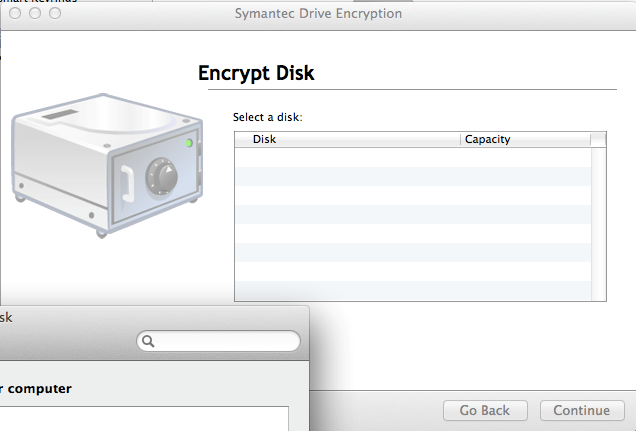
  • PGP 安裝完成後,在用戶端介面中找不到硬碟可加密 (或是出現 unknown error 11980)

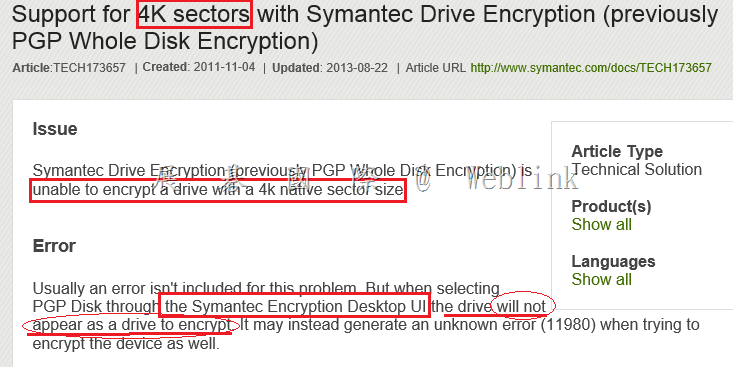
    目前 PGP 不支援 4K sector byte size,僅支援 512 sector byte size

    請參考

    http://www.symantec.com/business/support/index?page=content&id=TECH173657

    image

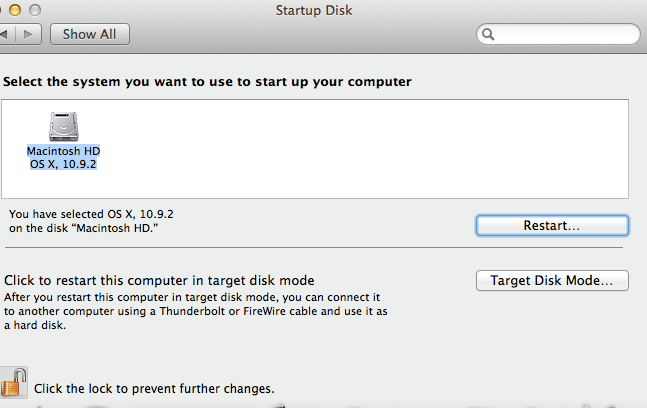
    以下是 PGP 安裝完成後,在 Mac 用戶端介面中找不到硬碟可加密的畫面

    您可以參考以下網頁來確認 sector byte size

    【Symantec Drive Encryption How to find the sector byte size】

    http://www.symantec.com/business/support/index?page=content&id=TECH198917

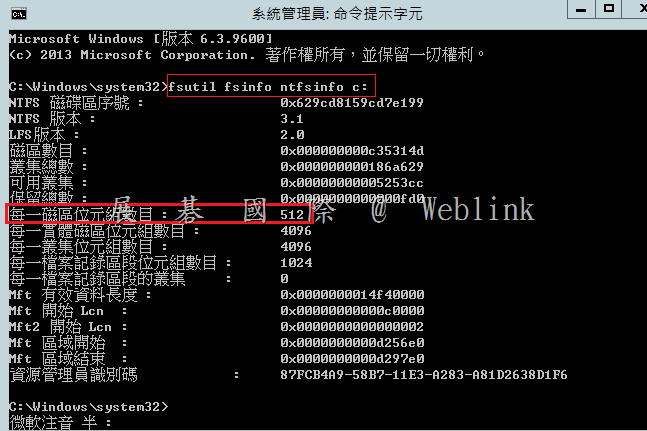
    For Windows

    在命令提示字元輸入 fsutil fsinfo ntfsinfo c:

    image

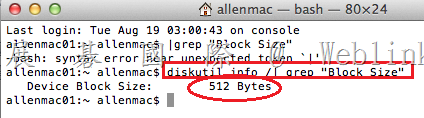
    For Mac

    請參考以下網頁

    輸入

    diskutil info /| grep “Block Size”

    http://apple.stackexchange.com/questions/78802/what-are-the-sector-sizes-on-mac-os-x

    $ diskutil info /| grep "Block Size"

    image

  • 如何在 Office 365 中新增另一個公司的網域

    1. 請參考以下網頁在 Office 365 中新增另一個公司的網域

    http://w3c.weblink.com.tw/mscloud/?p=116

    2. 之後新增使用者時請選擇新公司的網域名稱

    clip_image001

  • 已安裝 Symantec Drive Encryption (PGP WDE) 且已完成加密的用戶端,如何在不解密的狀況下,移轉到新的 PGP 主控台?

    Description:

    http://www.symantec.com/docs/HOWTO79579

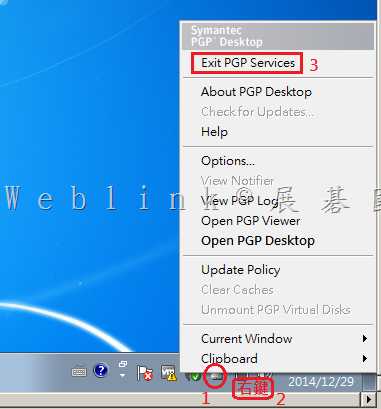
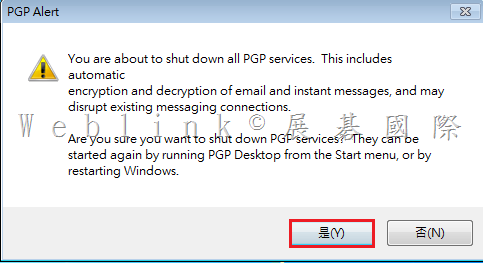
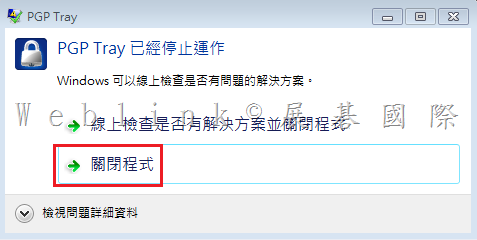
    1. Click on the Symantec Encryption Desktop icon by the time, in the task bar and click Exit PGP Services.

     image


    image


    image


    2. Delete the Symantec Encryption Desktop client preferences:

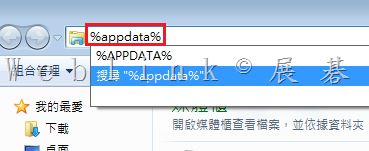
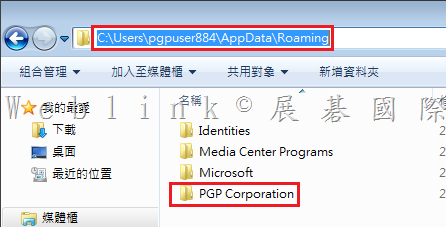
    Click Start > Run… on Windows XP or Click Start and type “%appdata%” on Windows Vista or Windows 7.

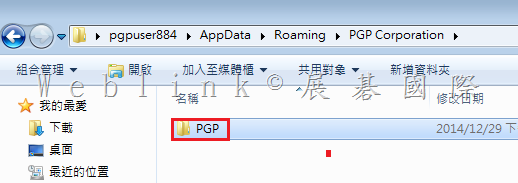
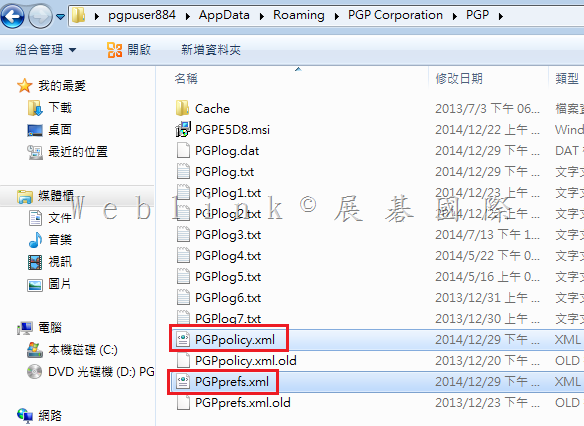
    Change directory into PGP Corporation/PGP and delete PGPpolicy.xml and PGPprefs.xml.

    開啟檔案總管,在路徑中輸入 【%appdata%】 並按下 【Enter】

     image

    双按【PGP Corporation】

    image

    双按【PGP】

    image

    刪除【PGPpolicy.xml】與【PGPprefs.xml】

    image

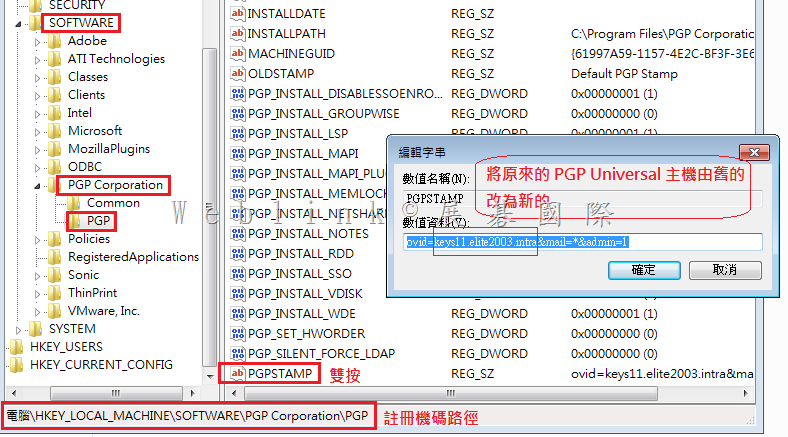
    3. Update the PGPSTAMP registry entry to point to the new Symantec Encryption Management Server:
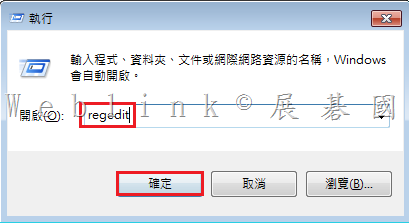
    Click Start>Run… on XP or Click Start and type regedit on Vista or Windows 7.
    Browse to this Key name:
    64 bit system:
    HKEY_LOCAL_MACHINE\SOFTWARE\Wow6432Node\PGP Corporation\PGP
    32 bit system:
    HKEY_LOCAL_MACHINE\SOFTWARE\PGP Corporation\PGP

    按下鍵盤的【Windows 鍵】+【R】,並輸入【regedit】來開啟註冊機碼編輯器

    image

    此畫面為 Windows 7 32 位元,路徑為【HKEY_LOCAL_MACHINE\SOFTWARE\PGP Corporation\PGP】

    Right-click the string value “PGPSTAMP” and select Modify to change the Value data from “ovid=<Old Symantec Encryption Management Server name>&mail=*&admin=1″ to “ovid=<New Symantec Encryption Management Server FQDN>&mail=*&admin=1″ without the quotes.

    將值由舊的 ovid=<keys11.elite2003.intra>&mail=*&admin=1 (舊主控台的 FQDN)

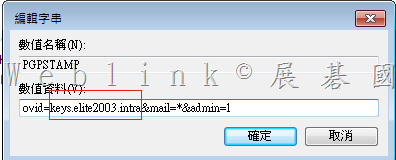
       改為新的 ovid=<keys.elite2003.intra>&mail=*&admin=1 (新主控台的 FQDN)

    image

    新的 ovid=<keys.elite2003.intra>&mail=*&admin=1 (新主控台的 FQDN)

    image

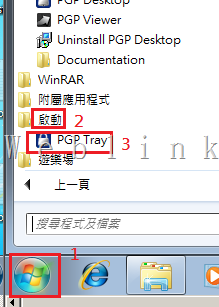
    3.  Restart PGP services:
    Click Start > All Programs > Startup > PGP Tray.
    This will prompt Symantec Encryption Desktop to contact the new server for enrollment.

    重啟用戶端 PGP 服務

    image

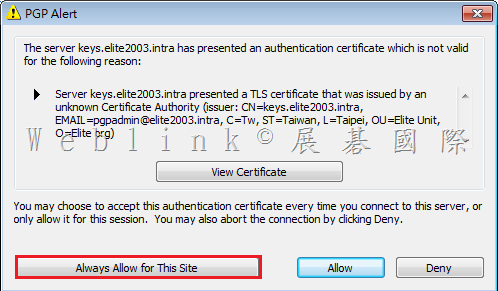
    新的 PGP server 會要求重新註冊,請按下【Always Allow for This Site】來重新註冊

    image

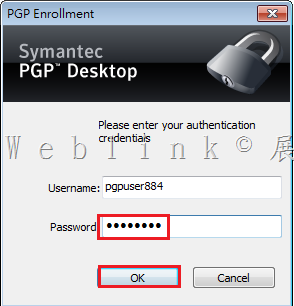
    因為是整合 AD 驗證,目前登入的網域使用者帳戶會自動帶出,請輸入該網域使用者的網域密碼,即可完成 PGP client 的移轉

    image

  • Symantec Drive Encryption (PGP WDE) 用戶端支援列表

    【Apple Mac OS X】

    PGP is supported on single Mac platform

    Meet the OS version requirements
    OS 10.8.4, 10.8.5, 10.9.0 ~ 10.9.4

    non-support

    1.Other encryption applications installed
    2.Bootcamp system
    3.Non-intel chips
    4.Open FileVault
    5.Disks formatted using the APM partition scheme
    6.Any type of server hardware, including RAID disk drives and software RAID drives
    7.Diskettes and CD-RW/DVD-RWs
    8.exFAT formatted disks
    9.Any configuration where the system partition is not on the same disk as boot partition

    other

    1.only support Intel based,and disk type are GPT or MBR, not support APM.(KB http://www.symantec.com/docs/TECH149141)
    2.support 10.9.4 now.(http://www.symantec.com/docs/TECH174563)

    【Ubuntu】

    PGP is supported on single Ubuntu platform

    Meet the OS version requirements
    10.04 LTS
    12.04 LTS – 12.04.1, 12.04.2, 12.04.3

    non-support

    1.Other encryption applications installed
    2.Kernel Version higher than 3.8.0-29-generic

    other

    1.12.04 0nly support kernel 3.8.0-29-generic(KB http://www.symantec.com/docs/HOWTO42122)
    2.There are no plans to support Ubuntu 11.04 now or in a future release.(KB http://www.symantec.com/docs/TECH198150)

    【Windows】

    PGP is supported on single Windows platform

    Meet the OS version requirements
    Microsoft Windows 8, 8.1 Enterprise (32 bit and 64bit version)
    Microsoft Windows 8, 8.1 Pro (32 bit and 64-bit version)
    Microsoft Windows 7 (All 32 bit and 64 bit version, including Service Pack 1)
    Microsoft Windows Vista (All 32 bit and 64 bit version, including Service Pack 2)
    Microsoft Windows XP Home Edition (Service Pack 2 above)
    Microsoft Windows XP Professional 64-bit (Service Pack 2 above)
    Microsoft Windows XP Professional 32-bit (Service Pack 2 above)

    non-support

    1.Other encryption applications installed
    2.Dynamic disks
    3.SCSI drives/controllers
    4.Software RAID disks
    5.Diskettes and CD-RW/DVD-RWs

    【Dual OS for Mac boot cam】

    PGP is not supported on Mac Boot Cam

    【Dual OS : Mac platform with Windows OS running on the parallels software】

    PGP is supported on multi-OS, just install PGP in Mac platform

    【Dual OS : Ubuntu and Windows running on the Ubuntu boot service (GNU GRUB)】

    PGP is supported on multi-OS, just install PGP in Windows platform, then install PGP in Ubuntu platform

    【Unsupported Disk Format】

    Windows
    .Dynamic disks
    .SCSI drives/controllers
    .Software RAID disks
    .Diskettes and CD-RW/DVD-RWs
    Mac OS X
    .Disks formatted using the APM partition scheme
    .Any type of server hardware, including RAID disk drives and software RAID drives
    .Diskettes and CD-RW/DVD-RWs
    .exFAT formatted disks
    .Any configuration where the system partition is not on the same disk as boot partition
    .Starting from version 10.3.2, Symantec Encryption Desktop is not compatible with
        Apple Boot Camp on any Apple Mac OS X system
  • 為了防止系統出現問題或是Hibernation 回復時資料的遺失,PGP WDE disable Mac OS X Hibernation function

    由於 PGP WDE 在處理 Mac OS X Hibernation 回復時,會使用到一個特殊的檔案,但 Mac OS X Hibernation 回復時是拒絕任何外來檔案
    所以為了防止系統出現問題或是Hibernation 回復時資料的遺失,PGP WDE disable Mac OS X Hibernation function

    http://www.symantec.com/business/support/index?page=content&id=TECH149486&viewlocale=en_US

    Mac OS X

    PGP Whole Disk Encryption is not supported with hibernation mode in the Mac OS X. In Mac OS X, an image file is created upon hibernation of the system. Once power is restored, the state of the system is restored, including any open programs or other processes that were running. The location of this file is in /var/vm/sleepimage and is the size of RAM memory on the system.

    This mode may be referred to as Safe Sleep, Deep Sleep, or Hibernation. This is not the normal Sleep mode in which the power can remain on, but the system is essentially idle. This mode does not keep an image of the processes, but rather the information is stored in the RAM memory.

    The Mac OS X operating system does not support foreign file systems for hibernation. Mac OS X Hibernation mode is not supported with “boot != root”. This “boot != root” is essentially the system used by Mac to boot a foreign file system. For PGP Whole Disk Encryption to boot a system, a special file system is used which is considered foreign. As PGP Whole Disk Encryption is considered a foreign file system,hibernation mode is not supported by the Mac OS X< /strong>. 
    As a safeguard to prevent system issues and data loss, PGP Desktop disables the hibernation mode on Mac OS X. Although Sleep will still work, deep sleep does not build a sleep image

  • 【Office 2013 PKC 金鑰輸入後出現 本產品不適用於您識別的地區】

    【Office 2013 PKC 金鑰輸入後出現    本產品不適用於您識別的地區】

    請致電微軟0800008833 #1 (個人) #4 (技術)

    告訴客服人員【Office 2013 PKC 金鑰輸入後出現    本產品不適用於您識別的地區】
    客服人員會要求提供Office 2013 PKC 金鑰以及目前所在地區然後提供另一組兌換金鑰給您

  • 如何查詢 Windows Live ID 目前關聯的 Office 金鑰

    請登入以下網址,來確認登入的 E-mail 帳號目前關聯的【Office 2013 PKC 產品金鑰】有那些

    https://downloadoffice.getmicrosoftkey.com/Account/Index

    clip_image001

  • 欲重新安裝 Office 2013 PKC 如何取得安裝光碟 & 檢視產品金鑰

    如何下載光碟映像檔

    1. 開啟www.office.com 然後點選右上角[登入]

    clip_image001

    2. 然後輸入Office綁定的帳戶(Windows Live Account (E-mail Address))

    clip_image002

    3. 然後輸入Office綁定帳戶及密碼,並按下【登入】

    clip_image003

    4. 點選右上角【我的帳戶】

    clip_image004

    5. 點選畫面左邊 【從光碟安裝】

    clip_image005

    6. 點選畫面左邊 【我要燒錄光碟】

    clip_image006

    7. 點選畫面左邊 【下載】來下載 Office 安裝程式

    點選下載按鈕的右邊【檢視金鑰】 將金鑰記錄下來,安裝需要時請輸入該金鑰

    clip_image007

    8. 下載的檔案為映像檔 (.img),請以解壓縮軟體解壓後執行安裝,或是將其燒錄為安裝光碟來執行安裝

    (Windows 8、Windows 8.1 可直接執行映像檔 (.img))

    clip_image008

  • Office 2013 PKC (產品金鑰卡)的安裝 【含 Office 2013 PKC 下載.rar】

    Office 2013 PKC (產品金鑰卡) 的安裝與過去 Office 2010 PKC (產品金鑰卡) 的安裝有很大的不同

    1. Office 2010 PKC (產品金鑰卡) 的安裝,可以在https://www7.downloadoffice2010.microsoft.com/row/registerkey.aspx?ref=pkc&culture=zh-TW 取得安裝程式,安裝時需要輸入產品金鑰

    【Office 2010 PKC (產品金鑰卡) 取得安裝程式網頁】

    clip_image001

    2. Office 2013 PKC (產品金鑰卡) 的安裝,基本上首次安裝是要透過 https://officesetup.getmicrosoftkey.com/?CTT=5&origin=HA102830243 來進行線上安裝

    線上安裝時需要輸入產品金鑰,並且之後會要求您登入 Microsoft Account (例如:hotmail 帳號、MSN 帳號等),微軟會將此金鑰與該 Microsoft Account 關聯,日後重新安裝 Office 2013 PKC 時只要登入 Microsoft Account 即可 (也就是說忘了 產品金鑰 也沒關係)

    【Office 2013 PKC (產品金鑰卡) 線上安裝網頁】

    clip_image002

    3. 金鑰與 Microsoft Account 關聯過的使用者,在以下網址登入當初關聯的 Microsoft Account,便可以取得安裝程式

    常見問題集

    https://downloadoffice.getmicrosoftkey.com/Home/SupportFAQ

    clip_image003

    登入我的帳戶頁面

    https://downloadoffice.getmicrosoftkey.com/Account/Index

    4. 如果您覺得幫客戶處理【Office 2013 PKC (產品金鑰卡)】線上安裝的問題很麻煩,請您參考以下的做法,這樣輸入金鑰和登入關聯的Microsoft Account (例如:hotmail 帳號、MSN 帳號等)就可以讓客戶自己做了

    (1) 到以下網站,下載【Office 2013 PKC 下載.iso】並解壓縮

    http://gofile.me/2la1k/fP6l396K

    image

    (2) 進入\office15\x86\15.0.4420.1017資料夾中並執行setup.exe

    clip_image005

    (3) 此處請改選擇【改為輸入產品金鑰】,且稍後將會要求您登入 Microsoft Account (例如:hotmail 帳號),微軟會將此金鑰與該 Microsoft Account 關聯,日後重新安裝 Office 2013 PKC 時只要登入 Microsoft Account 即可 (也就是說忘了 產品金鑰 也沒關係)

    clip_image006

    此產品金鑰若先前未安裝過,此處不能選擇【Office 訂閱相關的電子郵件地址】,因為該金鑰尚未與任何 Microsoft Account 的電郵郵件帳號連結

    clip_image007

    clip_image008

    clip_image009

    (4) 輸入產品金鑰卡上的產品金鑰

    clip_image010

    若您一直未輸入產品金鑰卡的金鑰,Office 2013 PKC 會在大約一週後強制您輸入產品金鑰卡的金鑰,並進行Microsoft Account (例如:hotmail 帳號)關聯,來完成 Office 2013 PKC 的啟動,否則您無法使用Office 2013

    clip_image011

    clip_image012

  • 【關於 Office 2013 PKC、 Office 365 安裝失敗 或 安裝完成後使用上穩定性有問題,請您參考以下步驟來解決】

    【關於 Office 2013 PKC、 Office 365 安裝失敗 或 安裝完成後使用上穩定性有問題,請您參考以下步驟來解決】

    一.請將所有的Office從控制台 → 程式與功能 → 解除安裝程式中移除

    二. 下列網址為【Microsoft Office 2013或 Office 365 清除程式】,請下載並執行 該清除工具,然後重新開機

    http://go.microsoft.com/?linkid=9815935

    General troubleshooting for installing Office 2013 and Office 365

    http://support.microsoft.com/kb/2822317

    三.確認網路穩定,登入 Office 365,重新安裝Office 2013

    clip_image001

    clip_image003