作者: Allen Chung

  • 遷移雲端服務與虛擬機器

    遷移雲端服務與虛擬機器

    實務上,為了確保資料的移轉順利與一致性,無論是虛擬機器、網站或資料庫系統移轉前,都建議您先將它們關機或設定為停止服務。

    以下移轉作業都是在未關機的狀況下完成,非常順利。

    複製虛擬機器檔

    經過多方測試,以下的方式處理速度最為快速,且

    ① 請透過下面網址下載vmcopy.ps1,並存放在任一目錄。

    http://gallery.technet.microsoft.com/scriptcenter/Copy-a-Virtual-Machine-83d192a5

    ② 視需要您可以有下面二種處理的方式

    # Copy a virtual machine to a different subscription

      .\vmcopy.ps1 -SourceSubscription “source subscription” `

                 -DestinationSubscription “destination subscription” `

                 -VirtualMachineName “existingvmname” `

                 -SourceServiceName “sourcecloudservice” `

                 -DestinationServiceName “destinationcloudservice” `

                 -DestinationStorageAccount “destinationstorageaccount” `

                 -Location “West US”

      # Copy a virtual machine to a different subscription and specify an existing virtual network and subnet.

      .\vmcopy.ps1 -SourceSubscription “source subscription” `

                   -DestinationSubscription “destination subscription” `

                   -VirtualMachineName “existingvmname” `

                   -SourceServiceName “sourcecloudservice” `

                   -DestinationServiceName “destinationcloudservice” `

                   -DestinationStorageAccount “destinationstorageaccount” `

                   -VNETName “DestinationVNET” `

                   -SubnetName “DestinationSubnet”

      ③ 依我的環境,我組合好的指令如下:

    複製DT-B2C-Web01的指令:

    .\vmcopy.ps1 -SourceSubscription “Visual Studio Ultimate with MSDN” -DestinationSubscription “Windows Azure MSDN – Visual Studio Ultimate” -VirtualMachineName “DT-B2C-Web01” -SourceServiceName “DT-B2C” -DestinationServiceName “DT-B2C2” -DestinationStorageAccount “daniel” -Location “east asia”

    複製DT-B2C-SQL01的指令:

    .\vmcopy.ps1 -SourceSubscription “Visual Studio Ultimate with MSDN” -DestinationSubscription “Windows Azure MSDN – Visual Studio Ultimate” -VirtualMachineName “DT-B2C-SQL01” -SourceServiceName “DT-B2C” -DestinationServiceName “DT-B2C2” -DestinationStorageAccount “daniel” -Location “east asia”

    說明如何取得參數如下:

    SourceSubscription:來源端訂閱,您可以透過Get-AzureSubscription | FL SubscriptionName查詢

    DestinationSubscription:目的端訂閱,您可以透過Get-AzureSubscription | FL SubscriptionName查詢

    VirtualMachineName:來源端虛擬機器名稱

    SourceServiceName:來源端雲端服務名稱

    DestinationServiceName:目的端雲端服務名稱,不可跟來源端一樣

    DestinationStorageAccount:目的端儲存體帳戶

    Location目的端雲資料中心位置

    ④ 以系統管理員的身份執行下面指令以準備Microsoft Azure的帳號與設定PowerShell的執行原則:

    Set-ExecutionPolicy Unrestricted

    Add-AzureAccount

    clip_image001

    ⑤ 將上面組合好的指令貼到Windows PowerShell的執行視窗,後續的作業時間需要一些時間,請耐心等待。

    clip_image002

    ⑥ 視您的網路與虛擬機器磁碟大小而有所不同,以我的二台機器都是127G而言,分別花了16分鐘和23分鐘,待您看到下面視窗時,就表示虛擬機器已經複製完成。

    clip_image003

    檢驗複製後結果

    ① 查看所有項目,多了一組DT-B2C2的雲端服務和DT-B2C-Web01、DT-B2C-SQL01二台虛擬機器

    clip_image004

    ② 以瀏覽器直接執行http://dt-b2c2.cloudapp.net/ 可以直接瀏覽之前設計好的網站

    clip_image005

    ③ 將DT-B2C雲端服務相關的機器關機,與修改外部DNS CNAME,將b2c.nannong.com指到dt-b2c2.cloudapp.net

    clip_image006

    clip_image007

    ④ 再次連線測試b2c.nannong.com
    clip_image008

  • [SEP] GUP 設定流程

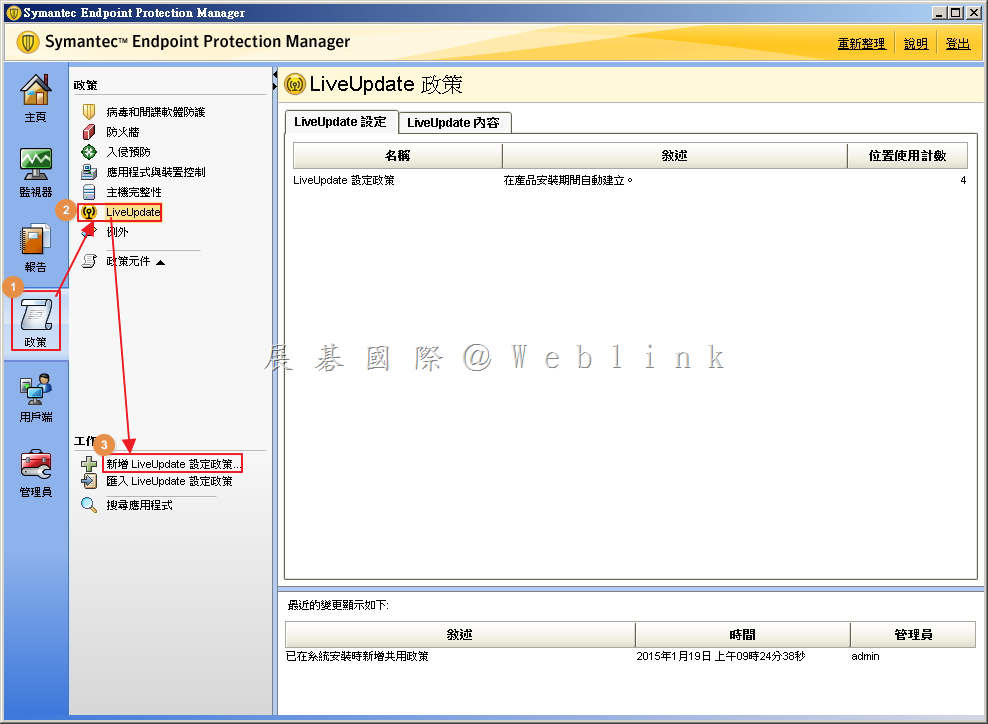
    1. 選取「政策」→「LiveUpdate」→「新增 LiveUpdate 設定政策」。

    image


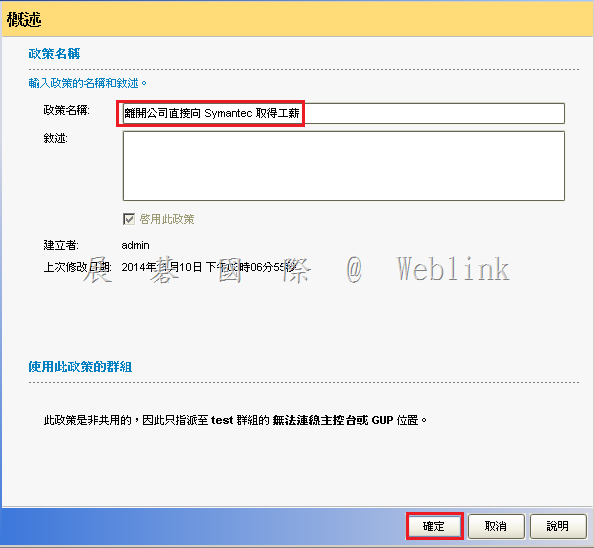
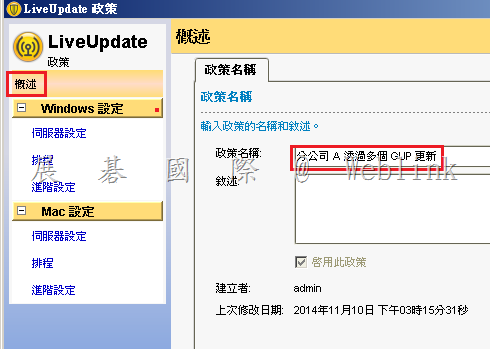
    2. 設定政策名稱。

    clip_image002


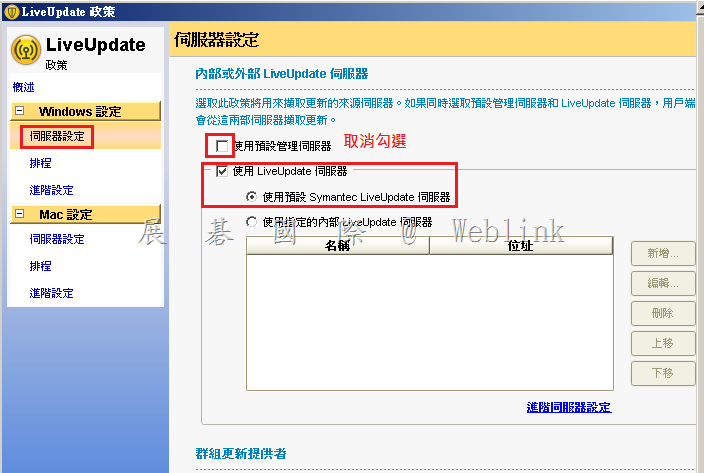
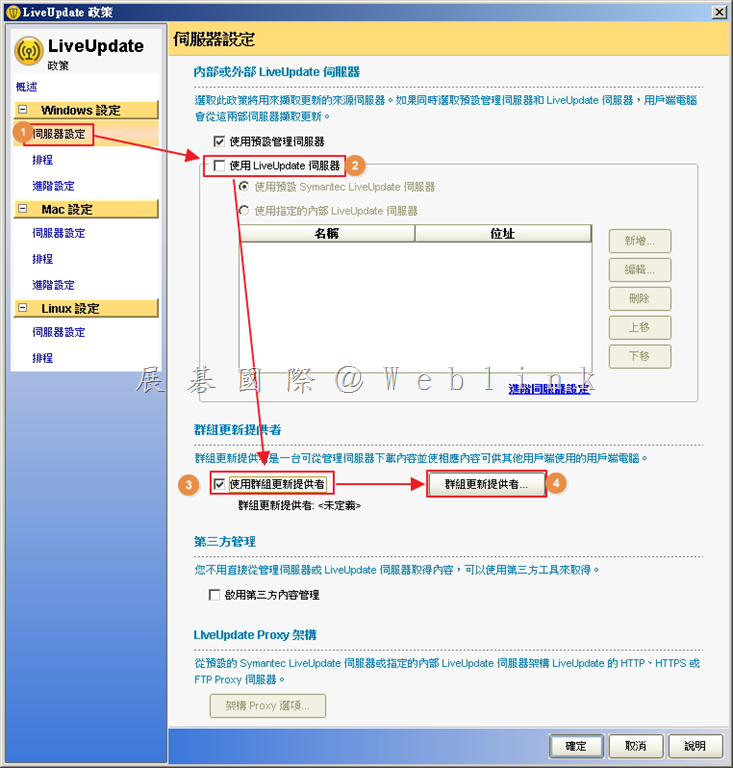
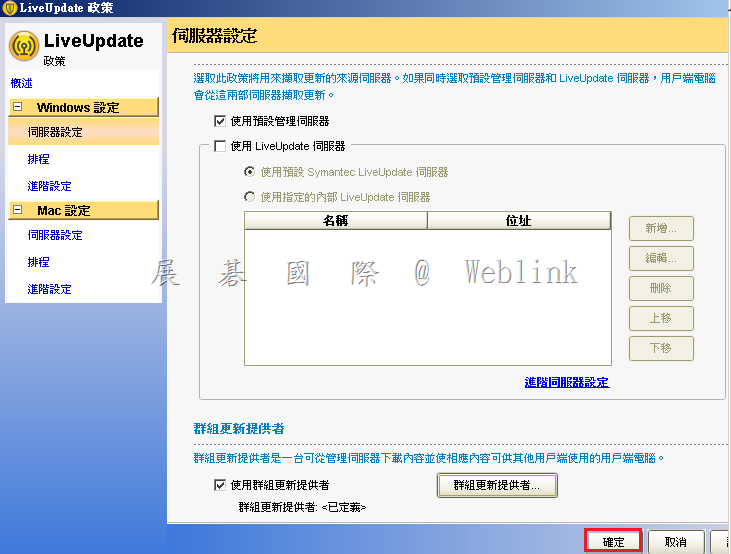
    3. 於伺服器設定頁籤,取消「使用 LiveUpdate 伺服器」,勾選「使用群組更新提供者」,接著點選「群組更新提供者」。

    image


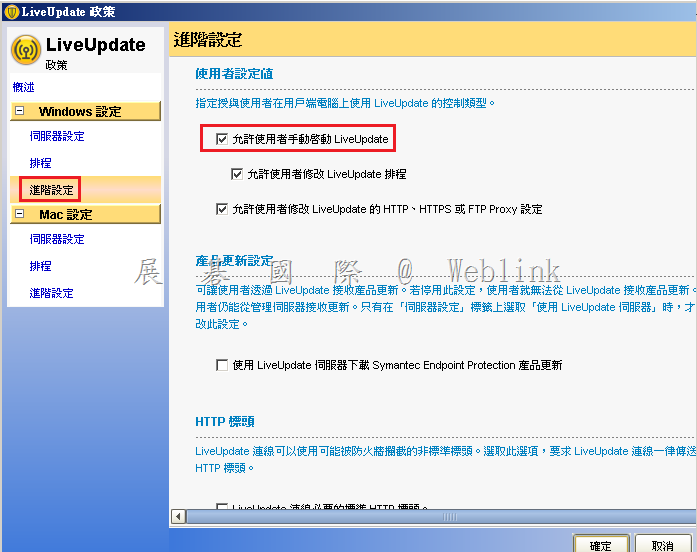
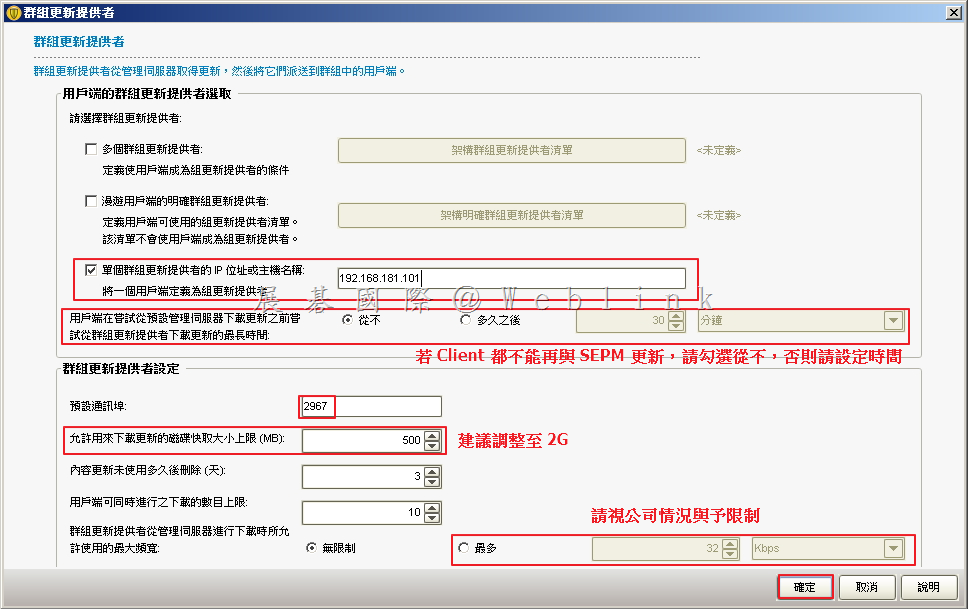
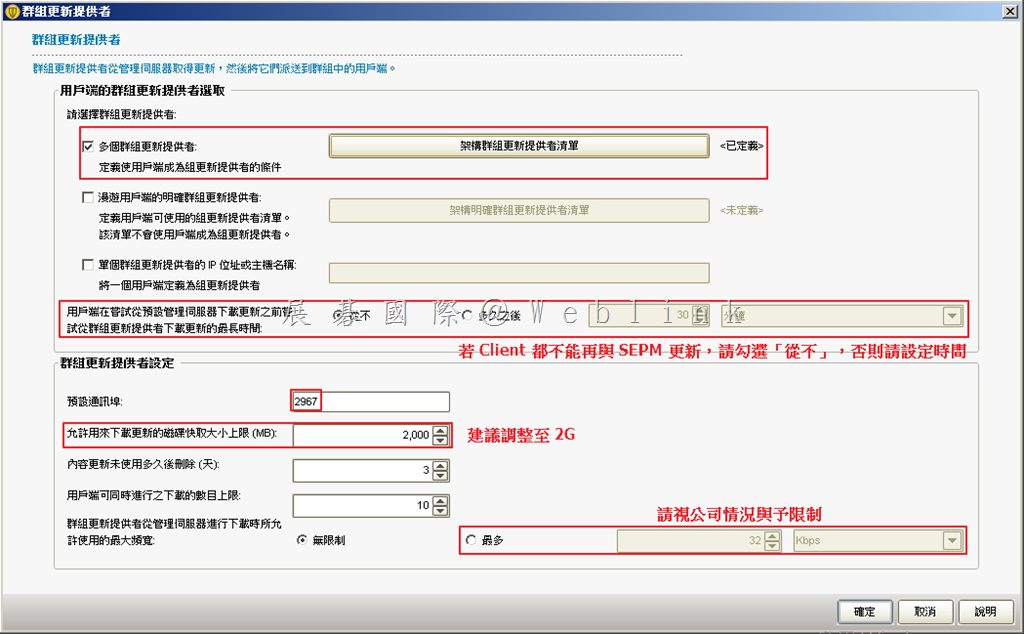
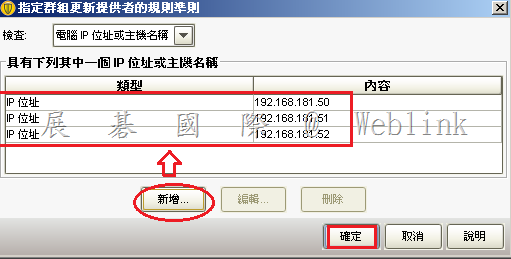
    4. 可依照需求設定單個或多個 GUP 主機 IP,並依照需求設定如下圖建議。

    image


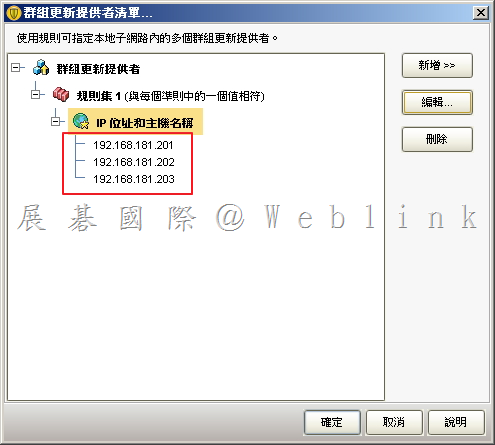
    5. 若設定多個群組更新提供者,可輸入多組 IP。

    clip_image005


    6. 可看到多組 IP。

    image


    7 . 設定多個群組更新提供者,並依照需求設定如下圖建議。

    image


    8. 設定完成,點選「確定」。

    clip_image008


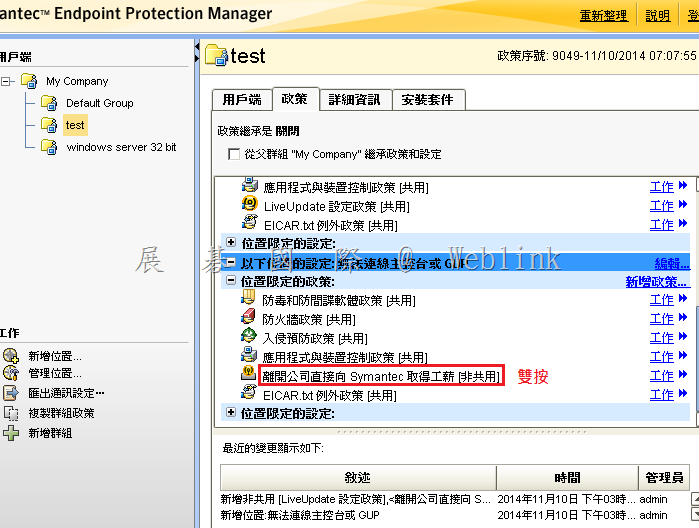
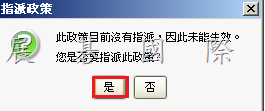
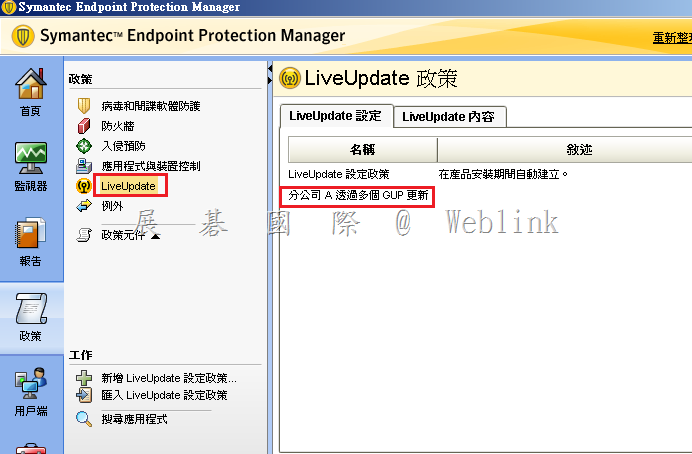
    9. 指派政策。

    clip_image009


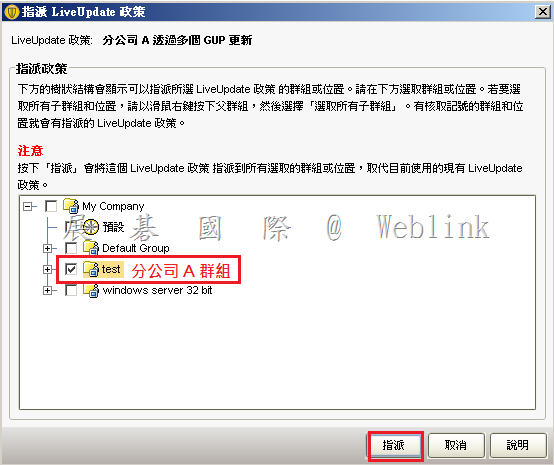
    10.  指派至相關群組。

    clip_image010


    11. 設定完成。

    clip_image011

  • 如何將SEP用戶端移轉至他台SEPM管理

    可透過更改通訊設定的方式來讓分公司的用戶端向總公司報到,不需重新安裝

    步驟如下:

    【直接在總公司 Symantec Endpoint Protection Manager 主控台上建立一個讓分公司A未來要報到的群組,並匯出通訊設定 Sylink.xml 並匯入至用戶端】
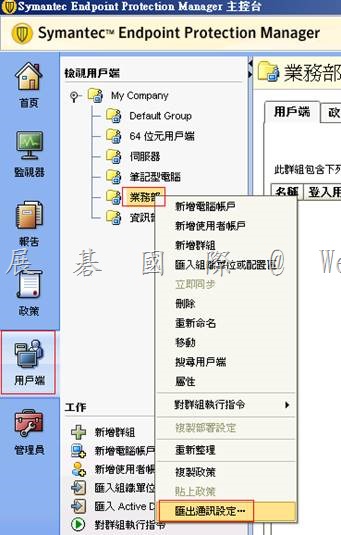
    1.【Symantec Endpoint Protection Manager 主控台】→【用戶端】→【選擇群組】→【在該群組上按右鍵】→【匯出通訊設定】→【選擇(電腦模式)或使用者模式】→【匯出】

    clip_image001
    2.將會取得【My Company_業務部_sylink.xml】(依所選的群組不同會有不同的檔案名稱)

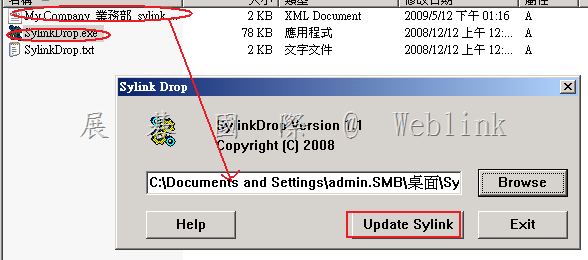
    3.在Symantec Endpoint Protection第二張安裝光碟的【Symantec_Endpoint_Protection_12.1.4_Part2_Tools_CH\SylinkDrop】目錄下,複製出【SylinkDrop.exe】

    4.將【SylinkDrop.exe】與【My Company_業務部_sylink.xml】放置於同一個目錄下,將該目錄複製到欲受控管的用戶端

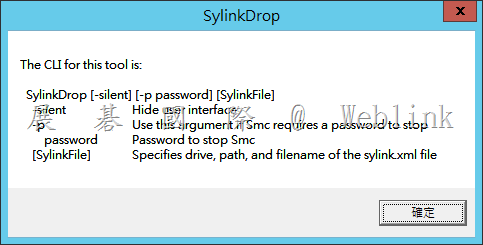
    5.直接執行【SylinkDrop.exe】將【My Company_業務部_sylink.xml】匯入即可

    clip_image002

    ※ 如果是大量用戶,可以使用 logon script

    範例如下:

    \\computer_name\share_name\sylinkdrop.exe xxxx.xml

    clip_image003

  • Symantec™ Endpoint Encryption 授權移轉聲明 (SEE 是否為 PGP 的替代產品)

    Symantec™ Endpoint Encryption 授權移轉聲明

    2014年10月6日


    通知 ID: SEE11-80188309-N-2xxxxxx

    客戶編號: 60xxxxxx

    銷售訂單號: 21xxxxxx


    xxxxxxxxxxxxxxxxx. LTD


    致以下產品客戶:

    • Symantec Drive Encryption
    • Symantec Drive Encryption with Encryption Management Server Limited
    • Symantec Drive Encryption with Encryption Management Server
    • Symantec Drive Encryption FlexChoice with Encryption Server Limited
    • Symantec Drive Encryption FlexChoice with Encryption Server
    • Symantec Drive and Removable Storage Encryption FlexChoice with Encryption Server Limited
    • Symantec Endpoint Encryption Removable Storage Edition
    • Symantec CAPS Activation Package for Whole Disk Encryption
    • Symantec PGP Universal Server and Whole Disk Encryption for Servers
     

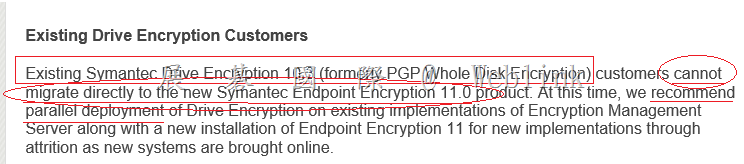
    本公司很榮幸在此宣布,我們將於 2014 年 10 月 6 日推出以 PGP 技術為後盾的 Symantec Endpoint Encryption 11.0。 此全新版本可整合並簡化我們的產品,而且 只需單一授權即可涵蓋磁碟與抽取式媒體加密及可擴充管理功能


    享有上述產品現有維護服務的客戶將可等比例自動移轉至以 PGP 技術為後盾的 Symantec Endpoint Encryption。 此變更並不影響您目前的部署,而且您也無須採取任何行動。


    如果不想升級現有的實作至新產品,您可以繼續使用現有的端點式加密用戶端與管理伺服器。 您現有的實作將於新的混合產品環境中搭配新產品使用。


    Symantec Endpoint Encryption 與移轉的相關詳細資訊如下: http://www.symantec.com/docs/HOWTO101492


    授權

    不會停止供應任何產品。如果有需要,可參考以下授權碼解除產品鎖定,以及用於從 FileConnect 存取檔案的序號。


    注意:如先前所述,您可繼續使用目前的加密用戶端和管理伺服器。藉由採用 PGP 技術的 Symantec Endpoint Encryption, 您有資格免費獲得 Symantec Drive Encryption 及 Symantec Encryption Management Server。


    產品

    數量

    授權碼

    序號

    以 PGP 技術為後盾的 Symantec Endpoint Encryption 11.0

    40

    N/A – 不適用

    M3755xxxxxx

    含 Symantec Encryption Management Server 3.3

    Dxxxx-xxxxx-LZPLV-9R5Y1-6ETKF-VUA

    Symantec Drive Encryption 10.3 (獨立/未受管理)

    Dxxxx-xxxxx-FTPFW-YL3VW-X7ZMX-AJC


    下載賽門鐵克軟體

    請使用上表的序號存取 FileConnect 中的產品。


    支援

    您的技術支援體驗不會變更,仍可繼續享有目前擁有的各項產品支援。


    賽門鐵克致力於協助客戶使用賽門鐵克解決方案達到事業上的成功。若您對於本通知中的內容有任何問題, 請聯絡您的賽門鐵克合作夥伴或賽門鐵克企業業務經理。


    感謝您使用賽門鐵克公司的產品與服務。


    敬祝商祺


    賽門鐵克公司


    實用聯絡資訊︰


    注意: 請勿回覆此電子郵件,因為它是系統自動產生的,而且此信箱無人監控。請改用以下客戶服務中心連結請求協助。


    客戶服務中心:

    http://www.symantec.com/zh/tw/business/support/assistance_care.jsp

    若要深入瞭解賽門鐵克產品,請造訪:

    http://www.symantec.com/zh/tw/

    若要尋找當地的技術支援中心聯絡資訊,請造訪︰

    http://www.symantec.com/zh/tw/business/support/techsupport_global.jsp


    無法讀取此電子郵件?

    閱讀線上版本


    使用下列語言檢視這封電子郵件:


    English | Deutsch | Español | Français | Italiano | Português | 繁體中文 | 简体中文 | 한국어

    image

  • Surface Pro 3 安裝 PGP 全硬碟加密並完成加密,但回復原廠預設值後仍跳出註冊與 unlock disk 畫面

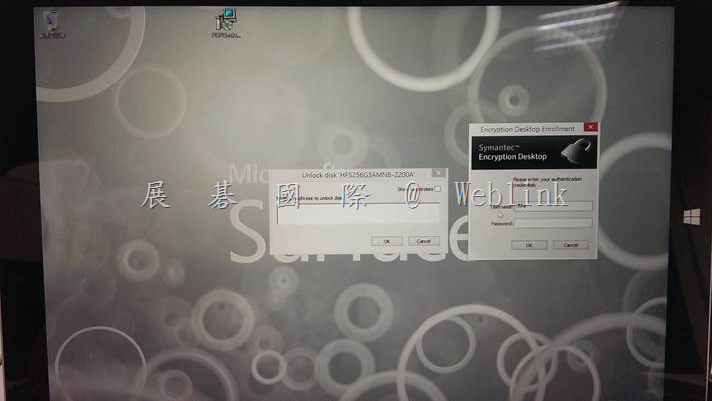
    Surface Pro 3 安裝 PGP 全硬碟加密並完成加密,但回復原廠預設值後仍跳出註冊與 unlock disk 畫面

    image

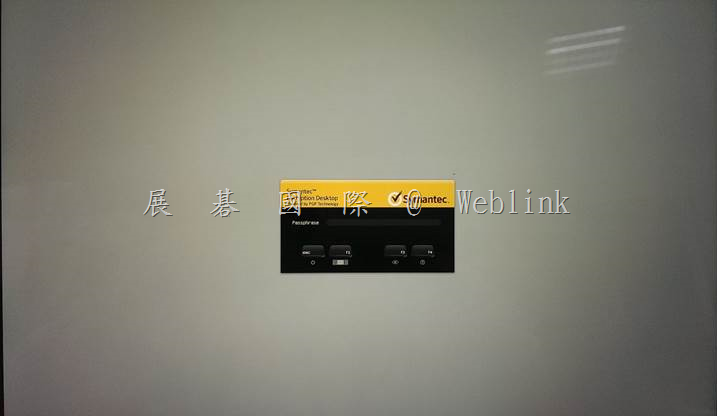
    重開機後仍出現 BootGuard 驗證頁面

    image

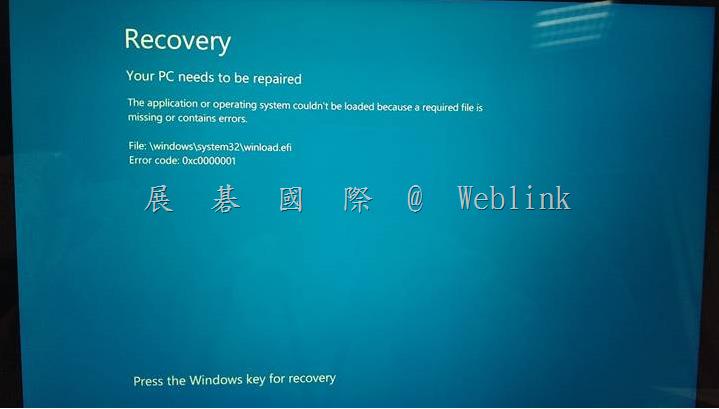
    輸入第一次加密的 passphrase 仍無法通過驗證,之後出現以下頁面

    image

    試過格式化、重新以授權光碟重新安裝都有問題

    【解決方案】

    1.Surface Pro 3 安裝 PGP 全硬碟加密並完成加密,欲回復原廠預設值前請先進行解密

    2.如果未解密便回復原廠預設值,請您參照以下方式將 Surface Pro 3 復原

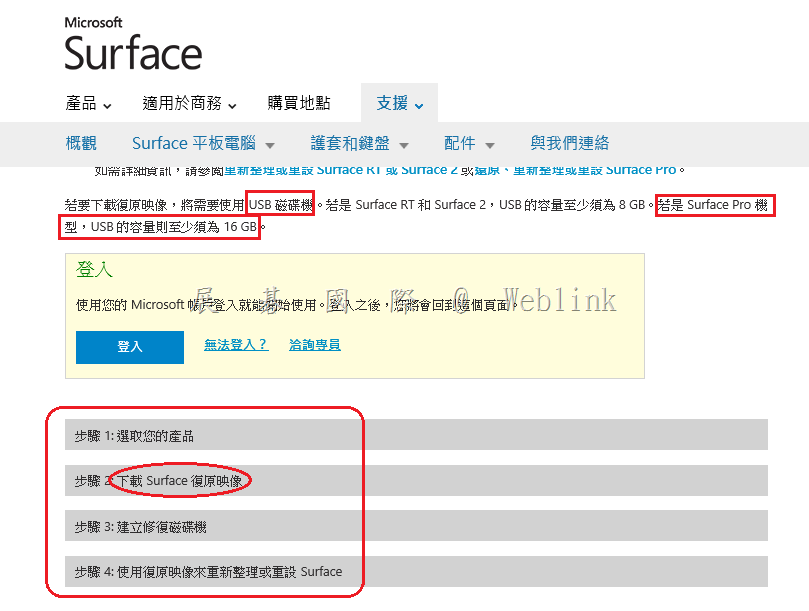
    【About Surface pro 3】下載 Microsoft Surface 適用的復原映像

    必須要先以 Windows Live ID 註冊 Surface Pro 3,並以此 Windows Live ID 登入以下頁面,網頁會依據您註冊的 Surface Pro 版本提供您正確的 Surface Pro Image 來還原

    http://www.microsoft.com/surface/zh-tw/support/warranty-service-and-recovery/downloadablerecoveryimage

    clip_image001

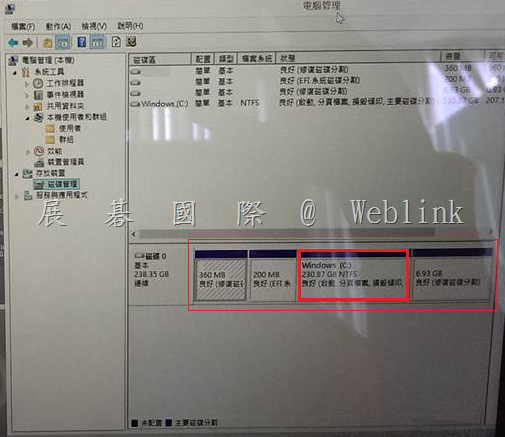
    註:Surface Pro 3 的硬碟配置

    image

  • 無法下載到 Symantec System Recovery 2013 R2
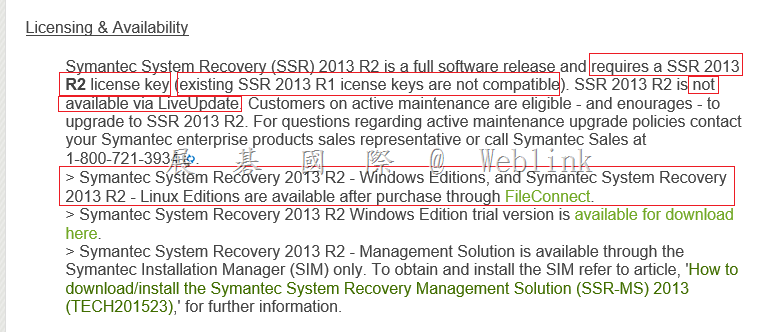
    • Symantec System Recovery 2013 R2需要 SSR 2013 R2 的授權才能在 Symantec Fileconnect 下載的到
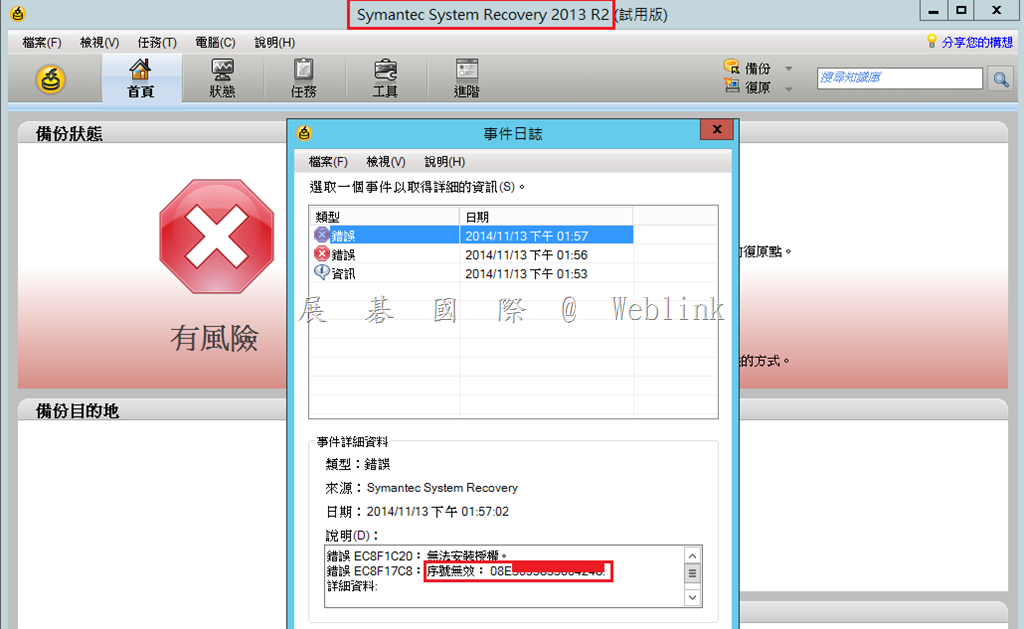
    • SSR 2013 R2,安裝後輸入 SSR 2013 授權碼也無法通過授權
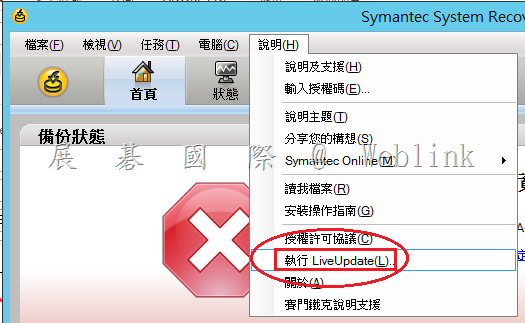
    • SSR 2013 R2 無法透過 LiveUpdate 取得

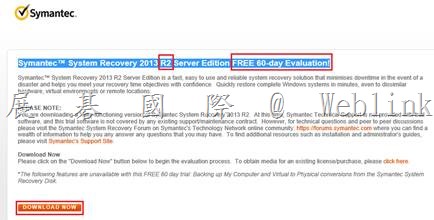
    clip_image001


    1. Symantec™ System Recovery 2013 R2 Server Edition FREE 60-day Evaluation! ( 60 天試用版可以於以下網址下載 )

    https://www4.symantec.com/Vrt/offer?a_id=88724

    clip_image003

    2.

    Enterprise Support – Symantec Corp. – Symantec System Recovery 2013 R2 General Information

    http://www.symantec.com/business/support/index?page=content&id=TECH225253

    ※ Symantec System Recovery 2013 R2需要 SSR 2013 R2 的授權才能在 Symantec Fileconnect 下載的到

    clip_image004

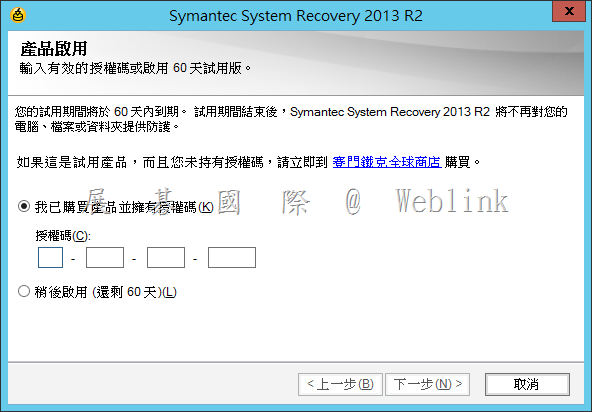
    3. 雖然下載得到 SSR 2013 R2,但安裝後輸入 SSR 2013 授權碼也無法通過授權

    clip_image005

    clip_image006


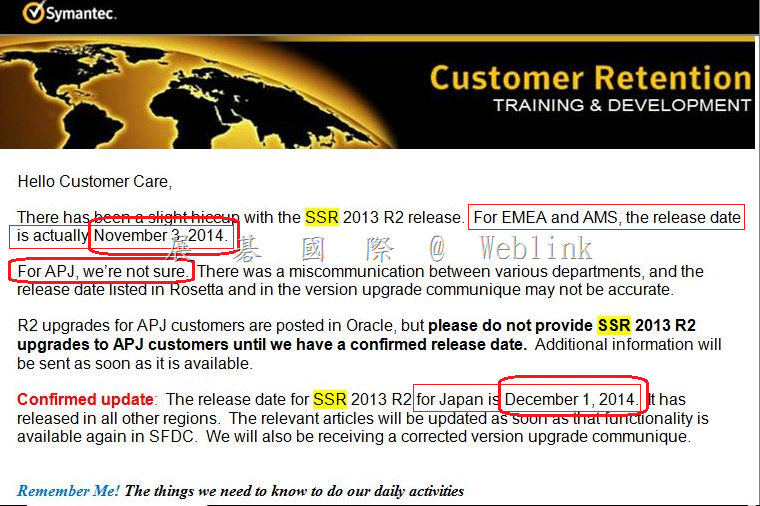
    台灣地區 SSR 2013 R2 Release Day 可能會落在 12 月中下旬

    image

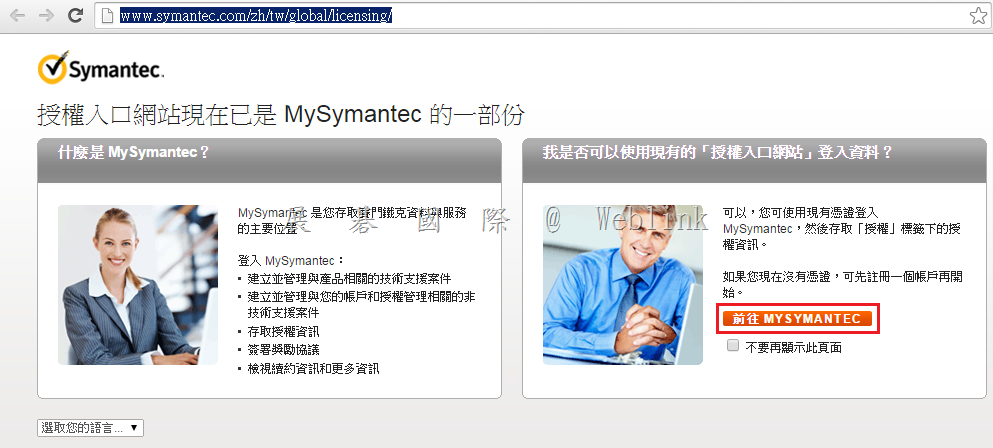
    若您的 SSR 合約仍在有效期限內,請您登入 Symantec License Portal

    http://www.symantec.com/zh/tw/global/licensing/

    image

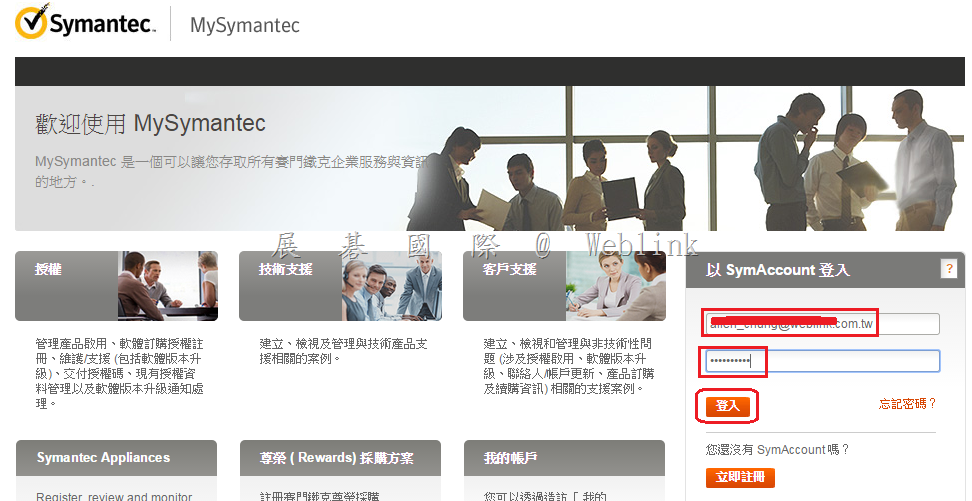
    輸入帳號與密碼 ( 若您尚未註冊請按下下方【立即註冊】以進行註冊 )

    image

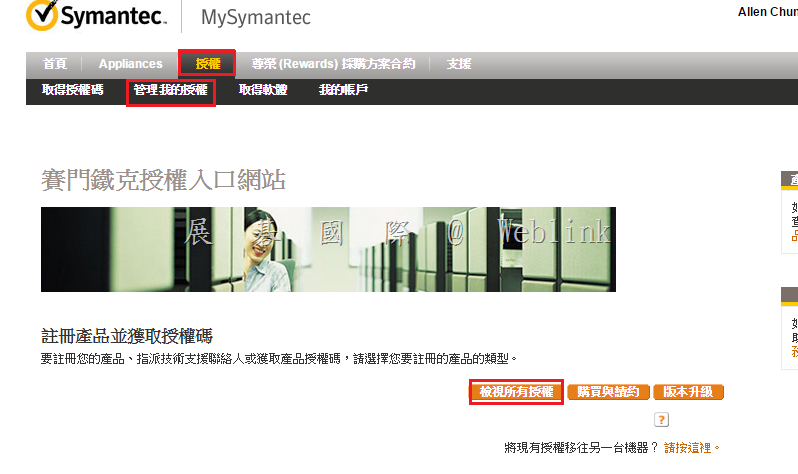
    按下【檢視所有授權】

    image

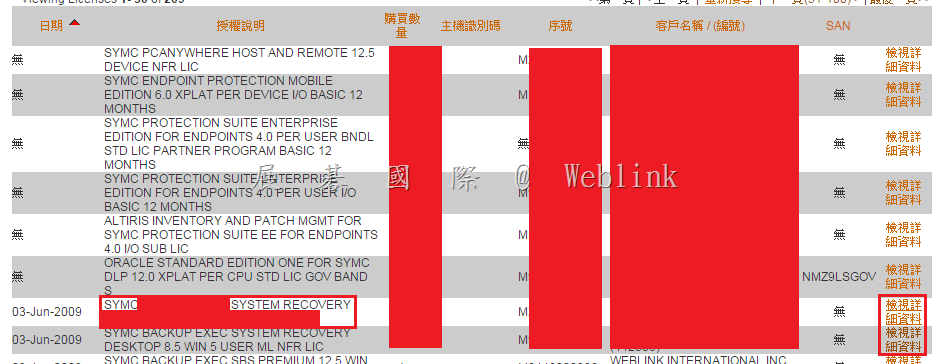
    找到您所購買的產品,並按下右方的【檢視詳細資料】

    image

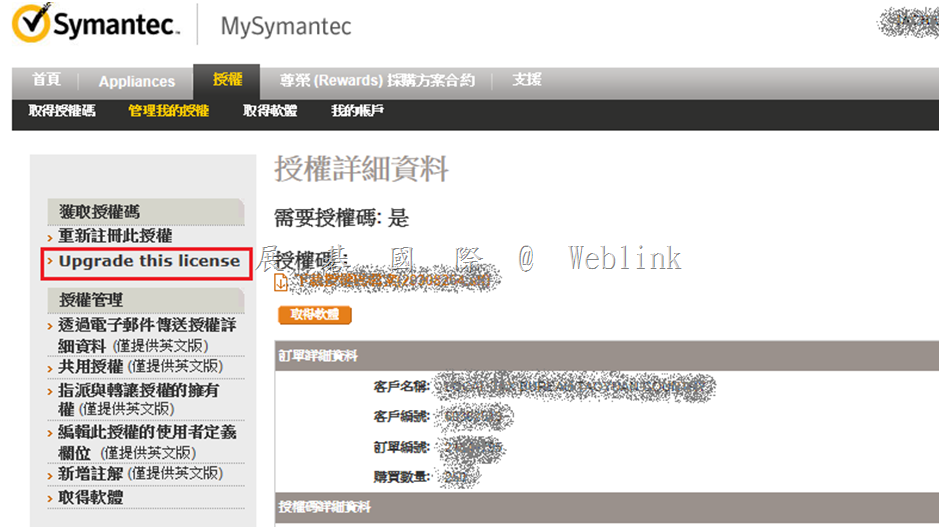
    再出現的頁面中,按下【Upgrade this license】

    image

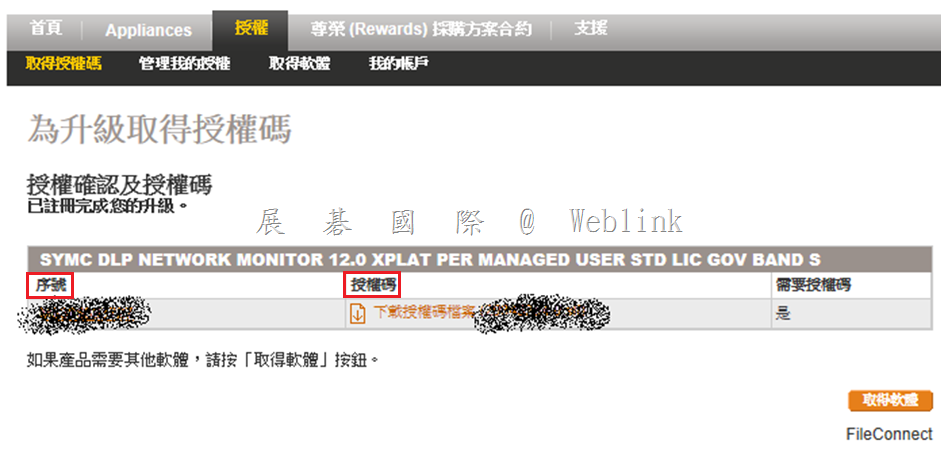
    即可取得下載序號與授權碼

    image

  • 微軟推出Office for iPad免費基本編輯功能,對Office 365 家用版或個人版用戶的權益有何改變?

    自 2014 年 11 月 6 日起,微軟提供 Office for iPad 及Office for iPhone免費基本編輯功能。只要從 Apple iTunes Store 安裝 Word、Excel 或 PowerPoint 應用程式,並使用 Microsoft 帳戶登入即可使用。除了檢視及列印文件,使用者將能夠建立新的文件並執行基本編輯工作

    問:Office 365 家用版或個人版,除了Office for iPad及Office for iPhone免費基本編輯功能外,還有哪些功能及好處?

    1. 可以解除 Office for iPad 及 Office for iPhone 上的進階編輯功能 Word 中追蹤及檢閱修訂、在 Excel 中自訂樞紐分析表,以及在 PowerPoint 中進行簡報時查看演講者備忘稿

    2. 可以在個人電腦或 Mac 上安裝完整的 Office 應用程式 (Word、PowerPoint、Excel、 OneNote、Outlook、Access及Publisher)。

    3. Office for iPad及Office for iPhone 只能裝在iPad及iPhone上,只有Word、PowerPoint、Excel及 OneNote

    4. 可以安裝在多台裝置。
       家用版可以裝在5台個人電腦或 Mac+5台平板電腦

          (完整編輯功能)+5台手機(完整編輯功能)

       個人版可以裝在1台個人電腦或 Mac+1台平板電腦

          (完整編輯功能)+1台手機(完整編輯功能)。
      

    5. 可以享有無限大的 OneDrive 線上儲存空間
      

    6. 可以取得最新版的 Office。
      

    包含最近更新的Outlook for Mac及即將於2015年推出的最新版的Office for Mac。
     

    7. 可以存取OneDrive for Business及Dropbox for Business
      

    8. Office for iPad及Office for iPhone 只能存取OneDrive或Dropbox,不能存取商務用的雲端空間。

  • 漫遊使用者能否在 PGP 下正常運作?

    漫遊使用者可以在 PGP 下正常運作

    請參考以下測試

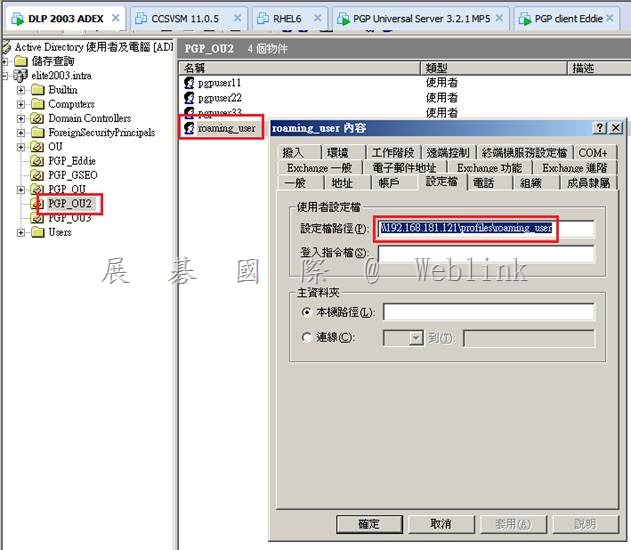
    Roaming_user account is a roaming user

    clip_image002

    Windows7-temp.elite2003.intra is a domain computer and has installed the PGP client program,then the boot partition was encrypted.

    clip_image003

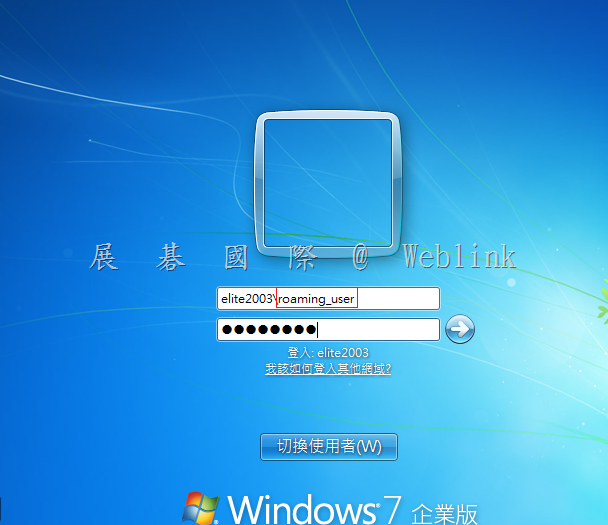
    We log out the current user and login with Roaming_user account.

    clip_image004

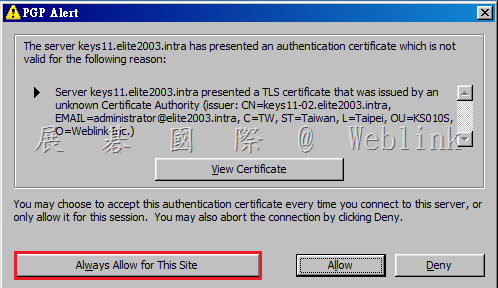
    As the same step,you must press the [ Always Allow for This Site ] to accept the Certificate.(We will use the publish CA and you will not see the PGP Alert. )

    clip_image005

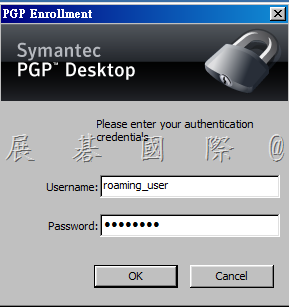
    Please type the password for this domain roaming user.

    clip_image006

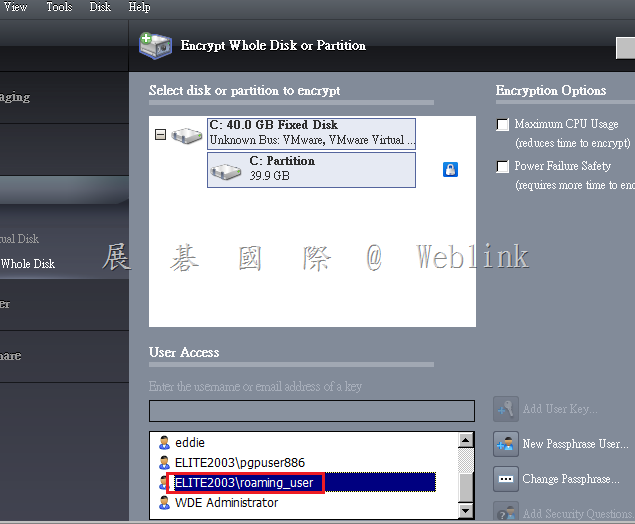
    After the silent enrollment finished,you can see the domain roaming user become a bootguard user.

    This means that the domain roaming user account can pass the bootguard anthentication then single-sign-on to the Windows on this computer.

    So if the domain roaming user account can login to any computer and enroll to the PGP Encryption Managemnet Server,it will work fine on these computers.

    clip_image007

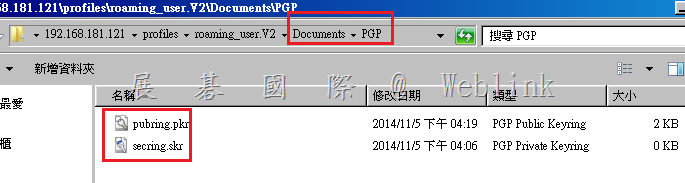
    Document\PGP\ can be created and you can find the PGP key pair.

    \\192.168.181.121\profiles\roaming_user.V2\Documents\PGP

    clip_image008

    User the domain roaming user to another computer

    clip_image001

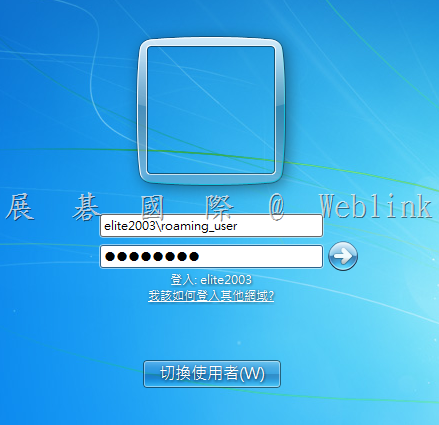
    Type the password for this domain roaming user.

    clip_image002

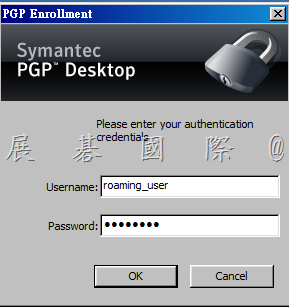
    Enrolling to the PGP Encryption Managemnet Server

    clip_image003[4]

    After the silent enrollment finished,you can see the domain roaming user become a bootguard user.

    clip_image004[4]

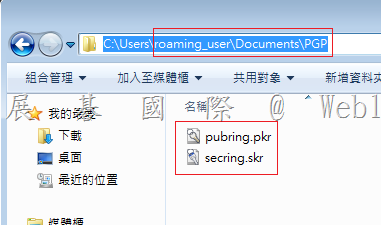
    Review the roaming user profile document folder

    clip_image005[4]

    View the record on the console

    image

    The roaming user also create a local user profile on local,you can find the PGP key pair in the c:\users\%username%\Documents\PGP,so it is working fine if the roaming user is offline.


    image

  • Office 365 ProPlus客戶享有1TB的商務用OneDrive雲端空間?

    今年四月微軟總部宣布了所有Office 365 ProPlus的客戶會享有1TB的商務用OneDrive雲端空間

    但是,目前微軟總部確認是在12/1/2014訂閱Office 365 ProPlus服務的便會自動訂閱商務用OneDrive, 享受1TB的雲端硬碟空間服務

    至於現存的客戶, 總部正在研擬策略希望可以盡快宣布何時會提供商務用OneDrive的服務.