分類: Uncategorized

  • iPhone 6 / 6Plus節省流量小技巧~

    當我們在使用iPhone 6時,有些程式會在背景作業中將部分資料上傳。其中有一個功能是『用量與診斷』。這個功能會收集手機上系統或APP異常時所產生的紀錄整理好寄送給apple。這個功能會使用一些流量,如果想把它停掉的話就依以下步驟執行。

    首先先點選『設定』再來依『隱私權』→『診斷與用量』→『不要傳送』點選即可。

    clip_image002 clip_image004

    另外在使用時是不是發現有一些廣告一直會跳出來呢?我想那應該是iAd搞的鬼。

    而什麼是iAd呢?iAd 是 Apple 的廣告平台。iAd會依據自己的位置來顯示相關的廣告,這個功能是很特別沒錯。但你不會想一天到晚出現一堆廣告來轟炸自己吧。還好這功能也是可以關掉的。

    首先先點選『設定』。再來依『隱私權』→『定位服務』→『系統服務』→『基於位置的iAd』點選即可。

    clip_image006 clip_image008

  • DLP 12.5 無法偵測部分符合的 IDM 事件

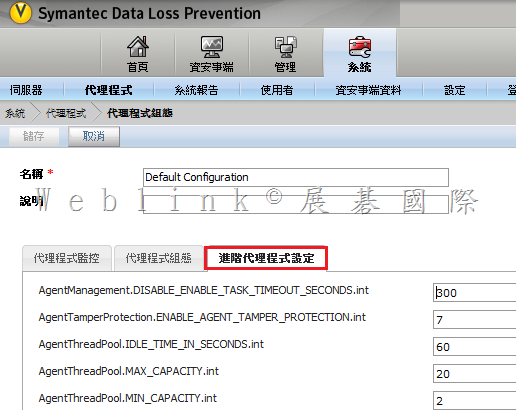
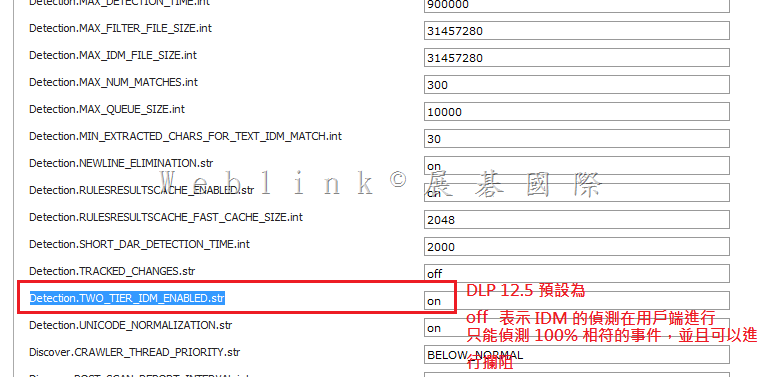
    DLP 12.5 在【系統】→【代理程式】→【代理程式組態】→【代理程式設定】→【進階代理程式設定】中,Detection.TWO_TIER_IDM_ENABLED.str 的參數值預設是【off】

    表示 DLP 12.5 預設

    (1) IDM 的偵測是在用戶端進行,Endpoint 與 Detection Server 間並非持續性的連線狀態 (Interval time 約 15 分鐘 )

    (2) IDM 事件可以攔阻

    (3) 偵測與攔阻的前提是相符率必須是 100%

    (4) 無法偵測或攔阻部分相符的事件


    若您需要偵測部分相符的事件請您參照以下畫面將 Detection.TWO_TIER_IDM_ENABLED.str 的參數值改為【on】

    (1) 此設定下表示 IDM 的偵測是 forward 至 Detection Server 進行

    (2) 此設定下無法攔阻部分相符的事件

    (3) 也無法攔阻100% 相符的事件

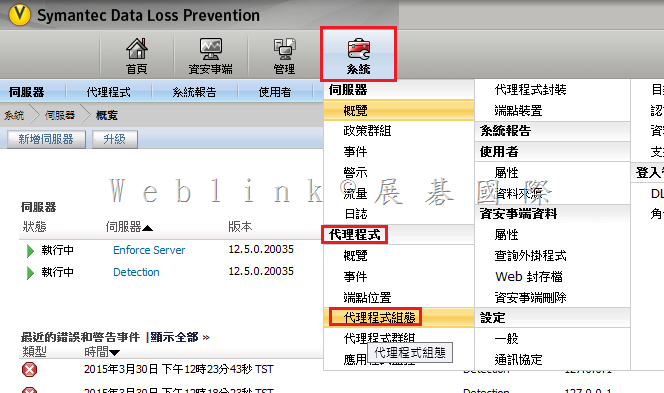
    1. 在【系統】→【代理程式】→【代理程式組態

    image

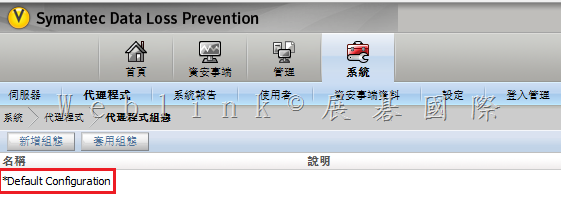
    2.【代理程式設定】

    image

    3.【進階代理程式設定】

    image

    4.將 Detection.TWO_TIER_IDM_ENABLED.str 的參數值改為【on】

    image

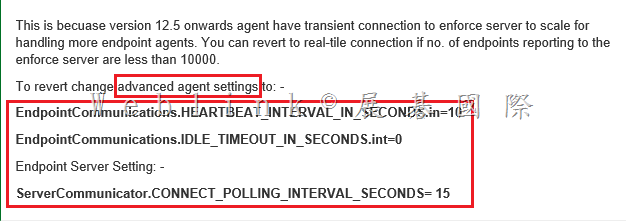
    5. 由於 DLP 12.5 開始,Agent 並非持續與 Detection Server 連線,因此相關事件無法即時回傳主控台,您必須再更改以下參數

    [DLP 12.5] Incidents delay. Takes longer to show on Incidents reports.  Symantec Connect

    http://www.symantec.com/connect/forums/dlp-125-incidents-delay-takes-longer-show-incidents-reports#comment-10466151

    image

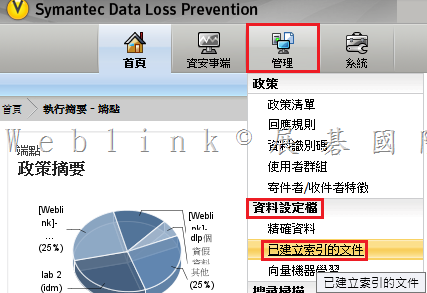
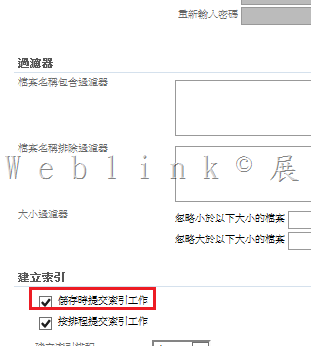
    6. 請至【管理】→【資料設定檔】→【已建立索引的文件】

    image


    7. 【重新建立索引】

    image

    8. 重啟 Enforce server

  • Symantec DCS Agent 健康狀態說明

    問題:

    • 針對 SDCS Agent 端 Health 狀況說明

    版本:

    • 6.0

    說明:

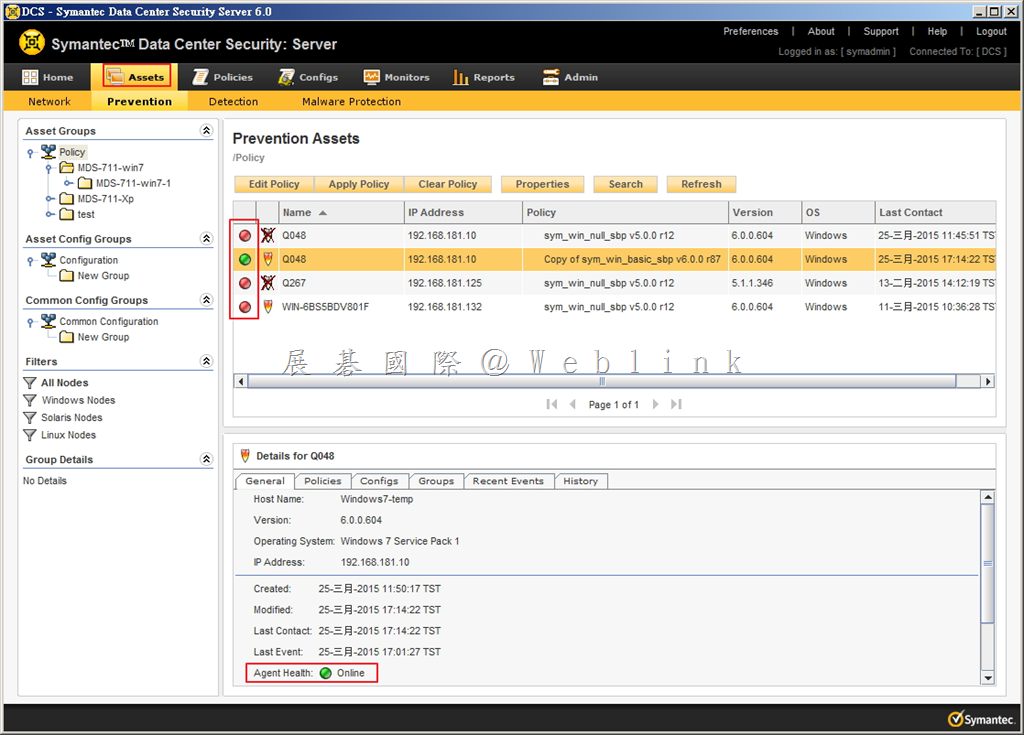
    image

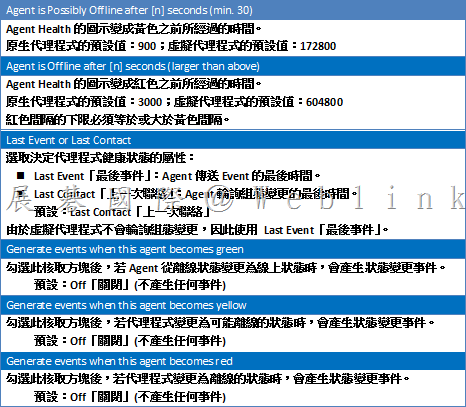
    Agent Health 在 Assets「資產」頁面的 Agent Health「代理程式健康狀態」欄中,會以綠色、黃色或紅色圓形圖示表示。

    • 綠色圖示表示 Agrnt 在線上。
    • 黃色圖示表示 Agent 可能離線。
    • 紅色圖示表示 Agent 已經離線。

    黃色與紅色預設值分別用於實體環境及虛擬環境。Agent Health 圖示的顏色是按照以下規則決定:

    • 綠色:如果上一次 Contact Time 或 Last event time 與黃色間隔秒數相加,所得時間大於目前時間。
    • 黃色:如果上一次 Contact Time 或 Last event time 與黃色間隔秒數相加,所得時間小於目前時間,而上一次聯絡時間或最後事件時間與紅色間隔秒數相加,所得時間大於目前時間。
    • 紅色:如果上一次 Contact Time 或 Last event time 與紅色間隔秒數相加,所得時間小於目前時間。


    代理程式健康狀態的逾時設定如下:

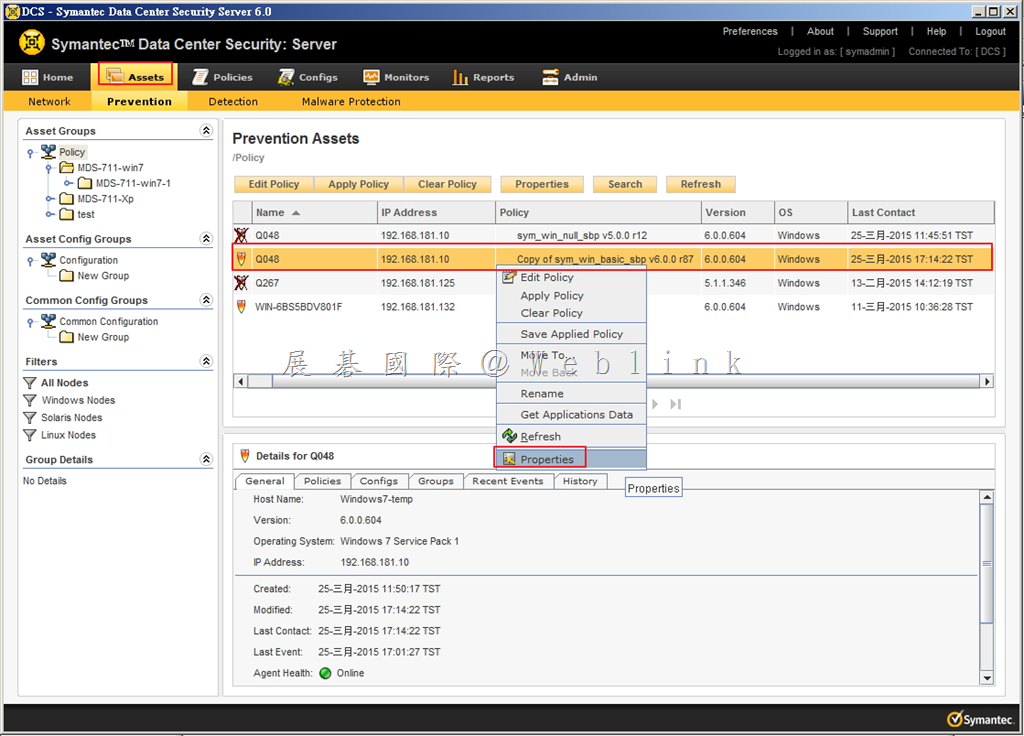
    1. 於 Asset 頁面,以滑鼠右鍵點選 Agent,選取「Propertise」。

    image

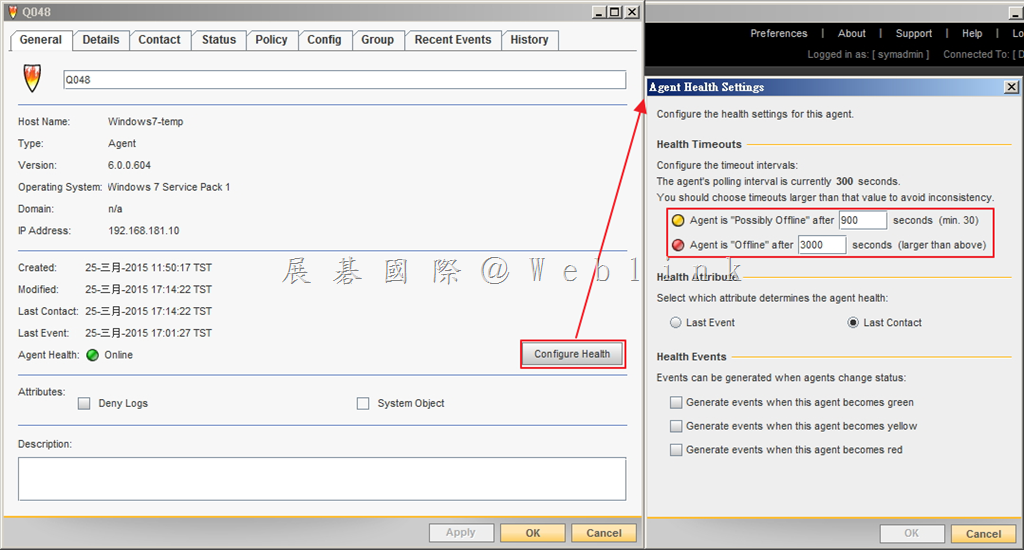
    2. 點選「Configure Health」,接著可以修改設定。

    image

    image


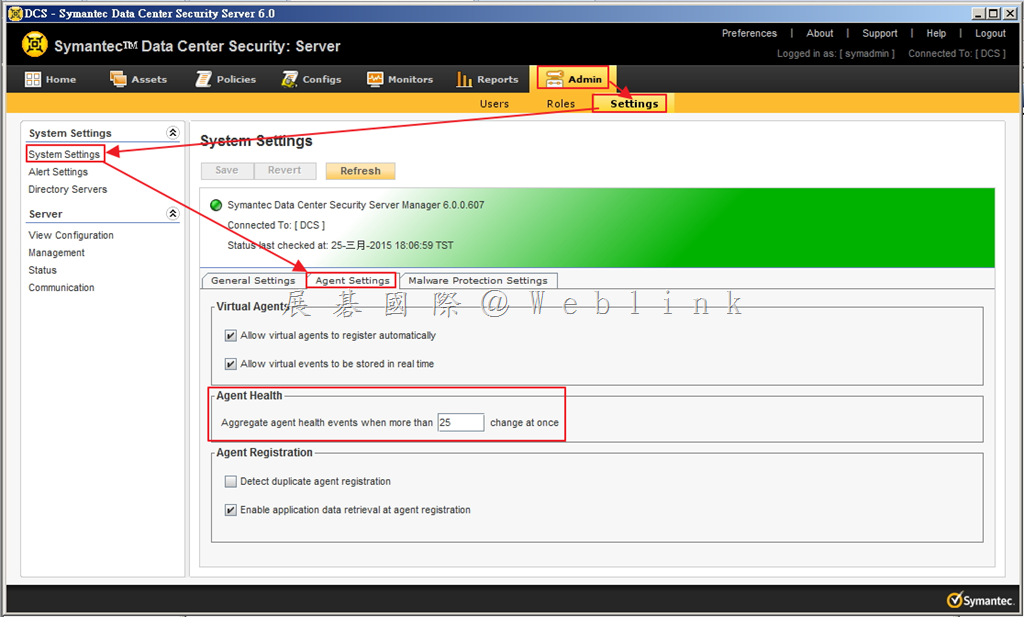
    為避免代理程式離線和連線時產生大量網路流量,全系統流量控制選項可將狀態變更事件彙總成單一事件。

    選取「Admin」頁籤,點選「Settings」接著選取「System Settings」,最後選取「Agent Settings」頁籤。

    image

    代理程式狀態變更事件數的臨界值,此數目會引發產生單一彙總狀態變更事件,而不是大量個別代理程式事件。若因網路中斷而一次影響大量代理程式,此設定有助於限制產生的無意義事件(及任何相關警示)數目。預設:25。

  • iPhone實用拍照小技巧,學會後往達人之路更進一步!

    現在的人很喜歡分享,不論是美景還是美食都會拿起相機拍張照後分享出去。不過一般不會拿著高檔單眼或數位相機四處啪啪走,所以大家都喜歡用手機來拍。也因為如此;現在的手機相機除了畫素越來越高、所能使用的功能也越來越多。當然;用起來也越來越方便。在這邊教大家幾個關於iPhone相機拍照的小技巧,讓你不論拍人或自拍都可以得心應手。

    技巧一、

    如果你不想錯過任何一個精彩的鏡頭,那麼這個連拍功能一定很適合你。

    clip_image002

    技巧二、

    一個人獨自外出時,看見一片美景想與之合照。但就是這麼剛好身邊沒有半個人可以協助你,那麼這個定時快門的功能你一定會想試試。

    clip_image004

    技巧三、

    一張美麗照片的構圖,有的時候主角並不是在正中間。他有可能是在右上角、左下角,或是在這個畫面的任何一個地方。這個時候我相信你會想把焦點固定在這畫面的某一處。那麼;自動曝光/對焦鎖定這個功能我想你會很想用它的。

    clip_image006

    技巧四、

    要拍出好的照片;光線一向是拍照時不可缺少的一項重要因素。但有時就這麼剛好拍照的地點光線就是不夠。這時手動調整曝光值這個技巧一定可以幫上你的忙。

    clip_image008

    技巧五、

    你是不是有覺得過在拍照時,尤其是拍一些特別的角度,手機上螢幕的快門鍵不是很好按呢?這時Apple耳機上的音量調整鍵就可以幫你解決這個問題。不論是按「+」還是按「-」都能當快門鍵使用;這樣一來不論要從什麼角度拍都可以得心應手~

    clip_image010

    技巧六、

    想要自拍時但發現不管怎麼拿都沒辦法很順手的按下螢幕上的快門鍵嗎?在這邊偷偷的跟你說一下,手機旁的音量調整鍵也可以當快門使用喔~這樣一來只要用左手就可以很順手也很自然的玩自拍,再也不用為了按快門鍵按到手抽筋。

    clip_image012

    以上六個小技巧都是很實用的。

    知道之後不止拍照更方便,就連拍照技巧也會大大的向上提升~

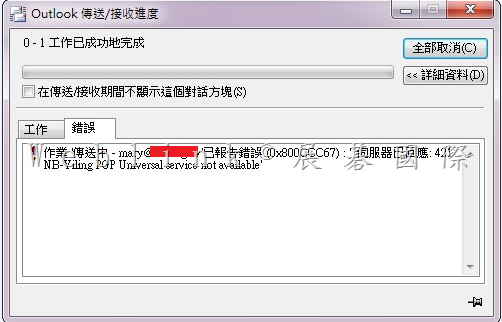
  • 安裝好 PGP Desktop E-mail 後,outlook 無法發信出現【PGP Universal service not available】
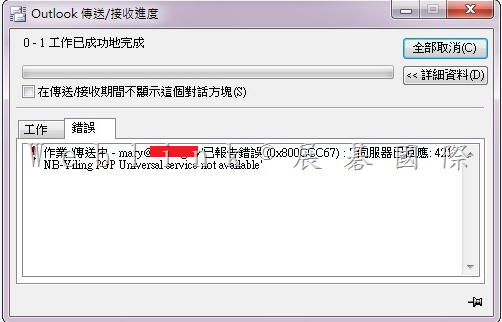
    安裝好 PGP Desktop E-mail 後,outlook 無法發信出現【PGP Universal service not available】

    image

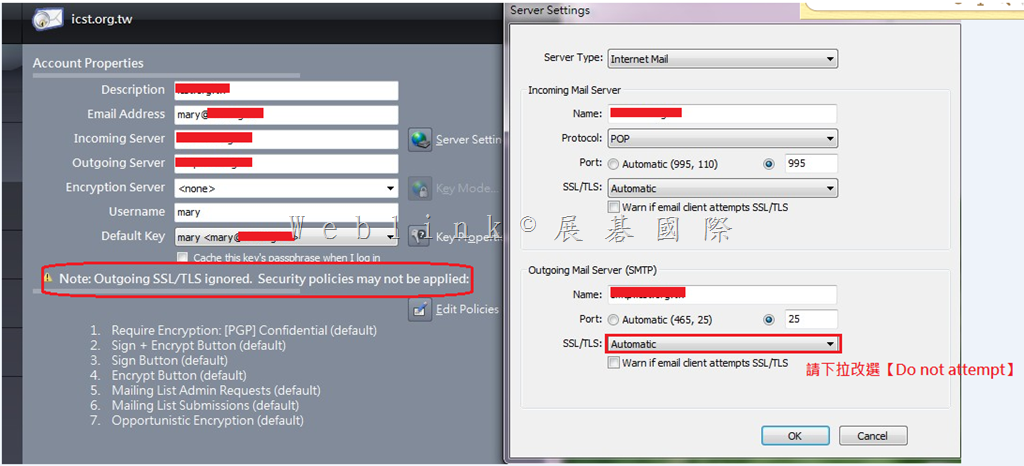
    請將 Outgoing Mail Server (SMTP) 中,SSL/TLS 下拉改選【Do not attempt】即可解決

    [點圖可放大]
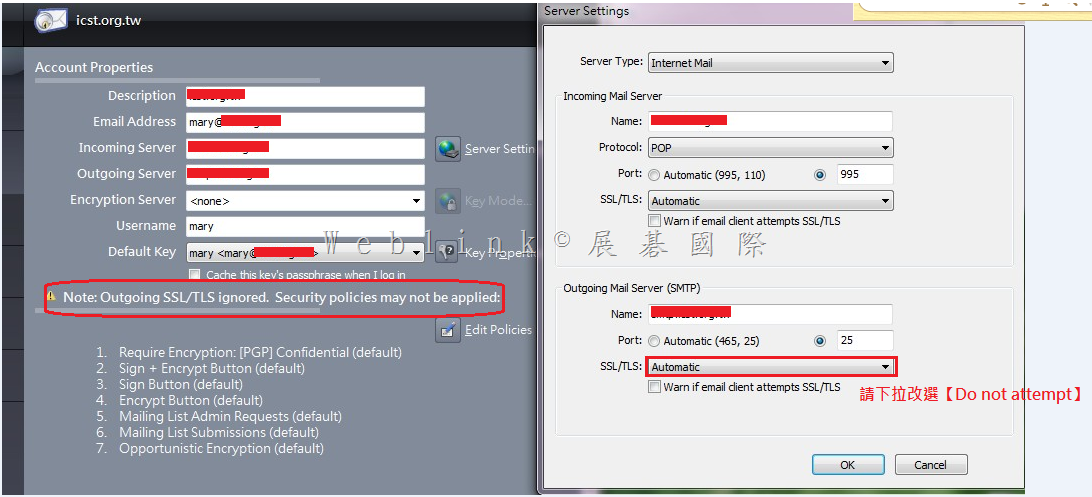
    image


    【其他的除錯步驟】

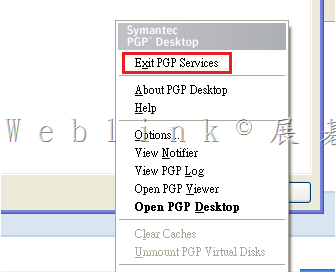
    1.Exit PGP Services 後,確認 Outlook 寄信是否正常,若仍不正常則可能是原始 mail client 設定有問題
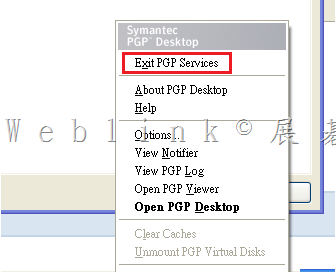
     
    image


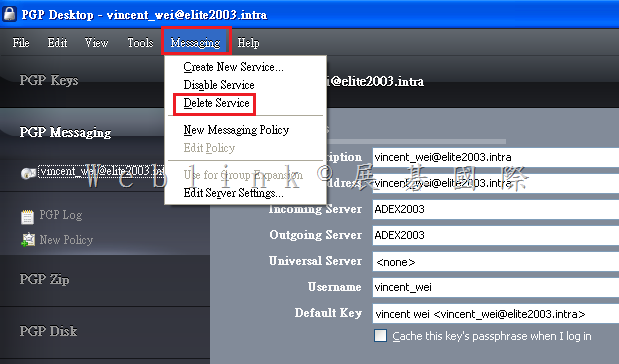
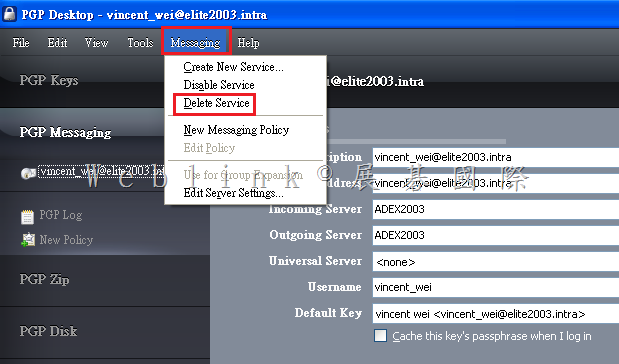
    2. 刪除重建 PGP Desktop E-mail service

    image

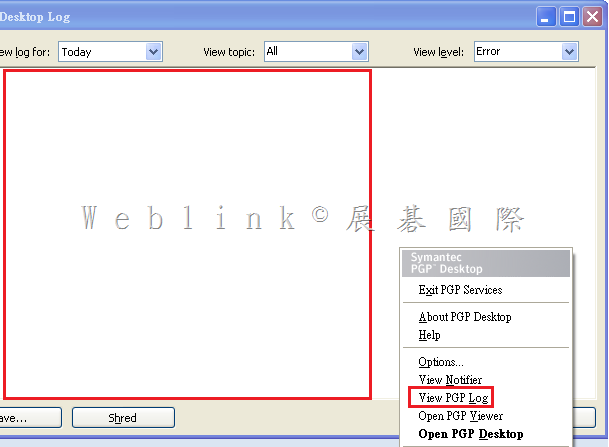
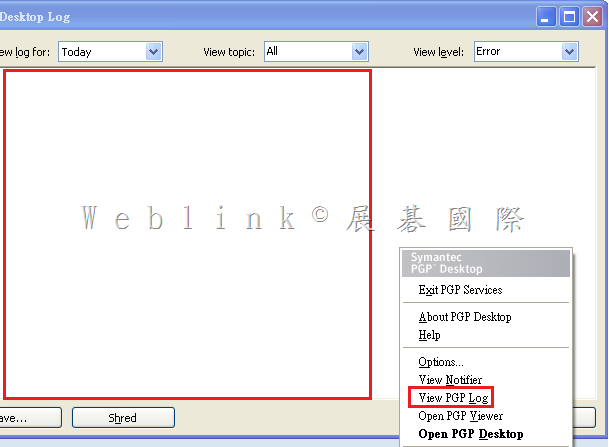
    3.提供用戶端 log

    image

    4.Enterprise Support – Symantec Corp. – Troubleshooting: PGP Messaging Services for PGP Desktop 10 for Windows
    http://www.symantec.com/business/support/index?page=content&id=TECH149647


    By default, PGP Desktop automatically determines your email account settings and creates a PGP Messaging service that proxies messaging for that email account.

    Because of the large number of possible email account settings and mail server configurations, on some occasions a messaging service that PGP Desktop automatically creates may not work quite right.


    If PGP Desktop has created a messaging service that is not working right for you, one or more of the following items may help correct the problem:

    Verify that you can both connect to the Internet and send and receive email with PGP Services stopped. To do this:
    Right-click the PGP Desktop Tray icon and select Stop PGP Services from the list of commands.

    Note: You should always restart your email client after starting or stopping PGP Services.
    Read the PGP Desktop Release Notes for the version of PGP Desktop you are using to see if your problem is a known issue.

    Make sure SMTP authentication is enabled for the email account (in your email client). This is recommended for PGP Desktop to proxy your messaging. If you only have one email account and you are not using PGP Desktop in a PGP Universal Server-managed environment, then SMTP authentication is not needed. It is required when using a PGP Universal Server as your SMTP server, or when you have multiple email accounts on the same SMTP server.

    Open the PGP Log to see if the entries offer any clues as to what the problem might be.

    If SSL/TLS is enabled in your email client, you must disable it there if you want PGP Desktop to proxy your messaging. (This does not leave the connection to and from your mail server unprotected; by default PGP Desktop automatically attempts to upgrade any unprotected connection to SSL/TLS protection. The mail server must support SSL/TLS for the connection to be protected.)

    If either Require STARTTLS or Require SSL is selected (in the SSL/TLS settings of the Server Settings dialog box) your mail server must support SSL/TLS or PGP Desktop will not send or receive any messages.

    If your email account uses non-standard port numbers, make sure these are included in the settings of your messaging service.

    If PGP Desktop is creating multiple messaging services for one email account, use a wild card for your mail server name.

    Delete the PGP Messaging service that is not working correctly and send/receive email. PGP Desktop regenerates the messaging service.
    If none of these items help correct the problem, try manually creating a PGP Messaging Service.

    5.
    http://www.symantec.com/connect/forums/not-working-outbound-mail-encryption-outlook-2010-pgp-1021

    Please reread the PGP Release Notes for any known conflict or settings adjustments that may be needed for your system.

    Although I don’t see Norton 360 specifically mentioned, the following quote may offer guidance that might also help with Norton 360 use.

    Symantec Norton AntiVirus 9.x through 10.x, Symantec Norton Internet Security 2003, Symantec Norton Internet Security 2004
    Disable email scanning.
    For Norton Internet Security users, disable Norton Privacy Control and Spam Alert.
    Disable SSL/TLS in Server Settings in PGP Desktop and PGP Universal Satellite. (In PGP Desktop, select the PGP Messaging Control Box and then choose Messaging > Edit Server Settings. For SSL/TLS, select Do Not Attempt. In PGP Universal Satellite, on the Policies tab, select Ignore SSL/TLS.) These versions of Norton AntiVirus prevent all mail clients from using SSL/TLS, regardless of the use of PGP software.

    Symantec Norton AntiVirus 11.x through 12.x, Symantec Norton Internet Security 2005, Symantec Norton Internet Security 2006
    No special configuration required for MAPI email.
    When using POP email, enable Auto-Protect and disable the Anti-Spam and Email Scanning options. Auto-Protect, which is enabled by default, provides protection against viruses in email messages when the message is opened.
    Disable SSL/TLS in Server Settings in PGP Desktop or PGP Universal Satellite. (In PGP Desktop, select the PGP Messaging Control Box and then choose Messaging > Edit Server Settings. For SSL/TLS, select Do Not Attempt. In PGP Universal Satellite, on the Policies tab, select Ignore SSL/TLS.) These versions of Norton AntiVirus prevent all mail clients from using SSL/TLS, regardless of the use of PGP software.

  • Win7下,如何把系統的磁碟槽再分割呢?

    我們在XP的時代常會因為在安裝系統時,把C槽空間留的太大而浪費那些空間。

    但那都過去了!!

    現在在Win7下我們終於可以不用透過外掛軟體,就可以自己簡單來做磁碟分割。

    但有一點要先提醒大家喔,分割出來的空間是無法再併回去C槽的。

    那麼;就讓我在這示範給大家看吧~

    ①、首先;在桌面的電腦按右鍵選『管理』,跳出右邊的畫面再點『磁碟管理』後選C槽。

    clip_image002

    ②、在C槽按右鍵選『壓縮磁碟區』,然後系統會開始進行運算。

    完成後就會出現壓縮後可以動用的容量~

    clip_image004

    ③、接著在視窗中輸入自己需求的容量再按壓縮。

    clip_image006

    ④、壓縮成功後,會在畫面上看到多了一個未配置的磁區。

    在這個磁區按右鍵選『新增簡單磁碟區』。

    clip_image008

    ⑤、接下來就是磁碟分割的步驟與說明,大家可以依照下圖的步驟來操作~

    clip_image010

    ⑥、成功啦!!!新增磁碟區E就出現了~

    clip_image012

    透過這樣的方式可以把硬碟的空間作更妥善的利用。

    有需要的人可以快點試試喔~

  • Wacom PTH451 如何查看電池狀態及電量

    Wacom數位版自從INTOUS5開始就支援使用無線方式與PC連接使用。使用無線時,電池電量的殘量變成是我們要特別注意的。不然用到一半突然沒電還要找USB線來充,瞬間無線變有線感覺就不太OK了。而我們有兩個方式可以確認目前的電池電量,方法如下所述:

    (以下均為Win8 系統下的操作畫面,且操作之前請先安裝驅動程式<註>):

    方法( 一):

    在我們已正確安裝驅動程式後,在Windows桌面下將滑鼠移至 右下方工具列選單時會出現目前數位板電池電量,請參考下圖:

    clip_image001

    方法( 二):

    ①、首先;在 Windows 桌面上會有下方的圖示,請選點『Wacom 數位板內容』

    clip_image002

    ②、接下來請點選下方的『關於』。

    clip_image004

    ③、請點選『診斷』

    clip_image005

    ④、下圖我們就可以看到,目前數位板的所有狀況。包含我們想知道的『電池狀態』及『電量』

    clip_image007

    <註>

    驅動程式的安裝方法有兩種:

    一、購買產品的包裝盒內有附原廠的光碟片乙片

    二、您可以上網連接到Wacom 的官方網站下載驅動程式,如下圖畫面。(請依照你電腦的作業系統版本選擇下載後再安裝驅動程式),這樣數位板就可以正常使用了。

    clip_image009

  • 使用iPhone4或iPhine4s,但不想升級ios的話;要怎麼備份聯絡人呢?

    少數的iPhone4或iPhine4s使用者因為怕升級後執行速度變慢而沒有升級ios。又因為沒有升級ios而沒有辦法使用iCloud。如果這時想保留聯絡人或是將聯絡人匯出該怎麼辦呢?在這邊介紹一個APP給大家使用,這個App的名字為『Contacts Kit』。

    ①、首先先到App store 搜尋 Contacts Kit(Free),下載安裝完成後執行App。

    clip_image002

    ②、選擇『匯出聯絡人』。

    clip_image004

    ③、請先選擇『所有聯絡人』後再點選『下一步』。

    clip_image006

    ④、接著點選『vCard』,再選開始匯出。

    (如果要匯到其他不是IOS裝置的,可以選擇其他的格式喔~)

    clip_image008

    ⑤、匯出完成,選擇電子郵件方式來儲存檔案。

    clip_image010

    ⑥、接著輸入要寄出的信箱位址。

    clip_image012

    ⑦、開啟剛剛輸入的電子郵件信箱即可發現一封『Contacts Kit』寄來的新郵件。

    clip_image014

    ⑧、選擇郵件後再點選其中的附件。

    clip_image016

    ⑨、點選『新增所有聯絡資訊』。

    clip_image018

    ⑩、最後進入聯絡人;看看是不是所有的聯絡人都過來了,很簡單吧(笑)。

  • 很實用的手寫輸入小技巧~

    在iPhone上使用手寫輸入法的人其實還滿多的。

    但你知道有一些實用的小技巧可以提升手寫輸入的速度喔。

    那就在這邊分享給各位吧~

    技巧一、

    如果打了一長串的字發現打錯了…

    clip_image002

    此時可以『搖』一下手機來將輸入的文章刪除喔~

    clip_image004

    技巧二、

    想快速的輸入標點符號嗎?只要『點』一下就會出現常用的標點符可以選擇喔~

    clip_image006

    如何?很實用對吧。

    那下次再介紹一些實用的小技巧給大家吧~

  • iPhone輸入小技巧!長按的驚喜~~

    現在的人使用手機來輸入訊息是很平常也很頻繁的事了。

    這時如果再知道幾個關於輸入的小技巧相信可以讓輸入的速度更快速也更方便了。

    那麼就讓我在這邊告訴大家幾個小技巧吧。

    ①、在輸入時長按image 可以選擇輸入方式及語系。

    image

    ②、長按「。」可以選擇輸入「…」或是「……」。

    image

    ③、在輸入網址時,長按「.」可以選擇輸入部分的國家網域名稱。

    image

    以上三種透過長按的輸入技巧相信熟練之後用起來會更得心應手。

    那在最後再透露個小技巧給各位知道。

    在輸入時,連續按二下『空白鍵』可輸入句點喔~

    image

    如何?這些技巧很實用對吧。建議大家可以用熟一點,會很方便喔~