分類: Uncategorized

  • Symantec DCS Apply Policy 至 Group 時,Agent 未套用新的 Policy

    問題:

    當 Apply Policy 至 Group 時,Agent 未套用新的 Policy

    解決方案:

    當 Agent 本身有 Policy 時,此時若將 Policy Apply 至 Group 時,Agent 將優先套用本身 Policy,若本身無 Policy,則將會判斷最靠近的 Group(若 Group 為多階層)。

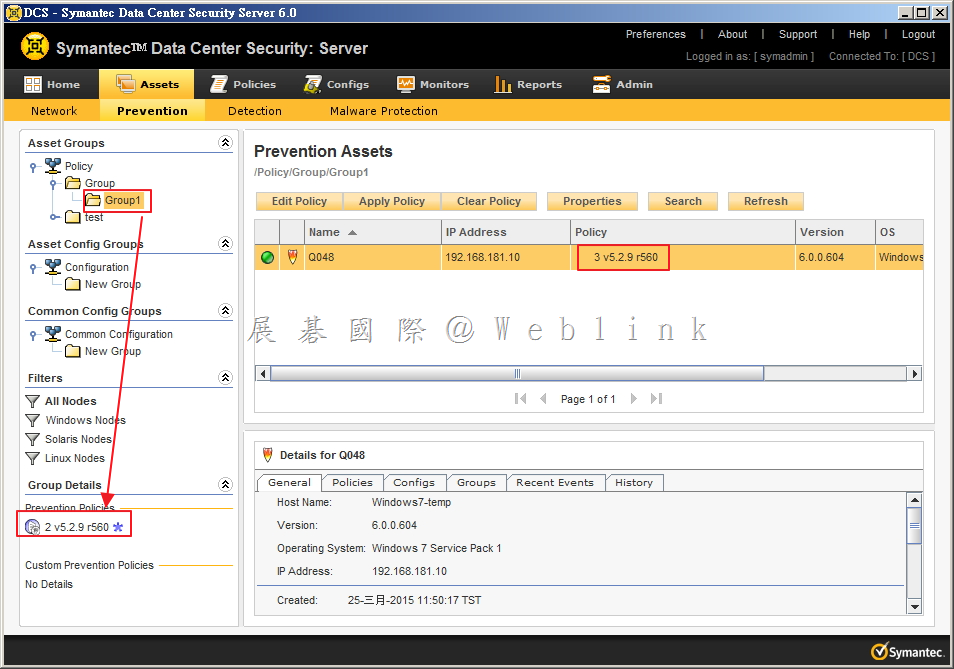
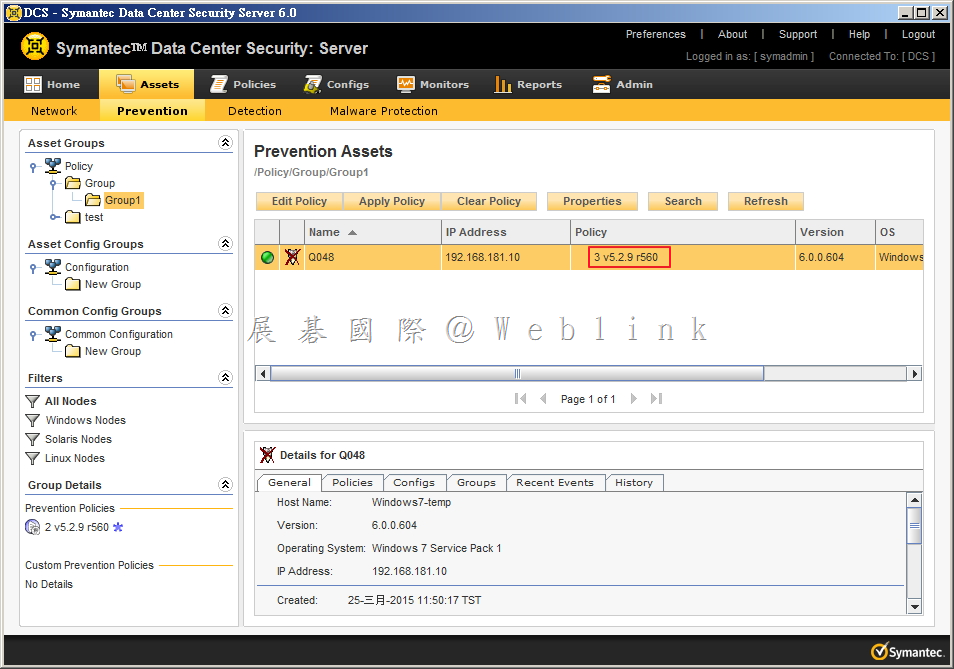
    # 如圖所示,可以看到

    Agent:Q048 目前套用的 Policy 目前套用的 Policy 為 3 v5.2.9 r560

    Group1 目前套用的 Policy 目前套用的 Policy 為 2 v5.2.9 r560

    image

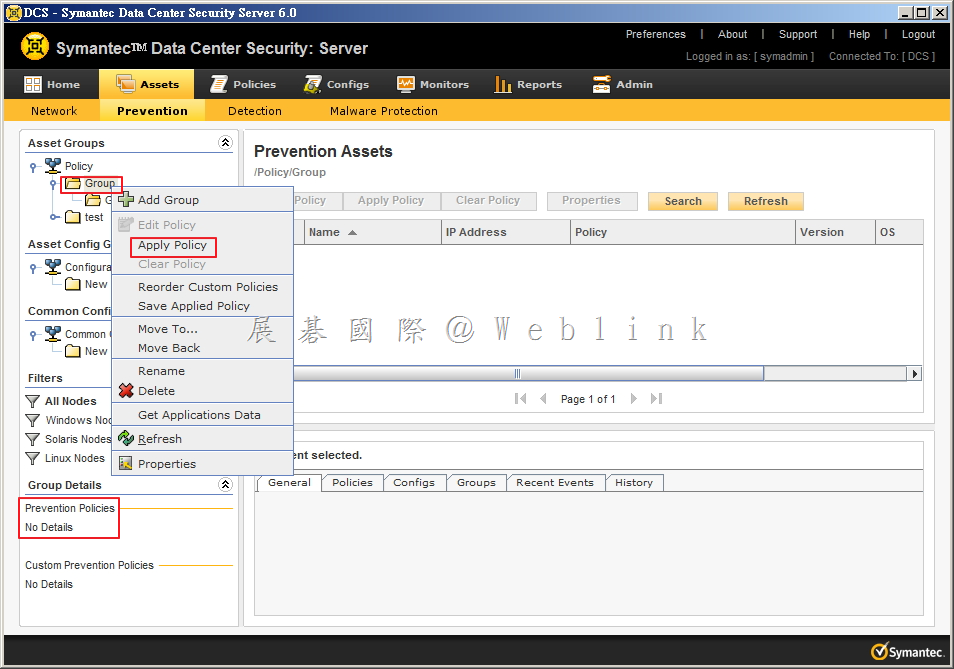
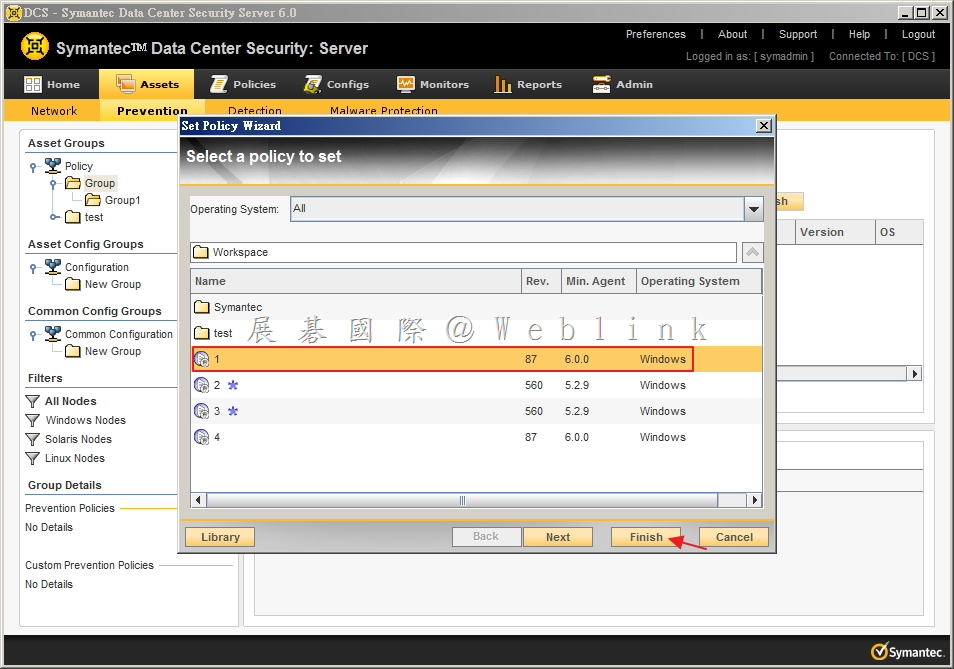
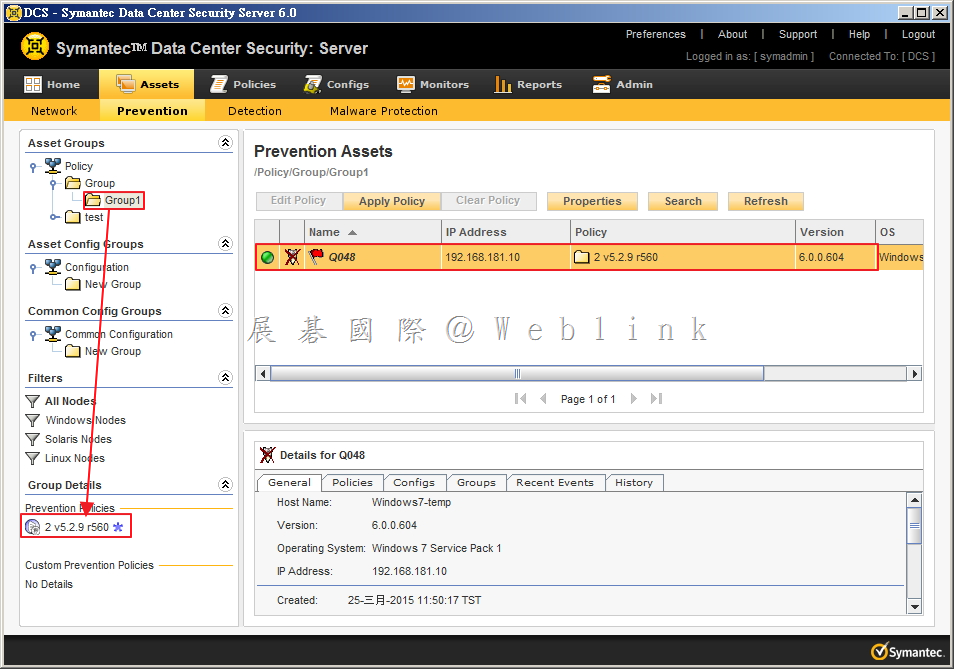
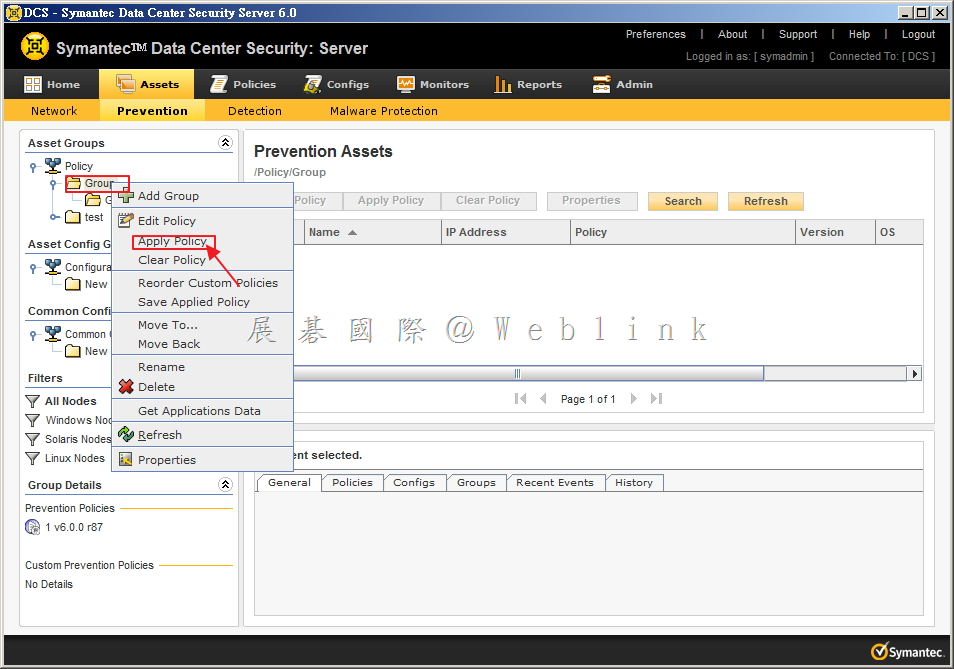
    # 可以看到 Group 並沒有 Prevention Policies,此時 Apply Policy 至 Group。

    image

    image

    image

    # 此時會發現 Agent:Q048 並未套用新的 Policy

    image

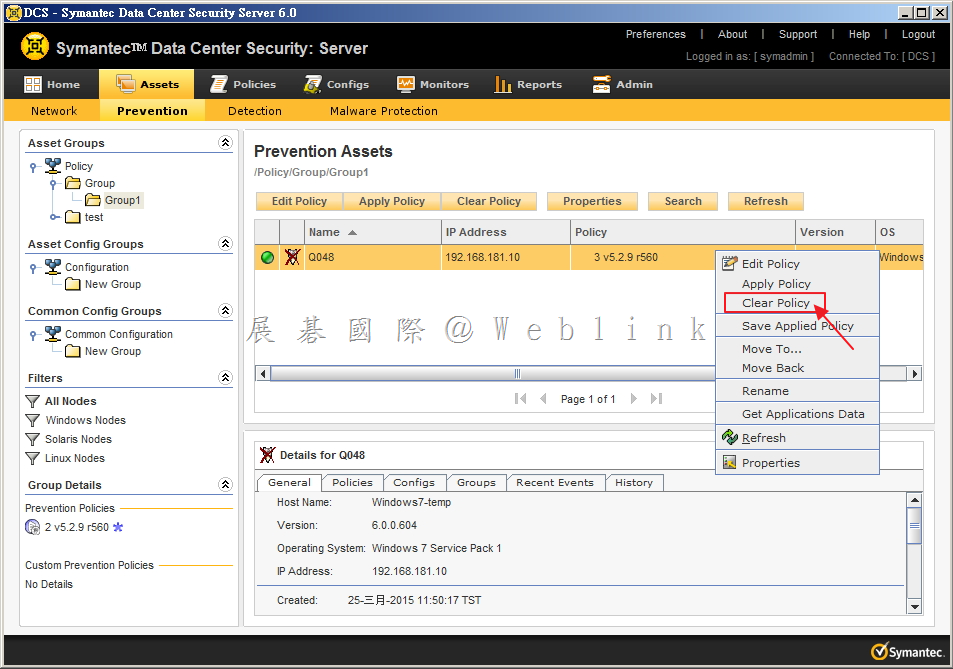
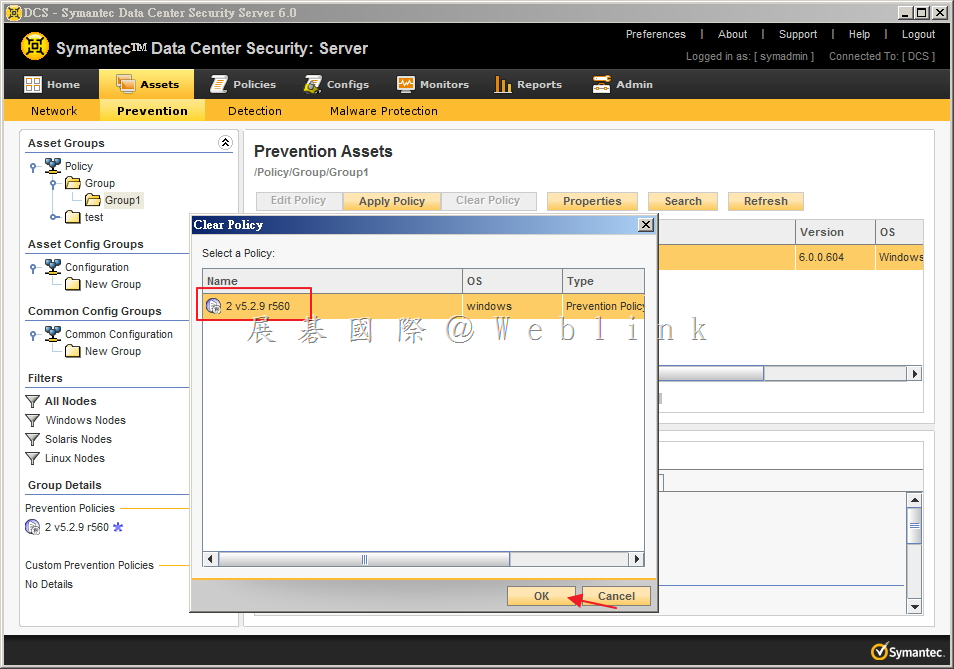
    # 將 Agent:Q048 Clear Policy

    image

    # 此時發現 Agent:Q048 已套用新的 Policy:2 v5.2.9 r560(Group1的Policy)

    image

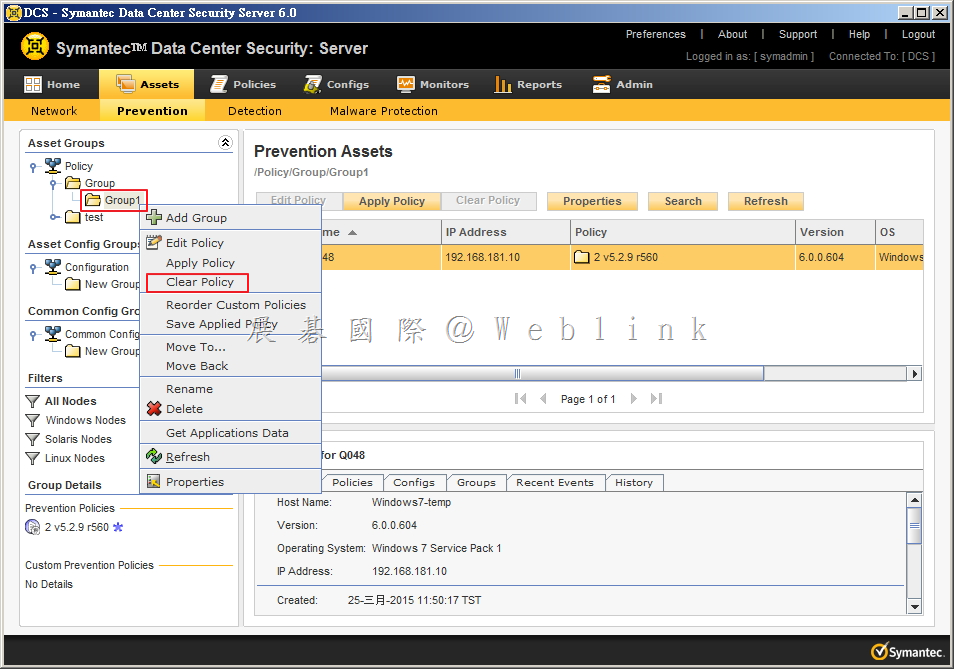
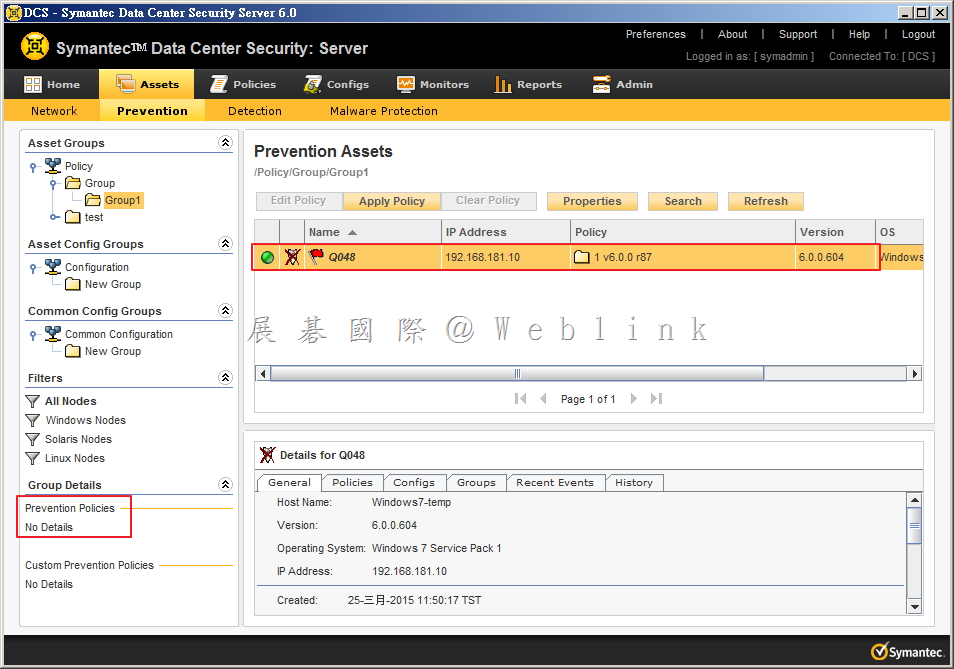
    # 再將Group1 Clear Policy

    image

    image

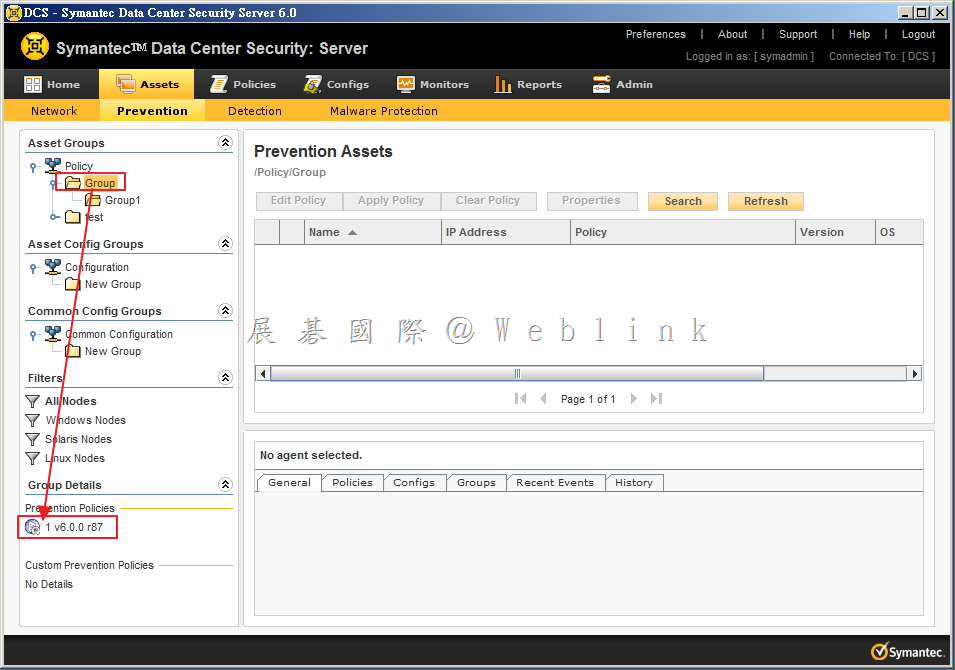
    # 此時發現 Agent:Q048 已套用新的 Policy:1 v6.0.0 r87(Group的Policy),此時 Group 1 已無 Policy

    image

    # 再 Apply Policy 至 Group

    image

    image

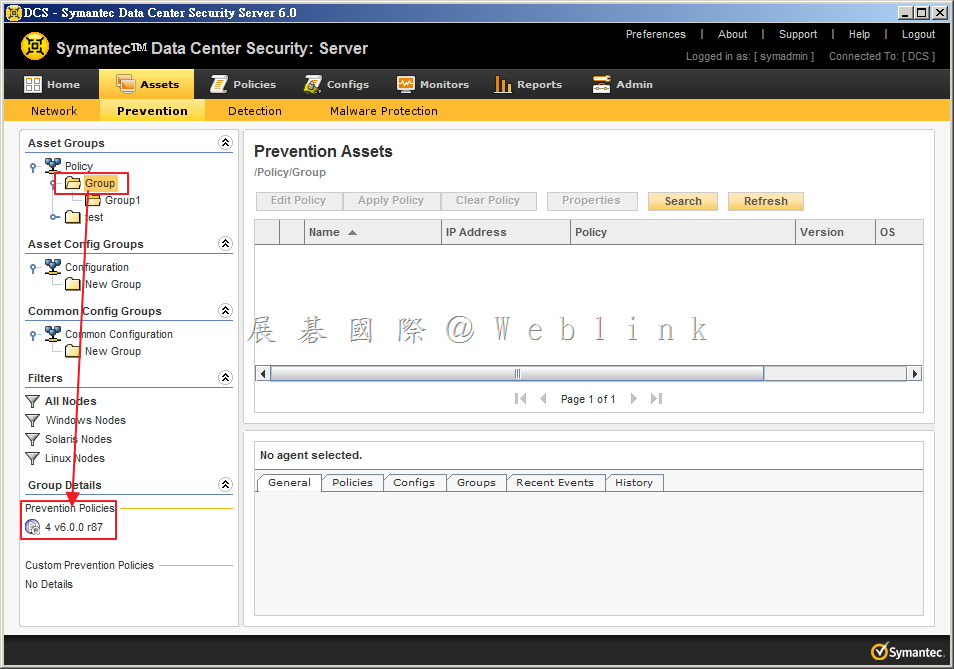
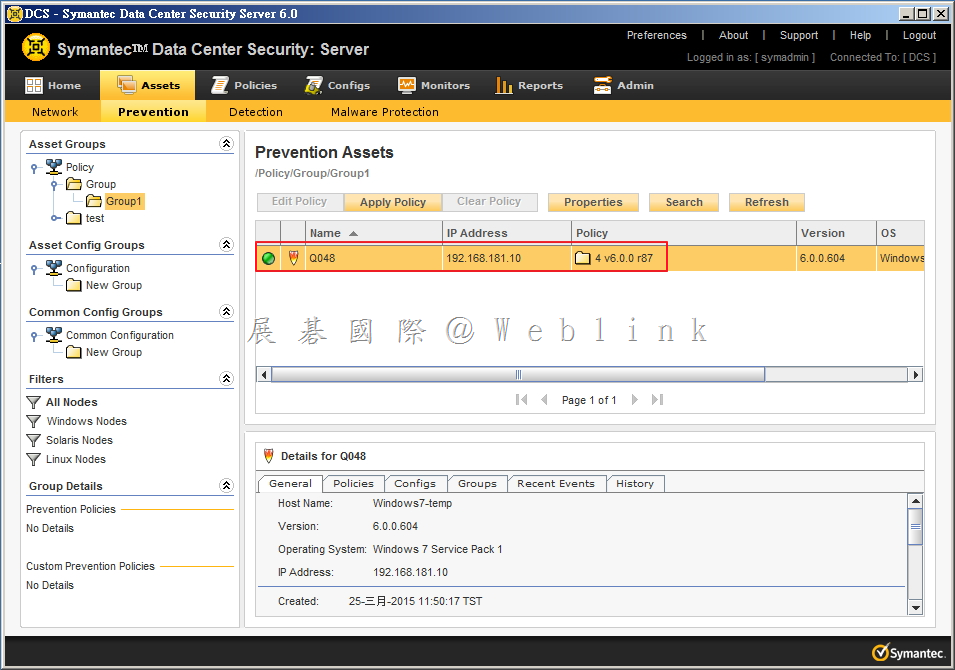
    # 可看到 Agent:Q048 已套用新的 Policy:4 v6.0.0 r87(Group的Policy)

    image


    ※ 故,若 Apply Policy 至 Group 後發現並無套用至 Group 內的 Agent,請先檢查確認 Agent 是否已直接 Apply Policy 至 Agent 或是 於其他更靠近 Agent 階層的 Group 已 Apply 其他 Policy,此時請先其他無關 Policy 先行 Clear Policy,則一開始 Apply 的 Policy 會生效。

  • [SEP] 有確定疑似病毒檔案如何開啟 Case

    ※有確定疑似病毒檔案

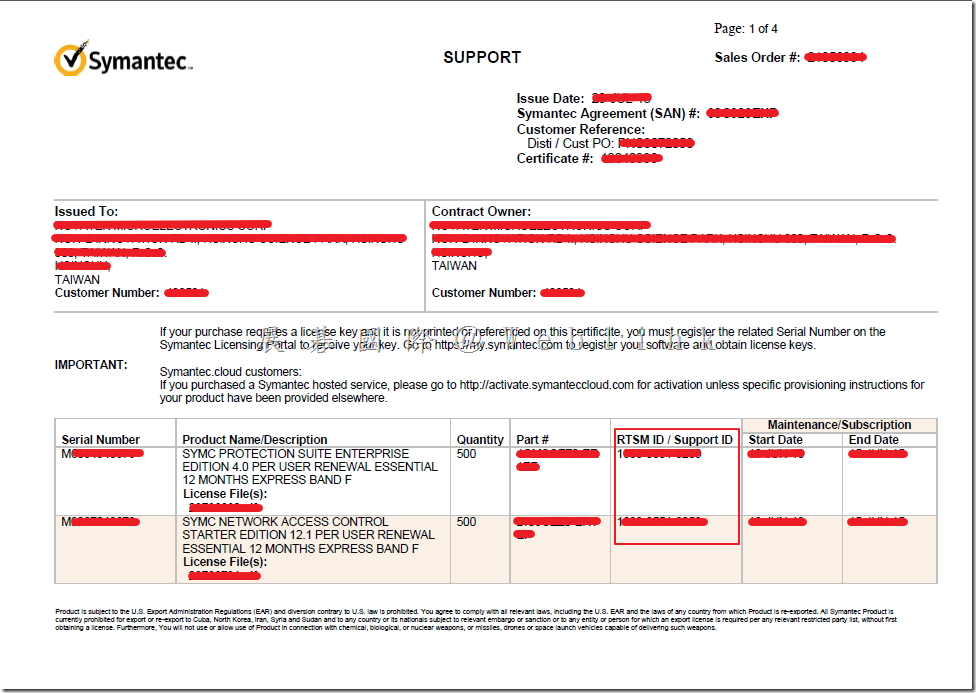
    請先準備於授權書上查詢 Support ID

    image_thumb15

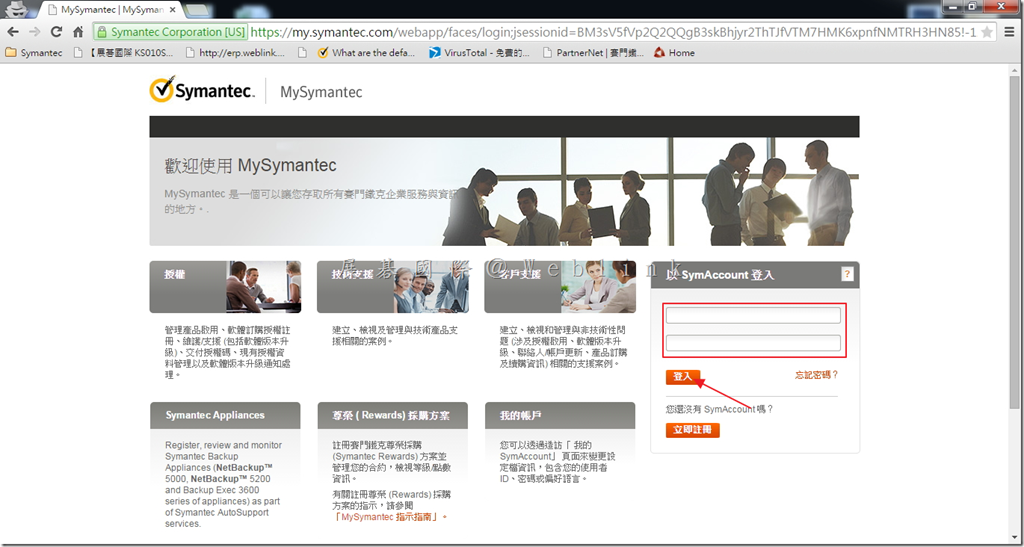
    1. 開啟網頁 https://my.symantec.com,輸入帳號密碼,點選「登入」。

    image_thumb

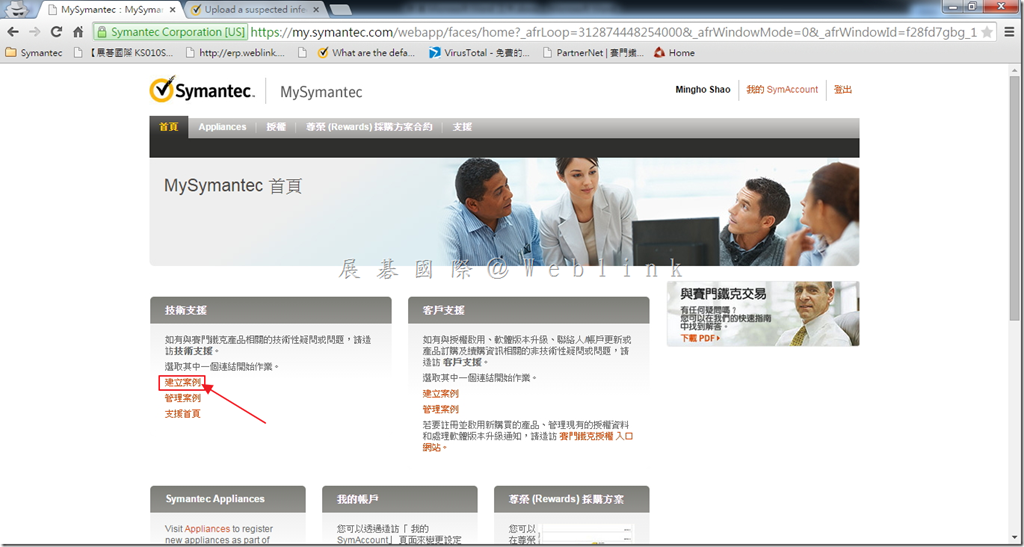
    2. 點選「建立案例」。

    image_thumb3

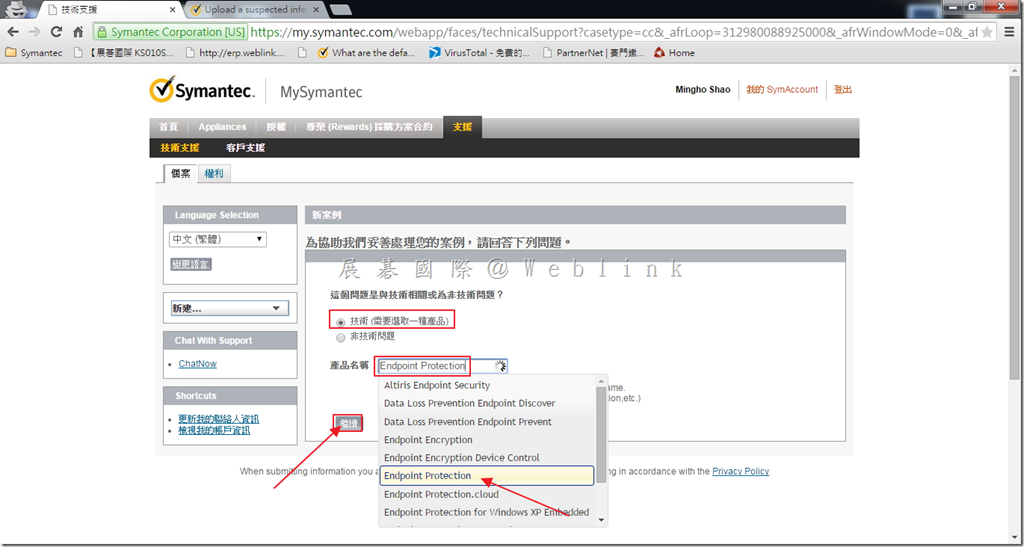
    3. 選取「技術 (需要選取一種產品)」,於產品名稱輸入產品關鍵字,接著點選產品「Endpoint Protection」,最後點選「繼續」。

    image_thumb5

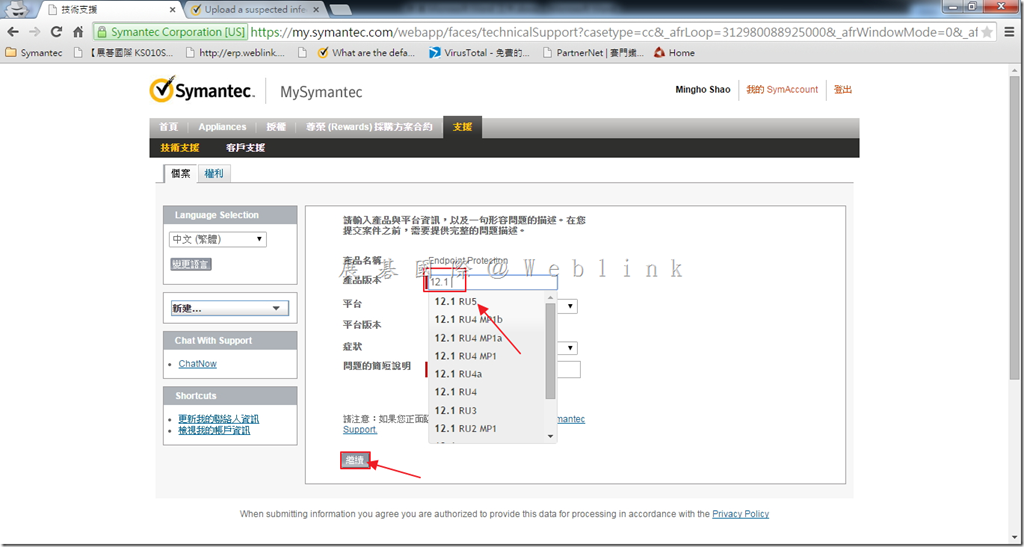
    4. 於產品版本輸入版本關鍵字,接著選取版本,輸入其他資料,接著點選「繼續」。

    image_thumb6

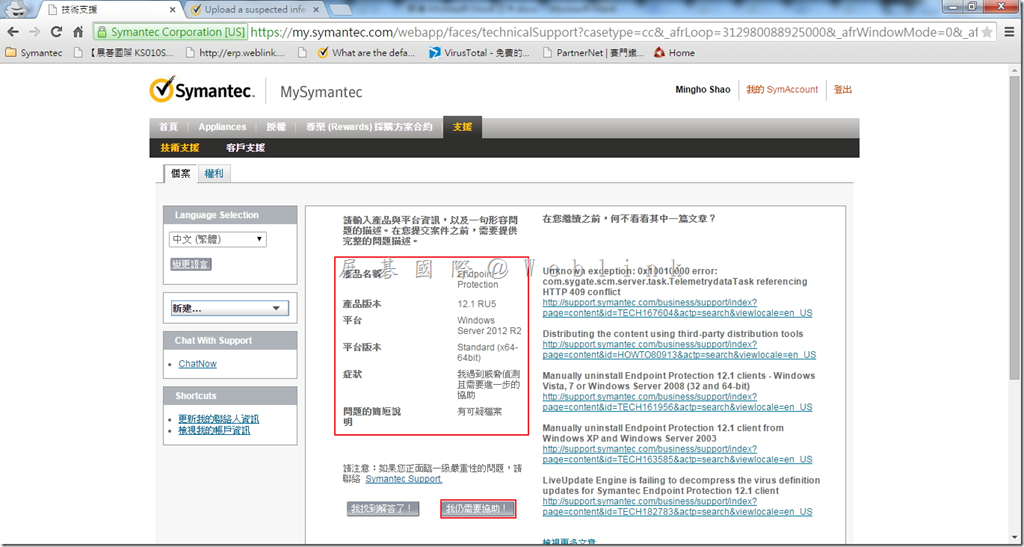
    5. 確認輸入資料無誤,接著點選「我仍需要協助!」。

    image_thumb7

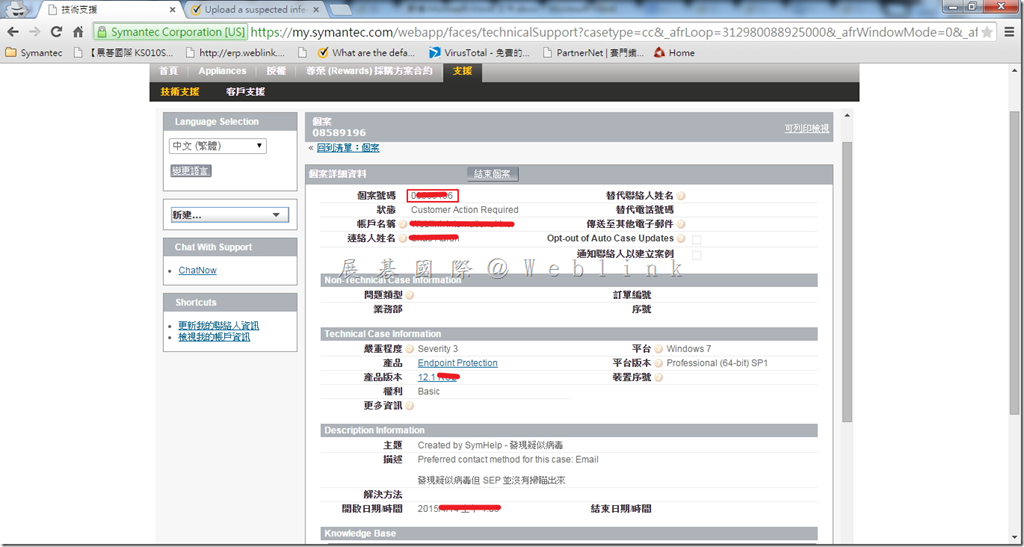
    6. Case 開啟成功。

    image_thumb8

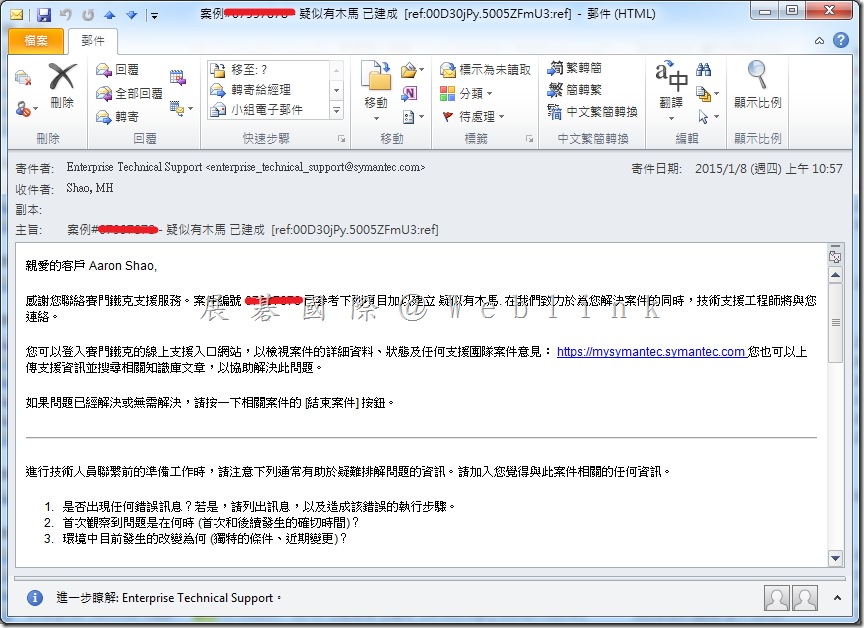
    7. 接著會收到一封信件,代表 Case 已開啟。

    image_thumb10

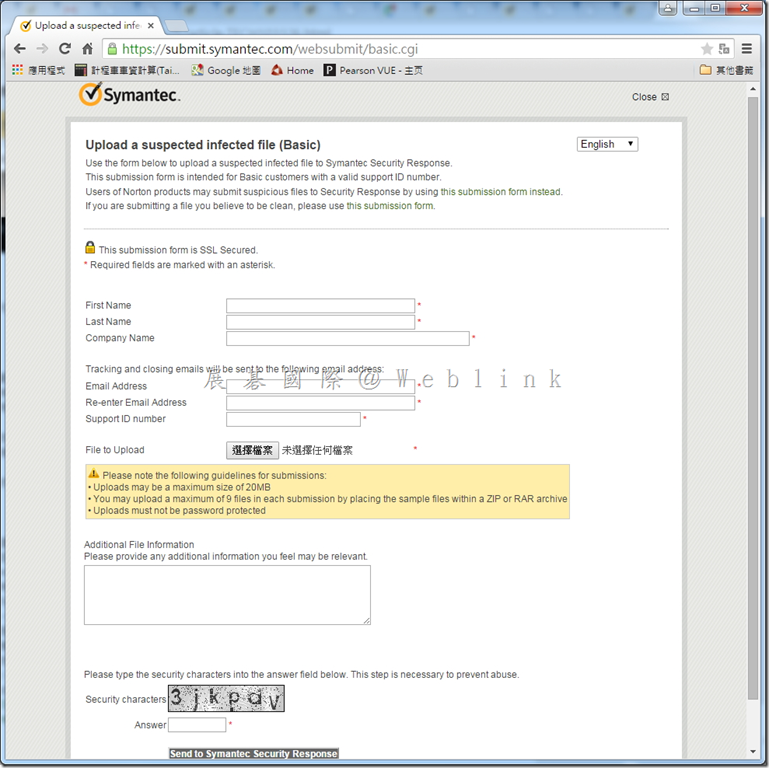
    8. 開啟網頁https://submit.symantec.com/websubmit/basic.cgi

    image_thumb2

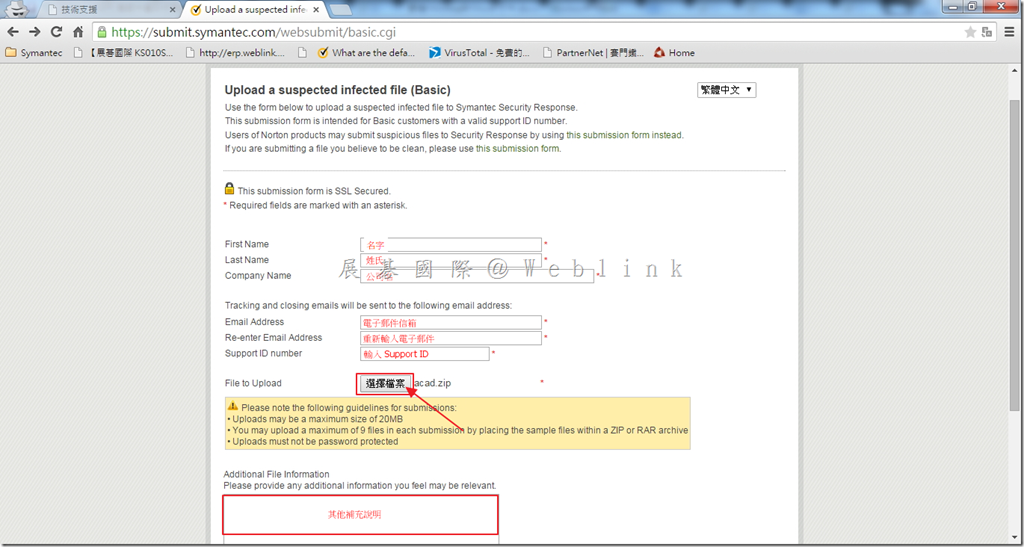
    9. 輸入相關資訊,並上傳可疑檔案。

    image_thumb12

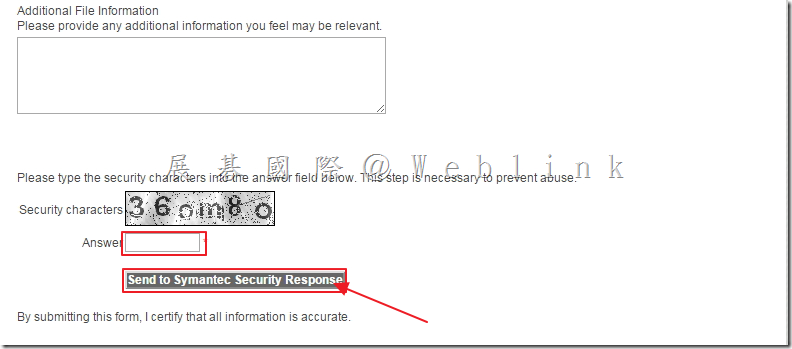
    10. 接著輸入驗證碼,最後點選「Send to Symantec Security Response」。

    image_thumb13

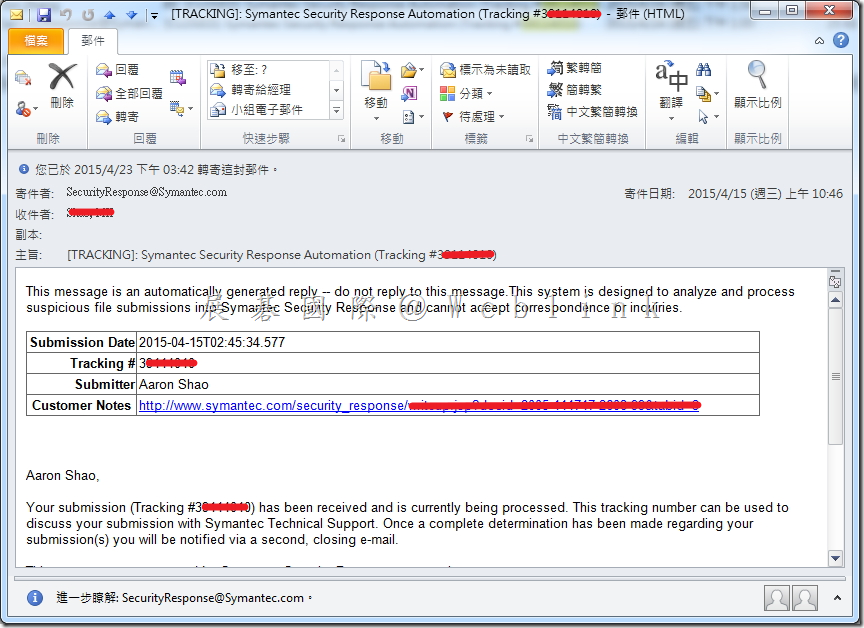
    11. 完成後會收到信件,請記下「Tracking #」提供給 Support 負責人員或將該封信件轉寄給 Support 負責人員即可。

    image_thumb14

  • [SEP] 無確定疑似病毒檔案如何開啟 Case

    ※無確定疑似病毒檔案

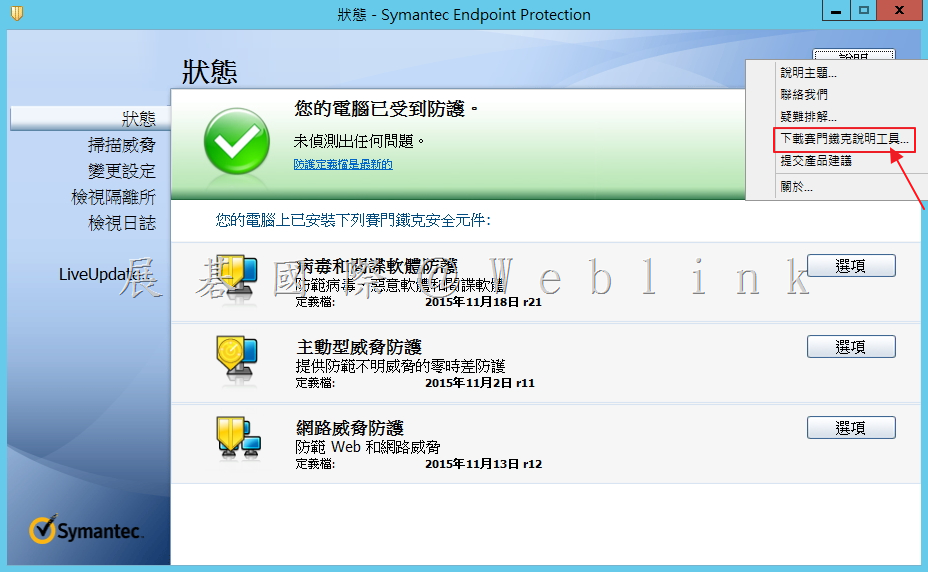
    1. 開啟 SEP,點選「說明」接著點選「下載賽門鐵克說明工具…」。

    image

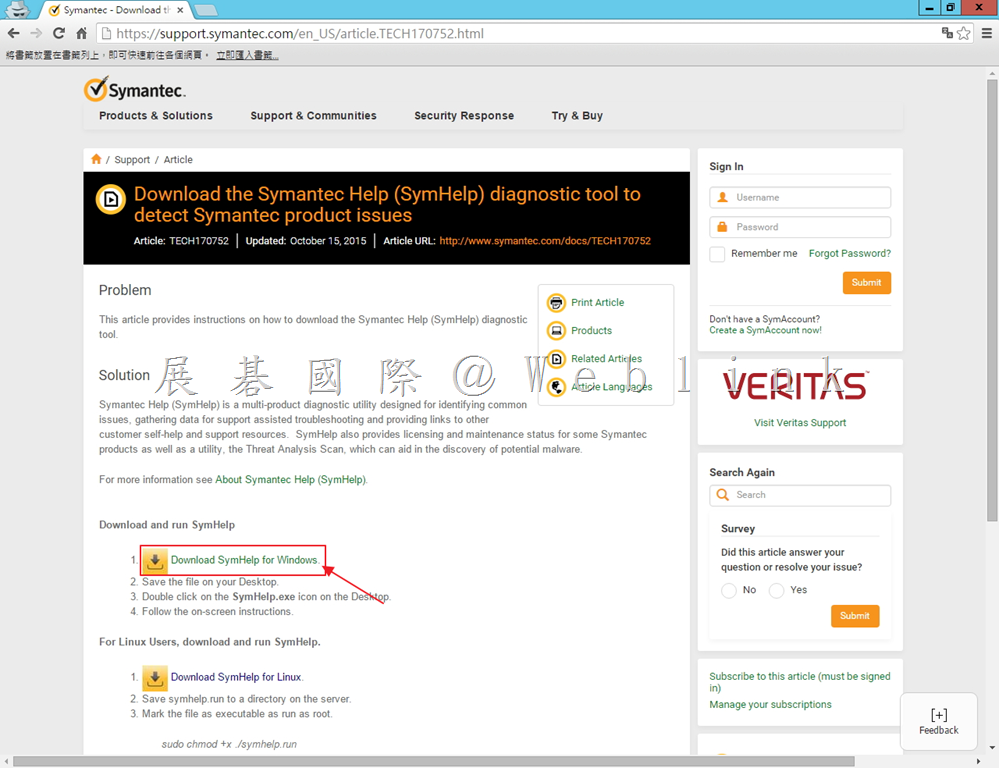
    2. 會開啟網頁,接著點選「Download SymHelp for Windows.」。

    image

    3. 執行「SymHelp.exe」。

    image

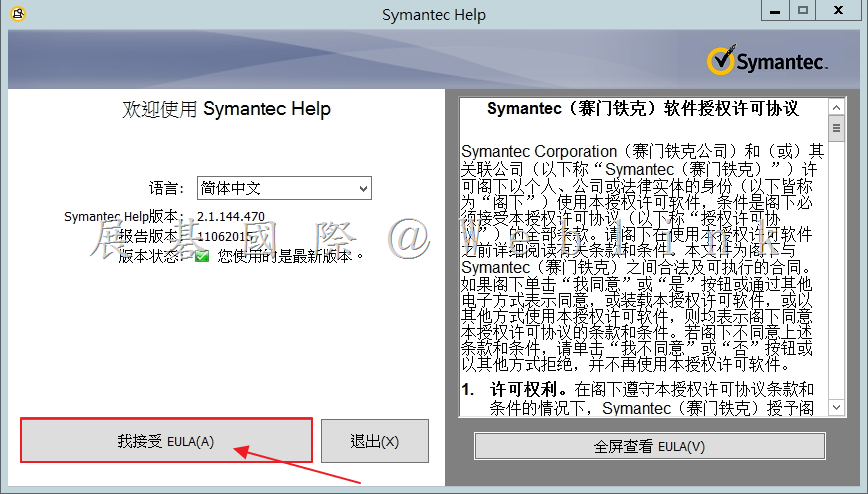
    4. 點選「我接受 EULA」。

    image

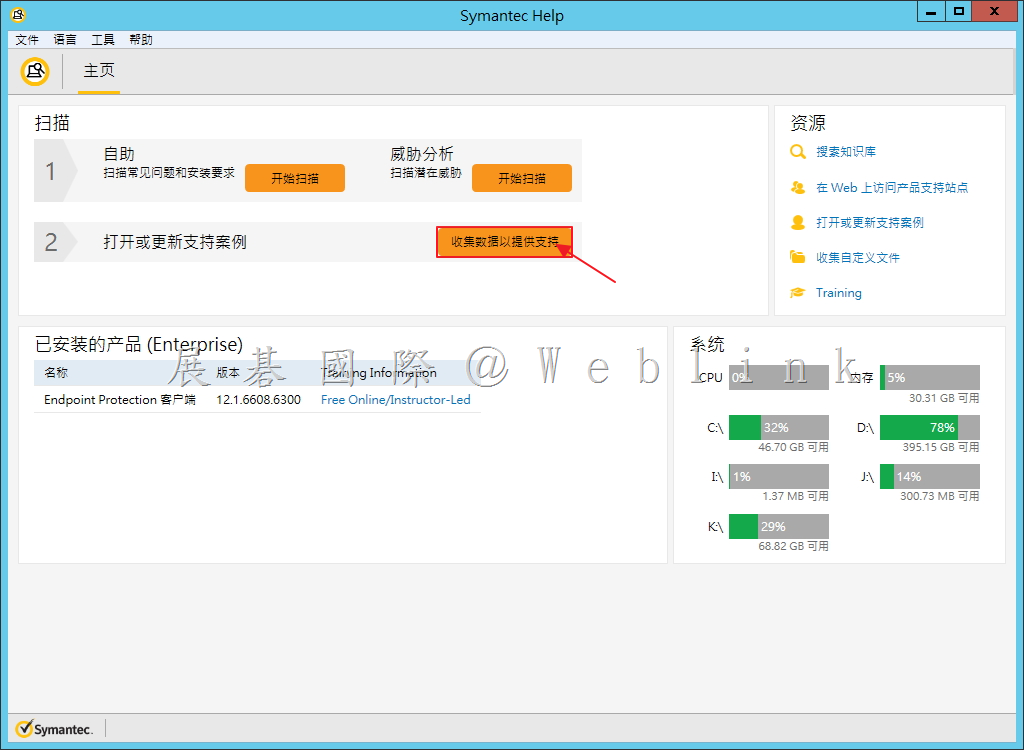
    5. 點選「收集數據已提供支持」。

    image

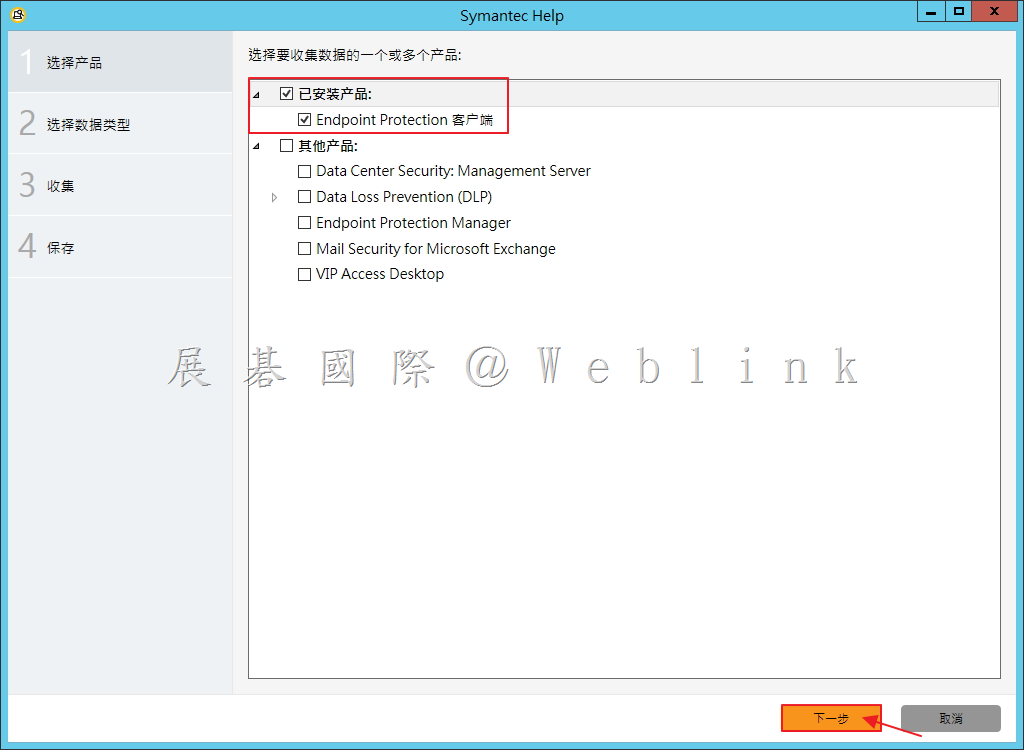
    6. 確定已安裝的產品,接著點選「下一步」。

    image

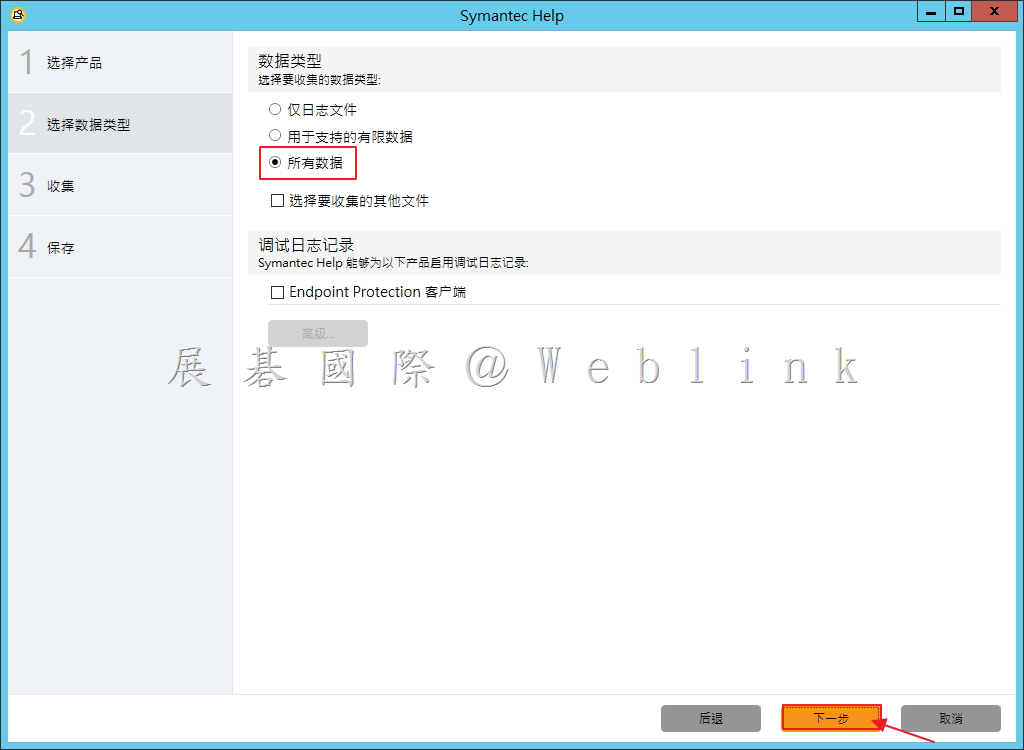
    7. 選取「所有數據」,接著點選「下一步」。

    image

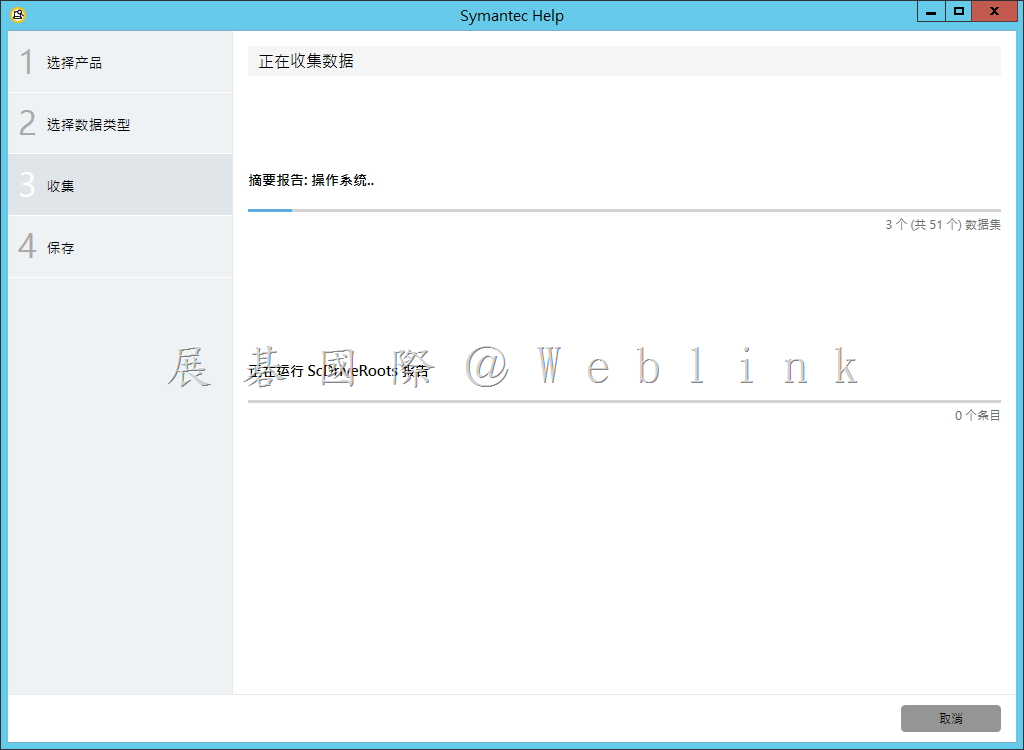
    8. 正在收集數據。

    image

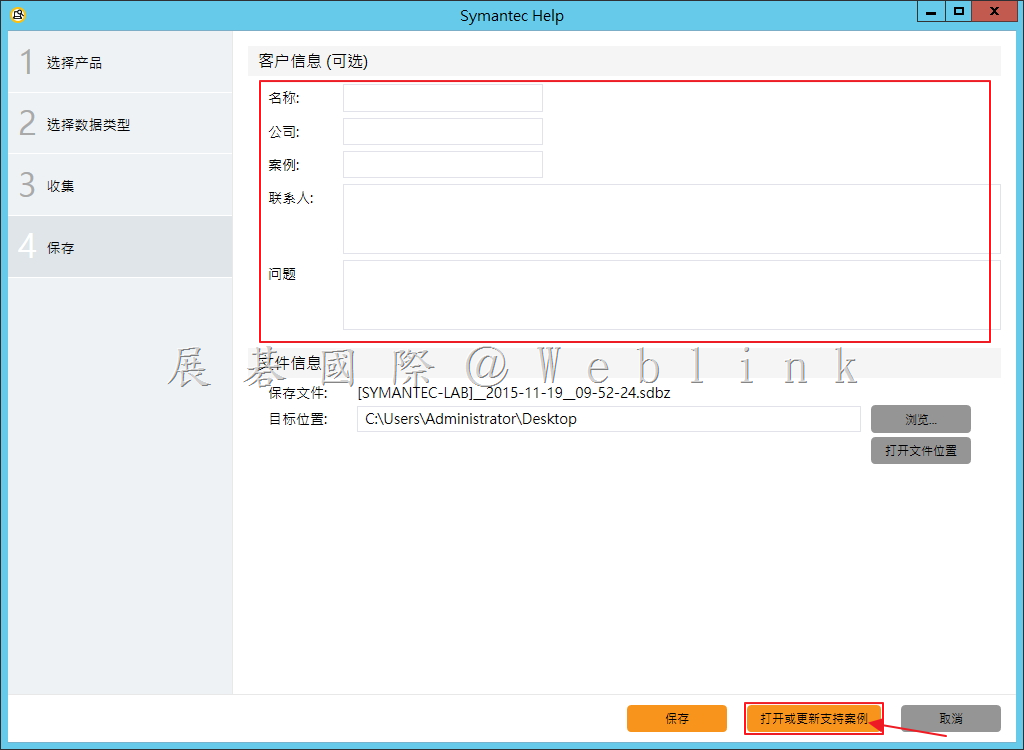
    9. 輸入相關資訊,點選「打開或更新支持案例」。

    image

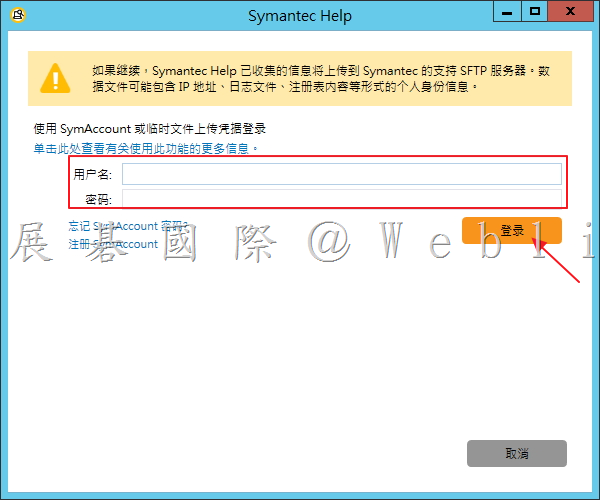
    10.輸入登入資訊,接著點選「登錄」。

    image

    11. 接著依照畫面即可完成開啟 Case,並等待 Support 相關負責人員與您聯繫即可。

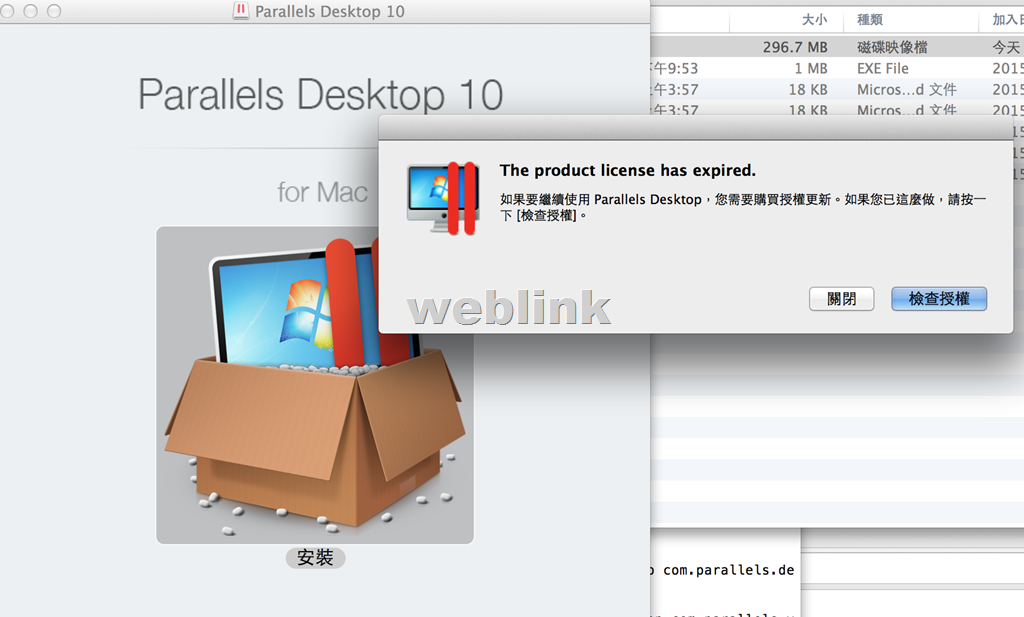
  • 安裝時,無法進入輸入金鑰畫面

    在移除舊版軟體後

    重新下載安裝新版時

    出現以下畫面

    image

    解決方式:

    1.先停止安裝

    2.將Parallels移除

    3.從Finder→/Macintosh HD/Library/Preferences/Parallels檔案夾,將licenses.xml 檔案移到垃圾桶清除

    4.重新安裝Parallels即可

  • 安裝時,無法進入輸入金鑰畫面

    在移除舊版軟體後

    重新下載安裝新版時

    出現以下畫面

    image

    解決方式:

    1.先停止安裝

    2.將Parallels移除

    3.從Finder→/Macintosh HD/Library/Preferences/Parallels檔案夾,將licenses.xml 檔案移到垃圾桶清除

    4.重新安裝Parallels即可

  • 電腦發生問題如何讓遠端的好友來協助解決問題呢?別怕!有Windows7遠端協助!

    遠端協助是Windows一個很棒的功能。不過可能大部份的人都不知道遠端協助是在做什麼的,甚至不知道有這功能。顧名思義,遠端協助就是可以讓朋友或技術支援人員透過不同的兩地;走網路來連到對方的電腦于以協助安裝或排除問題等等。基於安全性的考量,在使用遠端協助也有一些注意事項。但比起TeamViewer等其他遠端軟體來說,它不須再額外下載或安裝,光這點就方便多了。以下我們就來做一個完整的遠端協助教學,希望能夠對你有所幫助。

    ①、首先用滑鼠點一下Win7桌面左下角的開始功能鈕,選擇『所有程式』。

    再去找到『維護』,就能夠看到『Windows遠端協助』;先點下去吧~

    clip_image002

    ②、此時畫面會跳出這樣的選項讓你選擇。

    通常我們都是點『邀請您所信任的人員協助您』。

    clip_image004

    ③、建議選第一或第二種方式來邀請對方,這裡選第一種『將此邀請儲存為檔案』。

    clip_image006

    ④、把檔案存在自己清楚的入徑,而檔名建議加個日期;如『邀請20150407』。

    clip_image008

    ⑤、存好後,桌面會跳出一組密碼的視窗;務必把這組密碼記下(暫稱密碼A)。

    另外一個紅框的是我剛剛存的檔案(我存到桌面上了,這樣比較好找)。

    clip_image010

    ⑥、然後把存好的檔案交給協助人員(請注意;該檔案好像有一小時還是兩小時期限。

    期限到了若未開啟就會無法使用,而必須重新再產生邀請檔),當對方開啟檔案後;

    他的電腦會跳出下面的視窗,這時就要請對方輸入那組『密碼A』,並按下確定。

    clip_image012

    ⑦、本機端在對方輸入正確密碼確定後,也會出現『允許對方連線到你的電腦』訊息。

    如果沒問題的話就按『是』。

    clip_image014

    ⑧、當對方成功連線後,桌面會整個變黑;並跳出一個視窗。

    表示對方正在連線中~此時對方已經可以看到你的桌面;但無法做任何事,包含移動滑鼠。

    clip_image016

    ⑨、同一時間;在協助方的桌面也可以看到本機端桌面。

    這時請點左上的『要求控制』,來做更一進步的協助。

    clip_image018

    ⑩、當協助方按下『要求控制』後,本機端就會跳出『您要允許對方共用您桌面控制權』的視窗。

    沒問題的話就點『是』。

    clip_image020

    ⑪、此時協助端就可以正式的來綁架您的電腦~~

    喔,不是。是可以正式來協助並操作您的電腦!將您的問題解決後,

    就點「停止共用」就可結束遠端協助。

    clip_image022

    ⑫、在本機端,我們也可以透過『聊天』的功能來詢問溝通。

    當然若是對方故意要挖你的隱私,看一些不該看的東西時你也可以隨時點『停止共用』來結束這次的遠端協助。

    clip_image024

  • SEP 安裝或升級至 12.1.5(RU5)後,內嵌資料庫無法啟動

    錯誤訊息

    In the Windows event log:

    SQLANYs_sem5
    Can’t open Message window log file: D:\Program Files (x86)\Symantec\Symantec Endpoint Protection Manager\db\out.log

    In the Upgrade-0.log:

    The service SQLANYs_sem5 failed to be started.

    In the Management Server Upgrade Wizard:

    Setting
    ACL…(100%)…Done
    Error occurred

    Cause

    在 SEP 12.1.5 (RU5), Symantec changed the SemSrv and SemWebSrv services to use service virtual accounts. These services are set to an UNRESTRICTED SID type, but the SQLANYs_sem5 service remains under the RESTRICTED category.

    Solution

    Use the following workaround to change the SID type to UNRESTRICTED, since we are using a service virtual account for the Symantec Embedded Database service as well.

    Check the SID type of the service
    1. On the computer where SEPM is installed, click Start > Run.
    2. Type CMD and click OK.
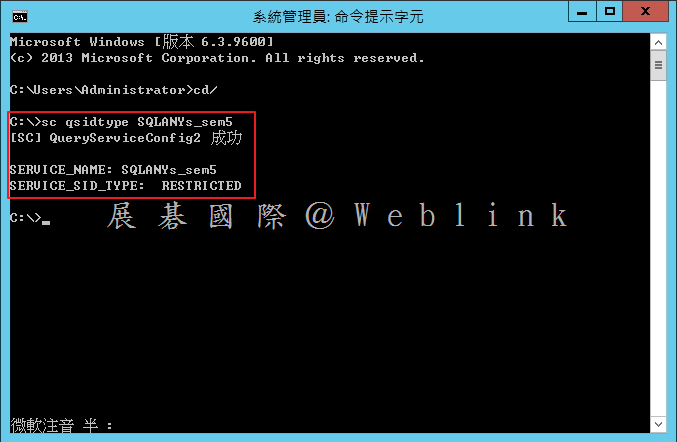
    3. Type sc qsidtype SQLANYs_sem5
    4. Verify that the following is returned:
      [SC] QueryServiceConfig2 SUCCESS
      SERVICE_NAME: SQLANYs_sem5
      SERVICE_SID_TYPE: RESTRICTED

    image

    Change the SID type of the SQLANYs_sem5 service to UNRESTRICTED
    1. On the computer where SEPM is installed, click Start > Run.
    2. Type CMD and click OK.
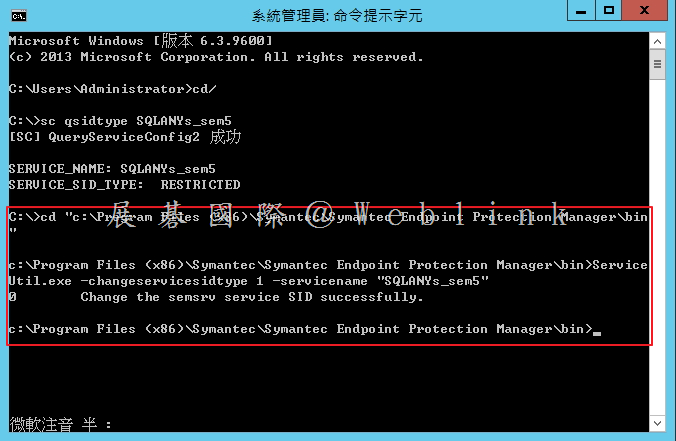
    3. Type cd “<Drive>:\Program Files (x86)\Symantec\Symantec Endpoint Protection Manager\bin”
      Note: Replace <Drive> with the drive that SEPM is installed on.
    4. Type ServiceUtil.exe -changeservicesidtype 1 -servicename “SQLANYs_sem5”
      Note: Running the command returns: “Change the semsrv service SID successfully.” The string “semsrv” is hardcoded, but we are changing the SID type for the SQLANYs_sem5 service. Please disregard that message.

    image

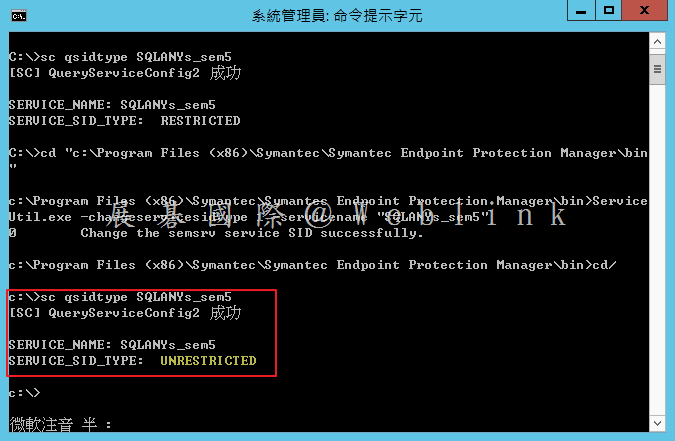
    Verify that the SID type has changed to UNRESTRICTED
    1. On the computer where SEPM is installed, click Start > Run.
    2. Type CMD and click OK.
    3. Type sc qsidtype SQLANYs_sem5

    image

    Start services

    After following the preceding steps, start the following services:

    • Symantec Embedded Database
    • Symantec Endpoint Protection Launcher
    • Symantec Endpoint Protection Manager
    • Symantec Endpoint Protection Manager Webserver


    https://support.symantec.com/en_US/article.TECH225587.html

  • 如何跳過Windows 8的登入時需要輸入密碼的動作,讓電腦開機後直接就到「桌面」的設定方法

    當我們在安裝Windows 8 的過程中會要求我們建立使用者的帳號及密碼。而當我們開機每次登入時便會要求我們輸入密碼(如下圖)。此過程立意為:資訊安全,但有時在家裡用,覺得還真的是蠻惱人的。我們可以透過下述的方式,讓系統自動登錄直接到桌面~

    clip_image002

    ①、按下『Windows鍵』進入Windows 8動態磚,將滑鼠移動到最右邊,此時會出現『搜尋』的畫面。我們直接於『空白的方框』內輸入「netplwiz」命令,並按下『Enter鍵』。

    clip_image004

    ②、接著在「使用者帳戶」對話框中,從「這台電腦的使用者(U)」區域中,選擇您需要自動登入的使用者名稱,通常在輸入『netplwiz』命令進入這個畫面時,狀態即會選擇在該使用者上(如圖中反灰色區塊),所以並不需要特別的去清單中選擇使用者。此時,請將「必須輸入使用者名稱和密碼,才能使用這台電腦(E)」的打勾「取消」掉,如下圖:

    clip_image006

    ③、接著會彈出一個「自動登入」的對話框,請在「密碼」及「確認密碼」中輸入您的密碼後,再按下『確定』,接著就可以重新開機,即可不需輸入密碼進入Win8 桌面。

    clip_image008

  • Unable to Encrypt Mac Systems on MAC Yosemite with Symantec Encryption Desktop 10.3.2 with error 116385 when Microsoft Office 2011 has been installed prior to Symantec Drive Encryption

    http://www.symantec.com/business/support/index?page=content&id=TECH229178

    Issue

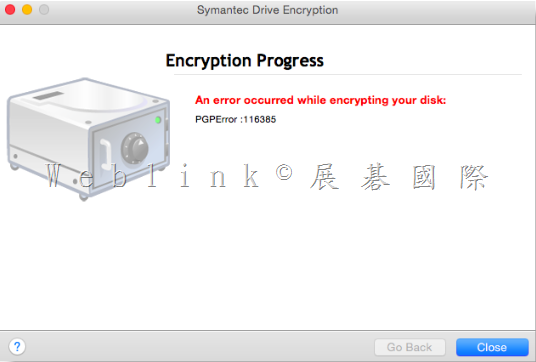
    In attempting to encrypt a Mac OS X 10.10 Yosemite system with Symantec Drive Encryption 10.3., the following error occurs:【PGPError :116385】

    Error

    “An error occurred while encrypting your disk:
    PGPError :116385”
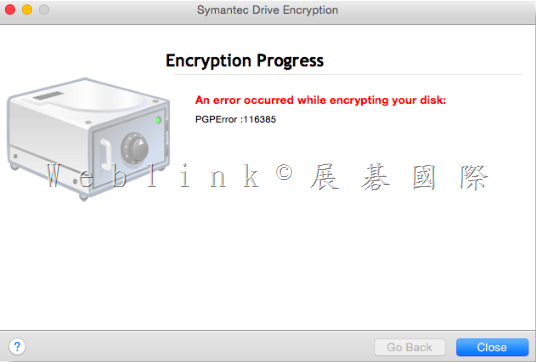
    image

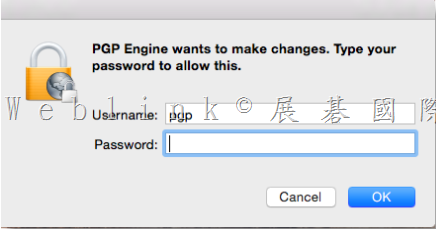
    In addition to receiving the above error, a prompt will continuously pop up indicating changes are needed.  When Symantec Drive Encryption has been installed properly, this pop up should never be displayed:
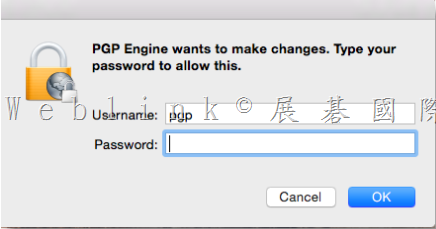
    image

    Cause

    The reason this happens is the permissions set for the /Library/PrivilegedHelperTools directory is not set according to what is needed for Symantec Drive Encryption 10.3.2.  This condition typically happens when Microsoft Office 2011 has been installed prior to Symantec Drive Encryption, but only on Yosemite.  Previous versions of Mac OS X (such as Mavericks), Office 2011 and Symantec Drive Encryption are unaffected by this issue.

    Solution

    The workaround for this is to run the following command via Terminal and then install Symantec Drive Encryption:

    sudo chown 0:wheel /Library/PrivilegedHelperTools/

    Once the above command is run, type in the Mac Admin password to allow the permission change to occur.  Once the command is completed successfully, the permissions for the group “wheel” will be assigned, instead of “Admin”.

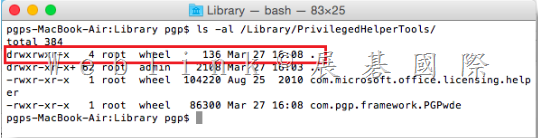
    To confirm the appropriate permissions have been set, run the following command:

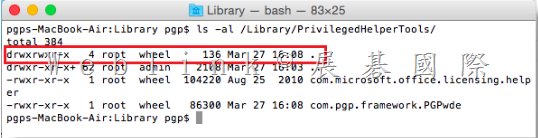
    ls -al /Library/PrivilegedHelperTools/

    The following permissions will be displayed to confirm the correct permissions have been set:
    image


    Running the following command can also confirm proper permissions have been set::

    stat /Library/PrivilegedHelperTools/

    image

    The permission of “root wheel” should be displayed as seen in the example.

    If this entry still says “root admin”, the command did not work.  Check the syntax and retry the command.

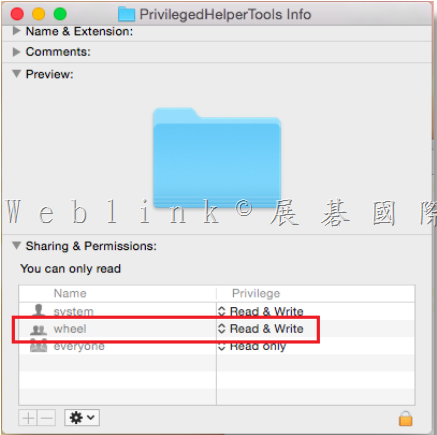
    Alternatively, checking the properties of the /Library/PrivilegedHelperTools/ properties via Finder will show the following correct permissions:
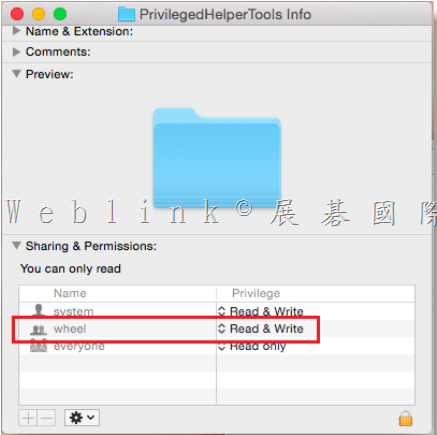
    image

    Once the permissions have been set properly, uninstall Symantec Drive Encryption if installed, and then install the application.  This time, Drive Encryption should succeed.

    Symantec Development is currently working into this for a final resolution.  Subscribe to this article for any future updates with this issue.