分類: Uncategorized

  • 影片老「造反」?手機錄影這樣拿才正確!

    當你用Android手機拍攝影片後,是否會發現,有時當影片上傳到電腦或是分享給其他朋友,播放時卻是上下顛倒的模樣?假如是拍照可利用看圖軟體把圖片做旋轉,但要旋轉影片可就沒這麼簡單了。手機影片上下顛倒,原因來自於拍攝時手持的方向。基本上來說,如果讓Home鍵保持在右手邊,那麼不管是手機或電腦上看都不會有「方向顛倒」的問題。相對來說;比起Android陣營,iPhone似乎沒啥避諱的,不管Home鍵朝左朝右都沒問題。image iPhone 5S

    這可不是手機本身設計高明與否、或是Android陣營少了什麼感測器之類的。以下是三星Note 2與iPhone 5、分別以Home鍵朝左、朝右的方向拍了短片,然後上傳到Windows電腦中看看影片是否會顛倒的統計表:

    clip_image002Android手機正向/橫向拍照測試

    clip_image003iPhone正向/橫向拍照測試

    是的。其實不管正拍、反拍,也不管是iPhone或Android,只要在手機上播放影片,就不會出現「影片顛倒」的問題。但若放到電腦上以Media Player或KM Player播放,Home鍵在左側拍攝時就會出現「影像顛倒」的狀況了。

    但要是改用iTunes(Quick Time)來播放,那麼不管正拍、反拍,都不會出現顛倒畫面。這也是為什麼iPhone的宣傳照可以不顧慮這樣的問題,因為使用者就算沒用Mac電腦也會在PC上安裝iTunes。反觀Android的使用者,或是用iPhone拍片傳給PC友人時,如果沒有「保持Home鍵在右方」的拍攝姿勢,那麼就會出現顛倒畫面了。

  • 無法直接在 DLP 12.5.1 的版本上,直接安裝 12.5 的 Langusge Pack

    Hotfix 下載…..【無法直接在 DLP 12.5.1 的版本上,直接安裝 12.5 的 Langusge Pack】

    You can download following files from URL

    https://fileshare.symantec.com/index.html

    Hotfix_12.5.1301.01001.zip

    README_Hotfix_12.5.1301.txt

    Your login credential are

    User ID: Allen_Chung

    Password: Welc0meAC!

    Instruction about how to apply this Hotfix is given in Readme_Hotfix_12.5.1301. txt file. This Hotfix is required to apply on Enforce server.

    If in case you have any query or concern about steps to apply Hotfix please let me know.

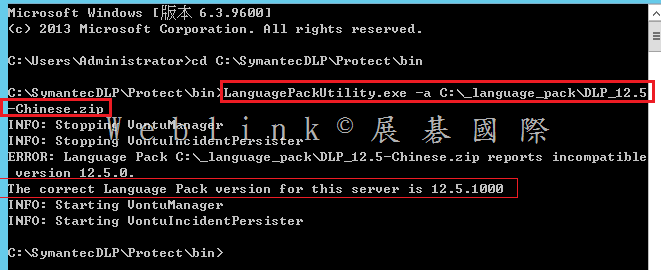
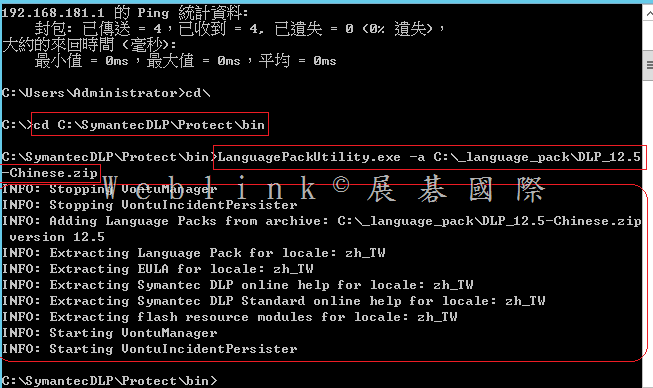
    無法直接在 DLP 12.5.1 的版本上,直接安裝 12.5 的 Langusge Pack,會出現以下的錯誤

    clip_image001

    必須要先向 Symantec Support 取得【Hotfix_12.5.1301.01001.zip】,解壓後取得【internationalization.jar】【LanguagePackUtility.exe】,然後參考【README_Hotfix_12_5_1301.txt】進行以下步驟

    Constraints:

    ————-

    The hotfix can be applied to DLP v12.5.1

    To Install:

    ———–

    On a Windows system:

    ——————–

    On the Manager:

    —————

    1. Unzip the hotfix binaries

    2. Shutdown all Vontu services in following order.

      1. Vontu Monitor Controller (if applicable)

      2. Vontu Incident Persister

      3. Vontu Manager

      4. Vontu Notifier

      5. Vontu Update (if necessary)

    3. Backup existing LanguagePackUtility.exe located in the directory %SYMANTEC_HOME%\Protect\bin

    4. Backup existing internationalization.jar located in the directory %SYMANTEC_HOME%\Protect\lib\jar

    5. Copy LanguagePackUtility.exe from the unzipped Hotfix folder to %SYMANTEC_HOME%\Protect\bin (overwrite existing file)

    6. Copy internationalization.jar to %SYMANTEC_HOME%\Protect\lib\jar (overwrite existing file)

    7. Start all Vontu services.

       1. Vontu Notifier

       2. Vontu Manager

       3. Vontu Incident Persister

       4. Vontu Monitor Controller (if applicable)

       5. Vontu Update (if necessary)

    On a Linux System:

    ——————

    On the Manager:

    —————

    1. Unzip the Hotfix binaries

    2. Shutdown all the Vontu Services.

    3. Backup existing LanguagePackUtility located in the directory %SYMANTEC_HOME%\Protect\bin

    4. Backup existing internationalization.jar located in the directory %SYMANTEC_HOME%\Protect\lib\jar

    5. Copy LanguagePackUtility from the unzipped Hotfix folder to %SYMANTEC_HOME%\Protect\bin (overwrite existing file)

    6. Copy internationalization.jar to %SYMANTEC_HOME%\Protect\lib\jar (overwrite existing file)

    7. Start all Vontu services.

    clip_image002

  • 覺得更新或下載APP時都要打密碼很麻煩嗎?快使用TOUCH ID來代替密碼吧!

    每次在更新或是下載APP時總是要輸入密碼才能下載或更新。

    雖然了解到這是APPLE的一番好意,但由於APPLE要求的密碼格式嚴謹輸入起來也不是很方便。

    關於這樣的聲音APPLE聽到了~

    從iPhone 5S開始便能以TOUCH ID來代替密碼。

    這樣不論是要解鎖或是要下載APP都不用再打那長得要命的密碼啦~

    來,事不宜遲。請參照以下步驟來設定吧。

    ①、首先點選『設定』。

    clip_image002

    ②、再來點選『Touch ID與密碼』

    clip_image004

    ③、把『iTunes 與 Store』這個功能打開就可以啦~

    clip_image006

    只有開啟這個功能之後,往後在安裝APP時只要將手指放到Touch ID上;就可以開始下載囉~

    clip_image008

    但是切記還是一定要牢牢的記住密碼!!!

    畢竟這只是方便下載APP,若是有其他的問題還是會要求完整的APPLE ID帳號密碼的。

  • Symantec DCS 如何 Apply Common Configs

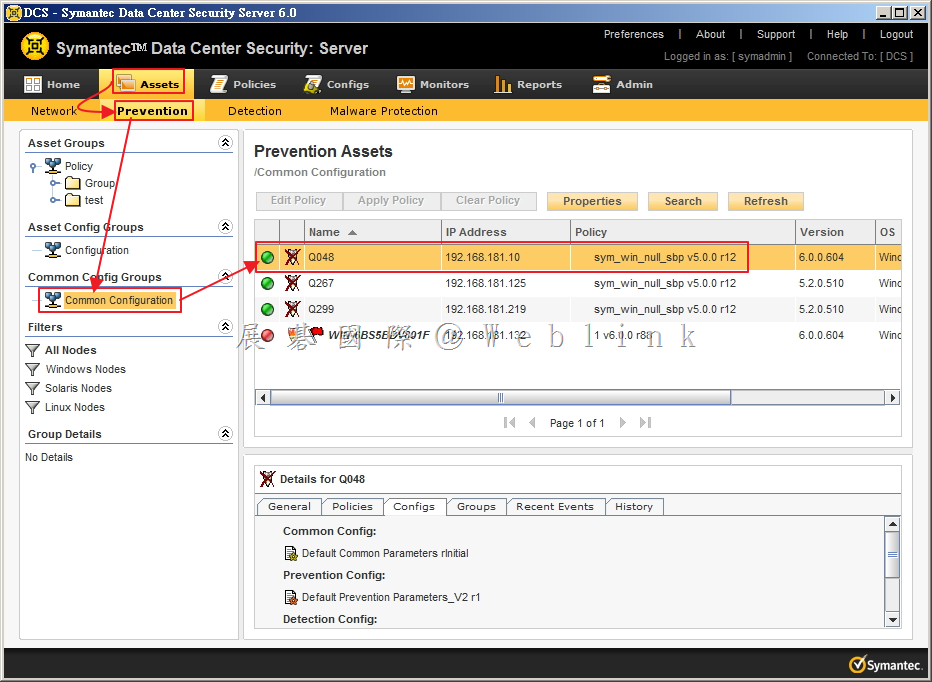
    1. 選取「Assets」→「Prevention」,接著選取「Common Configuration」,然後點選任一 Agent。

    image

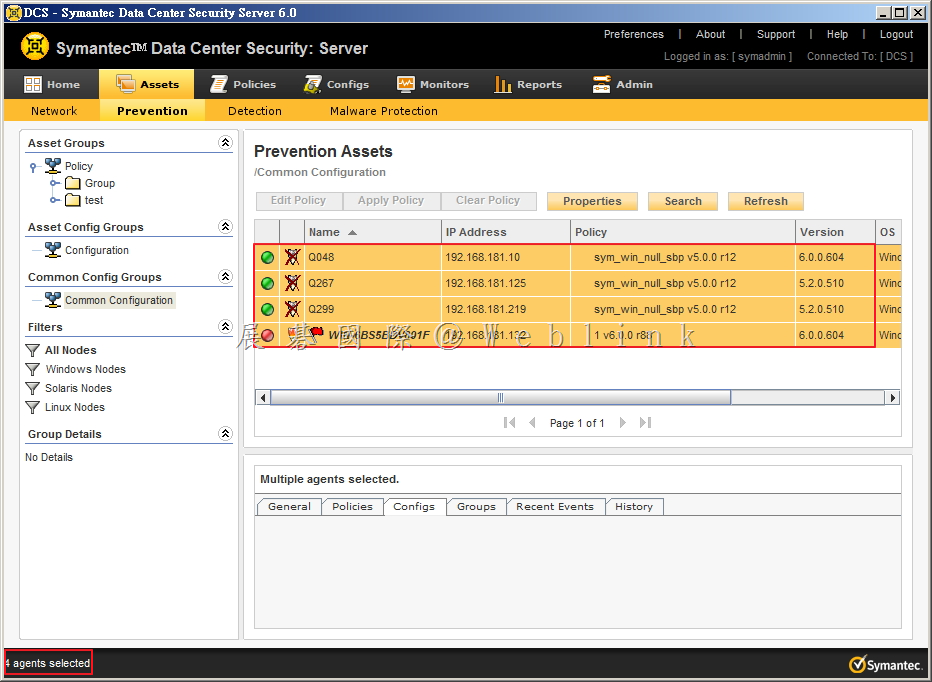
    2. 以鍵盤輸入「Ctrl」+「A」,此時會看到右下角出現「4 agents selected」,或指定欲Apply之Agent。

    image

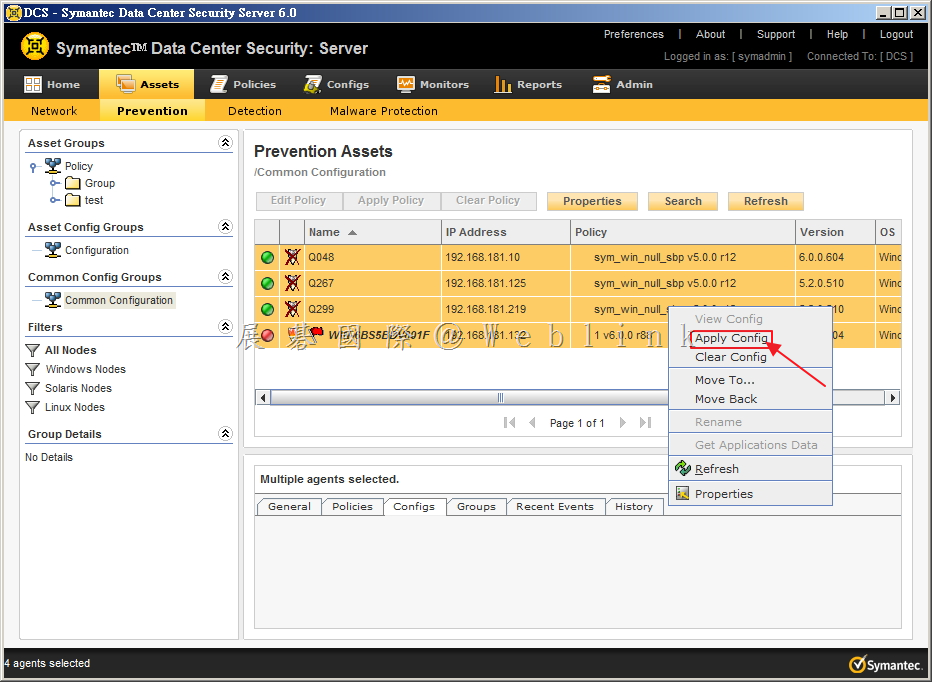
    3. 以滑鼠右鍵點選,出現選單後,選取「Apply Config」。

    image

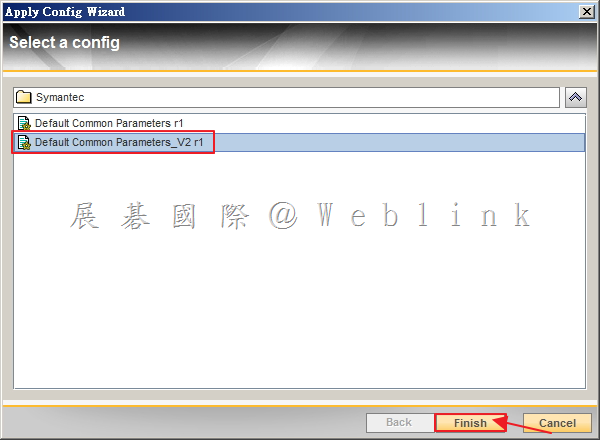
    4. 選取修改過的 Config,接著點選「Finish」。

    image

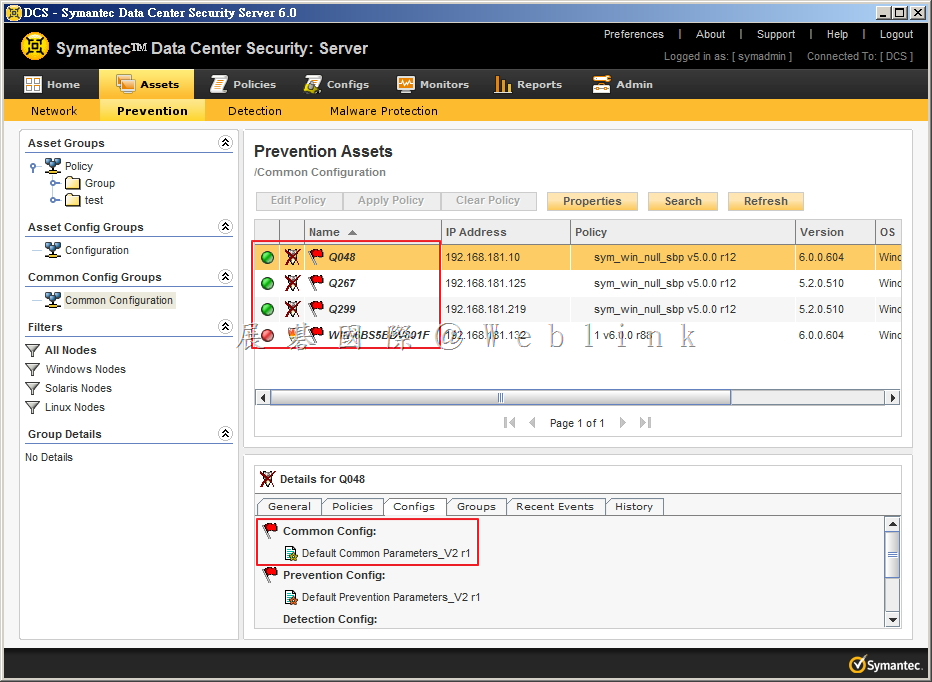
    5. 可以看到剛剛所套用「Config」的 Agent,待 Config 生效。

    image

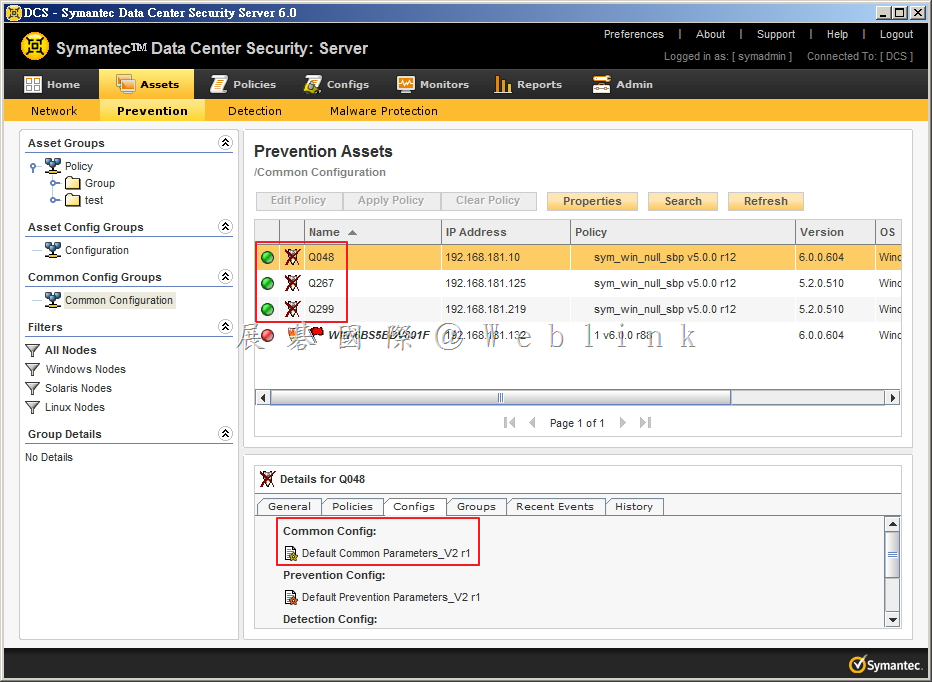
    6. 除 Offline 之 Agent 外,其餘皆生效。

    image

  • PGP for Mac client 安裝前確認事項

    1.Boot Camp check
    We must check whether the Mac client use the Boot Came dual boot,otherwise it may boot fail.

    2.Check Mac FileVault
    We must check whether the Mac client use the FileVault encryption,otherwise it will not see any disk can encrypted by PGP.(Error 69749 or 69700)

    3.Disable CoreStorage if the Mac is 10.10.x We must disable CoreStorage on Mac 10.10,otherwise the Mac client cannot be recovered.(Error -12000)
    http://w3c.weblink.com.tw/symantec/?p=7864

    4.Run command (sudo chown 0:wheel /Library/PrivilegedHelperTools/) change the permission for group wheel instead of Admin Attempting to encrypt a Mac OS X 10.10.x Yosemite system with Symantec Drive Encryption 10.3 if Microsoft Office 2011 has been installed prior to Symantec Drive Encryption,it will get the error.(Error :116385)
    http://www.symantec.com/business/support/index?page=content&id=TECH229178

  • Symantec DCS 如何 Apply Pevention Configs

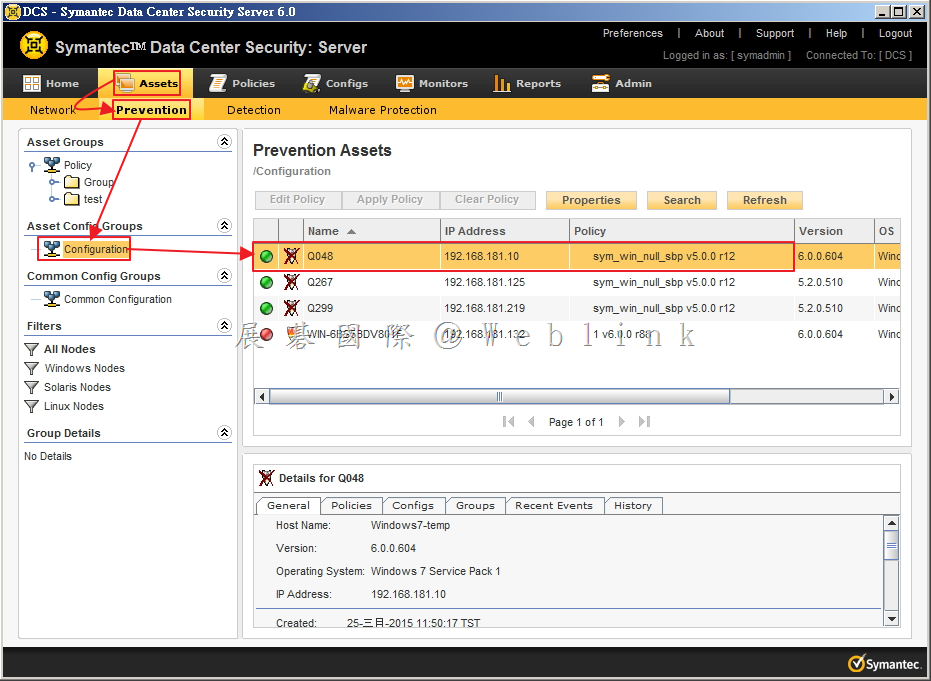
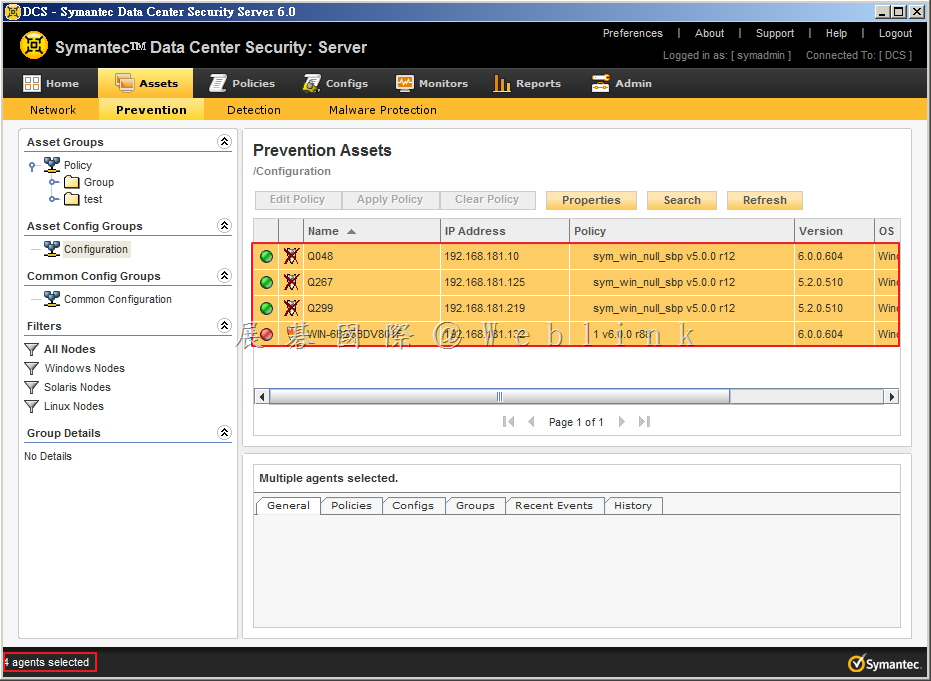
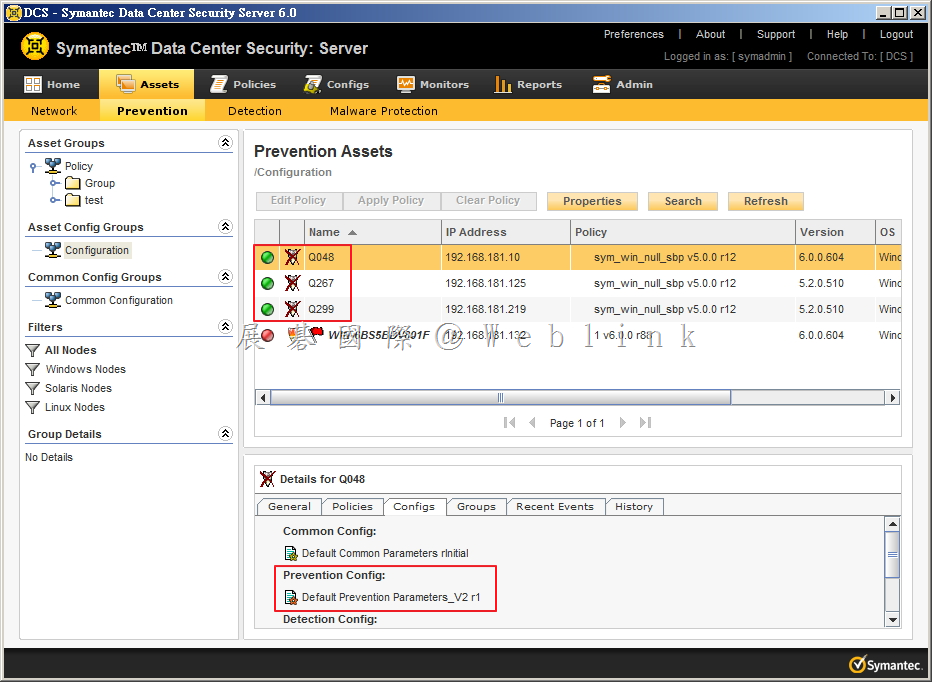
    1. 選取「Assets」→「Prevention」,接著選取「Configuration」,然後點選任一 Agent。

    image

    2. 以鍵盤輸入「Ctrl」+「A」,此時會看到右下角出現「4 agents selected」,或指定欲 Apply 之 Agent。

    image

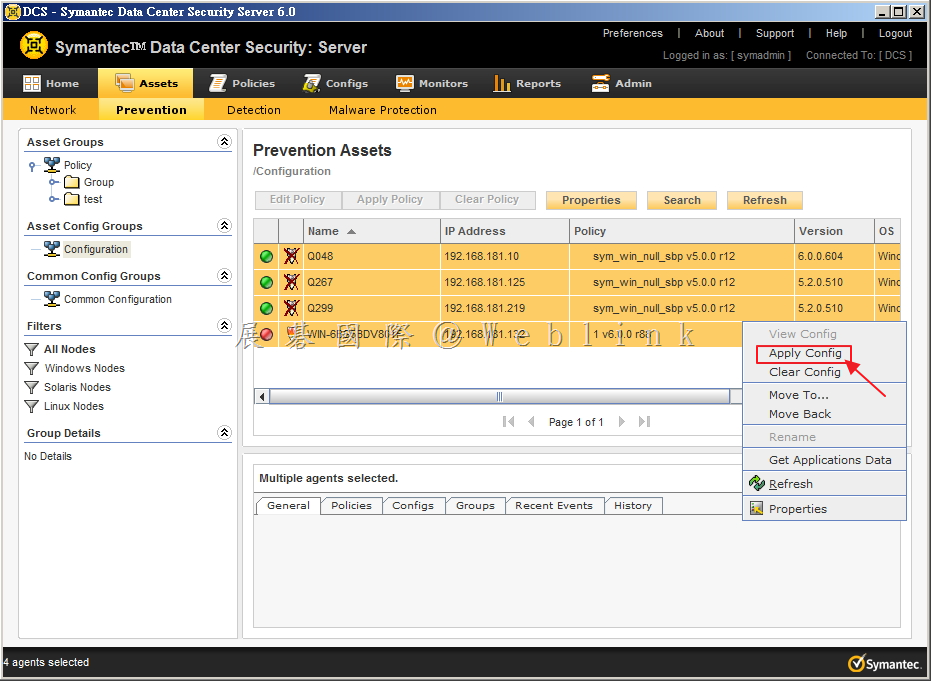
    3.  以滑鼠右鍵點選,出現選單後,選取「Apply Config」。

    image

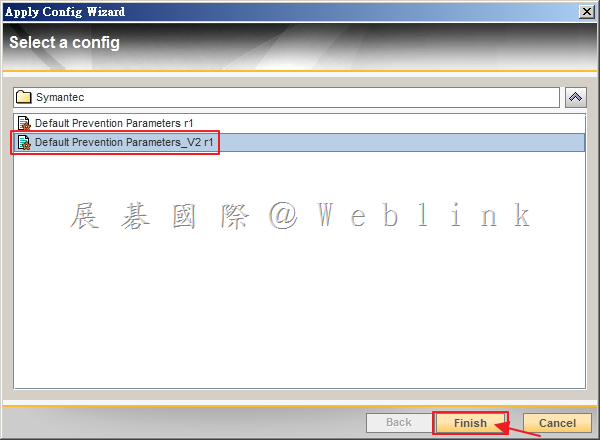
    4. 選取修改過的 Config,接著點選「Finish」。

    image

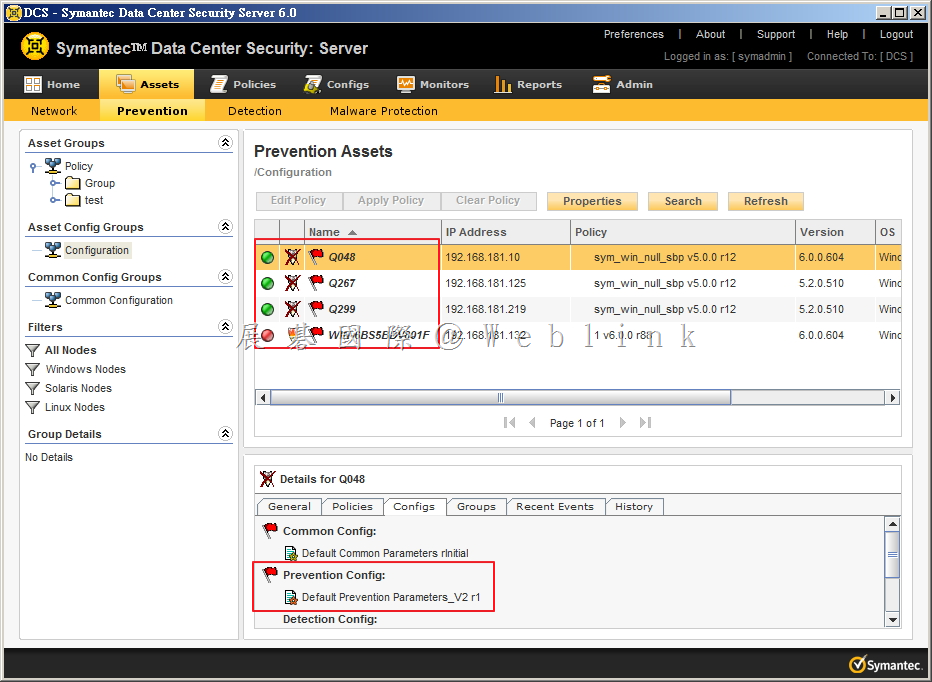
    5. 可以看到剛剛所套用「Config」的 Agent,待 Config 生效。

    image

    6. 除 Offline 之 Agent 外,其餘皆生效。

    image

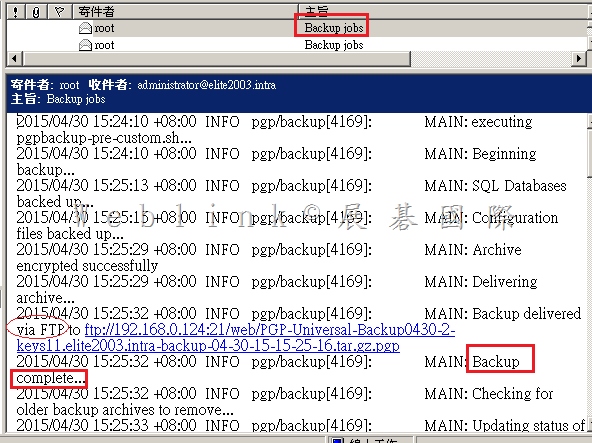
  • 【如何收到 PGP Universal Server Backup log 的 mail 通知】

    【如何收到 PGP Universal Server Backup log 的 mail 通知】

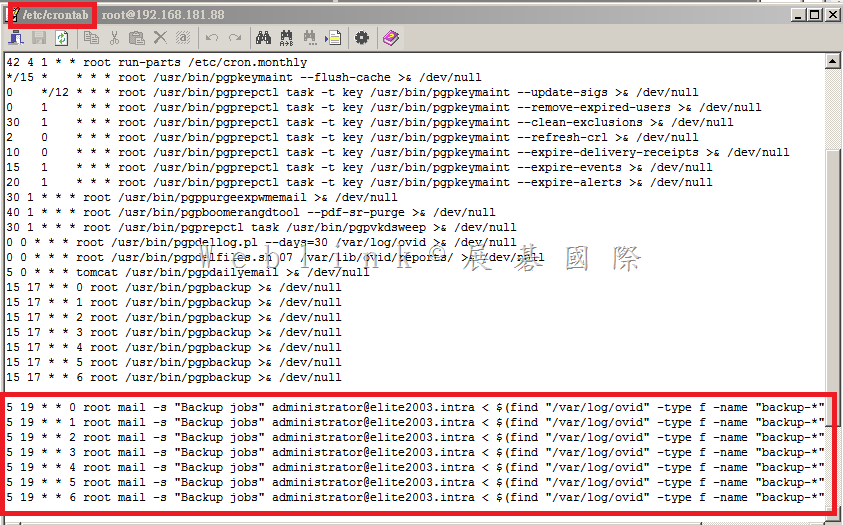
    請編輯 /etc/crontab

    在 crontab 加入以下命令

    這樣每天 19:05 administrator@elite2003.intra 會收到當日的 Backup log

    5 19 * * 0 root mail -s “PGP Backup jobsadministrator@elite2003.intra < $(find “/var/log/ovid” -type f -name “backup-*”|sort -r|head -n1)

    5 19 * * 1 root mail -s “PGP Backup jobs” administrator@elite2003.intra < $(find “/var/log/ovid” -type f -name “backup-*”|sort -r|head -n1)

    5 19 * * 2 root mail -s “PGP Backup jobs” administrator@elite2003.intra < $(find “/var/log/ovid” -type f -name “backup-*”|sort -r|head -n1)

    5 19 * * 3 root mail -s “PGP Backup jobs” administrator@elite2003.intra < $(find “/var/log/ovid” -type f -name “backup-*”|sort -r|head -n1)

    5 19 * * 4 root mail -s “PGP Backup jobs” administrator@elite2003.intra < $(find “/var/log/ovid” -type f -name “backup-*”|sort -r|head -n1)

    5 19 * * 5 root mail -s “PGP Backup jobs” administrator@elite2003.intra < $(find “/var/log/ovid” -type f -name “backup-*”|sort -r|head -n1)

    5 19 * * 6 root mail -s “PGP Backup jobs” administrator@elite2003.intra < $(find “/var/log/ovid” -type f -name “backup-*”|sort -r|head -n1)

    clip_image001

    clip_image002

  • Symantec DCS 如何啟用 Prevention Policy 以 Block 不允許之行為

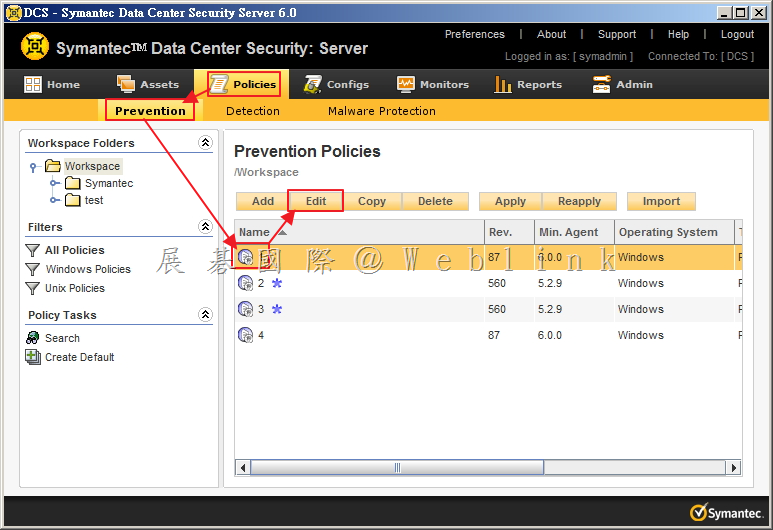
    1. 選取「Policies」→「Prevention」,接著點選欲啟用的 Policy,接著點選「Edit」。

    image

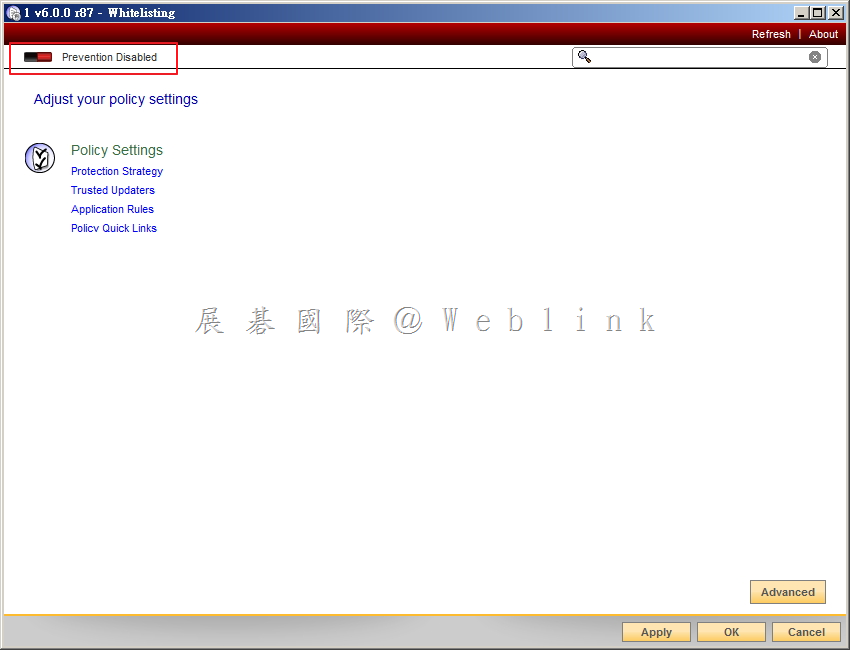
    2. 可以從左上角看到「Prevention Disabled」字樣,並且為紅色。(代表目前 Prevention Policy 尚未啟用,僅會記錄 Event 並不會 Block)。

    image

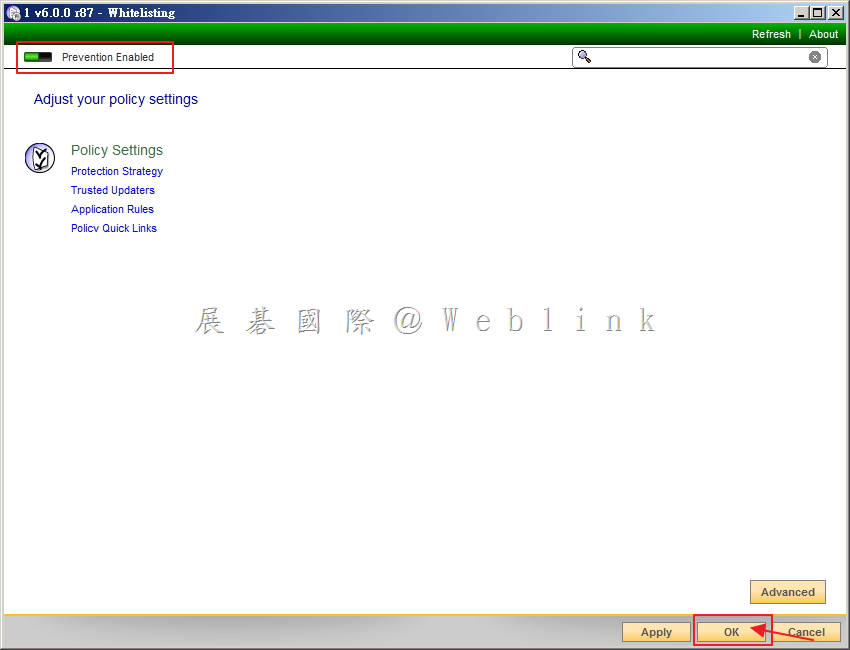
    3. 點選左上角按鈕,此時字樣會變更為「Prevention Enabled」,並且為綠色,最後點選「OK」。(代表目前 Prevention Policy 已啟用,會記錄 Event 並且 Block)

    image

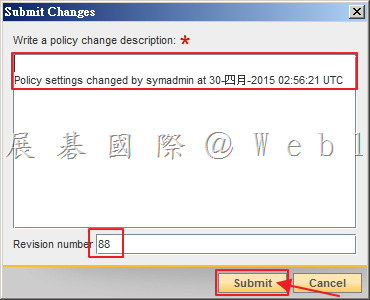
    4. 輸入此次 Policy 修改說明,確定版號,接著點選「Submit」。

    image

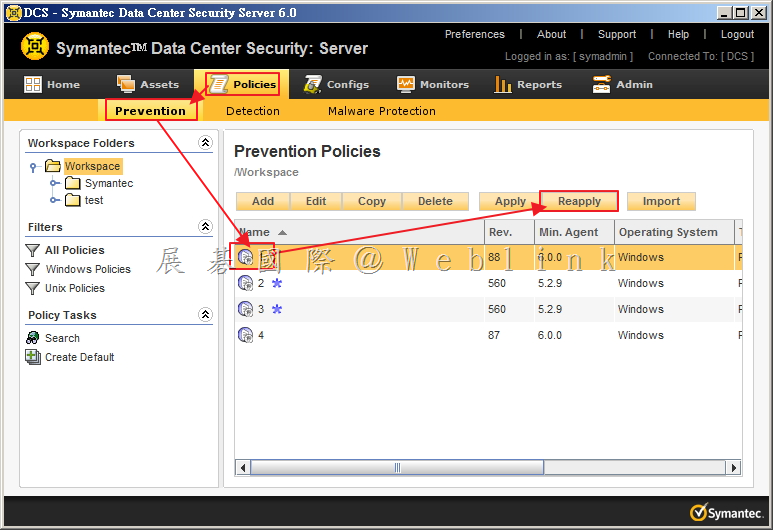
    5. 選取「Policies」→「Prevention」,接著點選剛剛已啟用的 Policy,接著點選「Reapply」。

    image

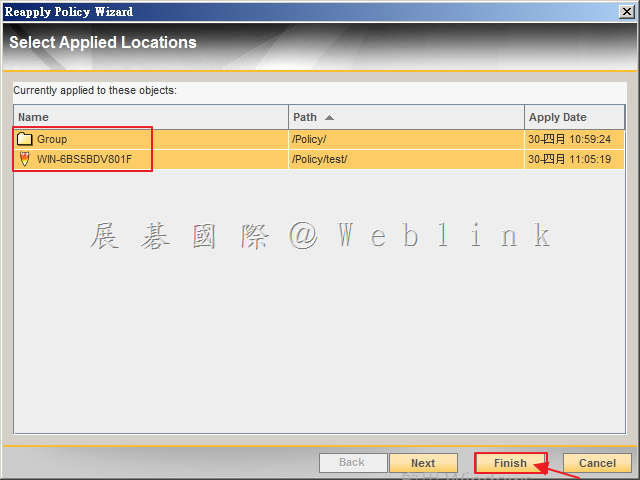
    6. 可看到目前已 Apply 該 Prevention Policy 的 Group 或是 Agent,最後點選「Finish」,即可將該 Prevention Policy 套用至所選取的 Group 或是 Agent。

    image

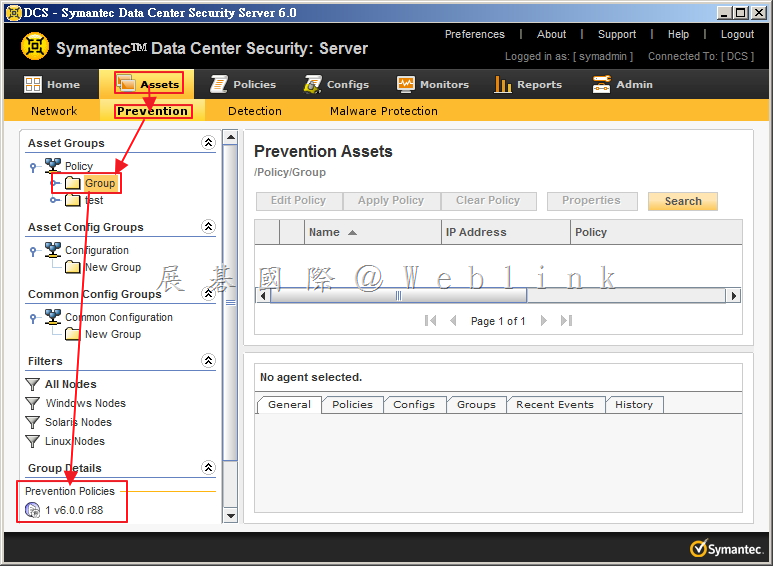
    7. 選取「Assets」→「Prevention」,接著點選剛剛已套用 Prevention Policy 的 Group 可看到 「Prevention Policies」的部份有剛剛套用的已啟用的 Policy。

    image

  • 1.【如何確認 PGP 硬碟加密目前是採用 DES-128 或 DES-256】2. 【若將 PGP 硬碟加密政策由目前的 DES-256 改為 DES-128,該硬碟是否需先行解密後再進行加密】

    【如何確認 PGP 硬碟加密目前是採用 DES-128 或 DES-256】

    【若將 PGP 硬碟加密政策由目前的 DES-256 改為 DES-128,該硬碟是否需先行解密後再進行加密】

    以上問題可參考官網 https://support.symantec.com/en_US/article.TECH224377.html

    【如何確認 PGP 硬碟加密目前是採用 DES-128 或 DES-256】

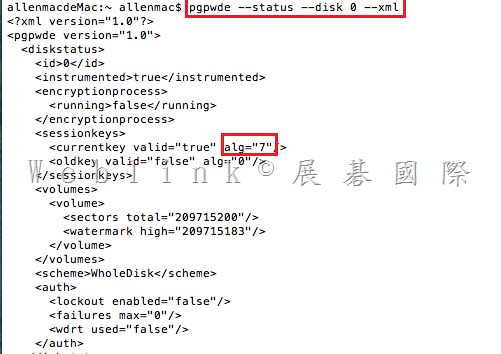
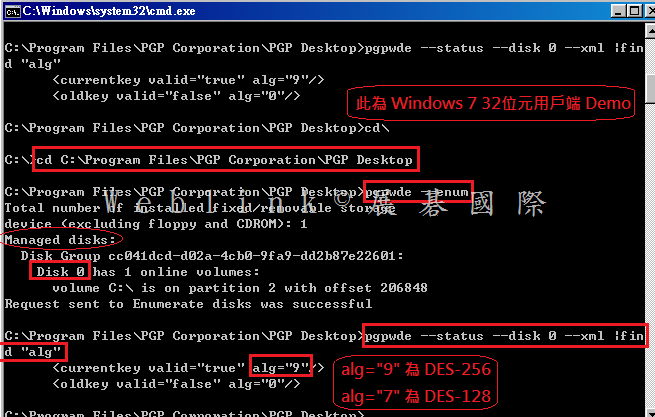
    請參考下圖於用戶端執行以下指令:

    【64 位元電腦請切換至以下目錄】

    C:\Program Files (x86)\PGP Corporation\PGP Desktop

    【32 位元電腦請切換至以下目錄】

    C:\Program Files\PGP Corporation\PGP Desktop

    再執行

    pgpwde –status –disk 0 –xml |find “alg”

    ※ for Mac → 執行 pgpwde –status –disk 0 –xml

    image

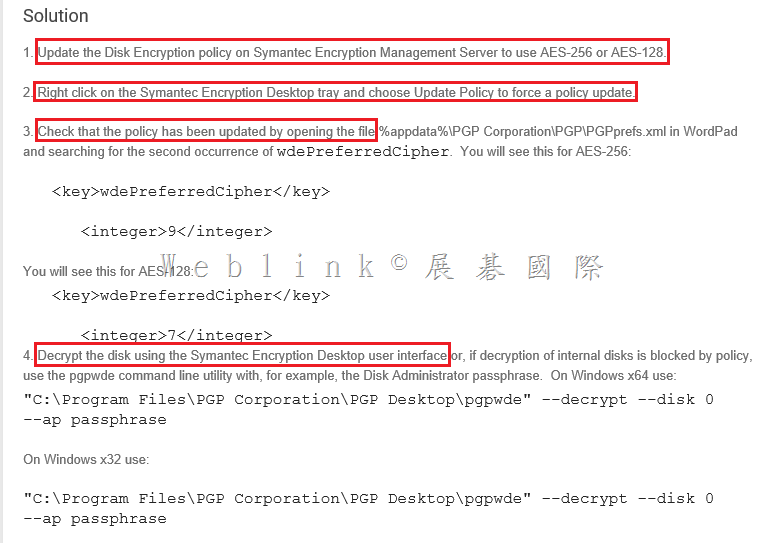
    在輸出的結果中,找到以下數值,若 alg=”9” 則該硬碟採用 DES-256 加密,若 alg=”7” 則該硬碟採用 DES-128 加密

    <currentkey valid=”true” alg=”9”>

    clip_image001

    【若將 PGP 硬碟加密政策由目前的 DES-256 改為 DES-128,該硬碟是否需先行解密後再進行加密】

    是的,請參考下方程序

    clip_image002

    clip_image003

  • Symantec DCS 如何設定刪除 Event

    1. 如何刪除未來新增的 Events?

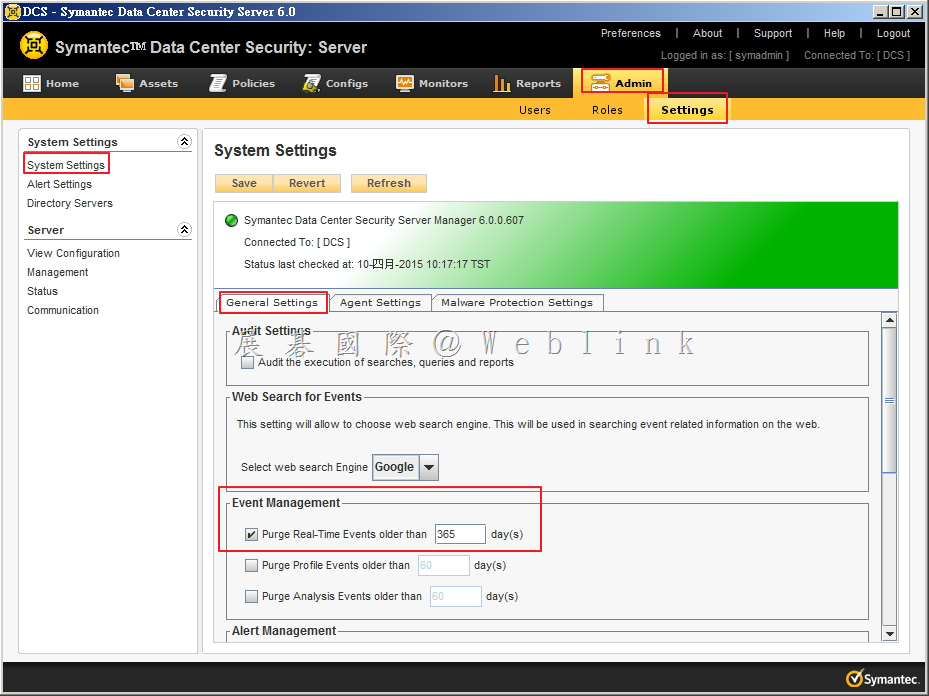
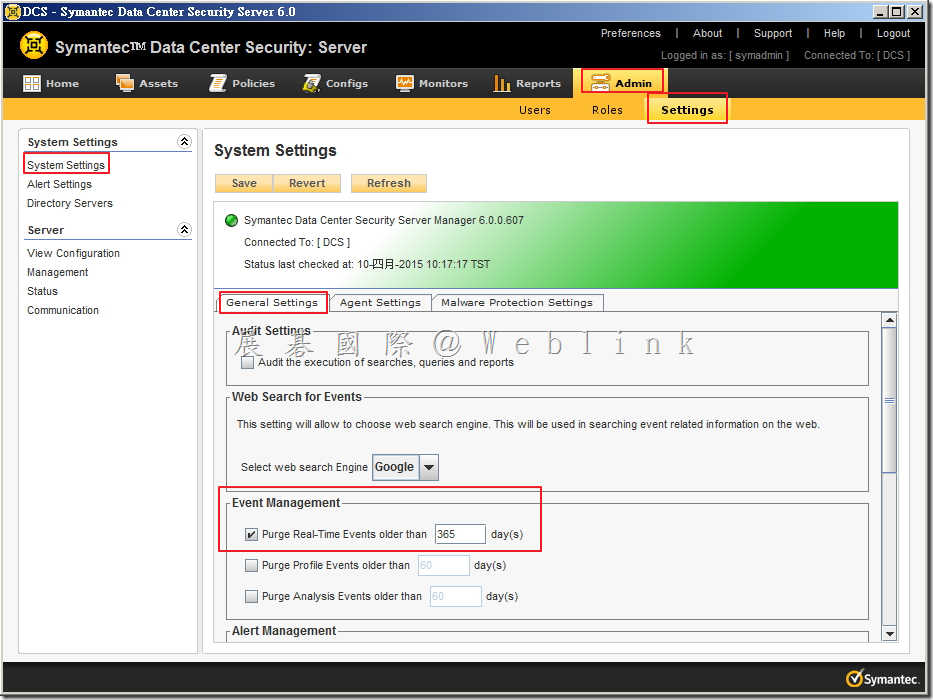
    Ans:選取「Admin」頁籤,選取「Settings」,左邊選單選取「System Settings」,接著選取中間「General Settings」,可看到 Event Management,預設並無勾選設任何設定,請勾選「Purge Real-Time Events older than □ day(s)」。
    image

    ※ 這裡勾選後,從設定之後的 Events,將依照設定的天數留存,但舊的 Events 並不會一併刪除!

    2. 如何刪除已存在的 Events?

    Ans:

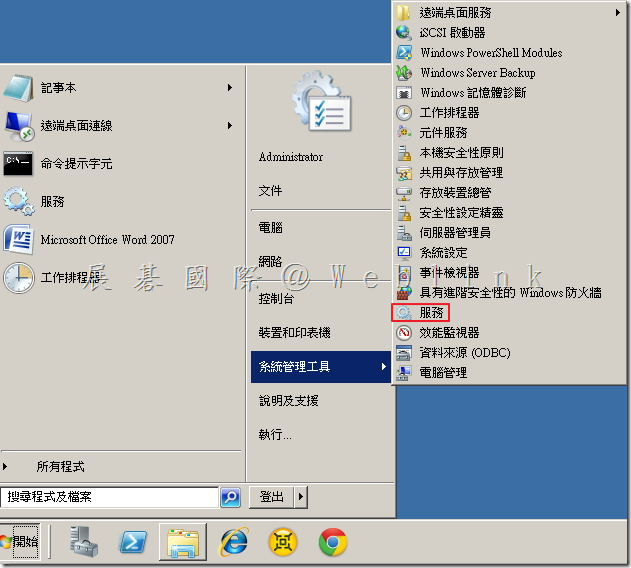
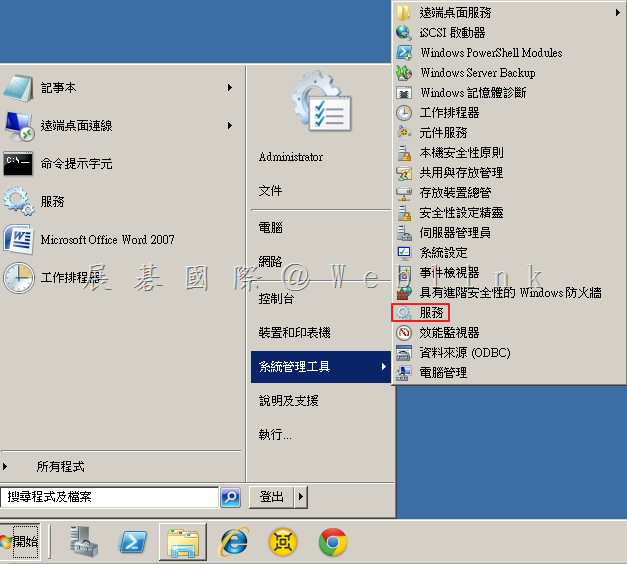
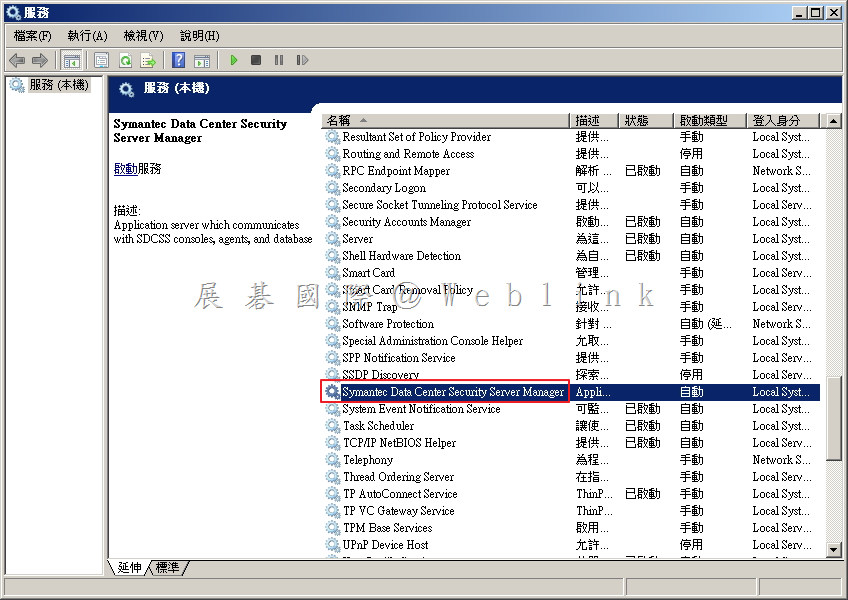
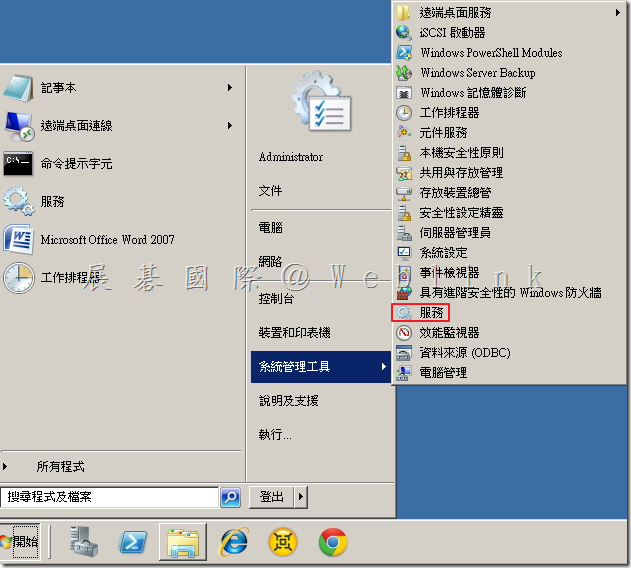
    2.1「開始」→「系統管理工具」→「服務」。
    image

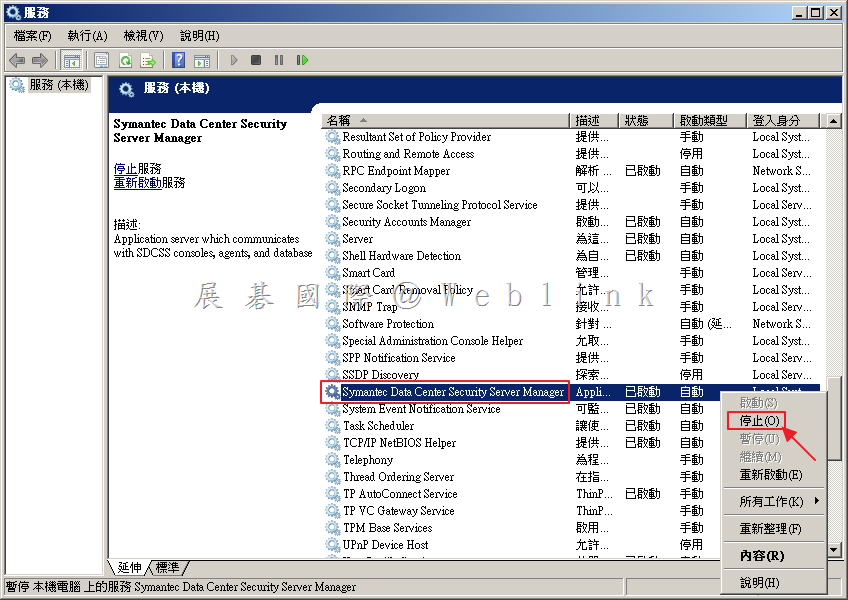
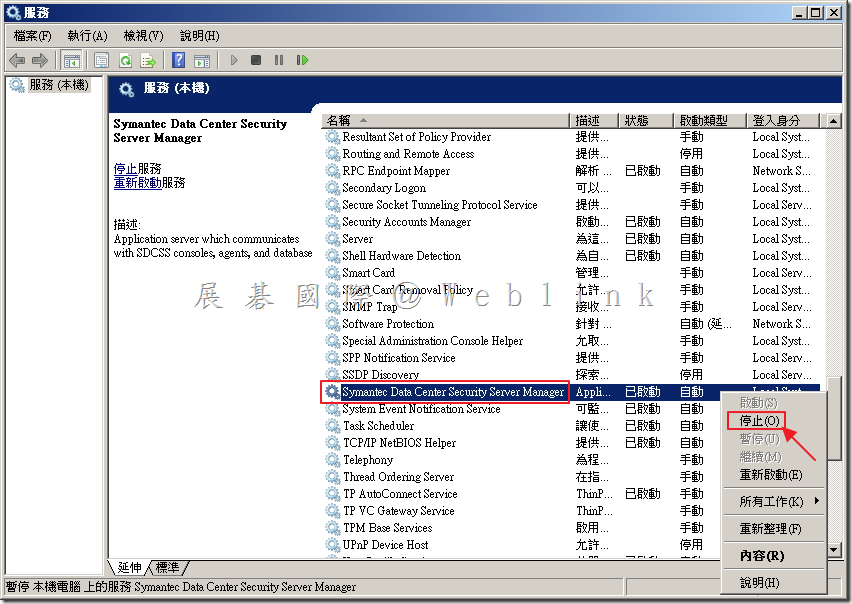
    2.2 將「Symantec Data Center Security Server Manager」服務停止。
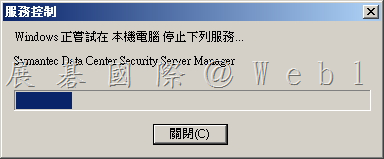
    image

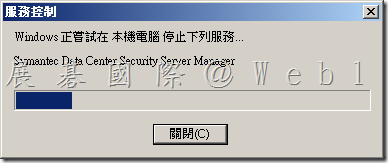
    2.3 「Symantec Data Center Security Server Manager」服務停止中。
    image

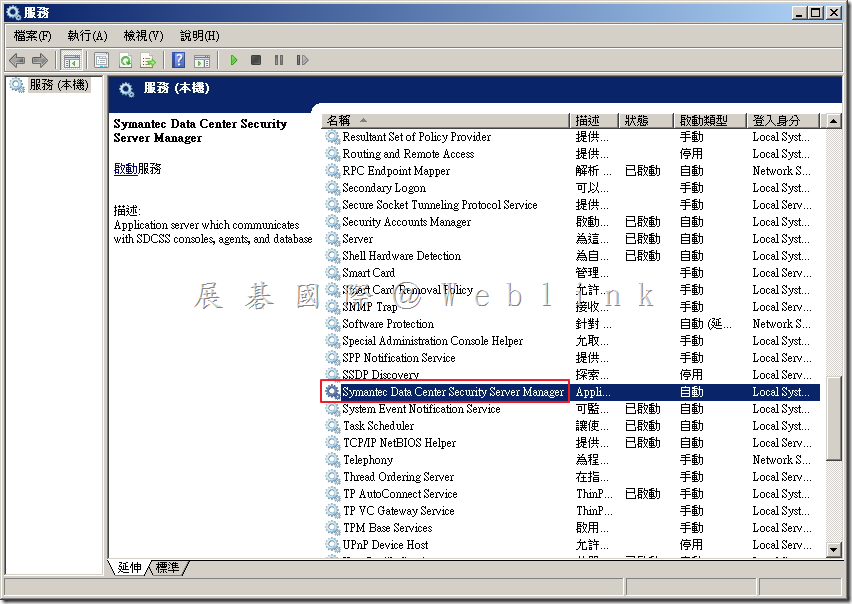
    2.4 以滑鼠左鍵點擊兩下「Symantec Data Center Security Server Manager」服務。
    image

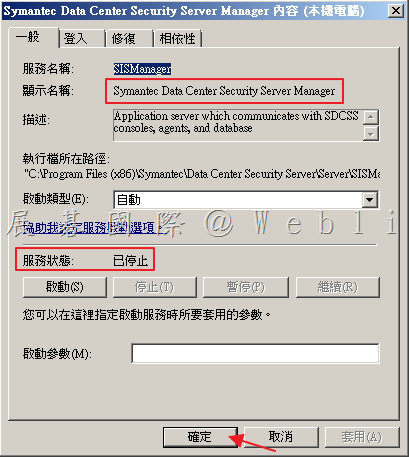
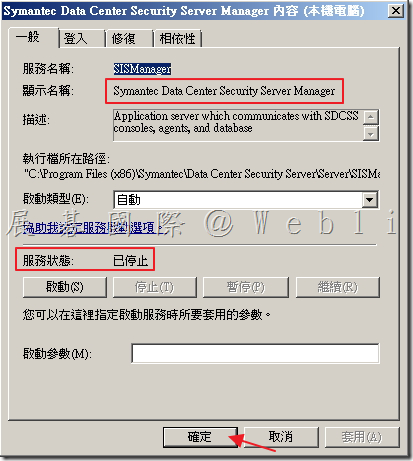
    2.5 確定「Symantec Data Center Security Server Manager」服務狀態:已停止,接著點選「確定」。
    image

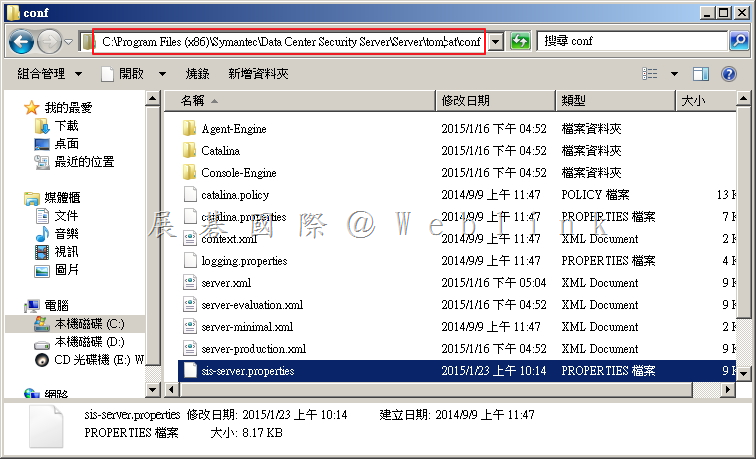
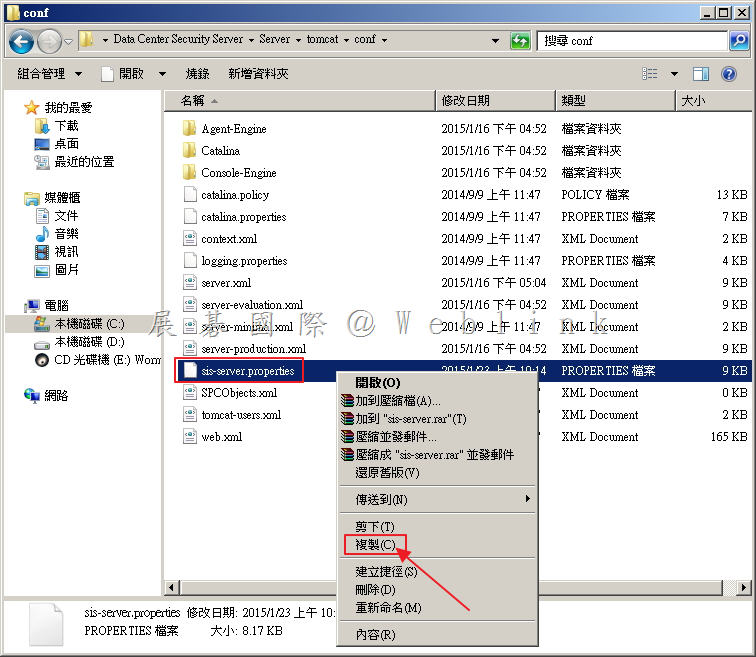
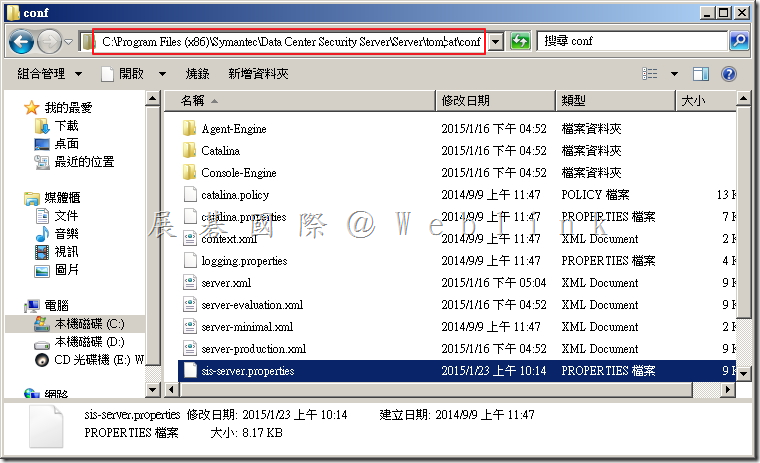
    2.6 開啟資料夾「C:\Program Files (x86)\Symantec\Data Center Security Server\Server\tomcat\conf」。
    image

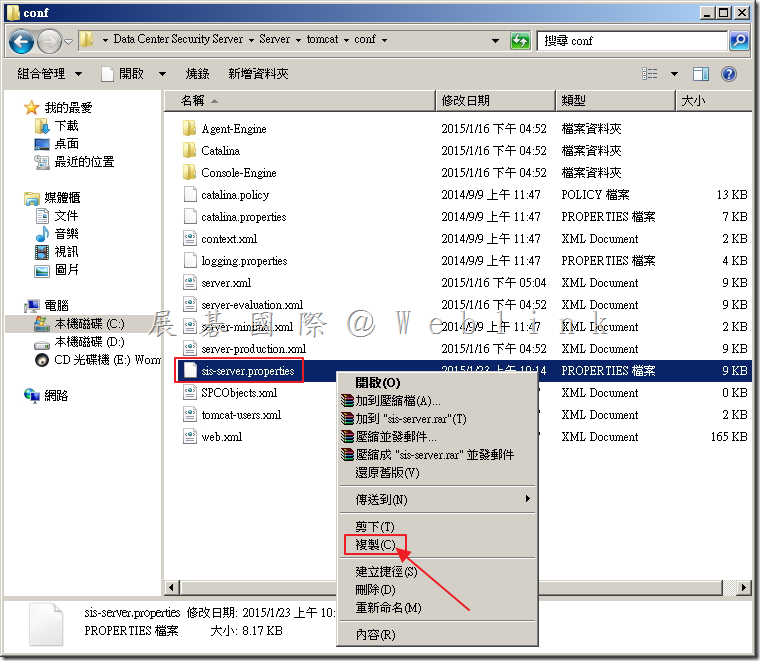
    2.7 備份設定檔,以滑鼠左鍵點選檔案「sis-server.properties」,使用鍵盤選取「Ctrl c」。
    image

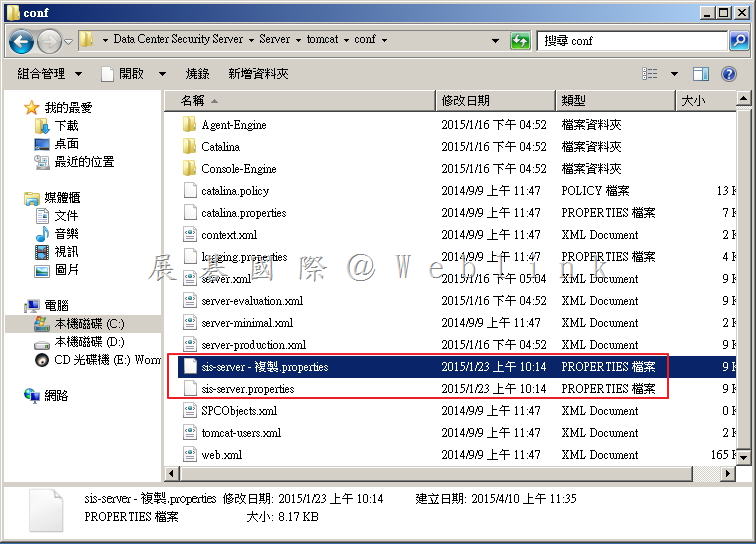
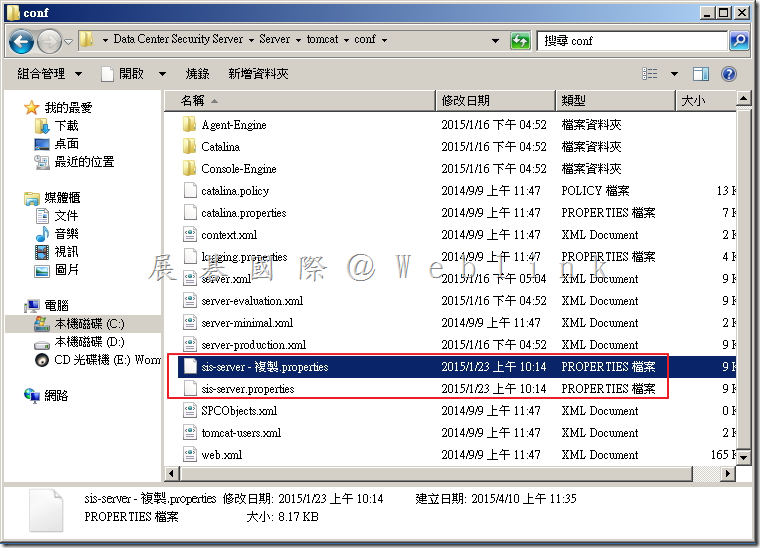
    2.8 備份設定檔,以滑鼠左鍵點選檔案「sis-server.properties」,使用鍵盤選取「Ctrl v」。
    image

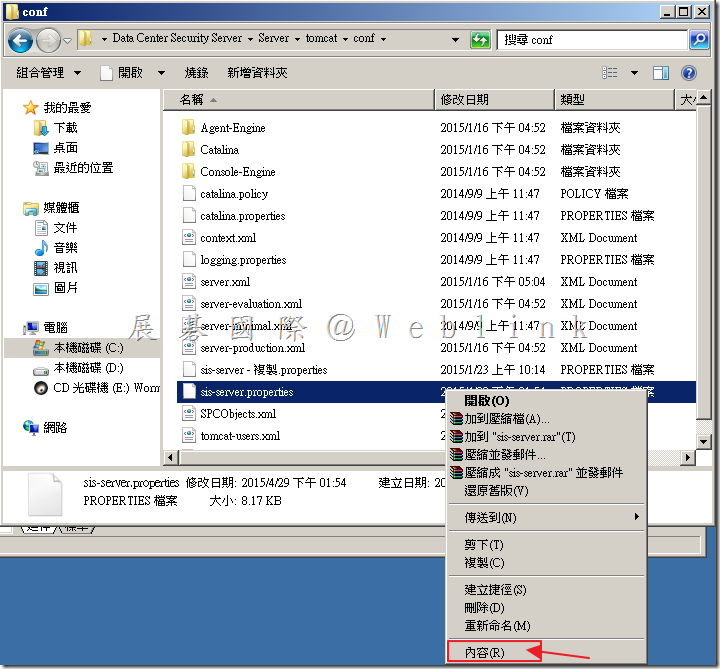
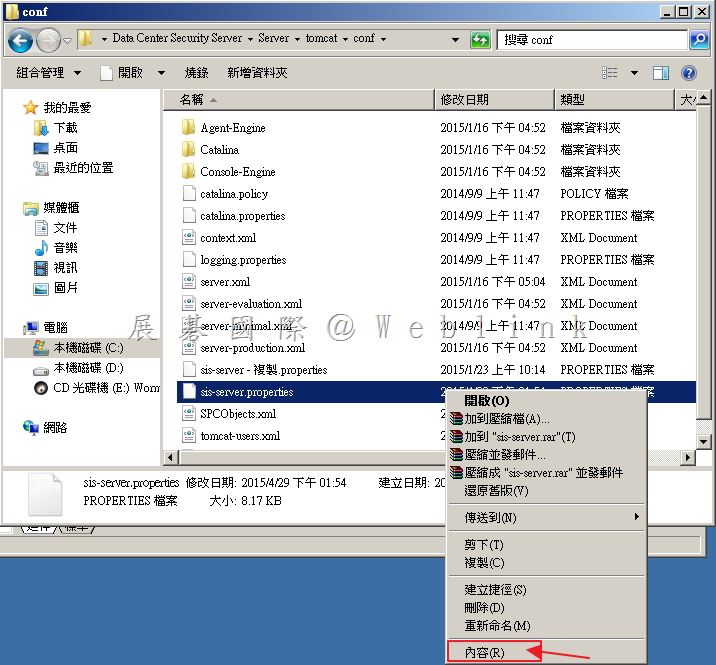
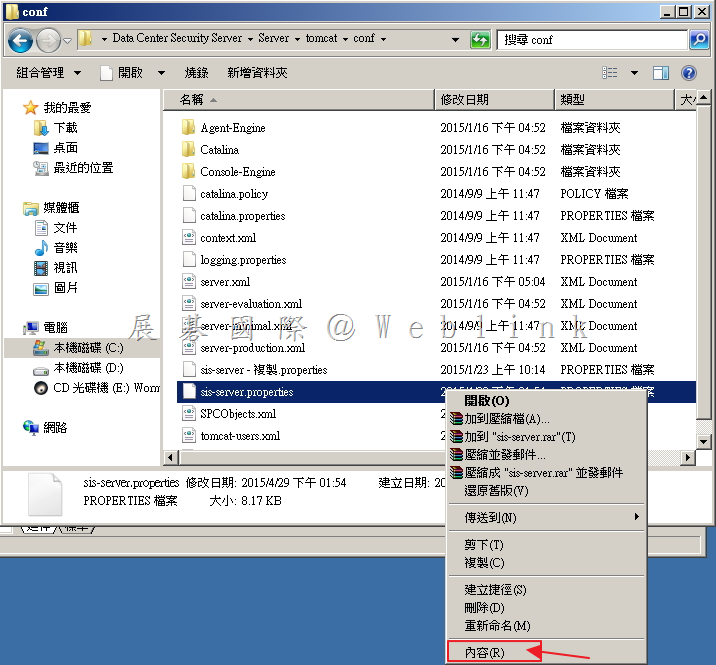
    2.9 以滑鼠右鍵點選「sis-server.properties」。

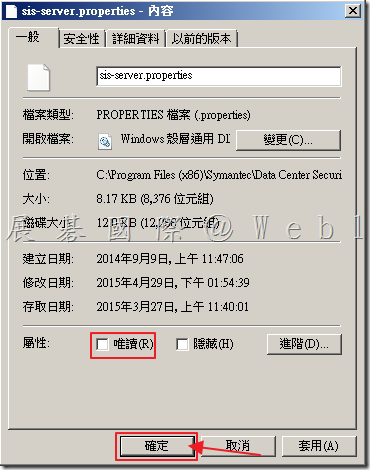
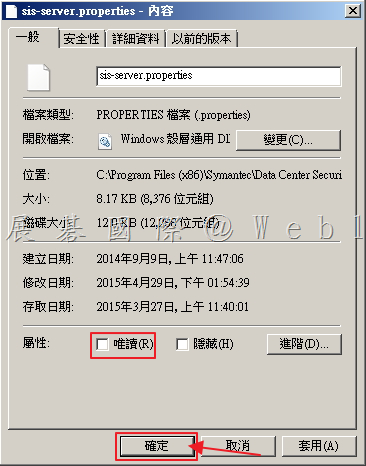
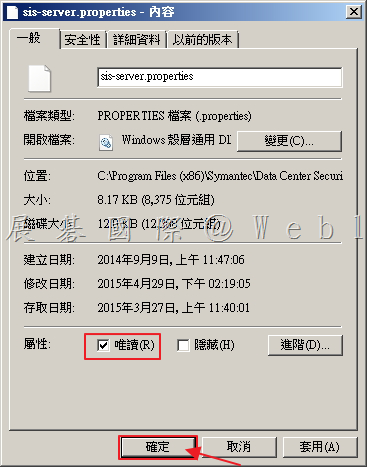
    image

    2.10 取消「唯讀」選項,接著點選「確定」。

    image

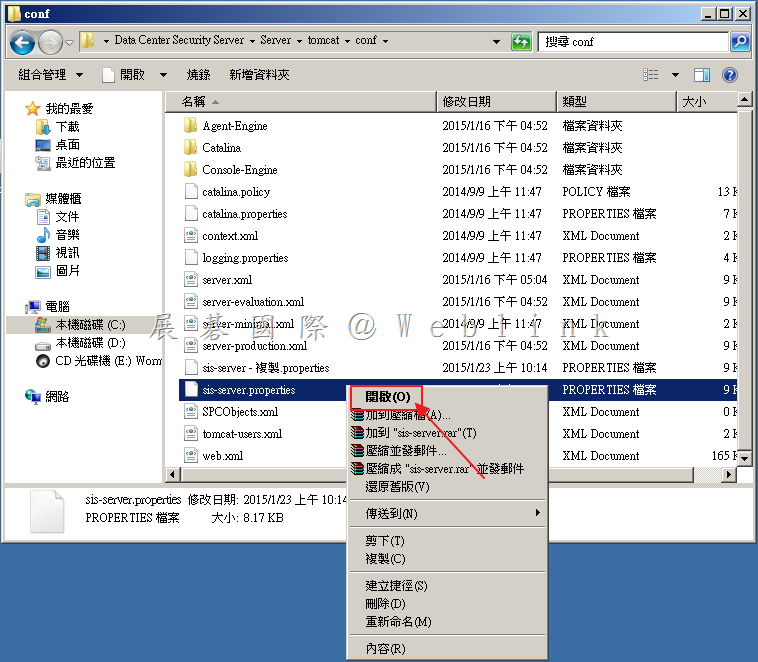
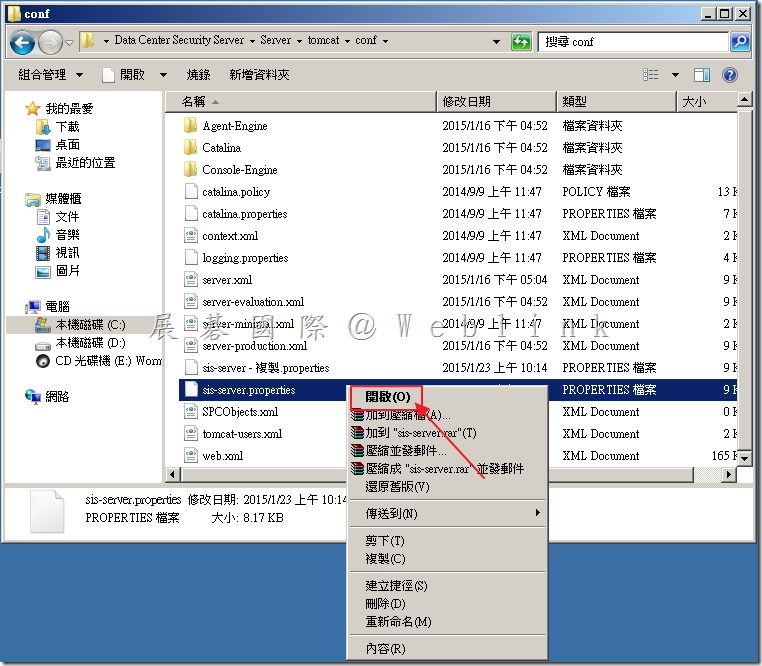
    2.11 以滑鼠右鍵點選「sis-server.properties」,選取「開啟」。
    image

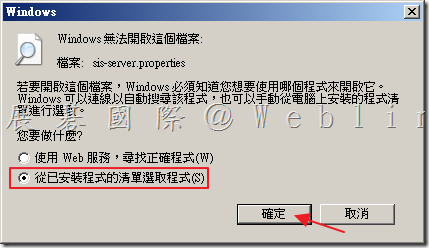
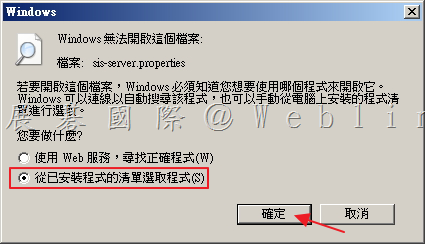
    2.12 點選「從以安裝程式的清單選取程式(S),接著點選「確定」。

    image

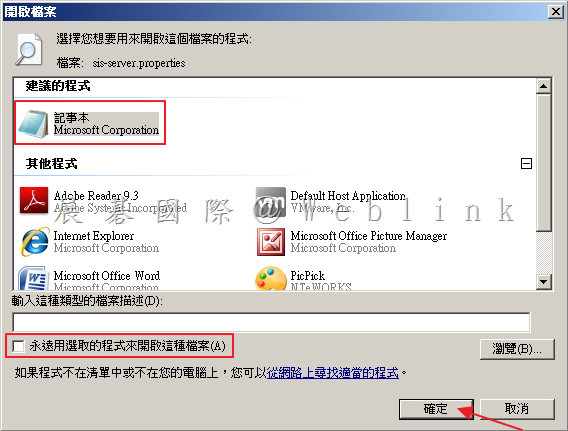
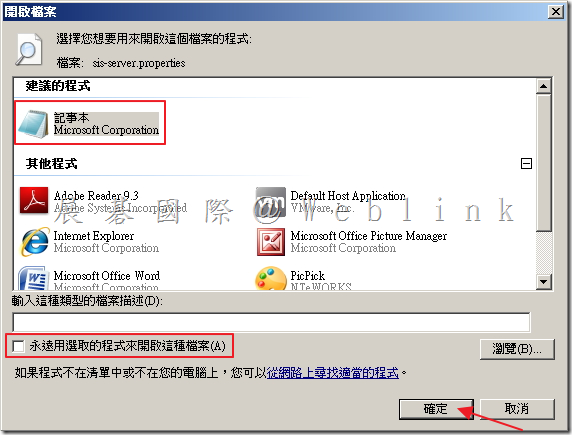
    2.13 選取「記事本」,取消「永遠用選取的程式來開啟這種檔案(A)」,接著點選「確定」。
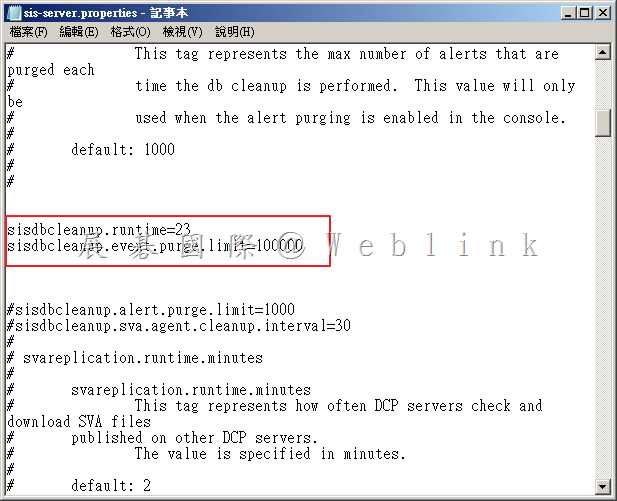
    image

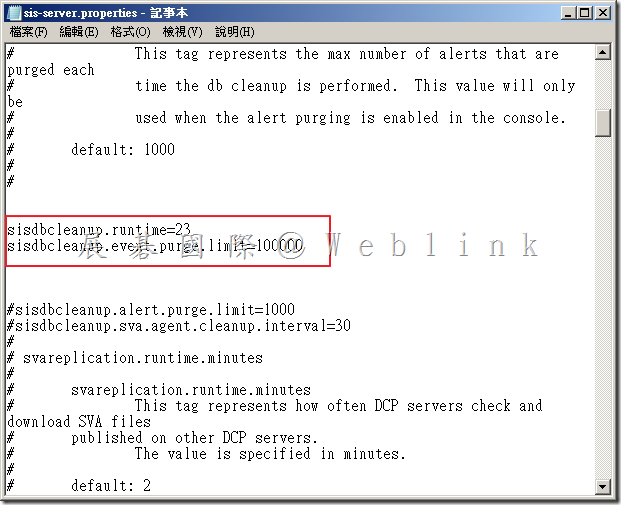
    2.14 找到  #sisdbcleanup.runtime=23
                     #sisdbcleanup.event.purge.limit=100000

            並將 # 刪除
    image

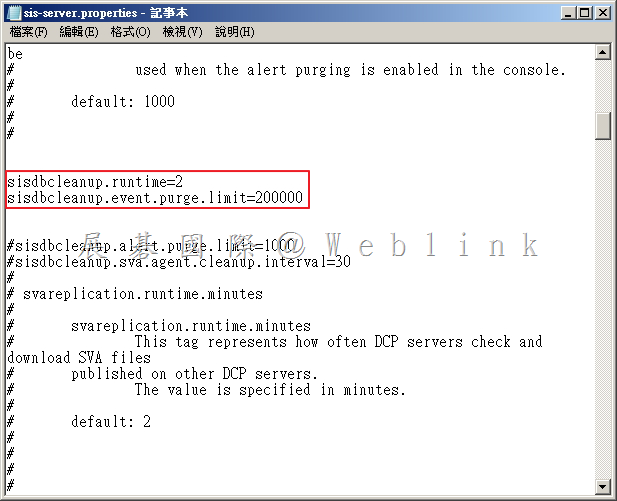
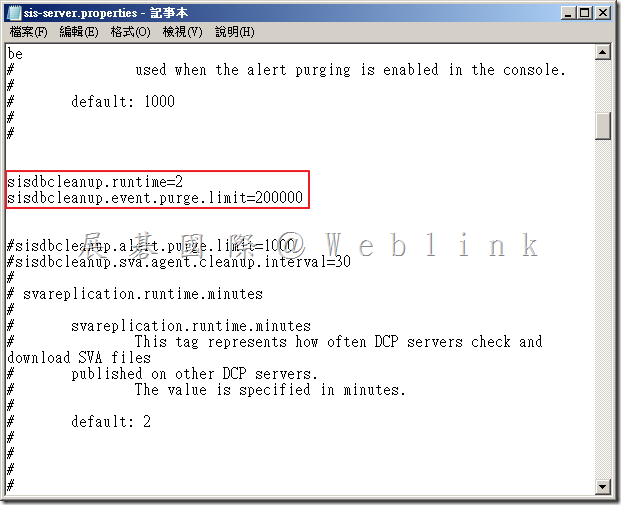
    2.15  修改 sisdbcleanup.runtime=23、sisdbcleanup.event.purge.limit=100000,其中sisdbcleanup.runtime =「每幾個小時執行(預設為 24 小時)」;sisdbcleanup.event.purge.limit=「一次刪除的資料數量」(建議數量設定為 20 萬)。

    假設:每兩小時執行,一次刪除 200000 筆資料。
    image

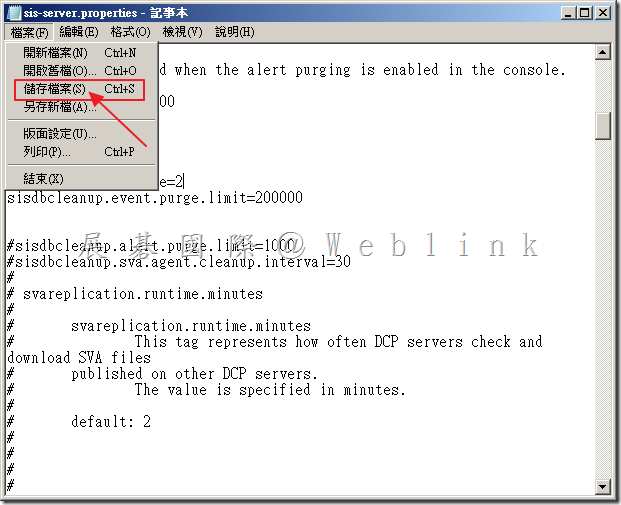
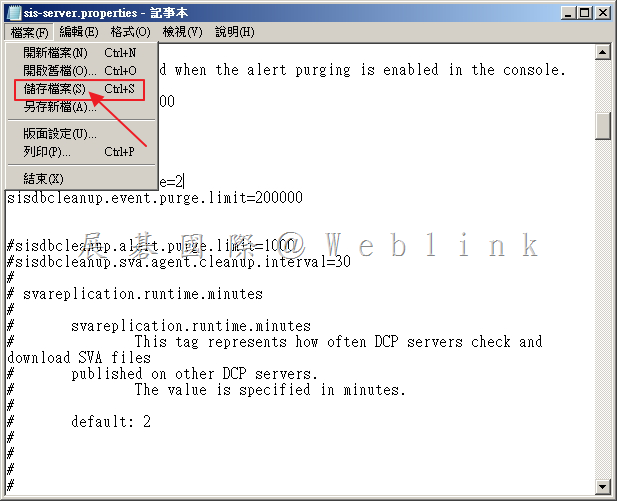
    2.16  儲存檔案,接著關閉記事本。

    image

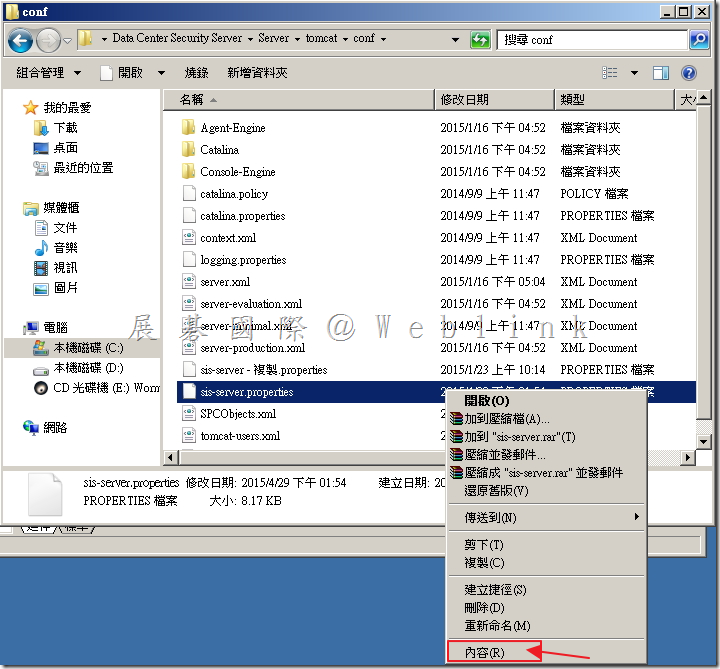
    2.17 以滑鼠右鍵點選「sis-server.properties」,選取「開啟」。
    image

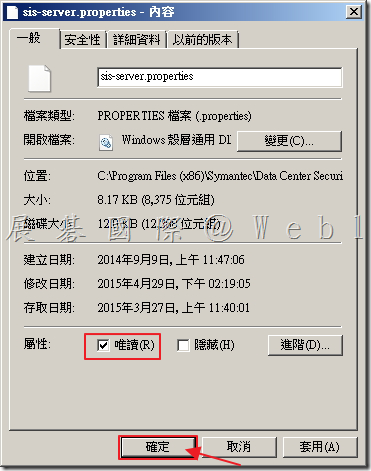
    2.18 勾選「唯讀」選項,接著點選「確定」。

    image

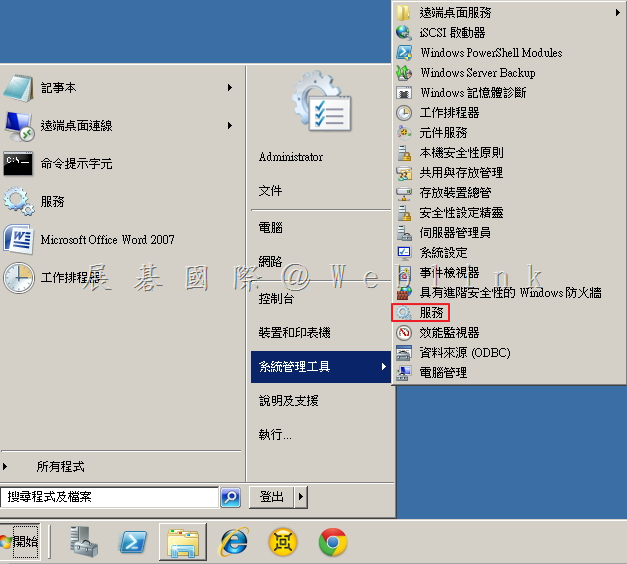
    2.19 「開始」→「系統管理工具」→「服務」。

    image

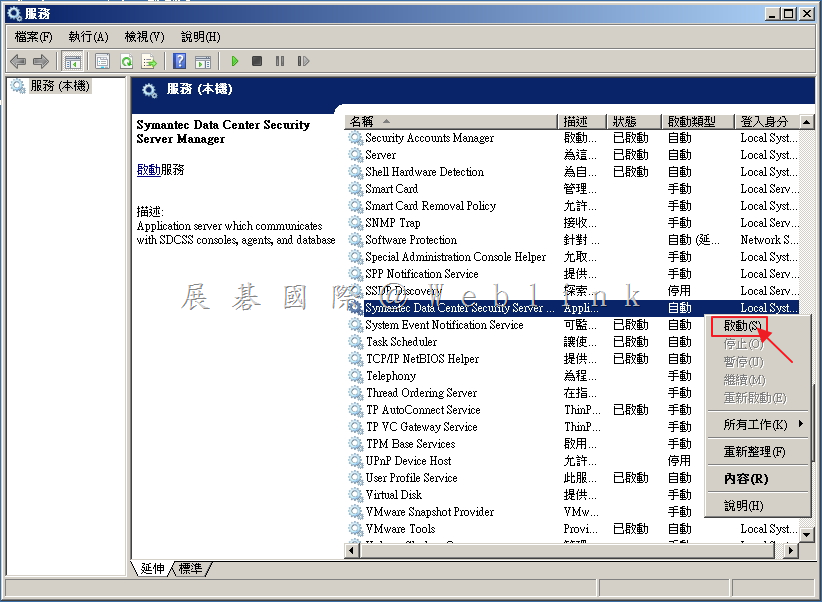
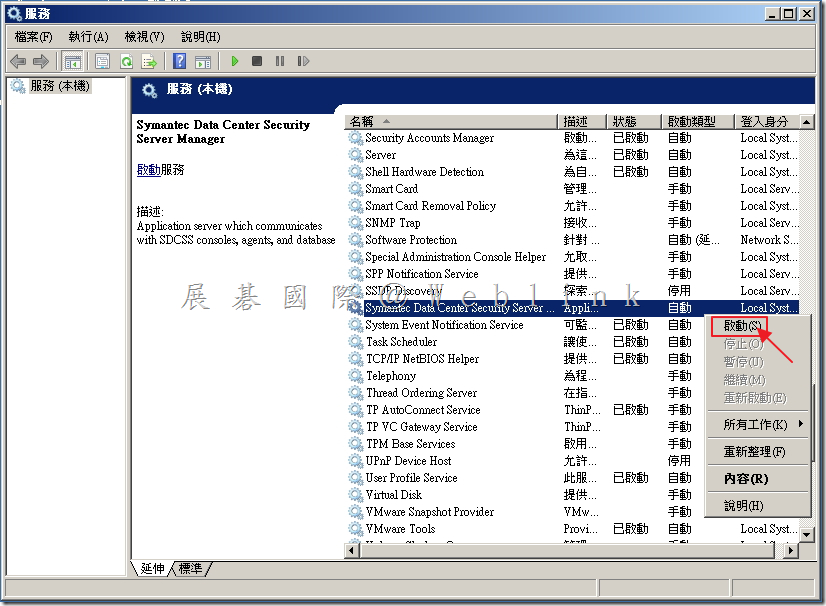
    2.20 將「Symantec Data Center Security Server Manager」服務啟動。
    image

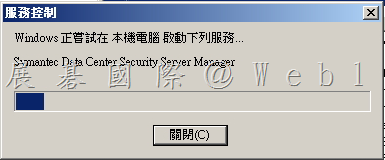
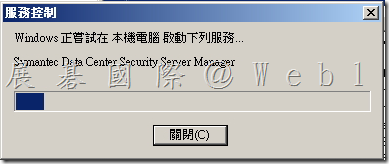
    2.21 「Symantec Data Center Security Server Manager」服務啟動中。
    image

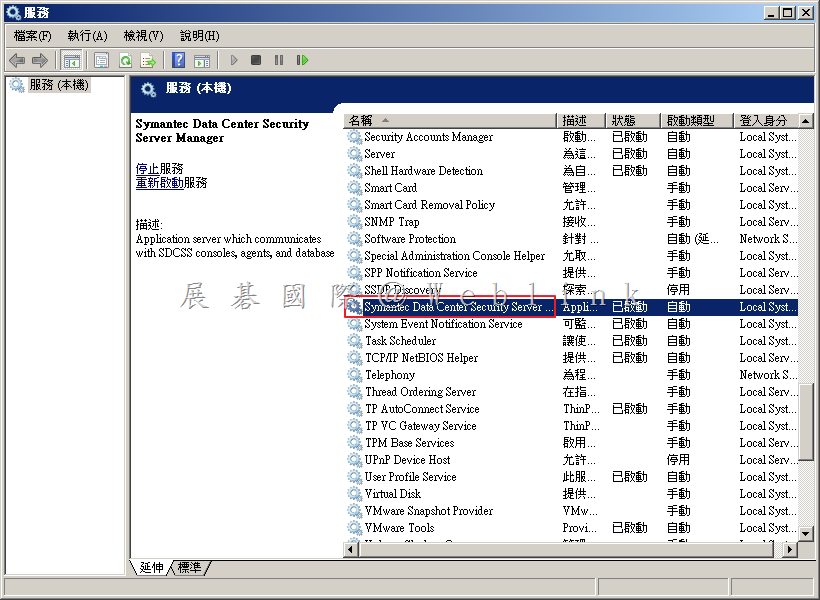
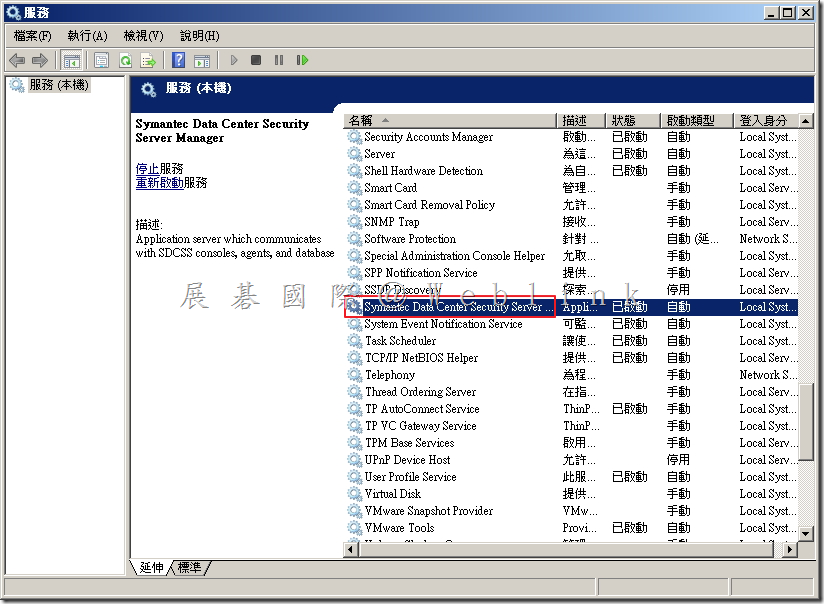
    2.22 以滑鼠左鍵點擊兩下「Symantec Data Center Security Server Manager」服務。
    image

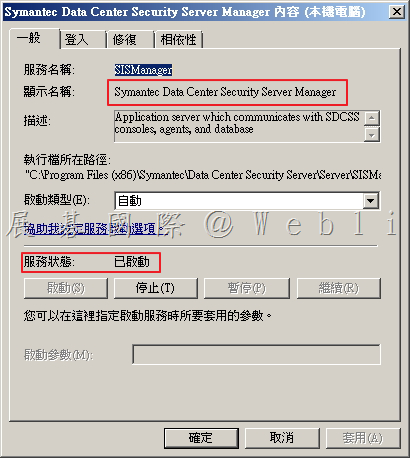
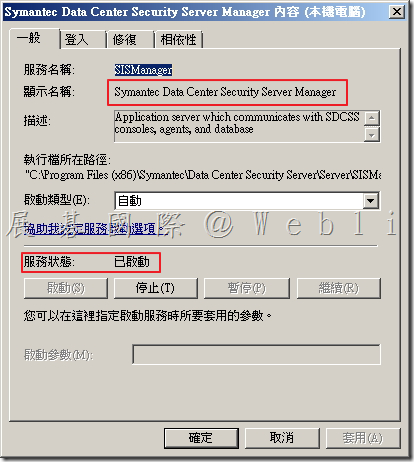
    2.23 確定「Symantec Data Center Security Server Manager」服務狀態:已啟動,接著點選「確定」。
    image

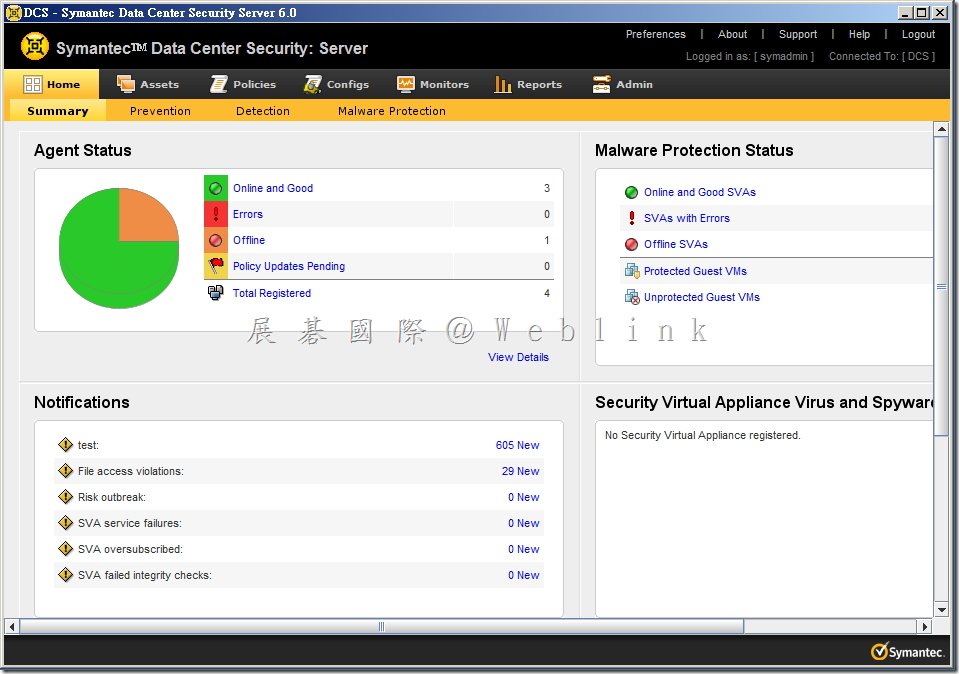
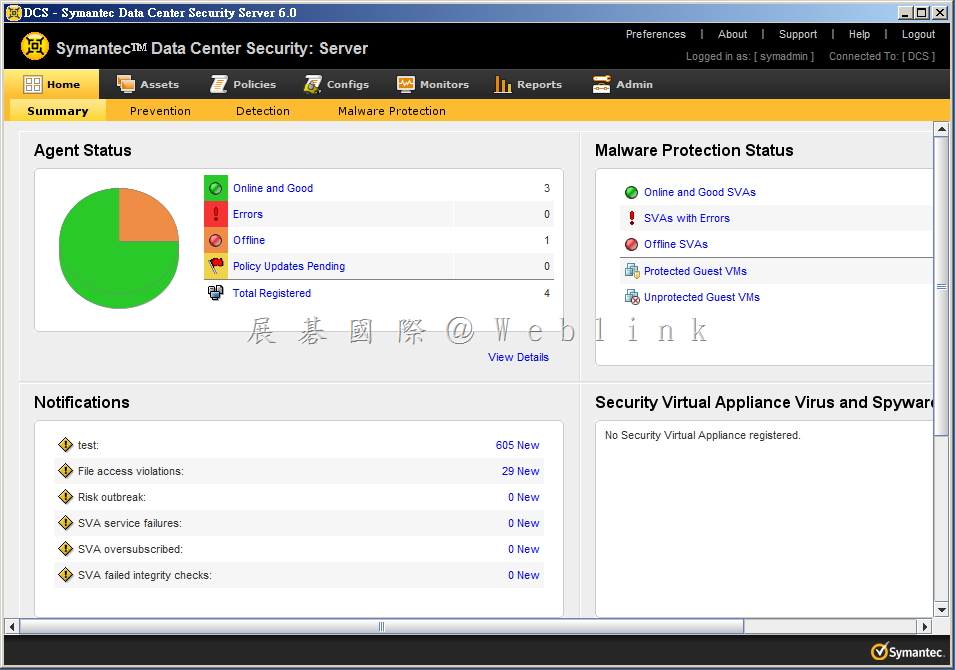
    2.24 登入 DCS 代表服務已恢復,將會依照設定時間做刪除的動作。

    image