
分類: Uncategorized

  • Parallels聯絡支援注意事項

    所有 Parallels Desktop 產品註冊後的 30 天內,可獲免費電話及聊天支援。從產品發佈日期起,郵件支援有效期限爲 2 年。

    聯絡 Parallels 客戶支援之前,您首先必須:

    1. 註冊您的產品

    若安裝產品時您並未完成註冊,請點擊 Parallels 桌面選單,然後選擇「註冊產品…」。更多註冊選項,請訪問 KB122646

    2. 申請支援代碼

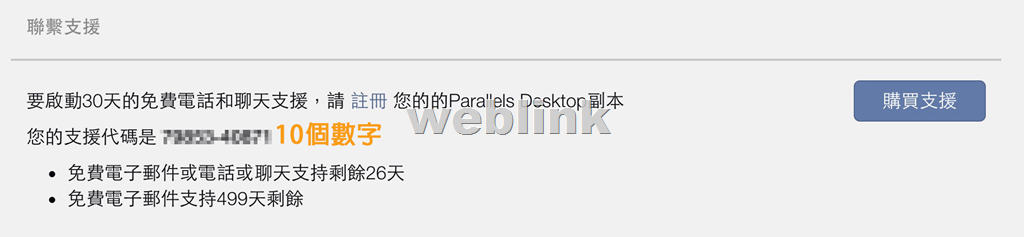
    聯絡 Parallels 技術支援需要持有一個有效的支援代碼。欲尋找您的支援代碼,請點擊幫助選單並選擇「請求支援」。若您尚未註冊支持代碼,請訪問 KB6837

    image

    image

    3. 與我們聯絡

    注意: 當前,我們只提供電話、聊天和郵件的英文語言支援。若您之前是從 Parallels 線上商店購買您的副本並在購買、退款或調整價格時遇到問題而打電話,請點擊此處尋求幫助。

    免費電話: +1 888-811-2489
    國際電話: +1 703-579-0156

  • 如何讓Windows 8 開機後直接進入「傳統桌面」及於Win8 動態磚下更容易找到常用的應用程式

    如何讓Windows 8 開機後直接進入「傳統桌面」及於Win8 動態磚下更容易找到常用的應用程式

    Windows 8其實有很多新的設計,但是它區分了「開始畫面(動態磚畫面)」和「傳統桌面 (Windows 7 畫面)」兩種工作平台。但對於很多 User 來說,可能還是習慣優先使用「傳統桌面」。

    所以在此教大家一下如何在 Windows 8.1 下,一開機就進入傳統桌面 (Windows 7 畫面),不再進入 Win8 開始畫面( 動態磚畫面)。

    ①、在傳統桌面上的工具列點擊右鍵,選擇『內容』。

    clip_image002

    ②、選擇上方選單內『瀏覽』項目

    勾選「當我登入或關閉畫面上的所有應用程式時,移至桌面而非開始畫面」

    即可讓Windows 8 開機後直接進入「傳統桌面」。

    clip_image003

    除此之外,如果你已經習慣Windows 8的動態磚介面的人;那在這邊告訴你一個Windows 8.1新增的小功能。那就是在Windows 8.1下可以依據「名稱」、「類別」、「安裝日期」、「使用頻率」、「安裝時間」這幾種排列方式來整理你所安裝的應用程式。這樣一下對於尋找所安裝的應用程式會方便許多;同時也節省不少的時間。那怎麼做呢?

    首先進入Windows 8.1的『開始畫面』後,可以看到左下方多了一個「下拉」的按鈕。

    clip_image005

    點擊後就能進入『所有應用程式』的畫面,再點擊綠框處可以選擇想要的排序方式。clip_image007

    clip_image009

    如何,簡單吧。這樣一來可以快速找到你所安裝的所有Windows 8的應用程式和傳統單機軟體。

  • [SSR]為何 SSR 備份狀態會出現問號圖示?

    image

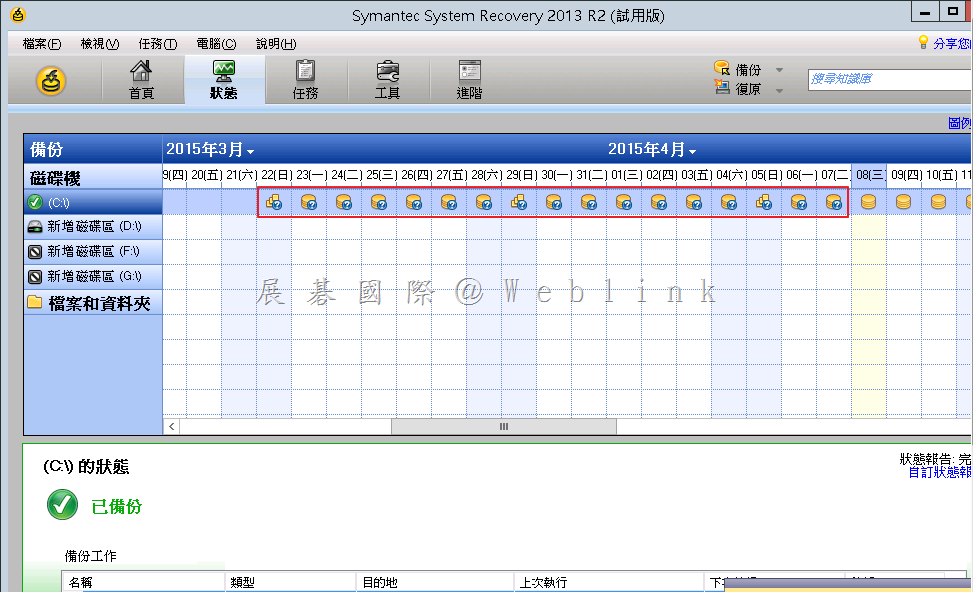
    為何 SSR 備份狀態會出現問號圖示?

    Issue

    The Status of Backup History is changed to ‘Unavailable’ if some of non-Windows NAS devices are used as the backup destination.

    Cause

    Symantec System Recovery (SSR) uses the CIFS protocol ‘change notify’ (NotifyChangeDirectory) to check the Status of Backup History.
    When ‘change notify’ is not supported on the NAS devices which are used as backup destination, SSR shows ‘Unavailable’ status.

    Solution

    Please ignore this status. Backup/restore operations are not affected.
    For example, if Samba is used, confirm that change notify parameter is set as “yes” in smb.conf file.


    http://www.symantec.com/business/support/index?page=content&id=TECH214450

  • Windows 8.1 如何更改語言呢?

    以前在Windows XP年代要更換不同語言,就只能購買相對應語言版本的XP才可以。例如:要用英文的語言就要用購買英文版的XP才可以使用。但現在用Windows 8.1就可以不用這麼麻煩了,只要記得三個步驟:1. 新增您要的語言。2. 下載並安裝語言套件。3. 將語言設定成您的主要語言。這樣我們就可以輕輕鬆鬆更換不同的語言了,不用在煩惱要去那裡買其他語言的Windows版本了。

    現在在這邊就來教大家如何更換語言;我們一開始安裝好的是Windows 8.1繁體中文版,但我們要更換成『西班牙』語言。

    clip_image002

    ①、將滑鼠移到右上角在右列會出現選單,點選『設定』。

    clip_image004

    ②、在設定頁面中點選『變更電腦設定』。

    clip_image006

    ③、在電腦設定頁面中點選『時間與語言』。

    clip_image008

    ④、在時間與語言頁面中點選『地區與語言』,然後再點選『新增語言』。

    clip_image010

    ⑤、點選『西班牙文』。

    clip_image012

    ⑥、再點選語系區域『西班牙文(西班牙)』

    clip_image014

    ⑦、我們新增完西班牙語言後在語言中會多出一個西班牙的語言,先點選『西班牙文』再點選『選項』。

    clip_image016

    ⑧、點選『下載』來下載語言套件。

    clip_image018

    ⑨、點選『下載』後會顯示正在下載,下載完成後系統會自動安裝語言套件。

    clip_image020

    ⑩語言套件已安裝完成,然後點選 clip_image021 返回到『地區與語言』頁面。

    clip_image023

    ⑪、點選語言中『西班牙文』再點選『設定為主要』。

    clip_image025

    ⑫、此時西班牙文會變更成系統的主要語言,但必須在下次登入時系統才會變更語言,不會在我們設定好時就馬上變更語言,要記住喔。

    clip_image027

    ⑬、將滑鼠移到右上角在右列會出現選單,點選『開始』。

    clip_image029

    ⑭、回到開始頁面,點選User帳號再點選『登出』。

    clip_image031

    ⑮、登出後在重新點選User帳號登入

    clip_image033

    ⑯、登入後系統語言就變成西班牙文了。

    clip_image035

    這個功能也算是為不同語系的使用都開了一扇方便的大門。

    有需要的人快去試試喔~

  • 如何設定 PGP 用戶端郵件加密

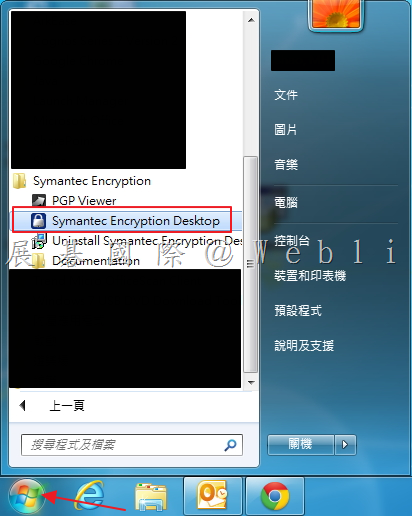
    1. 開啟「Symantec Encryption Desktop」。

    image

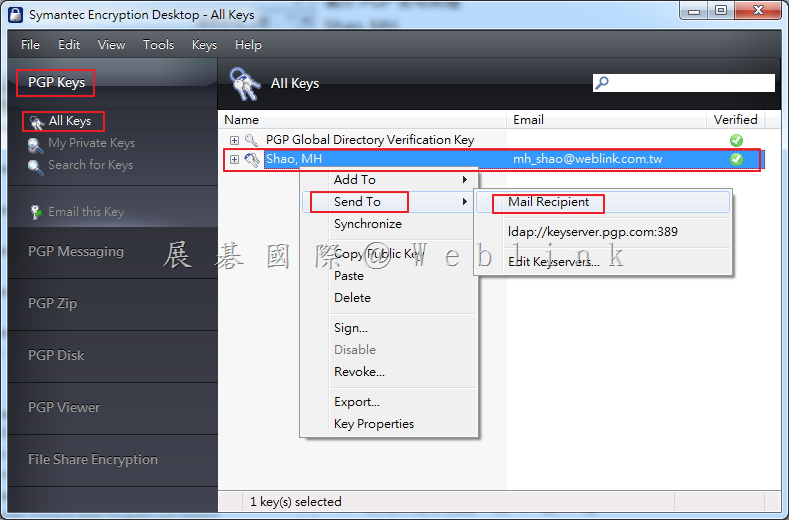
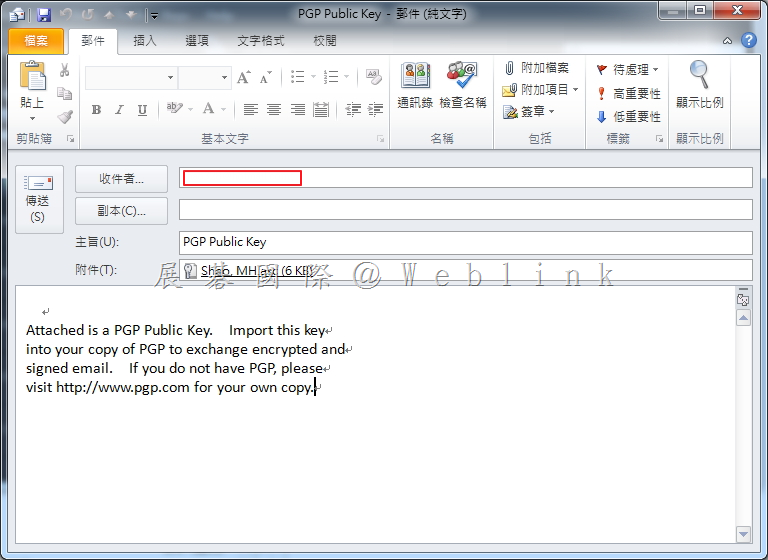
    2. 點選「PGP Keys」,接著點選「All Keys」,接著以滑鼠右鍵點選您所製作的 Private Key,接著點選「Send To」→「Mail Recipient」,將 Private Key 寄給收件者。

    image

    3. 輸入收件者信箱,點選傳送。

    image

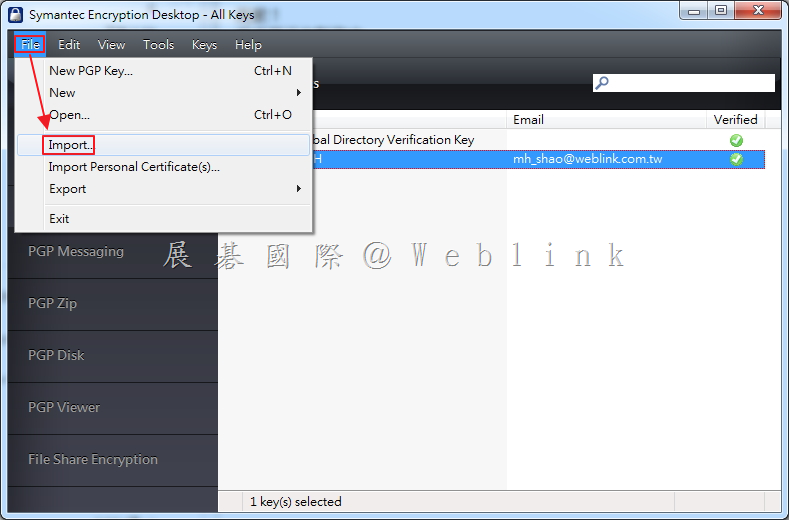
    4. 待收到 PGP Key 時,來進行匯入,選取「File」,接著點選「Import」,開始匯入 PGP Key。

    image

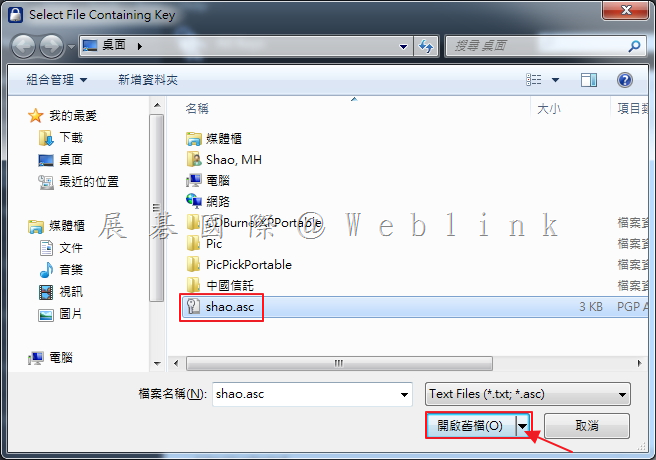
    5. 選取所收到的 Private Key,點選「開啟舊檔」。

    image

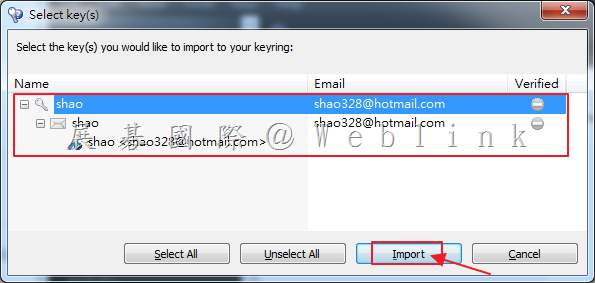
    6. 可看到欲匯入的 PGP Key 資訊,點選「Import」。

    image

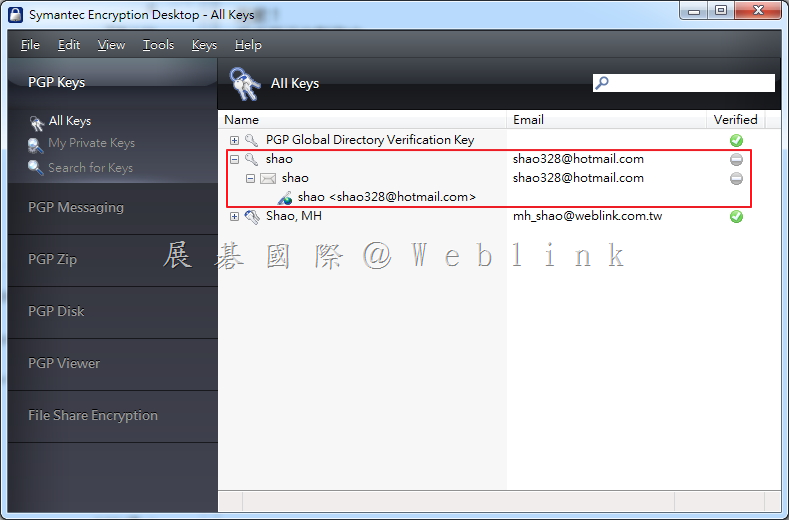
    7. 匯入完成,可看到多了一組剛剛所匯入的 Key。

    image

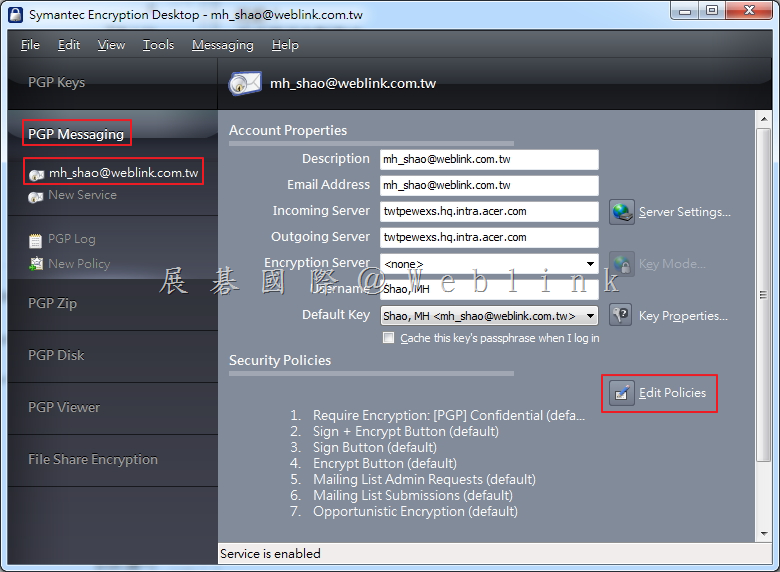
    8. 選取「PGP Messaging」,接著點選「所設定欲加密的信箱」,點選「Edit Policies」。

    image

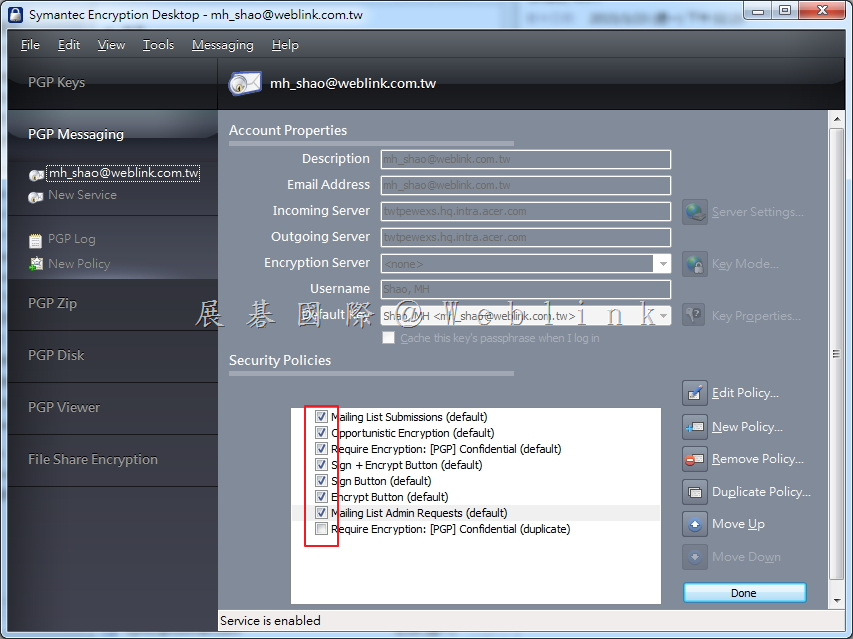
    9. 點選勾勾,以取消所有預設 Policies。

    image

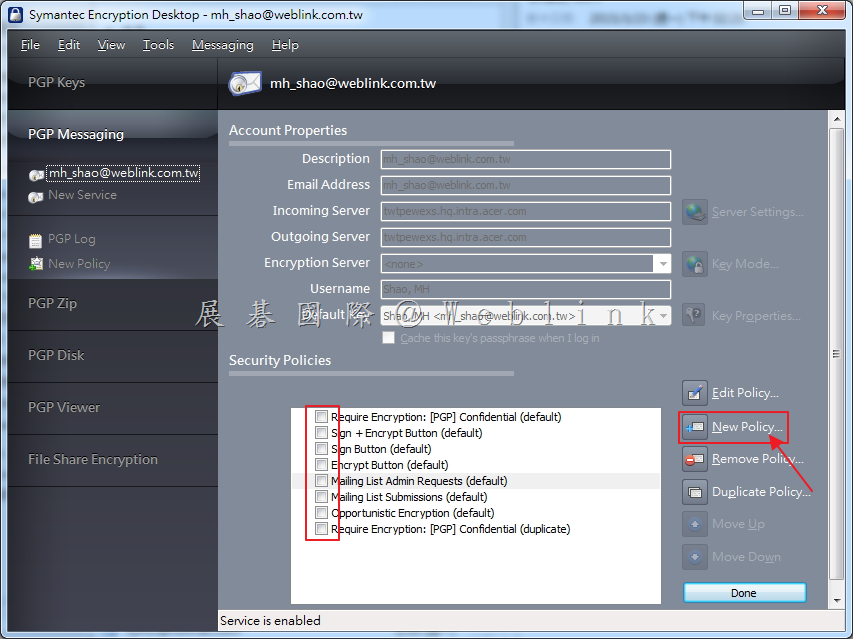
    10. 取消完成,點選「New Policy」。

    image

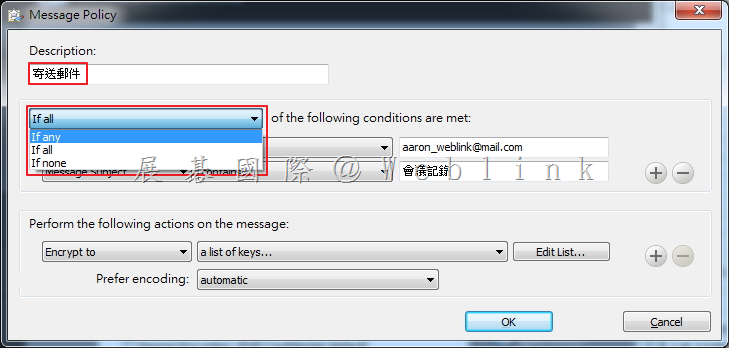
    11. 輸入 Policy 名稱,選取條件。

    image

    If any

    以下條件滿足任一項

    If all

    以下條件全部滿足

    If none

    沒有以下條件

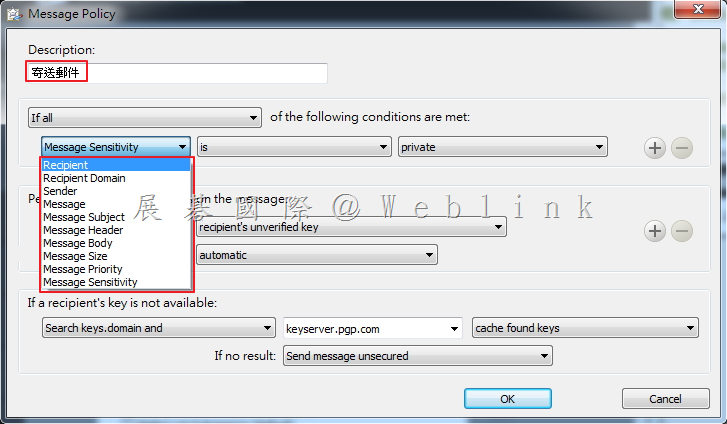
    12. 輸入 Policy 名稱,選取條件。

    image

    Recipient(收件者)

    郵件到指定的收件者

    Recipient Domain(收件者網域)

    通過電子郵件發送指定的收件者網域的郵件

    Sender(寄件者)

    具有指定寄件者地址的郵件

    Message(信息)

    已指定的簽名和/或加密狀態信息

    Message Subject(信件標題)

    使用指定的信件標題

    Message Header(信件標頭)

    為其指定的標頭符合指定標準的訊息。

    Message Body(信件內容)

    使用指定的信件內容

    Message Size(信件大小)

    指定大小的郵件(以bytes為單位)

    Message Priority(信件優先級)

    使用指定的消息優先級的信件

    Message Sensitivity(信件靈敏度)

    使用指定的消息敏感性信件

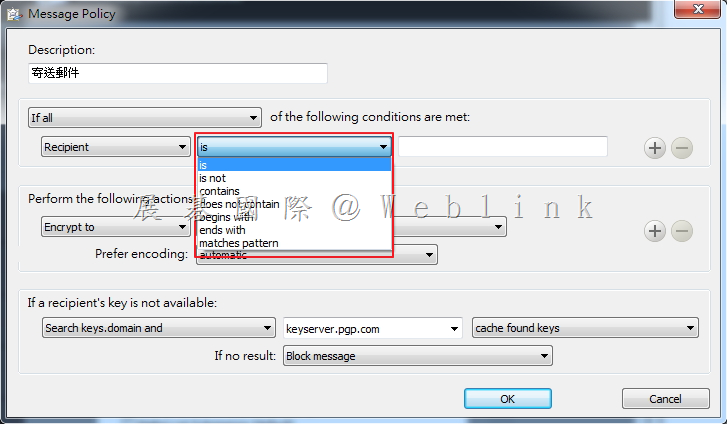
    13. 選取條件。

    image

    is(是)

    與輸入內容相同

    is not(不是)

    與輸入內容不同

    contains(包含)

    包含輸入的內容

    does not contain(不包含)

    不包含輸入的內容

    begins with(開始於)

    開始於輸入的內容

    ends with(結束於)

    結束於輸入的內容

    matches pattern(匹配模式)

    第一個條件字段文本鍵入文本框中模式匹配

    greater than(大於)

    大於輸入的內容

    less than(少於)

    少於輸入的內容

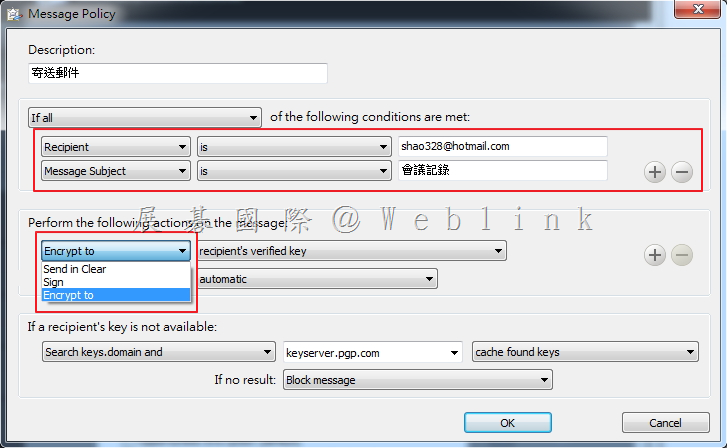
    14. 設定符合條件後,將執行的動作。

    image

    Send In Clear

    不加密模式

    Sign

    指定的信件應該簽章

    Encrypt to

    指定的信件應該被加密

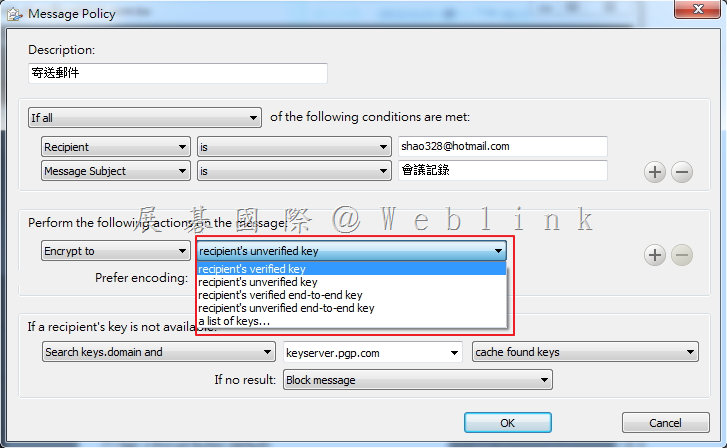
    15. 設定指定動作後的第二動作欄位設定。

    image

    recipient’s verified key

    收件者的驗證密鑰。確保該信件只對預期收件者的驗證密鑰加密。

    recipient’s unverified key

    收件者的未經驗證的密鑰。允許該信件被加密到既定收件者的未經驗證的密鑰。

    a list of keys

    指定的信件只能被所選取的密鑰加密

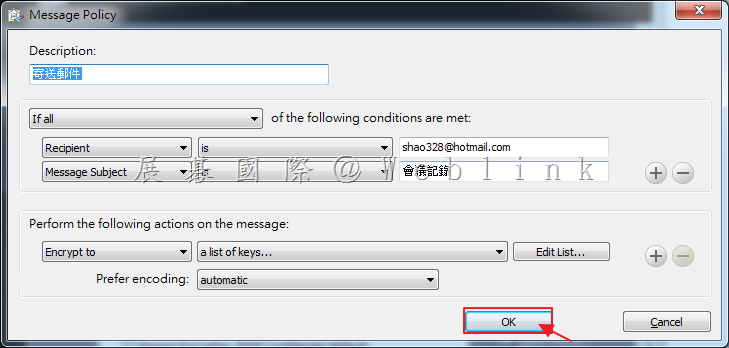
    16. 設定完成,點選「OK」。

    image

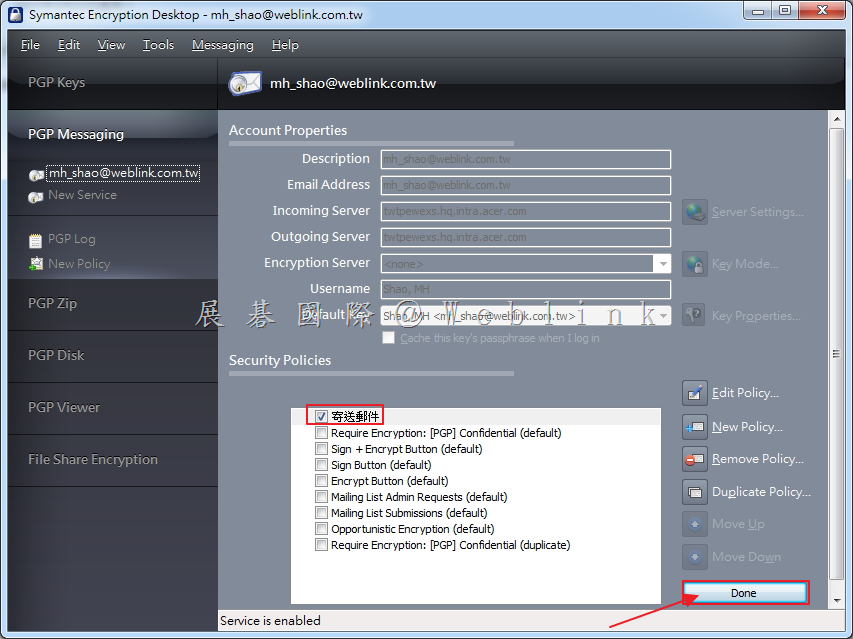
    17. 可看到剛剛所設定的 Policy,接著點選「Done」。

    image

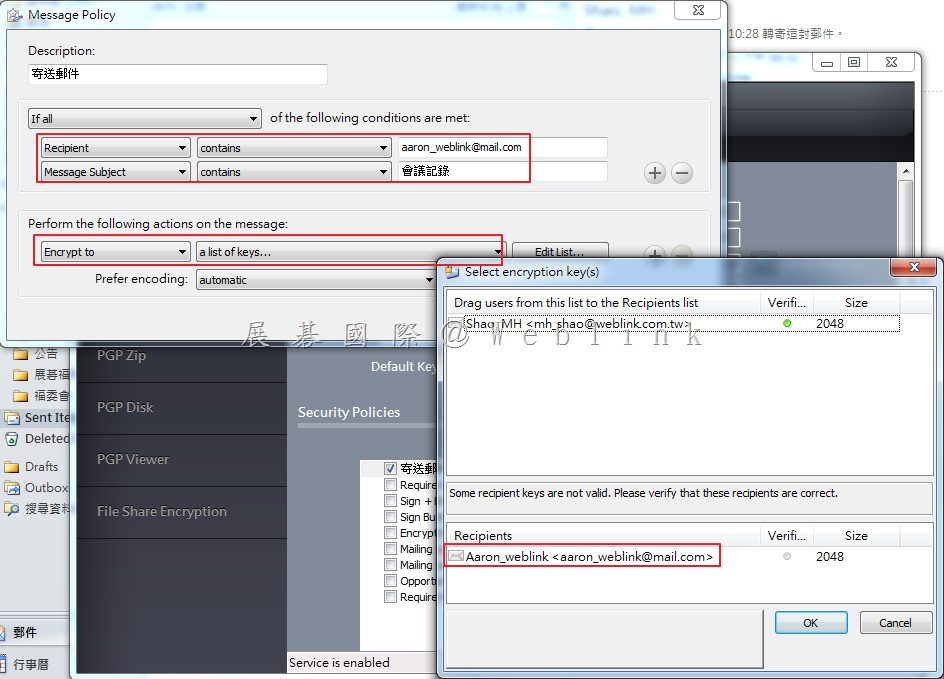
    18. 假設指定特定的密鑰來加密。

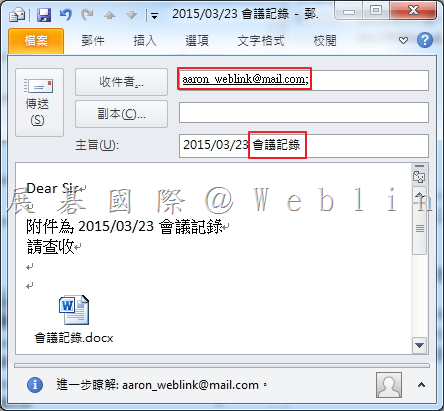
    Ø   假設收件者包含:aaron_weblink@mail.com

    Ø   假設信件標題包含:會議記錄

    Ø   假設使用指定密鑰:Aaron_weblink


    image


    Ø   寄送符合條件的信件。


    image


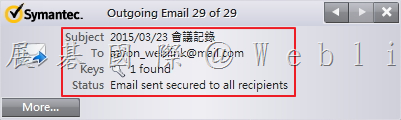
    Ø   可看到寄送郵件後的 LOG


    image


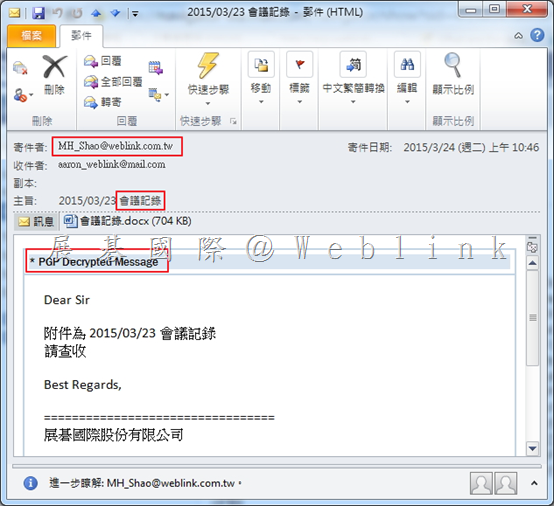
    Ø   切換至收件者電腦,可看到信件已透過 PGP 加密。


    image


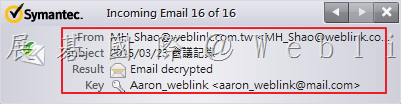
    Ø   可看到收到信件的 LOG。


    image


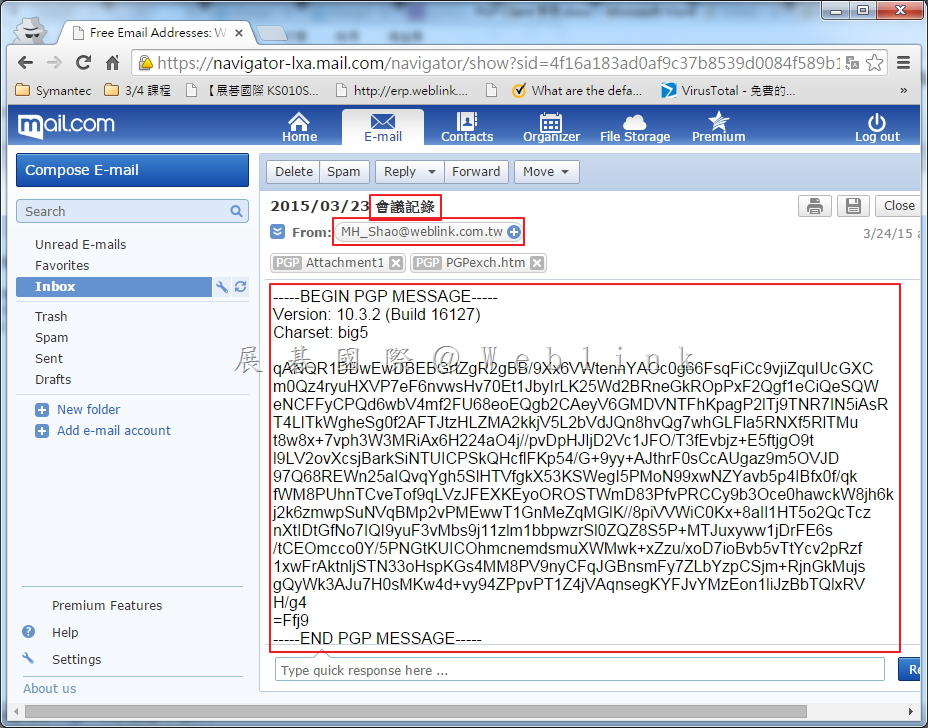
    Ø   登入 Web Mail,可看到無密鑰及無法瀏覽信件內容和附件。


    image


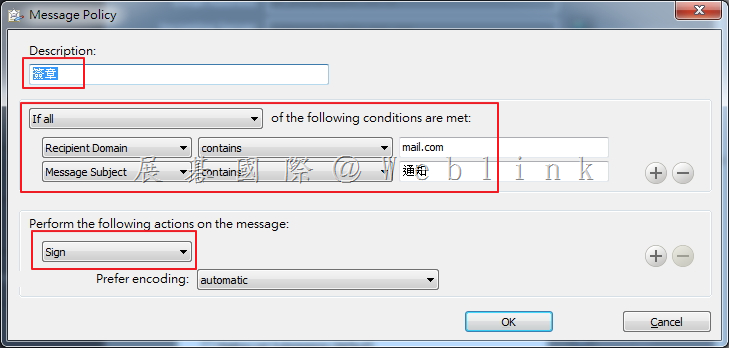
    19. 假設發送的郵件增加簽章。

    Ø   假設收件者網域包含:mail.com

    Ø   假設信件標題包含:通知


    image


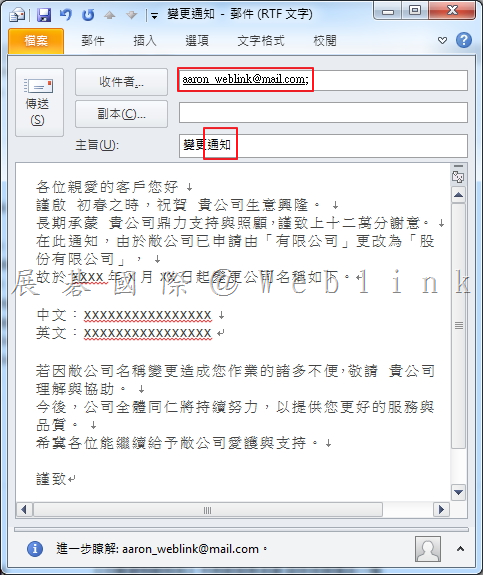
    Ø   寄送符合條件之信件


    image


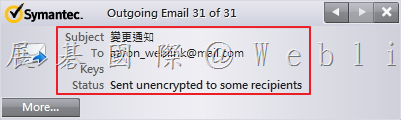
    Ø   寄送信件時的 LOG。


    image


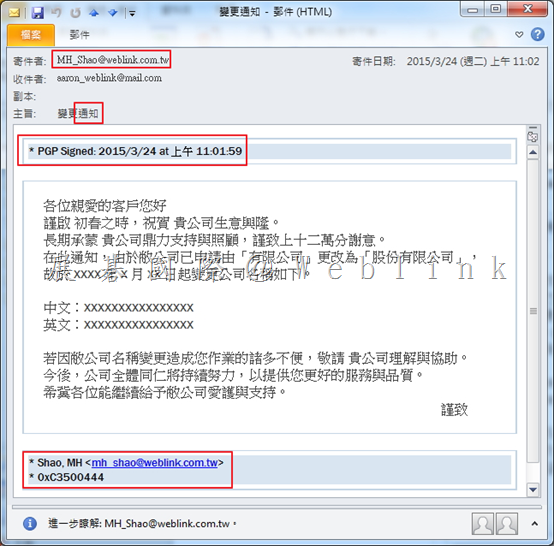
    Ø   切換至收件者電腦,可看到信件已透過 PGP 簽章。


    image


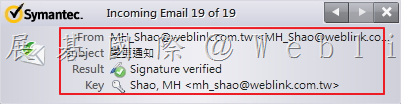
    Ø   可看到收到信件的 LOG。


    image


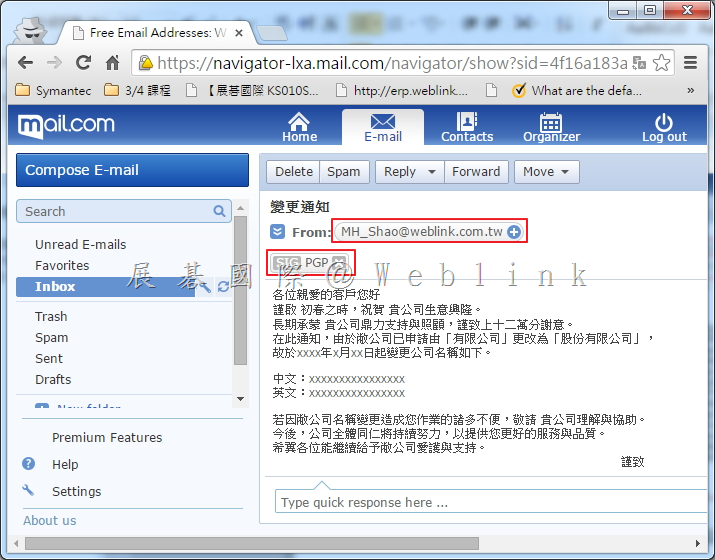
    Ø   登入 Web Mail,可看到簽章。


    image

  • 如何取消Windows 傳統桌面下右側邊欄(Charms Bar)的常用鍵&快速切換應用程式

    Windows 8提供一個右側邊欄(Charms Bar)的常用鍵(快捷鍵『視窗鍵』+『C』)。每當滑鼠指移到右上角附近時它就會跑出來,有時候會覺得這樣的情形還滿煩的。不過別擔心,以下簡單的步驟可以讓你快速的取消右側邊欄。

    ①、將Windows 8切換至傳統桌面,滑鼠在桌面上空白處上按下滑鼠的右鍵選擇『個人化』。

    ②、在『個人化』的頁面左角處,點選『工具列及瀏覽』,選擇『瀏覽』選項。

    再將『當我指向右上角時,顯示常用鍵』的『打勾』取消掉後,按下套用及確定後即可取消(Charms Bar)的常用鍵。

    clip_image002

    但Windows8惱人的部分(對某些人來說)還不只是這樣。下圖可以看到左上角是『快速切換應用程式』的地方,常常因為誤觸而切換。

    clip_image004

    別擔心,只要按照以下步驟;這也是可以解決的。

    ①、請在傳統桌面下,上剛剛上述的操作方式進入『個人化』的頁面點選『工具列及瀏覽』。

    ②、選擇『瀏覽』選項並將『在我最近使用的應用程式切換』的『打勾』取消掉後,按下套用及確定後即可。

  • Parallels 2X Mobile Device Management產品介紹

    MDM

    image

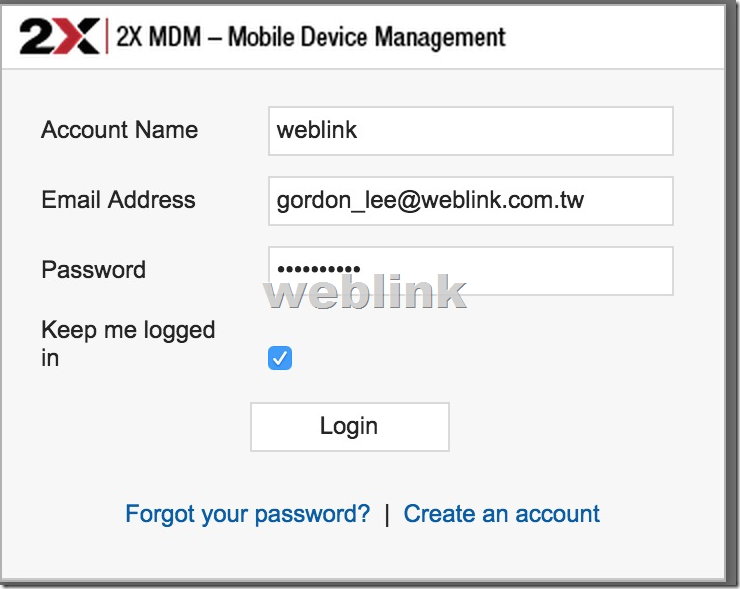
    2X移動設備管理是一個平台(透過瀏覽器),可以管理,保護和跟踪您所使用的移動設備。
    移動設備可以連接到企業所使用的應用程序,和訪問或存儲機密的相關企業數據。
    image

    隨著移動設備的使用越來越多的工作人員;這些移動設備的管理和控制,是非常重要的。

    MDM主要有以下特點:

    遠程管理:

    與2X移動設備管理(MDM 2X),您可以遠程為單個設備或同時多台設備,其中包括電子郵件設置和Wi-Fi網絡配置信息和口令配置設置。查看已安裝的應用程序,通話記錄和消息發送和接收的模塊名稱,操作系統版本,CPU和內存使用情況為每個設備。

    管理移動應用程式:

    1.大規模部署應用程序到設備組

    2X MDM可以讓你輕鬆的應用程序部署到設備組。定義一組應安裝在設備中的所有設備或組的應用程序 – 例如,基於一個部門的基團。

    您可以定義出現在谷歌播放或蘋果AppStore,或者只存儲在您的2X MDM應用程序庫的應用程序的應用程序。

    也可以直接部署的APK文件到移動設備。

    2.監控應用程序不當

    與2X MDM可以輕鬆地查看已安裝的所有員工的設備的應用程序,並快速找到可能影響企業的生產力或乾脆浪費數據傳輸能力不恰當的應用程序。

    你可以找出可能處於危險之中敏感的企業數據,並卸載它們與一個單一的鼠標點擊潛在惡意應用程序。

    以這種方式,在2X MDM管理員可以容易地監視被下載的應用程序,並保護不僅員工,但這些設備和企業數據以及。

    3.應用程序白名單

    為了促進員工的工作效率,您可以創建可下載並安裝到您的員工的應用程序白名單“的設備。

    2X MDM將通知管理員,設備用戶在下載違反了應用程序控制策略。

    應用控制是通過組策略強制執行。屬於一組策略裝置遵守該組中定義的應用程序的白名單。

    4.黑名單的應用程序

    如果有,你不希望員工安裝特定的應用程序,你可以為整個公司或特定群體創造一個黑名單。

    2X MDM,您還可以安裝警報,被列入黑名單的應用程序安裝,並指出哪些設備參與每一次。

    確保移動設備安全:

    2X移動設備管理(MDM 2X)允許您可以遠程執行強密碼策略在你的Andr​​oid和iOS設備,遠程擦除他們的所有敏感數據,或者遠程通過短信鎖定它們。

    1.遠端鎖定移動設備

    如果您丟失或放錯的設備,2X移動設備管理器允許您更改密碼,並從網上儀表板鎖定裝置,保障所有數據的設備上,直到你能找回它。

    鎖定裝置很簡單,只要從設備列表中選擇它,按下鎖定按鈕,然後指定要執行的密碼。

    保護您的企業數據,即使該設備是由通過短信遠程鎖定它沒有連接到互聯網。

    2.遠端移除移動設備

    如果您的移動設備丟失或被盜,這是必須消滅所有的數據從它。隨著輕點幾下鼠標,2X移動設備管理將遠離手機的內部存儲器清除所有數據並重置設備恢復到出廠默認設置。

    該命令發送的短信,以及確保您的移動設備會立即擦去。

    通過擦拭設備,可​​以防止落入壞人之手公司的有價值的信息。

    3.監測惡意軟件和不適當的應用

    當你部署移動設備的員工,難免你的員工將要安裝的應用程序。

    與2X MDM,你可以檢查一下從一個屏幕安裝在他們的設備上的應用程序,並輕鬆地刪除不恰當的應用程序。您也可以監測從非官方渠道安裝流氓應用程序。

    2X MDM可以讓你知道任何形跡可疑的應用程序,並幫助你避免這些成為一個大問題。只需一次點擊,你可以刪除影響員工的工作效率的應用程序,耗盡你的數據計劃。

    查找和跟踪移動設備:

    1.方便工作人員的路線和改進客戶服務

    多少次呼籲顧客詢問時,你的員工將到達交付服務或產品?

    避免給客戶的含糊不清的答案,並確切地知道你在哪裡員工和他們的預計抵達時間完善客戶服務。

    當你的客戶需要什麼急,迅速反應,派出最近的可用工作人員。

    2.關閉定位記錄通過集團

    位置歷史記錄可以被配置為從一個組的工作方式不同,以另一種使用組策略。

    您可以識別並選擇您想要記錄的位置記錄一組設備,讓您排除部門哪個位置歷史跟踪是不恰當的。

    2X MDM將允許你指定在此期間,要存儲位置更新的時間,以避免收集工作時間以外的信息。

    3.定位的歷程

    2X MDM不僅存儲所有連接的設備的當前位置,同時也將保留所有的設備已經到了地點的詳細日誌。

    位置更新由行駛的時間和距離的觸發。例如,如果一個裝置移動超過50米(可配置的),位置更新被記錄。

    位置顯示他們在地圖上,只有位置的改變都存儲完整的地址,避免了多餘的數據。您可以選擇收集通過Wi-Fi,移動網絡或GPS定位數據,定位記錄可以輸出作進一步的分析。

    4.發送方向給您的員工

    使用地圖上找准位置,並把你的員工的位置,從2X MDM儀表盤的消息。

    當員工打開郵件,他們的地圖應用程序顯示他們的確切位置從而使他們更容易找到自己的下一個目的地。

    發送指示你的員工提高他們的工作效率,響應時間和客戶服務的性能

  • 螢幕變大後的iPhone6 / 6 Plus,單手操作真簡單~

    PHONE 6 與 IPHONE 6 PLUS 大螢幕上市後,一般人要使用單手來操作基本上還滿困難的。

    單手要點到最上層萬一不小心手滑那可不是『悲劇』二字可以形容的。

    貼心的蘋果馬上為客戶增加了新的功能,讓畫面直接往下移動。

    讓原來單手不能點到的地方,也可以方便的使用。

    以下是正常的使用畫面…

    clip_image002

    只要在指紋辨識上(TOUCH ID)上輕輕地點兩下。

    上方的螢幕就可以移到下方來了,往左刷往右刷通通沒問題~

    clip_image004

    這樣的話單手使用iPhone6或是iPhone6 Plus就方便很多了。

    大家快去試試吧~

  • Unable Access Second Partition After Formatting Primary Partition

    Issue

    On a whole disk encrypted a disk with two partitions, the second partition is inaccessible after formatting the primary partition without decrypting the disk.  

    Warning: Do not re-encrypt the C: Drive as this will result in overwriting the session key and PGPWDE01 file which contains the drive encryption information and makes the disk unrecoverable.

    Environment
    • 2 partitions on an internal hard disk (C: and D: )
    • Both partitions are PGP Whole Disk Encrypted
    • The C: partition is formatted without decrypting the drive
    Solution

    To resolve this issue, you must attached the disk to another computer with PGP Desktop installed. Then use the pgpwde command line interface to decrypt the disk.

    Use the following steps:

    1. Open a Windows Command Prompt.

    2. Change to the following directory C:\Program Files\PGP Corporation\PGP Desktop

    3. Type pgpwde –recover -d 1 –passphrase “your passphrase” and press Enter.

    (Assuming that the D: drive is the disk number “1”)

  • Drive Encryption Diagnosis and Recovery

    Drive Encryption Diagnosis and Recovery – Symantec Drive Encryption & PGP Whole Disk Encryption

    http://www.symantec.com/business/support/index?page=content&id=TECH149679

    Issue

    This article provides tools and steps to diagnose and recover disks that are encrypted with Symantec Drive Encryption (previously PGP Whole Disk Encryption). 

    Solution

    Section 1 describes some symptoms that users with encrypted disk problems may encounter.  Section 2 provides procedures for using the PGPWDE command line interface. Section  3 details use of the Recovery Disk.

    Note: If a system hard disk has been “fully” decrypted, and will not boot, make sure to slave the disk and backup all your data, or use bit-by-bit copy of the disk. Connect the hard disk back to system and run the fixmbr command from the Windows Recovery Console from a Windows XP installation CD.

    SECTION 1 – Symptoms

    On rare occasions internal or external disks that are encrypted may experience the following issues:

    • Inability to decrypt or read the contents of a secondary or non-system disk.
    • System displays “Error loading operating system_” after entering the passphrase at the PGP BootGuard screen.
    • Master Boot Record (MBR) corruption causing the system to no longer boot.
    • After starting the system with the hard disk encrypted to a passphrase and an eToken, valid passphrases are not accepted.

    1. Users able to access their encrypted disk from Windows should proceed to Section 2.
    2. Users unable to access their disk from Windows or who are unable to boot should proceed to
    Section 3.

    SECTION 2 – PGPWDE Command Line

    The following commands will help diagnose and decrypt the disk. Other commands can be listed by typing pgpwde –help.
    1. To begin working with the PGPWDE command line tool, open a command prompt and change to the PGP installation directory (default directory shown) C:\Program Files\PGP Corporation\PGP desktop.
    2. To list all installed hard disks in the system type: pgpwde –enum. Entering this command displays a list of disks which the following steps reference.
    3. Type pgpwde –status –disk 1. In the command, substitute the PGP WDE disk number listed in the previous step for the number 1 if it is different. The output of this command tells you whether the disk is still encrypted. 

    • If the disk is not encrypted, “Disk <number> is not instrumented by bootguard” will be the output.
    • If the disk is encrypted, the output will display:
      “Disk <number> is instrumented by Bootguard.”
      The total number of sectors.
      A Highwater value (number of sectors encrypted).
    • Whether the current key is valid.

    4. Type pgpwde –list-user –disk 1. This provides the user information contained on the disk. This will help in multi-user environments to determine which user passphrase was used for Drive Encryption.
    5. Type pgpwde –decrypt –disk 1 –passphrase {MYPASSWORDHERE}. This will start the decryption process. To view progress, type the status command listed in step 3 and note the Highwater number. This number will get smaller and smaller as the number of sectors encrypted decreases. 

    6. In case if your primary partition was formatted and your secondary partition is still encrypted, you may try to recover it by following TECH170574.

    SECTION 3 – Using Recovery Disk Images (bootg.iso or bootg.img)

    Warning: Use of the recovery disks should be used as the last step when attempting recovery.  Should there be a power loss while decrypting with the recovery disk, the result to the disk could be fatal and non-recoverable. It is also highly recommended to use the latest recovery disk available for the version you are running.
    Recovery Images can be obtained by following the links below:

    Windows

    Mac OS X

    Caution: Users with extended partitions on their hard disks that were encrypted should ONLY use the latest available Recovery disk for your version. Prior versions could cause these partitions to no longer be visible to Windows after fully decrypting the disk.
    Once you have started to decrypt a disk or partition using a recovery CD, do not stop the decryption process. Depending on the size of the disk being decrypted, this process can take a long time. A faster way to decrypt the drive is to use another system that has the same version of Encryption Desktop\PGP Desktop installed on it.

    Use the Recovery Disk with the following instructions if experiencing blue screen failures at boot up:
    1. Boot the system with the recovery disk.
    2. Do not continue with the normal sequence of entering a passphrase.
    3. Go to the “advanced” panel.
    4. This message “PGPWDE record inconsistency on 1 disk(s) was found and fixed” might be displayed. If this message is seen, the BSOD (blue screen failure) will be fixed.
    5. Return back to the previous screen and continue to boot from the recovery CD. Rebooting without the Recovery Disk in the drive also works.

    Use the Recovery Disk with the following instructions should the system not boot into Windows for any other reasons:

    The Symantec Encryption Desktop for Windows User’s Guide provides instructions for creating recovery disks. 

    1. Boot the system with the recovery disk.
    2. When prompted, press any key to continue. Drive Encryption Recovery searches for user records and prompts to press any key when the records are found.
    3. Press any key to continue.
    4. On the PGP BootGuard screen, enter the passphrase and user name, if required.
    5. Press D to decrypt the drive. Drive Encryption Recovery starts decrypting your disk.

    Note: Decrypting using a Recovery disk might take considerably more time than it does from within Windows.