分類: Uncategorized

  • 使用 CorelDRAW 正版屢次跳出盜版視窗該如何處理?

    客戶使用正版序號但跳出盜版訊息,可嘗試以下操作來解決:

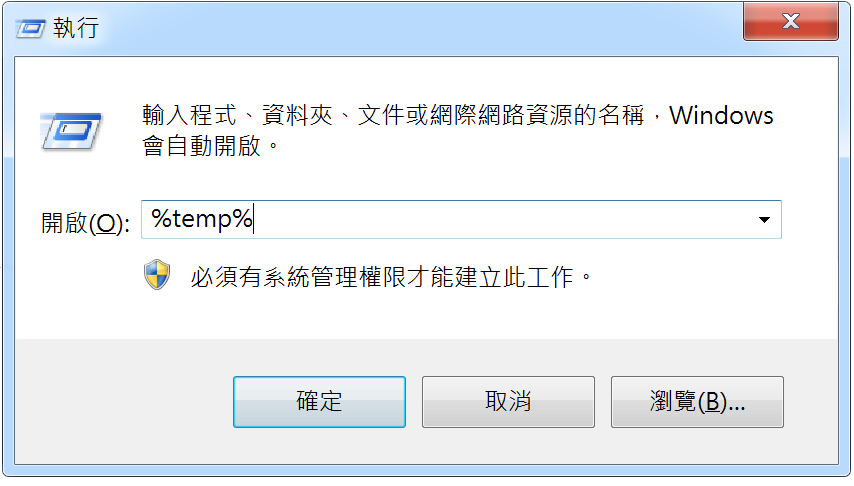
    1.按下【Windows鍵】+【R】 (Windows的「執行」)

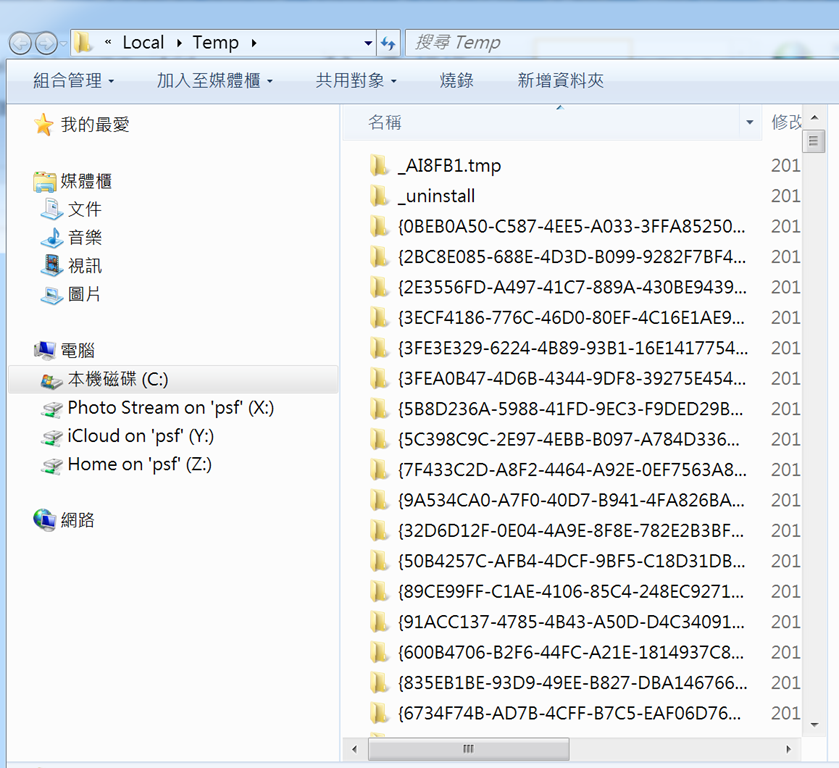
    2.輸入 %temp% 並點選確定

    螢幕快照 2015-07-09 上午11.28.56


    3.將被帶至TEMP資料夾,將裡面所有的檔案都刪除 (部分檔案可能無法刪除,則無須理會,把可刪除的全刪除即可)

    螢幕快照 2015-07-09 上午11.36.23


    4.清理垃圾桶


    5.重新開啟 CorelDRAW 即可

  • About Symantec Endpoint Protection and the Poodle SSL 3.0 vulnerability (CVE-2014-3566)

    Problem


    A security bug affecting SSL 3.0 was released on October 14, 2014.


    Solution


    The management console for Symantec Endpoint Protection Manager (SEPM) prior to SEP 12.1.6 does use SSL 3.0. As a result, Symantec Endpoint Protection (SEP) is affected.


    Impacted versions

    • 12.1.x Symantec Endpoint Protection Windows client
    • 12.1.5 and earlier Symantec Endpoint Protection Manager
    • 12.1 Symantec Network Access Control Windows client
    • 12.1.x Symantec Network Access Control Windows On-Demand client
    • 12.1.x Symantec Network Access Control Mac On-Demand client
    • 12.1.x Symantec Network Access Control Gateway Enforcer
    • 12.1.x Symantec Network Access Control LAN Enforcer
    • 12.1.x Symantec Network Access Control Integrated Enforcer
    • 12.1.x RU5 Security Virtual Appliance (SVA)
    • 12.1.x Symantec Endpoint Protection for Mac
    • 12.1.5 Symantec Endpoint Protection Linux client
    • 12.1.x Symantec Antivirus for Linux
    • LiveUpdate Administrator 2.3.3 and 2.3.4


    Mitigation: Secure the communication between SEPM Java console and SEPM

    Note: Due to the version of Java that shipped with SEP 12.1 RTM, 12.1 RU1 and 12.1 RU1 MP1, there are some limitations to the functionality should these steps be followed.

    1. In a text editor, open the following file:
      C:\Program Files\Symantec\Symantec Endpoint Protection Manager\apache\conf\ssl\ssl.conf
    2. Change the following line:
      SSLProtocol all -SSLv2
      to:
      SSLProtocol all -SSLv2 -SSLv3
      If the line does not exist, create it.
    3. Restart the Symantec Endpoint Protection Manager Webserver service.
    4. In a text editor, open the following file:
      C:\Program Files\Symantec\Symantec Endpoint Protection Manager\tomcat\conf\server.xml
    5. In the <Connector> section for port 8443, locate the following line:
      sslProtocol=”TLS”
      Note: 8443 is the default port used for SEPM console / SEPM server communication. If you have changed the configuration, this port may be different.
    6. Do one of the following:
      • If you are using SEP 12.1 RTM, RU1, or RU1 MP1, add the following line after sslProtocol=”TLS”:
        Protocols=”TLSv1,TLSv1.1,TLSv1.2″
      • If you are using a version of SEP later than RU1 MP1, add the following line after sslProtocol=”TLS”:
        sslEnabledProtocols=”TLSv1,TLSv1.1,TLSv1.2″
    7. Restart the Symantec Endpoint Protection Manager service.
    8. If you use the Web console, ensure that the browser has TLS enabled.

    Additional information for 12.1 RTM, RU1 and RU1 MP1

    • The web console will fail to connect. This is a known issue with that version of JRE. The only workaround is to update to a newer version of SEP.
    • The local Java console will fail to connect. To work around this problem:
      1. Install the latest JRE.
      2. Edit the file C:\Program Files\Symantec\Symantec Endpoint Protection Manager\bin\sesm.bat to replace the path of javaw.exe with the new JRE path.
    • The Remote Java console (including running locally) is not impacted.
    • If at any time you upgrade SEPM to a 12.1 version that is older than RU5, follow the steps in this document again.


    Mitigation: Secure the communication between SEP client and SEPM

    This section is only applicable if SSL has been enabled on SEPM for client communication.

    Configure SEPM to accept only TLS connections


    1. In a text editor, open the following file:
      C:\Program Files\Symantec\Symantec Endpoint Protection Manager\apache\conf\httpd.conf
    2. Remove the “#” character at the beginning of the following line:
      #Include conf/ssl/sslForClients.conf
    3. In a text editor, open the following file:
      C:\Program Files\Symantec\Symantec Endpoint Protection Manager\apache\conf\ssl\sslForClients.conf
    4. Change the following line:
      SSLProtocol all -SSLv2
      to:
      SSLProtocol all -SSLv2 -SSLv3
    5. Restart the Symantec Endpoint Protection Manager Webserver service.

    If at any time you upgrade SEPM to a 12.1 version that is older than RU5, follow the steps in this document again.


    Enable TLS on communication between SEP client and SEPM

    On Windows XP or 2003 clients that use Internet Explorer (IE) 6.x, enable TLS manually. All other operating systems have TLS enabled by default.

    Note: This is an operating system change. Please consult Microsoft documentation should there be any questions. Also, ensure that any applicable testing is conducted to ensure no negative results with third party applications.

    Enable all SSL versions and TLS1.0 for the local system account

    1. In the Windows registry, go to the following key:
      HKEY_USERS\S-1-5-18\Software\Microsoft\Windows\CurrentVersion\Internet Settings
    2. Change the DWORD value SecureProtocols to 0xa8.
    3. Restart the SEP service.


    Mitigation: Secure the communication between Symantec Network Access Control Windows On-Demand Client and SEPM


    The following changes should be made to enable TLS before using Symantec Network Access Control (SNAC) Windows On-Demand Client (WODC) on Windows XP or 2003 clients that use IE 6.x.

    Note: This is an operating system change. Please consult Microsoft documentation should there be any questions. Also, ensure that any applicable testing is conducted to ensure no negative results with third party applications.

    1. On the client computer, log on to Windows as the user that will run WODC.
    2. In the Windows registry on the client computer, do one of the following:
      • If the user account that runs WODC is part of the local administrators group, go to HKEY_USERS\S-1-5-18\Software\Microsoft\Windows\CurrentVersion\Internet Settings, and set the SecureProtocols value to 0xa8.
      • If the user account that runs WODC is not part of the local administrators group, go toHKEY_CURRENT_USER\Software\Microsoft\Windows\CurrentVersion\Internet Settings, and set the SecureProtocols value to 0xa8.


    Mitigation: Secure the communication between SEPM Remote Management Application (RMM) and SEP clients


    If you do not use the RMM feature, you can disable the RMM port.

    Note: Once SSL 3.0 is disabled for RMM web service ports, any client that uses this service will have to use TLS to connect. If the client does not support TLS, the connection to RMM web service will fail.

    1. In a text editor, open the following file:
      C:\Program Files\Symantec\Symantec Endpoint Protection Manager\tomcat\conf\server.xml
    2. In the <Connector> section for port 8446, after the line sslProtocol=”TLS”, add the following line:
      sslEnabledProtocols=”TLSv1,TLSv1.1,TLSv1.2″
      Note: 8446 is the default port used for SEPM RMM communication. If you have configured the port, this value might be different Check your configuration settings to see the actual value.
    3. Restart the Symantec Endpoint Protection Manager service.

    If at any time you upgrade SEPM to a 12.1 version that is older than RU5, follow the steps in this document again.


    Mitigation: Disable web services for Symantec Protection Center (SPC)


    Disable web services for SPC. SEPM port 8444 is used for SPC communication. This port has hard-coded support for SSLv3.

    Disabling web services may impact the function of SPC.


    Mitigation: Secure LiveUpdate Administrator communications


    If LiveUpdate Administrator is installed, disable SSL communications.

    Disable SSL

    1. In the LiveUpdate Administrator installation folder, go to \tomcat\conf\.
    2. Open server.xml in a text editor.
    3. Find the line that begins with:
      <Connector port=”7073″ maxHttpHeaderSize=”8192″ clientAuth=”false” SSLEnabled=”true” keystoreFile=”../jre/bin/server-cert.ssl” …
    4. Change
      sslProtocol=”TLS”
      to
      sslEnabledProtocols = “TLSv1,TLSv1.1,TLSv1.2”
    5. Save and close server.xml.
    6. Restart the Tomcat services.


    Poodle variant CVE 2014-8730


    Symantec Endpoint Protection is not affected by the Poodle variant CVE 2014-8730.


    References


    https://support.symantec.com/en_US/article.TECH225689.html

  • About Data Center Security: Server (Advanced) and the Poodle SSL 3.0 vulnerability (CVE-2014-3566)

    Problem


    A security bug affecting SSL 3.0 was released on October 14, 2014.


    Solution


    The DCS 6.0.x and CSP 5.2.9 Manager utilize a version of SSL 3.0 that is susceptible to POODLE. Customers should add the entry sslEnabledProtocols=”TLSv1,TLSv1.1,TLSv1.2″ to <server install>\tomcat\conf\server.xml. All future release will contain this change by default.

    Recommend steps:

    1. Stop CSP/DCS manager service
    2. Take backup of Server.xml file
    3. Edit the server.xml file to make the suggested changes using xml editors to ensure that double quotes (“) with appropriate encoding will be used.
    4. Start CSP/DCS manager service


    CSP Server 5.2.9 MP1 – MP5 (having Tomcat 7.x)

    DCS:SA Server 6.0, 6.0 MP1 (having Tomcat 7.x)

    The entry sslEnabledProtocols=”TLSv1,TLSv1.1,TLSv1.2″ needs to be added to the three SSL Connector configured in server.xml.


    These SSL Connectors are for the:

    • Tomcat Stand-Alone Agent Service
    • Tomcat Stand-Alone Console Service
    • Tomcat Stand-Alone Service


    The following example shows this change:

    <Connector port=”%AGENT_PORT% / %CONSOLE_PORT% / %ADMIN_PORT%”

    maxThreads=”200″ minSpareThreads=”50″ enableLookups=”false” disableUploadTimeout=”true” maxKeepAliveRequests=”1″

    acceptCount=”25″ scheme=”https” secure=”true” SSLEnabled=”true”

    keystorePass=”<KeyStorePassword>”

    keystoreFile=”<KeyStoreFilePath>”

    clientAuth=”false” sslProtocol=”TLS” sslEnabledProtocols=”TLSv1,TLSv1.1,TLSv1.2″

    ciphers=”%comma_separated_list_of_ciphers%”/>


    <Connector port=”%AGENT_PORT% / %CONSOLE_PORT% / %ADMIN_PORT%”

    maxThreads=”40″ minSpareThreads=”10″ enableLookups=”false”

    disableUploadTimeout=”true” maxKeepAliveRequests=”1″

    acceptCount=”10″ scheme=”https” secure=”true” SSLEnabled=”true”

    keystorePass=”<KeyStorePassword>”

    keystoreFile=”<KeyStoreFilePath>”

    clientAuth=”false” sslProtocol=”TLS” sslEnabledProtocols=”TLSv1,TLSv1.1,TLSv1.2″

    ciphers=”%comma_separated_list_of_ciphers%”/>


    CSP Server 5.2.8 – 5.2.8 MP4 and 5.2.9 (having tomcat 5.x):

    The entry sslProtocols=”TLSv1,TLSv1.1,TLSv1.2″ needs to be added to the following SSL Connector configured in server.xml.

    • Tomcat Stand-Alone Service


    The entry sslProtocols=”SSLv2Hello,TLSv1,TLSv1.1,TLSv1.2″ needs to be added to the following SSL Connector configured in server.xml.

    • Tomcat Stand-Alone Console Service
    • Tomcat Stand-Alone Agent Service


    The following example shows this change:

    <Connector port=”%AGENT_PORT% / %CONSOLE_PORT% / %ADMIN_PORT%”

    maxThreads=”200″ minSpareThreads=”50″ maxSpareThreads=”100″

    enableLookups=”false” disableUploadTimeout=”true” maxKeepAliveRequests=”1″

    acceptCount=”25″ debug=”0″ scheme=”https” secure=”true”

    keystorePass=”<KeyStorePassword>”

    keystoreFile=”<KeyStoreFilePath>”

    clientAuth=”false” sslProtocol=”TLS” sslProtocols=”SSLv2Hello,TLSv1,TLSv1.1,TLSv1.2″

    ciphers=”%comma_separated_list_of_ciphers%”/>


    <Connector port=”%AGENT_PORT% / %CONSOLE_PORT% / %ADMIN_PORT%”

    maxThreads=”40″ minSpareThreads=”10″ maxSpareThreads=”25″

    enableLookups=”false” disableUploadTimeout=”true” maxKeepAliveRequests=”1″

    acceptCount=”10″ debug=”0″ scheme=”https” secure=”true”

    keystorePass=”<KeyStorePassword>”

    keystoreFile=”<KeyStoreFilePath>”

    clientAuth=”false” sslProtocol=”TLS” sslProtocols=”SSLv2Hello,TLSv1,TLSv1.1,TLSv1.2″

    ciphers=”%comma_separated_list_of_ciphers%”/>


    <Connector port=”%AGENT_PORT% / %CONSOLE_PORT% / %ADMIN_PORT%”

    maxThreads=”55″ minSpareThreads=”5″ maxSpareThreads=”8″

    enableLookups=”false” acceptCount=”10″ maxKeepAliveRequests=”1″ debug=”0″

    connectionTimeout=”20000″ scheme=”https” disableUploadTimeout=”true” secure=”true”

    keystorePass=”<KeyStorePassword>”

    keystoreFile=”<KeyStoreFilePath>”

    clientAuth=”false” sslProtocol=”TLS” sslProtocols=”TLSv1,TLSv1.1,TLSv1.2″

    ciphers=”%comma_separated_list_of_ciphers%”/>

    This issue has been addressed in SCSP 5.2.9 MP6

    Symantec Critical System Protection 5.2 RU9 MP6 uses only the TLSv1x protocol to communicate among the server, agent, and console.

    References


    https://support.symantec.com/en_US/article.TECH225827.html
  • Symantec DLP and POODLE SSL 3.0 protocol weakness (CVE-2014-3566)

    Problem


    Symantec Data Loss Prevention uses the SSL/TLS protocol to secure netwok communications. SSL/TLS channels are used between the client browser and the Enforce Server, the Enforce Server and detection servers, as well as between the Endpoint Server and DLP Agents. The SSL/TLS channel between the client browser and the Enforce Server administration console may use SSL 3.0.

    SSL 3.0 uses nondeterministic CBC padding in certain ciphers, which makes it easier for man-in-the-middle attackers to obtain clear-text data via a padding-oracle attack (dubbed POODLE – Padding Oracle On Downgraded Legacy Encryption).

    Solution


    SSL/TLS Channel

    Protocol

    Impact

    Comments

    Web browser <–> Enforce Server administration console SSL 3.0, TLS 1.0, TLS 1.1, TLS 1.2 Affected (not vulnerable)

    Action required.

    Depending on the Data Loss Prevention version, SSL 3.0 support can be disabled in the web browser, or by updating the tomcat configuration. Updating tomcat’s configuration is the recommended and long-term approach, as this will ensure SSL 3.0 is never negotiated with the browser.

    Data Loss Prevention 11.6.x and 12.x
    SSL 3.0 can be disabled either by updating the tomcat server configuration, or in the web browser.

    To disable SSL 3.0 support via the tomcat server configuration files:

    1. In server.xml (typically inC:\SymantecDLP\Protect\tomcat\conf\ on Windows), addsslEnabledProtocols=”TLSv1.2,TLSv1.1,TLSv1″ to the HTTPS Connector configuration (<Connector …).
    2. Restart the Vontu Manager service.

    To disable SSL 3.0 support in the web browser, follow the steps outlined below for Data Loss Prevention version 11.5.x and earlier.

    Data Loss Prevention 11.5.x and earlier

    SSL 3.0 support must be disabled in the web browser.

    In Firefox:

    1. Type about:config in the URL bar.
    2. Set security.tls.version.min to 1, andsecurity.tls.version.max to 3. Refer to this link for details.

    In Internet Explorer:

    1. Go to Settings/Tools > Internet Options > Advanced tab.
    2. Uncheck “Use SSL 3.0”.
    3. Click Apply.
    4. Click Okay.
    Enforce Server <–> detection servers TLS 1.0, TLS 1.1, TLS 1.2 Not Affected

    No action required.

    Enforce and Detection servers use TLS protocol by default for communication.

    Endpoint Server <–> DLP Agents TLS 1.0, TLS 1.1, TLS 1.2 Not Affected

    No action required.

    Endpoint Server and DLP Agents use TLS by default for communication.


    References

    https://support.symantec.com/en_US/article.TECH225739.html
  • Backup Exec 15建立備份 > 建立備份

    使用Symantec Backup Exec 15備份範例操作

    所使用相關系統及備分軟體如下 :

    Backup Exec 15

    Microsoft Windows 2012 R2

    方法 / 步驟

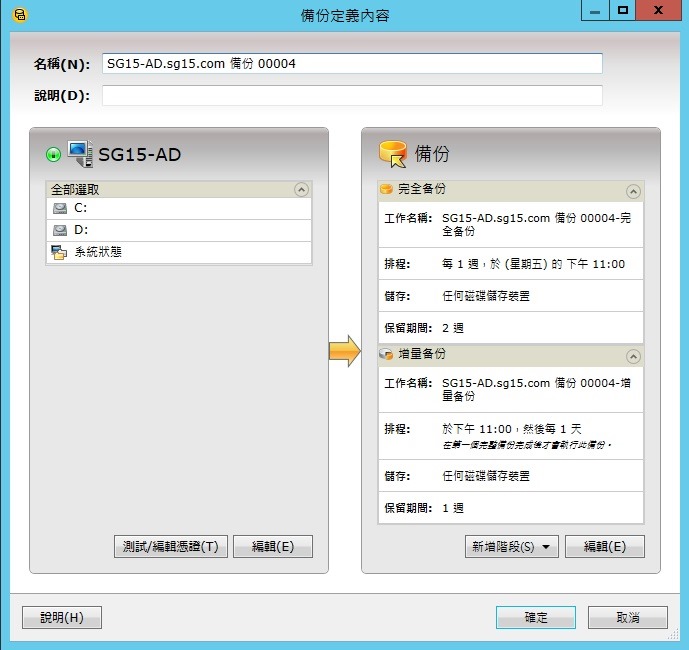
    Backup Exec 15建立備份 > 建立備份

    我們可以根據備份的需要設置備份介質,由於我測試環境裡沒有磁帶機,所以我使用的是直接備份到硬碟。

    以該次測試,下圖範例,該測試系統為Windows 2012 R2

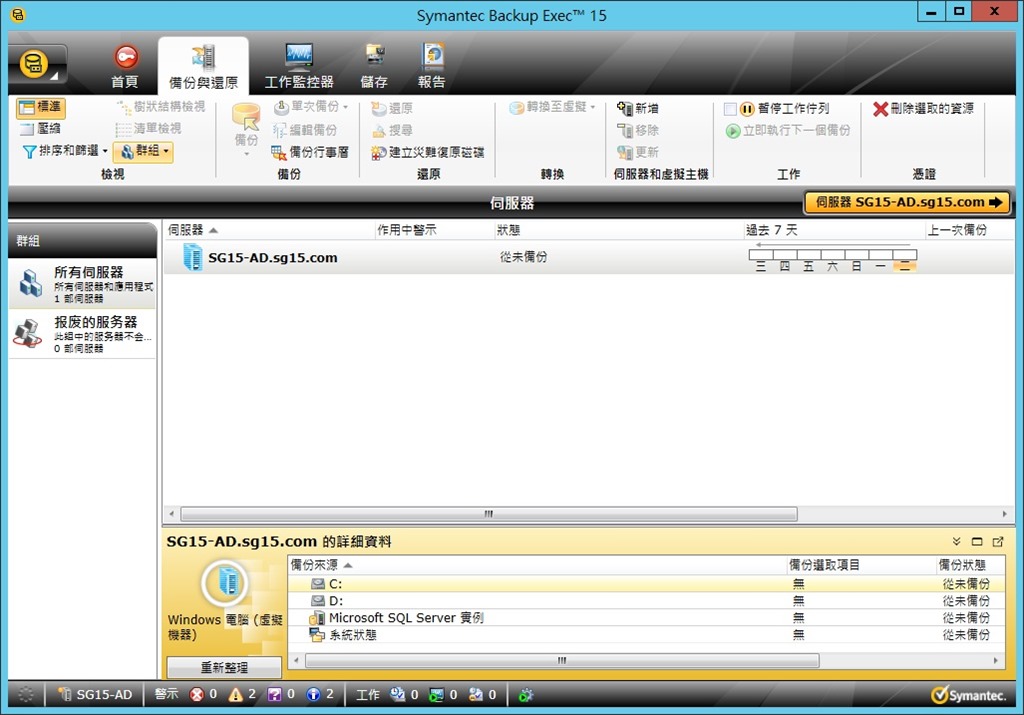
    以下圖為範例,Backup Exec 15備份與還原

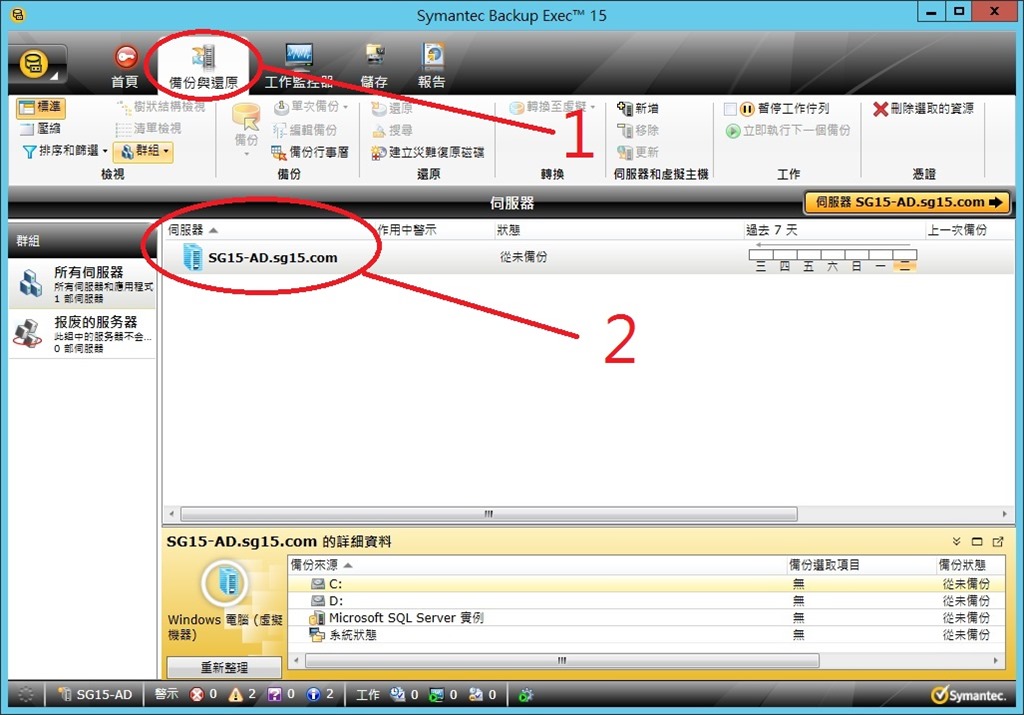
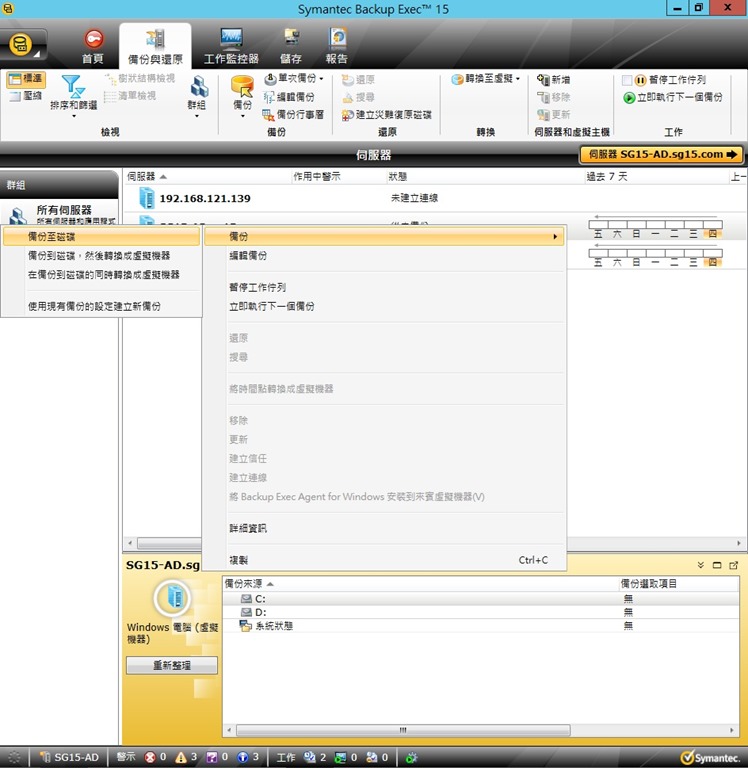
    備份與還原 > 選擇以下例如SG15-AD.sg15.com

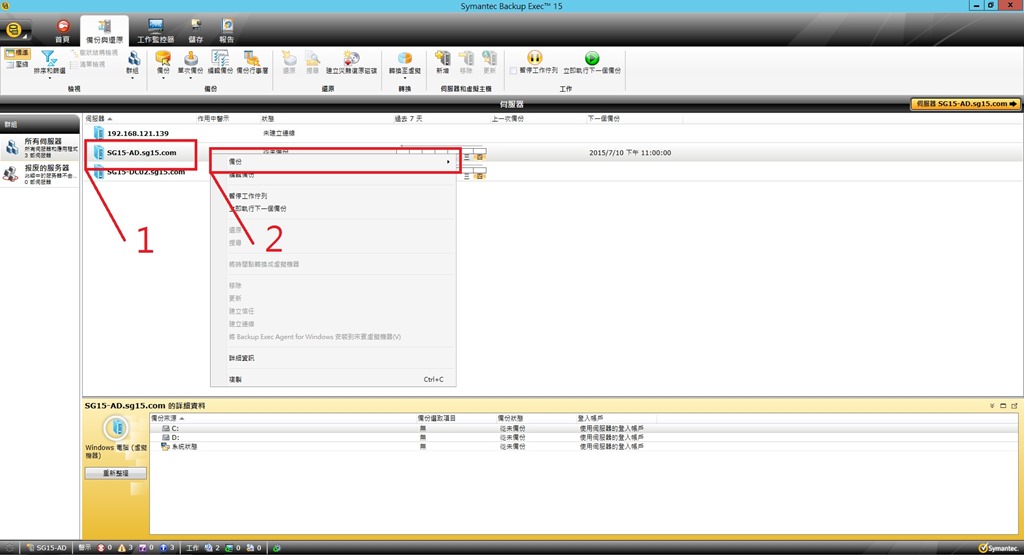
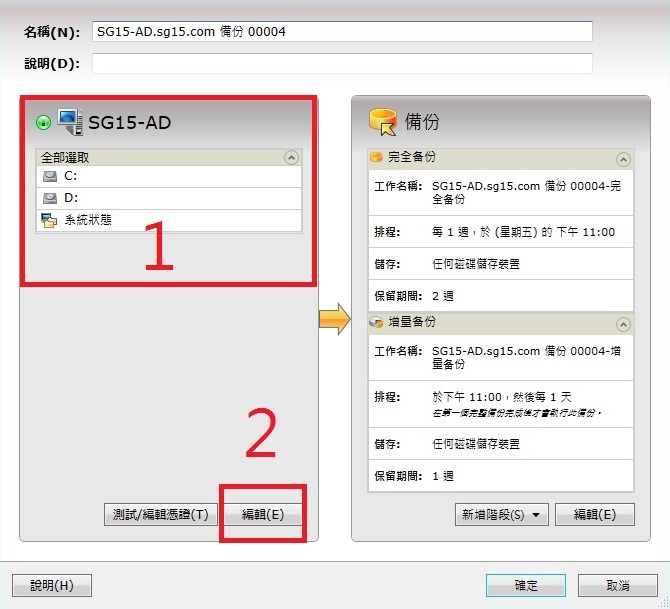
    選擇與備份 > 該測試為本機磁碟以下圖選擇1.2.

    010

    010B

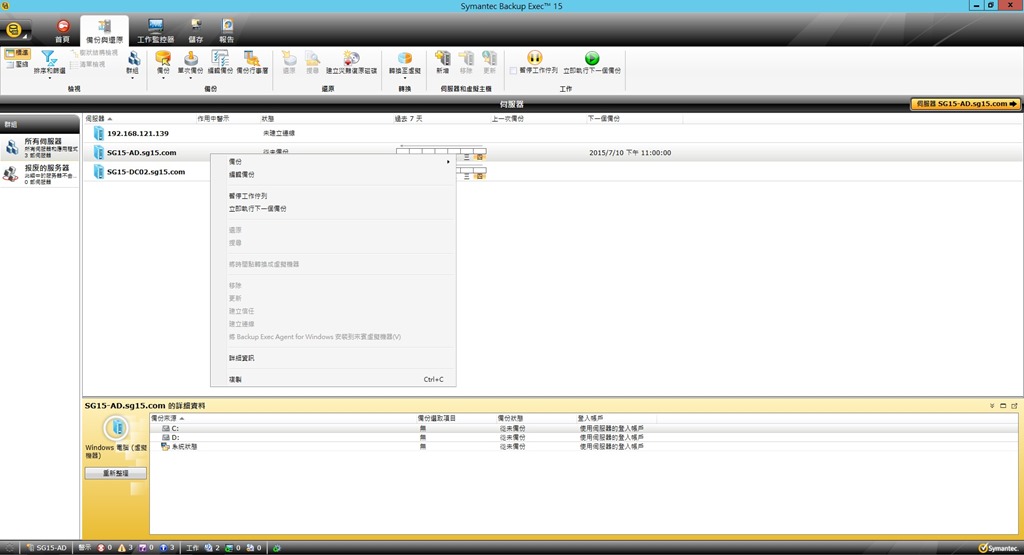
    以上選擇,使用滑鼠,並用滑鼠右鍵,點選相關設定,或相關備份。

    當選擇”SG15-AD.sg15.com”可用滑鼠右鍵 > 選擇備份。

    以下圖,伺服器,選擇。

    ( 所選為測試所建置,可依照使用者,所需備份,選擇,本次為範例所建置 )

    以下圖範例,當選擇備份1.2.

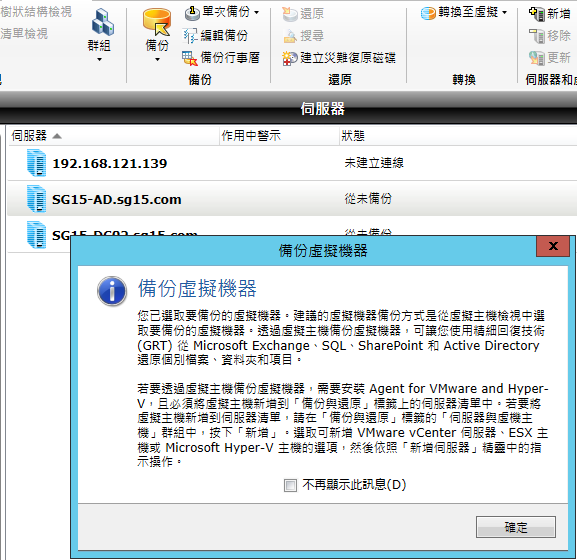
    011A

    以下圖範例為連續範例設定備份圖示,不需多做相關介紹。

    011ABC

    011AB

    clip_image009

    clip_image010

    011ABCDEF

    011ABCDEFGHIJ

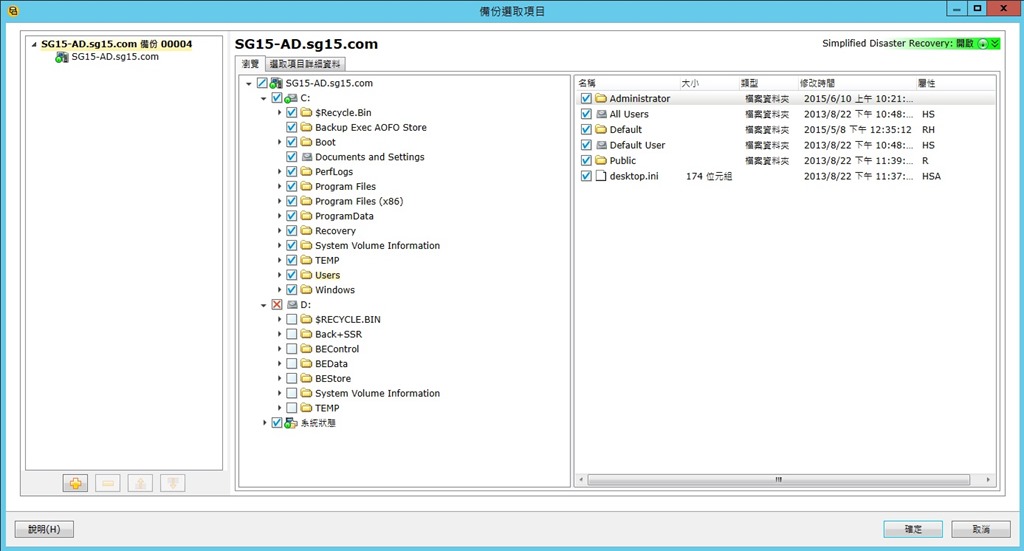
    以下圖為備份 >

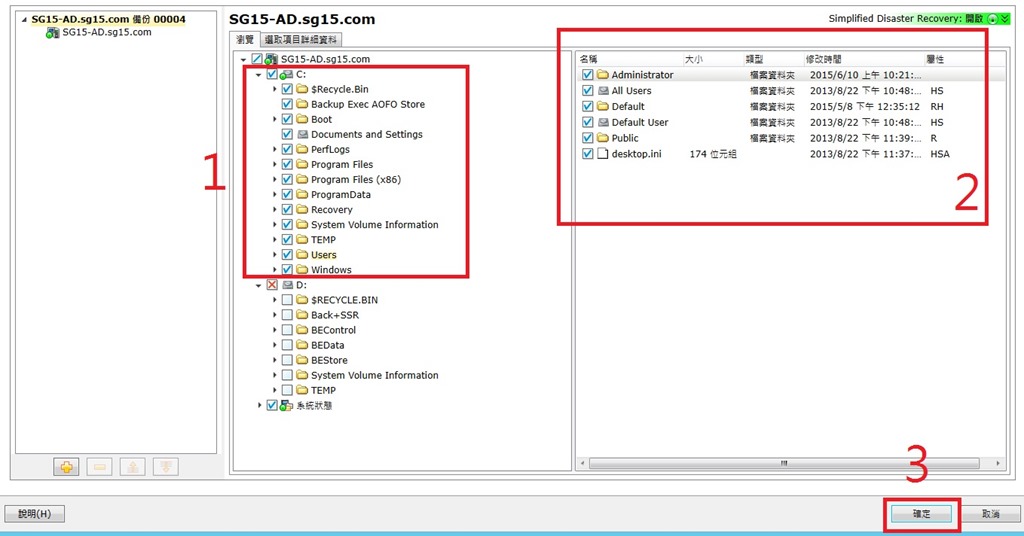
    選擇所需備份檔案,該測試,並無備份D磁碟區。

    以下圖為備份 >

    選擇所需備份檔案,依照使用者需求備份,下圖為測試,僅供參考,該測試所勾選備份檔。

    011ABCDEFG

    011ABCDEFGH

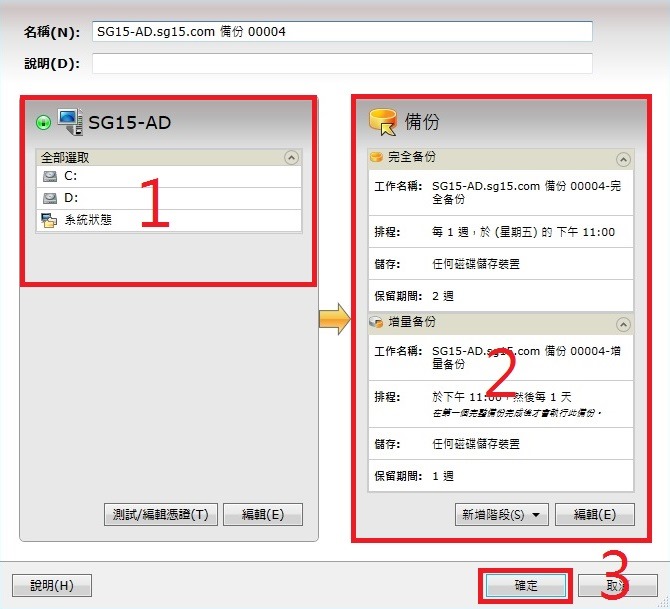
    選擇設定 > 1.2.項次3.確定

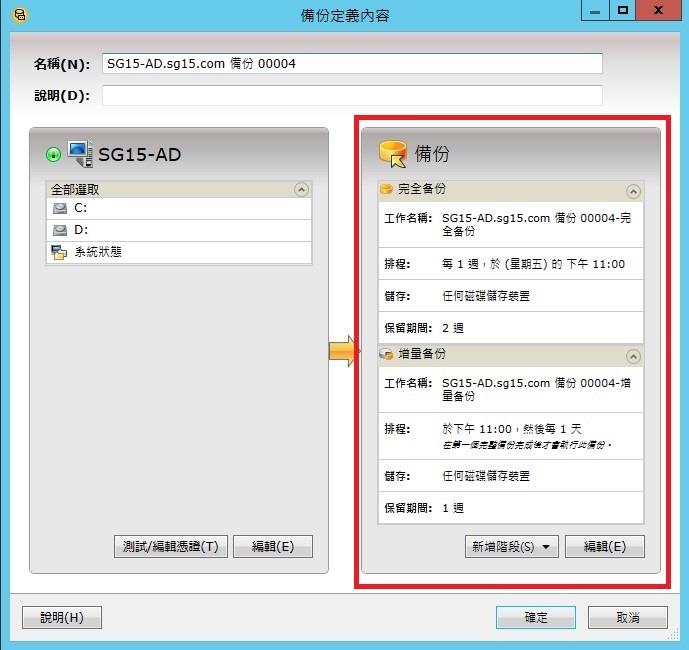
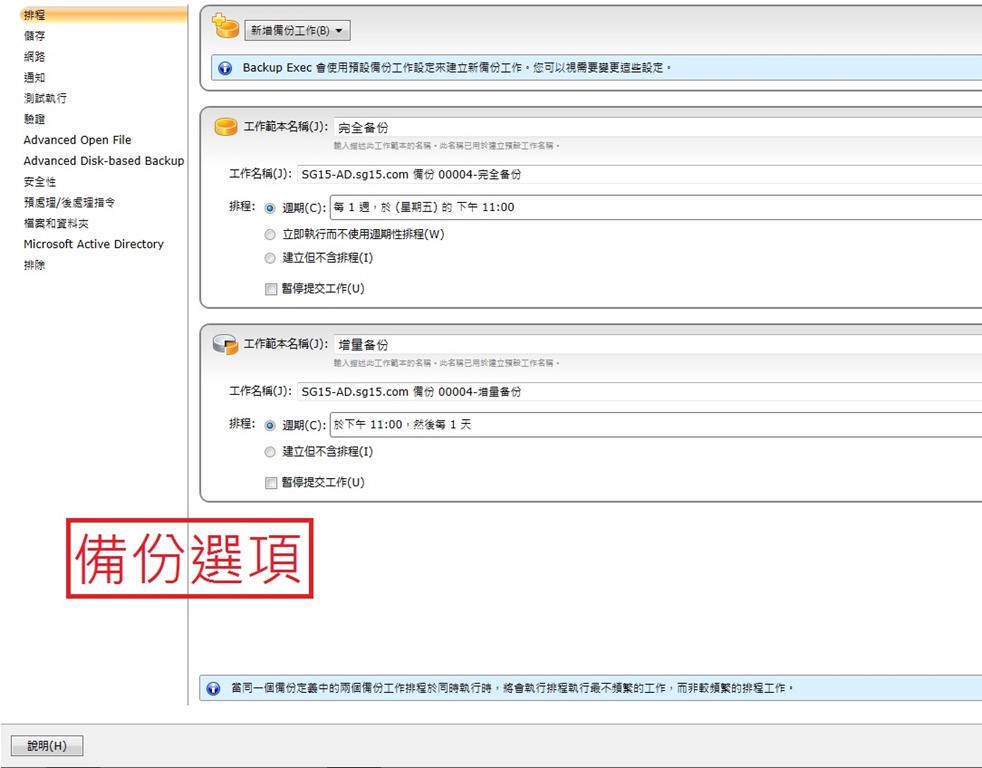
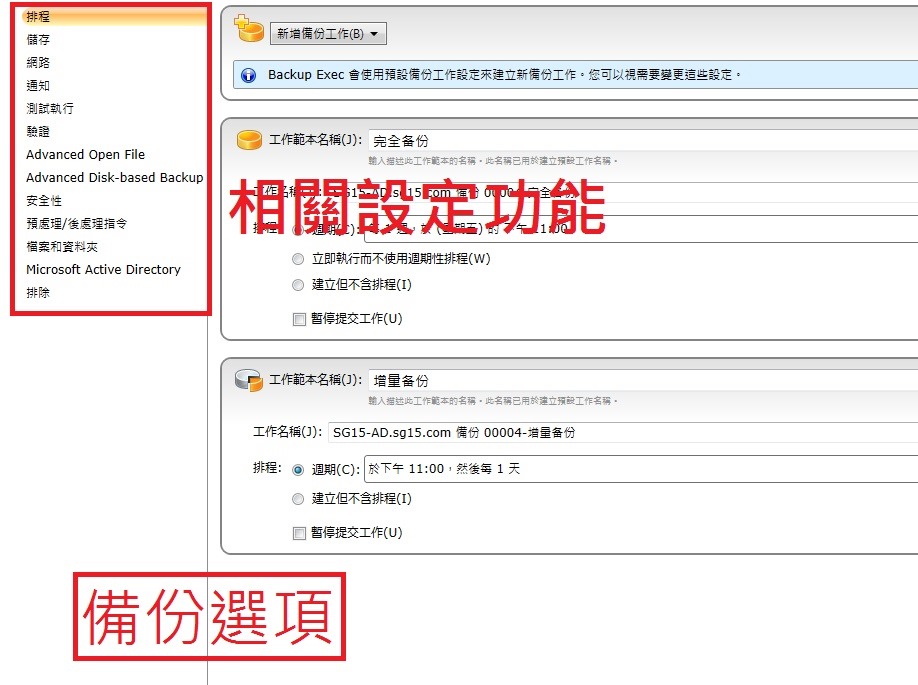
    以下範例,會出現下列範例圖,所選編輯。

    021

    011ABCDEFHI

    022

    本次測試,設定為,使用者可自行參考,該次測試,細部功能並未介紹。

    此功能,本人會獨立細部詳細,另做介紹。

    012B

    當1.2.項次設定完畢,3確定。

    Backup Exec 15建立備份 > 選擇與備份 > 本機磁碟建立備份 ( 完成 )

  • 使用Parallels建立系統還原點

    如何使用Parallels建立系統還原點:

    step1

    image

    開啟Parallels→窗口→控制中心

    image

    點選要建立系統還原的系統中的”齒輪選項

    image

    選取”操作”→”拍快照”

    image

    建立系統還原點

    image

    完成還原點建立

    image

    若想要管理系統還原點可以選擇”操作”→”管理快照”

    image

    可選取要管理的系統還原點進行管理選擇

    image

    image

  • Windows 7使用小技巧:神之模式(God Mode)!

    話說Windows 8都出來一段時間,而Windows 10也快要和大家見面。

    不過Windows 7的系統應該是目前大家最常使用的作業系統.

    但用了這麼久的Windows 7,相信有些功能還是有人不知道。

    其中有個有趣的功能,那就是神之模式(God Mode)!!!

    使用後,不但會讓你頭腦變聰明、書也讀的好、人也變漂亮…

    好啦,我知道離題了。正確來說是使用後,讓你設定系統時不用到處找路徑。

    一個選項點進去後按照不同種類分類,共多達274種設定讓你進行調整。

    如何?這樣聽起來是不是很神啊~~

    使用方式也不難,請按照下面的步驟一步一步來操作就可以了。

    ①、在桌面空白的地方按一下滑鼠右鍵,然後點選『新增』→『資料夾』。

    clip_image002

    ②、輸入下列代碼來命名新資料夾,完成之後請按一下鍵盤上的Enter鍵。

    『GodMode.{ED7BA470-8E54-465E-825C-99712043E01C}』

    clip_image004

    ③、Enter按下後突然發現神降臨!!GodMode出現啦!!

    clip_image005

    ④、最後在圖示上按兩下進入,在神之模式下共有274個選項可以設定調整。

    clip_image007
    如何呢?這個神之模式是不是讓你有完全掌控整台電腦的感覺呢?

    對於熟練的人來說,這個模式真的是方便太多了。

    有興趣的人趕緊來試試吧~

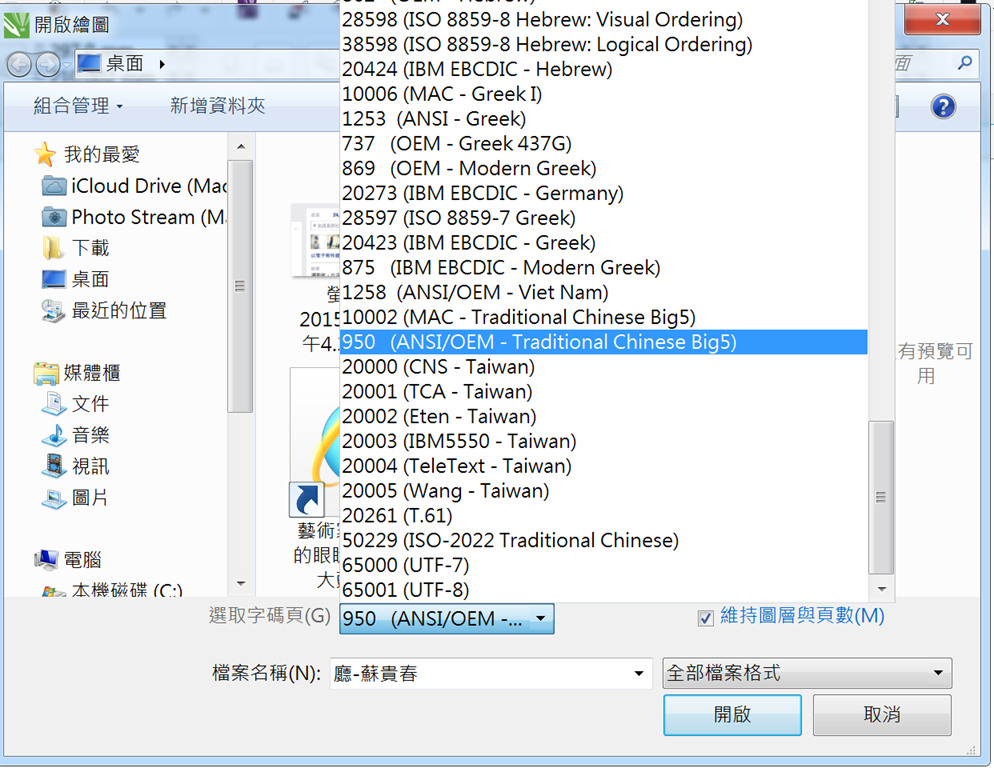
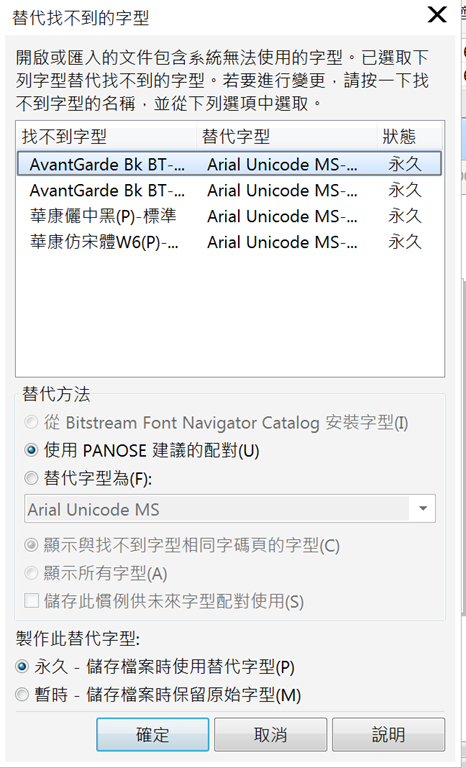
  • CorelDRAW X7 開啟舊版本檔案字型產生亂碼?

    在 CorelDRAW 中,新增到文件的所有文字都會使用 Unicode 字元集編碼。當您開啟或匯入包含文字的繪圖,CorelDRAW 就會將檔案中使用的編碼系統轉換成 Unicode。例如,若您匯入一個較舊的文件,其中包含使用特殊字碼頁 (像是 949 ANSI/OEM – 韓文) 的 8 位元 ANSI 文字,CorelDRAW 就會將字碼頁 949 轉換成 Unicode。如果您開啟文件時未指定字碼頁,CorelDRAW 就會使用預設字碼頁來轉換文字。因此,可能會造成某些文字在 CorelDRAW 中顯示不正確。不過,您可以選取受影響的文字,然後使用適當字碼頁將其轉換回 Unicode,讓文字正確顯示。
     

    Step 1

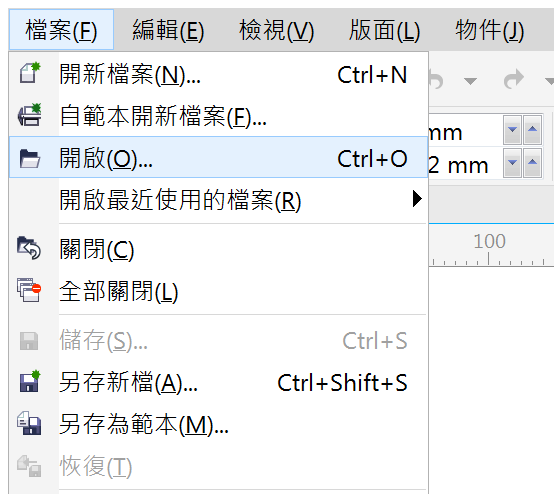
    點選 <檔案 /開啟> 功能表功能選單,

    螢幕快照 2015-07-07 下午5.24.49


    Step 2

    在選取字碼頁下拉清單中選擇950 (ANSI/OEM-Traditional Chinese Big5) 字碼選項.

    螢幕快照 2015-07-07 下午5.23.40


    Step 3

    在 <替代找不到字型> 的視窗,會顯示出此檔案找不到字型的清單,並替換預設的字型,

    螢幕快照 2015-07-07 下午5.24.37


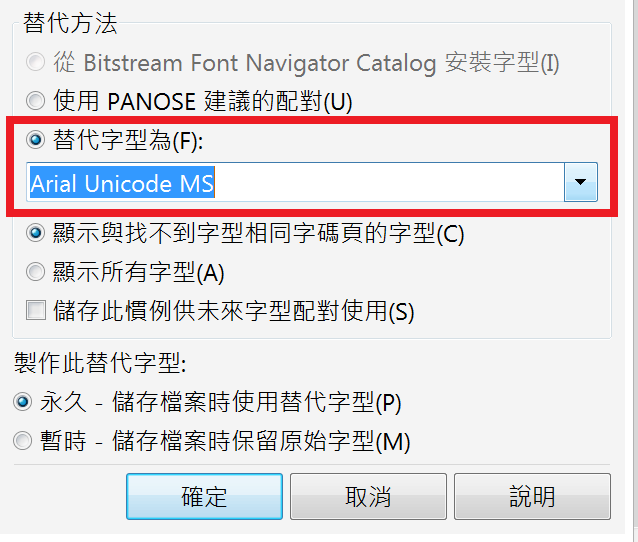
    Step 4

    若要改變替代字型可以在視窗下拉清單中選擇所要替換的字型.即可完全字型替換與編輯~

    image

  • How to let the V-ray tier A (up to 6 cores) usage covered by V-ray tier B (+8 cores) license

    How to let the V-ray tier A (up to 6 cores) usage covered by V-ray tier B (+8 cores) license?

    Hi,

    We buy 10 V-ray tier B (+8 cores) license and have installed them.

    We found Backup Exec 2014 detected we have installed 10 V-ray tier B (+8 cores) license and use 2.

    Backup Exec 2014 also detected we have installed 0 V-ray tier A up to 6 cores) license and use 8.

    How can we let the V-ray tier A (up to 6 cores) usage covered by V-ray tier B (+8 cores) license?

    原廠的回覆

    【Case # 08497250 – How to let the V-ray tier A (up to 6 cores) usage covered by V-ray tier B (+8 cores) license? has been created】

    关于您VM License的问题,我们向后线以及国外的研发进行了咨询和确认:

    1.  目前您可以正常使用。V-ray tier B (+8 cores) license可以为未来服务器升级进行准备。

    2.  备份和还原任务都不影响使用。

    3.  这个问题,我们也会向研发部门进行反应,在未来的版本中,添加V-ray tier B License 向下兼容这个功能。

    有问题随时和我联系。谢谢您的支持。


    image

    image