分類: Uncategorized
-
SSR-2013 R2 建立 System Recovery Disk
從 Symantec System Recovery 2013 R2 開始不再提供 System Recovery Disk
※ 每次開啟 Symantec System Recovery 2013 R2 都會提醒您建立 System Recovery Disk
※ 您也可以透過【任務】→ 【建立新系統復原磁碟】來建立 System Recovery Disk
若是您要立刻建立 建立 System Recovery Disk 請按下畫面中的【立即建立】
此畫面是 【建立 System Recovery Disk 精靈】的歡迎畫面,請按【下一步】
※ 32 位元與 64位元電腦需個別建立
※ System Recovery Disk 可以以 【DVD、USB、ISO 檔】三種方式建立
我們要建立一般的【System Recovery Disk】,請按【下一步】
若您並非在 Symantec System Recovery 2013 R2 所支援最高階 OS (Windows 2012 R2 Update / Windows 8.1 Update) 上安裝 Symantec System Recovery 2013 R2 ,系統會跳出以下畫面,告訴您
【此 System Recovery CD 僅能還原 Windows 2012 R2 / Windows 7 及舊版 OS】
請按【是】繼續
請選擇要將 System Recovery CD 建立在【DVD】【USB】或是【建立 ISO 檔案】
本示範為【建立 ISO 檔案】,請按下畫面中的【瀏覽】鍵,選擇將 ISO 檔建立在桌面
將 ISO 檔建立在桌面
請選擇【使用在此電腦上啟用的授權碼】或是自行輸入授權碼
此畫面顯示儲存裝置與網路的驅動程式,若需額外加入其他必要的驅動程式請按【新增】來加入
若無需新增,請按【下一步】繼續
請更改時區並按【下一步】繼續
若是還原檔案存在於網路儲存位置或分享資料夾【請勾選 自動啟動網路服務】,並選擇使用【靜態 IP】或【動態 IP】
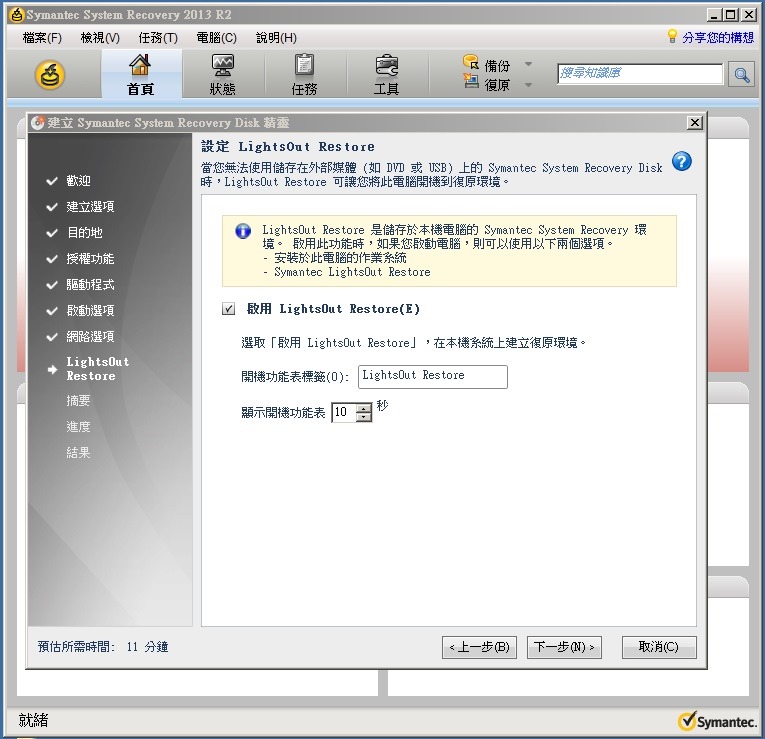
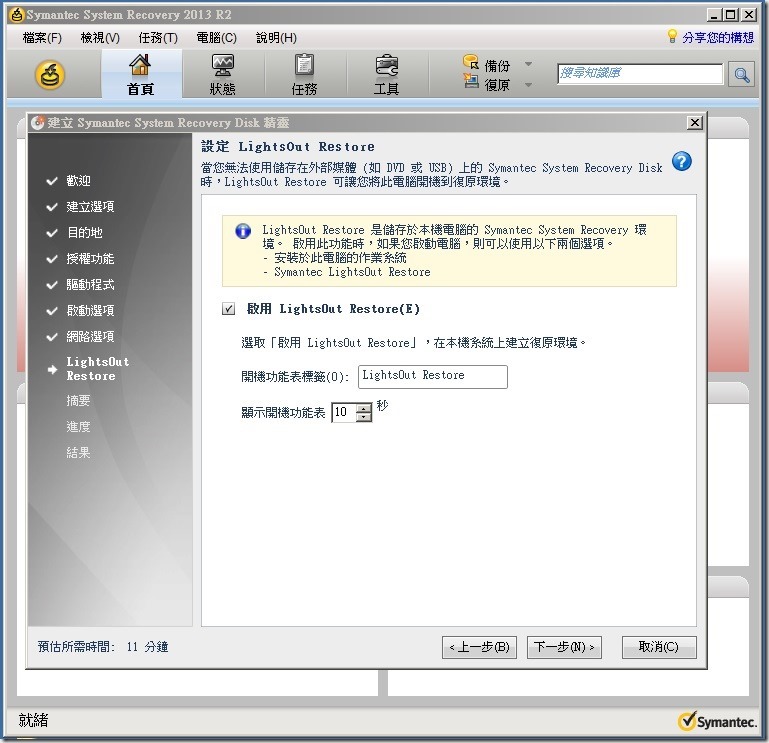
請選擇是否啟用【LightOut Restore】
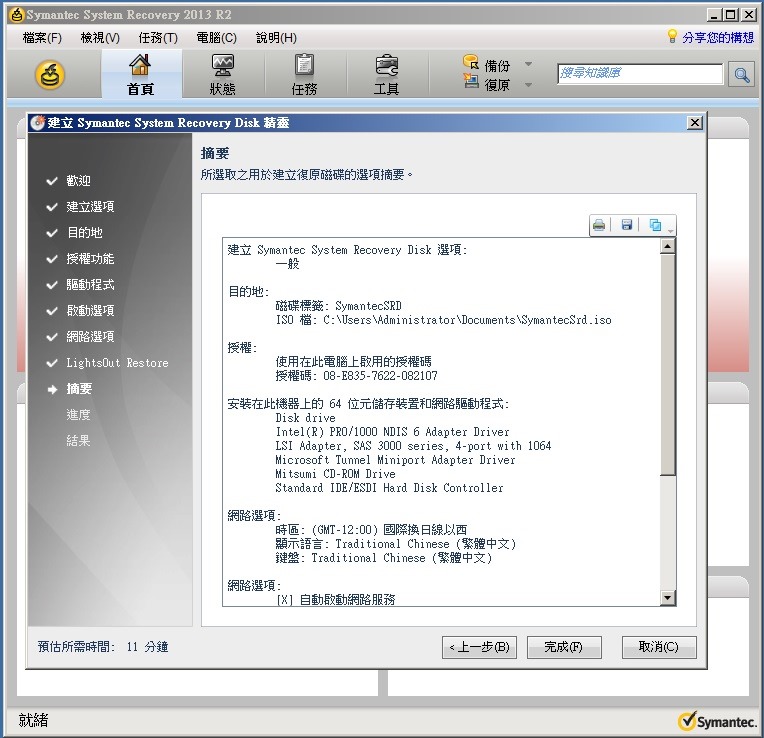
確認好相關建置選項後請按【完成】來建置 System Recovery Disk

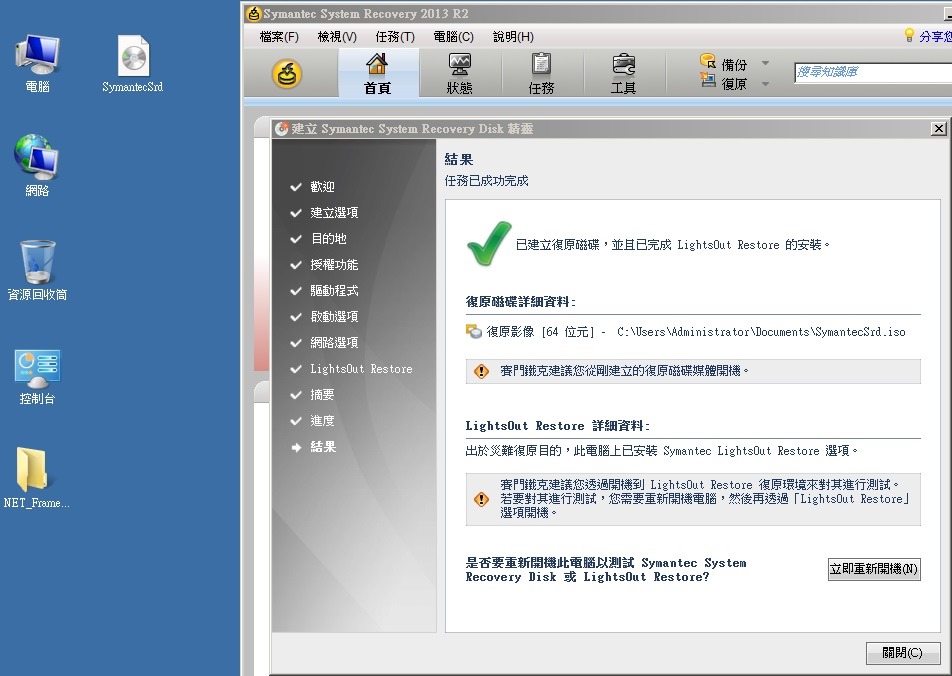
System Recovery Disk 建立中
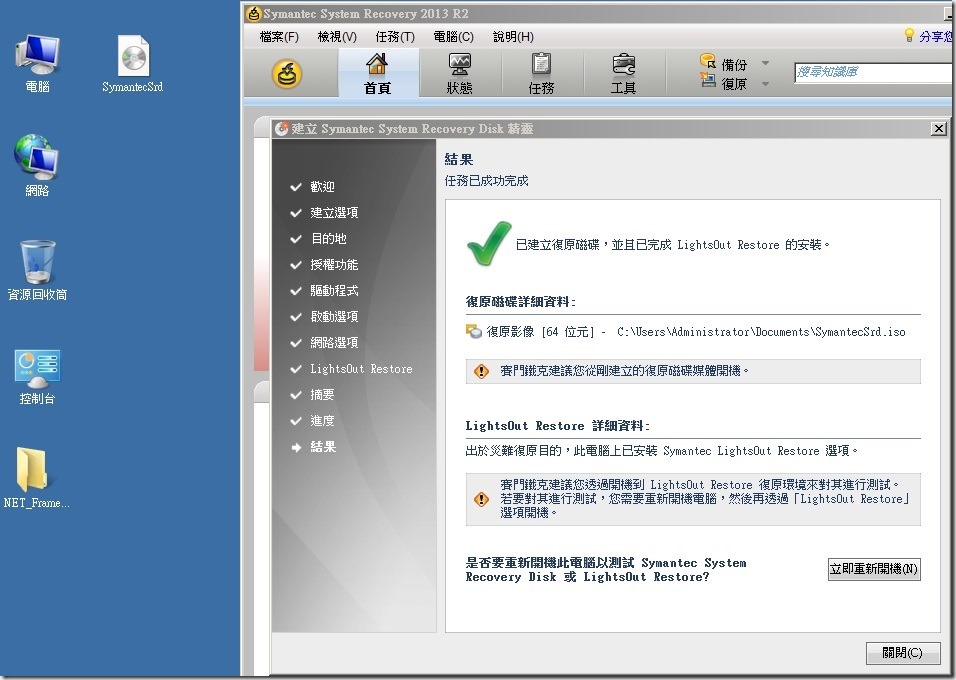
System Recovery Disk 建立完成,若您當初有選擇【LightOut Restore】請按【立即重新開機】讓 LightOut Restore 生效
-

Word實用小技巧-新增可勾選的核選方塊
您是否常常在Word遇到一些需要在核選方塊打勾的表單,確無法直接勾選的困擾。
或是您想製作一張讓人可直接在Word裡核選方塊打勾的表單但確不知道要怎麼製作。
這裡提供一個小技巧,輕輕鬆鬆製作一張直接勾選的表單。
那麼請依下最步驟執行:
①、開啟Word→『檔案』→『選項』。

②、找到『自訂功能區』,然後將『開發人員』勾選後按確定。

③、接下來在Word介面上方,就會多一個『開發人員』的項目。
點擊後就可以看到裡面有個核選方塊可以使用,直接點擊就可以加到內容了,很簡單吧。

④、核選方塊預設是打XX,這邊教大家怎麼修改為打勾的樣式。
選擇剛剛新增的核選方塊後,選擇『屬性』。

⑤、在已核取符號點選→『變更』,請在字型選擇 『Windgdings 2』;然後在字元代碼輸入『 82』,就可以直接找到打勾的符號。

⑥、變更完成後就可直接在核選方塊內打勾了。

-
密碼變更後 boot-guard的密碼都還是舊的
這與變更密碼的方式有關
請參考以下網頁說明,請透過 Ctrl + Alt + Del 來變更密碼,這樣才能立即同步
Symantec – Changing Your Windows Password with PGP WDE With Single Sign-On
https://support.symantec.com/en_US/article.HOWTO79569.htmlDescription
To synchronize your Windows password changes with PGP Whole Disk Encryption (PGP WDE), you must change your password for Single Sign-On using the Change Password feature in the Windows Security dialog box, which you access by pressing Ctrl+Alt+Del.
Note: You may also change your password when prompted by Windows that your password will expire during logging in.
To change your passphrase
1. Press Ctrl+Alt+Delete.
2. Type your old password.
3. Type and confirm your new password.
4. Click OK.
Single Sign-On automatically and transparently synchronizes with this new password with your PGP WDE passphrase. You can use the new password immediately, in your next login attempt.Caution: If you change your password in any other manner—via Domain Controller, the Windows Control Panel, via the system administrator, or from another system—your next login attempt on the PGP BootGuard screen will fail. You must then supply your old Windows password. Successful login on the PGP BootGuard screen using your old Windows password then brings up the Windows Login username/password screen. You must then log in successfully using
P.S.
Symantec – How to change-update the SSO passphrase over the PGP WDE command line, if it has not synched with the PGP Bootguard.
https://support.symantec.com/en_US/article.TECH149263.html
If your Windows password has not synchronized with your PGP BootGuard passphrase, you can synchronize your new Windows password with the PGP BootGuard passphrase using the pgpwde tool.
To use the pgpwde tool:
Windows XP
- Click Start>Run.
- Type cmd in the Open field and click OK.
- Change to the Program Files\PGP Corporation\PGP Desktop directory.
- Type the following at the command prompt (non-domain):
pgpwde –change-passphrase –disk 0 –user username –passphrase ‘yourpassphrase’ –new-passphrase ‘yournewpassphrase’ - Type the following at the command prompt (domain):
pgpwde –change-passphrase –disk 0 –user username –domain ‘domainname’ –passphrase ‘yourpassphrase’ –new-passphrase ‘yournewpassphrase’
- Type the following at the command prompt (non-domain):
- Press Enter.
Windows Vista & Windows 7 32-bit
- Click Start>Run.
- Type cmd in the Start Search field.
- Click cmd from the list of Programs.
- Change to the Program Files\PGP Corporation\PGP Desktop directory.
- Type the following at the command prompt (non-domain):
pgpwde –change-passphrase –disk 0 –user username –passphrase ‘yourpassphrase’ –new-passphrase ‘yournewpassphrase’ - Type the following at the command prompt (domain):
pgpwde –change-passphrase –disk 0 –user username –domain ‘domainname’ –passphrase ‘yourpassphrase’ –new-passphrase ‘yournewpassphrase’
- Type the following at the command prompt (non-domain):
- Press Enter.
Windows Vista & Windows 7 64-bit
- Click Start>Run.
- Type cmd in the Start Search field.
- Click cmd from the list of Programs.
- Change to the Program Files (x86)\PGP Corporation\PGP Desktop directory.
- Type the following at the command prompt (non-domain):
pgpwde –change-passphrase –disk 0 –user username –passphrase ‘yourpassphrase’ –new-passphrase ‘yournewpassphrase’ - Type the following at the command prompt (domain):
pgpwde –change-passphrase –disk 0 –user username –domain ‘domainname’ –passphrase ‘yourpassphrase’ –new-passphrase ‘yournewpassphrase’
- Type the following at the command prompt (non-domain):
- Press Enter.
Your PGP WDE passphrase is synchronized with your new Windows password.
-
為何最近更新EPSON心律有氧教練手環PS-100軟體後無法和手機連線?
最近有接到一些客戶反應他們的EPSON PS-100在更新軟體後會無法與手機連線。
並總是出現下面的錯誤訊息。

但這樣的情形並不是硬體故障喔。
使用iPhone6與三星NOTE3測試之後其結果都是正常的。
唯一要做的就是重新配對而已,而配對的步驟如下(以iPhone 6為例):
①、到手機設定→藍芽→找到PS-100→點選符號ⓘ→點選『忘記此裝置設定』。

②、再來先將設備連接底座並接上USB電源喔。

③、再到桌面點選PULSENSE APP進入『配對』。

④、點選『追加新設備』。

⑤、配對中,請稍待片刻。

⑥、配對成功,接下來就可以開始正常使用了。


-
Backup Exec Agent for Microsoft Exchange Server 的最佳實務準則
對於準備 Exchange Server 進行備份的最佳實務準則,請在 Exchange Server 上執行下列作業:
- 如果要執行下列作業,必須停用循環記錄:
- 執行增量和差異式備份。
- 將資料復原到失敗點。
- 將交易日誌檔放置在不同於資料庫的單獨實體磁碟。
- 如果包含資料庫的磁碟受損,交易日誌可用做復原資源。
- 將刪除的項目和信箱之保留期間設為適合可用磁碟空間的時間長度。
- 保留期間越長,需要的磁碟空間就越大。
- 不過,某些保留期間會阻止您還原信箱或資料庫。如果可能,請架構 Exchange Server,以便項目保留到執行完整備份後才刪除。
- 將 SCSI 控制器的寫入快取設成無法使用。如果電腦在作業寫入磁碟之前發生故障,則可能會發生資料損毀。
- 監控可能會影響 Exchange Server 功能的任何相關事件的應用程式日誌、安全日誌和系統日誌。
- 提供足夠的磁碟空間,用於維護和復原程序。如需詳細資訊,請參閱 Microsoft 說明文件。
- 詳細記錄 Exchange Server 組態。
- 避免將 Exchange Server 設成網域控制器。如果您不必先還原 Active Directory,則可以更輕鬆地還原 Exchange。
- 在至少具有兩個網域控制器的網域中安裝 Exchange Server。
- 在具有兩個網域控制器的網域中,可以透過複寫來更新失敗的網域控制器上的資料庫。
- 必須在資料庫可用性群組 (DAG) 的每個節點上和 Microsoft Exchange 信箱伺服器上具備本機管理員權限,才能備份和還原 Microsoft Exchange 資料庫檔案。
- 對於 Exchange 2010/2013,使用每個資料庫至少有一個被動資料庫複本的資料庫可用性群組 (DAG),才能避免資料遺失。
- 如果可以製作多個被動複本,則第二個被動複本應使用 24 小時的日誌重複延遲。
- 必須在 Backup Exec 伺服器上安裝 Exchange Management Tools for Microsoft Exchange Server。Backup Exec 伺服器上的管理工具與 Exchange Server 上的管理工具必須為同一版本或是更新的版本。
- 在兩個或多個 Exchange 資料庫之間分割使用者信箱。如果其中一個資料庫損毀,則分割使用者信箱會阻止所有使用者傳送或接收電子郵件。
- 維持中等大小的 Exchange 資料庫;如果資料庫過大,可能會增加備份時間。
以下為備份 Exchange 資訊儲存庫資料的最佳實務準則:
- 執行完整備份時,請啟用精細回復技術 (GRT) 選項。
- GRT 選項可讓從資料庫備份還原個別郵件訊息和資料夾,無需單獨備份信箱。
附註:
若需具有 Exchange 資訊儲存庫備份的 Backup Exec 精細回復技術 (GRT) 的相關資訊,請參閱「精細回復技術最佳實務準則」。
- Exchange 2007/2010 不支援個別信箱的備份。
- 建議不要將啟用 GRT 的 Exchange 增量備份傳送到重複資料刪除磁碟儲存裝置。
- 交易日誌主要包含未正確執行重複資料刪除的唯一資料。
- 若要獲得最佳結果,請建立一個備份定義,將 Exchange 完整備份至重複資料刪除磁碟儲存裝置,然後執行增量備份至磁碟儲存裝置。
- 如果要執行啟用 GRT 的備份工作,請變更預設預備位置。
- 預設位置可用於復原工作和預備啟用 GRT 的還原工作。
- 應該將位置變更為不是系統磁碟區的磁碟區,以提升效能。
- 對於啟用 GRT 的備份,應該擁有少於 75,000 個的交易日誌檔。
- 如果擁有的交易日誌檔超過 75,000 個,就可能會增加完成備份工作所需的時間量。
- 請確保不會同時執行資訊儲存庫的排程維護與資料庫備份,如果同時執行這兩個作業,可能會導致 Exchange Server 資料庫發生問題。
- 在其他備份工作之外,另外執行 Exchange 備份工作。
- 定期備份 Active Directory。
- 定期備份系統狀態和陰影複製元件 (如果有的話)。
- 這些選取項目會備份 Internet Information Service (IIS) 中繼資料庫和 Windows 登錄。
- 在變更系統設定或應用程式設定後執行備份。
- 執行離線備份時,請備份組成儲存群組的所有檔案,包含任何 .Edb 和 .Stm 檔案及所有交易日誌檔。
- 對於具有三個或更多個資料庫複本的 Exchange 2010/2013 DAG,可停用一致性檢查。
以下為復原所有版本的 Exchange 資訊儲存庫資料的最佳實務準則:
- 注意還原所有交易日誌的影響;請勿刪除現有交易日誌選項。
- 在啟用此選項的情況下執行作業後,當啟動或掛載資訊儲存庫資料庫時會套用現有交易日誌中的交易。
- 如果這些交易包含在執行備份後發生的任何刪除,則也會套用這些刪除。
- 因此,可能會刪除要復原的資料。
- 在此情況下,啟用「清除現有資料並僅還原備份集的資料庫和交易日誌」選項。
- 此選項會捨棄備份後產生的 Exchange 資料。或者,可以使用第二個復原伺服器。
- 也可以在 Exchange 2007 或 Exchange 2010/2013 復原資料庫中使用「復原儲存群組」功能來執行還原。
- 如果必須使用 Microsoft Eseutil 公用程式來修復資料庫,請確保復原伺服器具有足夠的磁碟空間。可能需要比資訊儲存庫資料庫實際大小還要大四分之一的空間。
- 也可以指定其他磁碟或磁碟區做為在其上執行 Eseutil 公用程式的暫存位置。如需詳細資訊,請參閱 Microsoft 說明文件。
以下為還原 Exchange Server 2007 或更新版本的資料的最佳實務準則:
- 請確保在 Exchange Server 上指定有效的暫存位置,以記錄和分派檔案。暫存位置必須具有足夠的空間,才能配合要復原的交易日誌。
- 如果在還原作業後掛載資料庫時發生問題,請閱讀 Restore.env 檔案。
- 此檔案中的資訊可協助您疑難排解問題。要閱讀此檔案,請使用 /cm 參數執行 Eseutil 公用程式。如需詳細資訊,請參閱 Microsoft 說明文件。
- 架構還原工作時,選取「還原完成後確認」選項,才能掛載資料庫。
- 使用 /cc 參數執行 Eseutil 公用程式,以執行手動硬復原。
- 如需詳細資訊,請參閱 Microsoft 說明文件。
- 如果還原至 Exchange Server 而非來源伺服器,請確保以下內容:
- 復原伺服器位於非來源伺服器的 Active Directory 樹系中。
- 復原伺服器具有與來源伺服器相同的組織和管理群組名稱。
- 儲存群組和資料庫已存在於復原伺服器上,並且必須使用與原始儲存群組或資料庫相同的名稱。
以下為計劃 Exchange Server 災難復原的最佳實務準則:
- 定期執行測試,以確保災難復原和資料復原方案產生預期結果。
- 熟悉 Microsoft 說明文件中有關 Exchange 資料庫管理、災難計劃和復原的內容。
- 詳細記錄 Exchange Server 組態。
- 記錄任何後續變更,請注意,所有 Hotfix 和 Service Pack 都適用。
- 如果要執行下列作業,必須停用循環記錄:
-
Parallels Desktop 11安裝步驟
至網址:
www.parallels.com/hk/products/desktop/download/
點選下載
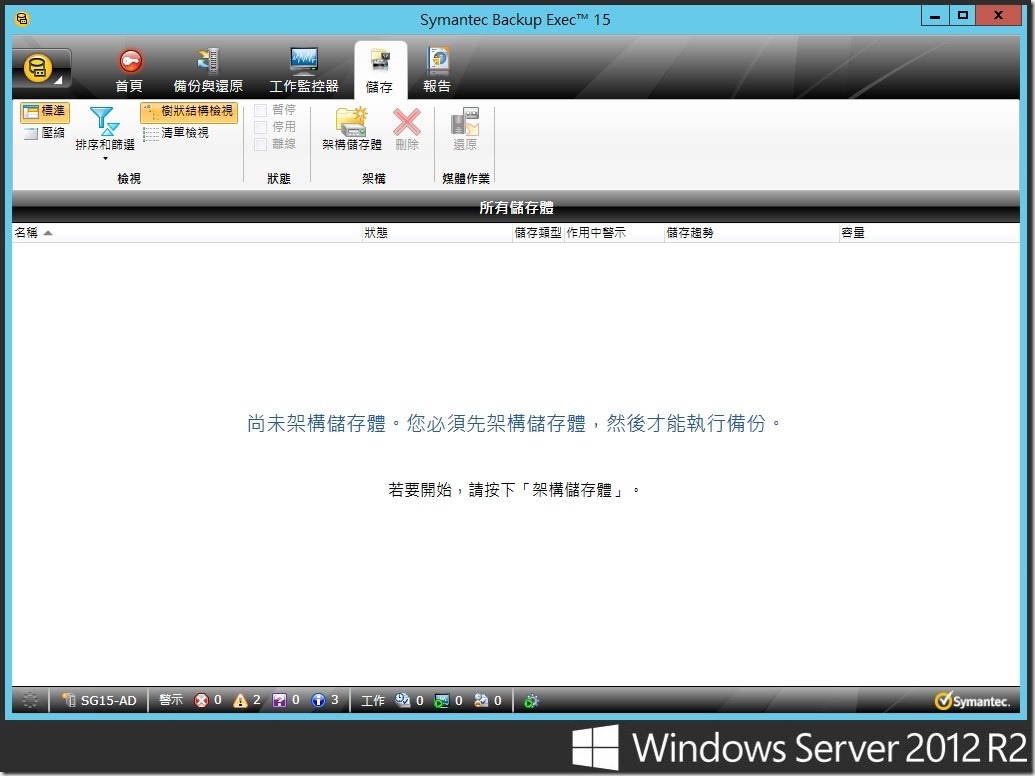
下載程式中
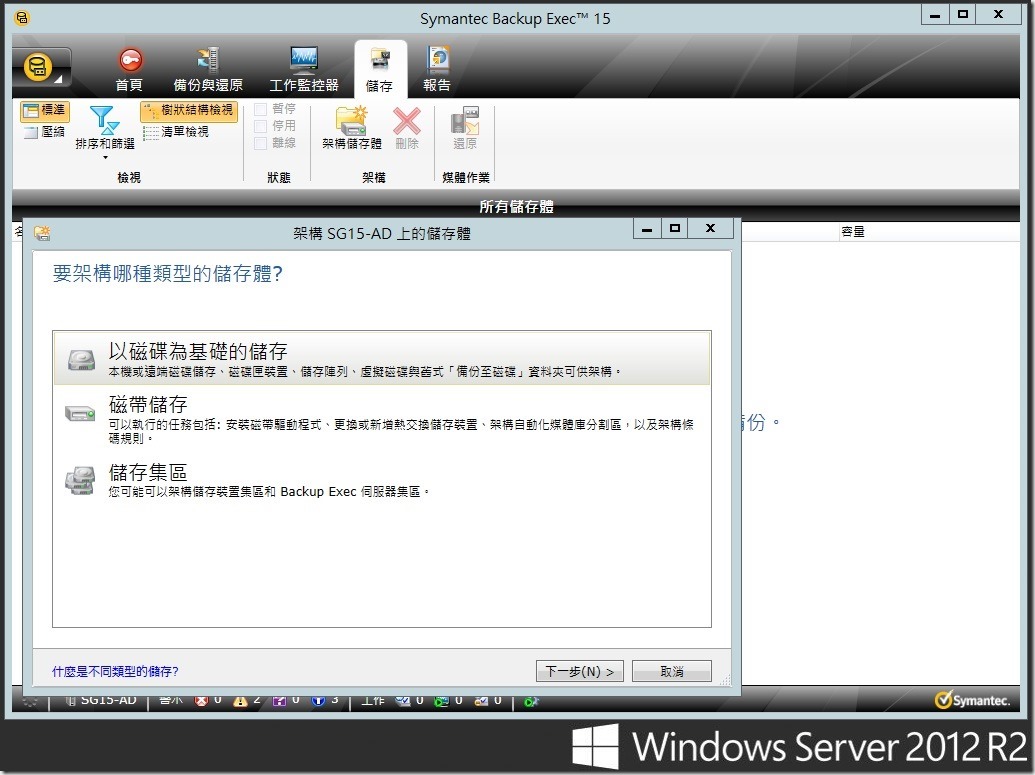
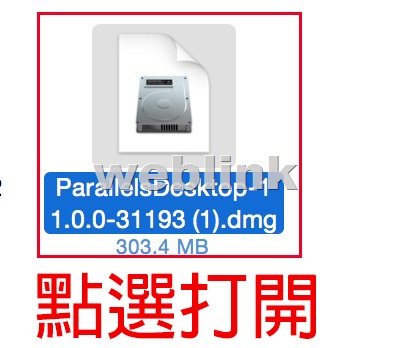
從下載區→打開程式
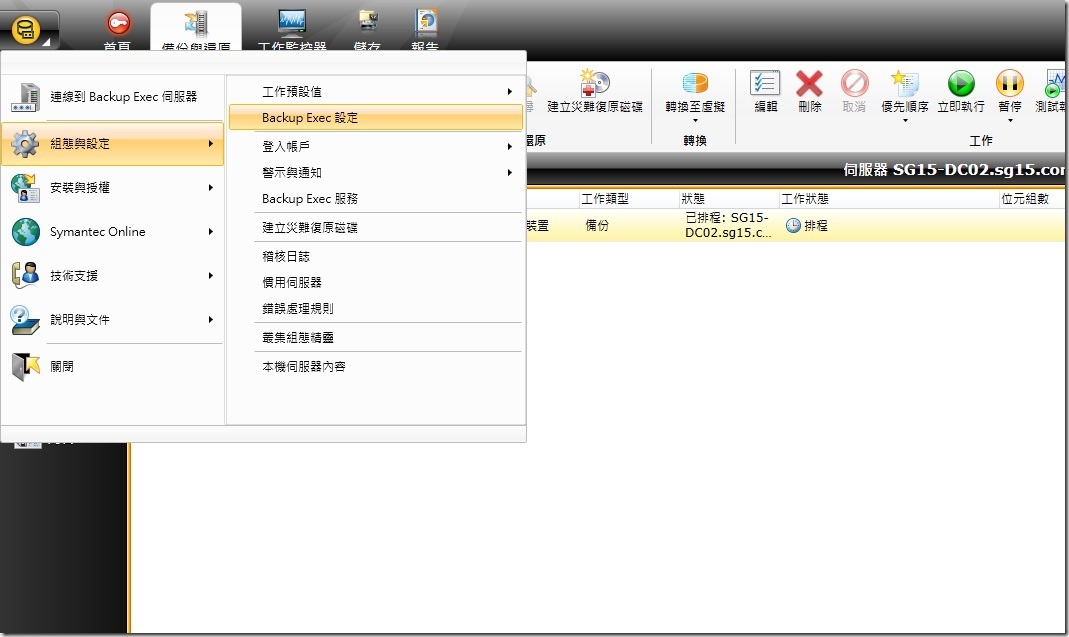
點選安裝

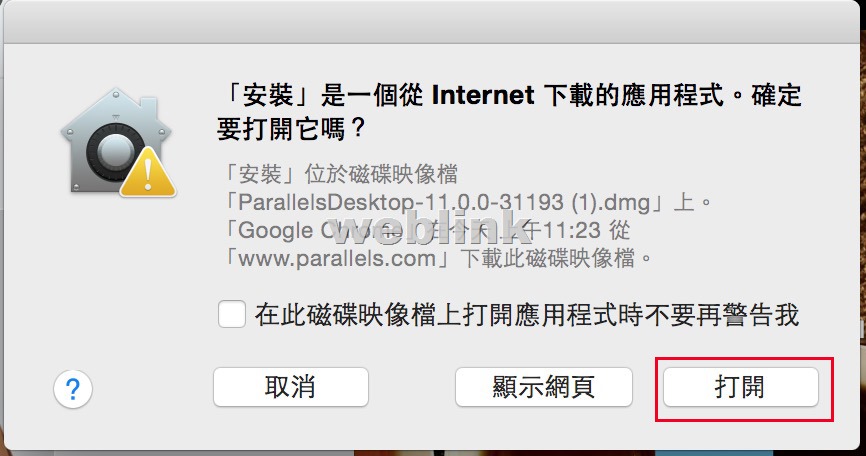
點選”打開”
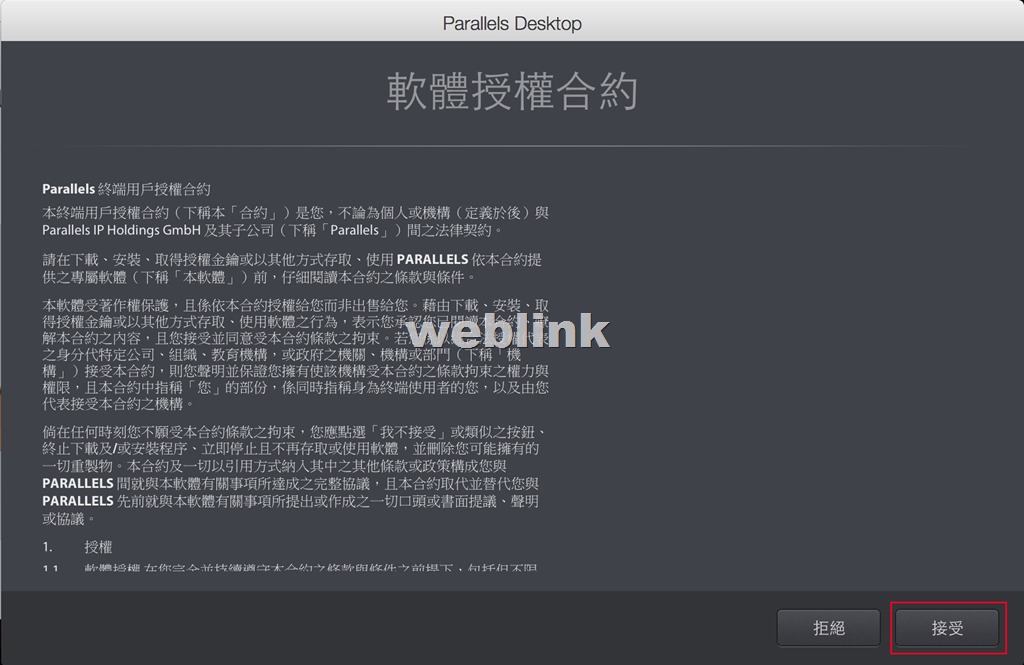
點選”接受”
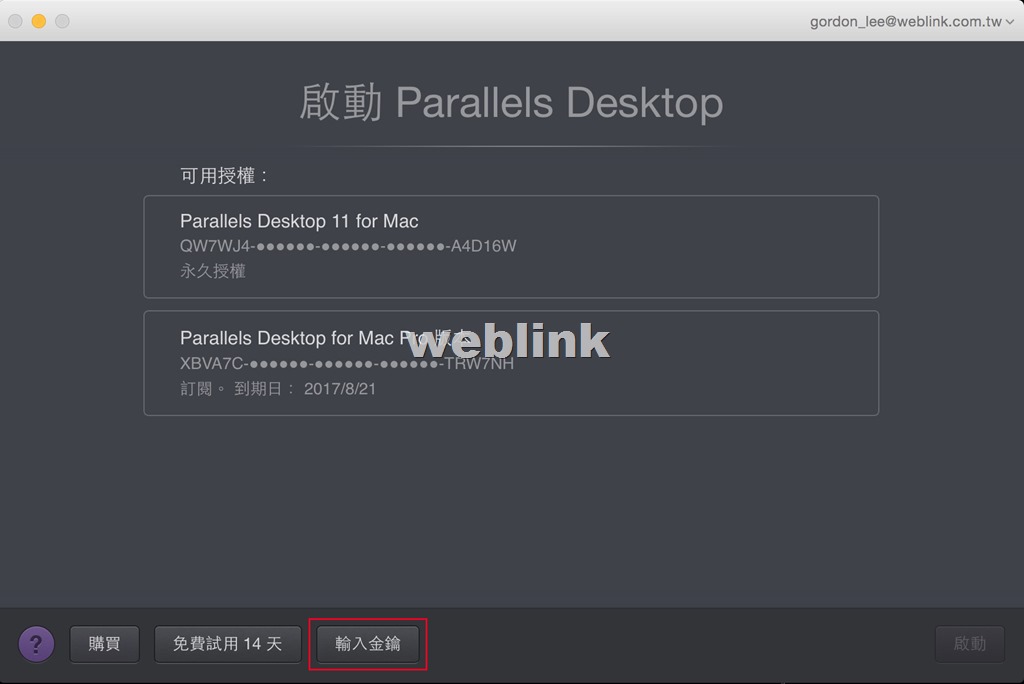
登入Parallels ID之後→點選”輸入金鑰”
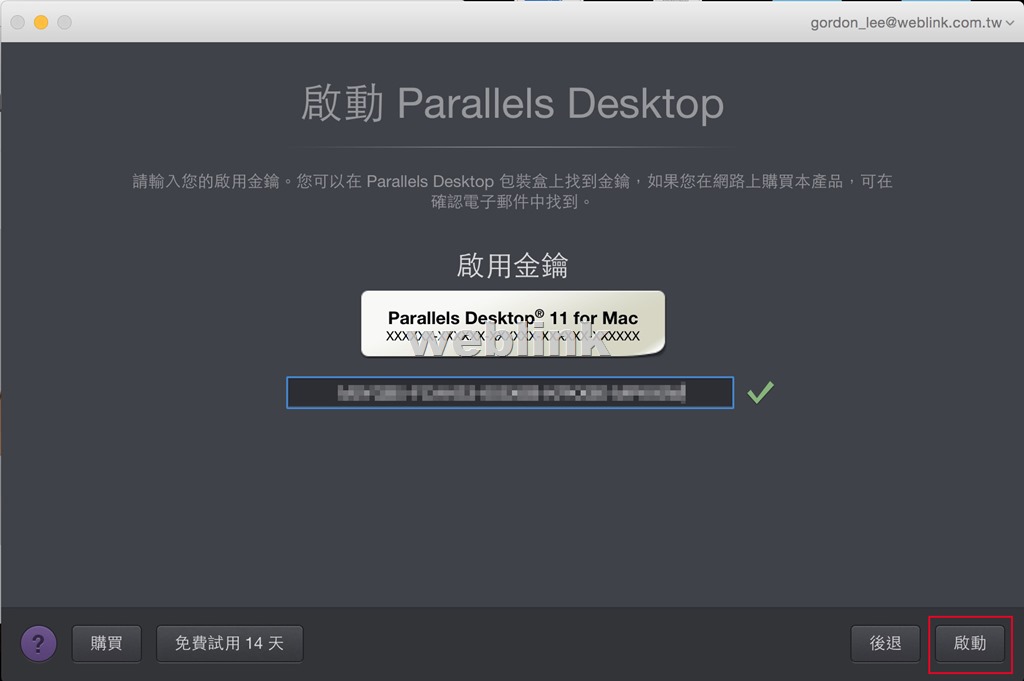
點選”啟動”
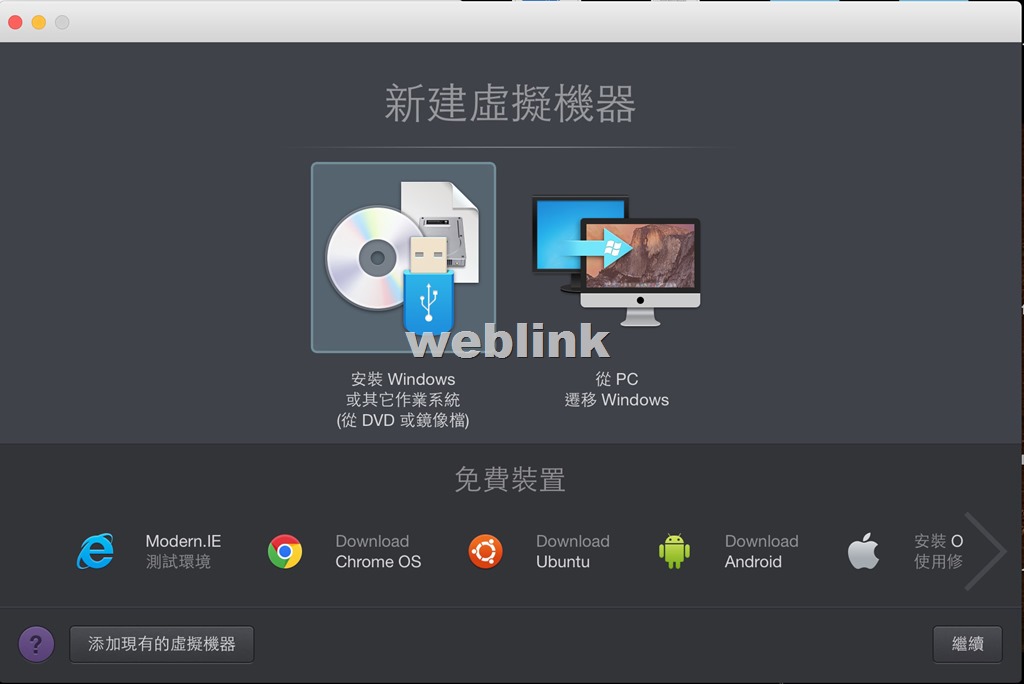
安裝完成,可由添加現有的虛擬器,加入原先的虛擬系統;或者新建其他虛擬系統
-
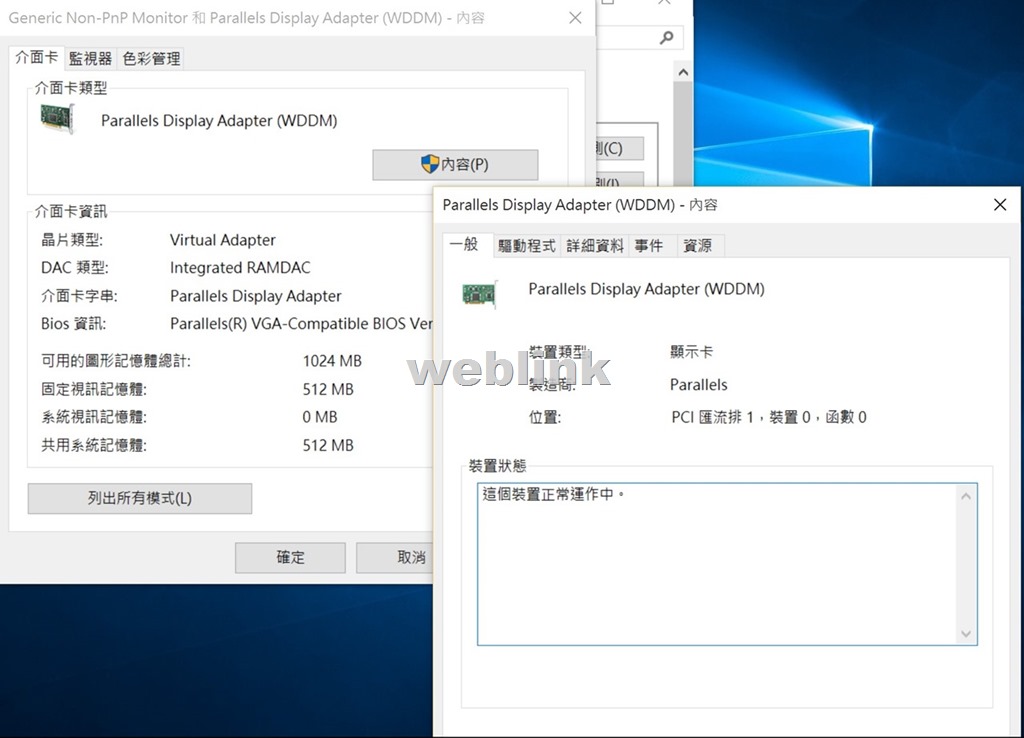
windows8.1在Parallels Desktop 11升級windows10所出現的錯誤畫面
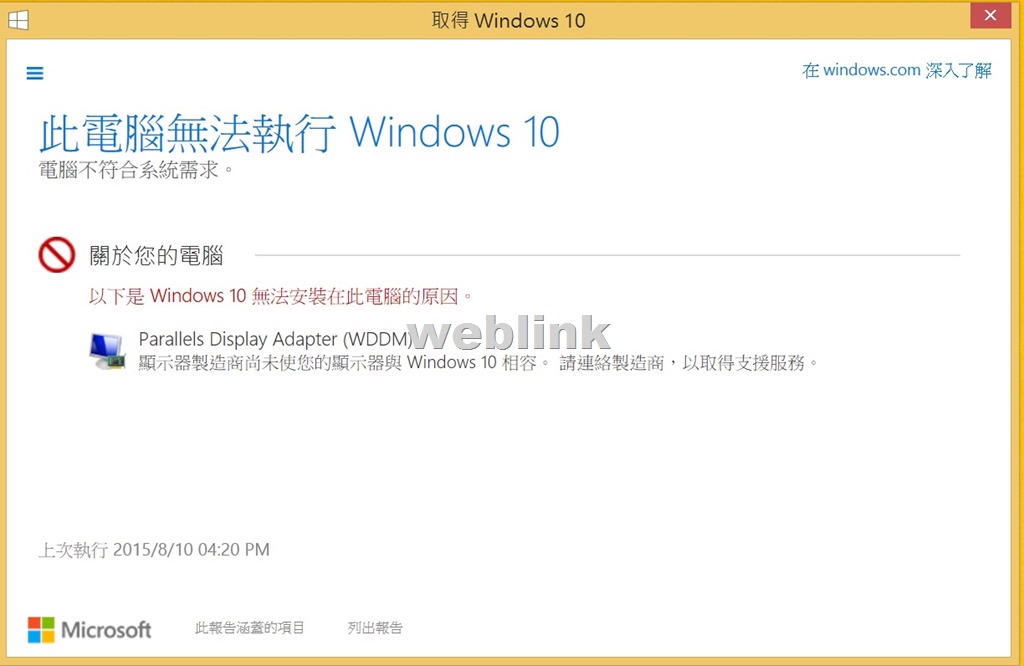
原本安裝的win8.1,收到微軟通知可升級到win10;在點選windows8.1的通知icon後;會出現以下對話視窗:
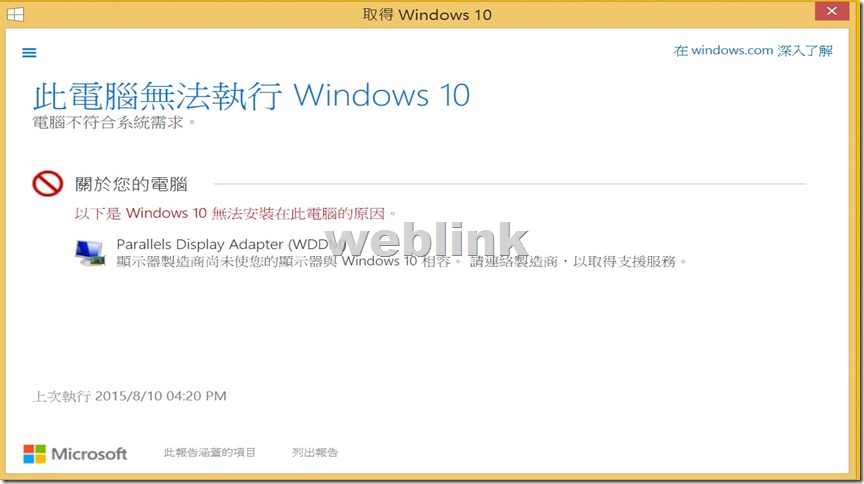
以圖示來看,其是在您Windows系統中所出現之視窗畫面,Windows 10在提供升級前,會針對您所使用的軟/硬體做相容性偵測檢視,並把比較有問題的部分告知您參閱,除非有重大的硬體或原使用系統之問體,否則即使相容性稍有問題(軟體部分會要求移除、硬體部分因驅動程式支援問題故可先忽略),都還是能進行升級的。
因為Parellels中的Windows是屬於虛擬主機 (非固定實體硬體),而目前Windows 10的作業系統啟用方式是採“硬體特徵值”來連網註冊啟用,故倘若您要將Parellels中舊版的Windows 7 SP1或Windows 8.1 with update升級至Windows 10,建議您將升級前或升級後的Parellels虛擬機進行備份,以防以後重裝時無法啟用您的Windows 10 (只能用備份下來的虛擬機來使用)。
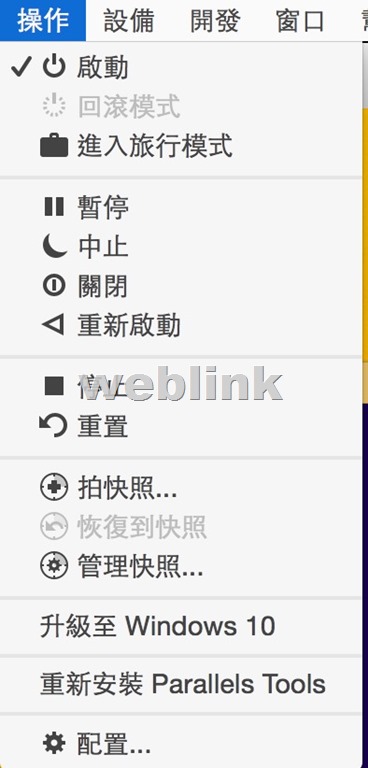
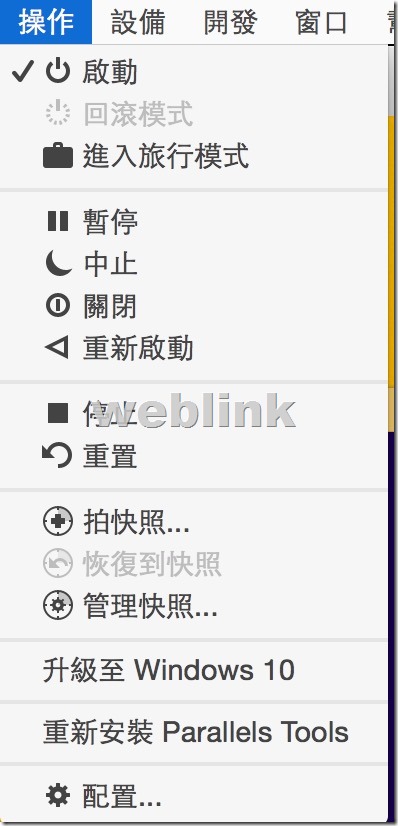
此時,選取”操作”→”升級至windows10″
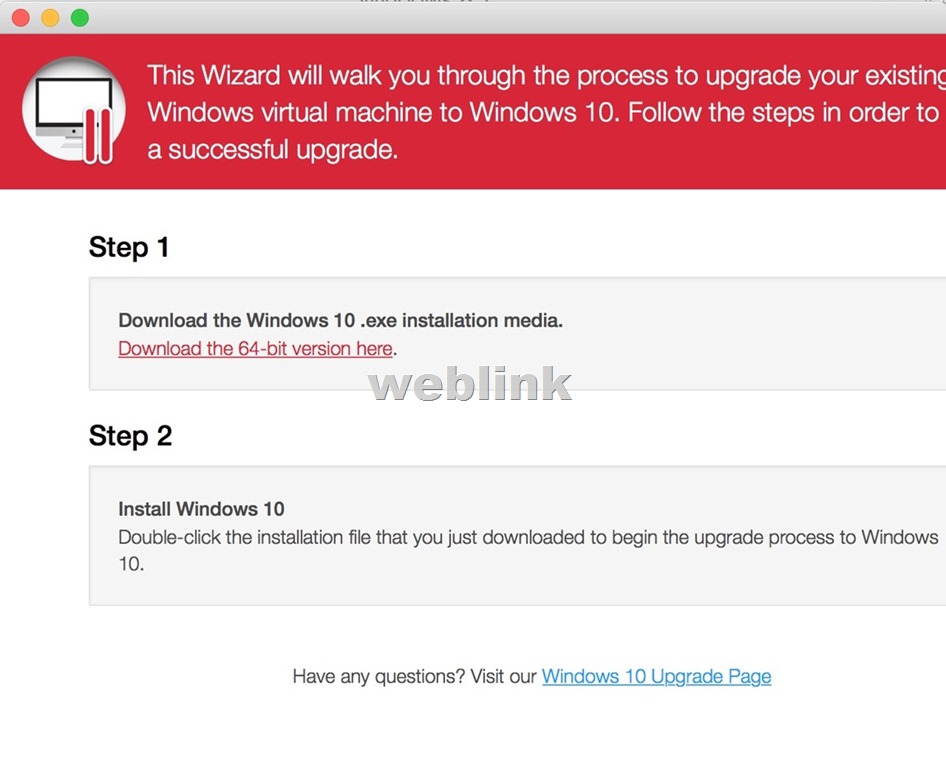
點選”Download the 64-bit version here”
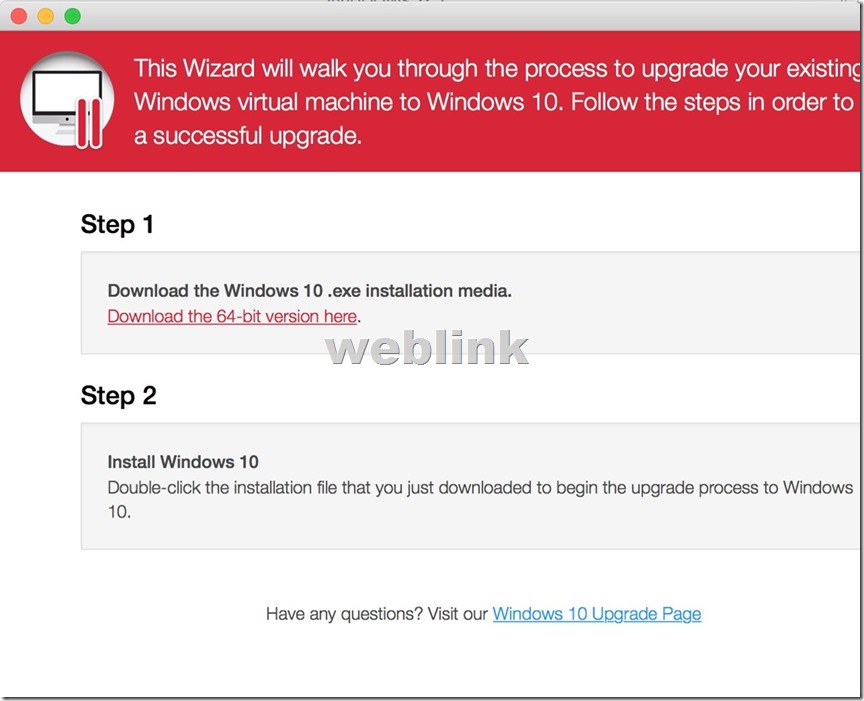
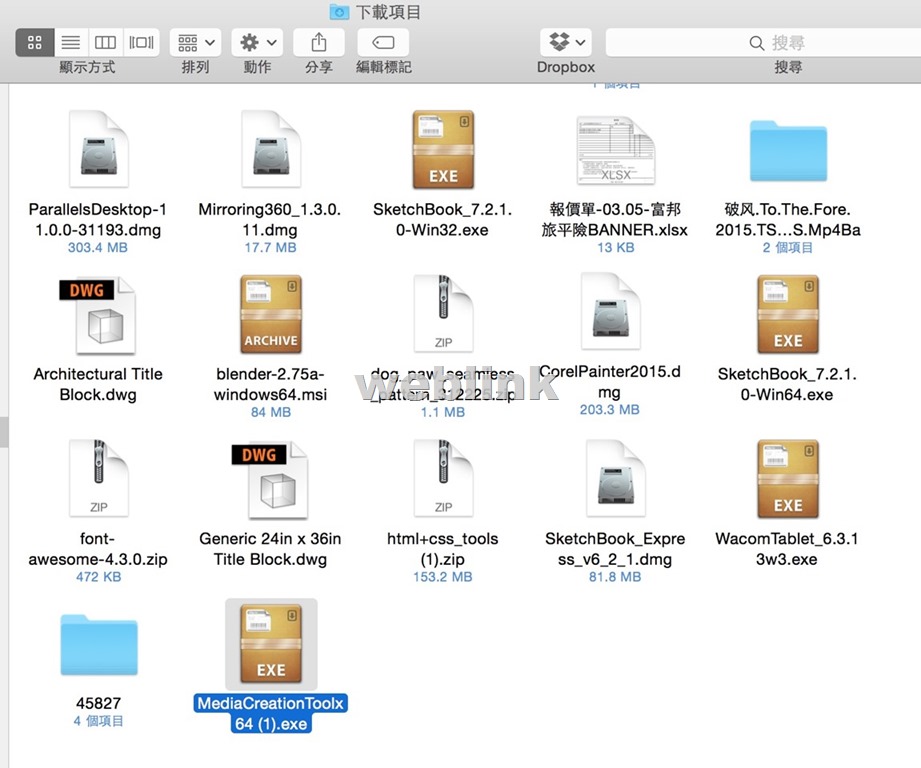
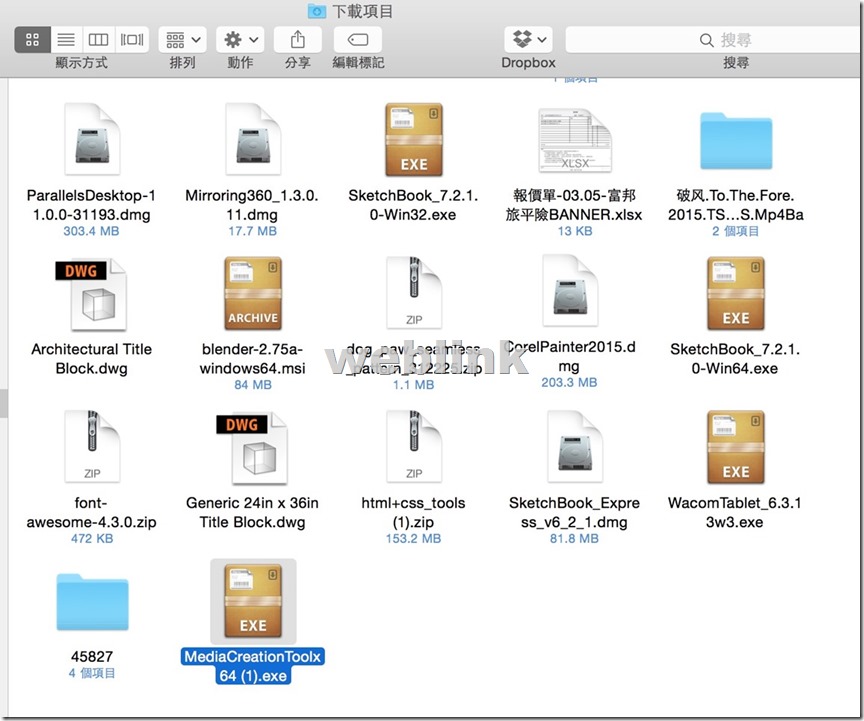
從”下載”→使用滑鼠左鍵連續雙響打開”MediaCreationTool x64.exe”執行
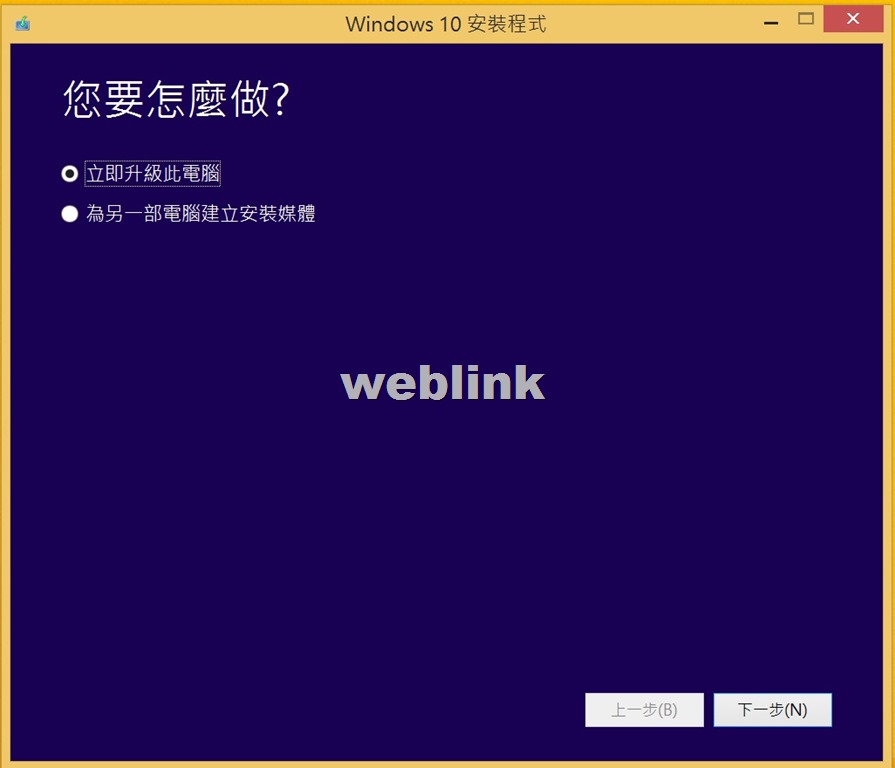
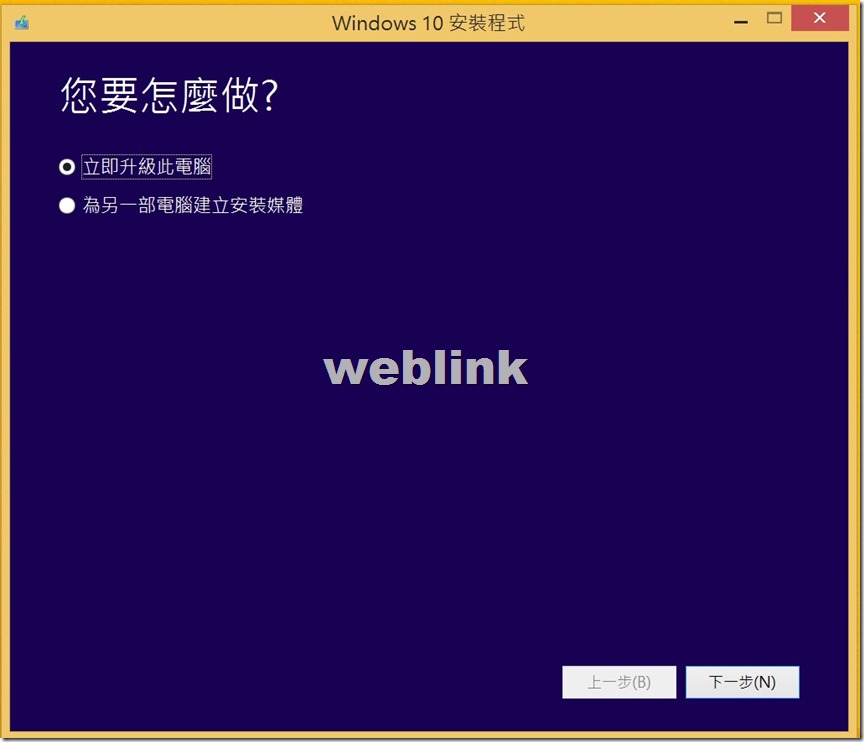
選取”立即升級此電腦”→點選”下一步”
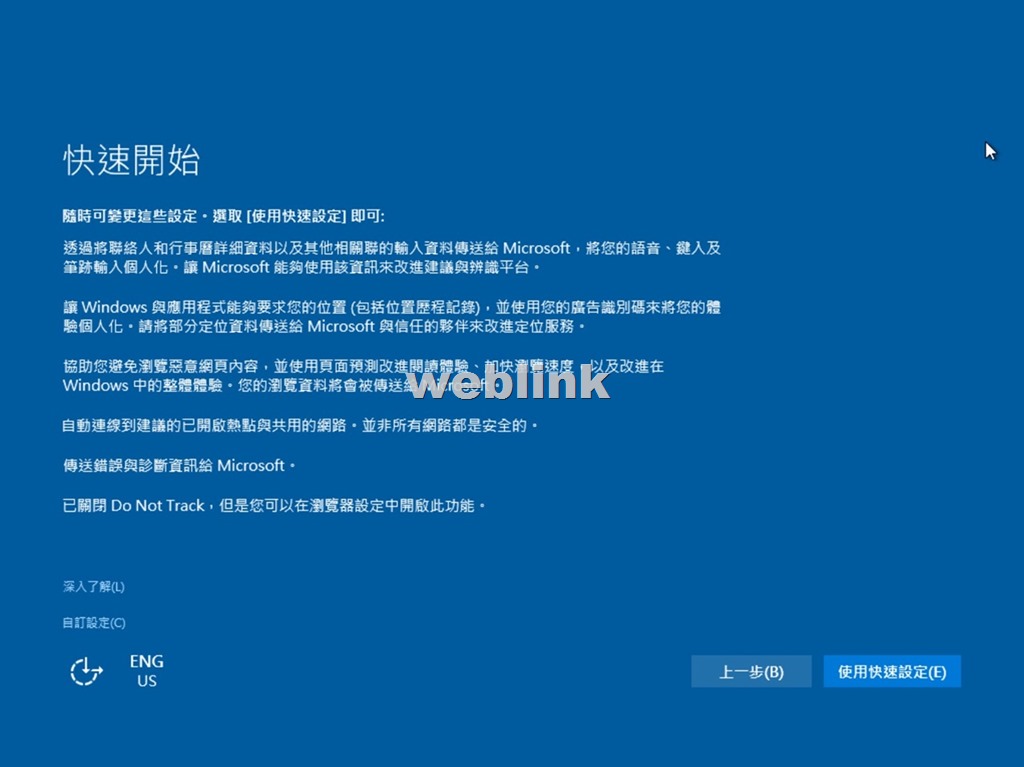
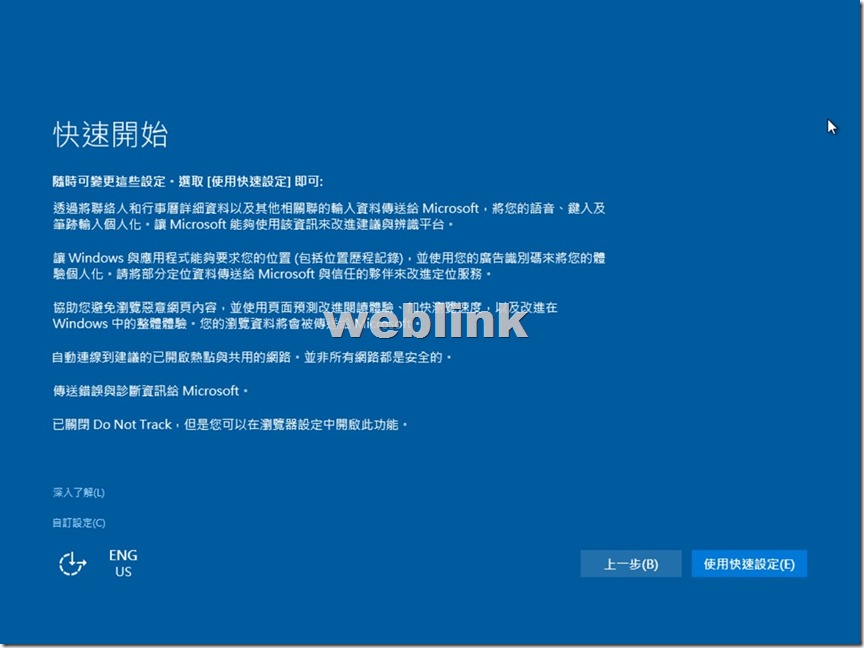
點選”使用快速設定”
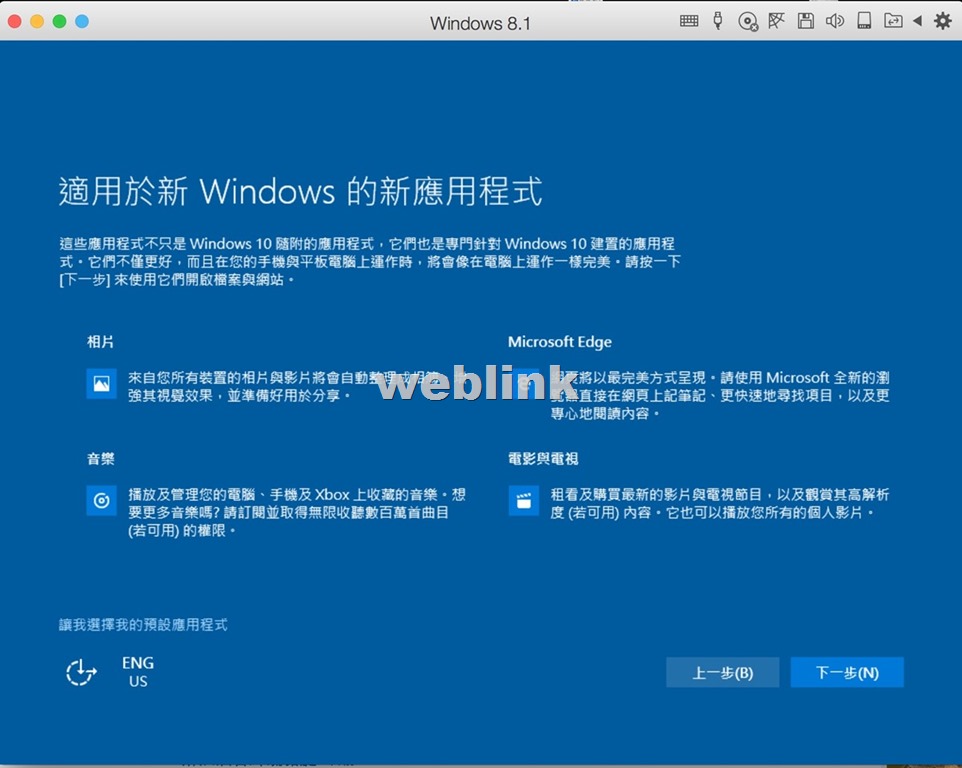
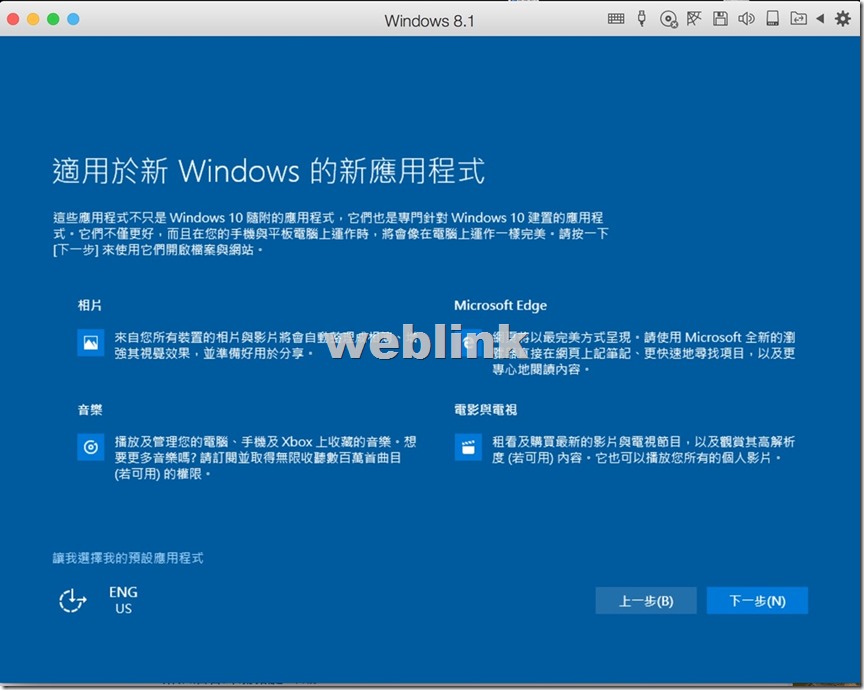
點選”下一步”
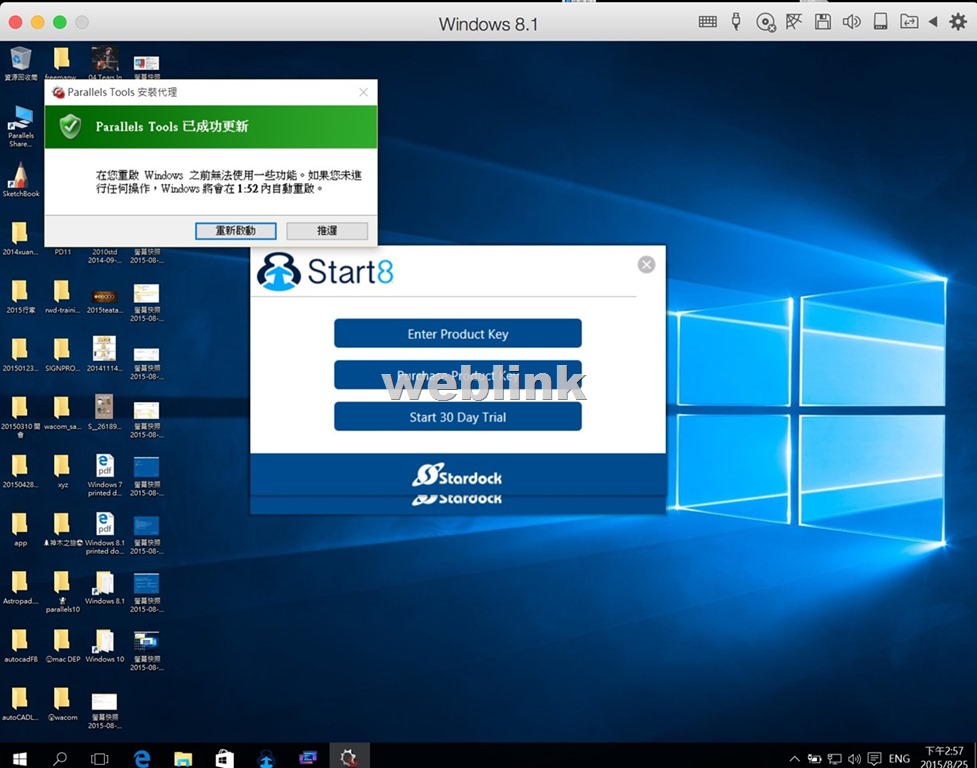
點選”重新開機”
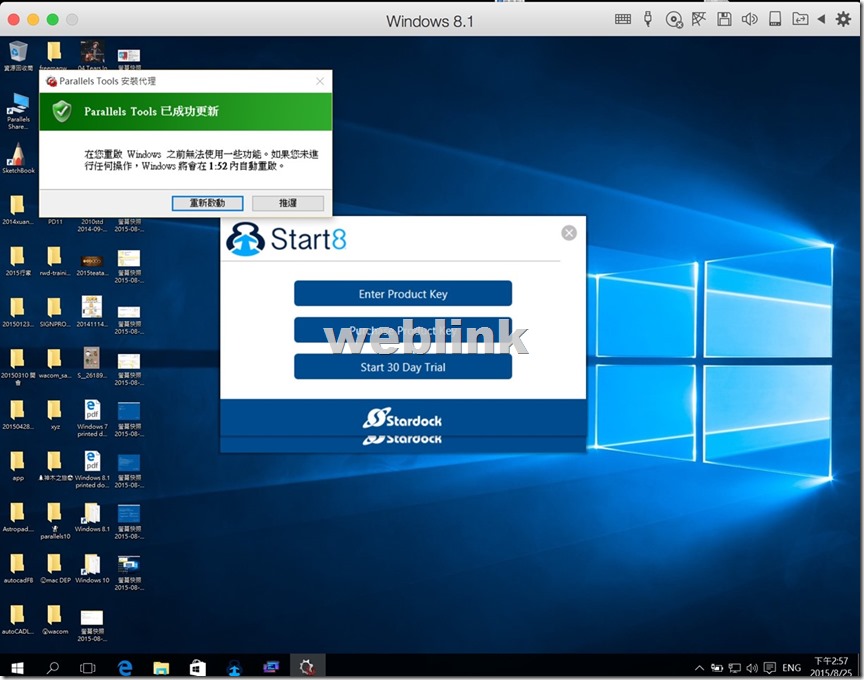
完成
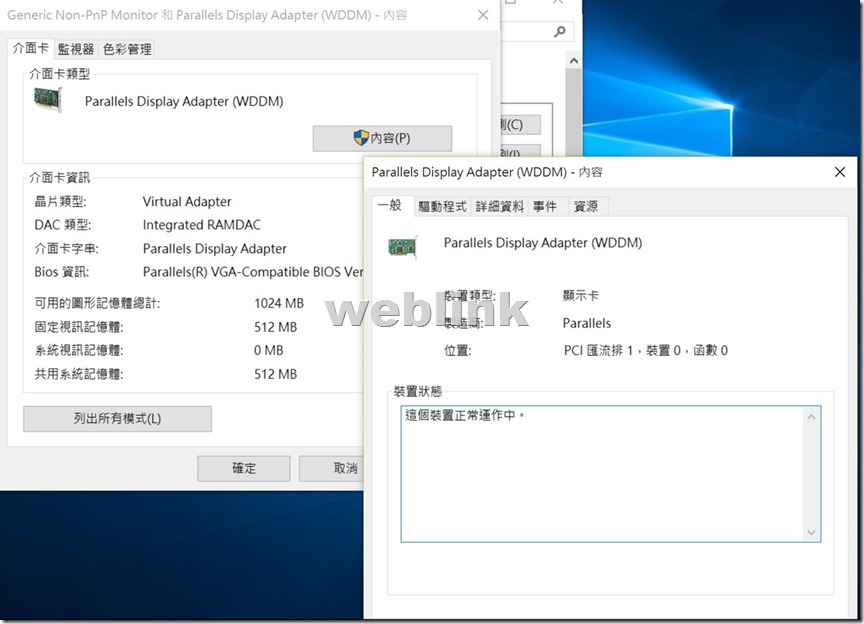
-
windows8.1在Parallels Desktop 11升級windows10所出現的錯誤畫面
原本安裝的win8.1,收到微軟通知可升級到win10;在點選windows8.1的通知icon後;會出現以下對話視窗:

以圖示來看,其是在您Windows系統中所出現之視窗畫面,Windows 10在提供升級前,會針對您所使用的軟/硬體做相容性偵測檢視,並把比較有問題的部分告知您參閱,除非有重大的硬體或原使用系統之問體,否則即使相容性稍有問題(軟體部分會要求移除、硬體部分因驅動程式支援問題故可先忽略),都還是能進行升級的。
因為Parellels中的Windows是屬於虛擬主機 (非固定實體硬體),而目前Windows 10的作業系統啟用方式是採“硬體特徵值”來連網註冊啟用,故倘若您要將Parellels中舊版的Windows 7 SP1或Windows 8.1 with update升級至Windows 10,建議您將升級前或升級後的Parellels虛擬機進行備份,以防以後重裝時無法啟用您的Windows 10 (只能用備份下來的虛擬機來使用)。
此時,選取”操作”→”升級至windows10″

點選”Download the 64-bit version here”

從”下載”→使用滑鼠左鍵連續雙響打開”MediaCreationTool x64.exe”執行

選取”立即升級此電腦”→點選”下一步”

點選”使用快速設定”

點選”下一步”

點選”重新開機”

完成

-
Symantec Drive Encryption (Managed by SMES) upgrade to 3.3.2 MP10 issue
Our company used the Symantec Drive Encryption (managed by Symantec Encryption Management Server (SEMS) and integrate with AD authentication and single sign on).
We always upgrad the Symantec Encryption Management Server (SEMS) to the latest version and it almost works normally.
This time we upgrad the Symantec Encryption Management Server (SEMS) to the (3.3.2 MP10) version.
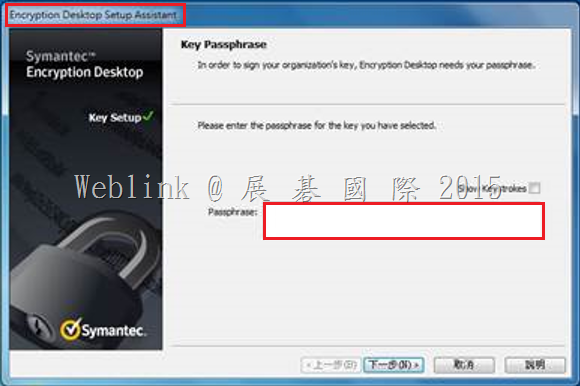
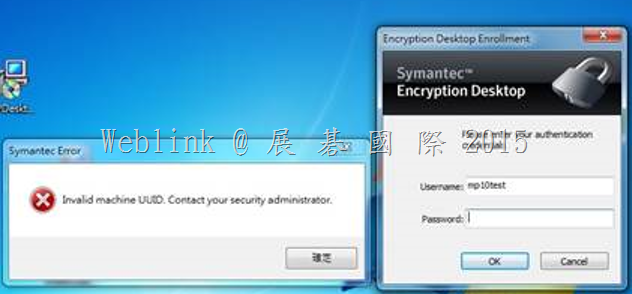
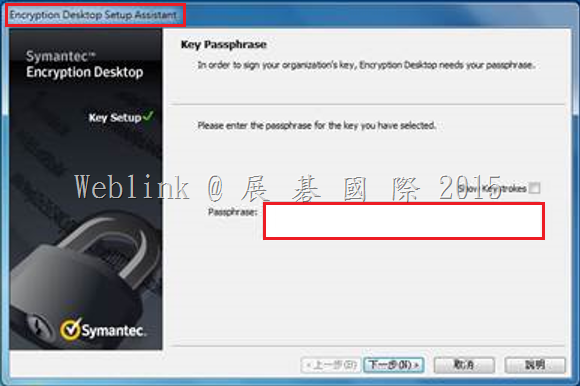
We found if we install a new PC and use the user account (existed in SEMS) to enroll to the SEMS and the Encryption Deaktop Setup Assistant wizard asked to enter the passphrase.
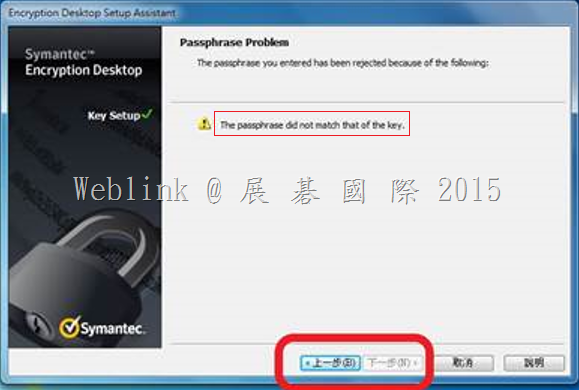
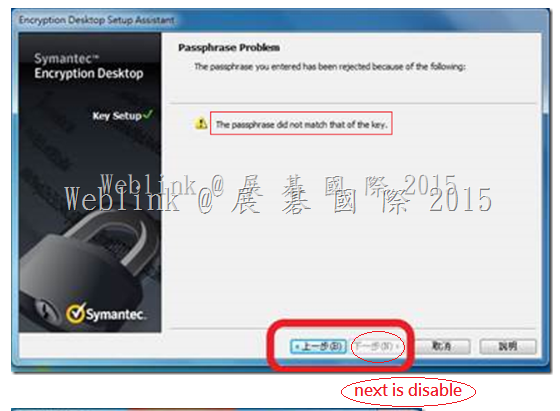
But we can not enter the current domain password (it display “The passprase did not match of the key” ).
It must enter the old domain password (when the user account enrolled to the SEMS first time).
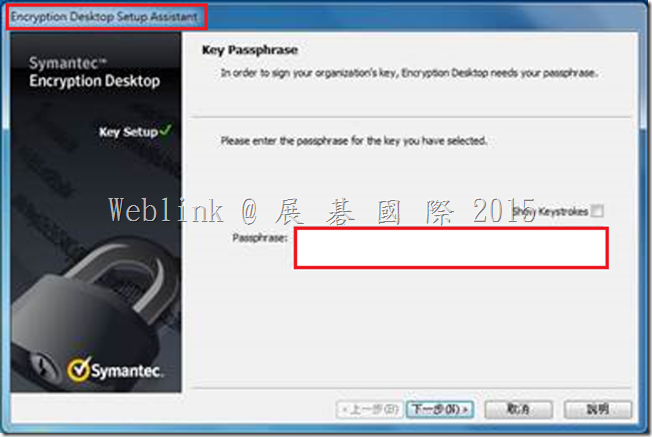
If we didn’t enter the match passphrase we can not press next button.
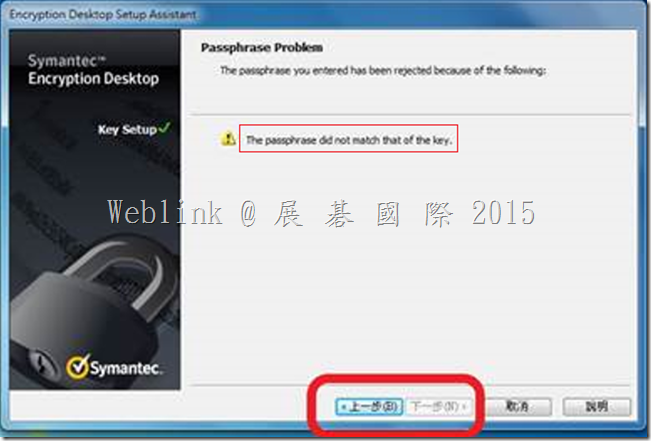
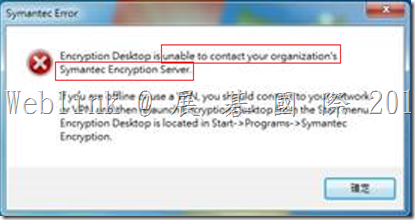
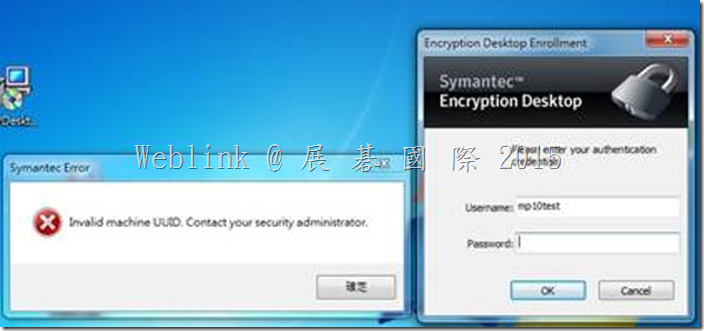
We refered to the URL below.
It says:
If using Silent Enrollment, we recommend using SKM mode only. Otherwise, a GKM key will be created, using their current Windows passphrase when they first enroll, but the passphrase on that key will not change, so after several Windows passphrase changes, the user will likely not remember the GKM key passphrase.
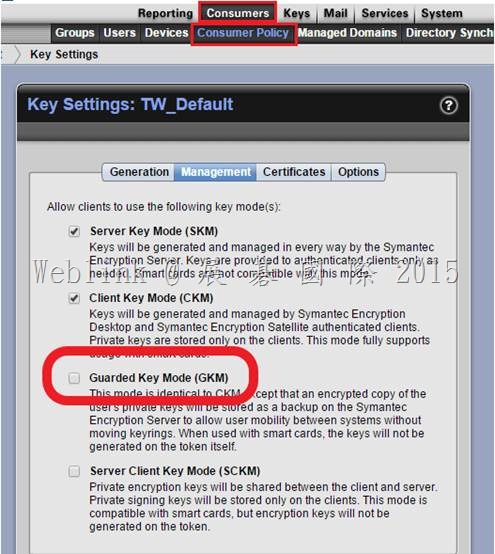
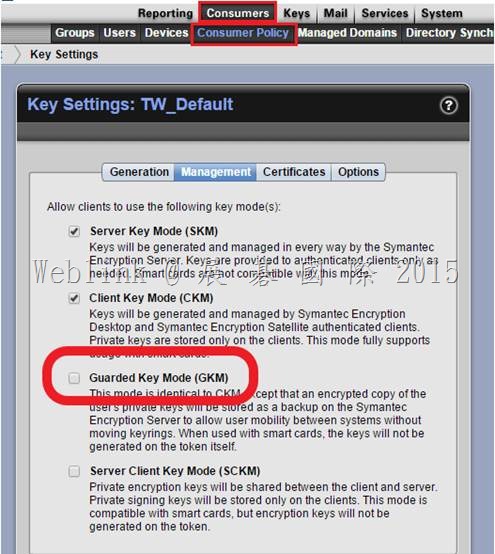
So we unchecked the Guarded Key Mode (GKM) in the key mode setting Under the LAB and the issue solved.
http://www.symantec.com/connect/forums/single-user-issue-multiple-machines
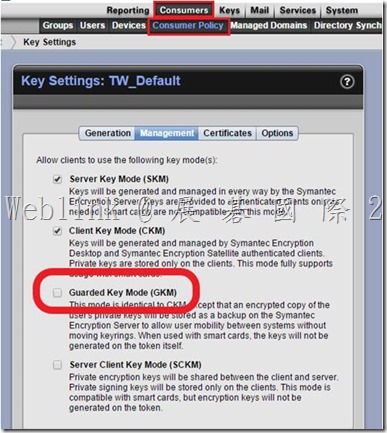
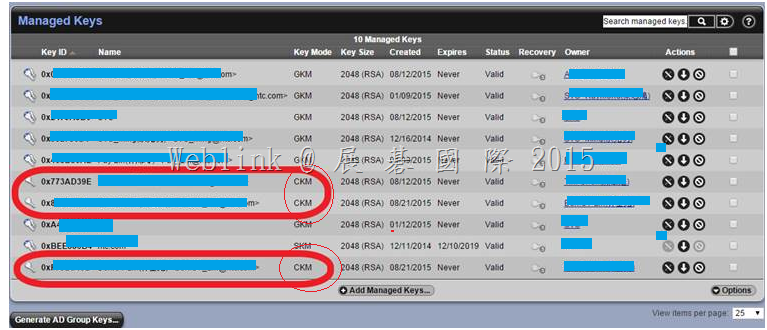
The key mode change to CKM.
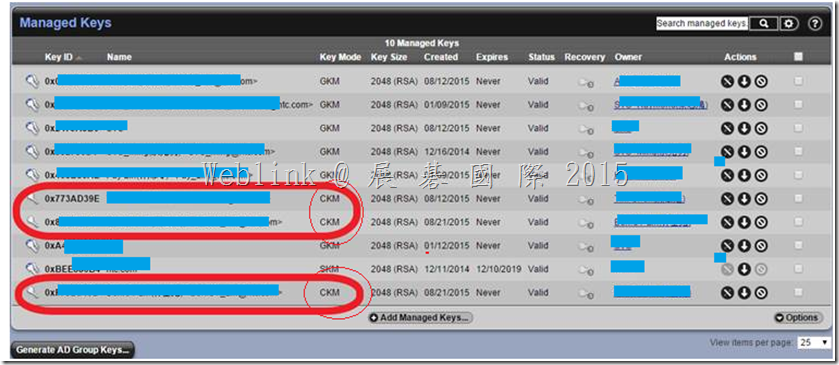
1.We want to know why the (3.3.2 MP10) version has this issue?
Our company used the Symantec Drive Encryption (managed by Symantec Encryption Management Server (SEMS) and integrate with AD authentication and single sign on).
【We use the GKM mode】
If we install a new PC and use the user account (existed in SEMS) to enroll to the SEMS and the Encryption Deaktop Setup Assistant wizard asked to enter the passphrase.
The passphrase must be the original one,not the current domain password.
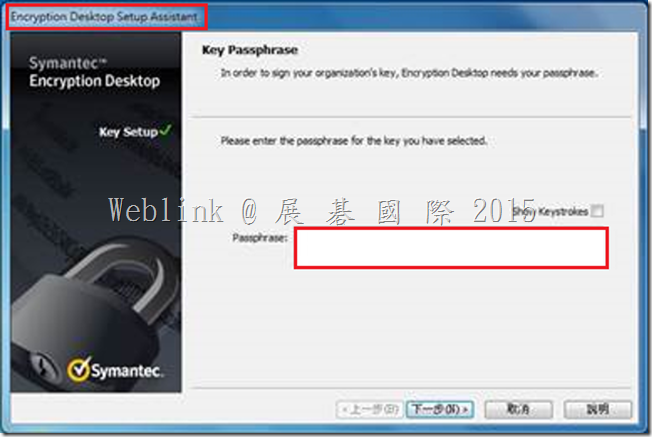
(1) In ( 3.3.2 MP10 )
It display “The passprase did not match of the key”.
And we can not press 【next】 to ignore it,and we can not do any configuration on PGP client.
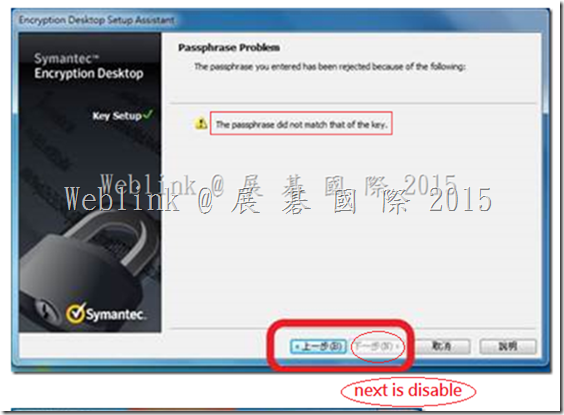
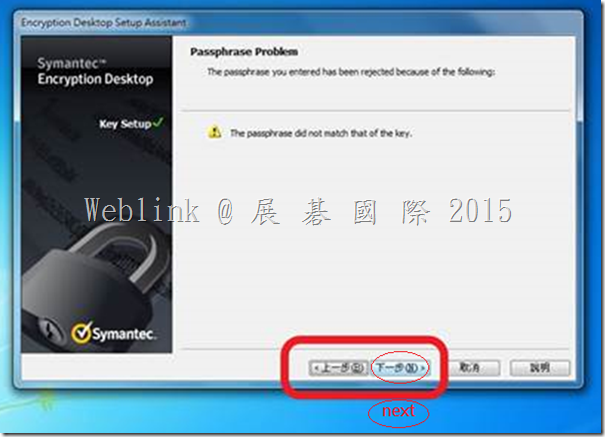
(2) In ( 3.3.2 MP7 and earlier version )
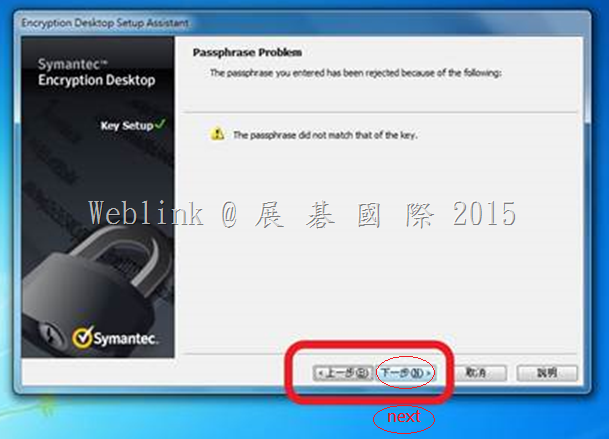
It display “The passprase did not match of the key”.
But we can press 【next】 to ignore it,so we can encrypt th disk.
(3) If we unchecked the GKM then the user key change to CKM.
We install a new PC and use the user account (existed in SEMS) to enroll to the SEMS .
It doesn’t ask to enter the passphrase.
We don’t unchecked the GKM in the production environment because we are not sure what effects will be occured.
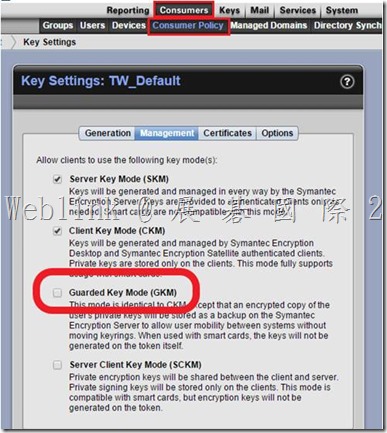
2.What different between check and uncheck the Guarded Key Mode (GKM)?
3.Any effects if we uncheck the Guarded Key Mode (GKM) in the production environment?
4.What is the correct setting for our environment?
【Information form Symantec Connect】
1. During initial enrollment the users domain password is not used in GKM key mode. The PGP key and passphrase do not have the ability to use SSO(single sign on), the passphrase is assigned to the key in GKM mode when the user manually types their passphrase in the key generation wizard box. This passphrase for the PGP key does not sync with users Windows passwords. If you want to change the passphrase you must do so manually by selecting Symantec Encryption Desktop>PGP Key> Select the key>Change passphrase. It will ask for the old passphrase if it’s not cached and then it will let you update the passphrase.
2. If you are only using Symantec Drive Encryption for your environment, then I would suggest using SKM key mode as this keymode requires that the users don’t need to maintain and remember their passphrase. The Server manages the key and never asks for a passphrase to use these keys. PGP keys have nothing to do with Symantec Drive Encryption unless you manually put them on a Smart Card or Token and then use that for authentication. By default Symantec Drive Encryption uses passphrase user for access and doesn’t require a PGP key to do the intial encryption.
I would recommend you open a support ticket so they can help you figure out a solution to get the users off of GKM key mode. GKM keymode will be problematic since the users don’t use the PGP key. They will forget the passphrase and you will run into an issue attempting to re-enroll or enroll on new machines. I always recommend SKM keymode for Drive Encryption only environments.
I would not recommend you just select CKM keymode since it’s not fixing the issue. It will just add to the confusion in the future. The user will have a keypair that they don’t know or remember the passphrase. There are certain operations that require the users know the passphrase to function properly. I’m very suprised that the enrollment wizard allows you to bypass this section without knowing the passphrase to the key even in CKM mode. That seems like a defect to me since the users will have broken keys if they don’t know the passphrase.