
分類: Uncategorized
-
【Office 365 家用(個人)安裝】
【Office 2013 PKC、Office 365 家用(個人)安裝】
1. 管理者登入【Office 2013 PKC】、【Office 365 家用】、【Office 365個人版】金鑰輸入網址
或
http://officesetup.getmicrosoftkey.com
2.【輸入 Office 產品金鑰】

3. 新增其他4位使用者 (如有需要)
※ 【Office 365 家用版 (3190/一年)】可以有 5 個不同的使用者 (使用5個不同的 Windows Live ID)安裝使用權
![clip_image004[6]](http://w3c.weblink.com.tw/mscloud/wp-content/uploads/sites/6/2014/08/clip_image0046_thumb.png "clip_image004[6]")
4. 輸入其他人員 E-mail
![clip_image005[6]](http://w3c.weblink.com.tw/mscloud/wp-content/uploads/sites/6/2014/08/clip_image0056_thumb.png "clip_image005[6]")
5. 其他人接受邀請
![clip_image006[6]](http://w3c.weblink.com.tw/mscloud/wp-content/uploads/sites/6/2014/08/clip_image0066_thumb.png "clip_image006[6]")
6. 還是得用 Windows Live ID 登入 ( 若無Windows Live ID,步驟6有連結可申請 )
![clip_image007[6]](http://w3c.weblink.com.tw/mscloud/wp-content/uploads/sites/6/2014/08/clip_image0076_thumb.png "clip_image007[6]")
7. 登入後按下【安裝】,即可進行線上安裝
![clip_image008[6]](http://w3c.weblink.com.tw/mscloud/wp-content/uploads/sites/6/2014/08/clip_image0086_thumb.png "clip_image008[6]")
-
【O365 M方案不續約,改續 O365 office pro plus,Office 2013 pro plus 是否需重新安裝】
1. O365 office pro plus 一樣會取得 5X5 25位數的金鑰
2. 然後到以下 Office 365 企業金鑰輸入網址 ,會要求建立【新的管理員帳號】,之後管理員會【幫使用者建立新帳戶】
http://www.office.com/setup365
3. 使用者取得【新的帳號】後,開啟 Office ( 例如:word ),可以在右上方進行切換帳戶
4. 只有在切換帳戶因故無法成功時才需重新安裝
-
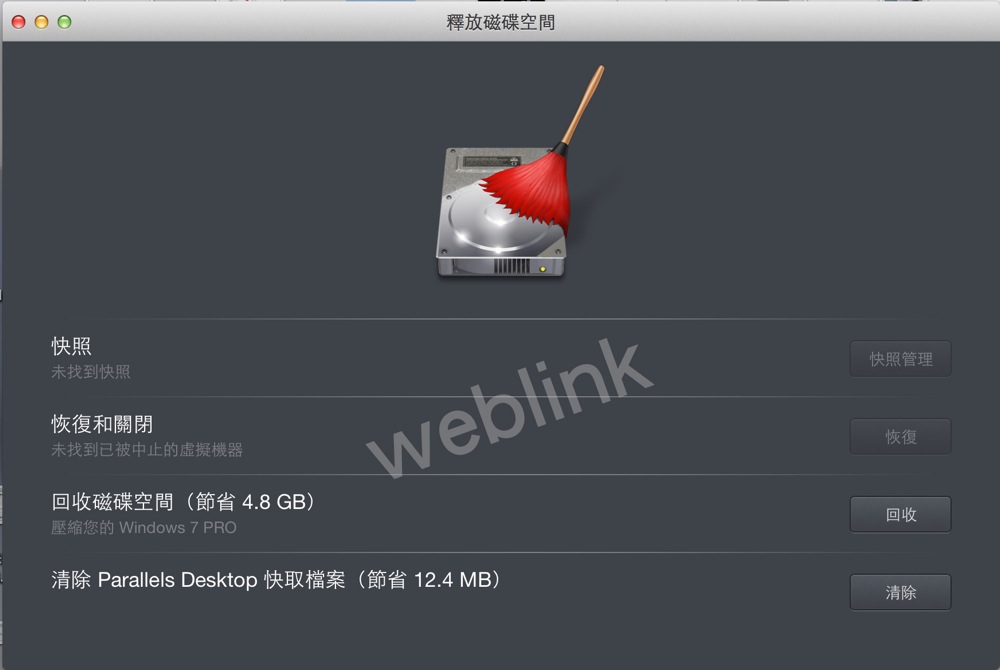
Parallels 10 install
Download:
http://www.parallels.com/hk/welcome-new/
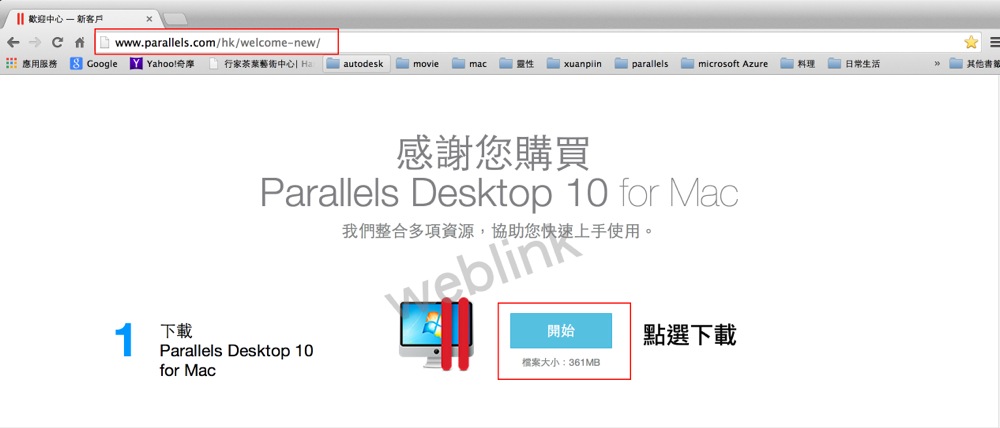
滑鼠點選後,連續點選
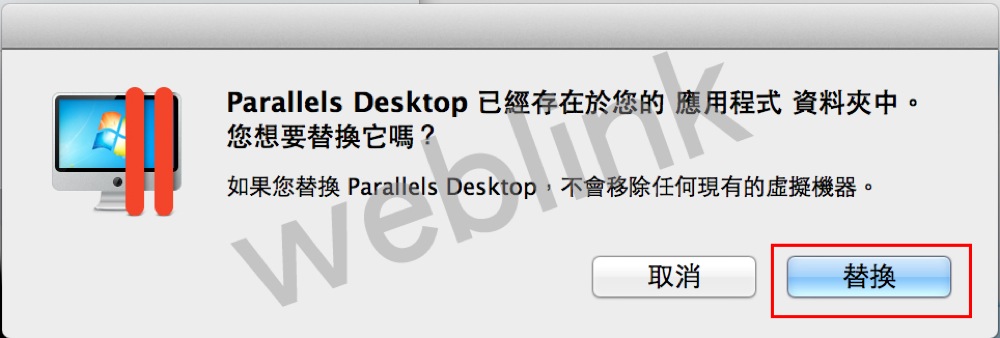
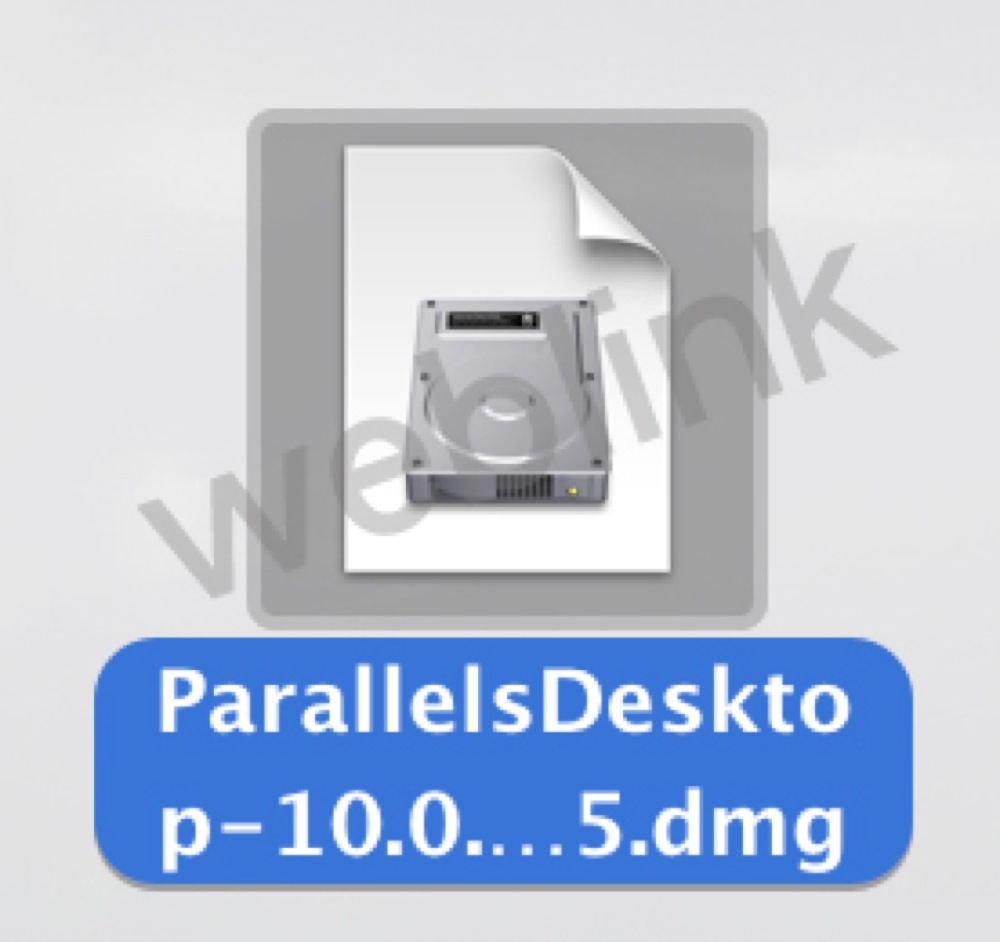 連續點選,開始安裝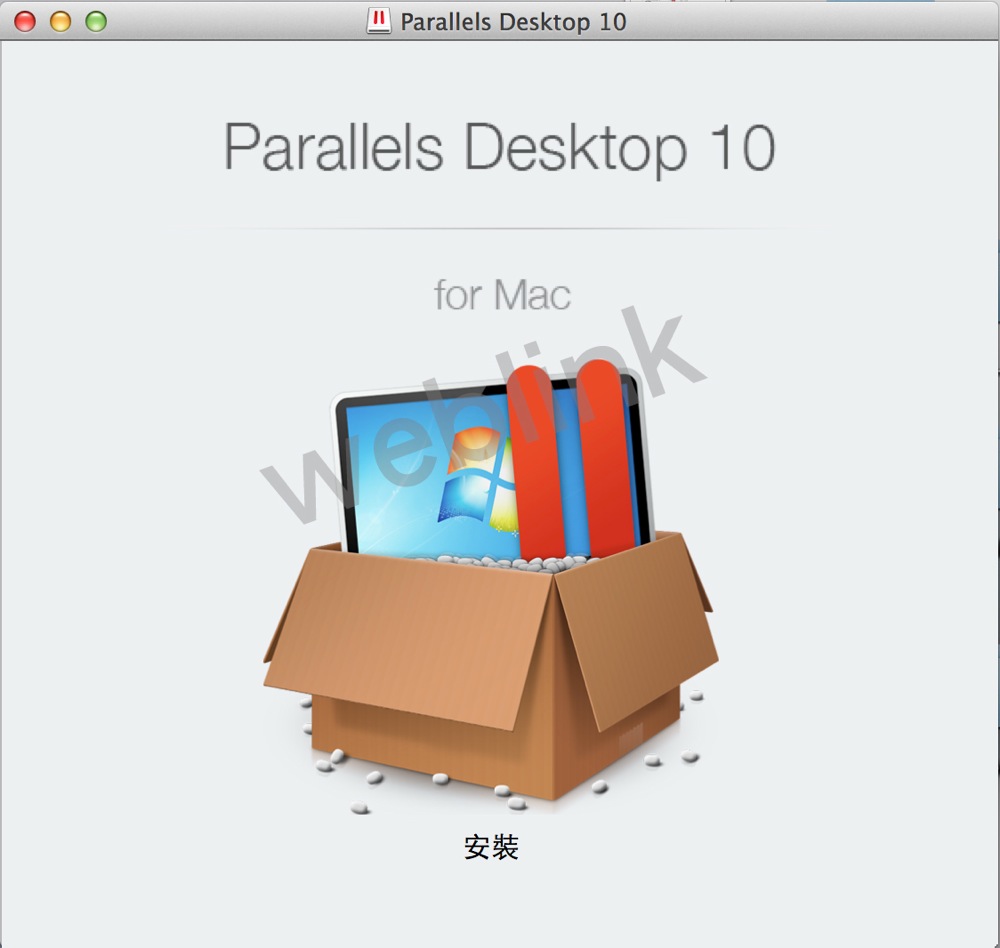
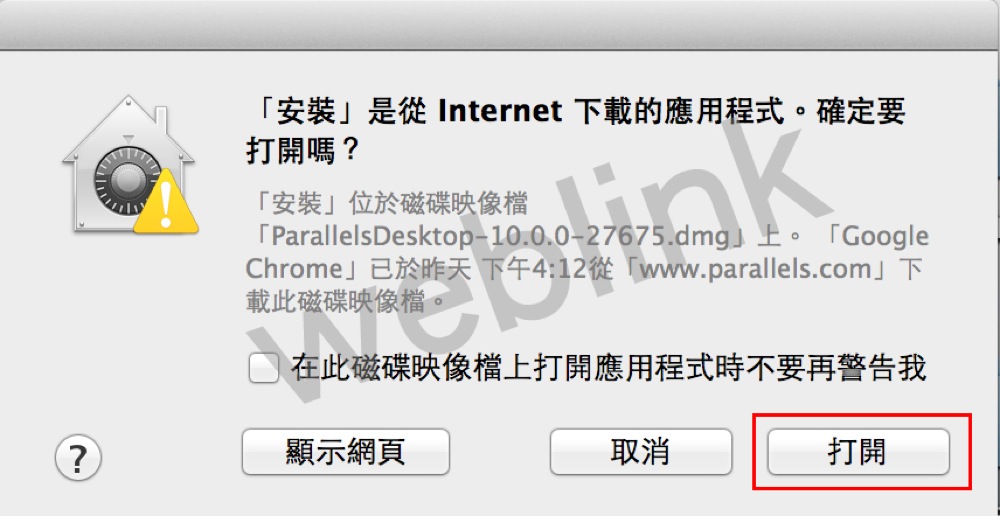
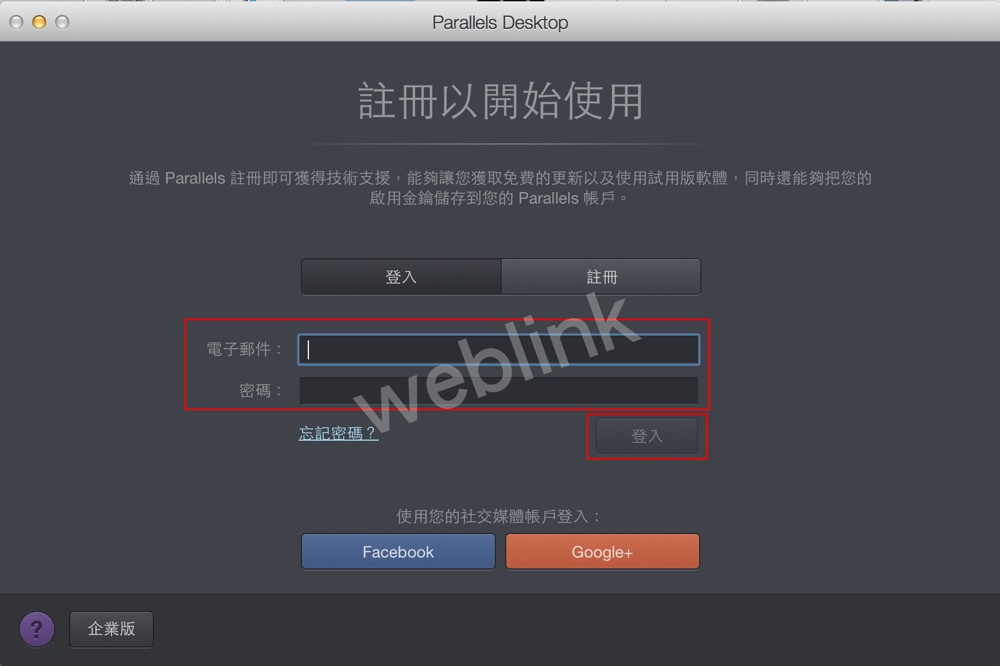
 登入Parallels ID
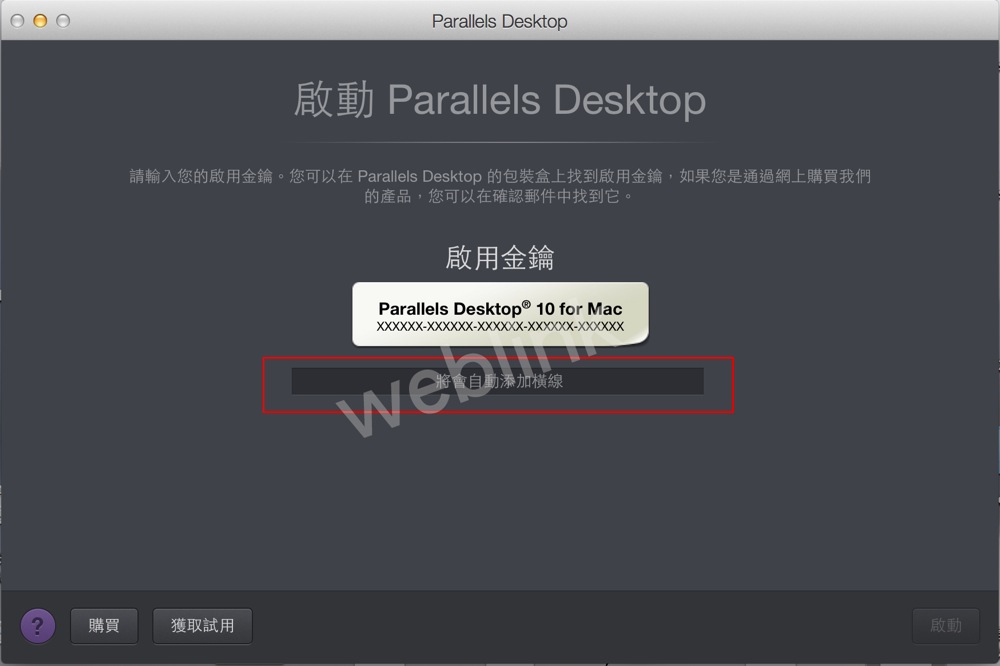
 輸入啟用金鑰
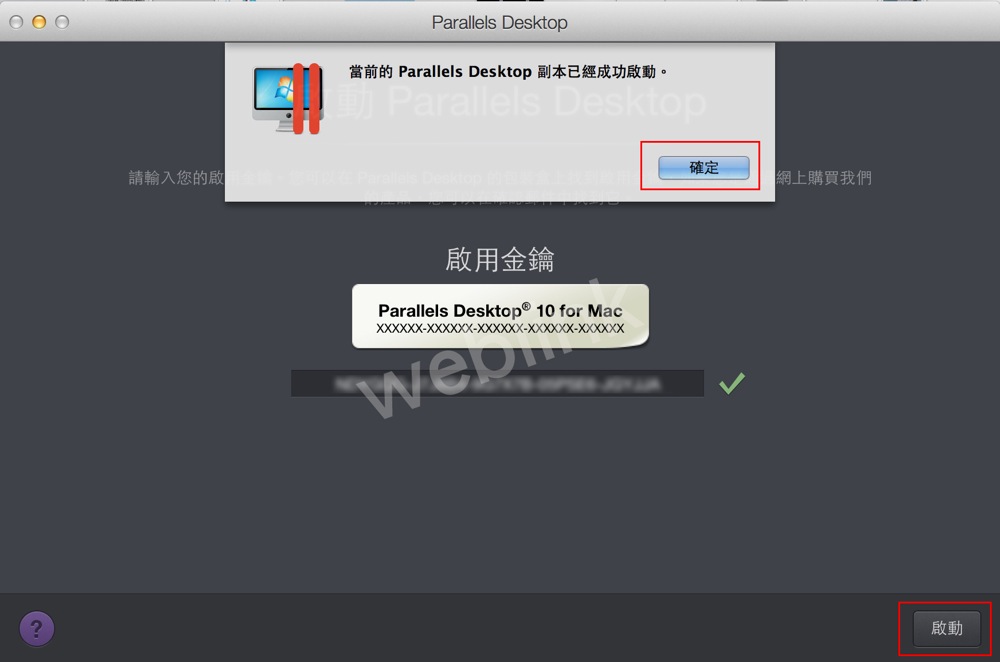
 金鑰啟用成功
 新的功能視覺化畫面
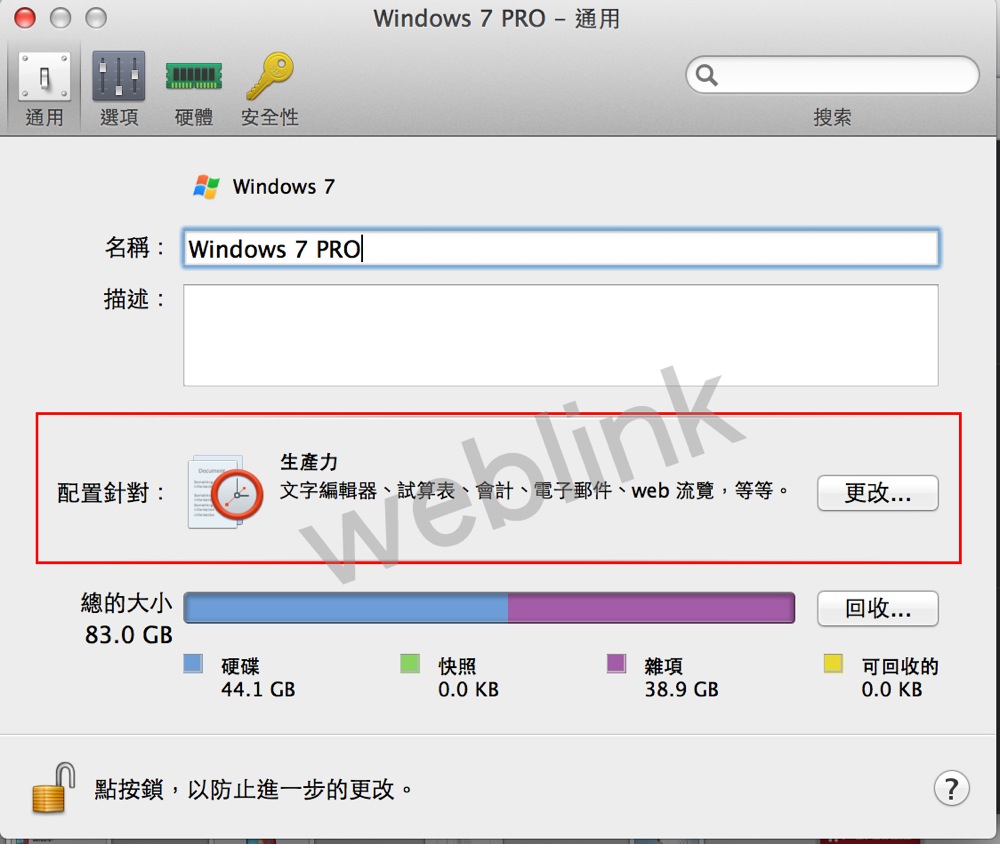
 Parallels 10 設定更改記憶體容量 改成 新的配置方式
 Parallels 10 的新視覺列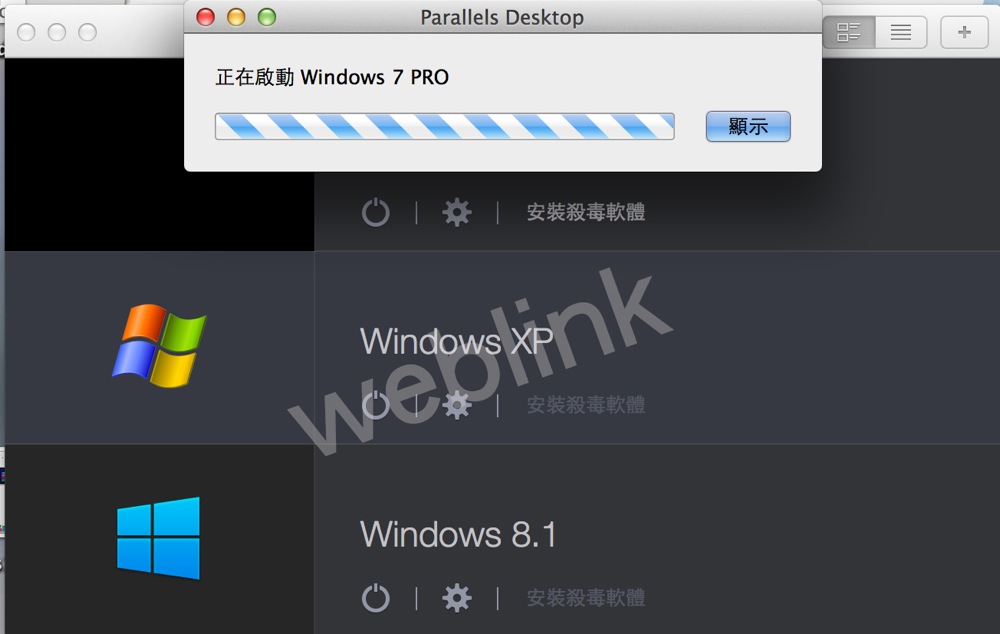
-
【 Office 365 中的 Office 2013 pro plus 是否可在 Windows server 的 Terminal services (Remote Desktop Services) 中安裝使用 】
1. 經測試 Office 365 中的 Office 2013 pro plus 可在 Terminal services (Remote Desktop Services) 中安裝,卻無法使用
無法使用訊息如下

2. 原廠回覆:
重點如下
現階段 O365 E3 的使用者具有安裝 Office 在 5 個 Device 的權利,授權上可以將其中1個使用權利作為 RDS 用途,且此使用者可以從任何 Device 透過 RDS 來使用此 Office 軟體,但是要注意的是技術人員佈署 RDS Session Host 主機時,目前需要自備 VL Office Pro Plus 2013 的安裝光碟進行,這部分要麻煩您告知客戶並請客戶多多包涵;預計2014/12月前,我們將會提供Tool,讓線上安裝的Office能夠提供RDS環境運作的能力,相關資訊您可以參考以下網址:
l The Garage Series for Office 365: Updates to Office 365 ProPlus for admins and first look at upcoming shared computer support
問題代號: 201408200108438331
問題描述: O365 E3客戶, 下載的Office Pro Plus是否可以使用在RDS環境?
解決方法:
幫您與內部確認,回覆如下:
When an end customer purchases O365 licenses that include the O365 applications, they may use one of their 5 instances to access a copy of the corresponding version of Office Professional Plus 2013. Please be aware, click to run versions of O365 Office will not run on a server and there are no downgrade rights for the corresponding version of on prem software.
This is documented in both the Online Services Terms and the Product List. (see resources below Product List yellow, OST in blue). They do need to be aware, only RDS servers dedicated solely to the customer who subscribes to the O365 licenses is permitted.
Media Eligibility with Remote Desktop Services (RDS) for Office 365 Pro Plus, Project Pro for Office 365 and Visio Pro for Office 365
For purposes of this right, “qualifying licenses” include Office 365 Pro Plus, Project Pro for Office 365 and Visio Pro for Office 365. If the user to whom a customer has assigned qualifying license uses the software on a network server with RDS role enabled, in lieu of installing a copy of the software provided with qualifying license on one of the five permitted devices pursuant to the PUR, that user may 1) install one copy of the corresponding 2013 on-premises software on a network server and 2) access the software from any device. Upon termination of the qualifying license, customers must uninstall the on-premises software from the network server. This option is not available for use on third party service providers’ shared servers.
Online Services Use Rights July 2014
Office 365 Applications
Office 365 ProPlus
Project Pro for Office 365
Visio Pro for Office 365
Service Level Agreement
There is no SLA for these Products.
Installation and Use Rights
Each user to whom Customer assigns a User SL must have a Microsoft Account in order to use the software provided with the subscription. These users:
· may activate the software provided with the SL on up to five concurrent OSEs for local or remote use;
· may use one of the five activations on a network server with the Remote Desktop Services (RDS) role enabled (refer to the Product List, located at http://go.microsoft.com/?linkid=9839207, for deployment options when using RDS). For the purpose of this use right “server” means a physical hardware server solely dedicated to Customer. This provision does not apply to Customers that license these Products under the Microsoft Online Subscription Agreement or other Microsoft agreement that cover Online Services only; and
· must connect each device upon which user has installed the software to the Internet at least once every 30 days or the functionality of the software may be affected.
所以現階段O365 E3的使用者具有安裝Office在5個Device的權利,授權上可以將其中1個使用權利作為RDS用途,且此使用者可以從任何Device透過RDS來使用此Office軟體,
但是要注意的是技術人員佈署RDS Session Host主機時,目前需要自備VL Office Pro Plus 2013的安裝光碟進行,這部分要麻煩您告知客戶並請客戶多多包涵;
預計2014/12月前,我們將會提供Tool,讓線上安裝的Office能夠提供RDS環境運作的能力,相關資訊您可以參考以下網址:
l The Garage Series for Office 365: Updates to Office 365 ProPlus for admins and first look at upcoming shared computer support

-
PGP Troubleshooting reference URL
Enterprise Support – Symantec Corp. – HOW TO Re-enroll Symantec Encryption Desktop for Windows Clients
http://www.symantec.com/business/support/index?page=content&id=HOWTO42029
Enterprise Support – Symantec Corp. – HOW TO Create Custom BootGuard Background Images with GIMP
http://www.symantec.com/business/support/index?page=content&id=HOWTO42035
-
Office 365 新增使用者(大量新增)
Office 365 新增使用者(大量新增)
1. 請連結至 https://portal.microsoftonline.com 以登入 【Office 365 管理中心】

2. 在【Office 365 管理中心】中,請點按【使用者和群組】,然後在右方點選【大量新增】的圖示


[顯示名稱]及[使用者名稱]為必填欄位


-
Office 365 設定網域
Office 365 設定網域 (含新增此網域使用者)
壹、 指定網域名稱並確認擁有權
1. 請連結至 https://portal.microsoftonline.com 以登入 【Office 365 管理中心】

2. 在【Office 365 管理中心】中,請點按【網域】

3. 在出現的畫面中,請點按【新增網域】

4. 在出現的畫面中,請點按【指定網域名稱並確認擁有權】

5. 在此,示範新增【ks010s.org 網域】,請您使用貴單位的網域來新增
請在畫面欄位中輸入您的網域名稱,並按下【下一步】
( 您必須先擁有網域名稱,才能進行新增網域 )
※ 若您尚未申請網域名稱,可以直接按下畫面中【向 GoDaddy 購買】來購買新網址,或是在 Google 輸入【買網址】來查詢可購買新網址的業者進行購買

6. Microsoft 必須先確認您是此網域名稱的擁有者,所以必須先進行以下的驗證工作
如果在下拉選單中有您的網域購買業者,請直接點選
如果在下拉選單中沒有您的網域購買業者,請選擇【一般提示】

7. 【ks010s.org 網域】是向 PChome 購買,不在下拉清單中,因此選擇【一般提示】
※ 畫面中的訊息告訴我們,要請您參考畫面下方的指示,在 DNS 中新增一筆紀錄 (您能新增該筆紀錄,才代表您確實有權利管理此網域)

8. 畫面指示我們在以下兩筆紀錄中,任選一筆設定在網域 DNS中
記錄類型
(選擇一種)
別名或主機名稱
目的地或指向地址
TTL
TXT
@ 或 ks010s.org
MS=ms40874059
1 小時
MX
@ 或 ks010s.org
ms40874059.msv1.invalid.outlook.com
1 小時
9. 他也指示您登入網域購買註冊機構進行設定後,等待一段時間,待該紀錄生效後( 時間依各網域購買註冊機構作業規定 ),然後按下【完成,立即驗證】

示範的【ks010s.org 網域】是向 PChome 購買,以下是登入後的設定畫面
※ 我選擇 【TXT 紀錄類型】來進行設定

主機欄位:空白
地址:輸入 Office 365 管理網頁中 的【目的地或指向地址 MS=ms40874059】
類型:TXT

按下儲存後,系統告知要等待24-48小時DNS生效時間,實際上我只等了幾分鐘
 透過以下【nslookup】指令,發現 TXT 紀錄已生效
10. 如果 DNS 紀錄尚未生效,或是設定錯誤,會出現以下【找不到驗證DNS紀錄】,請您先按下【關閉】鈕,稍後可再進行驗證

11. 如果 DNS 紀錄生效,則會出現以下【很好,我們已經確認您擁有 [該網域名稱]】

貳、 新增使用者並指派授權
12. 點選新增使用者並指派授權

13. 選擇【一次新增一名使用者】(請參考另一份文件來大量新增使用者)

14. 請輸入該使用者的相關資訊

15. 按下上圖中的【其他詳細資料】,還可以輸入職稱、部門、地址等相關資訊

16. 在此可下拉來指派該帳戶的角色,以及設定備用電子郵件地址 (備用電子郵件地址可以在忘記密碼時,用來重設密碼)

17. 此畫面可以指定該帳戶可以使用的 Office 365 的項目

18. 可在此將此帳戶的建立資訊 (包含帳戶名稱與臨時密碼,登入網址等資訊)寄送給相關人員
預設 [系統管理員] 已被列入,您可以將該建立資訊通知到 [帳戶擁有人的備用信箱],信箱間請以分號隔開

19. 建置完成,畫面出現該使用者登入帳戶與暫時密碼

20. 相關的收件人也可以收到如下的信件

21. 管理介面中可以看到剛才以建立的使用者

22. 請連結至 https://portal.microsoftonline.com 以登入 【Office 365】

23. 由於首次登入使用的是暫時密碼,因此系統會要求您更新密碼

24. 您可以點按【Outlook】來開啟 Outlook Web App (Webmail),在沒有 Outlook 的情形下來收發信件


25. 此為 Outlook Web App (Webmail) 收件夾畫面

參、 設定網域用途及DNS


類型
服務
通訊協定
連接埠
寬度
優先順序
TTL
名稱
目標
SRV
_sip
_tls
443
1
100
1 小時
ks010s.org
sipdir.online.lync.com
SRV
_sipfederationtls
_tcp
5061
1
100
1 小時
ks010s.org
sipfed.online.lync.com

SRV 書寫格式
主機
地址
優先權
_sip._tls
1 443 sipdir.online.lync.com
100
_sipfederationtls._tcp
1 5061 sipfed.online.lync.com
100

http://community.office365.com/en-us/forums/166/p/18244/692994.aspx


-
Office 365 試用
Office 365 試用
1. 請連結至以下網頁
http://www.microsoft.com/office365
2. 畫面會自動導向以下網址,您可以選擇您需要的 Office 365 版本來進行試用
http://office.microsoft.com/zh-tw/business/FX102918419.aspx
( 建議您參照 Office 365 版本比較資訊,選擇適合您的版本來進行試用 )
以下連結可比較各種企業適用的 Office 365 方案
![clip_image002[5]](http://w3c.weblink.com.tw/mscloud/wp-content/uploads/sites/6/2014/08/clip_image0025_thumb.jpg "clip_image002[5]")
3. 在此,我們將進行 【Office 365 企業版 E3】的測試,請選擇【大型企業】,並請選擇【Office 365 企業版 E3】下方的【免費試用】
![clip_image004[4]](http://w3c.weblink.com.tw/mscloud/wp-content/uploads/sites/6/2014/08/clip_image0044_thumb.jpg "clip_image004[4]")
4. 請於註冊頁面填寫相關資訊,紅色星號 * 項目為必填
![clip_image006[4]](http://w3c.weblink.com.tw/mscloud/wp-content/uploads/sites/6/2014/08/clip_image0064_thumb.jpg "clip_image006[4]")
![clip_image008[4]](http://w3c.weblink.com.tw/mscloud/wp-content/uploads/sites/6/2014/08/clip_image0084_thumb.jpg "clip_image008[4]")
5. 以下驗證碼請收取手機簡訊後填入,內容範例如: (您的 Office 365 代碼是:749227)
全部資訊填寫完成後請按下【建立我的帳戶】
![clip_image010[4]](http://w3c.weblink.com.tw/mscloud/wp-content/uploads/sites/6/2014/08/clip_image0104_thumb.jpg "clip_image010[4]")
6. 正在登入到【Office 365 管理員首頁】
![clip_image011[4]](http://w3c.weblink.com.tw/mscloud/wp-content/uploads/sites/6/2014/08/clip_image0114_thumb.png "clip_image011[4]")
7. 完成後會自動登入至【Office 365 管理員首頁】
※ 未來您也可以連結至 https://portal.microsoftonline.com ,輸入帳號與密碼來登入
在此您可以
【下載Office 365程式來安裝】
【新增其他 Office 365 的使用者】
【建立您企業專屬的網域名稱 (而不是使用預設的 xxx.onmicrosoft.com)】
您也可以在右上方各個標籤,存取各項功能
【Outlook】:存取您的 Outlook Web App (web mail)
【行事曆】:存取您的 Outlook行事曆
【人員】:管理您的聯絡人
【新聞摘要】:編輯您的個人資訊、部落格、文字交談等
【OneDrive】:存取您架構在 Sharepoint 上的文件中心 (以前叫 SkyDrive)
【網站】:存取您的 Sharepoint 入口網站
![clip_image013[8]](http://w3c.weblink.com.tw/mscloud/wp-content/uploads/sites/6/2014/08/clip_image0138_thumb.jpg "clip_image013[8]")
8. 您在註冊時所輸入的電子郵件帳號,也會收到由Microsoft Online Service Team所寄送的ID通知信件 (若您未收到此信件,請至垃圾信件匣查看)
![clip_image015[5]](http://w3c.weblink.com.tw/mscloud/wp-content/uploads/sites/6/2014/08/clip_image0155_thumb.jpg "clip_image015[5]")
9. 如果您想離開【Office 365 管理員首頁】,請點選右方登入者旁的【向下箭頭】,然後選擇【登出】來離開此頁面
![clip_image016[4]](http://w3c.weblink.com.tw/mscloud/wp-content/uploads/sites/6/2014/08/clip_image0164_thumb.png "clip_image016[4]")
![clip_image018[4]](http://w3c.weblink.com.tw/mscloud/wp-content/uploads/sites/6/2014/08/clip_image0184_thumb.jpg "clip_image018[4]")
-
【登入 Office 365 僅顯示 Outlook Web App 精簡模式】
【IE8 2014/05僅會顯示 Outlook Web App 精簡模式( 微軟有延後到8月 ),請升級 IE 或是採用Chrome 瀏覽器來開 O365】
IE8 2014/05 後僅會顯示精簡模式( 微軟有延後到8月 ),請升級 IE
![clip_image002[25]](http://w3c.weblink.com.tw/mscloud/wp-content/uploads/sites/6/2014/08/clip_image00225_thumb.jpg "clip_image002[25]")
或是採用Chrome 瀏覽器來開 O365
Chrome 瀏覽器
http://www.google.com/intl/zh-TW/chrome/
IE8 2014/05 後僅會顯示 Outlook Web App
![clip_image004[6]](http://w3c.weblink.com.tw/mscloud/wp-content/uploads/sites/6/2014/08/clip_image0046_thumb.jpg "clip_image004[6]")
這才是正常的 ( 使用 IE11 )
![clip_image006[6]](http://w3c.weblink.com.tw/mscloud/wp-content/uploads/sites/6/2014/08/clip_image0066_thumb.jpg "clip_image006[6]")

![clip_image004[6]](http://w3c.weblink.com.tw/mscloud/wp-content/uploads/sites/6/2014/08/clip_image0046.png "clip_image004[6]")
![clip_image005[6]](http://w3c.weblink.com.tw/mscloud/wp-content/uploads/sites/6/2014/08/clip_image0056.png "clip_image005[6]")
![clip_image006[6]](http://w3c.weblink.com.tw/mscloud/wp-content/uploads/sites/6/2014/08/clip_image0066.png "clip_image006[6]")
![clip_image007[6]](http://w3c.weblink.com.tw/mscloud/wp-content/uploads/sites/6/2014/08/clip_image0076.png "clip_image007[6]")
![clip_image008[6]](http://w3c.weblink.com.tw/mscloud/wp-content/uploads/sites/6/2014/08/clip_image0086.png "clip_image008[6]")


![clip_image002[5]](http://w3c.weblink.com.tw/mscloud/wp-content/uploads/sites/6/2014/08/clip_image0025.jpg "clip_image002[5]")
![clip_image004[4]](http://w3c.weblink.com.tw/mscloud/wp-content/uploads/sites/6/2014/08/clip_image0044.jpg "clip_image004[4]")
![clip_image006[4]](http://w3c.weblink.com.tw/mscloud/wp-content/uploads/sites/6/2014/08/clip_image0064.jpg "clip_image006[4]")
![clip_image008[4]](http://w3c.weblink.com.tw/mscloud/wp-content/uploads/sites/6/2014/08/clip_image0084.jpg "clip_image008[4]")
![clip_image010[4]](http://w3c.weblink.com.tw/mscloud/wp-content/uploads/sites/6/2014/08/clip_image0104.jpg "clip_image010[4]")
![clip_image011[4]](http://w3c.weblink.com.tw/mscloud/wp-content/uploads/sites/6/2014/08/clip_image0114.png "clip_image011[4]")
![clip_image013[8]](http://w3c.weblink.com.tw/mscloud/wp-content/uploads/sites/6/2014/08/clip_image0138.jpg "clip_image013[8]")
![clip_image015[5]](http://w3c.weblink.com.tw/mscloud/wp-content/uploads/sites/6/2014/08/clip_image0155.jpg "clip_image015[5]")
![clip_image016[4]](http://w3c.weblink.com.tw/mscloud/wp-content/uploads/sites/6/2014/08/clip_image0164.png "clip_image016[4]")
![clip_image018[4]](http://w3c.weblink.com.tw/mscloud/wp-content/uploads/sites/6/2014/08/clip_image0184.jpg "clip_image018[4]")
![clip_image002[25]](http://w3c.weblink.com.tw/mscloud/wp-content/uploads/sites/6/2014/08/clip_image00225.jpg "clip_image002[25]")
![clip_image004[6]](http://w3c.weblink.com.tw/mscloud/wp-content/uploads/sites/6/2014/08/clip_image0046.jpg "clip_image004[6]")
![clip_image006[6]](http://w3c.weblink.com.tw/mscloud/wp-content/uploads/sites/6/2014/08/clip_image0066.jpg "clip_image006[6]")