作者: Allen Chung

  • Dwg word document signature (IDM)

    Dwg word document signature (IDM)

    說明:

    已建立索引的文件比對 (IDM) 會比對來自敏感專屬文件的非結構化資料。支援的文件類型範例包含 Microsoft Word、PowerPoint、PDF、設計計劃、原始程式碼、CAD/CAM 圖像、財務報告、機密併購文件等。

    IDM 可對擷取資料的離散區段進行註冊和指紋加密。它透過移除標點符號和格式來正規化文字。標準化程序可確保內容的呈現方式不會影響或中斷偵測。

    IDM 使用統計取樣方法來儲存指紋鑑定文件的雜湊區段。並非所有文字都會儲存在文件設定檔中。此方法可提高 IDM 精確率,同時讓您能夠新增偵測伺服器來輕鬆調整政策。您也可以將內容列入白名單並將其排除在比對之外。

    架構 IDM 政策時,您可訂定內容必須有某個百分比符合文件設定檔,才會觸發資安事端。如果在指紋中偵測到所有雜湊區段,則可使用 IDM 來偵測文字文件的精確內容比對。這樣就可以偵測衍生文件,如各次修訂版和各次版本。您也可以使用 IDM比對部分文件內容和文字段,例如複製到其他文件或郵件中的內容片段。

    除全部和部分文件比對之外,您還可以使用 IDM 來偵測二進位內容。除了針對部分文件比對所建立的雜湊之外,再建立二進位內容的 MD5 雜湊,即可實作這項偵測。

    您可以使用這種形式的 IDM 來偵測系統無法破解和擷取文字內容的檔案類型,如媒體檔案或專屬檔案格式。

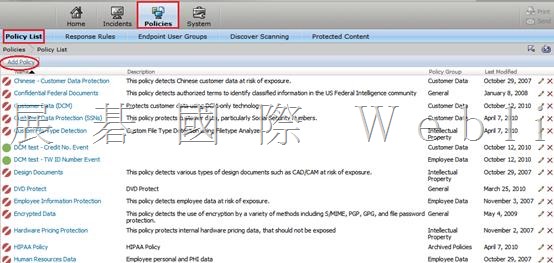
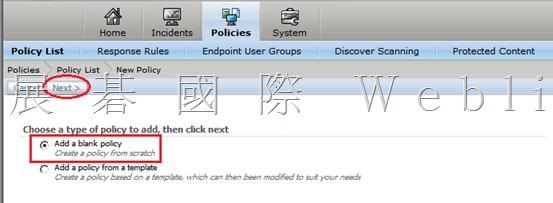
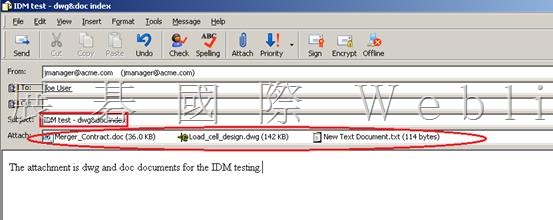
    l 建立一個 IDM policy,並測試寄送附件時,DLP 偵測狀況

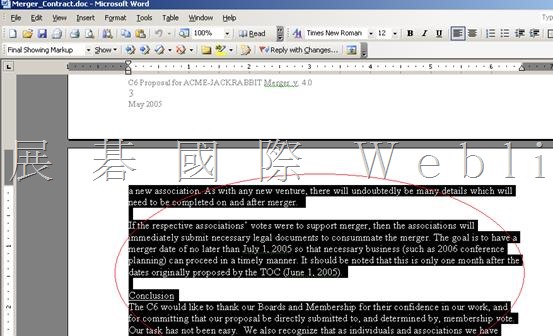
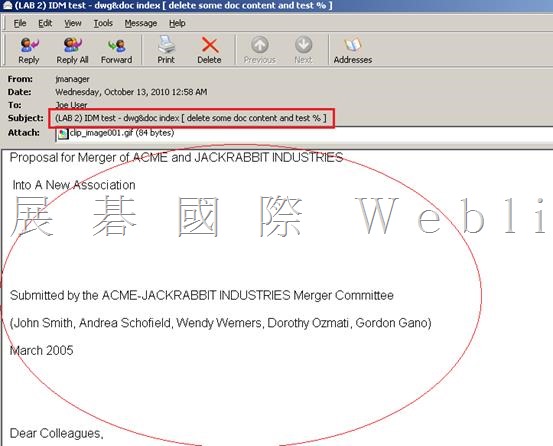
    l 刪除 doc 文件的一部分內容,然後將內容貼到 mail body,測試 DLP 偵測狀況如何?

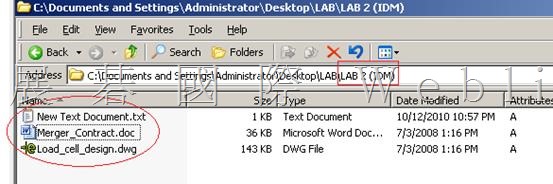
    l 這是要做 Index 的資料夾

    l 也可以將資料夾壓縮成 zip 檔

    l 或是將資料夾分享出來

    clip_image041

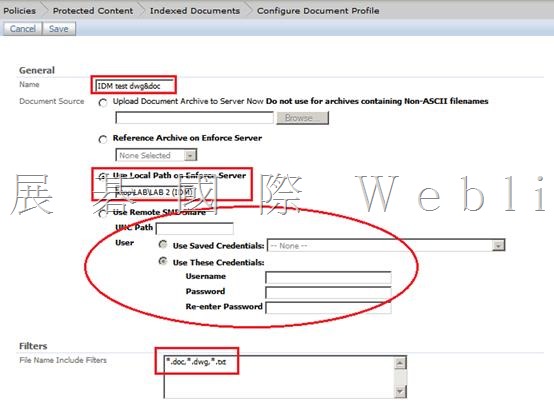
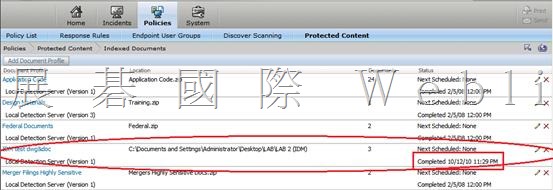
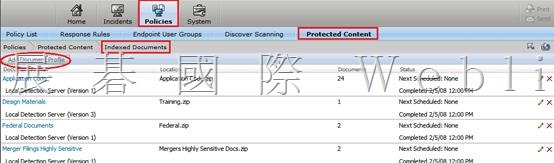
    l 【Policies】→【Protected Content】→【Indexed Documents】→【Add Document Profile】

    clip_image043

    l Document Source 有四種選項

    l 上傳 zip 檔

    l 選擇已上傳至 Enforce Server 的 Archive [C:VontuProtectdocumentprofiles] (.zip)

    l 選擇 Enforce Server 上的資料夾

    l 選擇網路上的分享資料夾

    l 只 Index 資料夾中的 *.dwg *.doc *.txt

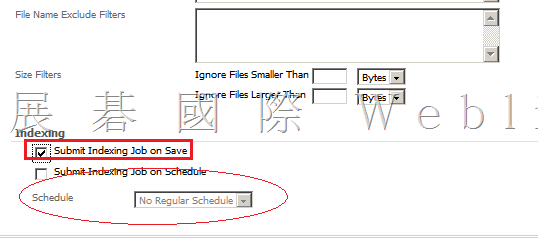
    l 可以選擇 one time 的 index

    l 或是排程 index

    clip_image045

    clip_image046

    clip_image048

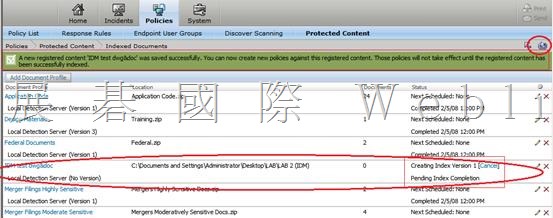
    Indexed Documents 已建立

    clip_image050

    clip_image052

    clip_image054

    clip_image056

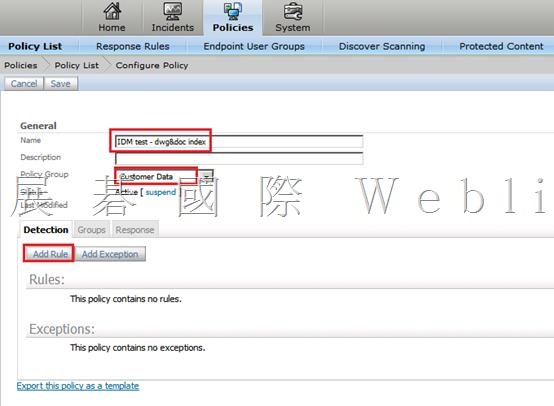
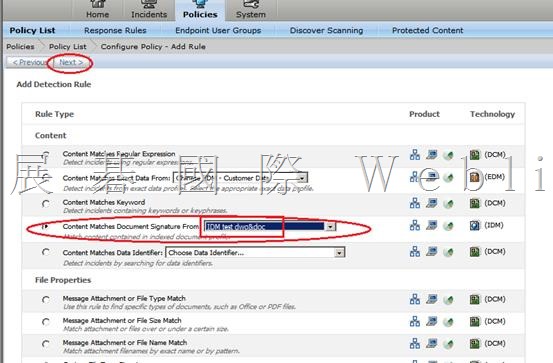
    l 選擇 IDM Rule Type,並且是參照先前建立的 indexed Documents (IDM test dwg&doc)

    clip_image058

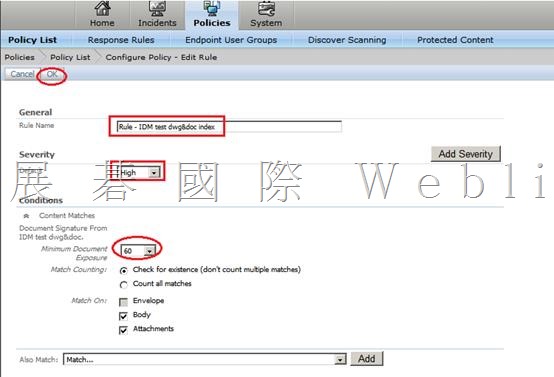
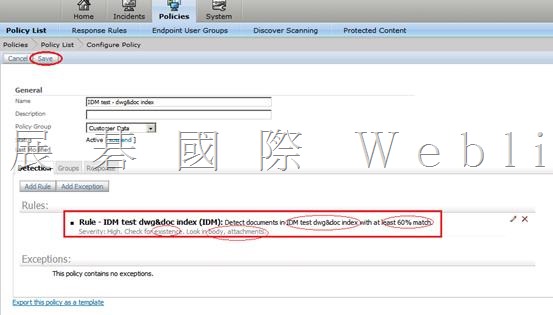
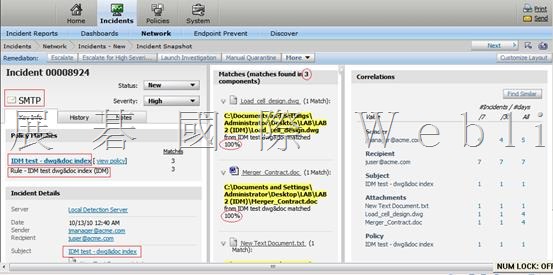
    l 只要是 mail body or mail attachment相似度大於 60% 就記錄此事件

    clip_image060

    clip_image062

    clip_image064

    clip_image066

    l 三個附件都 100% 符合

    clip_image068

    l 刪除 doc 文件的一部分內容,然後將內容貼到 mail body,測試 DLP 偵測狀況如何?

    clip_image070

    clip_image072

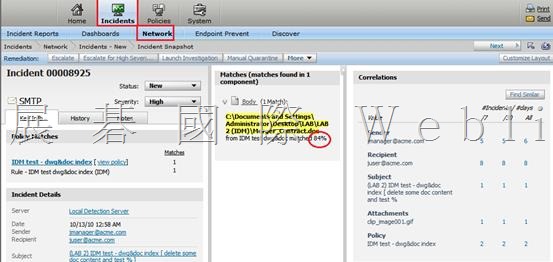
    l 84%

    clip_image074

  • Described Content Matching (DCM)

    Described Content Matching (DCM)

    說明:

    Symantec Data Loss Prevention 提供了統稱為說明內容比對 (DCM) 的許多偵測方法。這種樣式的偵測會以關鍵字、資料類型、檔案中繼資料、通訊協定簽章、端點目的地和身分特徵等常見特性來比對資料。

    您可以使用 DCM 偵測可說明的任何結構化和非結構化資料。DCM 可提供極高的準確性且易於實作,因為您不需要設定資料來源。無法收集要保護的所有資料但可以說明資料時,DCM 最為實用。通常您可以結合 DCM 和其他偵測方法,以達成精確的結果。

    可用的 DCM 偵測方法

    資料識別碼

    使用精確特徵和資料驗證程式來比對內容。

    關鍵字

    使用關鍵字、關鍵詞和關鍵字字典來比對內容。

    規則運算式

    使用規則運算式來比對字元、特徵和字串。

    檔案內容

    比對檔案類型、名稱和大小。

    使用者、寄件者、收件者

    根據特徵來比對身分。

    網路通訊協定

    根據通訊協定簽章來比對網路和行動流量。

    端點事件

    比對端點目的地、裝置和通訊協定。

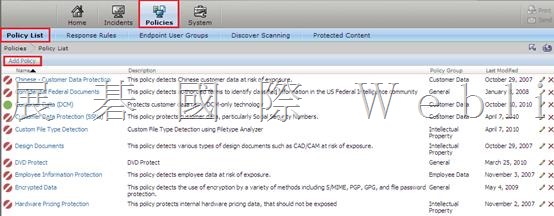
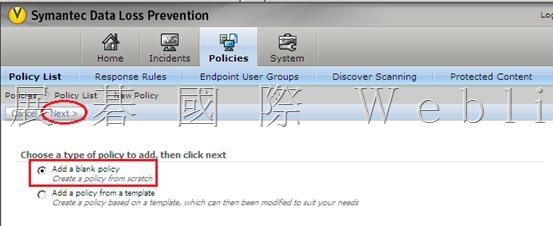
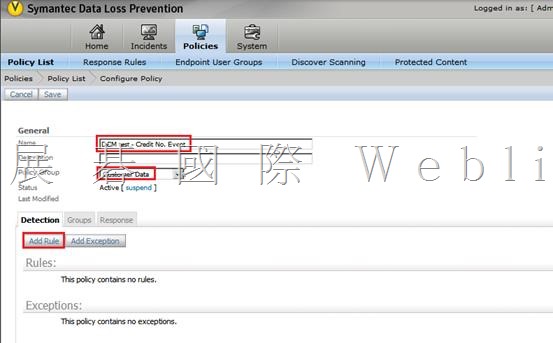
    建立一個 Network Monitor Policy

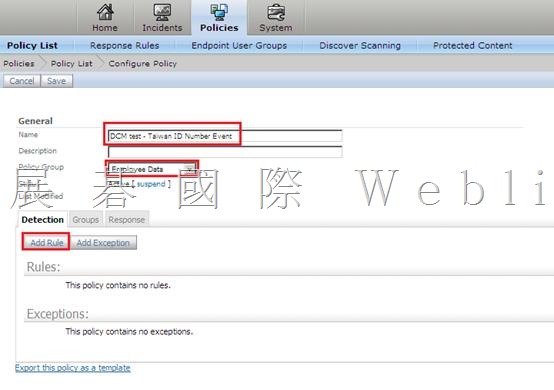
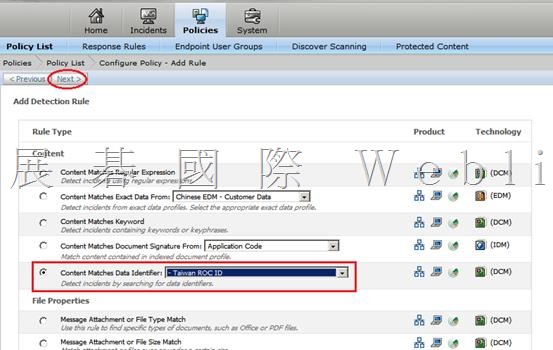
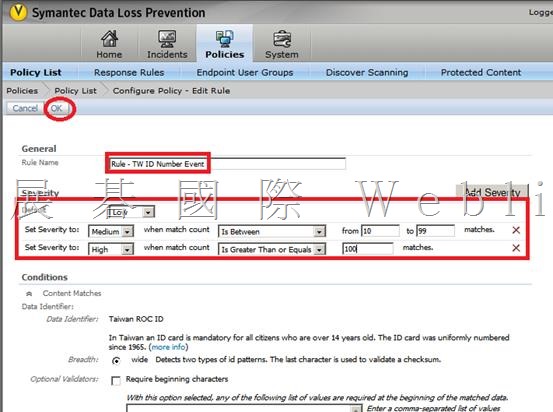
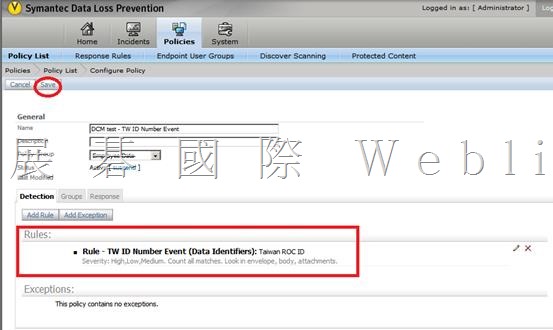
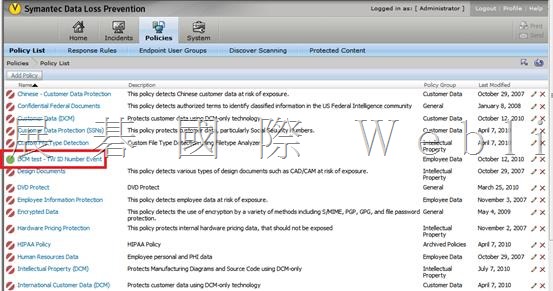
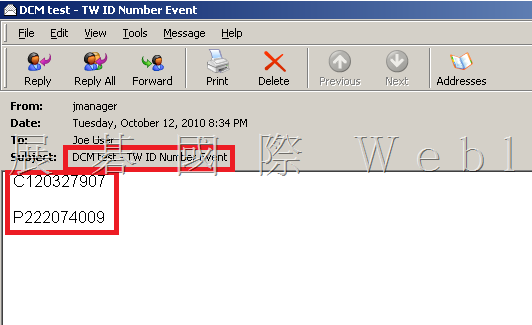
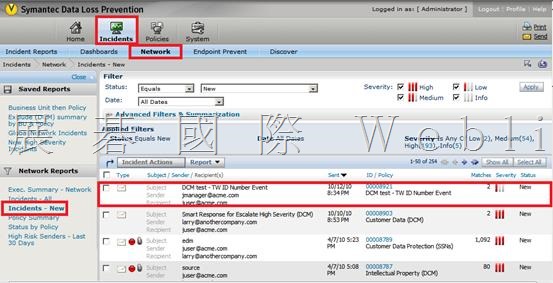
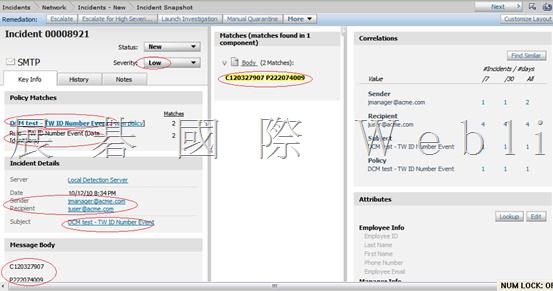
    l Detect Taiwan ID event

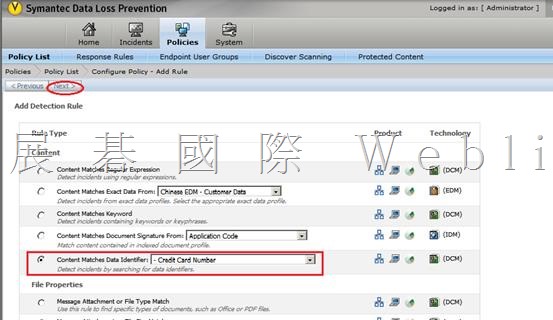
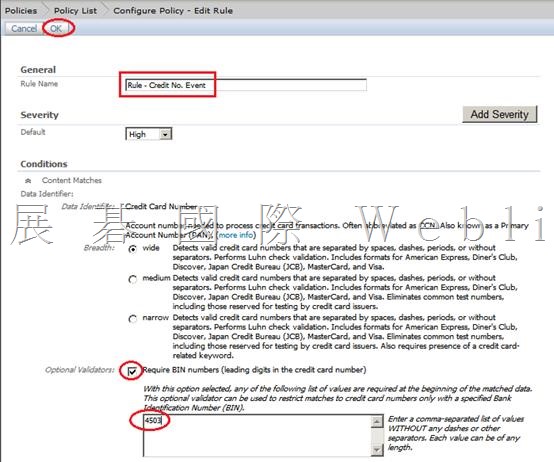
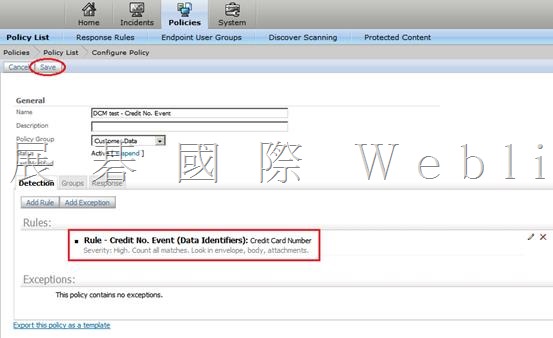
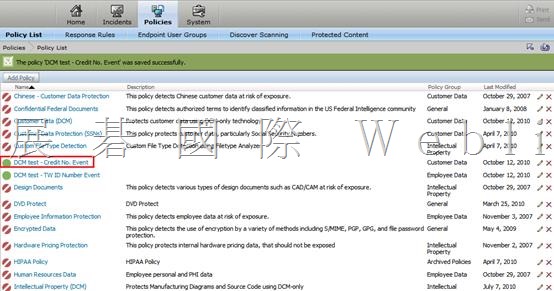
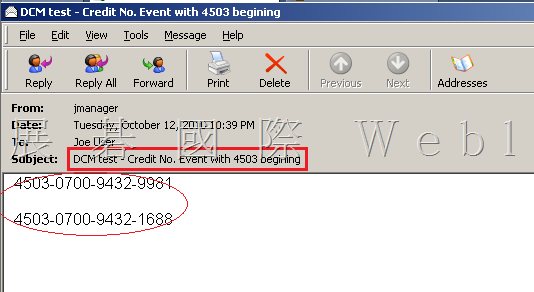
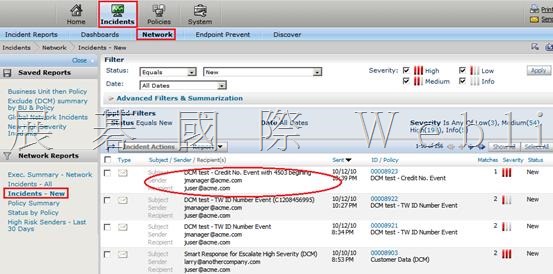
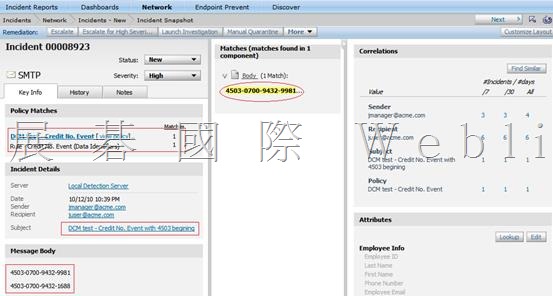
    l Detect Credit Card Number (4503 開頭) event

    Create a policy which detects the following patterns:

    1. HK ID

    2. Credit cards issued by HSBC

    a. VISA First 4 digits are: 4201

    b. MasterCard First 4 digits are: 5185

    3. Towngas Account Number

    a. nnnn-nnnn-nn

    Detect Taiwan ID event

    clip_image005

    clip_image007

    clip_image009

    clip_image011

    clip_image013

    clip_image015

    clip_image017

    clip_image018

    clip_image020

    clip_image022

    Detect Credit Card Number (4503 開頭) event

    clip_image023

    clip_image024

    clip_image026

    clip_image028

    clip_image030

    clip_image032

    clip_image034

    clip_image035

    clip_image037

    clip_image039

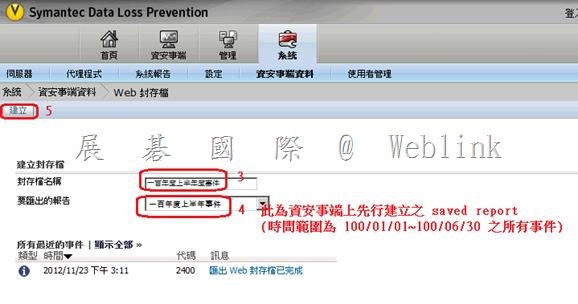
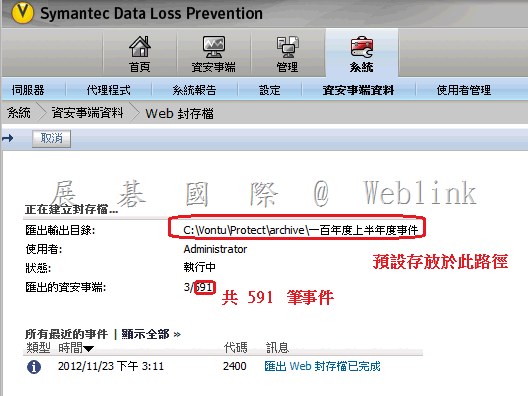
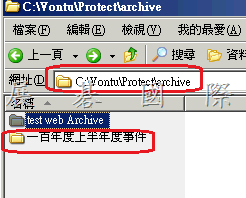
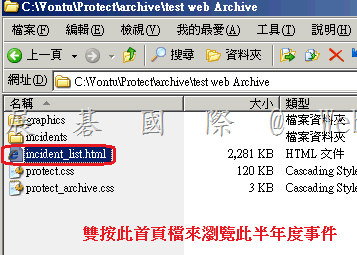
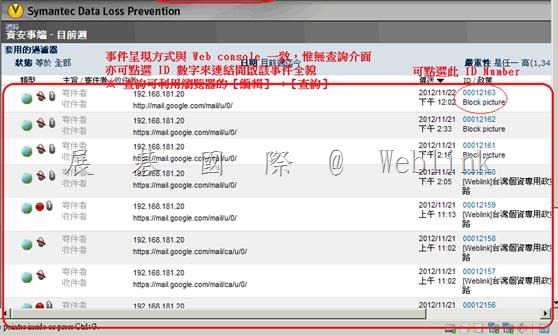
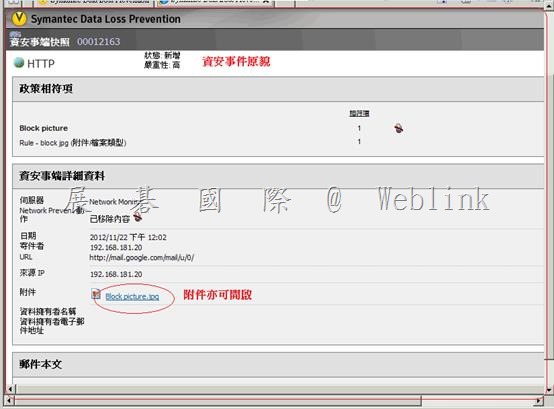
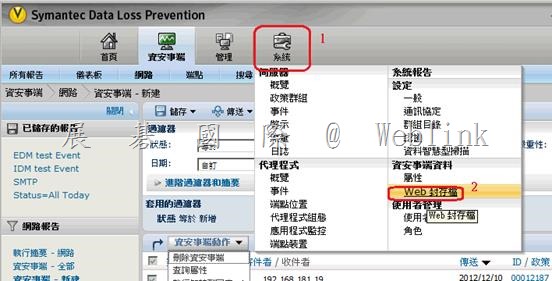
  • 以 【Web 封存檔方式備份】以保留歷史事件

    以 【Web 封存檔方式備份】以保留歷史事件
    clip_image002
    clip_image004
    clip_image005
    clip_image006
    clip_image007
    clip_image009
    clip_image011

  • DLP 管理主控台事件刪除

    DLP 管理主控台事件刪除
    處理方式:
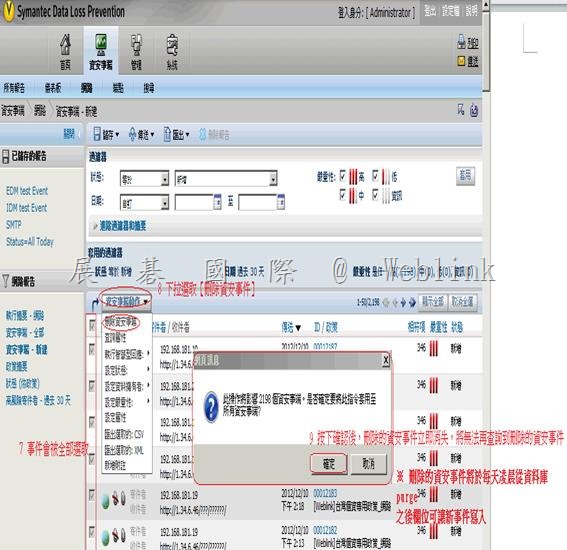
    請參考下圖步驟
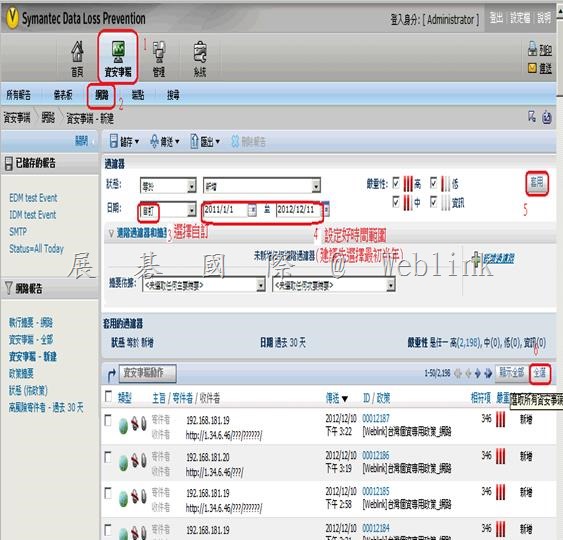
    請勿點選【顯示全部】,否則會因資料過多開啟緩慢
    直接選擇【全選】,之後刪除的動作會立即完成 ( 僅是 SQL Update 語法的執行,所以很快 )
    clip_image002
    clip_image004

  • 如何重設 DLP 主控台 Administrator 帳戶的密碼

    如何重設 DLP 主控台 Administrator 帳戶的密碼

    步驟

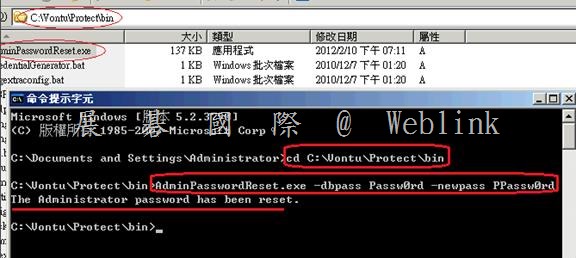
    開啟命令提示字元
    輸入以下指令
    cd c:\Vontu\Protect\bin
    AdminPasswordReset.exe -dbpass Passw0rd -newpass PPassw0rd
    ( Administrator 帳戶密碼即重設為 PPassw0rd )
    clip_image002

  • DLP 11.0 upgrade to 11.6

    DLP 11.0 upgrade to 11.6

    11.5 function

    l Tablet Prevent Detection Server

    → Support iOS 4、iOS 5

    → HTTP、HTTPS、FTP、Exchange Active Sync

    → Integration with DLP Enforce

    Plicy → VPN

    管理→ MDM

    l Oracle → 11.2.0.2

    l Meta data detection → office (link、OLE 嵌入)、PDF (作者、主旨、建立日期、修改日期)

    l Additional proxy support → Websense V-Series Appliance V10000、MS TMG

    升級

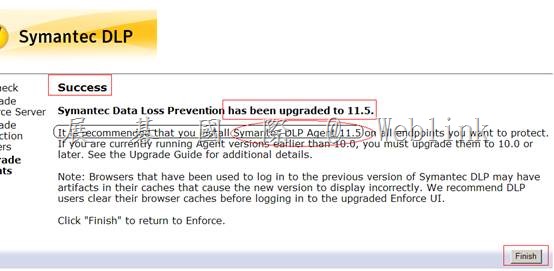
    l 9.0 → 10.0 → 11.0 → 11.5

    l

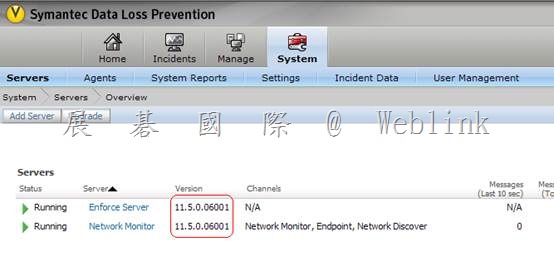
    Enforce Server (不必先升級資料庫,請備份資料庫、Detection Server)

    → Download Symantec_DLP_11.5_MP1_Upgrader_Win-In.zip

    →於 Enforce Server確認 Enforce Server、Detection Server 運作是否正常

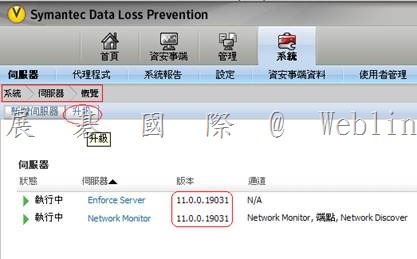
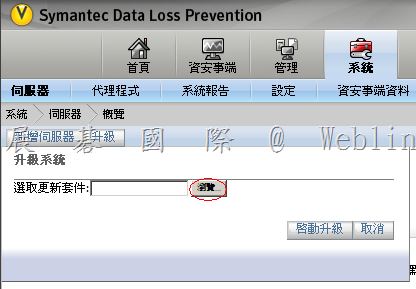
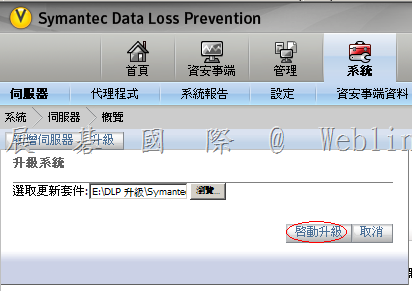
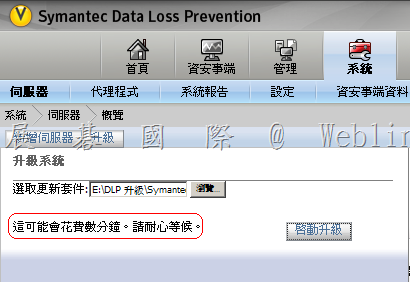
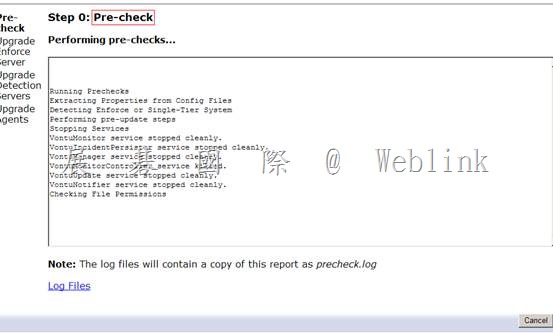
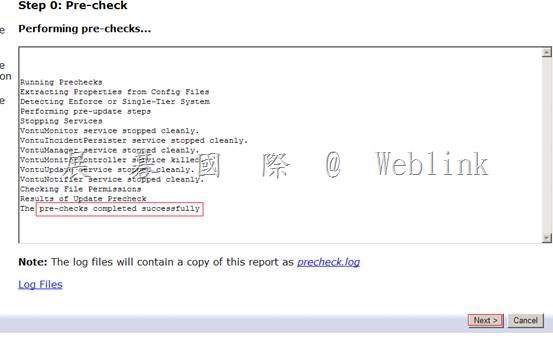
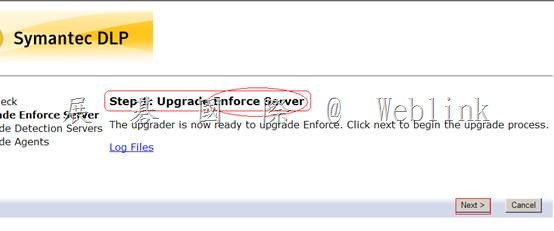
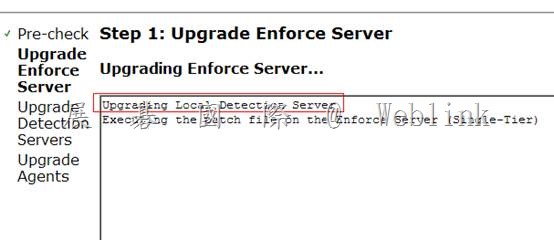
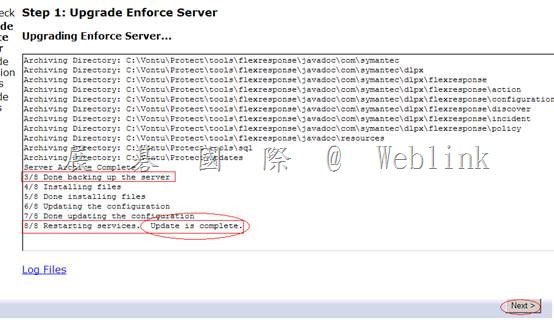
    → 於 Enforce Server 使用【升級精靈】升級 (升級精靈預設通訊號→8300)

    l 在 Enforce Server 主機電腦上,使用文字編輯器開啟以下檔案:

    \SymantecDLP\Protect\tomcat\webapps\ProtectManager\WEB-INF\struts-config.xml

    C:\Vontu\Protect\tomcat\webapps\ProtectManager\WEB-INF\struts-config.xml

    \SymantecDLP\Protect\tomcat\webapps\ProtectManager\WEB-INF\struts-config-admin.xml

    \SymantecDLP\Protect\tomcat\webapps\ProtectManager\WEB-INF\struts-config-async.xml

    l 在每個檔案中,找出以下這行:

    <controller nocache=”true” maxFileSize=”500m”/>

    l 在每個檔案中,將 maxFileSize 屬性的值變更為 1000m。例如:

    <controller nocache=”true” maxFileSize=”1000m”/>

    l 儲存該檔案並結束文字編輯器。

    l 在 Enforce Server 主機上重新啟動 Vontu Manager 服務。

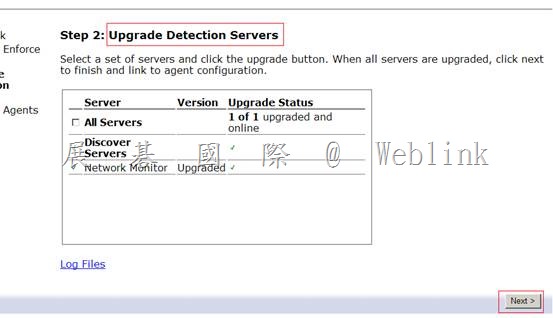
    → 【升級精靈】可同時升級 Detection Server

    ( 重新啟動 Vontu Monitor Controller 服務,Detection Server 新版號才會顯示 )

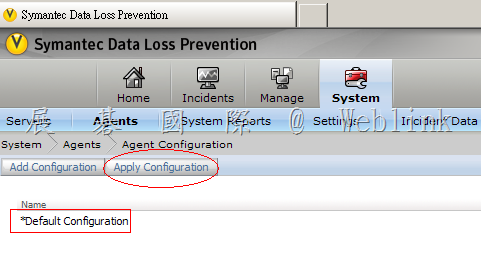
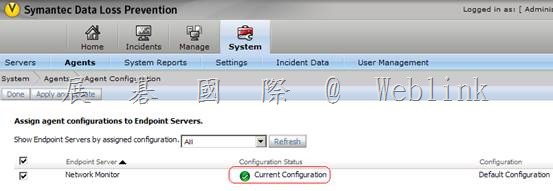
    → 套用 Endpoint Prevent Server 代理程式組態,先將群組目錄建立索引與索引排程

    → 套用 Endpoint Prevent Server 代理程式組態

    → 升級 Endpoint Agent (11.0→11.1→11.5)

    → 升級 掃描程式

    → 升級後的工作

    → 升級 WinPacp

    → 升級資料庫

    → 升級後需重上新版 Language Pack

    l 注意事項

    Ø Enforce Server 硬碟剩餘空間 → 50~100 G

    Ø Detection Server 硬碟剩餘空間 → 300 MB

    Ø 升級前請停止所有 Network Discover 掃描

    Ø Enforce Server (11.5)

    → Endpoint Detection Server 11.0 (不可在此時將Endpoint Detection Server reboot)

    → 如果不小心 reboot 了,要先升級 Endpoint Agent,再升級 Endpoint Detection Server

    升級實做

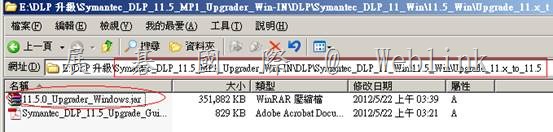
    →【Download Symantec_DLP_11.5_MP1_Upgrader_Win-In.zip】

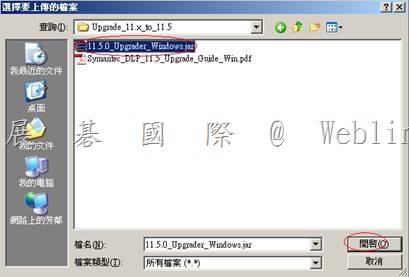
    E:\DLP 升級\Symantec_DLP_11.5_MP1_Upgrader_Win-IN\DLP\Symantec_DLP_11_Win\11.5_Win\Upgrade_11.x_to_11.5

    【11.5.0_Upgrader_Windows.jar】

    clip_image002

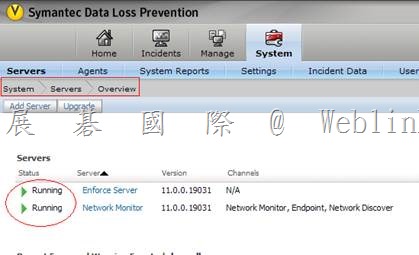
    → 於 Enforce Server確認 Enforce Server、Detection Server 運作是否正常

    clip_image004

    → 於 Enforce Server 使用【升級精靈】升級 (升級精靈預設通訊號→8300)

    (升級精靈預設通訊埠 → 8300,https://Enforce_server:8300)

    ※ 若需更改通訊埠 → 修改 C:\Vontu\Protect\config\Manager.properties

    Add

    Update.wizard.port=port

    clip_image006

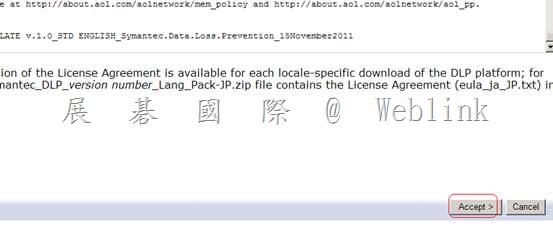
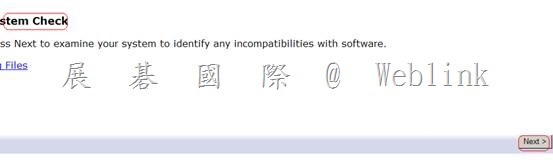
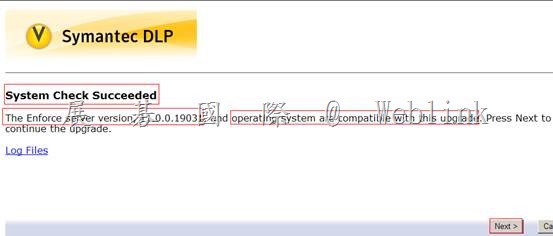
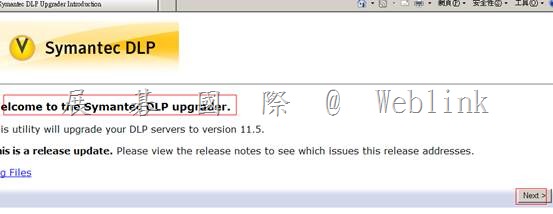
    clip_image007

    clip_image009

    clip_image010

    clip_image011

    clip_image012

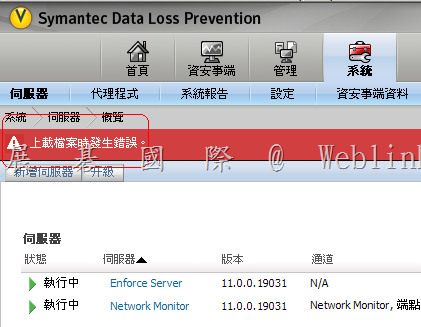
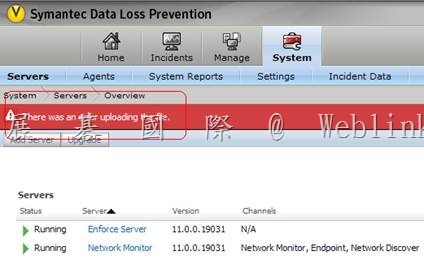
    There was an error uploading the file

    clip_image014

    Enforce UI 上載11.5.0_Upgrader_Windows.jar,改以手動上載

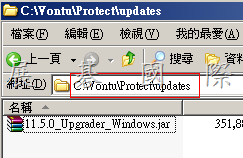
    Below are the steps for Manually uploading the JAR file to the Enforce Server and upgrading to 11.1.2 from 11.0:

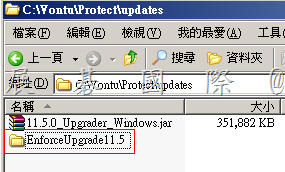
    a) Copy the upgrade JAR file 11.5.0_Upgrader_Windows.jar to the \vontu\Protect\updates directory*.

    clip_image015

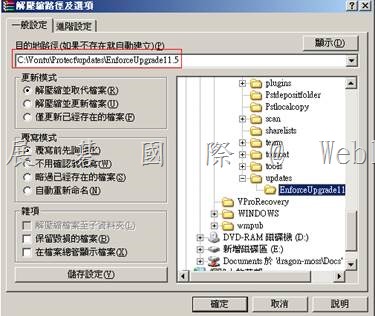
    b) Create a new directory that is named EnforceUpgrade11.5 inside the \vontu\Protect\updates directory.

    clip_image016

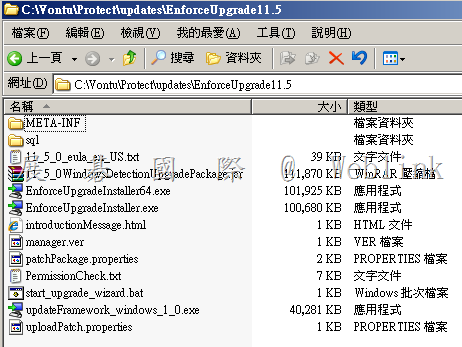
    c) Extract the contents of the upgrade JAR file 11.5.0_Upgrader_Windows.jar into the EnforceUpgrade11.5 directory* (you can use Winzip or WinRAR to extract the contents of the JAR file).

    clip_image018

    d) Run start_upgrade_wizard.bat, which is located in the \vontu\Protect\updates\EnforceUpgrade11.5 directory.

    clip_image019

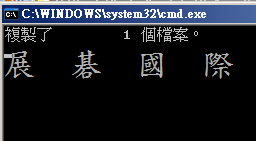
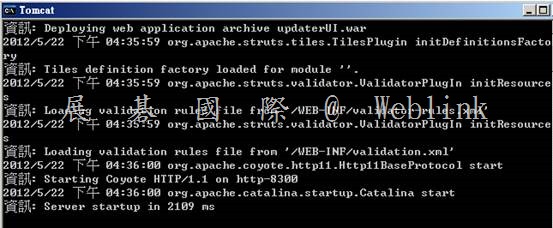
    e) Wait a few minutes for the Upgrade Wizard server to start. This will open a command window with Tomcat as Title (make sure that you don’t close this window).

    clip_image020

    16:35~

    clip_image022

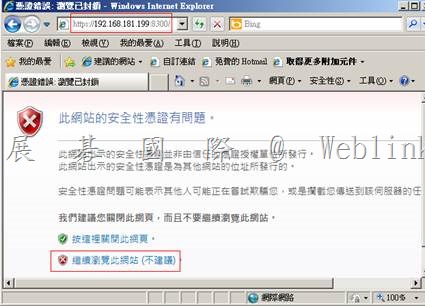
    f) Open a Web browser and go to: https://Enforce_server:8300

    (Enforce_server is the name or IP address of the computer having Enforce server)

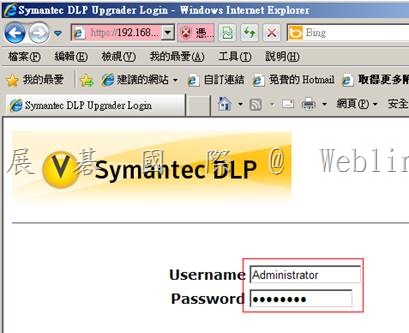
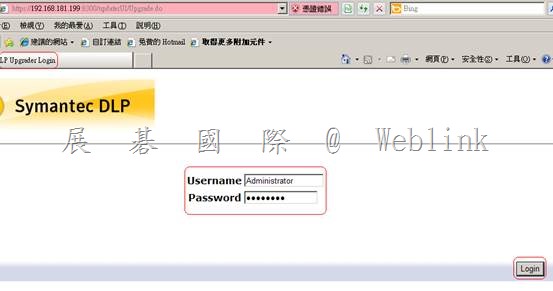
    Continue using the standard upgrade procedures. See “Performing an upgrade with the Upgrade Wizard” in the upgrade guide.

    clip_image024

    clip_image026

    clip_image028

    clip_image030

    clip_image032

    clip_image034

    clip_image036

    clip_image038

    clip_image040

    clip_image042

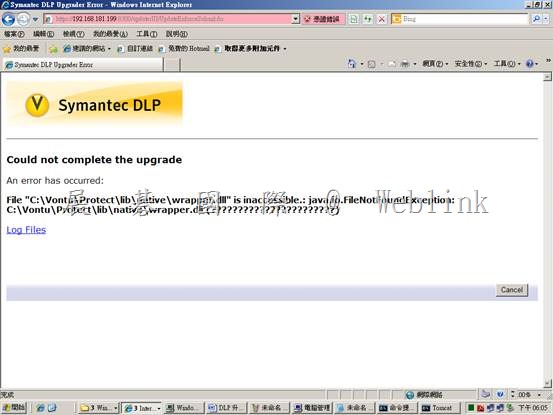
    [ERROR] com.vontu.updater.vontu8.FilePermissionChecker:

    File “C:\Vontu\Protect\lib\native\wrapper.dll” is inaccessible.: java.io.FileNotFoundException: C:\Vontu\Protect\lib\native\ wrapper.dll (The process cannot access the file because it is being used by another process)

    clip_image044

    clip_image046

    C:\Vontu\Protect\updates\EnforceUpgrade11.5

    VontuEnforceBackup.zip

    C:\Vontu\Protect\updates\update-id-1337682237322

    VontuDetectionBackup.zip

    clip_image048

    → 【升級精靈】可同時升級 Detection Server

    ( 重新啟動 Vontu Monitor Controller 服務,Detection Server 新版號才會顯示 )

    clip_image050

    clip_image052

    clip_image054

    遠端 Detection Server

    ( 重新啟動 Vontu Monitor Controller 服務,Detection Server 新版號才會顯示 )

    clip_image056

    → 套用 Endpoint Prevent Server 代理程式組態,先將群組目錄建立索引與索引排程

    → 套用 Endpoint Prevent Server 代理程式組態

    clip_image057

    clip_image059

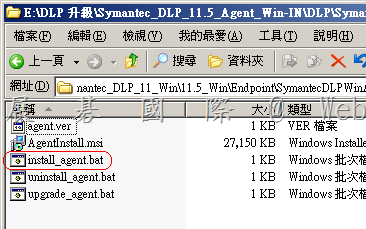
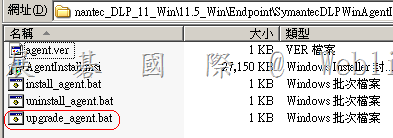
    → 升級 Endpoint Agent (11.0→11.5) or (11.0→11.1→11.5)

    (11.0→11.5)

    clip_image060

    (11.0→11.1→11.5)

    clip_image061

    → 升級 掃描程式

    → 升級後的工作

    → 升級 WinPacp (4.1.2)

    → 升級資料庫

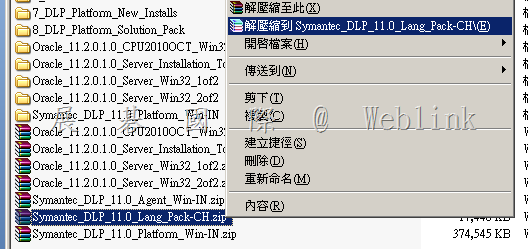
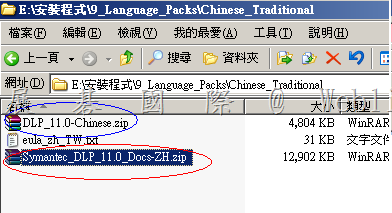
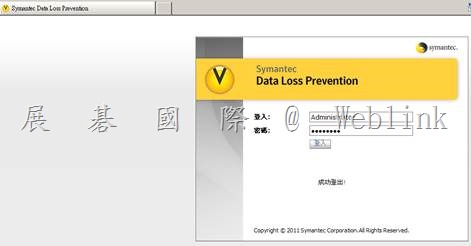
    → 升級後需重上新版 Language Pack

    clip_image062

    clip_image063

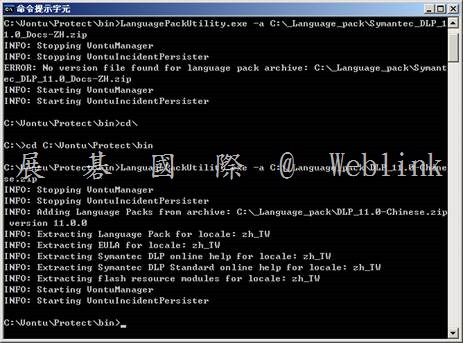
    在C:\ 新增 _Language_pack 資料夾

    將DLP_11.5-Chinese.zip 複製到 C:\_Language_pack

    Cd C:\Vontu\Protect\bin

    LanguagePackUtility.exe -a C:\_Language_pack\DLP_11.5-Chinese.zip

    clip_image064

    clip_image066

    clip_image068

  • PGP 登入 BootGuard 後出現 【Missing Operating System】(PGP command)

    1. 請將硬碟裝到另一台裝有 PGP 的電腦

    登入後會要求輸入 passphrase,因為是整合AD驗證,此時你會發現怎麼輸入都不行

    2. 請登出電腦,再使用另外那位使用者的帳號與密碼登入網域,登入後會要求輸入 passphrase,這時候輸入網域密碼就OK了

    3. 開啟 PGP command line

    透過以下指令來修復 MBR


    Windows XP: C:\Program Files\PGP Corporation\PGP Desktop
    Windows Vista/Windows 7: C:\Program Files\PGP Corporation\PGP Desktop
    Windows Vista/Windows 7 (64-bit): C:\Program Files (x86)\PGP Corporation\PGP Desktop


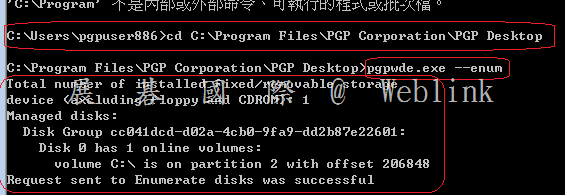
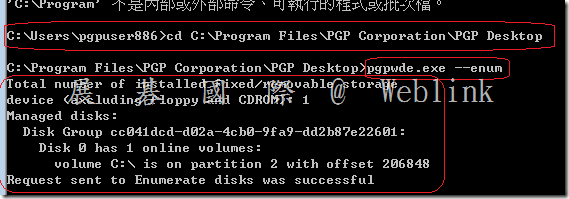
    (1) c:\program files (x86)\pgp corporation\pgp desktop\pgpwde –enum (確認 Disk 編號)
    clip_image001

    (2) 有可能硬碟目前狀況是解密到一半,請先Check

    確認硬碟的狀況

    c:\program files (x86)\pgp corporation\pgp desktop\pgpwde —disk-status –disk X

    (3) 若確認硬碟目前狀況是解密到一半,請先stop

    停止加密到一半的硬碟的加密程序

    c:\program files (x86)\pgp corporation\pgp desktop\pgpwde —stop –passphrase <passphrase> –disk X

    (4) fixmbr

    c:\program files (x86)\pgp corporation\pgp desktop\pgpwde –disk X —fixmbr –passphrase <passphrase>

    X 是 disk 編號

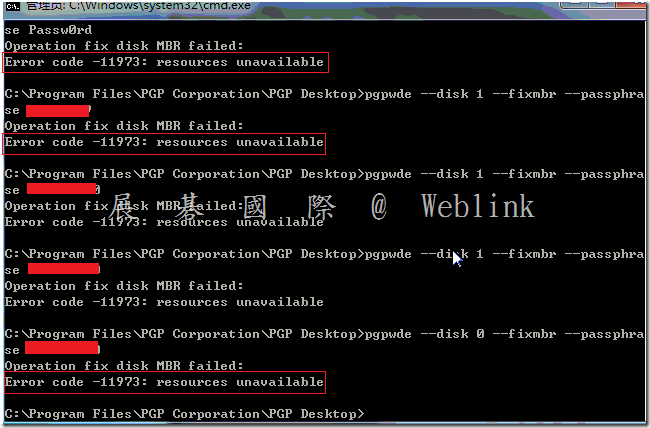
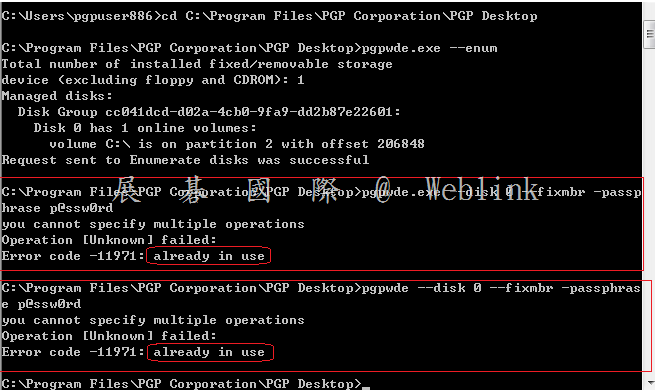
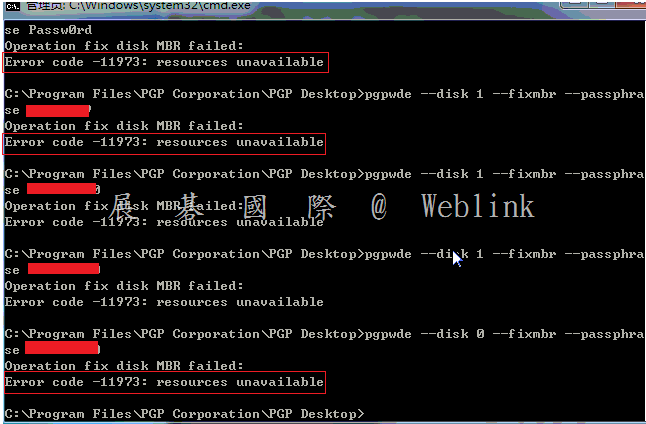
    但根據經驗 fixmbr 的指令好像在新版不 work
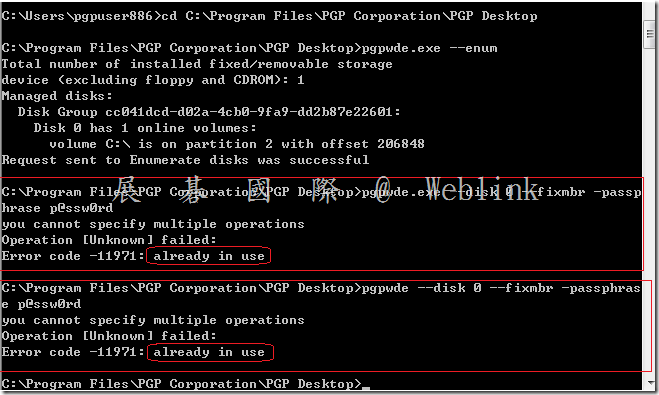
    clip_image002

    clip_image003

    4. 根據經驗 fixmbr 的指令好像在新版不 work

    請改下recover

    c:\program files (x86)\pgp corporation\pgp desktop\pgpwde –recover –passphrase “password” –disk X

    Recover a disk when a MBR with BootGuard instrumentation is inaccessible.

    5.若仍無法解決

    (1) 請您解密硬碟

    (使用 Recover CD)

    (或是將硬碟裝到另一台裝有 PGP 的電腦使用 PGPWDE Command-line 解密 【c:\program files (x86)\pgp corporation\pgpwde —decrypt –passphrase <passphrase> –disk 0】)

    (2) 進行 chkdsk

    (3) 進行 磁碟重組

    (4) 若還是無法解決就只能重新安裝OS,或是換一個硬碟

    5. PGPWDE Command-line Options


    Enterprise Support – Symantec Corp. – PGP WDE Command-line Tool Guide

    http://www.symantec.com/business/support/index?page=content&id=TECH204285


    The following commands are performed at the command prompt in the following directory:

    Windows XP: C:\Program Files\PGP Corporation\PGP Desktop

    Windows Vista/Windows 7: C:\Program Files\PGP Corporation\PGP Desktop

    Windows Vista/Windows 7 (64-bit): C:\Program Files (x86)\PGP Corporation\PGP Desktop


    Enumerate system disks

    pgpwde –enum

    Check the Status of a Disk

    pgpwde –disk-status –disk 0

    List users

    pgpwde –list-user –disk 0

    Instrument a Disk – Adds the PGP BootGuard for encryption.

    pgpwde –instrument –disk 0

    Encrypt a Disk (Manually)

    pgpwde –instrument –disk 0

    pgpwde –add-user <username> –passphrase <passphrase> –disk 0

    pgpwde –encrypt –passphrase <passphrase> –disk 0

    Decrypt a Disk

    pgpwde –decrypt –passphrase <passphrase> –disk 0

    Uninstrument a Disk – Removes the PGP bootguard (Perform this option only on a disk that is not encrypted).

    pgpwde –uninstrument –disk 0

    Stop\Pause the Encryption\Decryption Process

    pgpwde –stop –passphrase <passphrase> –disk 0

    Recover a disk – Allows a user to recover a disk when a MBR with BootGuard instrumentation is unaccesible.

    pgpwde –recover –passphrase “password” –disk 0

    Note: This article uses disk 0 as an example. This correlates to the number of the boot disk on the system. However, if additonal hard disks or USB disks are used, the number of the disk may be 1 or 2. To determine the number of the disk on the system, use pgpwde –enum at the command prompt of the PGP Desktop directory.
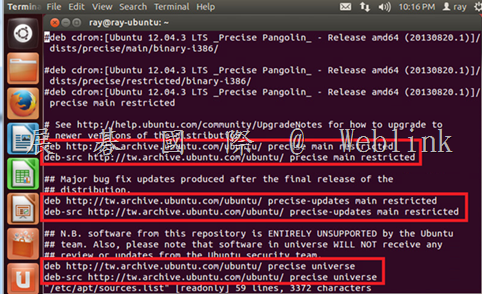
  • 【安裝 PGP WDE for Ubuntu 發生錯誤】…套件庫未更新

    【安裝 PGP WDE for Ubuntu 發生錯誤】…套件庫未更新

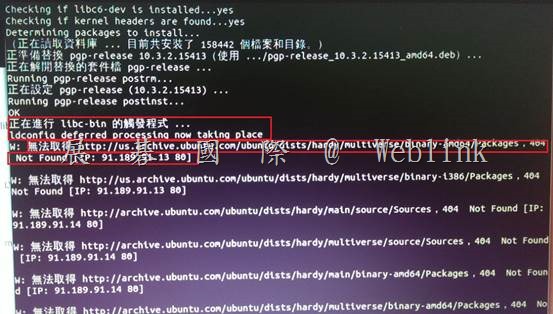
    Ldconfig deferred processing now taking place

    W:無法取得 http://us.archive.ubuntu.com/ Ubuntu/dists/hardy/multiverse/binary-amd64/packages,404 Not Found

    clip_image002

    【原因】

    套件庫未更新

    【解決方法】

    1. 請在有網路的狀態下
    輸入

    sudo apt-get update

    更新套件庫

    2. 若仍持續無法更新,請嘗試以下步驟
    (1) 下載原始檔 source.list檔 (下載檔為 sources.rar ,請解壓後將 sources.list 放到根目錄底下)

    (2) 進入根目錄

    #cd ~

    (3) 備份user source.list檔案

    #sudo cp etc/apt/sources.list etc/apt/sources.list.bak

    (4) 覆蓋source檔案

    #sudo cp sources.list etc/apt/sources.list

    (5) 更新套件

    #sudo apt-get update

    (6) 安裝PGP(參考安裝sop)

     
    #sudo bash pgp---

    (7) 移除source檔案

    #sudo rm etc/apt/source.list

    (8) 還原user source檔案

    #sudo cp sources.list.bak etc/apt/sources.list

    3. 如果是下列 Ubuntu版本,則 PGP無法支援

    (1) 確認Ubuntu版本指令 # lsb_release -a

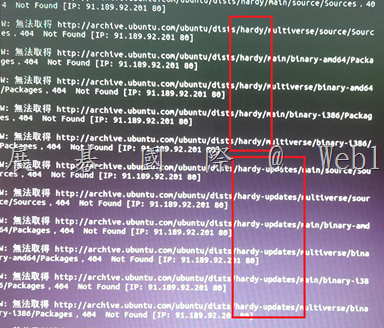
    (2) 從錯誤連結查看 http://archive.ubuntu.com/ubuntu/dists/hardy or hardy-updates

    clip_image004

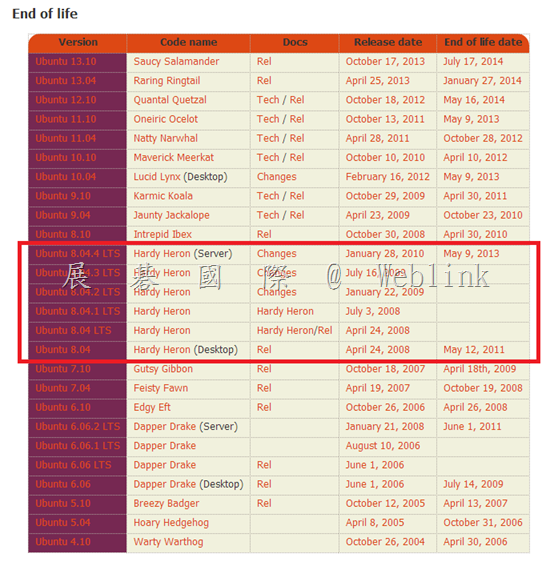
    確認 Ubuntu 版本 【haydy 代號版本 8.04.X 已經EOL了】, 所以不再提供相依性更新包

    Ubuntu 網址:

    https://wiki.ubuntu.com/Releases

    clip_image005

    (3) 在lab環境裡

    下apt-get update指令去找的source 是”http://tw.archive.ubuntu.com/ubuntu

    在網址開頭都有”tw”,如圖:

    clip_image007

  • PGP WDE 硬碟加密後可否進行 Sysprep 作業已更換 SID

    1# 依照原廠說明KB中表示 10.3.2 以上版本即有支援更換SID(Sysprep)

    http://www.symantec.com/docs/TECH194265

    2# 有在測試環境中運行,確實在加密狀態下進行Sysprep後可以正常運行與開機

    但是 Bootguard 是輸入 當初加密的帳號密碼

  • Symantec PGP Uninstall For Windows

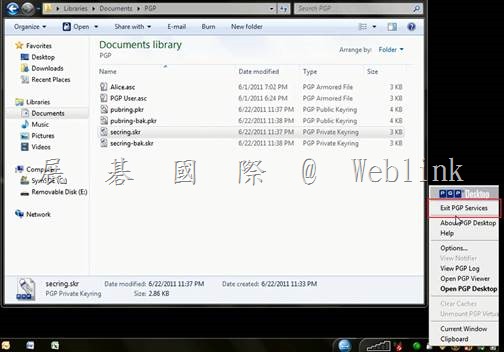
    Symantec PGP Uninstall For Windows

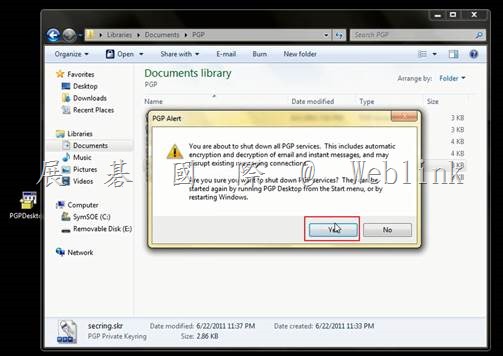
    1. Click the lower right toolbar, right-click PGP, click Exit PGP Services

    clip_image002

    Click Yes

    clip_image004

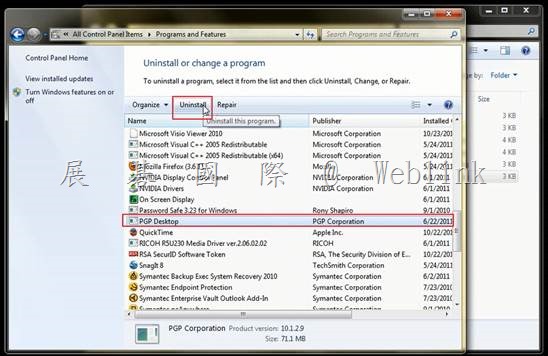
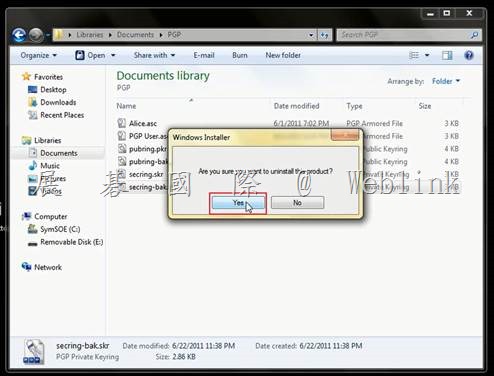
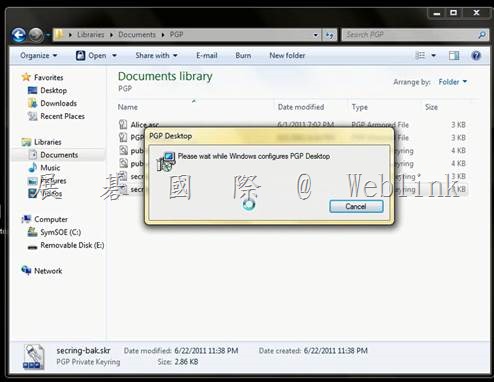
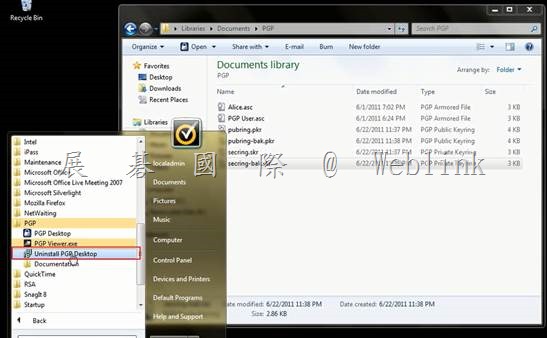
    2. Click Uninstall PGP Desktop

    clip_image006

    Or enter Console Panel removed PGP Desktop

    clip_image008

    Click Yes

    clip_image010

    clip_image012

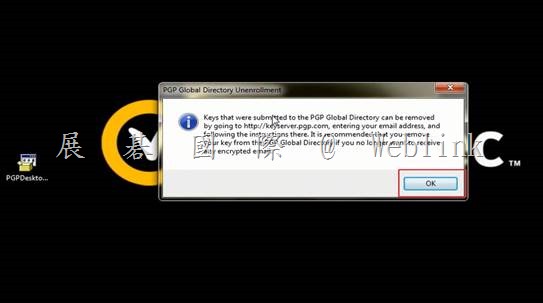
    Click OK

    clip_image014clip_image016

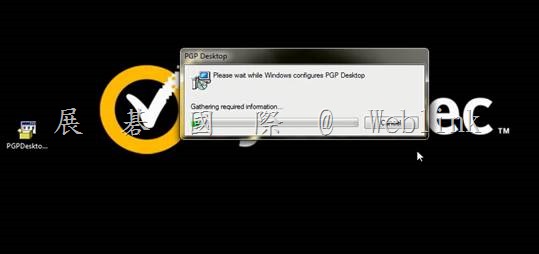
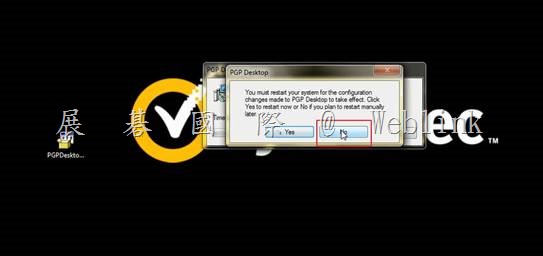
    Click NO,Don’t reboot immediate.

    clip_image018

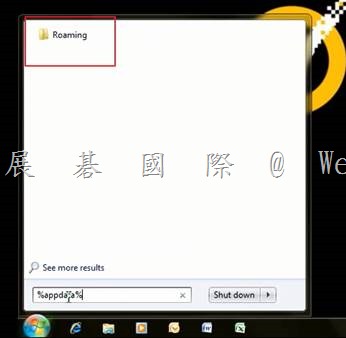
    3. Enter %appdata%,Click Roaming Folder

    clip_image020

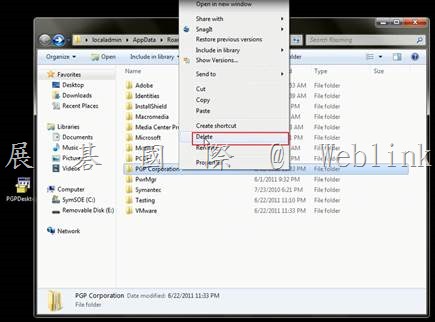
    delete PGP Corporation Folder

    clip_image022

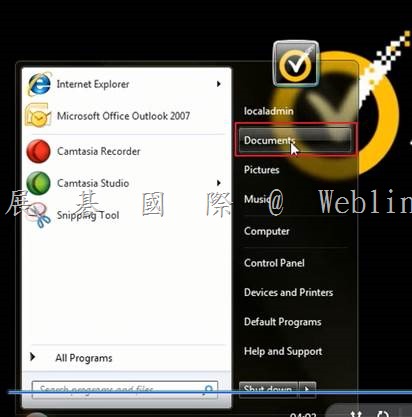
    Click Documents Folder

    clip_image024

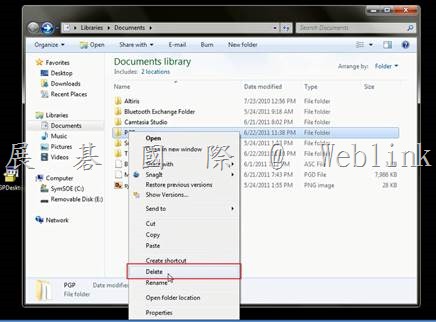
    delete PGP Folder

    clip_image026

    Delete PGP Desktop over

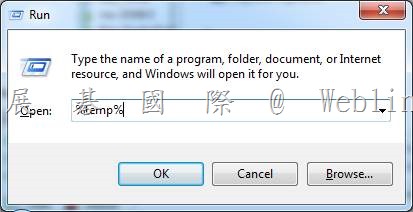
    4. Ren “ %temp% “

    clip_image028

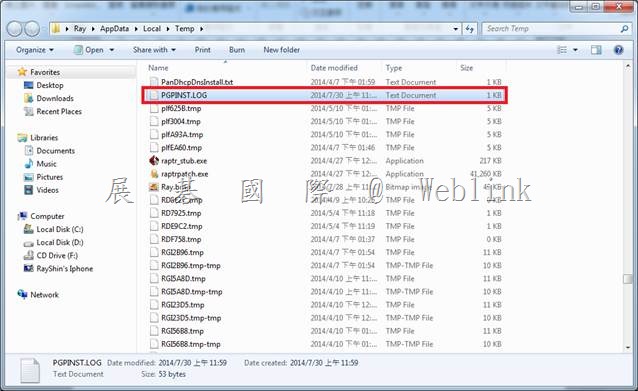
    Delete “PGPINST.log”

    clip_image030

    5. Registry