4_SEE RSE Policy
Native policies
- 只能套用至 computer (套用順序:computer、Sub group、Group)
- Native policies are designed for deployment to computers that are not managed by Active Directory.
SEE Roles
- Policy Administrators
- Client Administrators
- Policy Create
SEE 有此兩類 Policy
- 【Active Directory Policy】
- 【Native Policy】
【Active Directory Policy】的畫面
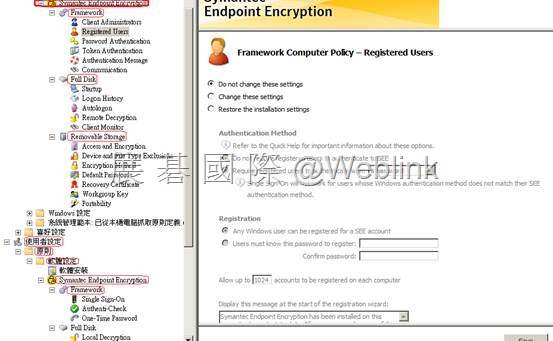
展開【Machine Policy】→【Framework】→來進行以下相關項目的設定
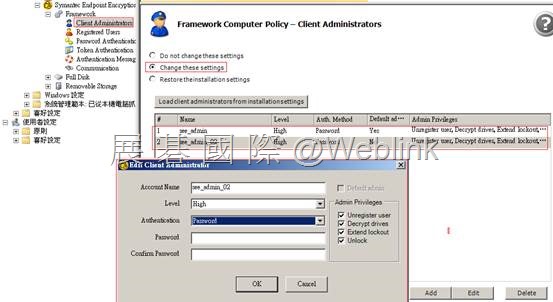
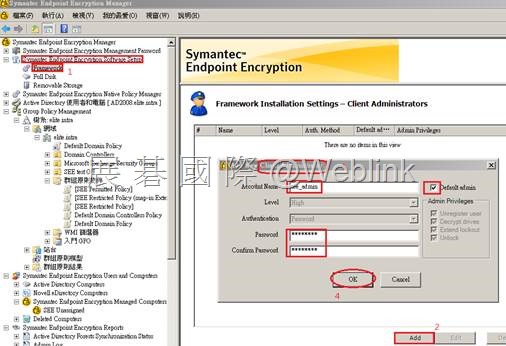
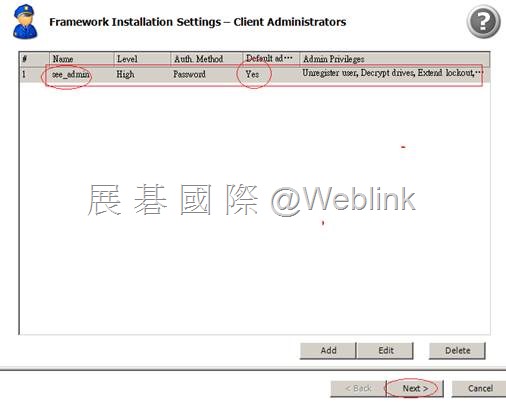
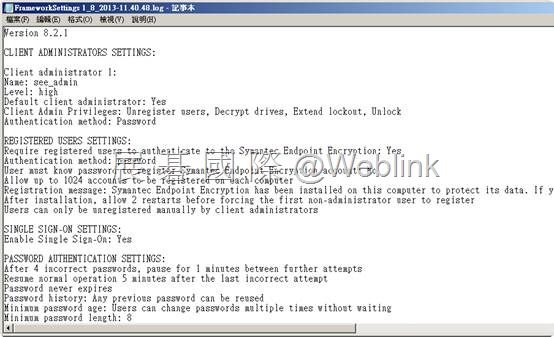
【Client Administrator】
The password must be a minimum of two characters and no longer than 32
Token->P7B file
※ Client Admin 的驗證方式與管理權限 RSE → (用來 Unregister user),FD → (用來 Decrypt drivers、Extend lockout、Unlock)
※ Level →8.0.0 之後用不到
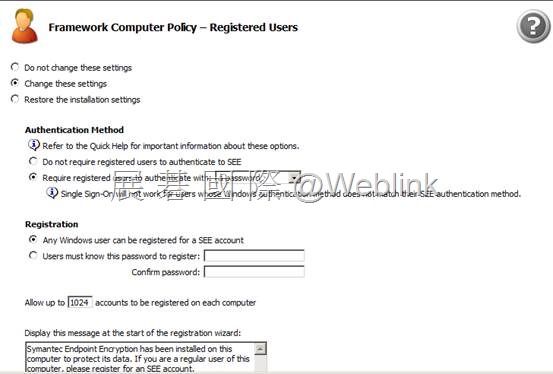
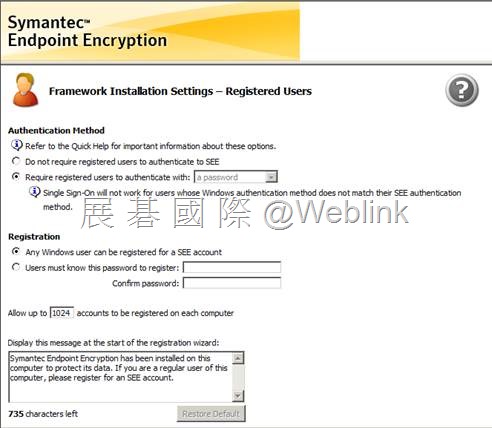
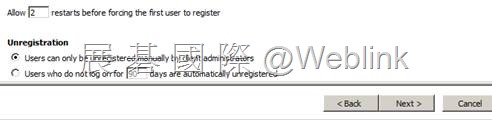
【Registered Users】
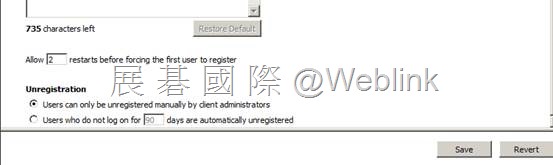
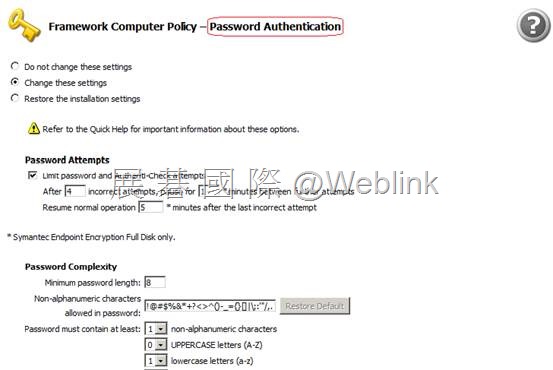
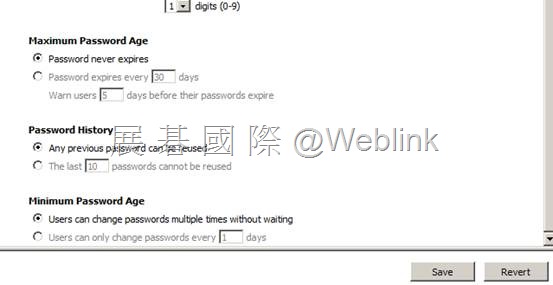
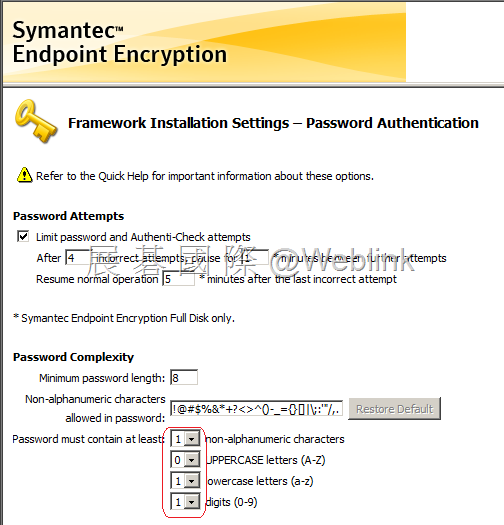
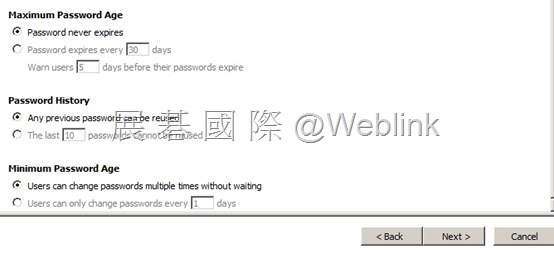
【Password Authentication】
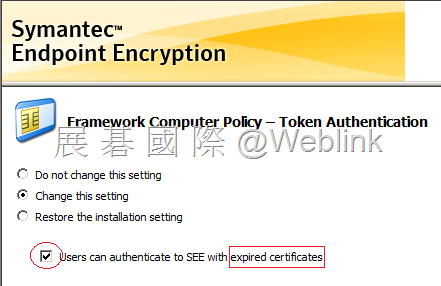
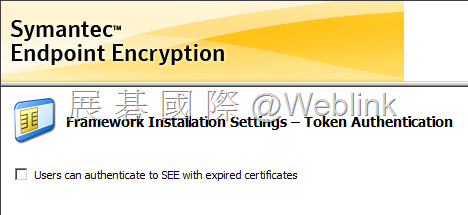
【Token Authentication】
允許過期憑證驗證
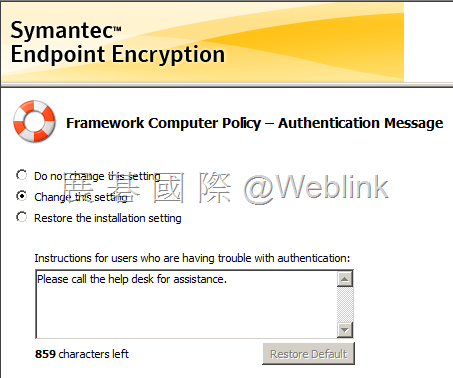
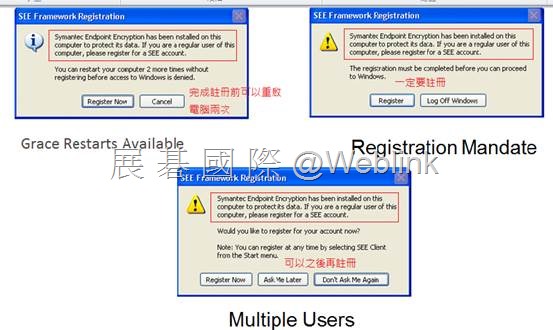
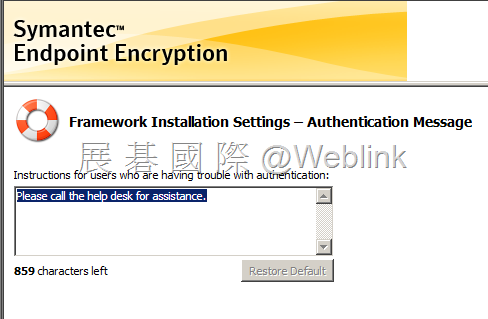
【Authentication Message】
驗證遇到問題時,可依訊息所指定的方式聯繫資訊人員協助處理
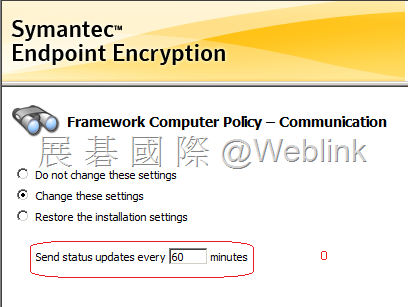
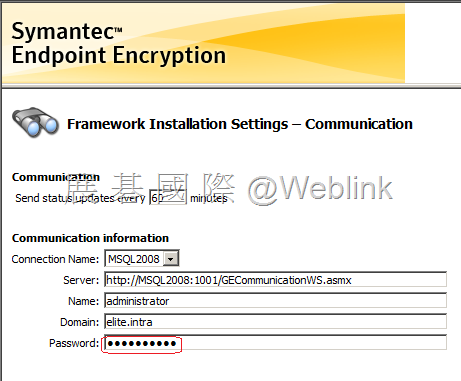
【Communication】
用戶端電腦每隔多久傳送狀態更新給 SEE Management Server
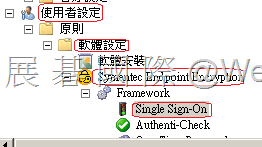
展開【User Policy】→【Framework】→來進行以下相關項目的設定
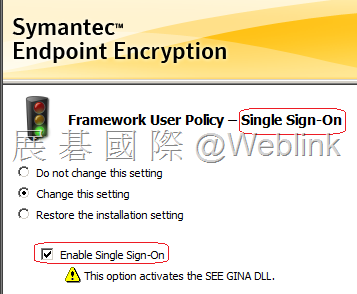
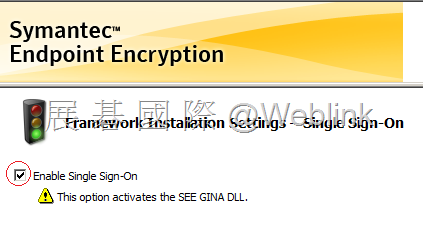
【Single Sign-on】
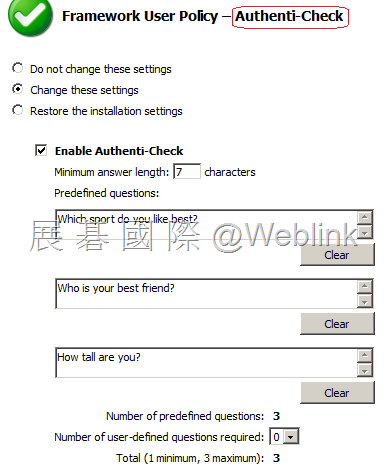
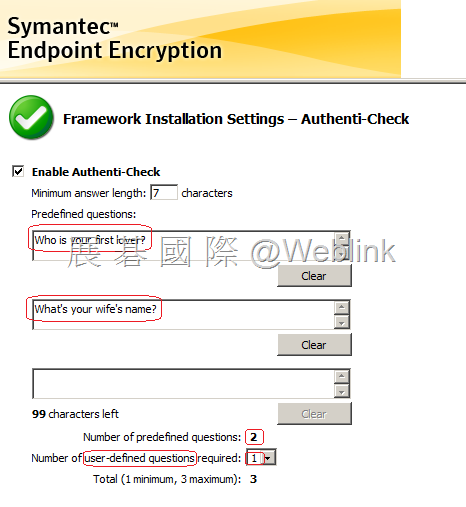
【Authenti-Check】
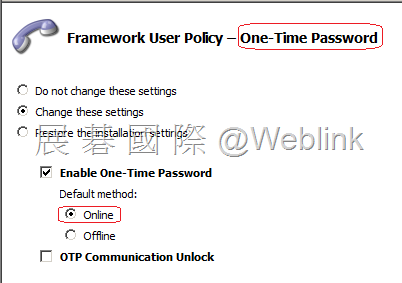
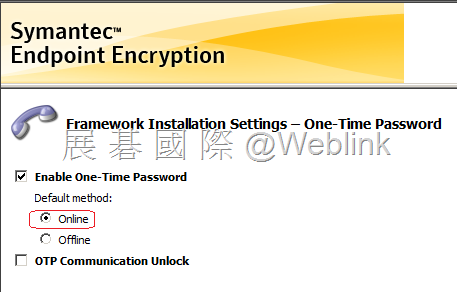
【One-Time Password】
Full Disk 使用者忘記密碼時使用
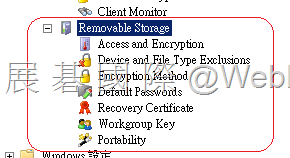
展開【Machine Policy】→【Removable Storage】→來進行以下 【Removable Storage】 相關項目的設定
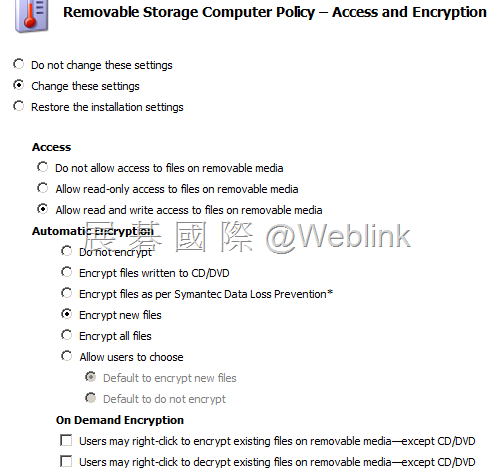
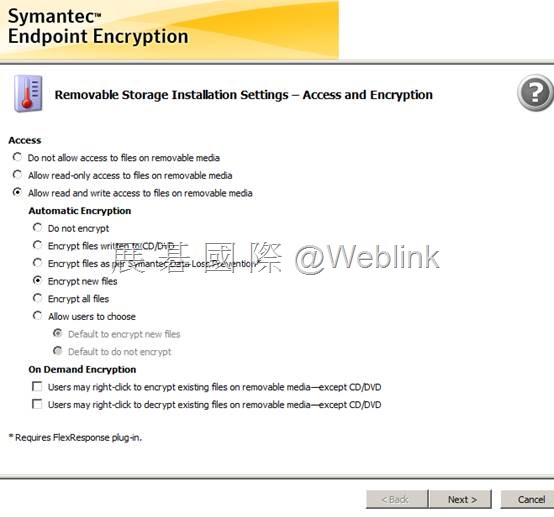
【Access and Encryption】
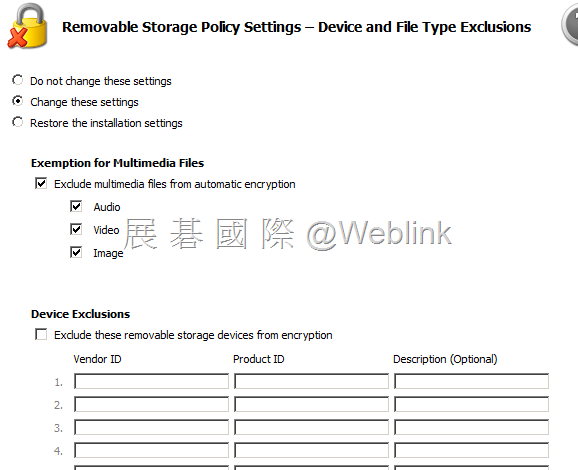
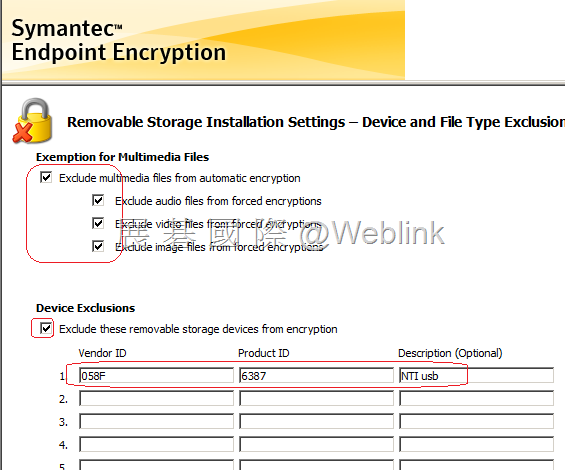
【Device and File Type Exclusions】
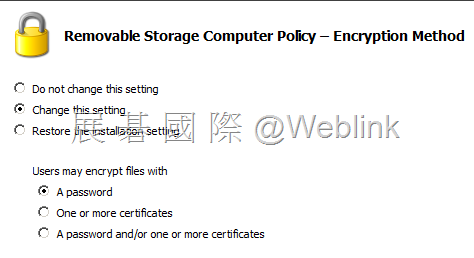
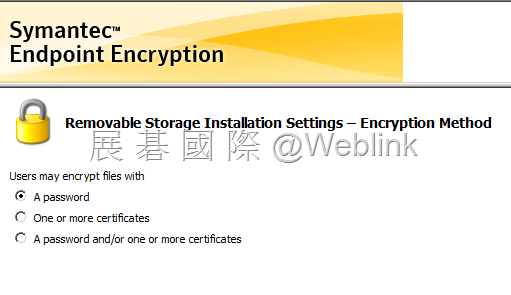
【Encryption Method】
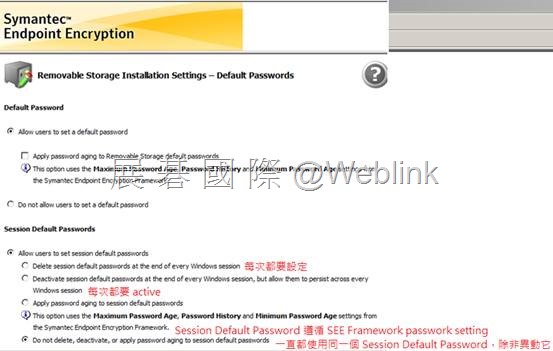
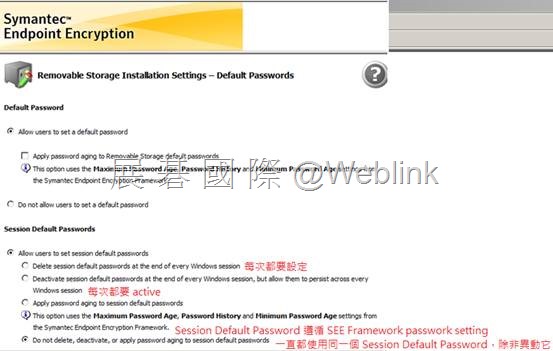
【Default Password】
Session Default Password
可以設定兩個 Session Default Password
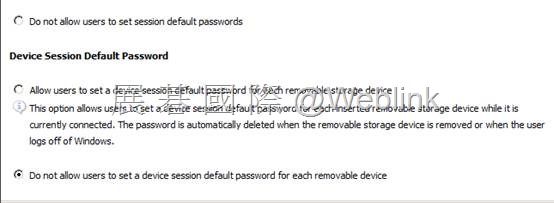
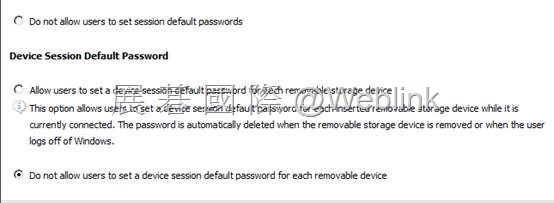
Device Session Default Password
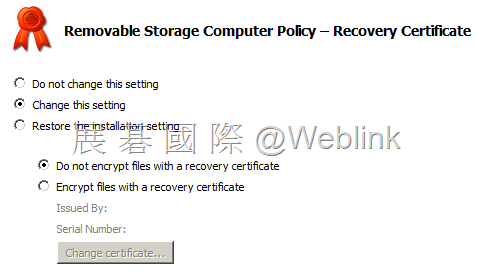
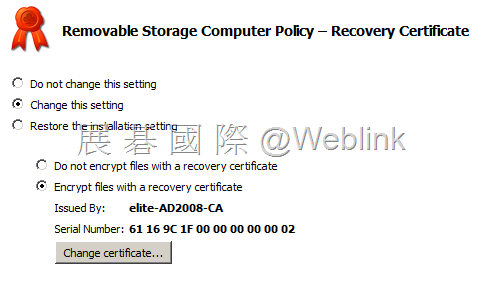
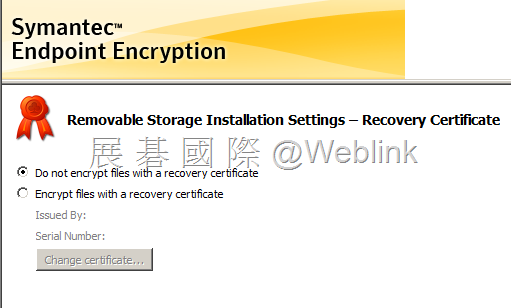
【Recovery Certificate】
|
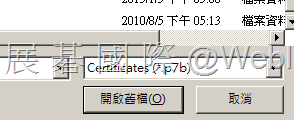
http://www.symantec.com/connect/forums/password-recovery-encrypted-files If you have a master certificate, you may. 1. Launch MMC, add Certificates snap-in for my user account. Now create the Removable storage client package. In the Removable Storage Installation Settings –Encryption Method, select A password or A password and/or one or more certificates. In the Removable Storage Installation Settings –Recovery Certificate, choose Encrypt files with a recovery certificate and browse and select the saved P7B certificate. In the Removable Storage Installation Settings – Portability pane check Copy the Removable Storage Access Utility to all removable storage devices. |
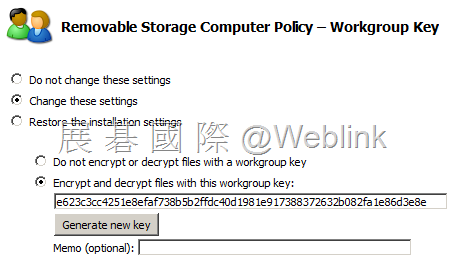
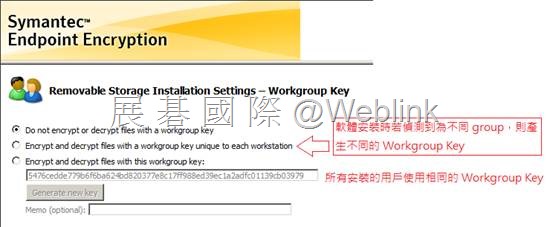
【Workgroup Key】
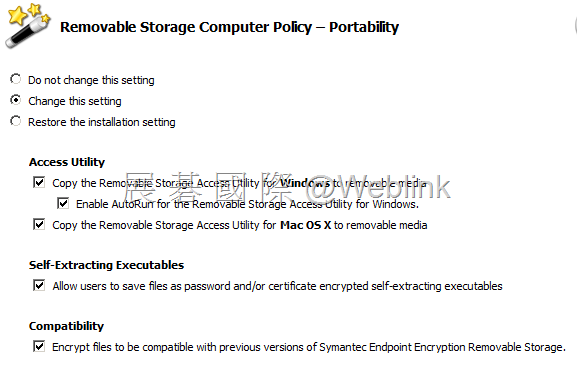
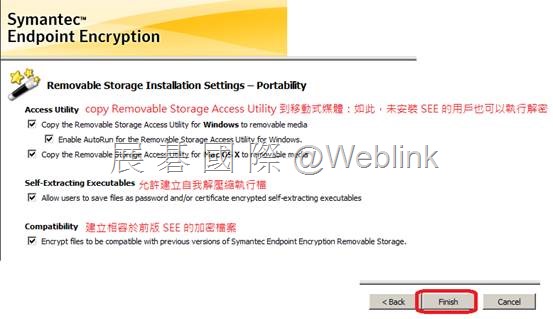
【Portability】
展開【Machine Policy】→【Full Disk】→來進行以下 【Full Disk】 相關項目的設定
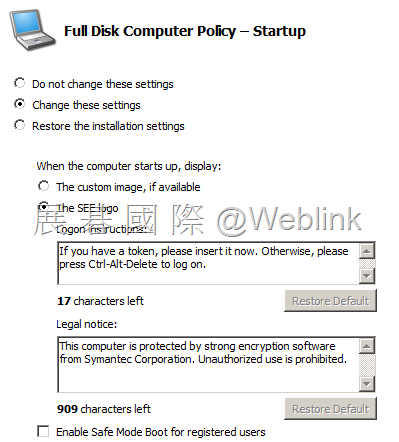
【Startup】
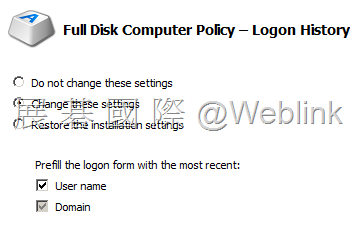
【Logon History】
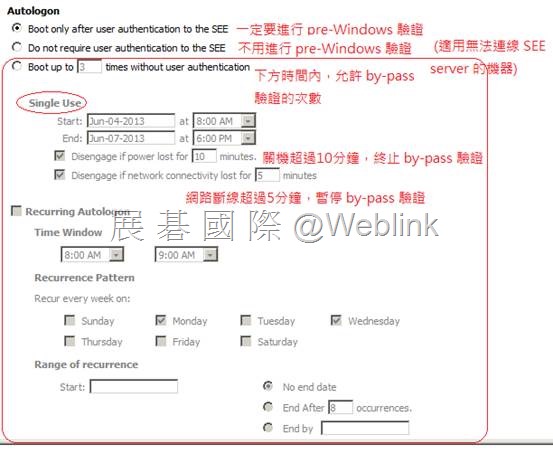
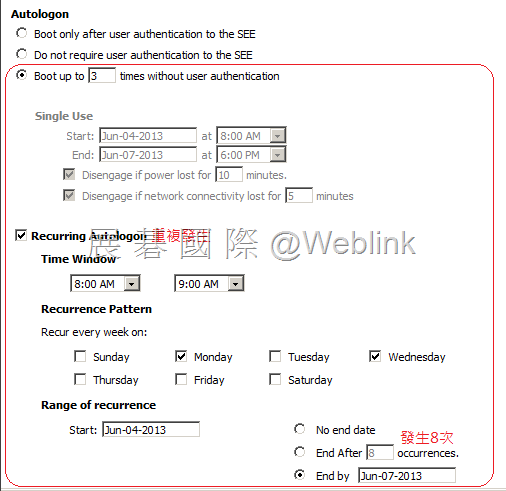
【Autologon】client 收到 policy 後要5分鐘才生效
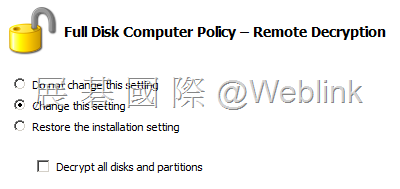
【Remote Decryption】
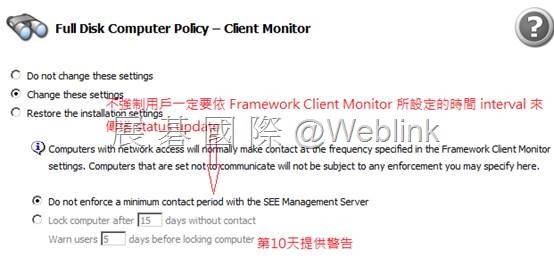
【Client Monitor】
![clip_image015[1]](http://w3c.weblink.com.tw/symantec/wp-content/uploads/sites/4/2013/10/clip_image01511.png "clip_image015[1]")
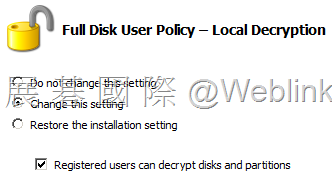
【Local Decryption】
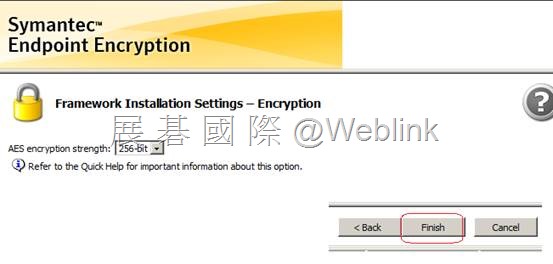
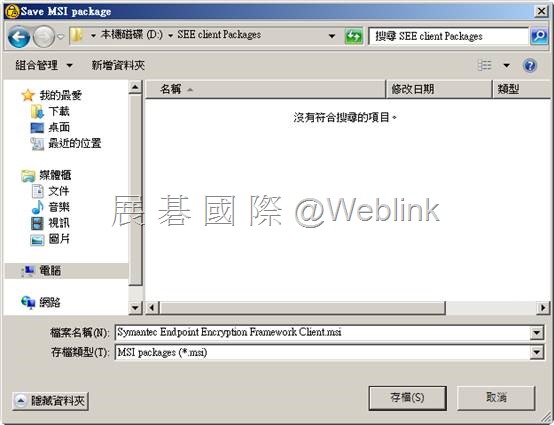
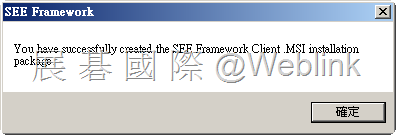
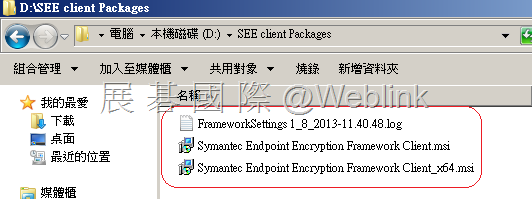
![clip_image002[4]](http://w3c.weblink.com.tw/symantec/wp-content/uploads/sites/4/2013/10/clip_image00241.jpg "clip_image002[4]")
![clip_image004[4]](http://w3c.weblink.com.tw/symantec/wp-content/uploads/sites/4/2013/10/clip_image00441.jpg "clip_image004[4]")
![clip_image006[4]](http://w3c.weblink.com.tw/symantec/wp-content/uploads/sites/4/2013/10/clip_image00641.jpg "clip_image006[4]")
![clip_image008[4]](http://w3c.weblink.com.tw/symantec/wp-content/uploads/sites/4/2013/10/clip_image00841.jpg "clip_image008[4]")
![clip_image010[4]](http://w3c.weblink.com.tw/symantec/wp-content/uploads/sites/4/2013/10/clip_image01041.jpg "clip_image010[4]")
![clip_image012[4]](http://w3c.weblink.com.tw/symantec/wp-content/uploads/sites/4/2013/10/clip_image01241.jpg "clip_image012[4]")
![clip_image013[4]](http://w3c.weblink.com.tw/symantec/wp-content/uploads/sites/4/2013/10/clip_image01341.png "clip_image013[4]")
![clip_image014[4]](http://w3c.weblink.com.tw/symantec/wp-content/uploads/sites/4/2013/10/clip_image0144.png "clip_image014[4]")
![clip_image015[4]](http://w3c.weblink.com.tw/symantec/wp-content/uploads/sites/4/2013/10/clip_image01541.png "clip_image015[4]")
![clip_image016[4]](http://w3c.weblink.com.tw/symantec/wp-content/uploads/sites/4/2013/10/clip_image0164.png "clip_image016[4]")
![clip_image017[4]](http://w3c.weblink.com.tw/symantec/wp-content/uploads/sites/4/2013/10/clip_image0174.png "clip_image017[4]")
![clip_image018[4]](http://w3c.weblink.com.tw/symantec/wp-content/uploads/sites/4/2013/10/clip_image0184.png "clip_image018[4]")
![clip_image019[4]](http://w3c.weblink.com.tw/symantec/wp-content/uploads/sites/4/2013/10/clip_image0194.png "clip_image019[4]")
![clip_image020[4]](http://w3c.weblink.com.tw/symantec/wp-content/uploads/sites/4/2013/10/clip_image02041.png "clip_image020[4]")
![clip_image021[4]](http://w3c.weblink.com.tw/symantec/wp-content/uploads/sites/4/2013/10/clip_image02141.png "clip_image021[4]")
![clip_image022[4]](http://w3c.weblink.com.tw/symantec/wp-content/uploads/sites/4/2013/10/clip_image0224.png "clip_image022[4]")
![clip_image023[4]](http://w3c.weblink.com.tw/symantec/wp-content/uploads/sites/4/2013/10/clip_image0234.png "clip_image023[4]")
![clip_image025[4]](http://w3c.weblink.com.tw/symantec/wp-content/uploads/sites/4/2013/10/clip_image02541.jpg "clip_image025[4]")
![clip_image027[4]](http://w3c.weblink.com.tw/symantec/wp-content/uploads/sites/4/2013/10/clip_image02741.jpg "clip_image027[4]")
![clip_image029[4]](http://w3c.weblink.com.tw/symantec/wp-content/uploads/sites/4/2013/10/clip_image02941.jpg "clip_image029[4]")
![clip_image030[4]](http://w3c.weblink.com.tw/symantec/wp-content/uploads/sites/4/2013/10/clip_image0304.png "clip_image030[4]")
![clip_image031[4]](http://w3c.weblink.com.tw/symantec/wp-content/uploads/sites/4/2013/10/clip_image0314.png "clip_image031[4]")
![clip_image033[4]](http://w3c.weblink.com.tw/symantec/wp-content/uploads/sites/4/2013/10/clip_image03341.jpg "clip_image033[4]")
![clip_image034[4]](http://w3c.weblink.com.tw/symantec/wp-content/uploads/sites/4/2013/10/clip_image0344.png "clip_image034[4]")
![clip_image036[4]](http://w3c.weblink.com.tw/symantec/wp-content/uploads/sites/4/2013/10/clip_image0364.jpg "clip_image036[4]")
![clip_image037[4]](http://w3c.weblink.com.tw/symantec/wp-content/uploads/sites/4/2013/10/clip_image0374.png "clip_image037[4]")
![clip_image038[4]](http://w3c.weblink.com.tw/symantec/wp-content/uploads/sites/4/2013/10/clip_image0384.png "clip_image038[4]")
![clip_image040[4]](http://w3c.weblink.com.tw/symantec/wp-content/uploads/sites/4/2013/10/clip_image0404.jpg "clip_image040[4]")
![clip_image042[4]](http://w3c.weblink.com.tw/symantec/wp-content/uploads/sites/4/2013/10/clip_image0424.jpg "clip_image042[4]")
![clip_image044[4]](http://w3c.weblink.com.tw/symantec/wp-content/uploads/sites/4/2013/10/clip_image0444.jpg "clip_image044[4]")
![clip_image046[4]](http://w3c.weblink.com.tw/symantec/wp-content/uploads/sites/4/2013/10/clip_image0464.jpg "clip_image046[4]")
![clip_image047[4]](http://w3c.weblink.com.tw/symantec/wp-content/uploads/sites/4/2013/10/clip_image0474.png "clip_image047[4]")
![clip_image048[4]](http://w3c.weblink.com.tw/symantec/wp-content/uploads/sites/4/2013/10/clip_image04841.png "clip_image048[4]")
![clip_image049[4]](http://w3c.weblink.com.tw/symantec/wp-content/uploads/sites/4/2013/10/clip_image04941.png "clip_image049[4]")
![clip_image050[4]](http://w3c.weblink.com.tw/symantec/wp-content/uploads/sites/4/2013/10/clip_image05041.png "clip_image050[4]")
![clip_image051[4]](http://w3c.weblink.com.tw/symantec/wp-content/uploads/sites/4/2013/10/clip_image05141.png "clip_image051[4]")
![clip_image052[4]](http://w3c.weblink.com.tw/symantec/wp-content/uploads/sites/4/2013/10/clip_image0524.png "clip_image052[4]")
![clip_image053[4]](http://w3c.weblink.com.tw/symantec/wp-content/uploads/sites/4/2013/10/clip_image0534.png "clip_image053[4]")
![clip_image054[4]](http://w3c.weblink.com.tw/symantec/wp-content/uploads/sites/4/2013/10/clip_image0544.png "clip_image054[4]")
![clip_image055[4]](http://w3c.weblink.com.tw/symantec/wp-content/uploads/sites/4/2013/10/clip_image0554.png "clip_image055[4]")
![clip_image056[4]](http://w3c.weblink.com.tw/symantec/wp-content/uploads/sites/4/2013/10/clip_image0564.png "clip_image056[4]")
![clip_image058[4]](http://w3c.weblink.com.tw/symantec/wp-content/uploads/sites/4/2013/10/clip_image0584.jpg "clip_image058[4]")
![clip_image060[4]](http://w3c.weblink.com.tw/symantec/wp-content/uploads/sites/4/2013/10/clip_image0604.jpg "clip_image060[4]")
![clip_image062[4]](http://w3c.weblink.com.tw/symantec/wp-content/uploads/sites/4/2013/10/clip_image0624.jpg "clip_image062[4]")
![clip_image063[4]](http://w3c.weblink.com.tw/symantec/wp-content/uploads/sites/4/2013/10/clip_image0634.png "clip_image063[4]")
![clip_image064[4]](http://w3c.weblink.com.tw/symantec/wp-content/uploads/sites/4/2013/10/clip_image0644.png "clip_image064[4]")
![clip_image065[4]](http://w3c.weblink.com.tw/symantec/wp-content/uploads/sites/4/2013/10/clip_image0654.png "clip_image065[4]")
![clip_image066[4]](http://w3c.weblink.com.tw/symantec/wp-content/uploads/sites/4/2013/10/clip_image0664.png "clip_image066[4]")
![clip_image067[4]](http://w3c.weblink.com.tw/symantec/wp-content/uploads/sites/4/2013/10/clip_image0674.png "clip_image067[4]")
![clip_image068[4]](http://w3c.weblink.com.tw/symantec/wp-content/uploads/sites/4/2013/10/clip_image0684.png "clip_image068[4]")
![clip_image070[4]](http://w3c.weblink.com.tw/symantec/wp-content/uploads/sites/4/2013/10/clip_image0704.jpg "clip_image070[4]")
![clip_image072[4]](http://w3c.weblink.com.tw/symantec/wp-content/uploads/sites/4/2013/10/clip_image0724.jpg "clip_image072[4]")
![clip_image073[4]](http://w3c.weblink.com.tw/symantec/wp-content/uploads/sites/4/2013/10/clip_image0734.png "clip_image073[4]")
![clip_image074[4]](http://w3c.weblink.com.tw/symantec/wp-content/uploads/sites/4/2013/10/clip_image0744.png "clip_image074[4]")
![clip_image076[4]](http://w3c.weblink.com.tw/symantec/wp-content/uploads/sites/4/2013/10/clip_image0764.jpg "clip_image076[4]")
![clip_image077[4]](http://w3c.weblink.com.tw/symantec/wp-content/uploads/sites/4/2013/10/clip_image0774.png "clip_image077[4]")
![clip_image078[4]](http://w3c.weblink.com.tw/symantec/wp-content/uploads/sites/4/2013/10/clip_image0784.png "clip_image078[4]")
![clip_image080[4]](http://w3c.weblink.com.tw/symantec/wp-content/uploads/sites/4/2013/10/clip_image0804.jpg "clip_image080[4]")
![clip_image082[4]](http://w3c.weblink.com.tw/symantec/wp-content/uploads/sites/4/2013/10/clip_image0824.jpg "clip_image082[4]")
![clip_image083[4]](http://w3c.weblink.com.tw/symantec/wp-content/uploads/sites/4/2013/10/clip_image0834.png "clip_image083[4]")
![clip_image085[4]](http://w3c.weblink.com.tw/symantec/wp-content/uploads/sites/4/2013/10/clip_image0854.jpg "clip_image085[4]")
![clip_image087[4]](http://w3c.weblink.com.tw/symantec/wp-content/uploads/sites/4/2013/10/clip_image0874.jpg "clip_image087[4]")
![clip_image089[4]](http://w3c.weblink.com.tw/symantec/wp-content/uploads/sites/4/2013/10/clip_image0894.jpg "clip_image089[4]")
![clip_image091[4]](http://w3c.weblink.com.tw/symantec/wp-content/uploads/sites/4/2013/10/clip_image0914.jpg "clip_image091[4]")
![clip_image093[4]](http://w3c.weblink.com.tw/symantec/wp-content/uploads/sites/4/2013/10/clip_image0934.jpg "clip_image093[4]")
![clip_image095[4]](http://w3c.weblink.com.tw/symantec/wp-content/uploads/sites/4/2013/10/clip_image0954.jpg "clip_image095[4]")
![clip_image097[4]](http://w3c.weblink.com.tw/symantec/wp-content/uploads/sites/4/2013/10/clip_image0974.jpg "clip_image097[4]")
![clip_image099[4]](http://w3c.weblink.com.tw/symantec/wp-content/uploads/sites/4/2013/10/clip_image0994.jpg "clip_image099[4]")
![clip_image101[4]](http://w3c.weblink.com.tw/symantec/wp-content/uploads/sites/4/2013/10/clip_image1014.jpg "clip_image101[4]")
![clip_image103[4]](http://w3c.weblink.com.tw/symantec/wp-content/uploads/sites/4/2013/10/clip_image1034.jpg "clip_image103[4]")
![clip_image105[4]](http://w3c.weblink.com.tw/symantec/wp-content/uploads/sites/4/2013/10/clip_image1054.jpg "clip_image105[4]")
![clip_image107[4]](http://w3c.weblink.com.tw/symantec/wp-content/uploads/sites/4/2013/10/clip_image1074.jpg "clip_image107[4]")
![clip_image108[4]](http://w3c.weblink.com.tw/symantec/wp-content/uploads/sites/4/2013/10/clip_image1084.png "clip_image108[4]")