【使用 ESXi 的前置作業】
l 安裝 VMWare Workstation (我裝 7.0)
l 在VMWare Workstation 上,新增一個 VM → (120G、3G memory、CPUx2)(並做好相關設定,讓 VM 中可以開啟另一個 VM,以利本次測試)
l VM 上面安裝VMWare ESXi 4.0【192.168.1.132】
l 連線至 http://192.168.1.132 下載 VSphere client
l 在本機安裝 VSphere client,透過 VSphere client 連線至VMWare ESXi 4.0
l 在 VSphere client 上,上傳 .ovf,以建立另一個 SBG VM
l 開啟此 VM,進行下面 SBG 的設定
【Symantec Brightmail Gateway 9.0.1 設定】
開啟 Symantec Brightmail Gateway
【pre-config console】
以【預設帳號:admin】【預設密碼:symantec】登入 pre-config console
系統會立即請你設定新密碼
設定 時區 【62】
設定 Symantec Brightmail Gateway FQDN 【sbg.smb.local】
設定 ip、子網路遮罩【192.168.1.200、255.255.255.0】
設定 static route【略】
設定 gateway【192.168.1.1】
設定 DNS【192.168.1.121】
【Web console】
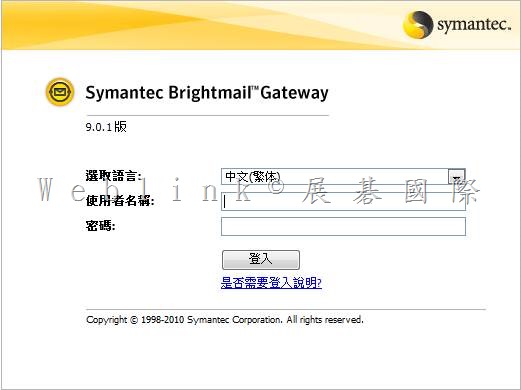
登入Symantec Brightmail Gateway web console
https://ip (https://192.168.1.200)
帳號:admin
密碼:
第一次登入 SBG pre-config console時,密碼是 symantec,不過會立即請你設定新密碼
之後就是以此新密碼來登入 web console
|
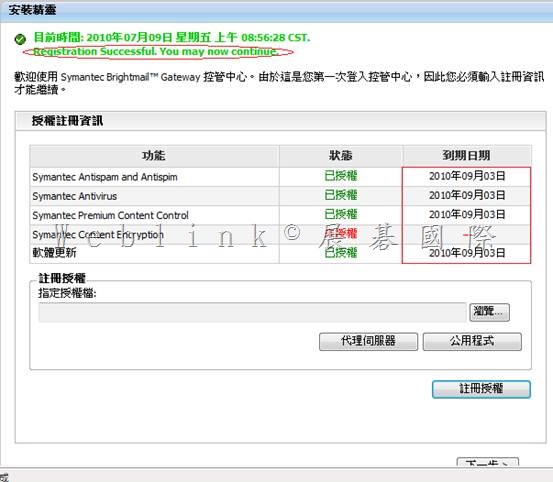
需先取得的資訊 VMWare ESXi 4.0 (IP與使用 VSphere登入ESXi 的帳號 [root]、密碼) SBG FQDN IPx2、Subnet Mask、Gateway、DNS SBG license file (.slf) Notification Mail Address NTP Mail Domain、Forward Mail server or IronPort IP |
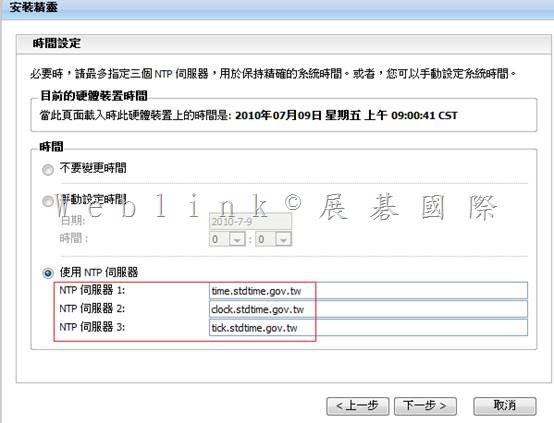
http://www.stdtime.gov.tw/chinese/bulletin/NTP%20promo.txt
time.stdtime.gov.tw
clock.stdtime.gov.tw
tick.stdtime.gov.tw
tock.stdtime.gov.tw
watch.stdtime.gov.tw
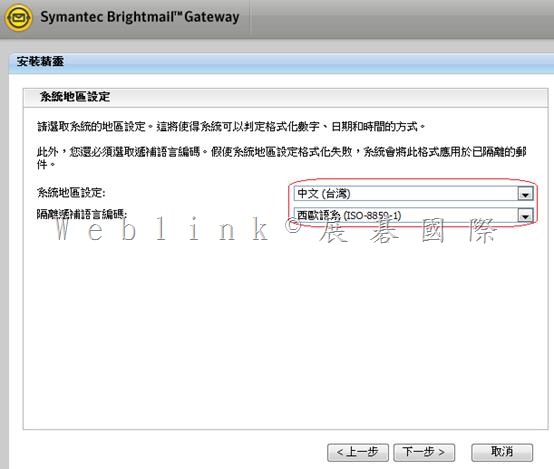
此處請改為 UTF8
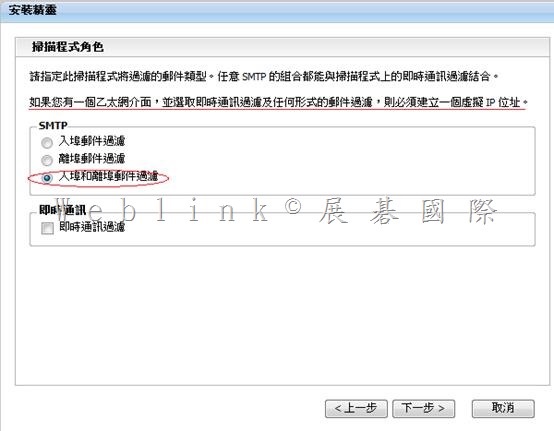
請視需求選取
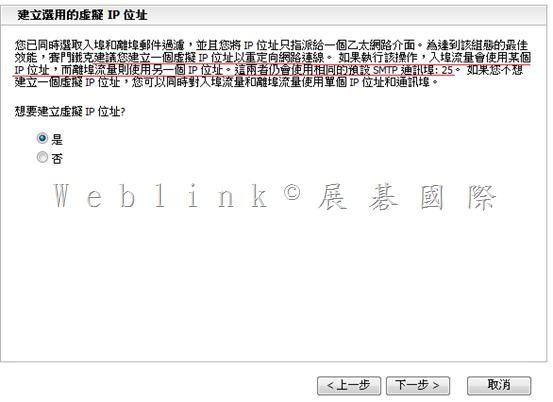
一般使用毋須建立
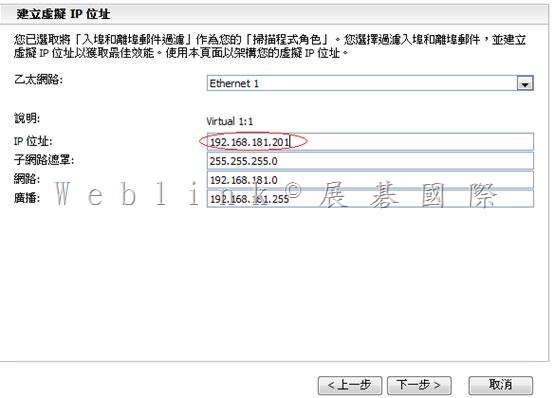
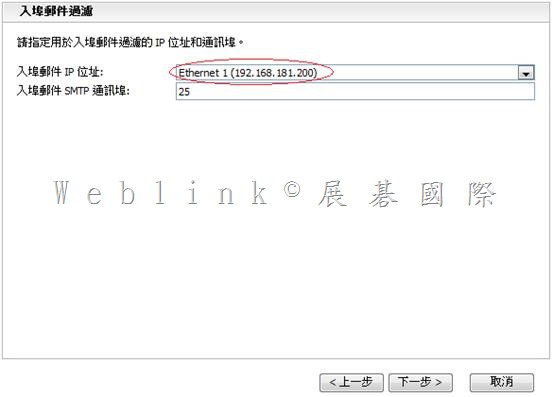
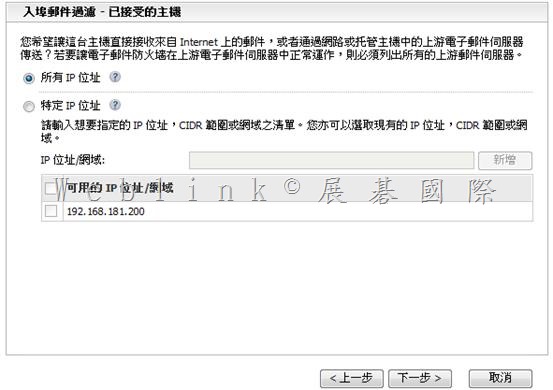
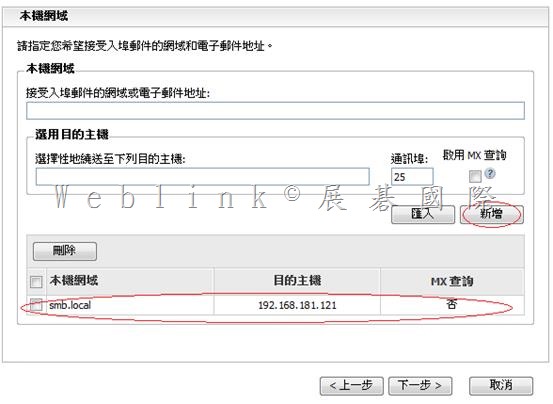
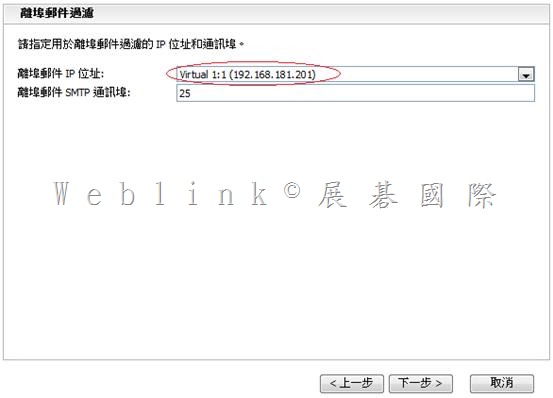
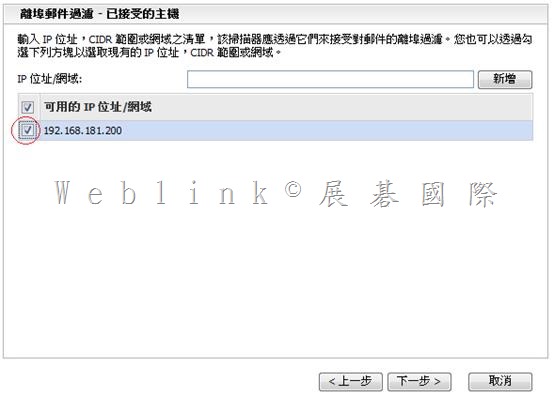
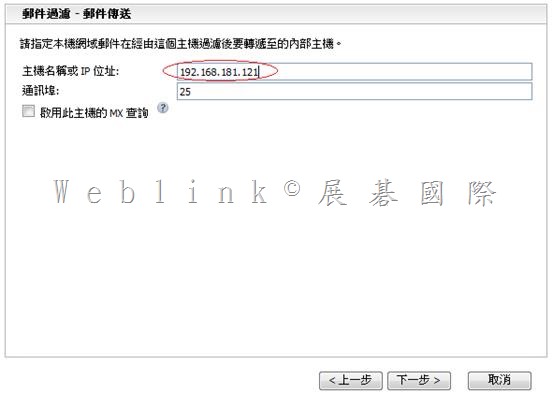
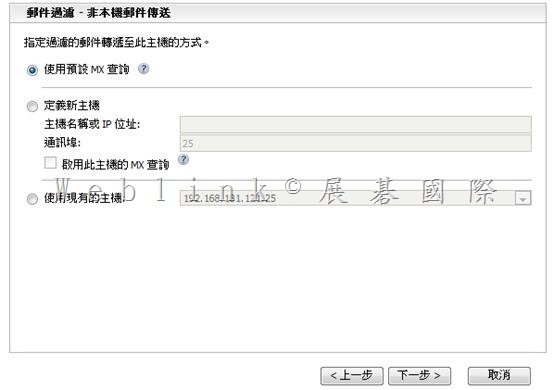
|
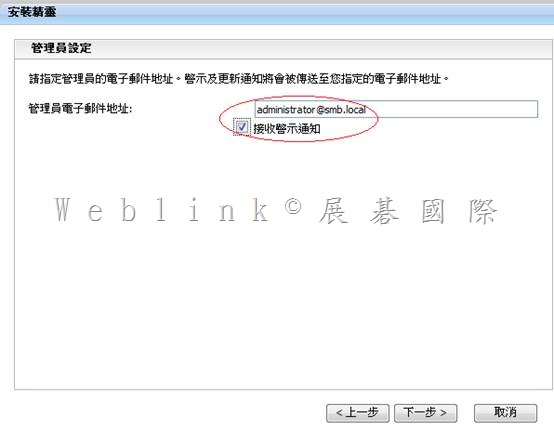
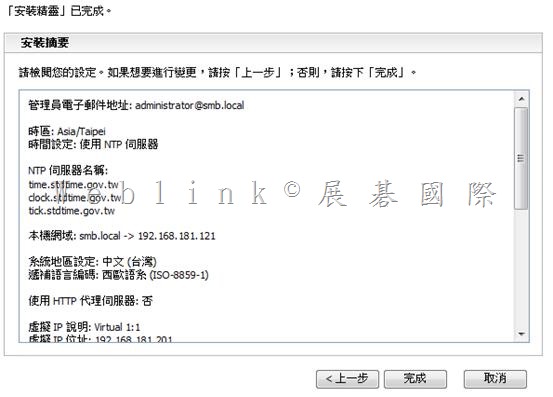
管理員電子郵件地址: administrator@smb.local |
![image_thumb[2]](http://w3c.weblink.com.tw/symantec/wp-content/uploads/sites/4/2014/12/image_thumb22.png "image_thumb[2]")
![clip_image002[4]](http://w3c.weblink.com.tw/symantec/wp-content/uploads/sites/4/2014/12/clip_image00241.jpg "clip_image002[4]")
![clip_image004[4]](http://w3c.weblink.com.tw/symantec/wp-content/uploads/sites/4/2014/12/clip_image00441.jpg "clip_image004[4]")
![clip_image006[4]](http://w3c.weblink.com.tw/symantec/wp-content/uploads/sites/4/2014/12/clip_image00641.jpg "clip_image006[4]")
![clip_image008[4]](http://w3c.weblink.com.tw/symantec/wp-content/uploads/sites/4/2014/12/clip_image00841.jpg "clip_image008[4]")
![clip_image010[4]](http://w3c.weblink.com.tw/symantec/wp-content/uploads/sites/4/2014/12/clip_image01041.jpg "clip_image010[4]")
![clip_image012[4]](http://w3c.weblink.com.tw/symantec/wp-content/uploads/sites/4/2014/12/clip_image01241.jpg "clip_image012[4]")
![clip_image014[4]](http://w3c.weblink.com.tw/symantec/wp-content/uploads/sites/4/2014/12/clip_image01441.jpg "clip_image014[4]")
![clip_image016[4]](http://w3c.weblink.com.tw/symantec/wp-content/uploads/sites/4/2014/12/clip_image01641.jpg "clip_image016[4]")
![clip_image018[4]](http://w3c.weblink.com.tw/symantec/wp-content/uploads/sites/4/2014/12/clip_image01841.jpg "clip_image018[4]")
![clip_image022[4]](http://w3c.weblink.com.tw/symantec/wp-content/uploads/sites/4/2014/12/clip_image02241.jpg "clip_image022[4]")
![clip_image024[4]](http://w3c.weblink.com.tw/symantec/wp-content/uploads/sites/4/2014/12/clip_image02441.jpg "clip_image024[4]")
![clip_image026[4]](http://w3c.weblink.com.tw/symantec/wp-content/uploads/sites/4/2014/12/clip_image02641.jpg "clip_image026[4]")
![clip_image028[4]](http://w3c.weblink.com.tw/symantec/wp-content/uploads/sites/4/2014/12/clip_image02841.jpg "clip_image028[4]")
![clip_image030[4]](http://w3c.weblink.com.tw/symantec/wp-content/uploads/sites/4/2014/12/clip_image03041.jpg "clip_image030[4]")
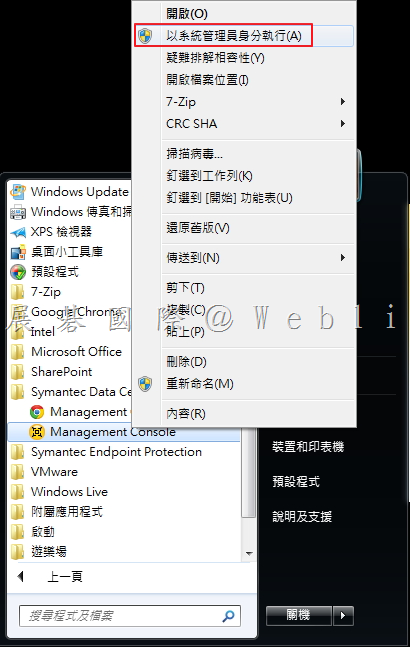
![clip_image002[4]](http://w3c.weblink.com.tw/symantec/wp-content/uploads/sites/4/2014/12/clip_image0024.jpg "clip_image002[4]")
![clip_image004[4]](http://w3c.weblink.com.tw/symantec/wp-content/uploads/sites/4/2014/12/clip_image0044.jpg "clip_image004[4]")
![clip_image006[4]](http://w3c.weblink.com.tw/symantec/wp-content/uploads/sites/4/2014/12/clip_image0064.jpg "clip_image006[4]")
![clip_image008[4]](http://w3c.weblink.com.tw/symantec/wp-content/uploads/sites/4/2014/12/clip_image0084.jpg "clip_image008[4]")
![clip_image010[4]](http://w3c.weblink.com.tw/symantec/wp-content/uploads/sites/4/2014/12/clip_image0104.jpg "clip_image010[4]")
![clip_image012[4]](http://w3c.weblink.com.tw/symantec/wp-content/uploads/sites/4/2014/12/clip_image0124.jpg "clip_image012[4]")
![clip_image014[4]](http://w3c.weblink.com.tw/symantec/wp-content/uploads/sites/4/2014/12/clip_image0144.jpg "clip_image014[4]")
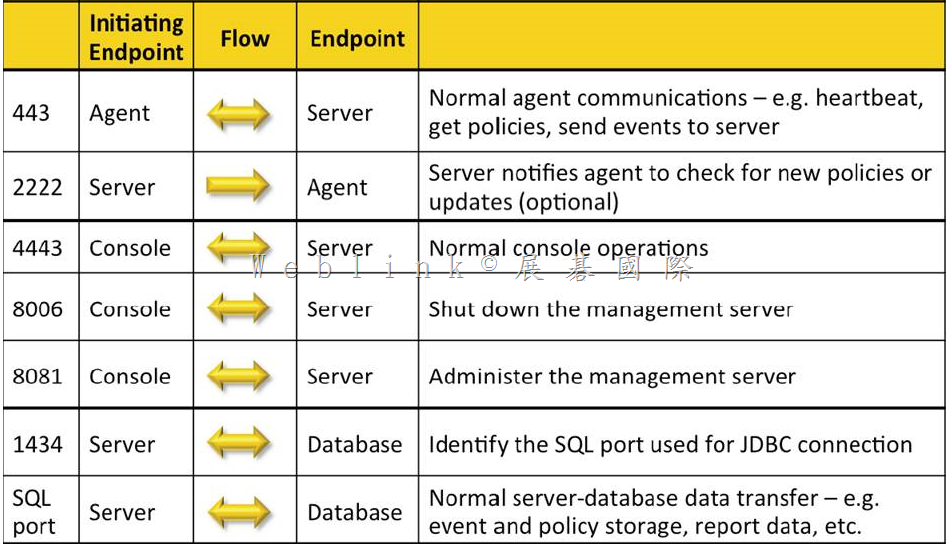
![clip_image016[4]](http://w3c.weblink.com.tw/symantec/wp-content/uploads/sites/4/2014/12/clip_image0164.jpg "clip_image016[4]")
![clip_image018[4]](http://w3c.weblink.com.tw/symantec/wp-content/uploads/sites/4/2014/12/clip_image0184.jpg "clip_image018[4]")
![clip_image020[4]](http://w3c.weblink.com.tw/symantec/wp-content/uploads/sites/4/2014/12/clip_image0204.jpg "clip_image020[4]")
![clip_image022[4]](http://w3c.weblink.com.tw/symantec/wp-content/uploads/sites/4/2014/12/clip_image0224.jpg "clip_image022[4]")
![clip_image024[4]](http://w3c.weblink.com.tw/symantec/wp-content/uploads/sites/4/2014/12/clip_image0244.jpg "clip_image024[4]")
![clip_image026[4]](http://w3c.weblink.com.tw/symantec/wp-content/uploads/sites/4/2014/12/clip_image0264.jpg "clip_image026[4]")
![clip_image028[4]](http://w3c.weblink.com.tw/symantec/wp-content/uploads/sites/4/2014/12/clip_image0284.jpg "clip_image028[4]")
![clip_image030[4]](http://w3c.weblink.com.tw/symantec/wp-content/uploads/sites/4/2014/12/clip_image0304.jpg "clip_image030[4]")
![clip_image032[4]](http://w3c.weblink.com.tw/symantec/wp-content/uploads/sites/4/2014/12/clip_image0324.jpg "clip_image032[4]")
![clip_image034[4]](http://w3c.weblink.com.tw/symantec/wp-content/uploads/sites/4/2014/12/clip_image0344.jpg "clip_image034[4]")
![clip_image036[4]](http://w3c.weblink.com.tw/symantec/wp-content/uploads/sites/4/2014/12/clip_image0364.jpg "clip_image036[4]")
![clip_image038[4]](http://w3c.weblink.com.tw/symantec/wp-content/uploads/sites/4/2014/12/clip_image0384.jpg "clip_image038[4]")
![clip_image040[4]](http://w3c.weblink.com.tw/symantec/wp-content/uploads/sites/4/2014/12/clip_image0404.jpg "clip_image040[4]")
![clip_image042[4]](http://w3c.weblink.com.tw/symantec/wp-content/uploads/sites/4/2014/12/clip_image0424.jpg "clip_image042[4]")
![clip_image044[4]](http://w3c.weblink.com.tw/symantec/wp-content/uploads/sites/4/2014/12/clip_image0444.jpg "clip_image044[4]")
![clip_image046[4]](http://w3c.weblink.com.tw/symantec/wp-content/uploads/sites/4/2014/12/clip_image0464.jpg "clip_image046[4]")
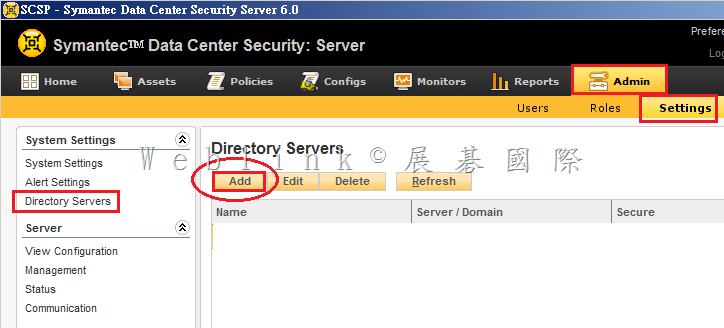
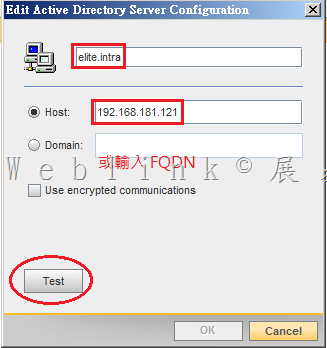
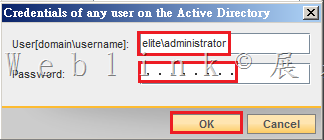
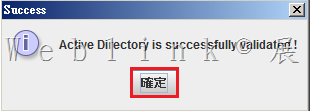
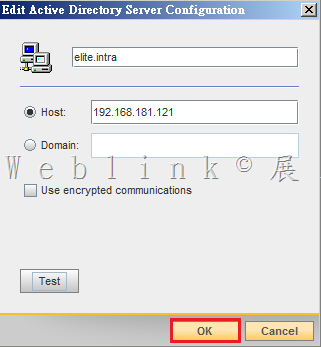
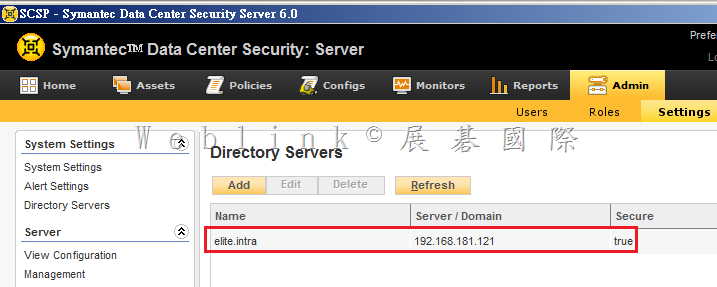
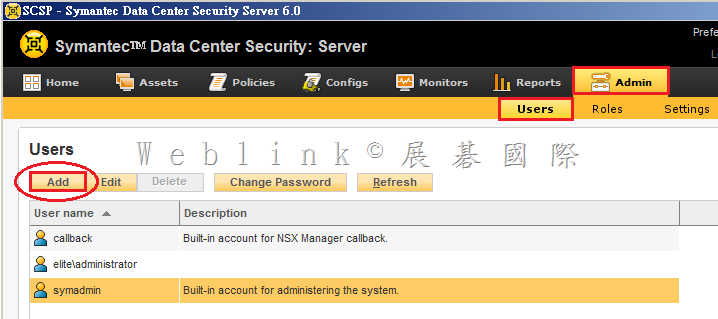
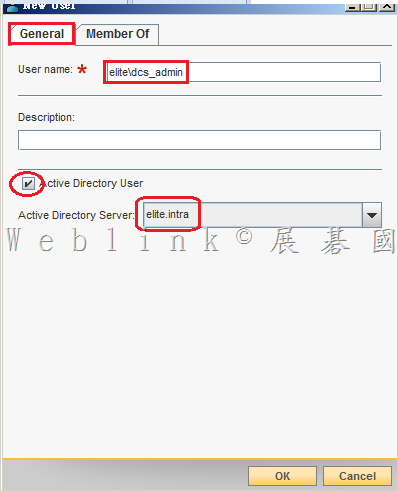
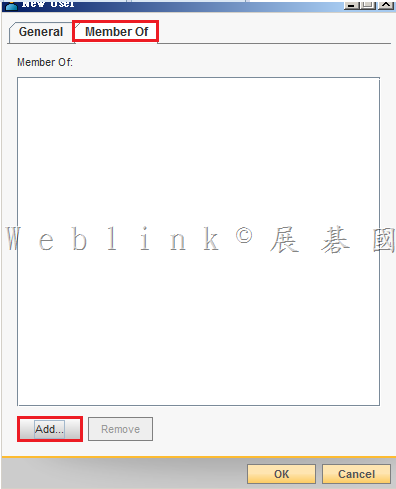
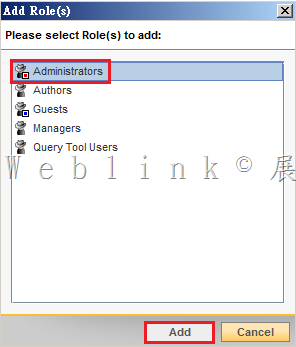
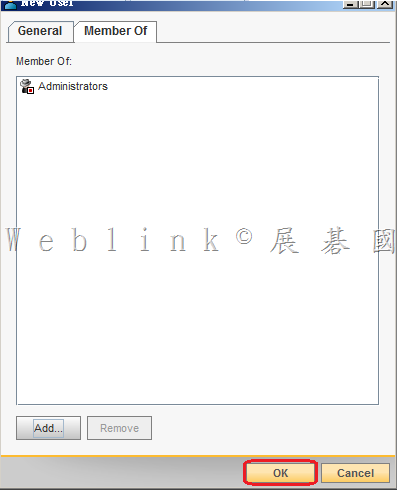
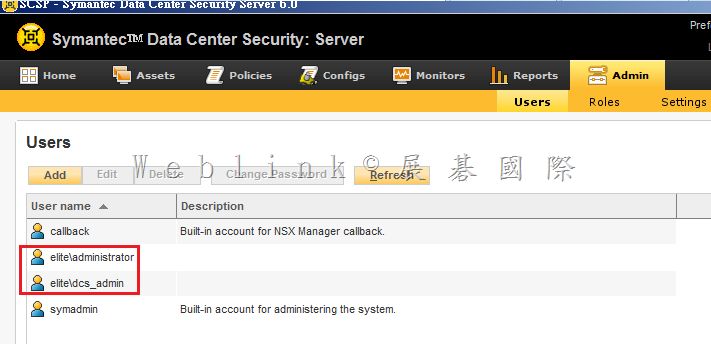

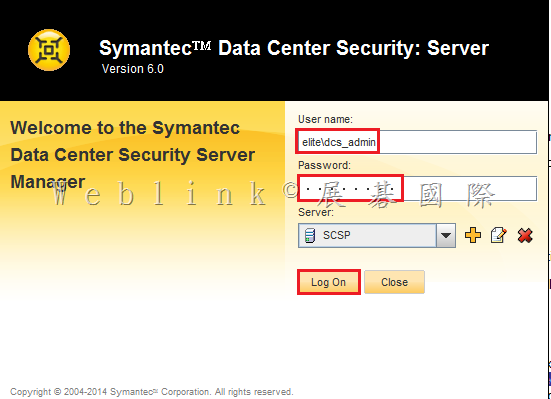
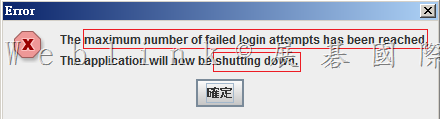
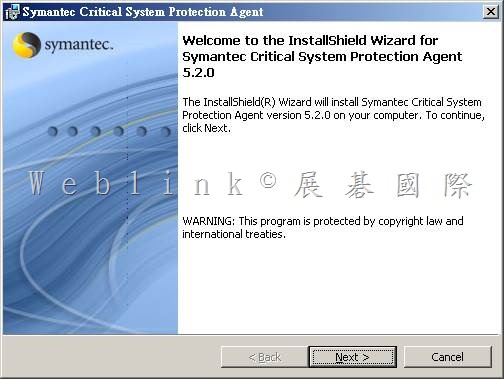
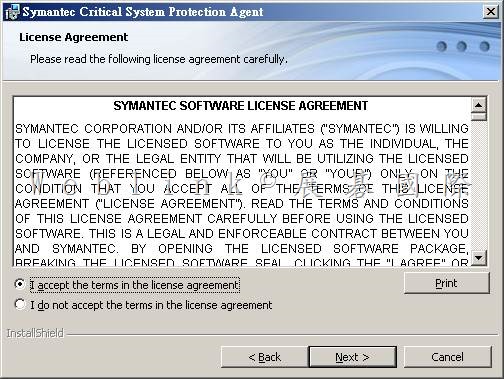
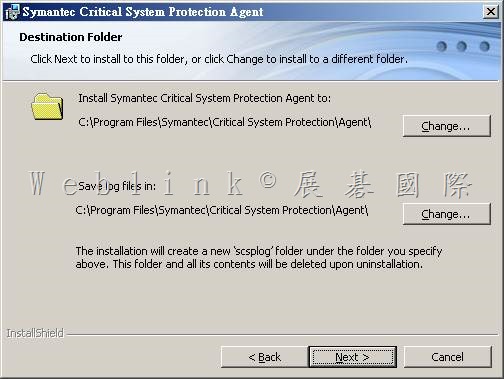
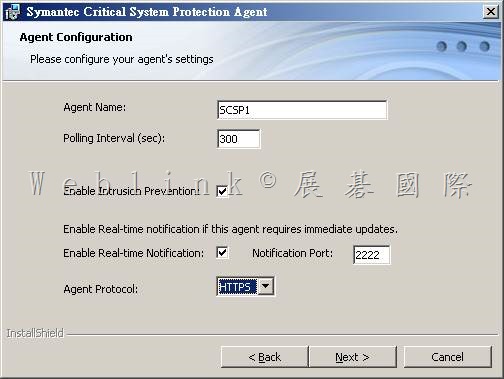
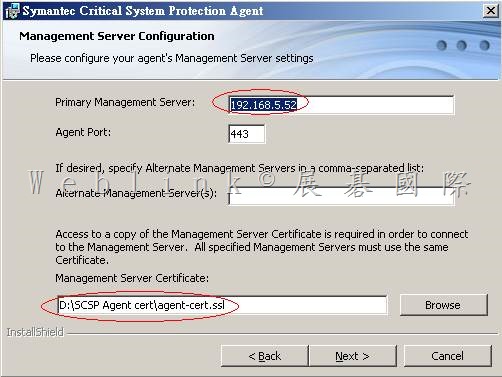
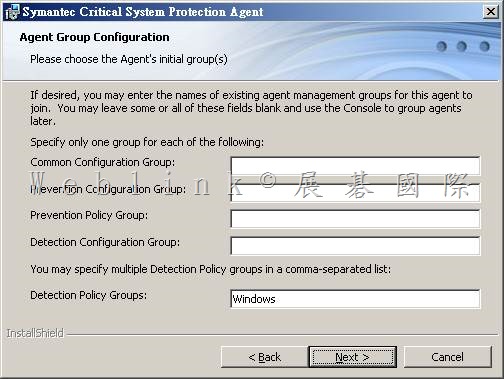
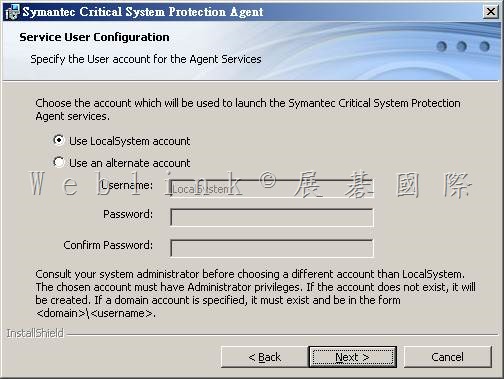
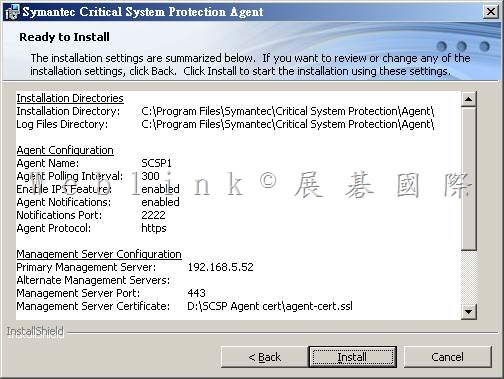
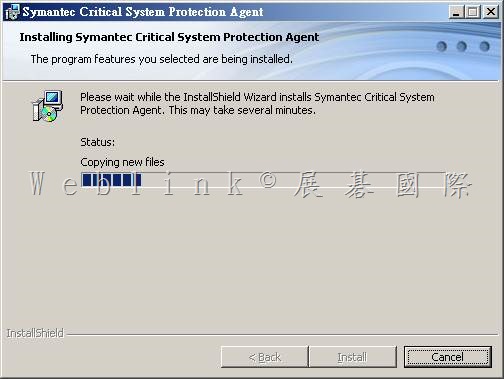
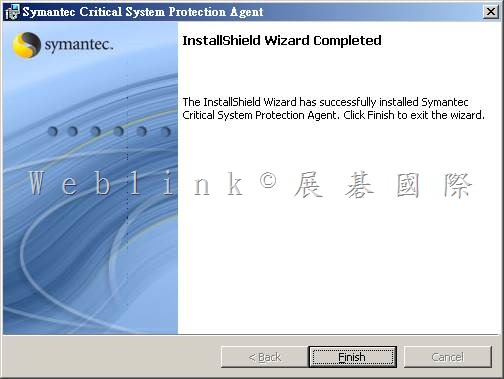
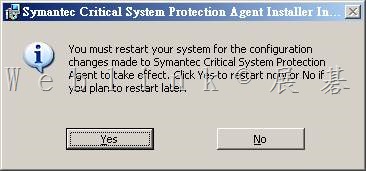
![clip_image002[22]](http://w3c.weblink.com.tw/symantec/wp-content/uploads/sites/4/2014/11/clip_image002221.jpg "clip_image002[22]")
![clip_image004[4]](http://w3c.weblink.com.tw/symantec/wp-content/uploads/sites/4/2014/11/clip_image00441.jpg "clip_image004[4]")
![clip_image006[4]](http://w3c.weblink.com.tw/symantec/wp-content/uploads/sites/4/2014/11/clip_image00641.jpg "clip_image006[4]")
![clip_image008[4]](http://w3c.weblink.com.tw/symantec/wp-content/uploads/sites/4/2014/11/clip_image00841.jpg "clip_image008[4]")
![clip_image010[4]](http://w3c.weblink.com.tw/symantec/wp-content/uploads/sites/4/2014/11/clip_image01041.jpg "clip_image010[4]")
![clip_image012[4]](http://w3c.weblink.com.tw/symantec/wp-content/uploads/sites/4/2014/11/clip_image01241.jpg "clip_image012[4]")
![clip_image014[4]](http://w3c.weblink.com.tw/symantec/wp-content/uploads/sites/4/2014/11/clip_image01441.jpg "clip_image014[4]")
![clip_image016[4]](http://w3c.weblink.com.tw/symantec/wp-content/uploads/sites/4/2014/11/clip_image01641.jpg "clip_image016[4]")
![clip_image018[4]](http://w3c.weblink.com.tw/symantec/wp-content/uploads/sites/4/2014/11/clip_image01841.jpg "clip_image018[4]")
![clip_image020[4]](http://w3c.weblink.com.tw/symantec/wp-content/uploads/sites/4/2014/11/clip_image02041.jpg "clip_image020[4]")
![clip_image022[4]](http://w3c.weblink.com.tw/symantec/wp-content/uploads/sites/4/2014/11/clip_image02241.jpg "clip_image022[4]")
![clip_image024[4]](http://w3c.weblink.com.tw/symantec/wp-content/uploads/sites/4/2014/11/clip_image02441.jpg "clip_image024[4]")
![clip_image026[4]](http://w3c.weblink.com.tw/symantec/wp-content/uploads/sites/4/2014/11/clip_image02641.jpg "clip_image026[4]")
![clip_image028[4]](http://w3c.weblink.com.tw/symantec/wp-content/uploads/sites/4/2014/11/clip_image02841.jpg "clip_image028[4]")
![clip_image030[4]](http://w3c.weblink.com.tw/symantec/wp-content/uploads/sites/4/2014/11/clip_image03041.jpg "clip_image030[4]")
![clip_image032[4]](http://w3c.weblink.com.tw/symantec/wp-content/uploads/sites/4/2014/11/clip_image03241.jpg "clip_image032[4]")
![clip_image002[1]](http://w3c.weblink.com.tw/symantec/wp-content/uploads/sites/4/2014/11/clip_image00211.jpg "clip_image002[1]")
![clip_image004[1]](http://w3c.weblink.com.tw/symantec/wp-content/uploads/sites/4/2014/11/clip_image00411.jpg "clip_image004[1]")
![clip_image006[1]](http://w3c.weblink.com.tw/symantec/wp-content/uploads/sites/4/2014/11/clip_image00611.jpg "clip_image006[1]")
![clip_image008[1]](http://w3c.weblink.com.tw/symantec/wp-content/uploads/sites/4/2014/11/clip_image00811.jpg "clip_image008[1]")
![clip_image010[1]](http://w3c.weblink.com.tw/symantec/wp-content/uploads/sites/4/2014/11/clip_image01011.jpg "clip_image010[1]")
![clip_image012[1]](http://w3c.weblink.com.tw/symantec/wp-content/uploads/sites/4/2014/11/clip_image01211.jpg "clip_image012[1]")

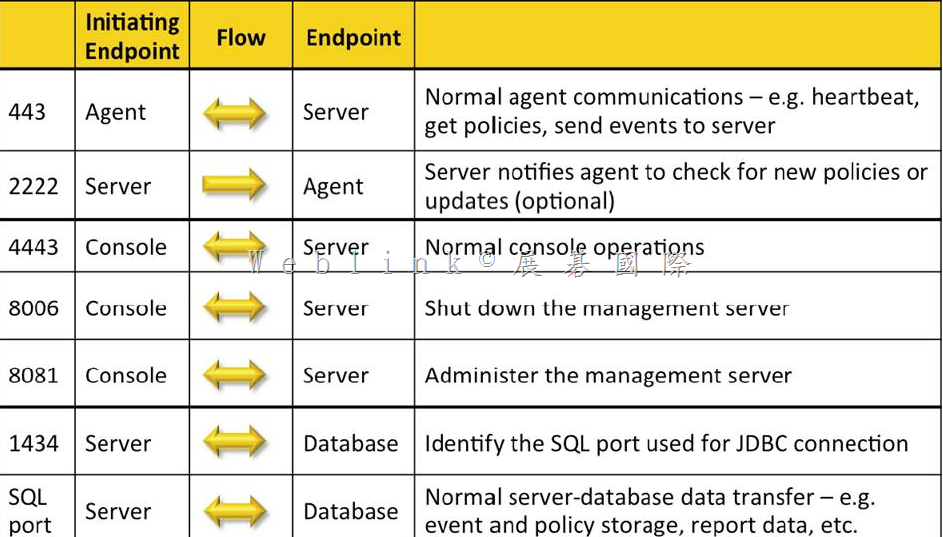
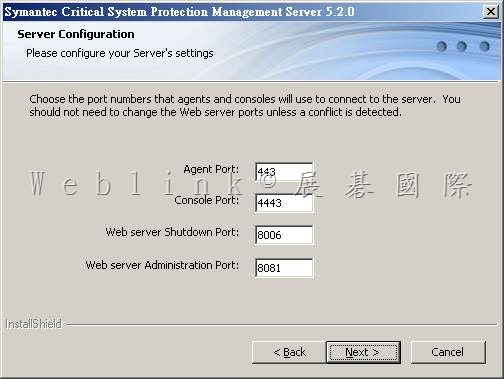
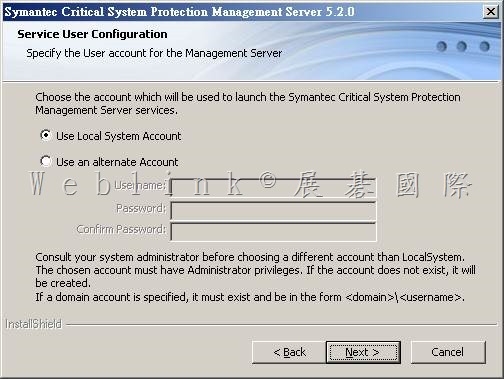
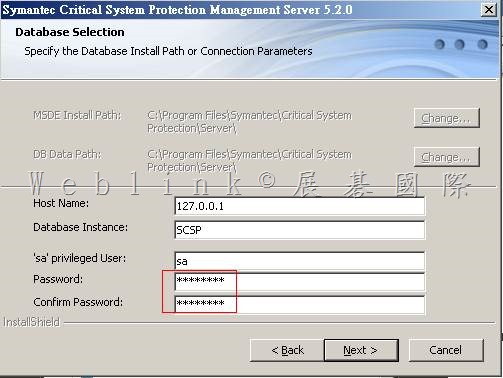
![clip_image022[1]](http://w3c.weblink.com.tw/symantec/wp-content/uploads/sites/4/2014/11/clip_image02211.jpg "clip_image022[1]")
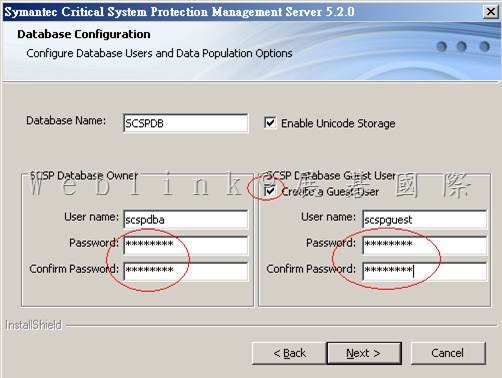
![clip_image026[1]](http://w3c.weblink.com.tw/symantec/wp-content/uploads/sites/4/2014/11/clip_image02611.jpg "clip_image026[1]")
![clip_image032[1]](http://w3c.weblink.com.tw/symantec/wp-content/uploads/sites/4/2014/11/clip_image03211.jpg "clip_image032[1]")